ad blue AUDI A5 COUPE 2018 Owners Manual
[x] Cancel search | Manufacturer: AUDI, Model Year: 2018, Model line: A5 COUPE, Model: AUDI A5 COUPE 2018Pages: 409, PDF Size: 67.63 MB
Page 6 of 409
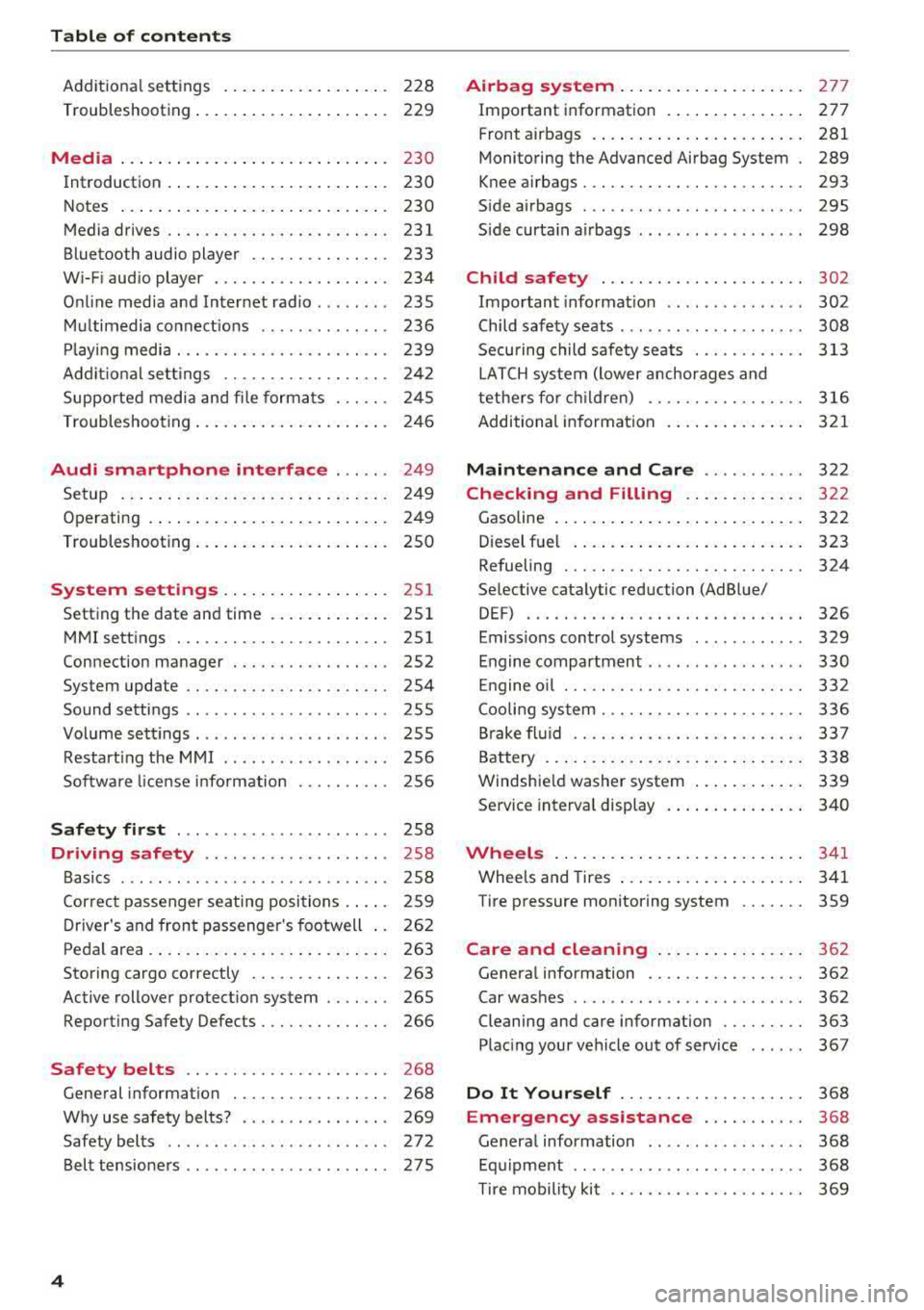
Table of contents
Additional settings . . . . . . . . . . . . . . . . . . 228
Troubleshooting . . . . . . . . . . . . . . . . . . . . . 229
Media ... .. .... ... .......... .. .. ... 230
I ntroduction . . . . . . . . . . . . . . . . . . . . . . . . 230
Notes ... .... .. .. . .......... .. .. ... 230
Media drives . . . . . . . . . . . . . . . . . . . . . . . . 231
Bluetooth audio player . . . . . . . . . . . . . . . 233
Wi-Fi audio player . . . . . . . . . . . . . . . . . . . 234
O nline media and Internet radio . . . . . . . . 235
Mult imedia connect ions . . . . . . . . . . . . . . 236
Pla ying media . . . . . . . . . . . . . . . . . . . . . . . 239
Additional settings . . . . . . . . . . . . . . . . . . 242
Supported media and file formats . . . . . . 245
Troubleshooting. . . . . . . . . . . . . . . . . . . . . 246
Audi smartphone interface . . . . . . 249
Setup . . . . . . . . . . . . . . . . . . . . . . . . . . . . . 249
Operating . . . . . . . . . . . . . . . . . . . . . . . . . . 249
Troubleshooting . . . . . . . . . . . . . . . . . . . . . 250
System settings ........... .. .. .. .
Sett ing the date and time ............ .
MMI settings ..... ........... ...... .
Connection manager .......... .... .. .
System update .. .. . .......... .. .. .. .
Sound settings .. ..... ........... ... .
Volume settings . ................ ... .
Restarting the MMI ... .... .... .. .. .. .
Software license i nfo rmat ion 25
1
251
251
252
254 255
255
256
256
Safety first . . . . . . . . . . . . . . . . . . . . . . . 258
Driving safety . . . . . . . . . . . . . . . . . . . . 258
Bas ics . . . . . . . . . . . . . . . . . . . . . . . . . . . . . 258
Correct passenger seating positions . . . . . 259
Driver's and front passenger's footwell . . 262
Pedal area . . . . . . . . . . . . . . . . . . . . . . . . . . 263
Storing cargo correctly . . . . . . . . . . . . . . . 263
Active rollover protection system . . . . . . . 265
Reporting Safety Defects . . . . . . . . . . . . . . 266
Safety belts ............... .... ... 268
General information . . . . . . . . . . . . . . . . . 268
Why use safety belts? . . . . . . . . . . . . . . . . 269
Safety belts . . . . . . . . . . . . . . . . . . . . . . . . 272
Be lt tensioners . . . . . . . . . . . . . . . . . . . . . . 275
4
Airbag system ... .. ... .......... .. 277
Important information . . . . . . . . . . . . . . . 277
Front airbags . . . . . . . . . . . . . . . . . . . . . . . 281
Monitoring the Advanced Airbag System 289
Knee a irbags. . . . . . . . . . . . . . . . . . . . . . . . 293
S ide air bags . . . . . . . . . . . . . . . . . . . . . . . . 295
S ide curta in air bags . . . . . . . . . . . . . . . . . . 298
Child safety . . . . . . . . . . . . . . . . . . . . . . 302
Important informat ion . . . . . . . . . . . . . . . 302
Child safety seats . . . . . . . . . . . . . . . . . . . . 308
Securing child safety seats . . . . . . . . . . . . 313
LATCH system (lower anchorages and
tethers for children) . . . . . . . . . . . . . . . . . 316
Additional information . . . . . . . . . . . . . . . 32 1
Maintenance and Care . . . . . . . . . . . 322
Checking and Filling . . . . . . . . . . . . . 3 22
Gasoline . . . . . . . . . . . . . . . . . . . . . . . . . . . 322
Diesel fue l . . . . . . . . . . . . . . . . . . . . . . . . . 323
Refueling . . . . . . . . . . . . . . . . . . . . . . . . . . 324
Se lective cata lytic reduction (Ad Blue/
DEF) . . . . . . . . . . . . . . . . . . . . . . . . . . . . . . 326
Emiss ions control systems . . . . . . . . . . . . 329
Engine compartment . . . . . . . . . . . . . . . . . 330
Eng ine oil . . . . . . . . . . . . . . . . . . . . . . . . . . 332
Cooling system . . . . . . . . . . . . . . . . . . . . . . 336
Brake fluid . . . . . . . . . . . . . . . . . . . . . . . . . 337
Battery . . . . . . . . . . . . . . . . . . . . . . . . . . . . 338
Windshield washer system . . . . . . . . . . . . 339
Se rvice interva l display
340
Wheels .......... .. ... .......... .. 3 41
Wheels and Tires . . . . . . . . . . . . . . . . . . . . 341
Tire pressure monitoring system . . . . . . . 359
Care and cleaning . . . . . . . . . . . . . . . . 362
Genera l information . . . . . . . . . . . . . . . . . 362
Car washes . . . . . . . . . . . . . . . . . . . . . . . . . 362
Cleaning and care information . . . . . . . . . 363
Plac ing your vehicle out of serv ice . . . . . . 367
Do It Yourself ... .. ............. .. 368
Emergency assistance . . . . . . . . . . . 368
General information . . . . . . . . . . . . . . . . . 368
Equipment . . . . . . . . . . . . . . . . . . . . . . . . . 368
T ire mobility kit . . . . . . . . . . . . . . . . . . . . . 369
Page 19 of 409

<( a, .... N ,....
N .... 0 \0
3 a,
Third tab Rad io ¢page 18
Media ¢ page 18
Fourth tab Telephone ¢
page 19
a) This tab is only v isible when there is at least one ind icato r
l ight or mess age disp layed.
- Switching tabs : press the !MODE ! button
<=> fig. 12 on the mult ifunction steering wheel
repeatedly unti l the des ired tab is d isp layed .
-Se lect ing a function in the m enu /list : turn the
left thumbwheel on the mult ifunct ion steer ing
whee l to the desired funct ion.
- Confirming a sel ection : press the left thumb
wheel on the multifunction steer ing wheel to
confirm your se lec tion.
- Scrolling within th e lists: turn the left thumb
wheel on the mult if u nction steer ing wheel
quick ly to scroll wi thin the lists.
@ button @;]
- Switching the voice recogn it ion sy stem on :
briefly press the 51 button¢ fig. 13 . Say the
desired command after the
B eep .
- Switching th e vo ice recogn ition sy stem off :
press and hold the 51 button. Or: say the com
ma nd
Cancel.
For more information about the vo ice recognit ion
system, see
<=> page 171, Voice recognition sys
tem
or ¢ page 251.
@ Right thumbwheel
The volume of an audio source or a system mes
sage (such as traffic announcements) can be di
rectly adjusted dur ing the aud io output.
- Inc rea sin g o r decrea sing the volume : turn the
rig ht thumbwhee l
¢ fig. 13 up or down.
- Muting or pausing : turn the right thumbwheel
down.
Or : press the right thumbwhee l.
-Unmuting or resuming : turn the right thumb
whee l up.
Or : press the right thumbwhee l.
Cockpit o ve rv iew
Driver information
system
On-board computer
F ig. 14 Instrument cluster: fuel co nsumpt io n display
Resetting values to zero
Requirement: the Fue l consumption , Short -term
memory or Long-t erm mem ory
d isplay must be
selected.
.. To reset the value for the respective memory to
zero, press and hold the left thumbwheel
(i)
¢ page 13, fig. 7 or @ <=> page 16, fig. 12 on
the multifunction stee ring wheel for one sec
ond. Or
.,. On the multifunction stee ring wheel, select:
the right control button>
Re set value s*.
Ad justing additional displays (Audi virtual
c ockpit)*
.,. Select on the multif unction steering whee l:
right control button >
Additional di splay .
.. Select the desired additional display .
In the first tab (on -board comp ute r), you can c all
u p the following disp lays one after the other by
turning the left thumbwheel on the multifunc
tion steer ing wheel.
- Time and da te
<=>page 251
- Dig ita l speedomete r*
- Average consumption
- Remaining range*
- Ad Blue
range*<=> page 326
- Short-term memory overview
- Long-term memory overview
- Energy consumers
r=> page 18
- Dr iver assistan ce* ¢ page 113
-Traff ic sign recog nition* ¢ page 109
17
Page 30 of 409
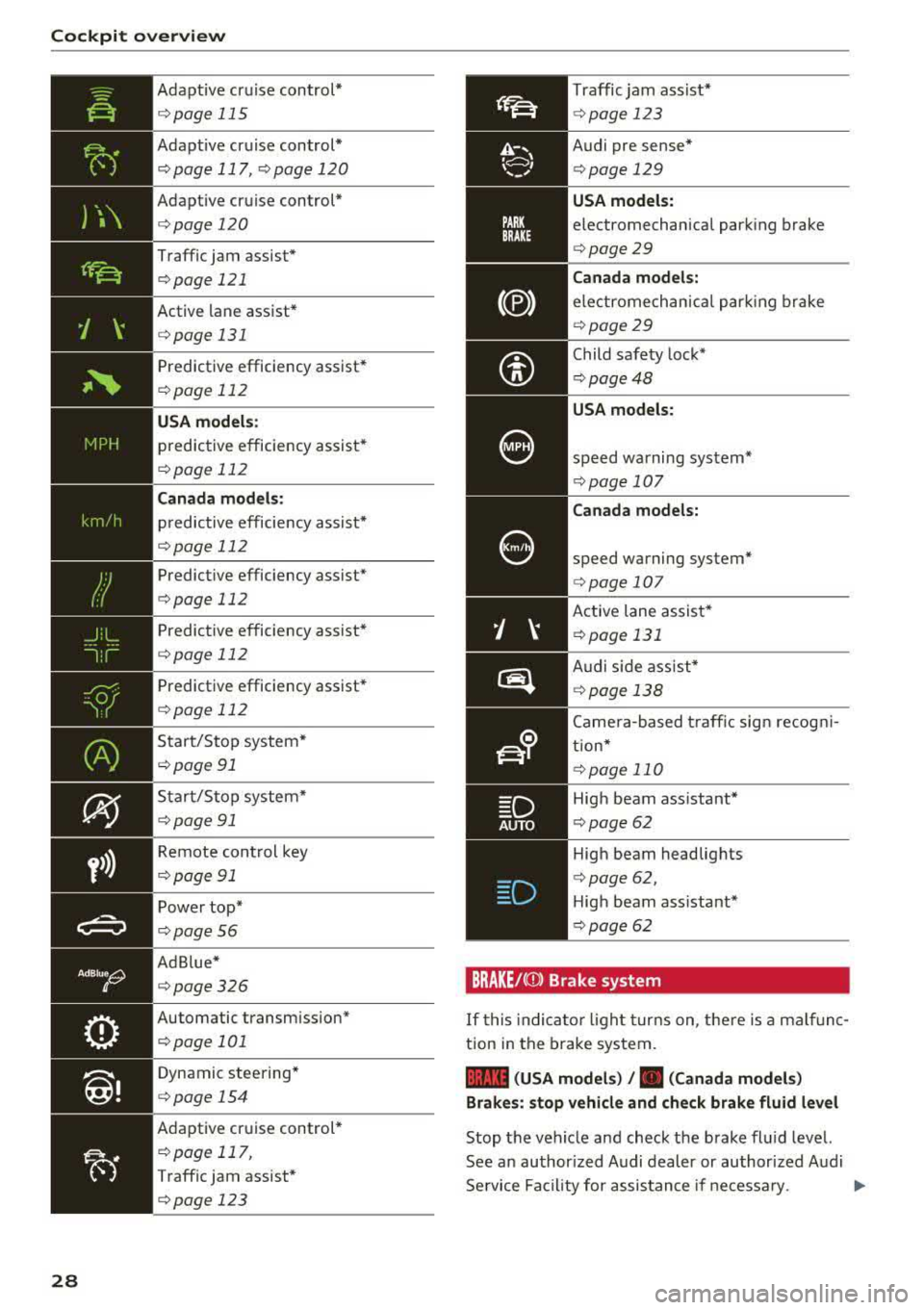
Cockpit over view
y>))
28
Adapt ive cruise control*
¢ page 115
Adapt ive cruise control*
¢ page 117, qpage 120
Adapt ive cruise control*
¢ page 120
Traffic jam assist*
¢page 121
Active lane assist*
¢ page 131
Predictive efficiency assist*
¢page 112
USA models:
predictive efficiency assist*
¢page 112
Canada mod els:
predictive efficie ncy assist*
¢ page 112
Predictive efficiency assist*
¢page 112
Predictive efficiency assist*
~page 112
Predictive efficiency assist*
¢ page 112
Start/S top system *
¢page 91
Start/Stop system*
¢ page 91
Remote cont rol key
¢ page 91
Power top*
¢page56
Ad Blue *
¢page 326
Automatic transm ission*
¢page 101
Dynamic steering*
¢ page 154
Adaptive cr uise control *
¢page 117,
Traffic jam assist*
¢page 123
Traffic jam assist *
¢page 123
Audi pre sense*
¢page 129
USA models:
electromechanical park ing brake
¢ page 29
Canada models:
ele ctromechan ic al par king brake
¢ page 29
Child safe ty lock*
¢ page48
USA models:
speed warning system*
¢page 107
Canada models:
speed warning system*
¢page 107
Active lane assist*
¢ page 131
Audi s ide assist *
qpage 138
Came ra-based traff ic sign re cog ni
tion*
q page 110
High beam ass istant *
¢page 62
High beam headlig hts
¢ page 62,
Hig h beam ass istant*
¢ page 62
BRAKE/( Q)) Brake system
If this indica to r li ght turns on, t he re is a mal func
tion in the brake system.
1111 (USA models ) /. (Canada models )
Brakes : stop vehicle and ch eck brake fluid level
Stop t he veh icle and check t he brake fl uid level.
See a n author ized Audi dealer or au thorized A udi
Se rvice Fa cil ity for assis tance if ne cessa ry.
Page 147 of 409
Switching off
• Drive faster than 6 mph (10 km/h), or
• Press the p,,,A button, or
• Switch the ignition off.
(D Tips
-The visual display in the r ight part of the
display should help you detect the critica l
vehicle area.
- You can change the volume of the signals
and the display
c:!) page 148.
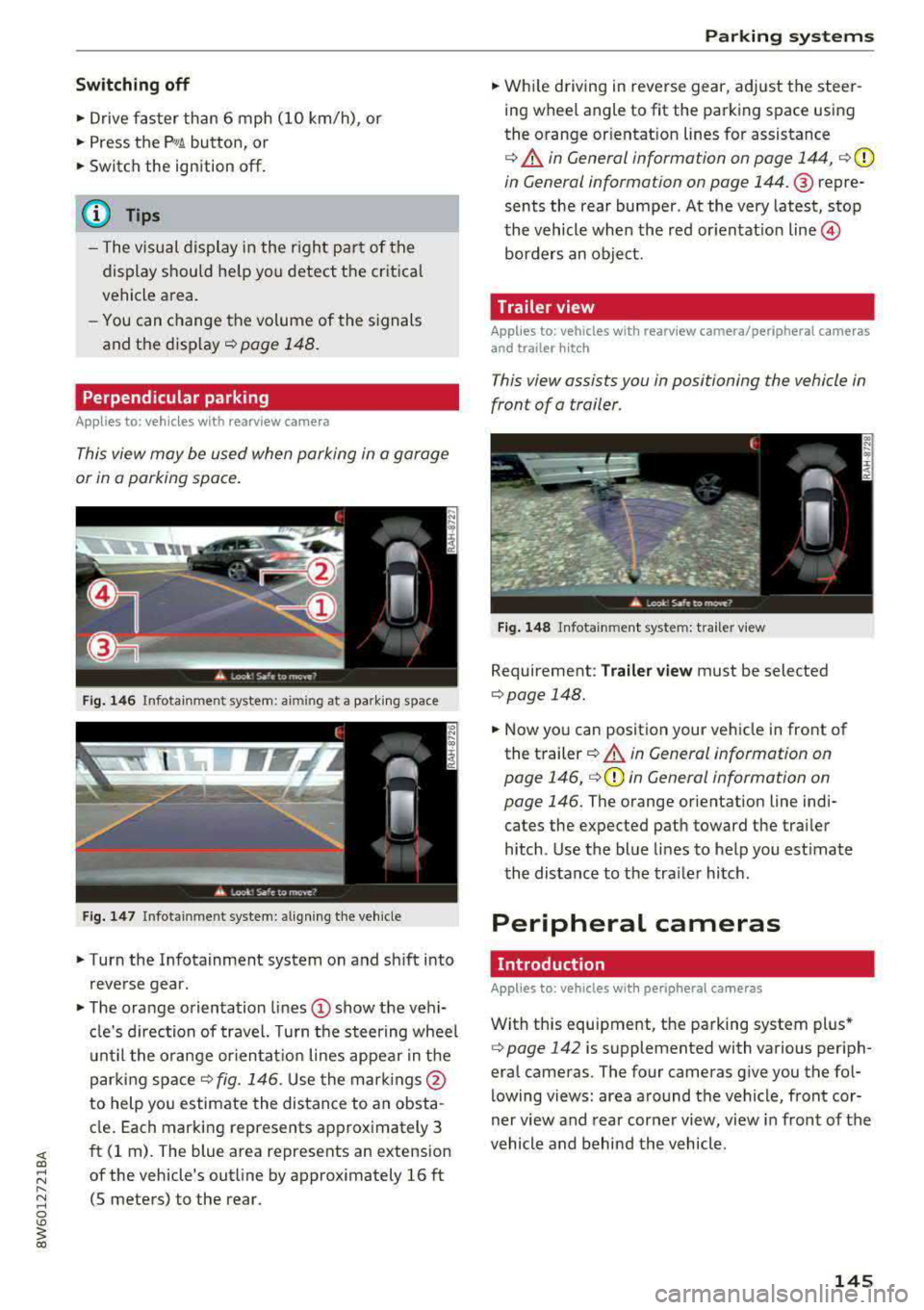
Perpendicular parking
Applies to: vehicles with rearview came ra
This view may be used when parking in a garage
or in a parking space.
Fig. 146 Infotainment system: aiming at a parking space
Fig . 147 Infotainment sys tem: aligning th e vehicle
• Turn the Infotainment system on and sh ift into
reverse gear.
• The orange orientation lines (D show the vehi
cl e's direction of travel. Turn the steering wheel
until the orange orientat ion lines appear in the
parking
space ¢ fig. 146. Use the marking s@
to help you estimate the distance to an obsta
cle. Each marking represents approximately 3
ft (1 rn). The blue area represents an extension
of the vehicle's outline by approx imately 16 ft
(5 meters) to the rear.
Parking systems
• While driving in reverse gear, adjust the steer
ing wheel angle to fit the parking space using
the orange or ientation lines for assistance
¢ &. in General information on page 144, ¢(D
in General information on page 144. ® repre
sents the rear bumper. At the very latest, stop
the vehicle when the red or ientat io n
line ©
borders an object.
Trailer view
Applies to: vehicles with rearview camera/peripheral cameras
and trailer hitch
This view assists you in positioning the vehicle in
front of a trailer.
Fig. 148 Infota inment system: trailer view
Requirement: Trailer view must be selected
¢page 148.
• Now you can position your vehicle in front of
the trailer
c:!) &. in General information on
page 146,
¢ (D in General information on
page 146.
The orange orientation line indi
cates the expected path toward the trai ler
h itch. Use the blue lines to help you estimate
the distance to the tra iler hitch.
Peripheral cameras
Introduction
Applies to: vehicles wit h periph eral cameras
With this equipment, the parking system plus*
c:> page 142 is supplemented with various periph
eral cameras. The four cameras give you the fo l
lowing views: area around the vehicle, front cor
ner view and rear corner view, view in front of the
vehicle and behind the vehicle.
145
Page 171 of 409
<( a, .... N ,....
N .... 0 \0
3 a,
@
@
@
@
@
@
@
@)
@)
@
@
@
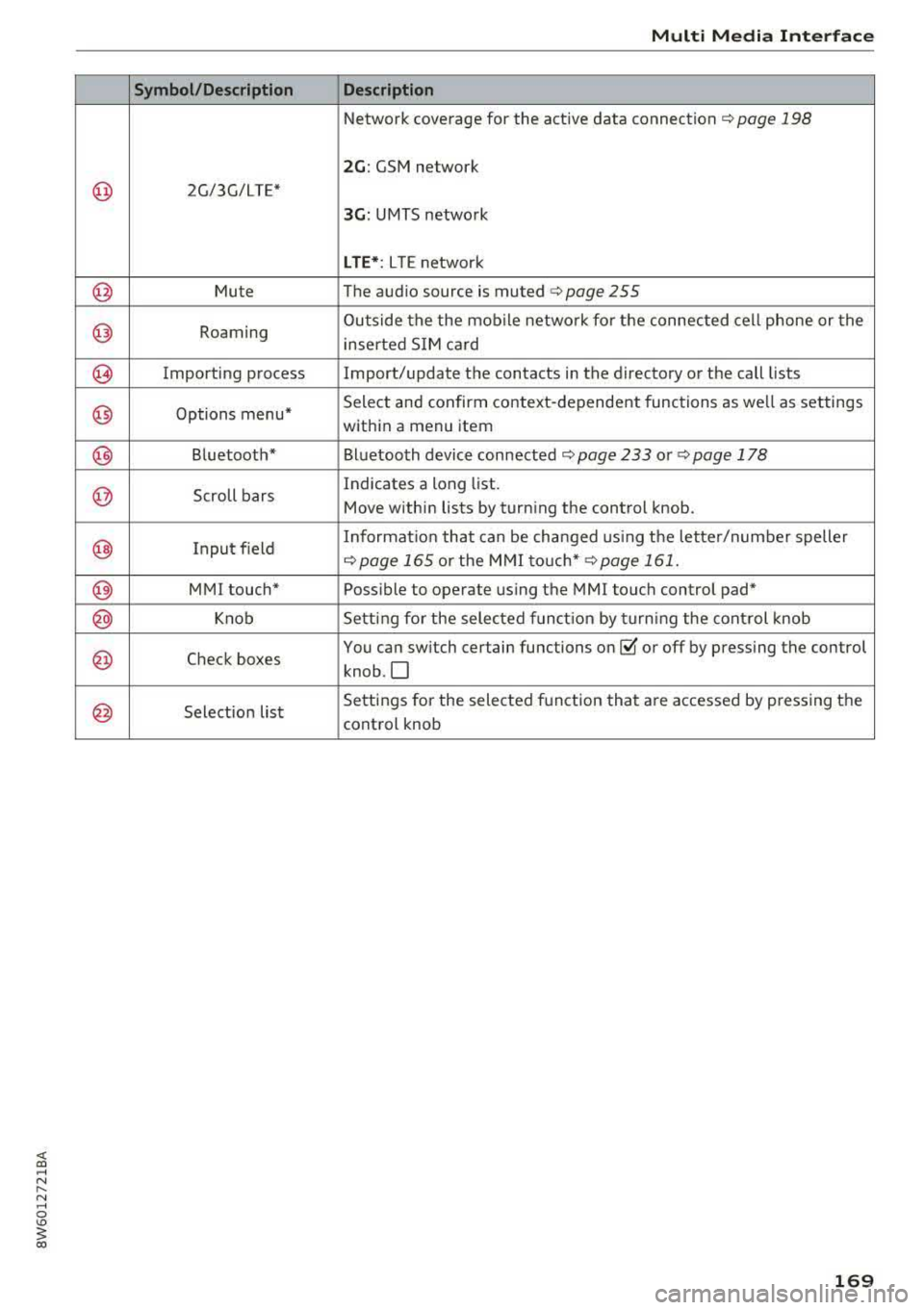
Symbol/Description
2G/3G/LTE*
Mute
Roaming
Importing process Options menu*
Bluetoot h*
Scroll bars
Input f ield
MMI touch* Knob
Check boxes
Selection list
Multi Media Interfac e
Description
Network coverage for the active data connection~ page 198
2G : GSM network
3G: UMTS network
LTE *: L T E network
The audio source is
muted ¢ page 255
Outside the the mob ile netwo rk fo r the connec ted cel l phone or the
inserted S IM ca rd
Import/update the contacts in the directory or the call lists
Select and confirm context-dependent functions as we ll as settings
w ith in a menu item
Bl uetooth device connected
¢ page 233 or ~ page 178
Indicates a long list.
Move within lists by turning the control knob.
Informat io n that ca n be changed using t he letter/numbe r speller
~page 165 or the M MI to uch* ~ page 161.
Poss ible to operate using the MMI touch control pad*
Setting fo r the selected f unct ion by turning the cont rol knob
You can sw itch certain functions
on~ or off by pressing the control
knob .O
Settings for the selected f unct ion tha t are accessed by pressing the
control knob
169
Page 172 of 409
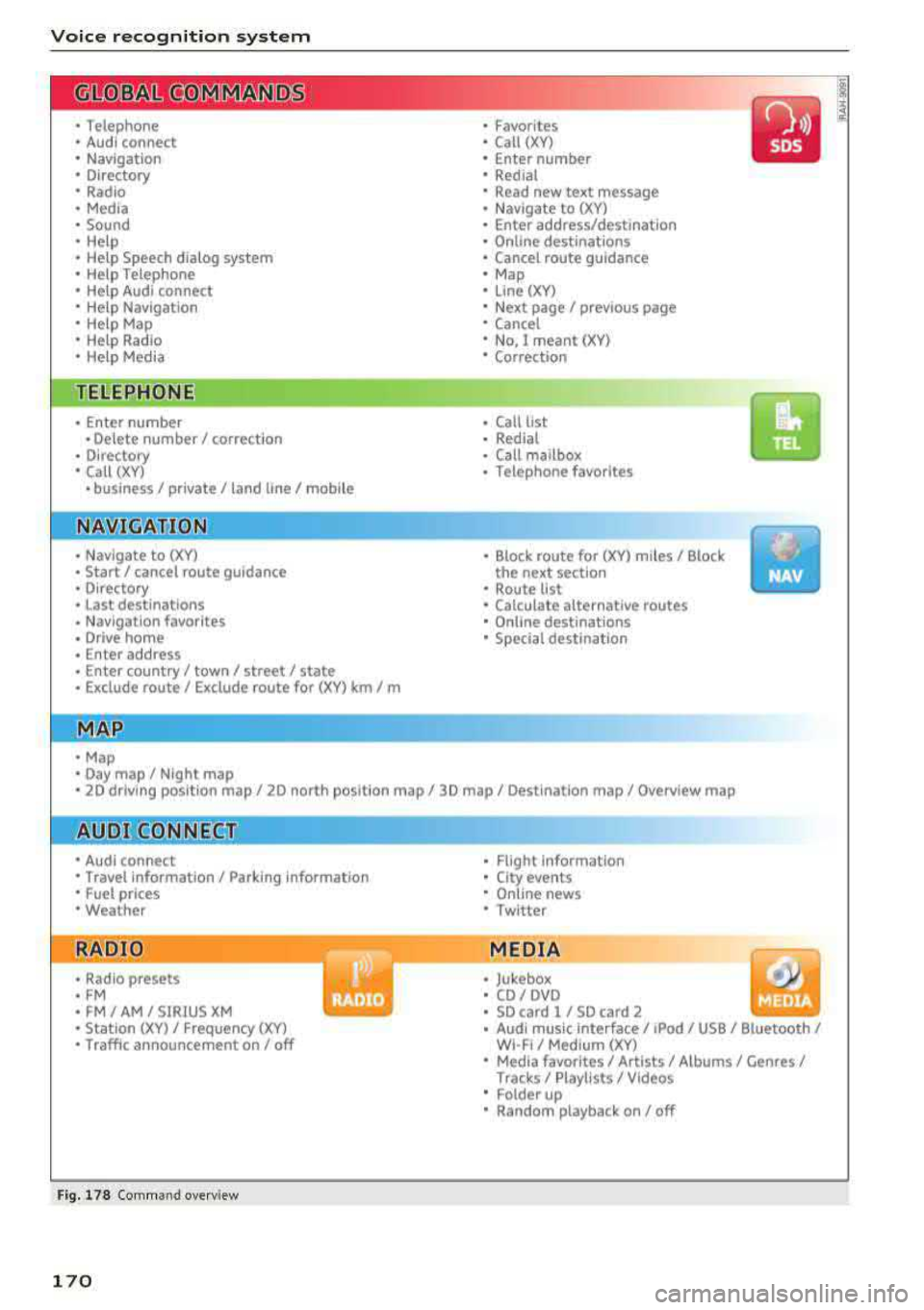
Voice recognition system
• Telephone
• Audi connect •
Favorites
• Call (XV)
• Navigation
• Directory
• Radio
• Media
• Sound •
Enter number
• Redial
• Read new text message
• Navigate to
(XY)
• Enter address/destination
• Help • Online destinations
• Help Speech dialog system
• Help Telephone •
Cancel route guidance
• Map
• Help Audi connect •
Line
(XV)
• Help Navigation
• Help
Map
• Help Radio •
Next page/ previous page
• Cancel
• No. I meant (XV)
• He lp Media • Correction
TE ,EPflON ~
• Enter number • Call list
• Delete number/ correction • Redial
•
Directory
• Call (XV)
• Call mailbox
• Telephone favorites
· business/ private/ land tine
I mobile
• Nav igate to
(XV)
• Start I cancel route guidance
• Directory
• Last destinations •
Block route for (XV) miles
I Block
the next section
• Route list
• Calculate alternative routes
• Nav igation favorites
• Drive home
• Enter address •
Online destinations
• Special destination
• Enter country
I town I street/ state
• Exclude route/ Exclude route for
(XV) km/ m
• Map
• Day map/ Night map
• 2D
driving position map/ 20 north position map/ 3D map/ Destination map/ Overview map
~UJDI CONNECT
• Audi connect
• Travel Information/ Parking Information
• Fuel prices
• Weather
RADIO
• Radio presets
• FM
• FM /AM/ SIRIUS XM
• Station (XY) / Frequency (XV)
• Traffic announcement on
I off
Fig. 178 Comm and overv iew
170
•
• Flight Information
•
City events
• Online news
• Twitter
MEDIA
• Jukebox
• CD
I DVD
• SD card l / SD card 2
• Audi music Interface/ I Pod/ USB / Bluetooth /
WI -Fl/ Med ium (XV)
• Media favorites / Artists / Albums / Genres /
Tracks/ Playllsts / Videos
• Folder up
• Random playback on/ off
Page 175 of 409
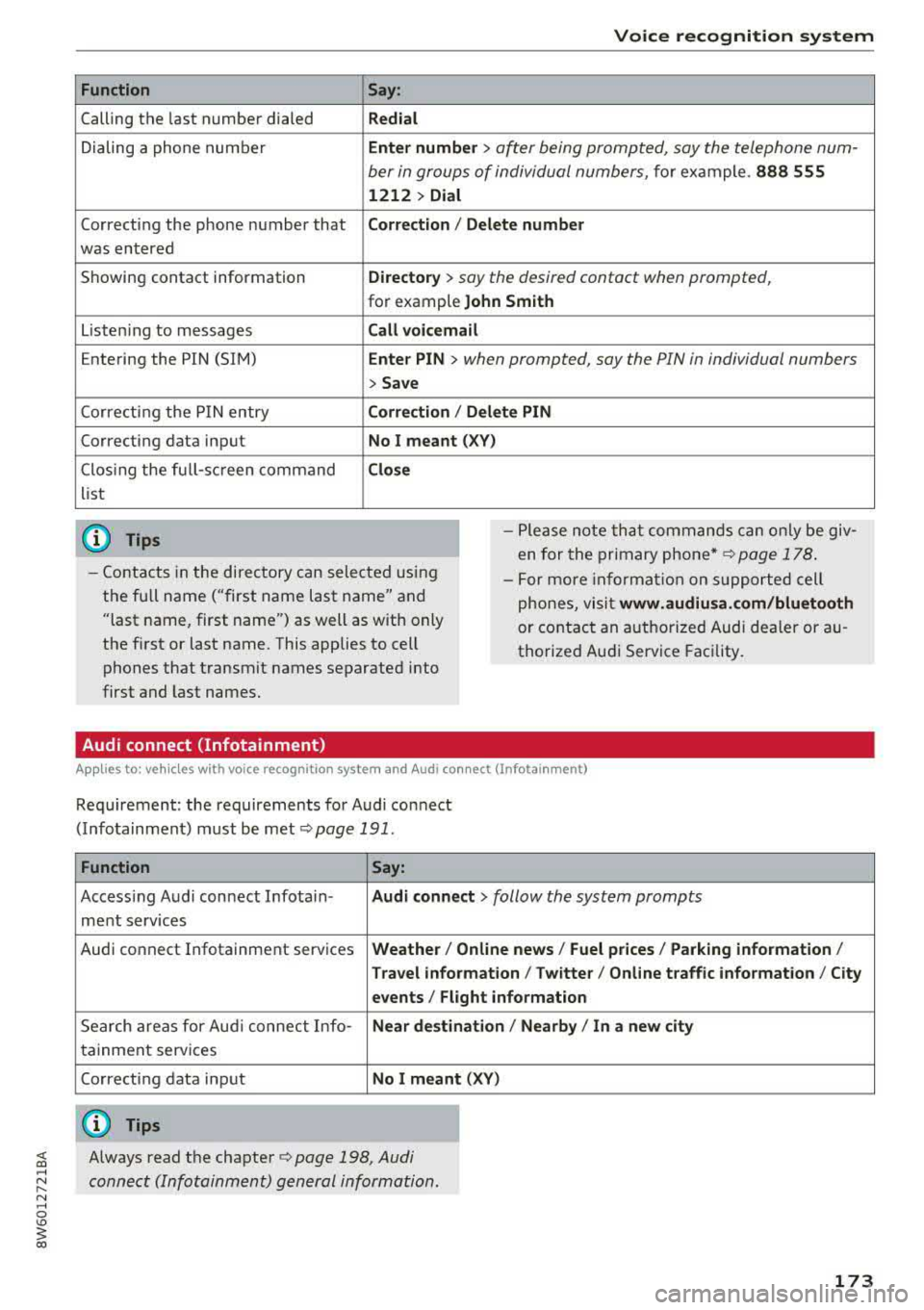
Function
Calling the last number dialed
Dialing a phone numbe r
Correcting the phone number that
was entered
Showing contact information
L isten ing to messages
Entering the PIN (SIM)
Corre cting the P IN entry
Correcting data input
Clos ing the full-sc reen command
list
@ Tips
Voice recognition system
Say :
Redial
Enter number
> ofter being prompted, soy the telephone num-
ber in groups of individual numbers,
fo r example. 888 555
1212 > Dial
Corr ection
I Delete numb er
Directory
> soy the desired contact when prompted,
for example John Sm ith
Call voicemail
Ente r PIN
> when prompted, soy the PIN in individual numbers
> Save
C o rr ection / Delete PIN
No I meant ( XV)
Close
- Please note that comm ands can only be giv
en for the primary
phone *~ page 178 .
-Contacts in the directory can sele cted us ing
the fu ll name ("first name last name" and
"last name, first name") as well as with only
the f irst or last name. This applies to cell
phones that transmit names separated into
first and last names. -
For more informat ion on s upported cell
phones, visi t
www.audiusa. com /bluetooth
or contact an a uthorized Audi dea ler or au
thorized Audi Service Facility.
Audi connect (Infotainment)
A ppl ies to: ve hicles with vo ice recognition system and Audi co nnect (Infotainment)
Requirement: the requirements for Audi connect
(Infotainment) m ust be
met ¢ page 191 .
Function Say:
Accessing Audi connect Infotain-Aud i connect > follow the system prompts
ment serv ices
Audi connect Infotainment services
Weather / Online new s/ Fuel pr ices/ Parking information /
T rav el info rmation / Twitte r/ Onl ine t raffic info rmation / City
e v ents / Flight informat ion
Search areas for Aud i connect Info-Near de stin ation / Nearb y/ In a new city
tainment serv ices
Correcting data input
No I meant (XV)
(D Tips
;;§ Always read the chapter ¢ page 198, Audi ....
~ connect (Infotainment) general information.
N .... 0 \0
3
Page 176 of 409
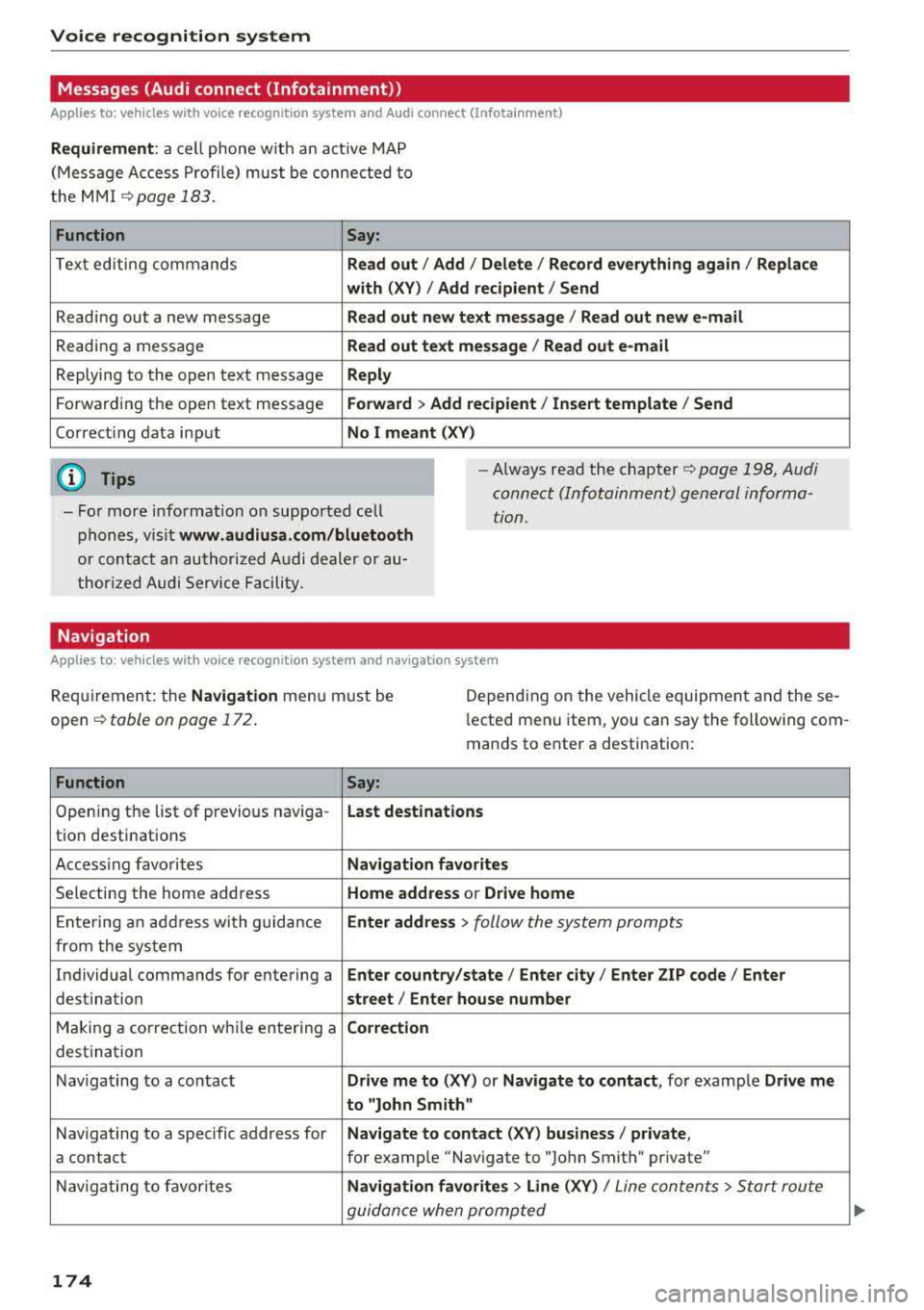
Voice recognition system Messages (Audi connect (Infotainment))
Applies to: vehicles with voice recognition system and Audi connect (Infotainment)
Requirement : a ce ll phone w ith a n active MAP
(Message Access Profi le) mus t be connected to
t he MMI
¢page 183 .
Function Say:
T ext ed iti ng commands Read out /Add i/ Delete / Re cord everything again / Replace
with (XV )/ Add recipient / Send
Reading out a new message Read out new te xt me ssage / Re ad out new e-mail
Reading a message Read out text message / Read out e-mail
Replying to the open text message Reply
Forwarding the open text message Forward > Add recipient / Insert template / Send
Correcti ng data inp ut No I meant (XV)
@ Tips
-Fo r more information on suppo rted cell
p hones, v is it www .audiusa.com /bluetooth
or contact an authori zed A udi dealer or au
thori zed Audi Service Facili ty.
-Always read the chapter¢ page 198 , Audi
connect (Infotainment) general informa
tion.
Navigation
Applies to : vehicles with voice recognition system and navigation system
Requiremen t: the Navigation menu m ust be
open
¢ table on page 172 .
Depending on the vehicle equipmen t an d these
l ected menu item, you can say the following com
mands to enter a destination:
Function Say:
Open ing the list of previous naviga -Last destinati ons
tio n destinations
Access ing favo rites Navigation favorites
Selecting the home add ress Home address or Drive home
E nte ring a n add ress wi th guidance Enter address
> follow the system prompts
from the system
Individua l comma nds for entering a Enter country/state / Ente r city / Enter ZIP code / Enter
destination street/ Enter house number
Making a co rrection wh ile entering a Correction
destination
Naviga ting to a contact Drive me to
(XY) or Navigate to contact , for examp le Drive me
to "John
Smit h"
Navigating to a specific address for Navigate to conta
ct (XV ) business / private ,
a contact for example "Navigate to "John Smith " private"
Nav iga ting to f avorite s Navigation favorites > Line (XV) /
Line contents> Start route
guidan ce when promp ted
174
Page 178 of 409
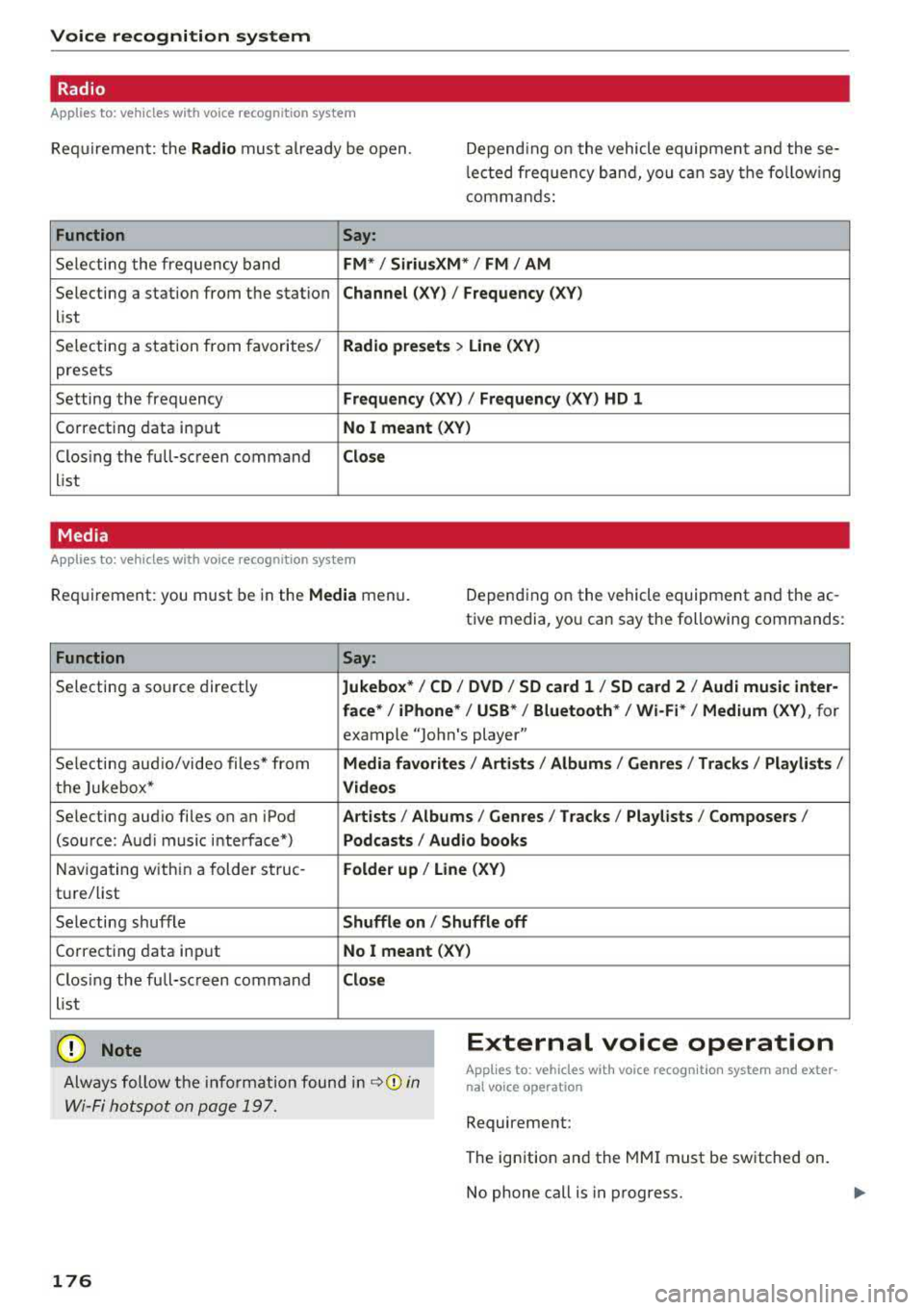
Voice recognition system Radio
Applies to: vehicles with voice recognition system
Requirement: the Radio mus t already be open. Depend ing o n the vehicle equipment and these
l e cted frequency band, you ca n say the fo llow ing
commands :
Function
Say:
Selecting the frequency band FM*/ Siriu sXM * / FM / AM
Selecting a station from the station Channel (XV) / !Frequency (XV)
list
Selecting a station from favorites/
Radi o pre sets > Line (XV)
presets
Setting the frequency
Frequency (XV) / Frequency (XV ) HD 1
Correcting data inp ut No I meant (XV)
Closing the full-sc reen command Clo se
list
Media
Applies to: vehicles with voice recognition system
Requirement: you must be in the Med ia menu. Depending on the vehicle equipment and the ac
tive media, you can say the following commands :
Function
Say:
Selecting a source directly Jukebo x*/ CO/ DVD / SO ca rd 1 / SO card 2 / Aud i music inte r-
face *
I iPhone* / USB * / Bluetooth* / Wi-Fi * / Medium (XV), for
example "John 's player"
Selecting aud io/video files* from
M edia favor ites/ Arti sts / Album s/ Genres / Tr ack s/ Playli st s /
the Jukebox* Video s
Selecting aud io files on an iPod Art ists / Albu mis / Genre s I Tracks / Pla ylists / Composer s I
(source: Audi music interface*) Podcast s / Audio books
Naviga ting within a folder struc -Folder up / Line (XV )
tu re/list
Selecting shuffle
Shuffl e on I Shuffle off
Correcting data inp ut No I meant (XV)
Closing the full-sc reen command Close
list
CJ) Note External voice operation
Always follow the info rmation found in ~CD in
Wi-Fi hotspot on page 197.
Applies to: vehicles with voice recognition system and exter
nal vo ice operation
Requirement:
176
The ignition and the MM I must be switched on.
No phone call is in p rogress.
Page 180 of 409
Telephone
Telephone Introduction
Applies to: vehicles with telephone
To make phone coils in your vehicle using the
/11/111, connect your cell phone to the /11/111 via
Bluetooth.
Hand sfree
Afte r you have connected you r ce ll phone to the
MMI via Bluetooth , you can use the handsfree
system and operate telephone functions through
your MMI. You can make calls using the antenna on your cell phone.
A WARNING
- Med ical experts warn that cell phones can
interfere w ith the funct ion of pacemakers .
Always mainta in a m inimum d istance of 20
cent imeters between the cell phone anten
na and the pacemaker.
- Do not carry the cell phone in a pocket di
rectly over the pacemaker when the phone
is switched on.
- Sw itch the cell phone off immediately if
you suspect it may be interfering w ith the
pacemaker.
- Do not use the vo ice recognit ion system*
Q poge 171 in emergencies because your
vo ice may change in stressful situations . It
may take longer to dial the number or the
system may not be able to dial it at all. Dial
the emergency numbe r manua lly.
- Switch your cell phone off in areas where
there is a risk of an exp losion . These loca
tions are not always clearly mar ked. This
may include gas stations, fuel and chemical
storage facilities or transport vehicles, or lo cations where fue l vapors (such as propane
or gaso line vapor in vehicles or bui ldings),
chemicals or large quantities of dust parti
cles (such as flour, sawdust or metal) may
be present in the air. This also applies to all
other locations where you would normally
turn yo ur vehicle engine off .
- The demands of traffic requ ire yo ur full at
tent ion . Always read the chapter
Q page 158, Traffic safety information.
178
-
(D Note
A lways fo llow the information found in Q @ in
Wi-Fi hotspot on page 197.
@ Tips
-The Bluetooth connect ion range is limited
to inside the vehicle. It can also be affected by local condit ions and interference with
other devices.
- To learn which Bluetooth connections and
wh ich of the funct ions in your cell phone are
supported, check with your cell phone serv ice provider or the database for mob ile devi
ces at
www .audiu sa.com /bluetooth .
Setup
Connecting a cell phone using Bluetooth
Applies to: vehicles with telephone
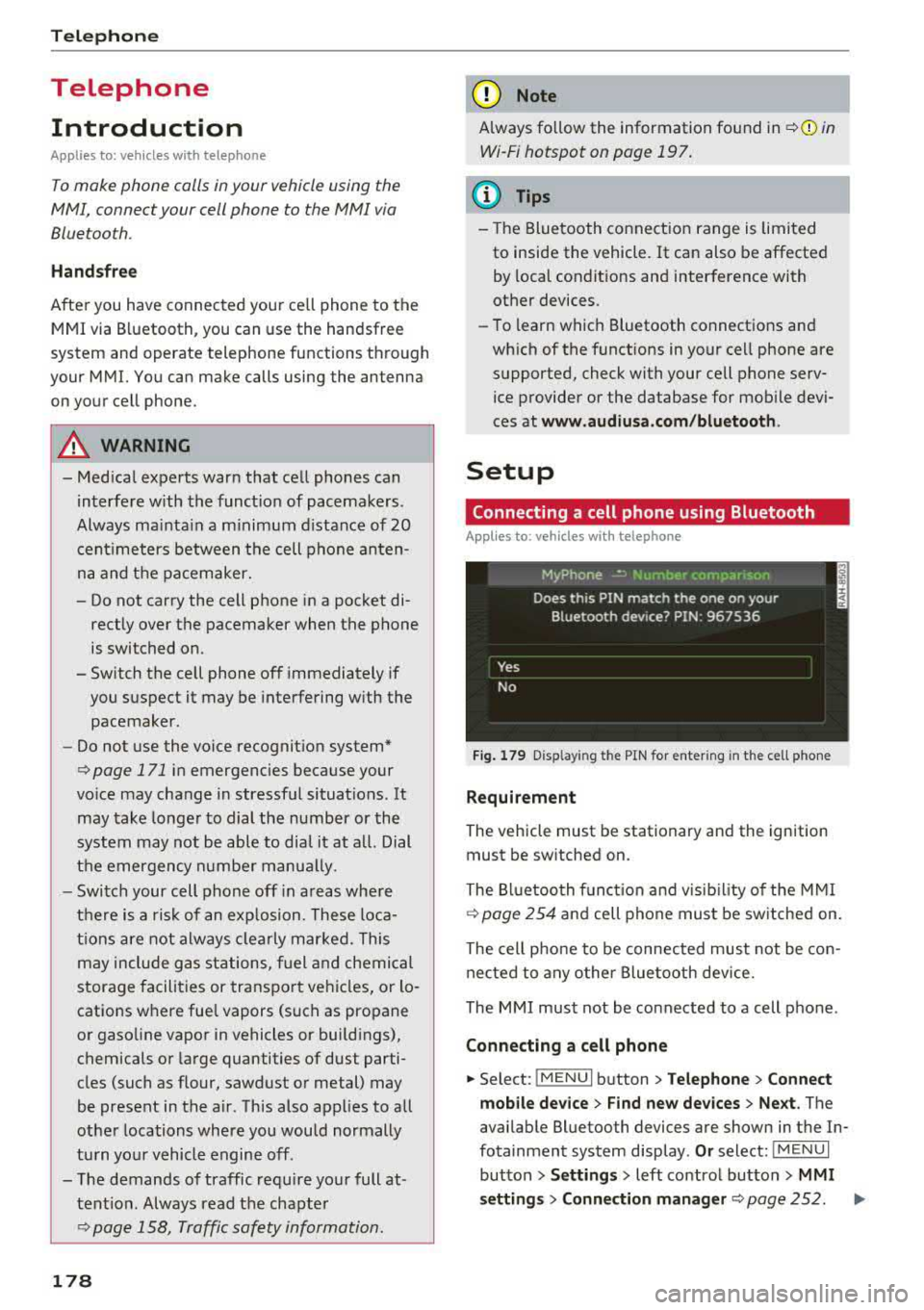
Fig. 1 79 D is pl ay ing the PIN for enter ing in t he cell p hone
Requirem ent
The vehicle must be stationary and the ignition
must be switched on.
The Bl uetooth funct ion and visib il ity of the MMI
Q page 254 and cell phone must be switched on.
The cell phone to be connected must not be con nected to any other Bluetooth device.
The MMI must not be connected to a cell phone .
Connecting a cell phone
... Select: !MENU I button> T el ephon e> Connect
mob ile de vice > Find ne w de vices > Next .
The
available Bluetooth devices are shown in the In
fotainment system display .
Or select: !M ENUI
button >Setting s> left control butto n> MMI
setting s> Connection manag er
Q page 252. ..,_