wheel AUDI A6 2018 Owner's Manual
[x] Cancel search | Manufacturer: AUDI, Model Year: 2018, Model line: A6, Model: AUDI A6 2018Pages: 266, PDF Size: 41.38 MB
Page 91 of 266

a co ,...,
N
" N ,...,
0 0 <..:l '
•-Adaptive cru ise control is switched on . No
objects are detected ahead. The stored speed is
maintained .
•-An object a head was de tected. The adap tive
cr uise control system regula tes the speed and
d istance to the ob ject ahead and acce lerates/
brakes a utomatically.
r-j -Adaptive cru ise con trol is switched on . An
object ahead was detec ted . Your vehicle rema ins
stopped and w ill not s tart dr iv ing automat ica lly.
• -The automatic brak ing is no t enough to
main tain a sufficient distance to a n object ahead.
You must inte rvene
¢ page 91, Reques t for
driver intervention.
© Instrument cluster display
I f adaptive cruise control is not shown in the in
strument cluster disp lay, yo u can call it up using
the mu ltifu nction stee ring wheel b uttons
¢ page 19.
Based on the graphics in the d isp lay, you can de
termine if the system is ma inta ining a distance to
the object ahead and what that distance is.
No vehicle -no object was detected ahead .
White vehicle -an object was detected ahead.
Red vehicle -request for driver intervention
¢ page 91 .
Both arrow s on the scale © indicate the dis tance
to the object a head . No ar row appea rs when the
ve hicle is on an open road and there is no object
ahead. If an object is detected ahead, the arrow
moves on the scale.
T he green zone on the sca le ind icates the s tore
d ista nce . For information on changing the dis
tance, refer to
~ page 90. If the distance se
lect ed is exce eded or not reached, th e arrow
moves into the red zone on the scale.
A WARNING
If you press the ISE TI button when d riving at
speeds below 20 mph (30 km/h), the vehicle
accelerates automat ically up to 20 mph (30
A ssi st a nce systems
km/h), wh ic h is the minim um speed that can
be set .
(D Tips
-If you switch the ignit ion or the adaptive
cruise control system off, the set speed is
erased fo r safety reasons .
-The e lectronic stabilization control (ESC)
and the anti -slip -regulation (ASR) are auto
matically switched on when the adaptive
cruise cont rol is switched on.
Changing the speed
Applies to: vehicles with Audi adaptive cruise control
0
f
•
0
Fi g. 9 4 Operating lever : chang ing t he sp eed
.,. To increase or reduce the speed in increments,
tap the lever up o r down.
.,. To increase or decrease the speed quick ly, hold
the lever up or down until the red LED @reach
es the des ired
speed ¢ page 88, fig . 93.
After each change, the new sto red speed appears
briefly in the information
line ¢ page 88 , fig . 93
@ .
Driving in stop-and-go traffic
Applies to: vehicles with Audi adapt ive cru ise control
The adaptive cru ise control system also assists
you in stop-and-go traffic .
Stopping automatically
If an object ahead stops, your vehicle will brake
and stay at a stop, within the limits of t he sys
tem . The Sta rt/Stop system* can be used as usu -
al.
..,_
89
Page 97 of 266

a co .... N
" N .... 0 0 \.J '
The sensors can be displaced by impacts or
damage to the bumper, whee l housing and
underbody. Pre sense can be impaired by this.
Have an authorized Audi dealer or authorized
Audi Service Facility check their function .
(D Tips
- Certain pre sense front functions switch off
when sport mode is switched off or when
driving in reverse .
- The pre sense functions may not be availa
ble if there is a malfunction in the ESC sys
tem or the airbag control module.
- The pre sense front/plus functions are not
available if there is a malfunction in the
adaptive cruise control* system
~ page 93.
- The pre sense rear/plus functions are not
available if there is a malfunction in the side
assist* system
~ page 93 .
Audi active lane assist
Description
Applies to: veh icles with Audi active lane assist
Active lane assist detects lane marker lines with
in the limits of the system using a camera in the
windshield. If you are approaching a detected lane marker line and it appears likely that you
will leave the lane, the system will warn you with
corrective steering . You can override this steering
at any time . If you pass over a line, the steer ing
wheel will v ibrate lightly. In order for this warn
ing vibration to occur, it must first be sw itched
on in the Infotainment system. Active lane assist
is ready for operation when the lane marker line
is detected on at least one side of the vehicle.
The system is designed for driving on express
ways and highways and therefore only activates
at speeds above approximately 40 mph (65 km/
h).
Applies to: vehicles with s ide assist
If you activate a turn signal when active lane as
sist is ready and it classifies a lane change as crit
ical because of vehicles traveling alongside you or
approaching you, there will be noticeable correc-
Assistance systems
tive steering shortly before you leave the lane.
This will attempt to keep your vehicle in the lane.
Applies to: vehicles w it h out side ass ist
The system will not warn you before crossing a
lane marker line if you have activated the turn
s ignal. In this case, it assumes that you are
changing lanes intentionally.
Applies to: veh icles w it h adaptive cruise contro l
The corrective steering is targeted based on the
driving situation. In addition to the lane marker
lines , the system can also take into account other
objects such as guard rails . If they are detected in
close proximity to the vehicle, active lane assist
helps prevent the vehicle from driving too close
to them. There is also passing ass istance. The
system does not provide any corrective steering if
it detects that you are passing another vehicle.
A WARNING ~ -
-The system warns the driver that the vehicle
is leaving the lane using corrective steering.
The driver is always responsible for keeping
the vehicle within the lane.
- The system can help you keep the vehicle in
the lane, but it does not drive by itself. Al
ways keep your hands on the steering
wheel.
- Corrective steering may not occur in certain
situations, such as during heavy braking.
- There may be cases where the camera does
not recognize all lane marker lines. Correc
tive steering can only take place on the side
of the vehicle where lane marker lines are
detected.
- Other road structures or objects could possi
b ly be identified unintentionally as lane
marker lines. As a result, corrective steering
may be unexpected or may not occur.
- The camera view can be restricted, for ex
ample by vehicles driving ahead or by ra in,
snow, heavy spray or light shining into the
camera. This can result in active lane assist
not detecting the lane marker lines or de
tecting them incorrectly .
95
Page 98 of 266

Assistance systems
-Under certain conditions such as ruts in the
road, a banked roadway or crosswinds, the
corrective steering alone may not be enough
to keep the vehicle in the middle of the lane.
- For safety reasons, active lane assist must
not be used when there are poor road and/
or weather conditions such as slippery
roads, fog, gravel, heavy rain, snow and the
potential for hydroplaning. Using active lane
assist under these conditions may increase
the risk of a crash.
Switching on/off
A pplies to: ve hicles w ith Audi active lane assist
-;g
9 ::i 00 CD
Fig. 99 Turn signa l lever: button for active lane assist
Fig. 100 Windshield: camera window for active lane assist
• Press the button to switch the system on and
off ¢
fig. 99. The. or. indicator light in
the instrument cluster turns on or off.
Indicator lights
• Ready: the indicator light turns on when the
system is ready for use . The system can now be
operated .
• Not ready: the indicator light turns on if the
system is switched on but is inoperable. This may
be due to the following reasons:
96
-Th ere is no lane marker line.
-The relevant lan e marker lines are not detected
(for example, markings in a construction zone
or because they are obstructed by snow, dirt,
water or lighting).
-Th e vehicle speed is below the activation speed
of approximate ly 40 mph (65 km/h).
-The lane is too narrow or too wide.
-The curve is too narrow.
-The driver's hands are not on the steering
wheel.
@ Tips
Make sure the camera's field of view
¢ fig. 100 is not obstructed by stickers or any
thing else. For information on cleaning, see
¢page 221.
View in instrument cluster display
Appl ies to: vehicles wi th Aud i ac tive la ne ass ist
Fig. 101 Instrument cl uste r: active lane assist is sw itched
on and providing warnings
Fig. 102 Instrument cluster: active lane assist is switched
on but not ready to provide warnings
You can call up the active lane assist display us
ing the buttons in the multifunction steering
wheel
¢page 19. Ill>
Page 99 of 266

a co .... N
" N .... 0 0 \.J '
disp lay *.
White line(s) Active lane assist is activated and ready to provide warnings .
Red line(s) Active lane assist warns yo u
(left or right) before leaving a lane
c> fig. 101. In addit ion, the
steering wheel vibra tes light ly.
Gray line(s) Active lane ass ist is activ ated,
b ut not ready to give warning
c> fig . 102 .
Messages in the instrument cluster display
If t he ac tive lane ass ist switches off automat ic al
l y, the indicator lig ht in the display turns off and
one of the following messages appears :
Audi active lane assis t: Currently unavailabl e.
No camera view
This message appea rs if the came ra is u nable to
detect t he lines. This co uld happen if:
- The camera field of v iew
c> page 96, fig . 100 is
dirty or covered in ice. C lea n this area on the
wi ndsh ield .
- The camera field of v iew is fogged over . Wait
u nt il the fog has cleared before sw itch ing the
active lane assist on again .
- T he system has been unab le to detect the lanes
fo r an extended pe riod of time due to road con
dit ions. Sw itch act ive lane assist bac k on when
t h e lines are mo re visible .
Audi active lane a ssist : Currently unavailable
T here is a temporary active lane assist malf unc
tion . Try sw itching the act ive lane assist on aga in
l a ter.
Audi active lane as sist : System fault!
D rive to an autho rized Aud i de aler o r a uth o rized
Aud i Service Facility immediately to have t he
malfunction corrected.
Audi active lane as sist: Please take over steering
T his message appea rs if you are not steering by
yourself . If t his is t he case, active lane assist does
n ot swi tch off, but it is "no t ready " to prov ide a
war ning. The system c an help you keep t he ve hi-
A ss istance systems
cle in the lane . Howeve r, you are responsible for
driving the ve hicle and m ust steer it yourse lf .
A WARNING
--
Note that messages may be de layed or not
d isplayed o n ve hicles w ith accessories mount
ed on the steering wheel, such as a steer ing
whee l spinne r knob . Always keep your hands
on the steering wheel.
Adjusting the vibration warning
App lies to: veh icles w it h Audi act ive lane ass ist
.,. Select: the I CAR ! funct io n button > (Car) * Sys
tem s
contro l butto n > Driver as sistance > Audi
activ e lane assi st.
Vibration warning
You can switch the add it io nal vibration warn ing
i n t he steer ing whee l on or off .
(D Tips
Your settings are automatically stored and as
s igned to the remote co ntro l key being used .
97
Page 101 of 266

a co ,...,
N
" N ,...,
0 0 \,;J '
Applies to: ve hicles with Audi side assist
®
®
©
F ig . 105 D riving situat io ns
~ AUD !
. ---.
Fi g. 10 6 Rear of the vehicle: position of the sensors
Side assis t fun ctions at speeds above app roxi
mate ly 19 mph (30 km/h).
® Vehicles that are approaching
In ce rtain cases, a vehicle will be classified as
cr itica l for a lane change even if it is still some
what far away. The faste r a ve hicle app roaches,
the soo ner the display in the exterio r mirror w ill
turn on.
@ Vehicles traveling with you
Veh icles traveli ng w ith you are ind icated i n the
exte rior m irro r if they are classified as critical for
a lane change. All vehi cles detec ted by side assist
A ssi st a nce systems
are indicated by the time they enter your "blind
spot", at the latest.
© Vehicles you are passing
If
you s low ly pass a vehi cle that s ide assist has
de tected (the difference in speed between t he
vehicle and you r vehicle is less than 9 mph ( 15
km/h)), the display in the exterior mi rror turns
on as soon as the vehicle enters your blind spot.
T he display w ill not turn on if you quickly pass a
vehicle th at s ide ass ist has de te cted (the differ
ence in speed is greater than 9 mph (15 km/ h)) .
Functional limitations
The radar sensors are des igned to detect the left
and right adjacent lanes when the road lanes are
t h e norma l width. In some si tua tions, the display
in the exterior m irror may turn on even though
there is no veh icle located in the area that is criti
ca l for a lane change. For example:
- I f the lanes are na rrow or if you a re dr iving on
the edge o f you r lane . If t his is the case, the
system may have detected a vehicle i n another
lane that is
not adjacent to your current lane.
- If you are driving through a curve . Side assist
may react to a vehicle that is one lane over
from the ad jacent lane .
- If side assist reacts to other objects (such as
high or disp laced guard rai ls).
- In poor weather conditions. The side assist
functions are limited .
D o no t cover the radar senso rs
¢ fig. 106 wit h
stickers, deposits, bicycle wheels or other ob
j ects, because t hey will impair the func tion. Do
not use side assist when towing a trai ler. For in
f ormat ion on cleaning,
see ¢ page 221.
A WARNING
-== -
-Always pay attention to traffic and to the
area around your vehicle. S ide assist cannot
replace a driver's atte ntion. The driver alone
is always respons ible for la ne cha nges and
similar dr iv ing maneuvers .
- In some situations, the system may not function o r its function may be limi ted. For
examp le:
99
Page 103 of 266

a co ,...,
N
" N ,...,
0 0 \,;J '
-Side assist is not active w hile you are mak
i ng the ad justment.
- Your settings are automatically stored and
ass igned to the remote control key being
used.
Messages
App lies to: ve hicles with Audi side assist
If side assist switches off by i tself, the LED in the
button turns off and a message will appear in the
i nstr ument cluster d isplay:
Audi side a ssist: Currently una vailable . N o
senso r vision
The radar sensor v is ion is impaired . Do not cover
the area in front of the sensors with bike wheels, stickers, dirt or other objects . Clean the area in
front of the senso rs , if
necessa ry ~ page 99 ,
fig . 106.
Audi side as sist: Currently un avail able
Side assist cannot be switched on at th is time be
cause there is a malfunction (for example , the
battery charge level may be too low) .
Audi side as sist : System fault!
The sys tem cannot guarantee that it will detect
veh icles correctly and it has switched off. The
sensors have been moved or are faulty . H ave the
system checked by an authorized Audi dealer or
author ized Audi Se rvice Facility soon .
Audi side assist: Unav ailable when towing
Side assist sw itches off automatically when a fac
tory-ins talled trailer hi tch is connected to the
e lectrical connector on the trailer . There is no
gua rantee the system will sw itch off when using
a retrofi tte d trai ler hitch. Do not use s ide ass ist
when towing a t railer.
A ssi st a nce systems
Night vision assist with
pedestrian and wild
animal detection
Description
Applies to : vehicles wit h night vision assist
The night vision assist con detect, highlight and,
if n ecessary, warn about p ed estrians and large
wild animals.
Night vision assist wit h pedest rian and wi ld ani
mal detection assists you at night by using an in
frared camera to monitor the a rea in front of
your vehicle, within the limits of the system. It can d isplay objects up to a distance of approxi
mately 1000 feet (300 m). The thermal image
detected by the camera is shown in the inst ru
ment cluster d isp lay. Wa rm areas appear lighter
and co ld areas appear da rker.
Highlighting detected pedestrians and wild
animals
Appl ies to: vehicles with night vision assist
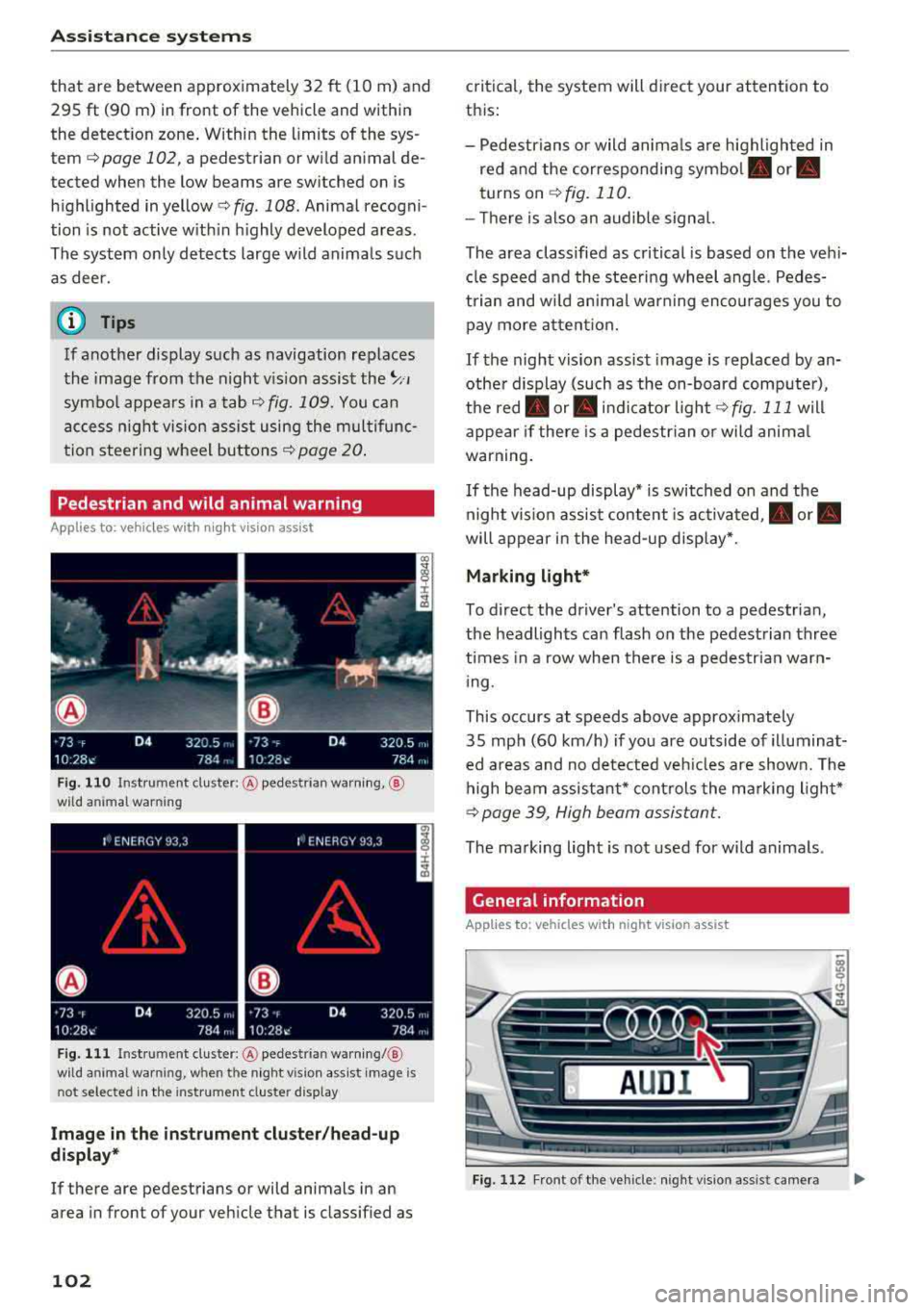
Fig. 1 08 In strum ent cluster: ye llow highlig h ted pedes
tria ns
Fi g. 10 9 Ins trumen t cl uster : sy mb ol when t he in frar ed im
age is not v is ib le
Wi thin the limi ts of the sys tem, the night v is io n
ass ist can detec t pedestr ians and wild animals
.,_
101
Page 104 of 266
Assistance systems
that are between approximately 32 ft (10 m) and
295
ft (90 m) in front of the vehicle and within
the detection zone. Within the limits of the sys
tem
c:> page 102, a pedestrian or wild animal de
tected when the low beams are switched on is
highlighted in yellow
c:> fig. 108. Animal recogni
tion is not active within highly developed areas.
The system only detects large wild animals such
as deer.
(D Tips
If another display such as navigation replaces
the image from the night vision assist
the~--,
symbol appears in a tab c:>fig. 109. You can
access night vision assist using the multifunc
tion steering wheel buttons
c:> page 20.
Pedestrian and wild animal warning
Applies to: vehicles with night vision assist
Fig . 110 Inst rument cluster :® pedestrian warning, ®
wild animal warning
Fig. 111 In strument cl uster: ® pedestrian warning/ @
w ild an imal warning, when the night vision assist image is
n ot selected in the instrument cl uster display
Image in the instrument cluster/head-up
display*
If there are pedestrians or wild animals in an
area in front of your vehicle that is classified as
102
critical, the system will direct your attention to
this :
- Pedestrians or wild animals are highlighted in
red and the corresponding
symbol . or.
turns on c:>fig. 110.
- There is also an audible signal.
The area classified as critical is based on the vehi
cle speed and the steering wheel angle. Pedes
trian and wild animal warning encourages you to pay more attention.
If the night vision assist image is replaced by an
other display (such as the on-board computer),
the
red . or. indicator light c:> fig. 111 will
appear if there is a pedestrian or wild animal
warning.
If the head-up display* is switched on and the
night vision assist content is activated, .
or.
will appear in the head-up display*.
Marking light*
To direct the driver's attention to a pedestrian,
the headlights can flash on the pedestrian three
times in a row when there is a pedestrian warn
ing.
This occurs at speeds above approximately
35 mph (60 km/h) if you are outside of illuminat
ed areas and no detected vehicles are shown. The
high beam assistant* controls the marking light*
c:> page 39, High beam assistant.
The marking light is not used for wild animals .
General information
Applies to: vehicles with night vision assist
Fig. 112 Fro nt of the vehicl e: night vision assist camera
Page 109 of 266
a co .... N
" N .... 0 0 \.J '
General information
A pp lies to: ve hicles with pa rk in g system p lus/rearview cam
era/peripheral camera
Depending on your vehicle 's equipment, various
pa rking aids wi ll help you when parking and ma
ne uvering.
The
p arki ng sys tem plu s assists you when park
ing by aud ibly and visua lly indicating objects de
tected
in front of and behind the ve hicle
¢page 108.
The re arv ie w ca mer a shows the area beh ind the
veh icle in the Infotainment system d isplay. The
lines in the rearview came ra image help you to
pa rk or maneuver
¢ page 109.
The peripher al c amer as assist you with parking
and maneuvering . You are aided by var ious cam
eras depend ing on the vehicle equipment leve l
¢page 112. The pa rking system pl us functions
are also availab le
¢ pag e 108.
& WARNING
-Always look for traffic and check the area
around your vehicle by looking at it direct ly
as well. The parking system cannot replace
the driver's attent ion. The driver is always
responsible when enter ing or leav ing a park
ing space and during similar maneuvers .
- Please note that some surfaces, such as
clothing, are not detected by the system .
-
-Sensors and cameras have blind spots in
wh ich people and objects cannot be detect
ed . Be especially caut ious of small children
and animals .
- The sensors can be displaced by impacts or
damage to the radiator gr ille, bumper,
wheel housing and the underbody . The park
ing system may be impa ired as a result.
Have a n author ized A udi dealer or author
ized Audi Serv ice Facility check their func
tion .
- Make s ure the senso rs a re not obstructed by
stickers, deposits o r other materia ls. If they
are, the sensor function could be impaired.
For additiona l information on cleaning, see
¢ page 221. Parking
syste m s
@ Note
-Some objects are not detected or disp layed
by the system under certain circumstances:
- objects such as barrier cha ins, tra iler draw
ba rs, vertical po les o r fences
- objects above the sensors such as wall ex
tensions
- objects with certain surfaces or structures
such as cha in l ink fences or powder snow
- If you continue driving closer to a low ob
ject, it may disappear from the sensor range . Note that you will no longer be
wa rned about t his obstacle.
- Keep enough distance from the curb to re
duce the risk of damage to the rims .
(D Tips
-The system may provide a warning even
though there are no obstacles in the cover
age area in some situat ions, such as:
- certain road surfaces or when there is tall grass
- externa l ultrasonic sources such as from
cleaning vehicles
- in heavy rain, snow, o r th ick vehicle ex
h aust
- We recommend tha t you practice par king in
a traff ic-free location or parking lot to be
come fami liar with the system . W hen doing
this, there shou ld be good light and weath
er conditions.
- You can change the volume and pitch of the
signa ls as well as the
d isplay ¢ page 117.
-Please refer to the instructions for towing a
trai ler located in
¢ page 117 .
-What appea rs in the infotainment display is
somewhat time -delayed .
- Th e sensors m ust be kep t clean and free of
snow and ice for the parking aid to operate .
107
Page 112 of 266

Parking syste m s
-For objects that do not touch the ground,
such as the bumper of a parked vehicle, a
trailer hitch or the rear of a truck. Do not
use the orientation lines in this case.
- If driven from a level surface onto an in
cline, or a downward slope.
- If driven toward protruding objects.
-If the vehicle is carrying too much load in
the rear.
- Applies to: vehicles with air sus pension: the
accuracy of the orientation lines and blue
surfaces decreases when the vehicle is raised/lowered
¢page 104.
(D Note
- Always read and follow the applicable warn
ings
¢ 0 in General information on
page 107.
-The orange-colored orientation lines in the
Infotainment display show the vehicle path
based on the steering wheel angle. The
front of the vehicle swings out more than
the rear of the veh icle . Maintain plenty of
distance so that an exterio r mirror or a cor
ner of the veh icle does not co llide w ith any
obstacles.
Switching on/off
Applies to : ve hicles with rearv iew camera
Sw itching on
~ S hi ft into reve rse, or
• P ress the P' #.!\. button in the cente r console
¢
page 108, fig. 115 . A short conf irmat ion
tone sounds and the LED in the button turns
on .
Sw itching between the rearview camera and
optical display
~ Press the Graph ic contro l button ®
¢ page 110, fig. 120 to see the opt ica l disp lay.
• Press the R ear view control button to see the
rearview camera image.
Switching off
• Drive faster than 6 mph (10 km/h), or
• Press the P" '.!\. button, or
~ Switc h the ignition off.
110
@ Tips
-The visua l display in the left part of the dis
play should he lp you detect the crit ica l vehi-
cle areas.
- You can change the vol ume and pitch of the
signals as well as the display¢
page 117.
Perpendicular parking
App lies to : vehicles wit h rearv iew camera
This view may be used when parking in a garage
or in a parking space.
Fig. 120 Infota inment system: aiming at a park ing space
Fig. 121 Infota inment system : alig ning the vehicle
~ Turn the Infotainment system on and shift into
reverse gear.
• The orange orie ntation lines (!) show the vehi
cle 's direction of travel. Turn the steering wheel
until the orange o rientation lines appear in the
parking space ¢
fig. 120. Use the markings @
to he lp you estima te the distance to an obsta
cle . Each marking represents approximate ly 3
ft (1 m). The b lue area represents an extension
of the vehicle's outline by approximately 16 ft
(5 meters) to the rear.
~ Wh ile driving in reverse gear, adjust the steer-
ing wheel angle to
fit the park ing space using ..,.
Page 113 of 266

a co ,...,
N
" N ,...,
0 0 \,;J '
¢ A in General information on page 109, ¢(D
in General information on page 110 .@ repre
sents the rear bumper . At the very latest, stop
the vehicle when the red orientation
line @
borders an object .
Parallel parking
Applies to: veh icles with rearview camera
This view may be used when parallel parking
along the side of a stree t.
Fig . 122 In fota inment : blue surfaces alig ned in the pa rk ·
i ng space
Fi g. 123 In fo ta inm ent: c onta ct of the blue curv ed li ne with
the curb
Parking on the r ight is described here. It is identi
cal when parking on the left .
If there is an obstacle next to the parking space (such as a wall), refer to "Information for park ing
next to obstacles" ¢
page 111.
.. Activate the turn signal.
.. Position your vehicle next to a parked veh icle in
front of the desired parking space. The d istance
to this vehicle should be approximately 3 ft . (1
m) .
Parking systems
.. T urn the Infotainment system on and shift into
reverse gear. The parking system is turned on
and the
C ros s parking view is d isp layed .
.. Press the contro l button on the Infotainment
unit @¢ fig. 122 . The Parallel parking view is
disp layed .
.. Back up and alig n your veh icle so the blue area
@ bo rders on the rear end of the vehicle be
hind you o r on the park ing spa ce
line ¢&_ in
General information on page 109,
¢ (Din Gen
eral information on page 110.
The blue area
represents an extension o f the vehicle's outline
by approximate ly 16 ft (5 meters) to the rear.
T he long side of the b lue area s hou ld be on the
curb. The entire blue area must fit into the
parking space .
.,. With the vehicle stopped, turn the steering
wheel to t he right as far as it will go .
.,. Back up into the parking spot . Whe n the blue
curve ¢
fig. 123 is nea r the curb ¢&_ in Gener
al information on page 109,
stop the vehicle
¢ Ci) in General information on pag e 110 .
.. With the vehicle stopped, t urn the steering
wheel to the left as far as it will go .
.. Continue to back into the parking space until
the vehicle is parked para llel to the curb ¢
A
in General informa tion on page 109, ¢ @ in
General information on page 110 .@ repre ·
sents the rear bumper. At the very latest, stop
the vehicle when the red or ien tat io n line
@
borders an object. Keep an eye o n the front of
your veh icle w hile doing this.
Parking next to obstacles
If there is an obstacle (such as a wall) next to the
parking space, position the veh icle so there is
more space on that side . Position the long side of
the b lue surfa ce so t hat there is sufficient spa ce
from the obstacle . T he su rface must not be
touchi ng . You will a lso need to s tart tu rning the
steering wheel earlier . The blue curve
¢ fig . 123
must not touch the obstacl e, b ut rather there
should be enough d istance .
(D Note
Keep enough distance from t he curb to re -
duce the risk of damage to the r ims.
111