navigation AUDI A7 2021 Owner´s Manual
[x] Cancel search | Manufacturer: AUDI, Model Year: 2021, Model line: A7, Model: AUDI A7 2021Pages: 350, PDF Size: 126.66 MB
Page 226 of 350
Navigation
— Depending on the Internet connection, the
standard map may also be displayed when
the satellite map is switched on )).
Electric range
Applies to: vehicles with navigation system and plug-in hybrid
drive
3 | 3]
ny <| |
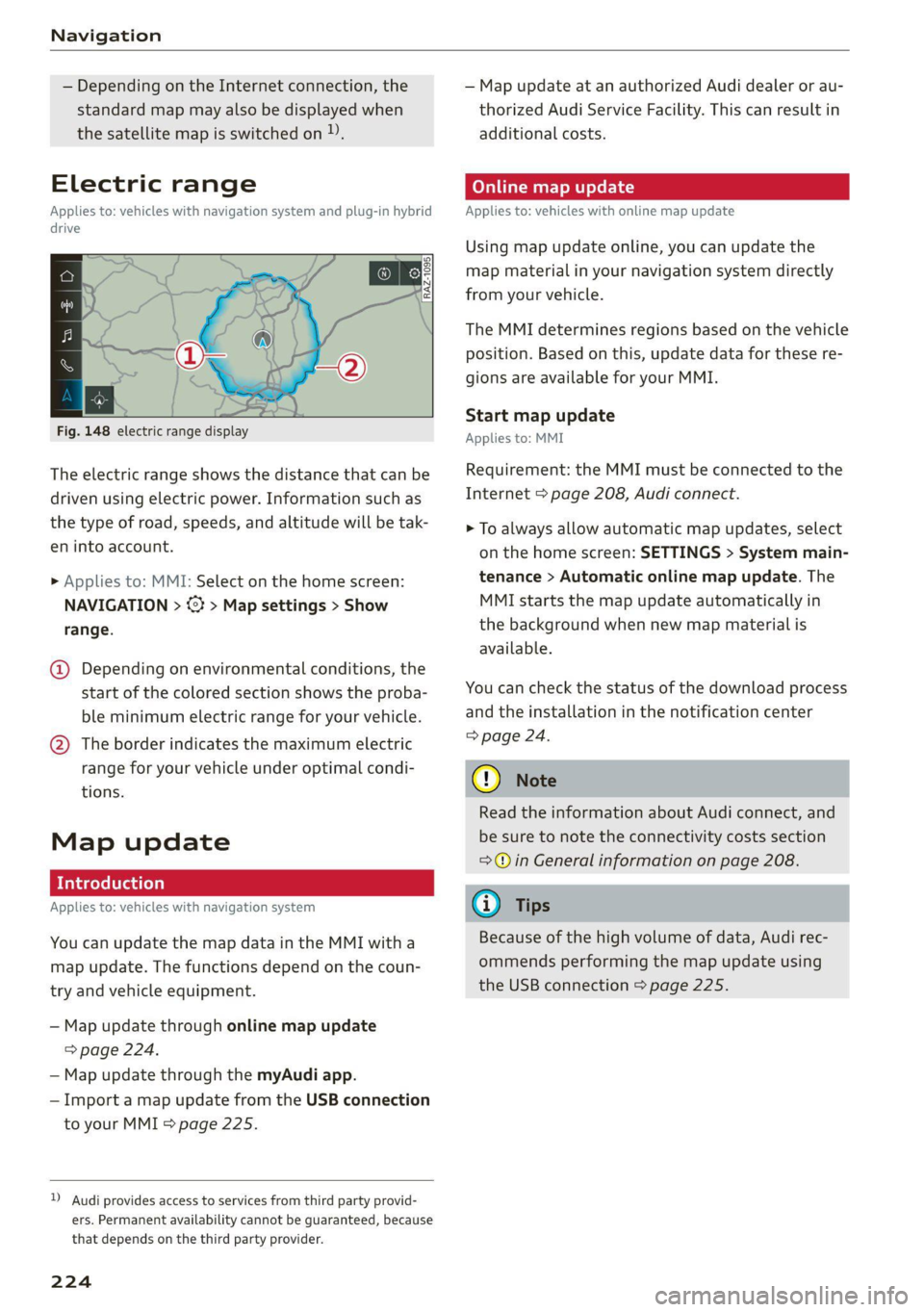
Fig. 148 electric range display
The electric range shows the distance that can be
driven using electric power. Information such as
the type of road, speeds, and altitude will be tak-
en into account.
> Applies to: MMI: Select on the home screen:
NAVIGATION > <} > Map settings > Show
range.
@ Depending on environmental conditions, the
start
of the colored section shows the proba-
ble minimum electric range for your vehicle.
@ The border indicates the maximum electric
range for your vehicle under optimal condi-
tions.
Map update
Applies to: vehicles with navigation system
You can update the map data in the MMI witha
map update. The functions depend on the coun-
try and vehicle equipment.
— Map update through online map update
> page 224.
— Map update through the myAudi app.
— Import a map update from the USB connection
to your MMI = page 225.
)) Audi provides access to services from third party provid-
ers. Permanent availability cannot be guaranteed, because
that depends on the third party provider.
224
— Map update at an authorized Audi dealer or au-
thorized Audi Service Facility. This can result in
additional costs.
Online map update
Applies to: vehicles with online map update
Using map update online, you can update the
map material in your navigation system directly
from your vehicle.
The MMI determines regions based on the vehicle
position. Based on this, update data for these re-
gions are available for your MMI.
Start map update
Applies to: MMI
Requirement: the MMI must be connected to the
Internet > page 208, Audi connect.
> To always allow automatic map updates, select
on the home screen: SETTINGS > System main-
tenance > Automatic online map update. The
MMI starts the map update automatically in
the background when new map material is
available.
You can check the status of the download process
and the installation in the notification center
=> page 24.
() Note
Read the information about Audi connect, and
be sure to note the connectivity costs section
=@ in General information on page 208.
@) Tips
Because of the high volume of data, Audi rec-
ommends performing the map update using
the USB connection > page 225.
Page 227 of 350
4K8012721BF
Navigation
Map update through the myAudi App
Applies to: vehicles with map update through the myAudi app
With the map update through the myAudi app,
you can update the map material in your
navigation system.
Downloading updates
Requirement: you must have a registered myAudi
account. Your vehicle must be registered in your
myAudi account.
> Install the myAudi app on your mobile device
and log in with your login information. Use the
same myAudi account that you use in the vehi-
cle for your myAudi user.
> Download the map material in the myAudi app.
Installing updates
> Log in as a myAudi user in the vehicle
> page 33.
> Connect your smartphone to the vehicle’s Wi-Fi
hotspot = page 209. The MMI detects the map
material on your smartphone. The map update
will start automatically.
You can check the status of the installation in the
notification center > page 24.
Map update using the USB connection
Applies to: vehicle map updates using the USB connection
With the map update, you can update the map
material in your navigation system.
Requirement: you must have created a myAudi
account at my.audi.com. Your vehicle must be
registered in your myAudi account.
Downloading a map update
> Download the map update at my.audi.com and
store it on a USB flash drive. For additional in-
formation, visit my.audi.com.
Installing a map update
> Connect the USB flash drive to the Audi music
interface > page 238.
> Open the notification in the notification center
on > page 24 and press on the notification.
> Press Next. The status of the installation is
shown in the display.
Traffic incidents
Introduction
Applies to: vehicles with navigation system and online traffic
information
ae oad
Becirhaciecae Okan
(iret re es are ea
= North
ne
© North
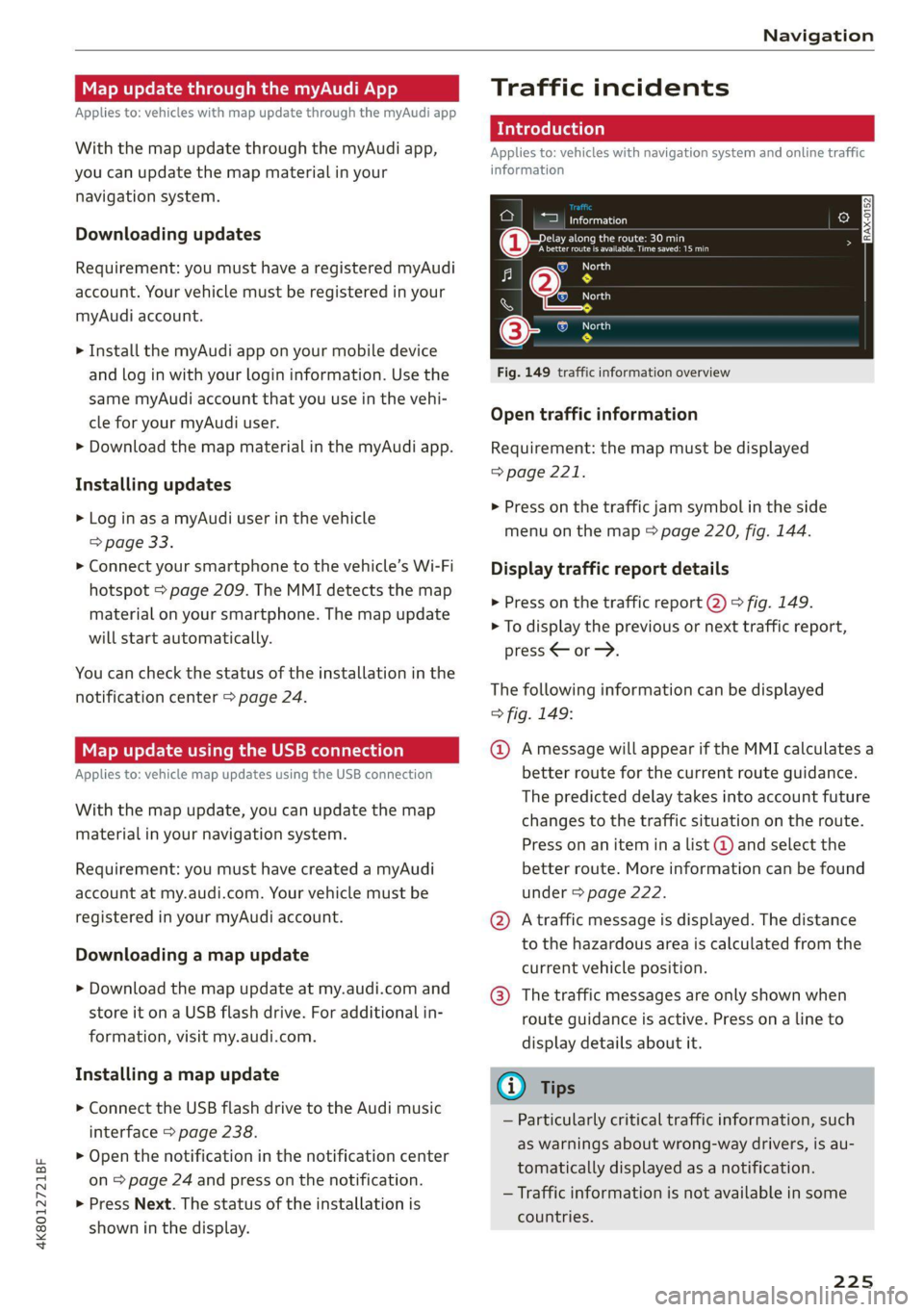
Fig. 149 traffic information overview
Open traffic information
Requirement: the map must be displayed
=> page 221.
> Press on the traffic jam symbol in the side
menu on the map © page 220, fig. 144.
Display traffic report details
> Press on the traffic report @) > fig. 149.
> To display the previous or next traffic report,
press < or.
The following information can be displayed
> fig. 149:
@ Amessage will appear if the MMI calculates a
better route for the current route guidance.
The predicted delay takes into account future
changes to the traffic situation on the route.
Press on an item ina list @ and select the
better route. More information can be found
under > page 222.
@ Atraffic message is displayed. The distance
to the hazardous area is calculated from the
current vehicle position.
@® The traffic messages are only shown when
route guidance is active. Press ona line to
display details about it.
Gi) Tips
— Particularly critical traffic information, such
as warnings about wrong-way drivers, is au-
tomatically displayed as a notification.
— Traffic information is not available in some
countries.
225
Page 228 of 350

Navigation
Traffic rerouting
Applies to: vehicles with navigation system
By receiving traffic information, your MMI calcu-
lates a better route if available and the possible
time saved compared to the current route.
Traffic rerouting
> Start route guidance.
The MMI uses a notification or a note in the traf-
fic information @ > page 225, fig. 149 to indi-
cate a better route. You can decide which route
you would like to use.
To select a better route, you have the following
options:
> Notification: press F2. The better route will be
used for route guidance, or press on the notifi-
cation. Press on the information window for the
better route (for example @) > page 222,
fig. 147).
> Note in the traffic information: press on the
list entry @ > page 225, fig. 149. Press on the
information window for the better route (for
example (2) & page 222, fig. 147).
CON Mae-lareeeleurl iced)
Applies to: vehicles with navigation system and online traffic
information
The MMI can receive real-time online traffic infor-
mation about congestion, accidents, road con-
struction, and other incidents.
Requirement: the MMI must be connected to the
Internet > page 208, Audi connect. Traffic infor-
mation must be switched on in the MMI
=> page 226.
Traffic information will be displayed on the
standard map > page 220, fig. 144.
Online traffic information is also displayed on the
standard map > page 223.
@) Tips
— Having the online traffic information func-
tion switched on provides the most accurate
reports of traffic situations and traffic fore-
casting. Your vehicle transmits and process-
es its anonymous, encrypted position infor-
226
mation at regular intervals to the traffic da-
ta provider. You can switch off data transfer
at any time > page 323.
— The online traffic information network is
not available in all countries, and the cover-
age is not nationwide.
Settings
Applies to: vehicles with navigation system
You can adjust the navigation system settings in
the instrument cluster and in the MMI display
separately. The settings depend on the country
and vehicle equipment.
Accessing settings
> Applies to: MMI: Select on the home screen:
NAVIGATION > ©}.
Accessing settings using the multifunction
steering wheel
> Applies to: multifunction steering wheel: Select
in the instrument cluster: Navigation tab >
button.
Please note that a setting applied to the multi-
function steering wheel is only valid for the in-
strument cluster map.
Map settings
Satellite map: see > page 223.
Traffic: you can display current traffic informa-
tion on the map.
— Free flowing traffic
— Traffic obstructions
— Traffic incidents
Map colors
— Automatic: the map display adapts to the light-
ing conditions (for example, by changing from
day to night when driving through a tunnel).
— Day or Night
Map orientation
— 2D heading-up map/2D north-up map: the
current vehicle position is displayed. The map is
oriented in the direction of travel or to the
north.
Page 229 of 350

4K8012721BF
Navigation
— 3D heading-up map: the current vehicle posi-
tion is shown on a three-dimensional map and
is aligned to the direction of travel.
— Overview: the entire route from the vehicle po-
sition to the destination or the next stopover is
displayed on the map. The map is oriented to
the north.
Automatic zoom
— On: the map scale is adapted automatically de-
pending on the type of road being traveled (ex-
pressway, highway, other roads) so that you al-
ways have an optimal overview of the road
ahead. When route guidance is active, the scale
is adjusted automatically for a better detailed
view when there are upcoming maneuvers.
— Intersection: when route guidance is active, the
scale is adjusted automatically for a better de-
tailed view when there are upcoming maneu-
vers.
— Off
MMI map contents/Map content: you can switch
the display of additional information (such as
POIs) on the map in the upper display on or off.
Voice guidance
Voice guidance: you can adjust the navigation
prompts. With the Traffic setting, the MMI will
only give prompts if there are traffic incidents on
your route.
Voice guidance during phone call
Entertainment fader during navigation: the au-
dio playback volume is temporarily lowered when
navigation prompts are active.
Route criteria
You can adjust which route criteria should be al-
lowed or avoided for the route calculation.
HOV/carpool lanes
Highways
Toll roads
Ferries
Route information
When this function is switched on and route
guidance is active, route information
=> page 220, fig. 144 is displayed. The next ma-
neuver will be displayed at the bottom. POIs and
traffic information will also be displayed. Press
route
information to display a preview of the next
maneuver on the map. You can switch the follow-
ing information on or off in route information.
— Points of interest along the route
— Traffic incidents
Presentation mode
In presentation mode, the system simulates driv-
ing on the display along the planned route with-
out the vehicle actually moving. You can use
Specify starting point when you would like to
calculate a route starting from a location other
than the current vehicle position, for example.
Simulating route guidance: start route guidance
and press presentation mode.
@ Tips
You can change the volume of navigation an-
nouncements while one is playing > page 32.
227
Page 234 of 350

Radio
Opening radio text
> Applies to: MMI: Select on the home screen:
RADIO > select a frequency band (such as FM)
> select a station > More > Radio text.
Depending on vehicle equipment, the following
functions
may be available:
Displaying previous radio text entries
> Swipe downward with one finger. The last radio
text entries are displayed if they are available.
Scrolling through radio text entries
> Swipe upward or downward with one finger.
Showing Radio Text Plus information
If a radio text entry is displayed with a color, a
phone number or a navigation destination for the
station is available as radio text plus information.
You have the following options:
Selecting the destination
> Select: a navigation destination marked in col-
or > Set as destination.
Call
> Select: a phone number marked in color > Call.
G) Tips
A call to a phone number stored in the radio
text will start immediately.
Online radio
General information
Applies to: vehicles with Audi connect Infotainment and on-
line radio
You can listen to various radio stations or pod-
casts on the Internet using online radio.
Requirement: the MMI must be connected to the
Internet. A data plan must be available
=> page 212.
Accessing online radio through the MMI
» Applies to: MMI: Select on the home screen:
RADIO > Source > Online.
The following functions are available:
232
Previous selection
The station/podcast list for the last station or
podcast that was playing will be displayed.
Top stations
The favorite online radio stations are displayed.
Filter list
> Select: 2 > (a category) > a station/podcast.
The following categories are available:
— Countries
— Genres
— Languages
— Editor's picks
— Themes
— Nearby
@) Note
Read the information about Audi connect, and
be sure to note the connectivity costs section
=@ in General information on page 208.
G) Tips
— Depending on the Internet connection and
network traffic, the connection may be lost
when online radio is playing.
— Online radio reception may not be possible
if Internet service is throttled.
— Online media usage depends on the service
availability of the third party provider.
—The range and screen display of online me-
dia services from third party providers in the
vehicle can vary.
— Please note that it may not be possible to
play some online radio stations in certain
countries.
— Audi only provides access to online radio
and does not assume any responsibility for
the content of these services.
Page 249 of 350
4K8012721BF
Audi smartphone interface
Audi smartphone
interface
Setup
Applies to: vehicles with Audi smartphone interface
You can connect your smartphone to the MMI
with a cable or wirelessly* using the Audi smart-
phone interface. Certain content on your smart-
phone is adapted in the MMI while driving and
can be operated through the MMI.
Requirement: the vehicle must be stationary and
the ignition must be switched on. iPhone genera-
tion 5 or higher with Lightning connector and iOS
7.1.2 operating system or higher, or smartphone
with Android Auto app and Android 5.0 Lollipop
operating system or higher.
> Applies to: MMI: Select on the home screen:
SETTINGS > Connected devices > Audi smart-
phone interface > New connection.
> Connect your smartphone to the Audi music in-
terface > page 238 using a USB adapter
=> page 238, fig. 154, or
> To connect your iPhone wireless*, switch on the
Bluetooth function and Wi-Fi on your iPhone.
Open the Apple CarPlay settings in your iPhone.
In the MMI, press on your iPhone in the list of
displayed devices.
> To update the list, press O.
> Follow the system instructions.
> Pay attention to any additional system prompts
on your smartphone, if applicable.
> Applies to: MMI: If you declined use of Apple
CarPlay or Android Auto the first time you con-
nected your smartphone, then select on the
home screen: SETTINGS > Connected devices >
Audi smartphone interface > a smartphone.
> Follow the system instructions.
Z\ WARNING
Driving requires your complete and undivided
attention. As the driver, you have complete re-
sponsibility for safety in traffic. Never operate
mobile devices while driving, because this in-
creases the risk of an accident.
CG) Note
Read the information about Audi connect, and
be sure to note the connectivity costs section
=> page 208.
G@) Tips
— The functions that can be used depend on
the following factors, among others:
— The brand of your smartphone
— The version of the operating system in
your smartphone
— The software version of the app used
— The USB adapter cable and correct connec-
tion
— Your cell phone service provider
— The customized settings on your smart-
phone
— One of the factors above or a combination
of any of them could cause your smart-
phone to be incompatible with the Audi
smartphone interface. Compatibility cannot
be guaranteed for all types of smartphones.
For more information and assistance, refer
to the user guide and the manufacturer of
your smartphone.
— Please note that you can only connect your
smartphone via the front Audi music inter-
face in order to use the Audi smartphone
terface.
in-
— Wireless Apple CarPlay* is not available in
all countries.
— Wireless Apple CarPlay* was a planned func-
tion at the time this manual was printed.
Wireless Apple CarPlay* is not available in
your vehicle.
— Wireless Apple CarPlay* is only possible i
vehicles without a navigation system or
without a detected vehicle position (GPS
n
da-
ta) if the following requirement is met: the
embedded SIM card for the vehicle must
logged into the mobile phone network
=> page 208.
be
— If the connected smartphone has voice con-
trol, you can operate your smartphone using
the external voice recognition system
=> page 30.
247
Page 251 of 350

4K8012721BF
Additional settings
Additional settings
System settings
Introduction
General settings are described in this chapter.
You can find specific settings in the chapters
about
those settings. The available settings de-
pend on the vehicle equipment.
Date and time
> Applies to: MMI: Select on the home screen:
SETTINGS > General > Date & time.
Possible settings:
— Automatically set date and time
— Date format
— Time format
— Automatic time zone
— Time zone
Measurement units
> Applies to: MMI: Select on the home screen:
SETTINGS > General > Measurement units.
Possible settings:
— Speed
— Distance
— Temperature
— Volume
— Pressure
— Consumption (engine)
— Consumption (electric motor)
Language and keyboard
> Applies to MMI: Select on the home screen:
SETTINGS > Language & keyboard.
Language
You can change the languages for the display,
navigation announcements, and the voice recog-
nition system.
Keyboard
See > page 26.
Requirement: an audio source must be active.
> Applies to MMI: Select on the home screen:
SETTINGS > Sound.
Possible settings:
— Treble
— Bass
— Balance/fader
— Speed dependent volume control
— Subwoofer
— Surround Level
Focus
You can optimize the sound distribution for vari-
ous locations in the vehicle.
3D effect
You can adjust the intensity of the 3D effect.
With the Medium setting, you will hear an opti-
mal 3D effect for all sources.
PUL eee ely
> Applies to: MMI: Select on the home screen:
SETTINGS > Announcements & tone.
Possible settings:
— Announcement volume
— Welcome sound
Z\ WARNING
Adjust the volume of the audio system so that
signals from outside the vehicle, such as po-
lice and fire sirens, can be heard easily at all
times.
@ Tips
The volume is automatically adjusted to a pre-
set level when the MMI is switched on.
249
Page 252 of 350
Additional settings
Bluetooth
> Applies to MMI: Select on the home screen:
SETTINGS > Connection settings > Bluetooth
Bluetooth
You can select a setting for visibility of the MMI
to other Bluetooth devices. To connect a new
Bluetooth device, the Visible setting must be se-
lected. If Invisible is selected, a Bluetooth con-
nection will only be possible with paired devices.
If Off is selected, no Bluetooth device can be con-
nected.
Bluetooth audio player
When this function is switched on, the profile
will load automatically when your Bluetooth au-
dio player is within range.
Bluetooth name
The MMI’s Bluetooth name is displayed and can
be changed.
Factory default settings
Requirement: the ignition must be switched on.
> Applies to MMI: Select on the home screen:
SETTINGS > System maintenance > Restore
factory settings.
> Follow the system instructions.
The settings will be reset. The system will re-
start. This may take some time.
@ Tips
Make sure that not only the settings were de-
leted but also the stored data, if necessary.
Software update
Introduction
Applies to: vehicles with software update
You can update your vehicle’s software.
The functions depend on the country and vehicle
equipment:
— Update through the online system update
=> page 250.
250
— Map material update for the navigation system
=> page 224.
— Have the software update performed by an au-
thorized Audi dealer or authorized Audi Service
Facility. This can result in additional costs.
ZA\ WARNING
— Perform the installation only when the vehi-
cle is stationary. Otherwise, this increases
the risk of an accident
— If the installation fails, contact an author-
ized Audi dealer or authorized Audi Service
Facility immediately to have the malfunction
corrected.
Online system update
Applies to: vehicles with online system update
With the online system update, you can update
the software directly in the vehicle.
Requirement: the MMI must be connected to the
Internet > page 208, Audi connect.
Downloading updates
Requirement: notification for an online system
update will appear in the upper display.
> Press on the notification, or
> Open the notification in the notification center
on > page 24 and press on the notification.
> Follow the system instructions.
You can also check manually if an update is avail-
able.
> Applies to: MMI: Select on the home screen:
SETTINGS > System maintenance > Software
update > Search for updates > desired update
> Continue.
> Follow the system instructions.
The
MMI will start the download. You can check
the status of the download process in the notifi-
cation center > page 24.
Installing updates
Requirement: an online system update must be
downloaded and a notification must be shown in
the upper display.
> Stop the vehicle safely.
Page 328 of 350

Accessories and technical changes
Accessories and
technical changes
Warranty
Your vehicle is covered by various warranties:
— New Vehicle Limited Warranty
— Limited Warranty Against Corrosion Perforation
— Emissions Control System Warranties: Federal
Emissions Control System Defect Warranty,
Federal Emissions Performance Warranty
— Applies to: USA models: Kansas Safety Belt
Limited Warranty
— Applies to: USA models: California Emissions
Control Warranties: Short-term Emissions De-
fects Warranty, Long-term Emissions Defects
Warranty, TZEV models Emissions Defects
Warranty, California Emissions Performance
Warranty
You can find detailed information in your Warran-
ty & Maintenance Booklet and in the California
Emissions Booklet*.
Audi Literature Shop
Service information is made available as soon as
possible after a model is introduced and can be
ordered in the Audi Literature Shop: http://
literature.audiusa.com
Driving in other
countries
Government regulations in the United States and
Canada require motor vehicles to comply with
emissions regulations and safety standards.
Therefore, vehicles that were produced for the
U.S. and Canadian markets are different from
vehicles produced for other countries.
If you plan to use your vehicle outside of the
United States or Canada, it is possible that:
— Fuel may have a significantly lower octane rat-
ing. Unsuitable fuels can cause engine damage.
— Proper maintenance and repair work may not
be possible because special service equipment,
tools, or measuring devices needed for your ve-
hicle may not be available.
326
— Replacement parts may not always be availa-
ble.
— Navigation systems for vehicles built for the
U.S.A. and Canada will not necessarily work in
Europe, and may not work in other countries.
(1) Note
Audi is not liable for damage to the vehicle re-
sulting from these country-specific differen-
ces.
Maintenance, repairs,
and technical modifi-
cations
Observe the safety precautions > page 259, Gen-
eral information and > page 309, Raising the ve-
hicle.
General information
Due to the increasing complexity of technology in
these vehicles, as well as the safety and environ-
mental standards that apply, you can only per-
form a very limited amount of repairs and modifi-
cations to the vehicle yourself.
Proof of maintenance work may be required to
submit a claim within the warranty period.
We recommend that you have your vehicle serv-
iced by an authorized Audi dealer or authorized
Audi Service Facility and that Audi Genuine Parts
and Audi Genuine Accessories are used. This
helps to ensure that your vehicle's functionality,
performance, and safety are not impaired.
Maintenance and repairs
Your vehicle was designed to help keep mainte-
nance requirements to a minimum. Some regular
maintenance is required to help ensure that your
vehicle runs in a safe, economical, and reliable
manner. Please refer to your Warranty & Mainte-
nance Booklet for more detailed information
about vehicle maintenance.
When operating the vehicle under more extreme
operating conditions, for example when outside
temperatures are very low or in very dusty envi-
ronments, certain maintenance should be per-
formed between the specified intervals.
Page 339 of 350
4K8012721BF
Index
Engine stop
refer to Start/Stop system............. 104
Entry/exit lighting..............02-.000- 55
Entryzassistanee «ecco © euessa o © wneuniss * 6 sonnets 65
also refer to Exit assistance............. 65
Environment
Unleaded gasoline..................0. 254
ESC
refer to Electronic Stabilization Control... 115
ES@:SPOMrts: « 2 zoam = + aoe = x eee ee eee a ee 116
eSIM
refer to Embedded SIM card............ 209
Event Data Recorder (EDR).............. 321
EV MOd6 « snes s gene x ¢ ewe & s BORE ee Hew F 101
Exitassistani@@isus « = wsme » ¢ mews sy eee x = oe 65
Exitwarning..............0..0.00.0005 172
Exterior antenna...............0..0-0. 200
Exterior lighting.................02--00 52
EXteniOrMiRMOrSices « « soxzase » © egwiene » @ aguiore 9 «one 57
Folding settings...............-.000005 37
External voice operation................. 30
F
Factory default settings
Multi Media Interface................. 250
Fast route............... 0.00.00 .0 00 217
Favorites... 0.2.0... eee eee eee ee eee 24
BLUSEOOEH « & wwe = ¢ meme < & eee < Rae 7 pe 252
Navigation: « x sscses we sarees ¥ a senusns oo seein 3 218
Telephone
Federal Communications Commission (FCC) . 329
File formats (media drives).............. 244
Fog QWINdOWS) ais i & socusie vs awccims ve suave 6 w one 89
Folding the rearseats................00. 85
Footwell temperature.............0.0005 90
For the sake of the environment
Disposing of engine oil................ 265
Fueling... 0.2... 0. cece eee eee eee 256
L@AKSicx: = = meme co Seis e REE E ¢ BemeE es os 260
Fragrance............0-. eee eee eee 89, 90
Free text search
Média « = esas « © sees + = sews te ews sv ews 243
Radi Obsis os ssciwire ae easewie aw anseans «waren 6H a 230
also refer to Intelligent search.......... 217
Freeze protection
Coolant... .. ee eee eee eee 266
Windshield washer system............. 272
Frequency band ..........-eseceeeeeeee 228
also refer to Frequency band........... 228
Front. center armrest. . ness ss sees s aces ce 66
Front collision warning
refer to Audi pre sense front............ 166
Front passenger’s seat adjustment
FROME. « «ensue v0 anes + 0 veers w ananaite a 0) anance « 66
Rear... eee eee 65
Front wiper blades
Changing « 2 same « z asm = neem 2 a Rem BEE 60
Cleaning’. « « soci vo soecen +o sveneue eo wees © a ave 60
BUCles & sours
Additives ...... 0... cece eee eee 25S
CUPFENCCONSUMIPLION,» sess s ¢ eaves s 7 sanes ¢ 17
FUCL Gales «x meen a eae sa ewe se ee 12
Fuel tank capacity.............-.000005 332
Gasoline. 1.1.0... cee eee ee 254
Reducing fuel consumption............ 103
Fueling
FuelFillersdoor in: = saver 2 wevers to x sucess ao a0 256
Fuel filler door emergency release....... 258
Fuel tank capacity.............-.0 eee 332
With reserve canister (emergency fueling) . 257
Functions on demand...............0.. 210
Functions that require a license.......... 210
also refer to Functions on demand....... 210
G
Garage door opener............-.000000- 49
GarmMentihOOks scesiie sv cevevce « x sscwese 2 a wees 9 0 3 83
GaSOlIMG oy « x seseye g = eee = 2 eee 4 ¢ see & 254
Additives... 2.0... ccc eee eee 255
Gasoline mixture ...............000 eee 254
GAWR
refer to Gross Axle Weight Rating (GAWR) . 332
Gears... ee eee eee 95
Glossary of tire and loading terminology... 277
Glove compartment.............-00e eee 83
G meter
refer to Sport displays.................. 16
Gross Axle Weight Rating (GAWR)........ 332
Gross Vehicle Weight Rating (GVWR)...... 332
337