radio AUDI Q2 2021 Owner´s Manual
[x] Cancel search | Manufacturer: AUDI, Model Year: 2021, Model line: Q2, Model: AUDI Q2 2021Pages: 364, PDF Size: 87.77 MB
Page 152 of 364
Intelligent technology
Dynamic power management
While the vehicle is moving, this function distrib
utes the available power to the various electrical
components and systems according to their re
quirements. It ensures that on-board systems do
not consume more electrical power than is being
generated,
and thus maintains the maximum
possible vehicle battery power level.
® Note
- The power management system is not able
to overcome the given physical limits.
Please remember that the power and life of
the vehicle battery are limited.
- If the indicator lamp
|3 ^page
31 appears,
the starting ability may be impaired.
Starting ability has first priority.
Short trips, city traffic and low temperatures all
place a heavy load on the vehicLe battery. In
these conditions a large amount of power is
con
sumed,
but only
a
small amount is supplied. The
situation is also critical if electrical equipment is
in use when the engine is not running. In this
case power is consumed when none is being
gen
erated.
In these situations you will be aware that the
power management system is intervening to
con
trol the distribution of electrical power.
When the vehicle is parked for long periods
If
you
do not drive your vehicle for a period of
several days or weeks, the power management
will gradually shut off the on-board systems one
by one, or reduce the amount of current they are
using.
This limits the amount of power consumed
and helps to ensure reliable starting even after a
long period. Certain convenience features, such
as remote controL unlocking, may not be availa
ble.
These functions will be restored when you
switch on the ignition and start the engine.
150
With the engine switched off
If
you
listen to the radio or use the other info
tainment functions when the engine is not
run
ning,
this will discharge the vehicle battery.
The infotainment display will show a warning
message before the battery power drops to a Lev
el where the starting ability is impaired. This
message warns you that the system you are using
will soon be switched off automatically. You
should therefore start the engine if
you
wish to
continue using the system.
When the engine is running
Although the alternator generates electrical
power, the vehicle battery can still become dis
charged while the vehicle is being driven. This can
occur when a lot of power is being consumed but
only
a
small amount supplied, especially if the
vehicle battery is not fully charged initially.
To restore the necessary energy balance, the sys
tem
will
then temporarily shut off the electrical
components that are using a lot of power, or re
duce the current they are consuming. Heating
systems in particular use a Large amount of elec
trical power. If
you
notice, for instance, that the
seat heating* or the rear window heater is not
working,
they may have been temporarily switch
ed off or regulated to a lower heat output. These
systems will be available again as soon as
suffi
cient electrical power is available.
You may also notice that the engine runs at a
slightly faster idling speed. This is quite normal,
and no cause for concern. The increased idling
speed allows the alternator to meet the greater
power requirement and charge the vehicLe bat
tery at the same time.
Information saved in the
control units
The vehicle is fitted in the factory with electronic
control units that, among other things, control
the engine and the gearbox. The controL units al
so monitor the exhaust system and the airbags.
The control units continually analyse data rele
vant to the vehicLe while you are driving. In the •
Page 156 of 364
Multi Media Interface
Calling up the main menu
•
Press the button marked
[MENU
|(g)
tapage
152, Fig. 140. The MMI menus (e.g. Ra
dio) will be displayed
of/g.
145. You can then
use the rotary pushbutton to select and
con
firm a function.
Calling up a menu directly
•
Press the corresponding button to call up me
nus
directly (§) ^>page
152, Fig. 140 in the di
rection of the menu you require (e.g.
I
RADIO
|),
You can then use the rotary pushbutton to se
lect and confirm a function.
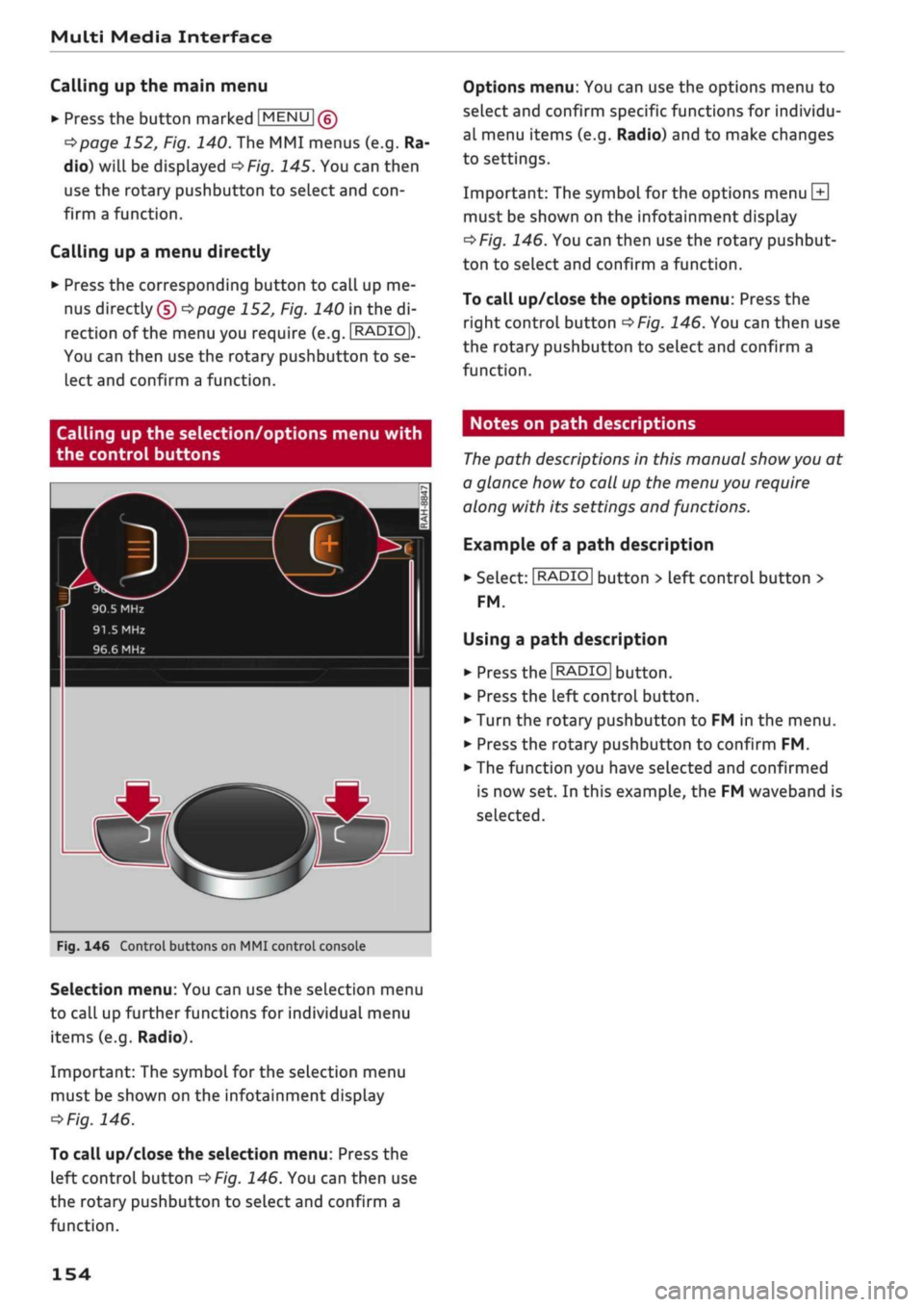
Options menu: You can use the options menu to
select and confirm specific functions for individu
al menu items (e.g. Radio) and to make changes
to settings.
Important: The symbol for the options menu
L±|
must be shown on the infotainment display
^>Fig.
146. You can then use the rotary pushbut
ton to select and confirm a function.
To call up/close the options menu: Press the
right control button
^>Fig.
146. You can then use
the rotary pushbutton to select and confirm a
function.
Calling up the selection/options menu with
the control buttons
90.5 MHz
91.5
MHz
96.6 MHz
r
Fig.
146 Control buttons on MMI control console
Selection menu: You can use the selection menu
to call up further functions for individual menu
items (e.g. Radio).
Important: The symbol for the selection menu
must be shown on the infotainment display
ï>Fig.
146.
To call up/close the selection menu: Press the
left control button
^>Fig.
146. You can then use
the rotary pushbutton to select and confirm a
function.
Notes on path descriptions
The
path descriptions in this manual
show
you at
a glance how to call up the menu you require
along with its settings and functions.
Example of a path description
•
Select:
I
RADIO|
button > left control button >
FM.
Using a path description
• Press the
I
RADIO
I
button.
•
Press the left control button.
•
Turn the rotary pushbutton to FM in the menu.
•
Press the rotary pushbutton to confirm FM.
•
The function you have selected and confirmed
is now set. In this example, the FM waveband is
selected.
154
Page 163 of 364
Multi Media Interface
The system may make suggestions to complete
your entry* (f)
oFig.
155 depending on
what
you
have entered. Further entries containing the
search terms entered will be displayed in the list
of
results
(2).
If the desired term is not yet displayed, continue
entering Letters until it appears.
The first few letters of the search terms will of
ten be sufficient to bring up a list of results. In
the Telephone* menu, for example, write the
ini
tials of the contact you are looking for, separat
ing them with a space.
Confirming an autocomplete suggestion
Important: An autocomplete suggestion* (J)
•=>F/g.
155
must be displayed.
Menus and symbols
•
When using MMI touch*: Press the rotary
pushbutton.
Using an entry from the results list
Important: At least one entry must be displayed
in the results List (2)
^>Fig.
155.
*•
When using MMI touch*: Turn the rotary push
button to the right. SeLect an entry from the
list and confirm it.
•
When using the speller: SeLect and confirm
I
LIST
I Qo page
159, Fig. 154. Or: Push the ro
tary pushbutton downwards. Select an entry
from the list and confirm it.
0
19
Telephone: Call list
Detailed station information Who would you like to call? Preferred image
e.g.
John Smith
•
Mailbox
th,
John 049841123456
®
®l@
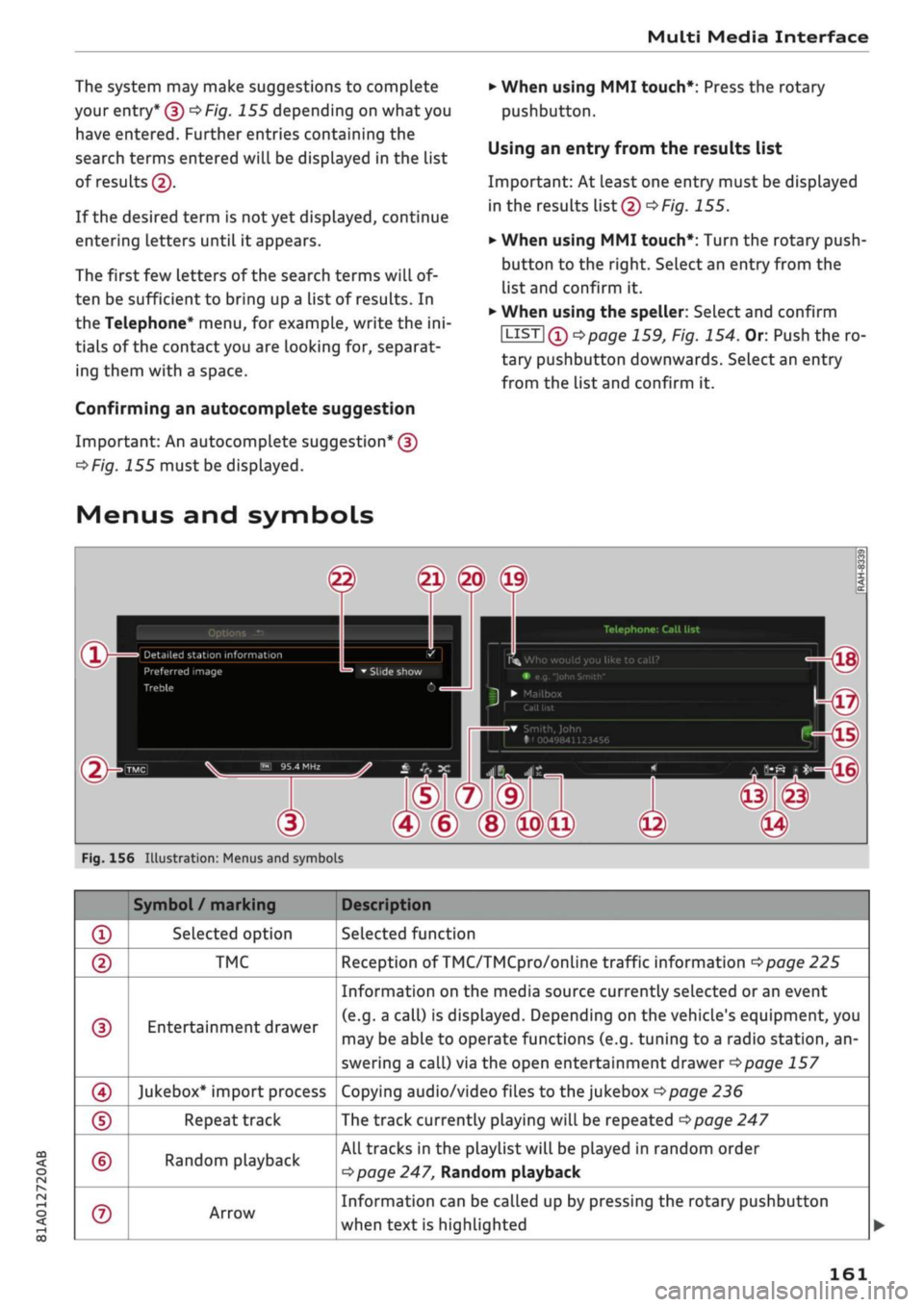
Fig.
156 Illustration: Menus and symbols
CO
<
O
rN
IN
rN
t-H
o <
®
©
©
0
©
©
©
Symbol/
marking
Selected option
TMC
Entertainment drawer
Jukebox* import process
Repeat track
Random playback
Arrow
Description
Selected function
Reception of TMC/TMCpro/online traffic information
^>page
225
Information on the media source currently selected or an event
(e.g.
a call) is displayed. Depending on the vehicle's equipment, you
may be able to operate functions (e.g. tuning to a radio station, an
swering a call) via the open entertainment drawer
^>page
157
Copying audio/video files to the jukebox
•=>page
236
The track currently playing will be repeated
Opage
247
All tracks in the playlist will be played in random order
Opage
247, Random playback
Information can be called up by pressing the rotary pushbutton
when text is highlighted
161
Page 165 of 364
Speech dialogue system
• Telephone
• Audi connect
• Navigation
• Directory
• Radio
• Media
• Sound
• Help
• Help Speech Dialogue System
• Help Telephone
• Help Audi connect
• Help Navigation
• Help
Map
• Help Radio
• Help Media
SIIPCMI
Enter number
• Delete number
/
Correction
Directory
Call (XY)
• business
/
private
/
land line
/
mobile
NAVIGi
mm
• Navigate
to (XY)
• Start
/
stop route guidance
• Directory
• Last destinations
• Navigation favourites
• Drive home
• Enter address
• Enter country
/
town
/
street
• Exclude route
/
Exclude route
for
(XY)
km / m
• Favourites
• Call
(XY)
• Enter number
• Redial
• Read
new
text message
• Drive
me to (XY)
• Enter address
• Stop route guidance
•
Map
• Line
(XY)
• Next page
/
previous page
• Cancel
• Online destinations
•
No, I
meant
(XY)
• Correction
Call list
Redial
Call mailbox
Enter PIN
/
delete
PIN
Telephone favourites
Exclude next route section
/
Exclude
next street
Manual
/
Automatic traffic
avoidance
Route list
Calculate alternative routes
Online destinations
Special destinations
Map
Day
map /
Night
map
2D driving position
map / 2D
north position
map / 3D map /
Destination
map /
Overview
map
Flight information
/
Train information
City events
Online news
Twitter
^iuiDit(5.Q:NiNE:(aH
• Audi connect
• Travel information
/
Parking information
• Fuel prices
• Weather
RADIO MEDIA
RADIO MEDIA
• Radio favourites
• FM
and DAB
•FM/DAB/AM
• Station (XY)
/
Frequency
(XY)
• Ensemble
(XY)
• Traffic programme
on / off
Jukebox
CD/DVD
SD card
1 /
SD card
2
Audi music interface
/
iPod
/
USB
/
Bluetooth
/
Wi-Fi/Medium
(XY)
Media favourites
/
Artists
/
Albums
/
Genres
/
Tracks
/
Playlists
/
Videos
Folder
up
Random playback
on / off
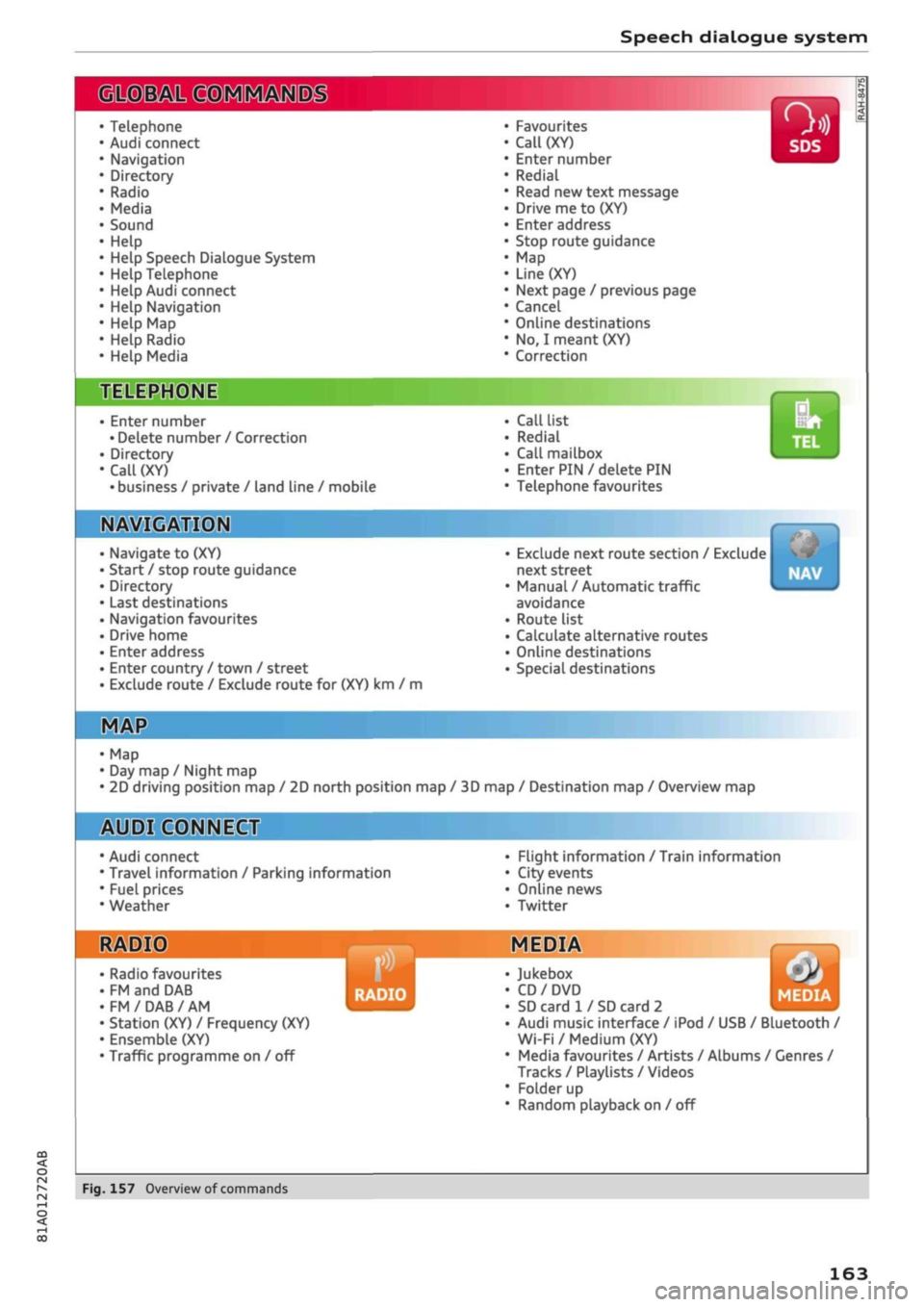
Fig.
157
Overview
of
commands
00
163
Page 167 of 364
Speech dialogue system
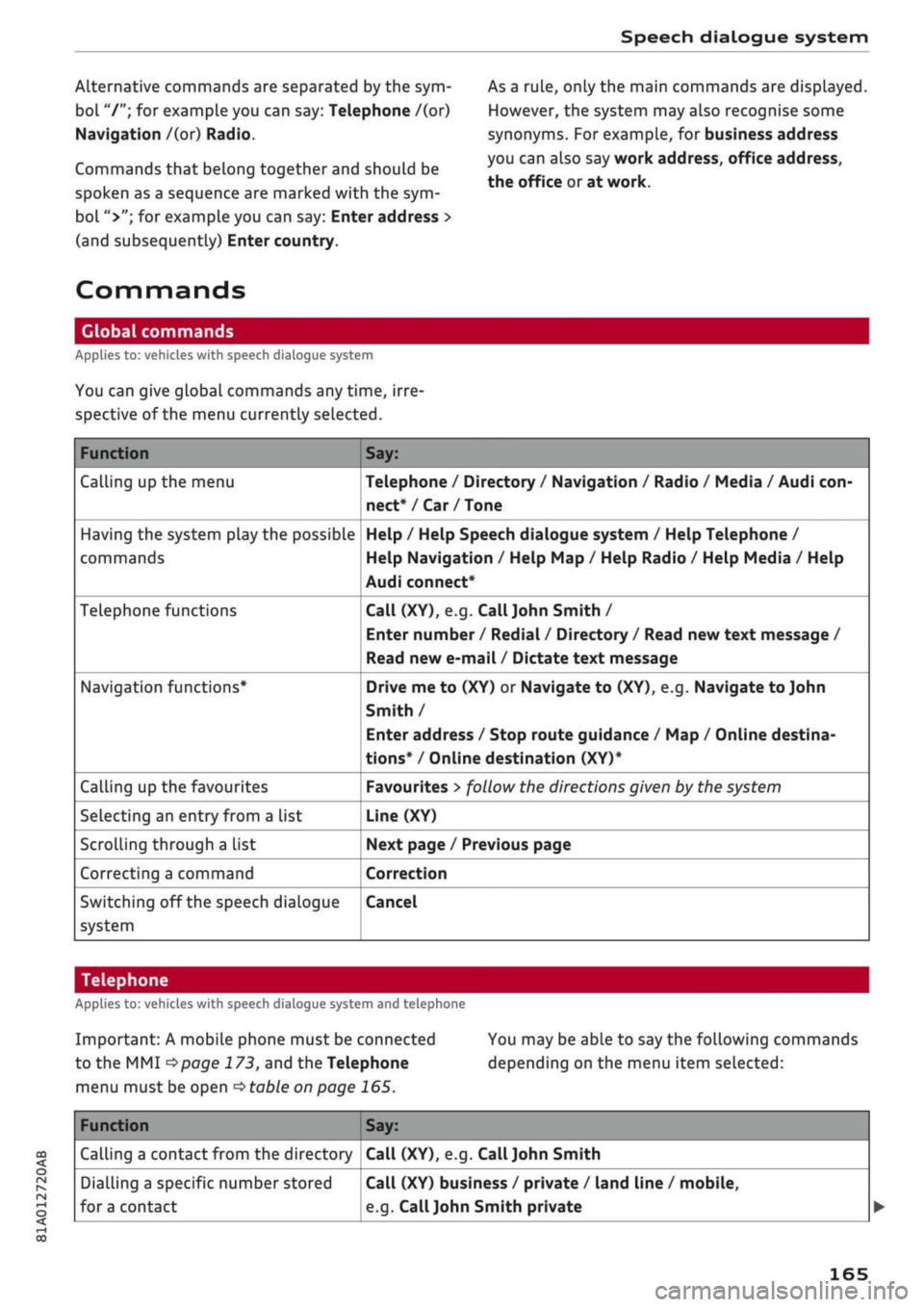
Alternative commands are separated by the sym
bol "/"; for example you can say: Telephone /(or)
Navigation /(or) Radio.
Commands that belong together and should be
spoken as a sequence are marked with the sym
bol ">"; for example you can say: Enter address >
(and subsequently) Enter country.
As a rule, only the main commands are displayed.
However, the system may also recognise some
synonyms. For example, for business address
you can also say work address, office address,
the office or at work.
Commands
Global commands
Applies to: vehicles with speech dialogue system
You can give global commands any time, irre
spective of the menu currently selected.
Function
Calling up the menu
Having the system play the possible
commands
Telephone functions
Navigation functions*
Calling up the favourites
Selecting an entry from a List
Scrolling through a list
Correcting a command
Switching off the speech dialogue
system
Say:
Telephone / Directory / Navigation / Radio / Media / Audi
con
nect*/Car/Tone
Help / Help Speech dialogue system / Help Telephone /
Help Navigation / Help Map / Help Radio / Help Media / Help
Audi connect*
Call (XY), e.g.
Call John
Smith /
Enter number / Redial / Directory / Read new text message /
Read new e-mail / Dictate text message
Drive me to (XY) or Navigate to (XY), e.g. Navigate to John
Smith /
Enter address / Stop route guidance / Map / Online destina
tions*
/ Online destination (XY)*
Favourites
>
follow the directions given by the system
Line (XY)
Next page / Previous page
Correction
Cancel
CO
<
O
rN
IN
rN
00
Telephone
Applies to: vehicles with speech dialogue system and telephone
Important: A mobile phone must be connected
to the MMI
^>page
173, and the Telephone
menu must be open
stable
on page 165.
You may be able to say the following commands
depending on the menu item selected:
Function
Calling a contact from the directory
Dialling a specific number stored
fora
contact
Say:
Call (XY), e.g. Call
John
Smith
Call (XY) business / private / land line / mobile,
e.g.
Call
John
Smith private
165
Page 171 of 364
Speech dialogue system
Function
General map options
Map type
Displaying the route list
Displaying remaining distance/time
while route guidance is active
Highest speed query
Setting the navigation cues during
active route guidance
Dynamic traffic avoidance
Excluding the next section of the
route
Excluding a certain section of the
route
Say:
Map / Day map / Night map / Change map colours automati
cally
2D driving position map / 2D north position map / 3D map /
Destination map / Overview map / Standard map* / Traffic
map*
/ Google Earth map*
Route list
Destination info
How fast can I go here?
Voice guidance on / Voice guidance off / Voice guidance com
pact / Voice guidance complete / Voice guidance
traffic
Manual traffic avoidance / Automatic traffic avoidance /
Switch off traffic avoidance
Exclude route
Exclude route for (XY) metres/kilometres/yards/miles / Ex
clude next street / Exclude next section of route
© Note
- Depending on the selected menu language
and the country you are in, you may have to
spell destinations to enter them for route
guidance.
- Please always note the information in the
chapter
^>page
204, General notes on Audi
connect (infotainment).
CO
<
O
rN
IN
rN
•-i
00
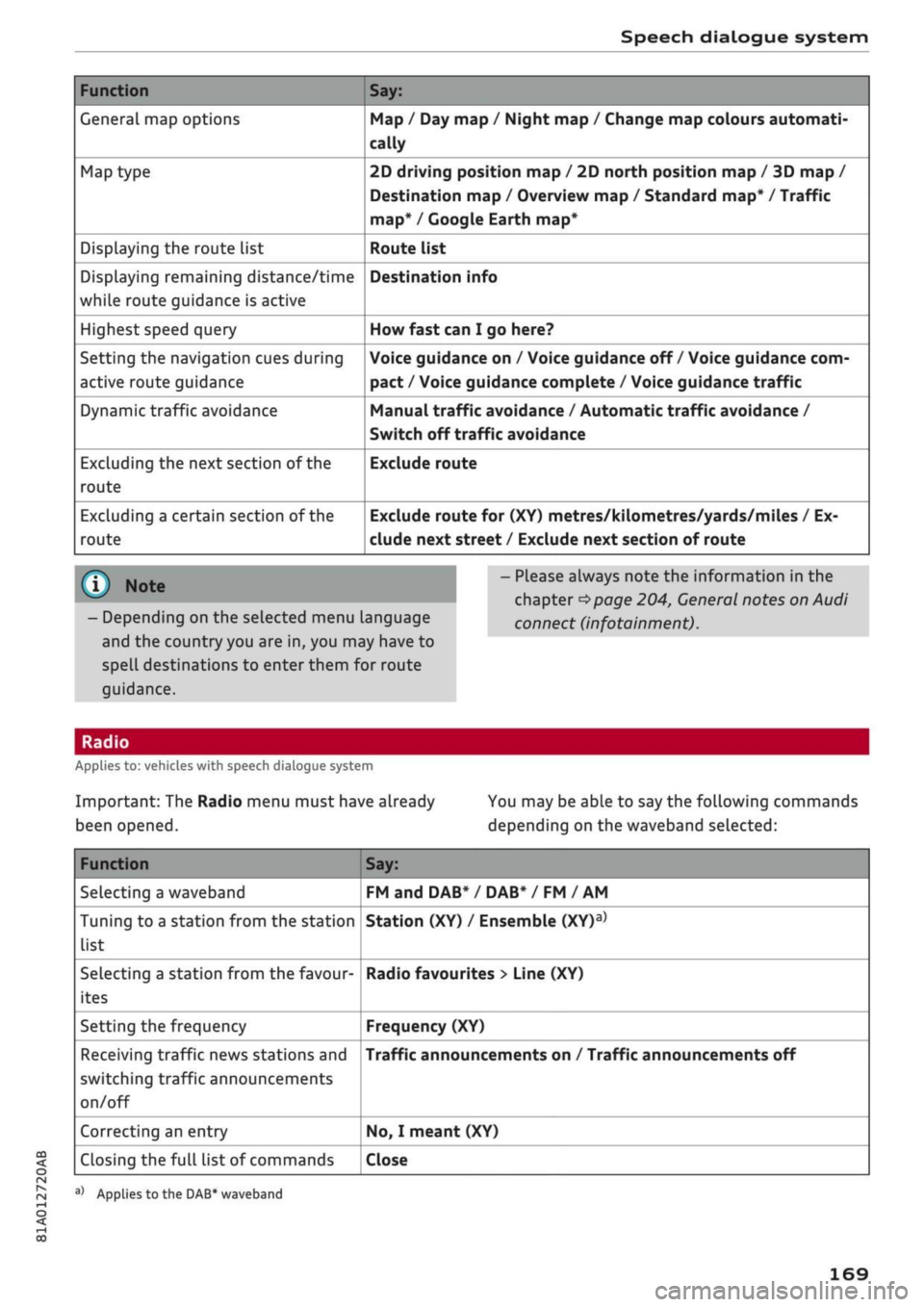
Applies to: vehicles with speech dialogue system
Important: The Radio menu must have already
been opened.
You may be able to say the following commands
depending on the waveband selected:
Function
Selecting a waveband
Tuning to a station from the station
list
Selecting a station from the favour
ites
Setting the frequency
Receiving traffic news stations and
switching traffic announcements
on/off
Correcting an entry
Closing the full list of commands
Say:
FM and DAB* / DAB* / FM / AM
Station (XY) / Ensemble
(XY)a>
Radio favourites > Line (XY)
Frequency (XY)
Traffic announcements on / Traffic announcements off
No,
I meant (XY)
Close
a)
Applies
to
the DAB* waveband
169
Page 172 of 364
Speech dialogue system
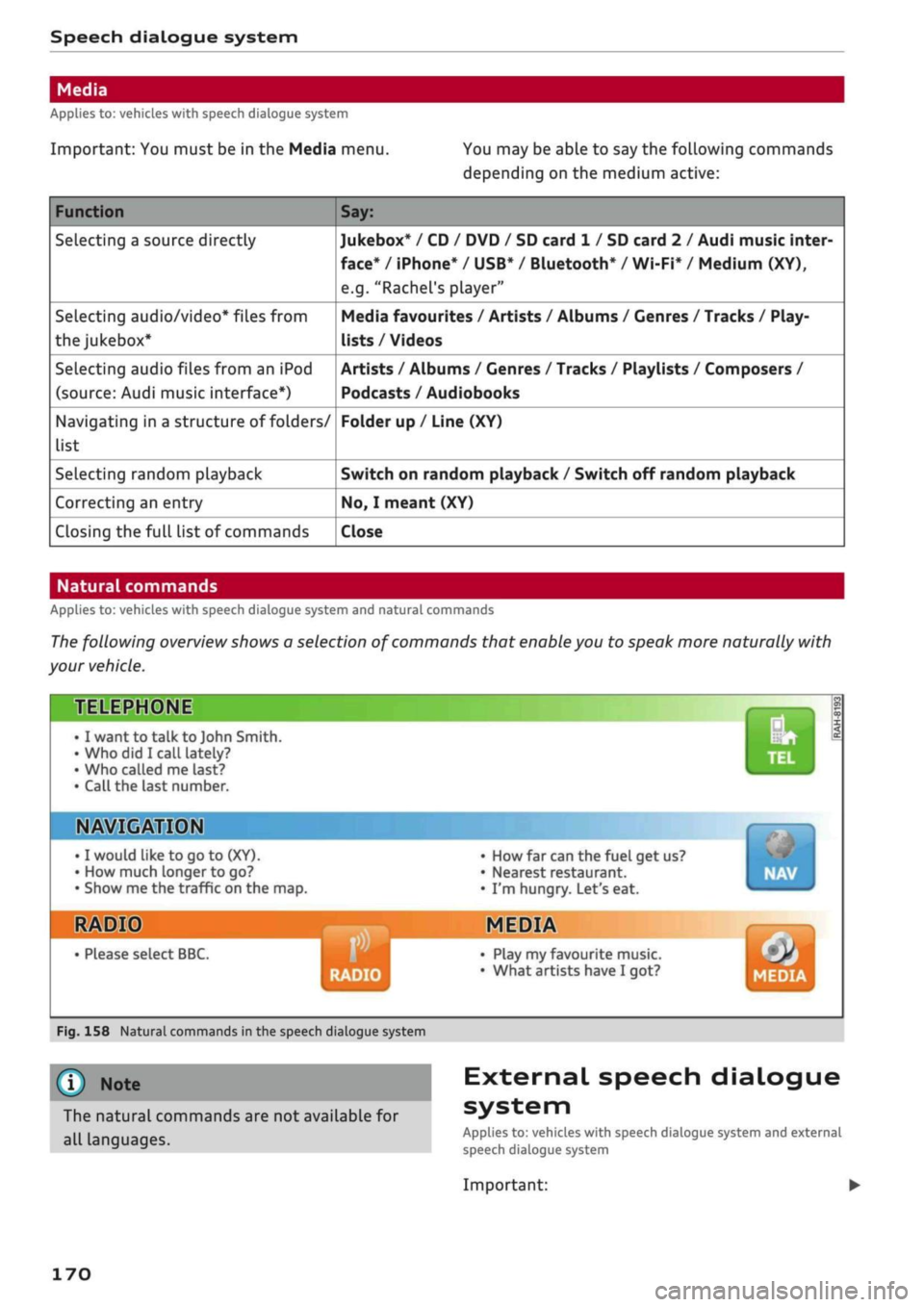
Applies to: vehicles with speech dialogue system
Important: You must be in the Media menu. You may be able to say the following commands
depending on the medium active:
Function
Selecting a source directly
Selecting audio/video* files from
the
jukebox*
Selecting audio files from an iPod
(source: Audi music interface*)
Navigating in a structure of folders/
list
Selecting random playback
Correcting an entry
Closing the full list of commands
Say:
Jukebox* / CD / DVD / SD card 1 / SD card 2 / Audi music inter
face*
/ iPhone* / USB* / Bluetooth* / Wi-Fi* / Medium (XY),
e.g.
"Rachel's player"
Media favourites / Artists / Albums / Genres / Tracks / Play-
lists / Videos
Artists / Albums / Genres / Tracks / Playlists / Composers /
Podcasts / Audiobooks
Folder up / Line (XY)
Switch on random playback / Switch off random playback
No,
I meant (XY)
Close
Natural commands
Applies to: vehicles with speech dialogue system and natural commands
The following overview shows a selection of commands that enable you to speak more naturally with
your vehicle.
TELEPHONE
• I want to talk to John Smith.
•Who did I
call lately?
• Who called me last?
• Call the last number.
IN»
©MM
I would
like to go to
(XY).
How much longer to go?
Show me the traffic on the map.
HIS
• Please select BBC.
• How far can the fuel get us?
• Nearest restaurant.
• I'm hungry. Let's eat.
MEDIA
RADIO
• Play my favourite music.
• What artists have I got? MEDIA
Fig.
158 Natural commands in the speech dialogue system
©
Note
The natural commands are not available for
all languages.
External speech dialogue
system
Applies to: vehicles with speech dialogue system and external
speech dialogue system
Important:
170
Page 182 of 364

Telephone
Answering/ending a call
Applies to: vehicles with telephone
- To answer a
call:
Select and confirm Answer.
- To decline a
call:
Select and confirm Ignore.
- To mute an active
call:
Select and confirm
Mute.
- To end a call/cancel the dialling process: Se
lect and confirm End
call.
Caller information: Depending on whether the
caller is stored in the directory and whether the
telephone number is transmitted with the
call,
the caller's name, his/her telephone number or
Unknown will appear on the infotainment dis
play. A photo of the caller may also be shown if
one has been assigned to the contact in your mo
biLe phone and transmitted to the MMI. You can
find out if your mobiLe phone supports this func
tion by asking your mobile network provider,
con
sulting your mobile phone's operating manual or
visiting www.audi.com/bluetooth.
- Media playback or the radio
is
muted auto
matically
during a call
- A symbol is displayed in the status line of
the infotainment display if there are any
missed calls
(f)
<^>page
161, Fig. 156
During a telephone call
Applies to: vehicles with telephone
Important: A call must be in progress.
•
End
call:
You can end the
call.
•
Send tone sequence: You can enter DTMF
tones ("touch-tones") directly using the speller
for numbers. These are then sent to the person
you are speaking to.
•
Further call options: Press the right control
button.
The following options may be available during a
call depending on the mobile phone being used
and the type of connection:
-To answer
a
further
call:
If
you
are already talk
ing on the phone when someone else calls, se
lect Answer to place the current call on hold
and to answer the incoming
call.
If
you
select
Ignore, the incoming
call
will be declined.
- To answer
a
further call when you are talking
on the phone and have another call on
hold:
Se
lect Replace. The current call will be replaced
by the incoming
call.
-To mute an incoming
call:
Select and confirm
Mute.
- Further
call:
Select Find contact
>
Call list/Di
rectory/Favourites > an entry from the
list.
Switch microphone off: If
you
select and confirm
this option, the caller will no longer be able to
hear
you;
you will still be able to hear the caller.
SeLect and confirm Switch microphone on to
switch the microphone back on.
Hold/Resume: You can put
a
call on hold and re
trieve it later from the hold queue. Select and
confirm a
call
to resume it.
Transfer call to mobile phone*: Select and
con
firm Transfer call to mobile phone to transfer
your current call from the MMI to your mobile
phone.
Retrieve
call*:
Important: A call must be in pro
gress.
Select and confirm Retrieve call to trans
fer the current call back to the MMI from your
mobile phone.
Switch:
You can switch between two phone calls
(one of them will be on hold at any given time).
Select End call to end whichever call is active.
The call on hold will remain in the hold queue
and can be continued by pressing the right
con
troL button > Resume.
Conference: Up to five callers and one caller on
hold can take part in a conference (depending on
the mobile network service provider).
- To add participants: Select the left control but
ton > Call list/Directory/Favourites
>
an entry
in the
list.
- SeLect the right control button:
- Hold: To put all existing conference partici
pants on
hold.
- Resume: To resume the conference with all
participants. •
180
Page 183 of 364

Telephone
CO
< o rN
IN
rN
t-H
o < 00
- Remove conference participant: You can re
move a participant from the conference. The
call with this participant will be ended.
- Merge to conference: The contact you have
called can be added to the conference.
Connection manager: Refer to
•=>page
257.
Telephone settings: Refer to
^>page
187.
© Note
- If
you
are using the Handsfree profile, the
option Call waiting must be activated on
your mobiLe phone for you to be alerted to
incoming calls during a conversation.
- For further information, contact your mo
bile network service provider or refer to the
operating instructions for your mobile
phone.
-The Bluetooth connection between the sys
tem and the mobile phone is automatically
terminated when you leave the car. Depend
ing on the mobile phone, telephone calls
may be transferred automatically from the
MMI to your mobile phone so that you can
continue talking.
- The display for the incoming call may re
main visible for several seconds after the
call is answered or ignored; this depends on
the type of mobile phone you are using.
Dialling the emergency number
Applies to: vehicles with telephone
•
Select:
|MENU|
button
>
Telephone
>
Left
con
troL button > Enter number
>
emergency num
ber (e.g. 112)
>
OK.
A WARNING
- Since your telephone operates via radio
waves, a connection cannot be guaranteed
under all circumstances. Do not rely solely
on your telephone when a vital communica
tion (e.g. medical emergency) is involved.
- Always follow the directions of the emer
gency operators when making an emergency
call and do not end the call before you are
requested to do so.
Emergency numbers are not the same for all
countries. Please make sure that you know
the emergency number for the country you
are in.
Favourites
Applies to: vehicles with telephone
In addition to the mailbox
number,
you can store
up to 50 contacts in the list of favourites, in any
order.
•
Select:
|MENU[
button
>
Telephone
>
Left
con
trol button.
Storing an existing telephone number as a
favourite
- Select and confirm Call list/Directory.
- Select a contact/a telephone number from the
list.
- Select: right control button
>
Store as favour
ite.
- Enter
a
name for the favourite or accept the
suggestion.
- Select and confirm Store.
Renaming a stored favourite
- Select: Favourites
>
a favourite from the
list.
- Select: right control button > Rename favour
ite.
Moving a stored favourite
- Select: Favourites
>
a favourite from the
list.
- Select: right control button > Move favourite.
- Select and confirm the position of the favourite
selected.
Deleting a stored favourite
- Select: Favourites > a favourite from the
list.
- Select: right control button > Delete favourite
> Delete this favourite or Delete all favourites.
181
Page 203 of 364
Audi connect (infotainment)
CO
< o rN
IN
rN
•-H
00
new version is available at my.audi.com.
You can also have the new navigation data
installed by an Audi deaLer (carries addition
al charges).
- Further information on the myAudi special
destinations and the map update can be
found online at my.audi.com.
Audi connect (infotainment) for telephones
Applies
to: vehicles with Audi connect (infotainment)
© CAUTION
•
Select: |MENU| button
>
Audi connect
>
left
control button
>
Communication.
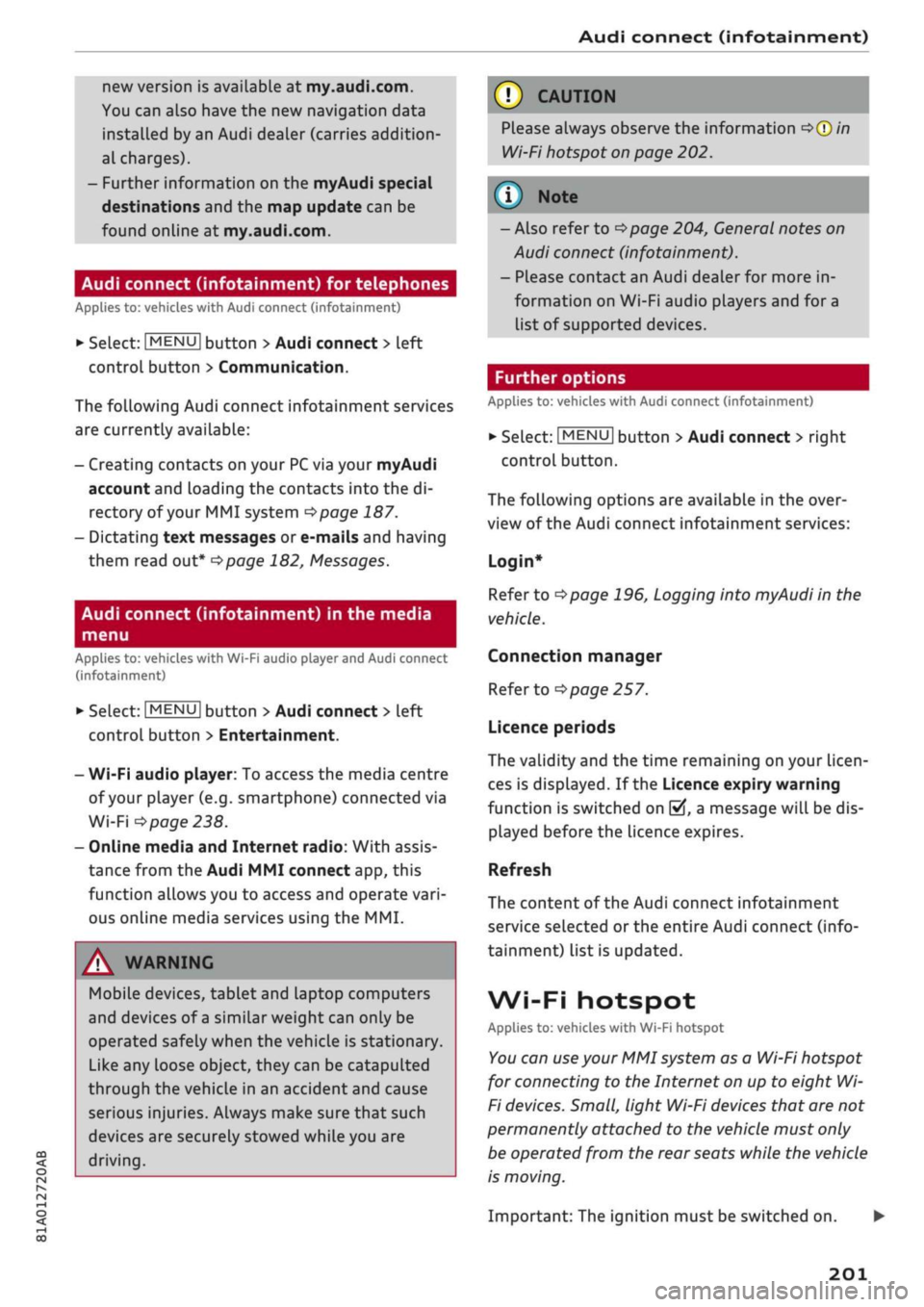
The following Audi connect infotainment services
are currently available:
- Creating contacts on your
PC
via your myAudi
account and loading the contacts into the di
rectory of your MMI system
^>page
187.
- Dictating text messages or e-mails and having
them read out*
^>page
182, Messages.
Audi connect (infotainment) in the media
menu
Applies
to: vehicles with Wi-Fi audio player and Audi connect
(infotainment)
*•
Select: |MENU| button
>
Audi connect
>
left
control button > Entertainment.
- Wi-Fi audio player: To access the media centre
of your player (e.g. smartphone) connected via
Wi-Fi
<=>
page 238.
- Online media and Internet radio: With assis
tance from the Audi MMI connect app, this
function allows you to access and operate
vari
ous online media services using the MMI.
A WARNING
Mobile devices, tablet and Laptop computers
and devices of
a
similar weight can only be
operated safely when the vehicle is stationary.
Like any Loose object, they can be catapulted
through the vehicle in an accident and cause
serious injuries. Always make sure that such
devices are securely stowed while you are
driving.
Please always observe the information
=>®
in
Wi-Fi hotspot on page 202.
- Also refer to
opage
204, General notes on
Audi connect (infotainment).
- Please contact an Audi dealer for more in
formation on Wi-Fi audio players and for a
list of supported devices.
Further options
Applies
to: vehicles with Audi connect (infotainment)
•
Select: |MENU| button
>
Audi connect
>
right
control button.
The following options are available in the over
view of the Audi connect infotainment services:
Login*
Refer to
^>page
196, Logging into myAudi in the
vehicle.
Connection manager
Refer to
^>page
257.
Licence periods
The validity and the time remaining on your licen
ces is displayed. If the Licence expiry warning
function is switched on
(vj,
a message will be dis
played before the licence expires.
Refresh
The content of the Audi connect infotainment
service selected or the entire Audi connect (info
tainment) list is updated.
Wi-Fi hotspot
Applies
to: vehicles with Wi-Fi hotspot
You
can
use
your MMI system as a Wi-Fi hotspot
for connecting to the Internet on up to eight Wi-
Fi
devices.
Small, light Wi-Fi
devices
that are not
permanently attached to the vehicle must only
be operated from the rear seats while the vehicle
is moving.
Important: The ignition must be switched on.
201