phone AUDI Q7 2017 Owner´s Manual
[x] Cancel search | Manufacturer: AUDI, Model Year: 2017, Model line: Q7, Model: AUDI Q7 2017Pages: 402, PDF Size: 100.39 MB
Page 5 of 402
Error messages . . . . . . . . . . . . . . . . . . . . . 146
Trai ler hitch . . . . . . . . . . . . . . . . . . . . . . . . 147
Intelligent Technology . . . . . . . . . . 148
Elect ronic stabilization control (ESC) . . . . 14 8
Brakes ... .. .. ... .. ..... ... .. .. .... . 150
Electromechanica l steer ing, a ll-wheel
steering . . . . . . . . . . . . . . . . . . . . . . . . . . . 152
All-wheel drive (quattro) . . . . . . . . . . . . . . 152
Energy ma nagement . . . . . . . . . . . . . . . . . 153
Not ice about data reco rded by the Event
D ata Reco rde r and vehicle control
mod ules . . . . . . . . . . . . . . . . . . . . . . . . . . . 154
Infotainment system . . . . . . . . . . . . 156
Multi Media Interface . . . . . . . . . . . . 156
Traffic safety information . . . . . . . . . . . . . 156
I n troduction . . . . . . . . . . . . . . . . . . . . . . . . 15 6
M MI On/Off knob with joystic k function . . 156
Infotainment system display . . . . . . . . . . 157
M MI operat ion . . . . . . . . . . . . . . . . . . . . . . 158
MMI touc h . . . . . . . . . . . . . . . . . . . . . . . . . 160
Contro l knob with joystick f unction . . . . . 162
Shortcut keys . . . . . . . . . . . . . . . . . . . . . . . 163
L etter/numbe r speller . . . . . . . . . . . . . . . . 164
Fr ee tex t sea rch . . . . . . . . . . . . . . . . . . . . . 165
M enus and Symbols . . . . . . . . . . . . . . . . . . 166
Voice recognition system . . . . . . . . 169
Operating . . . . . . . . . . . . . . . . . . . . . . . . . . 168
Command overview inform ation . . . . . . . . 169
Commands . . . . . . . . . . . . . . . . . . . . . . . . . 170
External vo ice operat ion 174
Telephone . . . . . . . . . . . . . . . . . . . . . . . . 176
I ntroduction . . . . . . . . . . . . . . . . . . . . . . . . 176
Setup . . . . . . . . . . . . . . . . . . . . . . . . . . . . . 176
Using the te lephone . . . . . . . . . . . . . . . . . 178
Favorites . . . . . . . . . . . . . . . . . . . . . . . . . . . 181
Messages . . . . . . . . . . . . . . . . . . . . . . . . . . 181
Listening to voicema il . . . . . . . . . . . . . . . . 184
D irectory . . . . . . . . . . . . . . . . . . . . . . . . . . . 184
Addit ional settings . . . . . . . . . . . . . . . . . . 186
Tr oubleshoo ting . . . . . . . . . . . . . . . . . . . . . 188
~ Audi connect (Infotainment) . . . . 189 ......
~ Introduction . . . . . . . . . . . . . . . . . . . . . . . . 189 N
8 Setup . . . . . . . . . . . . . . . . . . . . . . . . . . . . . 189 0 :E: '
Configuration thro ugh myAudi . . . . . . . . . 189
Opening A udi connect (Infotainment) . . . 190
A udi connect Infotainment services . . . . . 190
Wi-Fi hotspot . . . . . . . . . . . . . . . . . . . . . . . 195
Configuring the data connection . . . . . . . . 196
Audi connect (Infotainment) general
i nformation . . . . . . . . . . . . . . . . . . . . . . . . 196
T roub leshooting . . . . . . . . . . . . . . . . . . . . . 198
Audi connect vehicle control . . . . 199
I n trod uction . . . . . . . . . . . . . . . . . . . . . . . . 199
Setup . . . . . . . . . . . . . . . . . . . . . . . . . . . . . 199
Additional o ptions . . . . . . . . . . . . . . . . . . . 200
Remote locking and un lo cki ng . . . . . . . . . 20 0
Vehicle sta tus report . . . . . . . . . . . . . . . . . 200
Parking location . . . . . . . . . . . . . . . . . . . . . 200
Geofencing Alert . . . . . . . . . . . . . . . . . . . . 201
Speed Alert . . . . . . . . . . . . . . . . . . . . . . . . . 201
Valet Alert . . . . . . . . . . . . . . . . . . . . . . . . . 201
Stolen Vehicle Locator . . . . . . . . . . . . . . . . 201
Online Aud i serv ice reques t . . . . . . . . . . . . 201
Eme rgency call . . . . . . . . . . . . . . . . . . . 203
I n trod uction . . . . . . . . . . . . . . . . . . . . . . . . 203
E mergency call . . . . . . . . . . . . . . . . . . . . . . 203
Online roads ide ass ista nce . . . . . . . . . . . . 204
N avigation . . . . . . . . . . . . . . . . . . . . . . . . 205
Open ing navigation . . . . . . . . . . . . . . . . . . 205
E nte ring a des tina tion . . . . . . . . . . . . . . . . 206
Persona l rou te ass ist ance . . . . . . . . . . . . . 211
Alte rnative rou tes . . . . . . . . . . . . . . . . . . . 2 12
Additional settings . . . . . . . . . . . . . . . . . . 213
Map. ... .. .. .. .. .. .... . ..... ... .. .. 215
Online map d isp lay ................ .. 217
Map update . . . . . . . . . . . . . . . . . . . . . . . . 218
Traffic information . . . . . . . . . . . . . . . . . . 220
T roubleshooting . . . . . . . . . . . . . . . . . . . . . 222
Radio ............................. 223
Open ing the radio . . . . . . . . . . . . . . . . . . . 223
Radio funct ions . . . . . . . . . . . . . . . . . . . . . 224
Radio menu . . . . . . . . . . . . . . . . . . . . . . . . 226
Presets . . . . . . . . . . . . . . . . . . . . . . . . . . . . 226
Addition al settings . . . . . . . . . . . . . . . . . . 226
T roub leshooting . . . . . . . . . . . . . . . . . . . . . 227
3
Page 6 of 402
Table of contents Media ... . ... ... .. .......... .. .. ...
228
Introduction . . . . . . . . . . . . . . . . . . . . . . . . 228
Notes ... .. .. .. ... .......... .. .. .. . 228
Media drives . . . . . . . . . . . . . . . . . . . . . . . . 229
Bluetooth audio player . . . . . . . . . . . . . . . 231
Wi -F i aud io player . . . . . . . . . . . . . . . . . . . 232
Online media and Internet radio . . . . . . . . 233
Multimedia connections . . . . . . . . . . . . . . 234
Pla ying media. .. ............. .... .. . 237
Additional settings . . . . . . . . . . . . . . . . . . 240
Supported media and file formats . . . . . . 243
Troubleshooting . . . . . . . . . . . . . . . . . . . . . 244
Audi smartphone interface . . . . . . 247
Setup ... .. .... ... .......... .. .. ... 247
Operating . . . . . . . . . . . . . . . . . . . . . . . . . . 247
Troubleshoot ing. . . . . . . . . . . . . . . . . . . . . 248
System settings . . . . . . . . . . . . . . . . . . 249
Setting the date and time . . . . . . . . . . . . . 249
MMI settings . . . . . . . . . . . . . . . . . . . . . . . 249
Connection manager . . . . . . . . . . . . . . . . . 250
System update . . . . . . . . . . . . . . . . . . . . . . 252
Sound settings . . . . . . . . . . . . . . . . . . . . . . 253
Volume settings . . . . . . . . . . . . . . . . . . . . . 253
Restarting the MMI . . . . . . . . . . . . . . . . . . 254
Software license i nformat ion 254
Safety first . . . . . . . . . . . . . . . . . . . . . . . 256
Driving safety . . . . . . . . . . . . . . . . . . . . 256
Bas ics . . . . . . . . . . . . . . . . . . . . . . . . . . . . . 256
Correct passenger seating positions . . . . . 257
D river's and front passenger's footwell . . 260
Pedal area . . . . . . . . . . . . . . . . . . . . . . . . . . 261
Storing cargo correctly . . . . . . . . . . . . . . . 261
Reporting Safety Defects . . . . . . . . . . . . . . 263
Safety belts . . . . . . . . . . . . . . . . . . . . . . 265
Gene ral information . . . . . . . . . . . . . . . . . 265
Why use safety belts? . . . . . . . . . . . . . . . . 266
Safety belts . . . . . . . . . . . . . . . . . . . . . . . . 268
Belt tensioners . . . . . . . . . . . . . . . . . . . . . . 271
Airbag system . . . . . . . . . . . . . . . . . . . . 273
Important information . . . . . . . . . . . . . . . 273
Front airbags . . . . . . . . . . . . . . . . . . . . . . . 277
Mo nito ring the Advanced Airbag System . 285
4
Side airbags . . . . . . . . . . . . . . . . . . . . . . . . 289
Side curtain airbags . . . . . . . . . . . . . . . . . . 292
Child safety . . . . . . . . . . . . . . . . . . . . . . 295
Important information . . . . . . . . . . . . . . . 295
Child safety seats . . . . . . . . . . . . . . . . . . . . 301
Securing child safety seats . . . . . . . . . . . . 306
LATCH system (lower anchorages and
tethers for c hildren) . . . . . . . . . . . . . . . . . 309
Additional information . . . . . . . . . . . . . . . 313
Maintenance and Care ........... 314
Checking and Filling . . . . . . . . . . . . . 314
Gasoline . . . . . . . . . . . . . . . . . . . . . . . . . . . 314
Diesel fuel . . . . . . . . . . . . . . . . . . . . . . . . . 315
Refueling ..... .. .. .. .. ........... .. 316
Selective catalytic reduction (AdBlue/
DEF) . . . . . . . . . . . . . . . . . . . . . . . . . . . . . . 318
Emissions control systems . . . . . . . . . . . . 321
Engine compartment . . . . . . . . . . . . . . . . . 322
Engine o il . . . . . . . . . . . . . . . . . . . . . . . . . . 324
Cooling system . . . . . . . . . . . . . . . . . . . . . . 328
Brake fluid . . . . . . . . . . . . . . . . . . . . . . . . . 329
Battery . . . . . . . . . . . . . . . . . . . . . . . . . . . . 330
Windshield washer system . . . . . . . . . . . . 331
Service interva l display 332
Wheels ........ ... ...... ....... ... 333
Wheels and Tires . . . . . . . . . . . . . . . . . . . . 333
T ire pressure monitoring system . . . . . . . 351
Run-flat tires . . . . . . . . . . . . . . . . . . . . . . . 352
Care and cleaning .... .......... .. 354
General informat ion . . . . . . . . . . . . . . . . . 354
Car washes . . . . . . . . . . . . . . . . . . . . . . . . . 354
Cleaning and care information . . . . . . . . . 355
P lac ing your vehicle out of service . . . . . . 359
Troubleshooting . . . . . . . . . . . . . . . . . 360
Emergency assistance . . . . . . . . . . . 360
Genera l information . . . . . . . . . . . . . . . . . 360
Eq uip ment . . . . . . . . . . . . . . . . . . . . . . . . . 360
Tire mobility kit . . . . . . . . . . . . . . . . . . . . . 360
Replacing a whee l . . . . . . . . . . . . . . . . . . . 362
Page 11 of 402
u co ...... N r-... N ...... 0
0
:E: '
exiting the vehicle ..... ... .. .. .
@ Door handle
@ Cent ral locking switch ....... .. .
@ Memory buttons ........... .. .
® Vent
® Thumbwhee l for vent and button
for wide vent, depending on equip-
ment ... .. .... .. .... ... ... . .
0 Lever for:
- T urn s ignals and high beams . . .
- High beam assistant .... .. .. .
- Active lane assist ........... .
- T raffic jam assist ........... .
@ Mu lt if unction steer ing whee l with:
- Horn
- Drive r's airbag . ..... ... .. .. .
- Drive r informat ion system con -
trols . ... .... .. .... ... .. .. .
- Audio/v ideo, telephone, nav iga
tion and voice recognition con -
t rols .. .. ... .. ..... ... .. .. .
- Button @/steering wheel heating
- Sh if t paddles .......... .. .. .
® Instrument cluster ........... .
@ Reset t rip odometer ...... .. .. .
@ W indshield washe r system lever
@ I STAR T ENGINE ST OPI button .. .
@ Steer ing whee l adjustment, de -
pending on equipmen t
- Mechan ica l .............. .. .
- Power .... .. .. ..... ... .. .. .
@ Leverfo r:
- C ruise cont rol sys tem
- Adaptive cruise cont rol ...... .
@ Data link connector for On-board
Diagnostic System (OBD II) . ... .
@ H ood release .... . .... .... ... .
@ Ins trumen t illum ination ... .. .. .
@ Button for switch ing the head-up
d isplay on/off, adjust ing the
height .. .. ........ ..... .. .. .
@ Sw itch for lugg age compa rtment
lid . ... .. .. .. .. .. .... ... .. .. .
@ H eadlight control sw itch .... .. .
126
38
64
7 1
49
49
123
114
27 7
1 2
14
1 4
94
10
12
55
82
81
8 1
10 2
107
2 1
323
52
20
4 0
48
Coc kpit o ve rv iew
@ Buttons fo r:
- All-weather lights
- Night vision assist .......... .
- Rea r fog lights ..... . ..... .. .
@ Power exte rior m irror adjustment
@ Power windows .............. .
@ Infotainment system display
@ Lockable glove compa rtme nt
@) Front passenger 's airbag .... .. .
@ Drives for CD, DVD, SI M cards .. .
@ Swi tch for cooled glove compa rt-
me nt ...... ................ .
@ Depend ing on equ ipment, buttons
for :
- drive select ................ .
- Sta rt/Stop system ... ..... .. .
- Electronic Stabilization Control
(ESC) . .. .. .. .. ... ....... .. -
- Emergency flashers ......... .
- Parking system ............. .
- Hill hold ass ist .. .. .. ..... .. .
- Extend ing/retracting the Info-
tainment system disp lay ... .. .
@ Climate contro l system .... ... . .
@) Storage compartment and outlet
@ Cup holder and mount for vehicle
key .... .... .. .. ............ .
@ Infotai nment system on/off
button . .. .. . ............... .
@ Center armrest w ith sto rage com
partment. Depending on vehicle
equipment, it may have:
- Aud i m usic interface ........ .
@ Starting the engine if the re is a
malfunction ... .. ... .. ..... .. .
@ E lectromechanical parking brake
@ Automa tic tr ansmission se lector
lever ... .. .. .. ... .. .. ..... .. .
@ Infotainment system unit
(D Tips
48
131
48
52
43
157
67
27 7
229
6 7
134 84
149
so
138
150
1S7
71
6 7,66
66
156
2 35
84
87
91
156
Some the equipment listed here is only instal
l ed in certa in models or is available as an op
tion.
9
Page 15 of 402
u (0
The driver informa tion system contains mult iple
tabs ©
c:;, fig. 6 that display various information
@.
The fo llow ing tab s are ava ilable, depend ing o n
ve hicl e equ ipment:
First tab Veh icle (on-board computer)
<=>page 15
Se co nd Messages
tabal
Thir d tabb)
Night vis ion ass ist*
c:;, page 131
F o urth tab Radio <=>page 16
Media c:;, page 16
Fifth tab Telephone
* c:;, page 1 76
S ixth tab Navigation" c:;, page 205
Map*
•> Thi s tab is only visible when there is at least one indicato r
light or m essage displayed.
bl T hi s tab is only v isible if Night vision ass ist * h as been acti
vated.
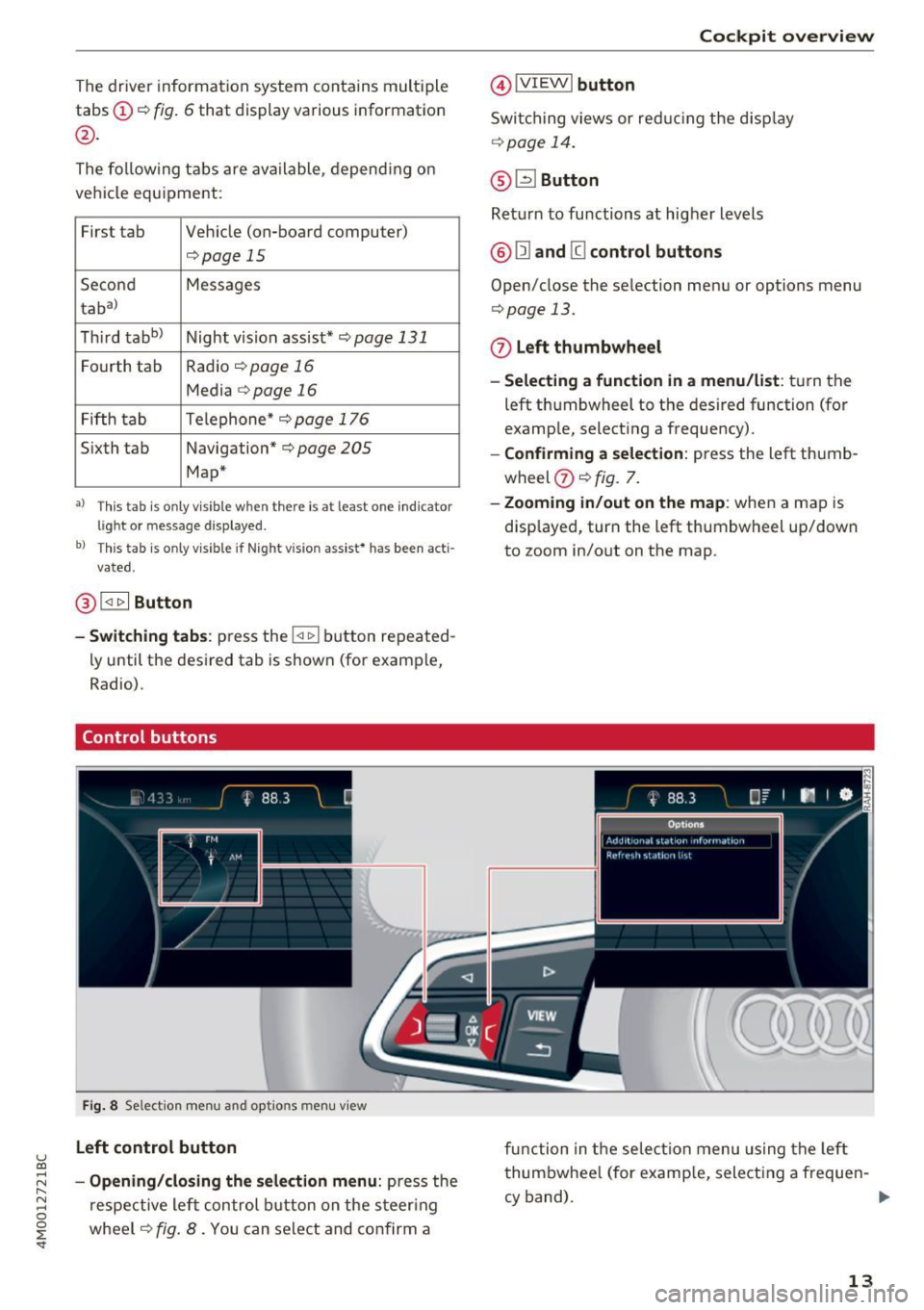
@ l<11> I Button
-Switching tabs: press the !<1 t> I bu tton re pea ted
l y until t he des ired tab is shown (for example,
Radio).
Control buttons
Fi g. 8 Se lect ion menu and opt ions menu view
Left control button
;::j -Opening/closing the selection menu : press the r--.
~ respe ctive le ft control button on the s teer ing 0
~ wheel c:;, fig . 8. You can sele ct and co nfi rm a
@IV IEWI button
Swi tc h ing views or red ucing the disp lay
¢ page 14 .
@ ~Button
Ret urn to fu nctions a t higher levels
@ Ill and @ control buttons
Open/close the se lecti on men u or options menu
<=> page 13.
0 Left thumbwheel
-Selecting a function in a menu/list : tur n the
left thumbwheel to the des ired function (fo r
examp le, select ing a frequency).
- Confirming a selection : press the left thumb
wheel
(J) c:;, fig. 7.
- Zooming in/out on the map : when a map is
disp layed, turn the left thumbw heel up/down
to zoom in/out on the map .
fu nction in t he se lec tion m enu us ing t he left
t hum bwhee l (for examp le, select ing a freque n-
cy band). ..,.
13
Page 16 of 402
Cockpit overview
Right control button
- Opening/closing the options menu :
press the
respective right control button on the steering
whee l~
fig. 8 . You can change any context-de
pendent functions and settings using the left
thumbwheel (for example, additional station information).
(D Tips
The availability of a se lection menu or options
menu depends on the function that is select
ed.
Switching views
Applies to: vehicles with Audi virtual cockpit
F ig. 9 Expanded v iew
Applies to: vehicles with Audi virtual cockpit
Fig. 10 Classic view
Applies to: vehicles with Audi virtual cockpit
- Switching views : press the IVIEW ! button @)
~ page 12, fig. 7 to sw itch from the classic
view ~
fig. 10 to the expanded view~ fig. 9. To
return to the classic view, press the IVIEW I but
ton again .
Applies to: vehicles with analog instrument cluster
-Reducing the display : press the IVIEW I button
to switch from the classic to reduced d isplay .
To return to the class ic view, press the !VIEWI
button aga in.
14
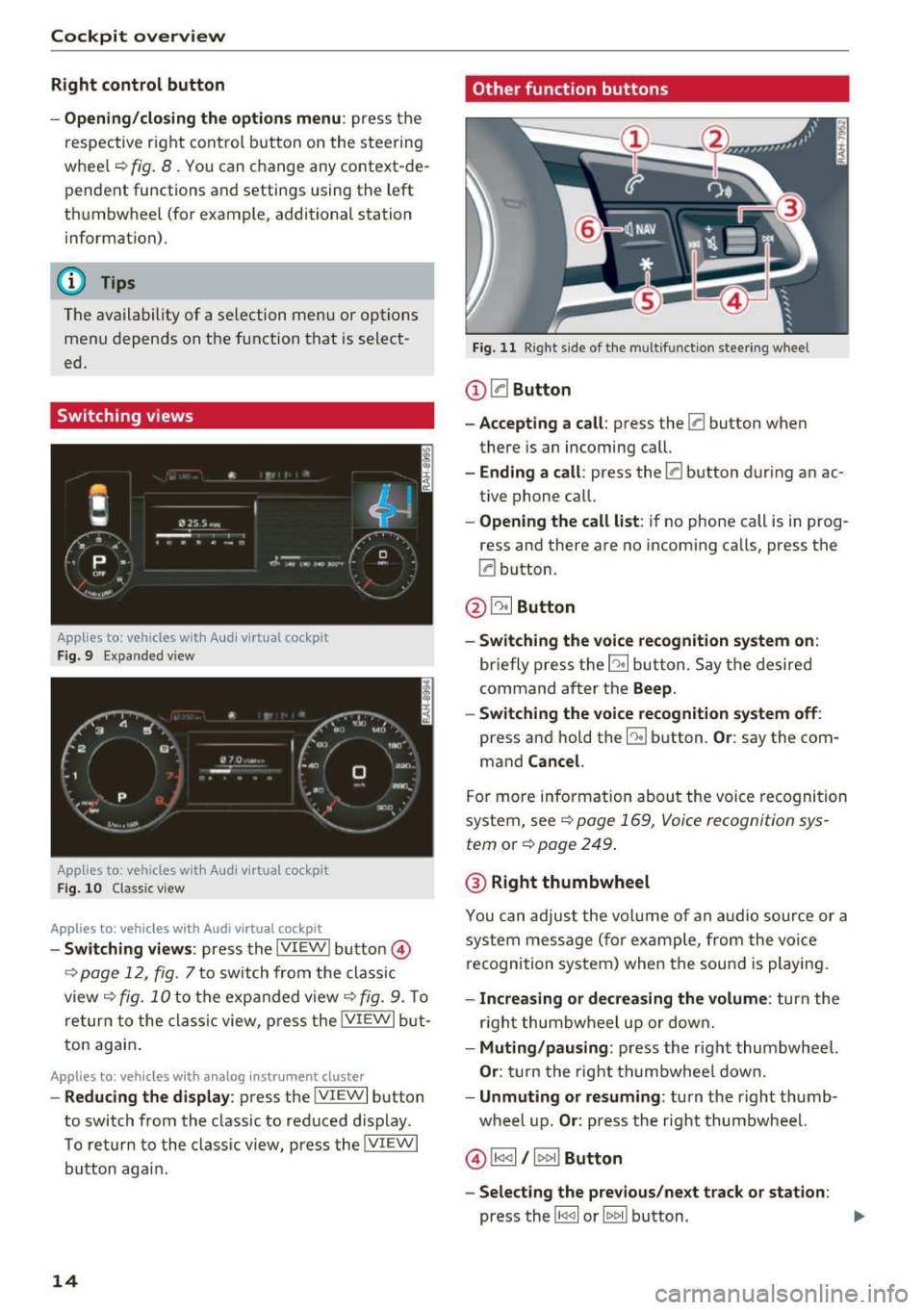
Other function buttons
Fig. 11 Right side of the multifunction steering wheel
(D 0Button
- Accepting a call:
press the 0 button when
there is an incoming call.
-Ending a call: press the 0 button during an ac
tive phone call.
- Opening the call list: if no phone call is in prog
ress and there are no incoming calls, press the
0 button.
@ ~ Button
- Switching the voice recognition system on:
briefly press the E:9 button. Say the desired
command after the
Beep.
- Switching the voice recognition system off:
press and hold the [:9 button. Or: say the com
mand
Cancel.
For more information about the voice recognition
system, see
~ page 169, Voice recognition sys
tem
or Q page 249.
@ Right thumbwheel
You can adjust the volume of an audio source or a
system message (f or example, from the voice
recognition system) when the sound is playing.
-Increasing or decreasing the volume: turn the
r ig ht thumbwheel up or down.
-Muting/pausing : press the right thumbwheel.
Or: turn the right thumbwheel down.
-Unmuting or resuming : turn the right thumb
wheel up.
Or: press the right thumbwheel.
© !1441 / l t>t>I! Button
- Selecting the previous/next track or station :
press the l1<1 <1I or lt>t> II button . .,,.
Page 19 of 402
u (0 ...... N r--. N ...... 0
0
:E
-The media drives do not play files that are
prot ected by ORM and that are identified
with the symbol~-
- Please note that within a media source in
the driver information system, only playlists
that were selected through the MMI control
panel can be played¢
page 238.
- Pay attention to the Infotainment system
display if necessary. Depending on these
lected function, it may be necessary to use
the MMI control panel.
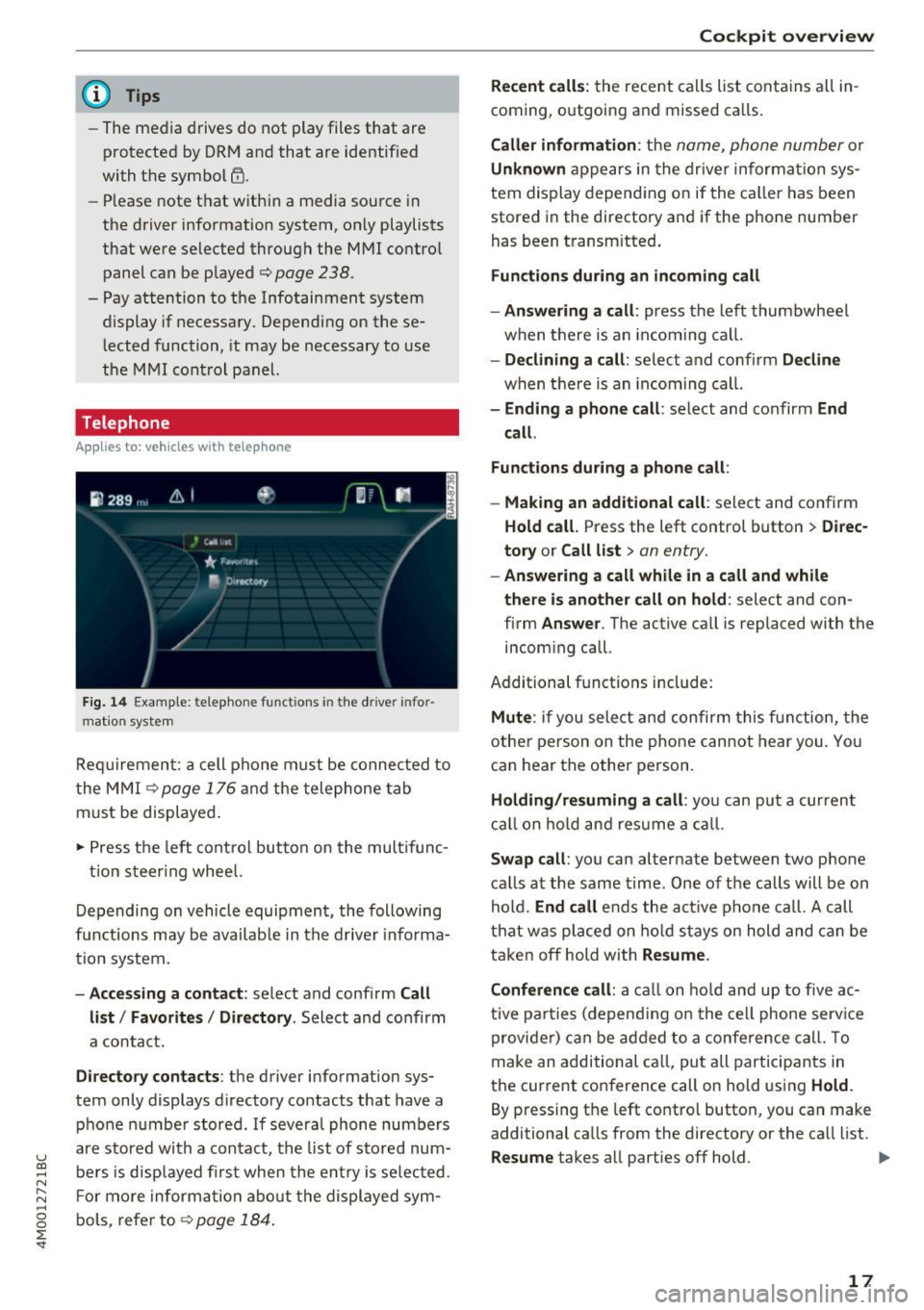
Telephone
A ppl ies to: ve hicles with tele phone
Fig. 14 Example: telephone functior-is in the driver in for
mation system
Requirement : a cell phone must be connected to
the MMI ¢
page 176 and the telephone tab
must be displayed.
~ Press the left control button on the multifunc-
tion steering wheel.
Depending on vehicle equipment, the following
functions may be available in the driver informa
tion system.
-Accessing a contact : select and confirm Call
list/ Favorites/ Directory .
Select and confirm
a contact.
Directory contacts : the driver information sys
tem only displays directory contacts that have a phone number stored. If several phone numbers
are stored with a contact, the list of stored num
bers is displayed first when the entry is selected .
For more information about the displayed sym
bols , refer to¢
page 184.
Cockpit overview
Recent calls: the recent calls list contains all in
coming, outgoing and missed calls.
Caller information: the name, phone number or
Unknown appears in the driver information sys
tem display depending on if the caller has been
stored in the directory and if the phone number
has been transmitted.
Functions during an incoming call
-Answering a call:
press the left thumbwheel
when there is an incoming call.
-Declining a call: select and confirm Decline
when there is an incoming call.
-Ending a phone call: select and confirm End
call .
Functions during a phone call :
- Making an additional call :
select and confirm
Hold call. Press the left control button > Direc
tory or Call list
> an entry.
-Answering a call while in a call and while
there is another call on hold :
select and con
firm
Answer . The active call is replaced with the
incom ing call.
Additional functions include:
Mute : if you select and confirm this function, the
other person on the phone cannot hear you. You
can hear the other person.
Holding/resuming a call : you can put a current
call on hold and resume a call.
Swap call: you can alternate between two phone
calls at the same time. One of the calls will be on
hold.
End call ends the active phone call. A call
that was placed on hold stays on hold and can be
taken off hold with
Resume.
Conference call:
a call on hold and up to five ac
tive parties (depending on the cell phone service
provider) can be added to a conference call. To
make an additional call, put all participants in
the current conference call on hold using
Hold.
By pressing the left control button, you can make
additional calls from the directory or the call list.
Resume takes all parties off hold . .,.
17
Page 20 of 402
Cockpit overv iew
@ Tips
-The telephone functions can only be con
tro lled with the multifunction steering
whee l if the telephone equipment was in
stalled
at the factory.
- The telephone functions depend on the cell
phone and whether they are supported by
your cell phone service provider or not.
- The
Call w ait ing function must be activated
i n your cell phone and in the MMI to be
alerted when there is an incoming call dur
i ng an active call. The call options depe nd
o n the cell phone and serv ice provider. You
can obtain more informat ion from yo ur cell
phone se rvice provider.
Navigation
App lies to: ve hicles w ith navigation system
Requirement: a destination must be entered
r::!> page 206, route g uidance must be started and
the navigation tab must be disp layed.
"' Press the left control button on the mult ifunc-
tion s teering wheel
r:!>page 13.
Depending on vehicle eq uipment, the following
fu nctions may be available in the d river informa
tion system .
-Di splaying nav igation dur ing acti ve route
guidance :
select and confirm Map or Str eet
view *
(analog instrument clus ter).
- Showing the map when route guidanc e is not
active :
select and co nfirm Map .
- Acce ssin g last destinations :
select and confirm
La st de stination s > the desired destination .
-Ac ce ss ing f avorite s: select and confirm Favor
it es>
the desired destination.
- Starting route guidance to the stored home
addre ss :
se lect and confi rm C ancel route guid
anc e
if necessary and then Home addre ss.
If you have not started route guidance, a com
pass (in the analog instr ument cluster) or a map
(Aud i virtua l cockp it)* will be disp layed.
- Can celing active route guidance : on the multi
funct ion steer ing wheel, select: right control
button
> Cancel route guidance .
18
Additional settings
-Select: righ t con trol b utton> desired entry.
Depend ing on the function selected, the follow
i ng addi tional settings may be possible :
- Map display
r::!> page 216
- Day/night map r::!>page 216
-Map or ientat ion r::!> page 216
-Automatic zoom r::!> page 217
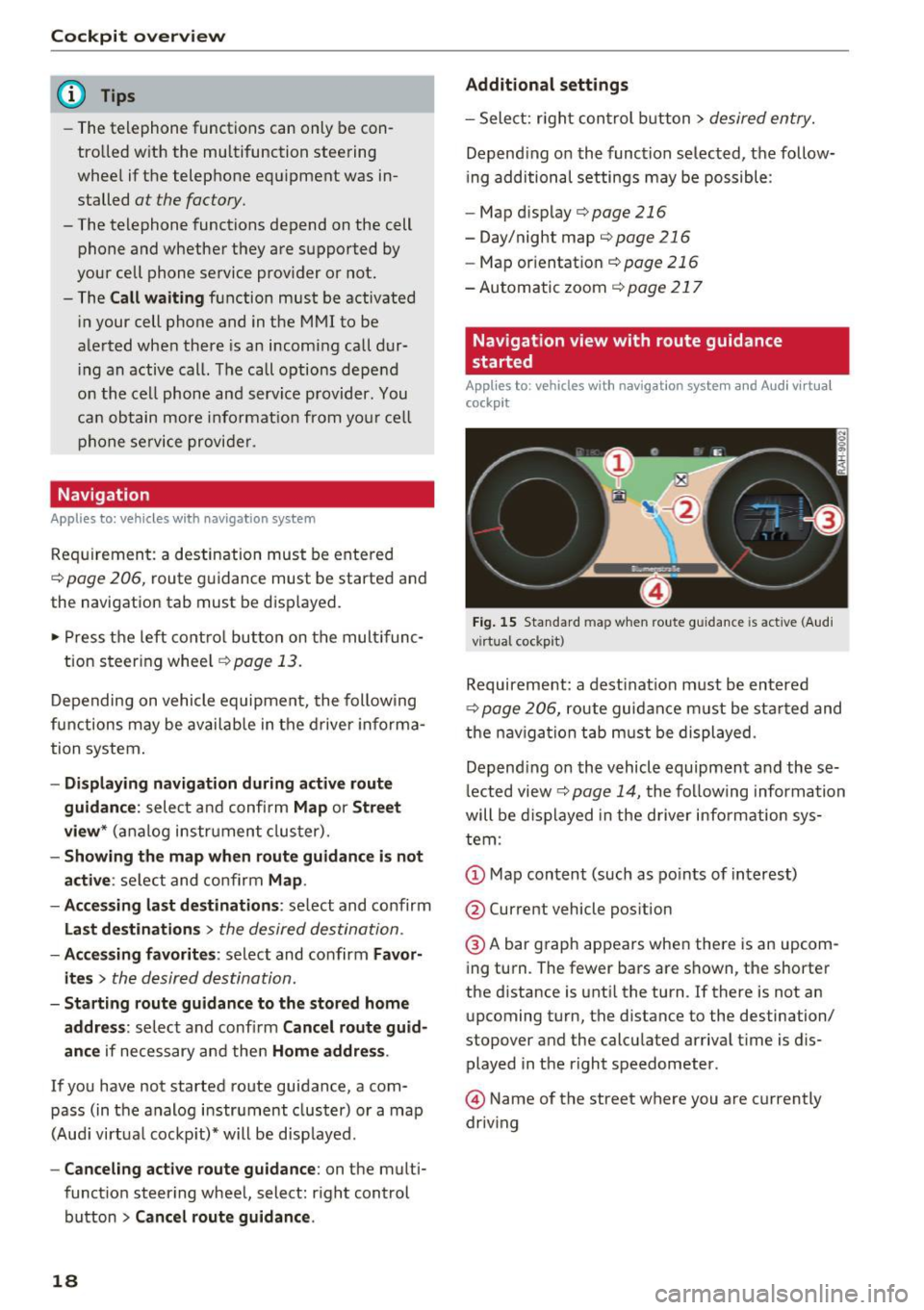
Navigation view with route guidance
started
Appl ies to: vehicles with navigat ion syste m and A ud i vi rt u a l
cockp it
Fig . 15 Sta ndard map w hen route guidance is active (A ud i
virtual cockpit)
Requireme nt: a dest inat ion must be entered
r::!> page 206, route guidance m ust be sta rted and
t h e nav iga tion tab must be displayed.
Depend ing o n the vehicle equipment and these
l ected view
r::!> page 14, t he following informa tion
will be displayed in the d river information sys
tem :
@ A bar graph appears when there is an upcom
ing turn. The fewer bars are shown, the shorter
the d istance is unt il the turn . If there is not an
upcoming turn, the distance to the destination/
stopover and the calcu lated arriva l t ime is dis
played in the right speedometer.
@ Name of the street where you are currently
driving
Page 38 of 402
Opening and clo sin g
remain in the vehicle. Otherw ise the children
cou ld start the engine or operate electrical
equipment such as power windows.
@ Tips
- The operation of the remote contro l key can
be temporarily disrupted by interfe rence
from transmitters near the vehicle working i n the same frequency range (such as a cell
phone or radio equipment) . A lways check i f
your vehicle is locked!
- For an explanation on conformity with the
FCC regulations in the United States and the
Industry Canada regulations, see
¢ page 384 .
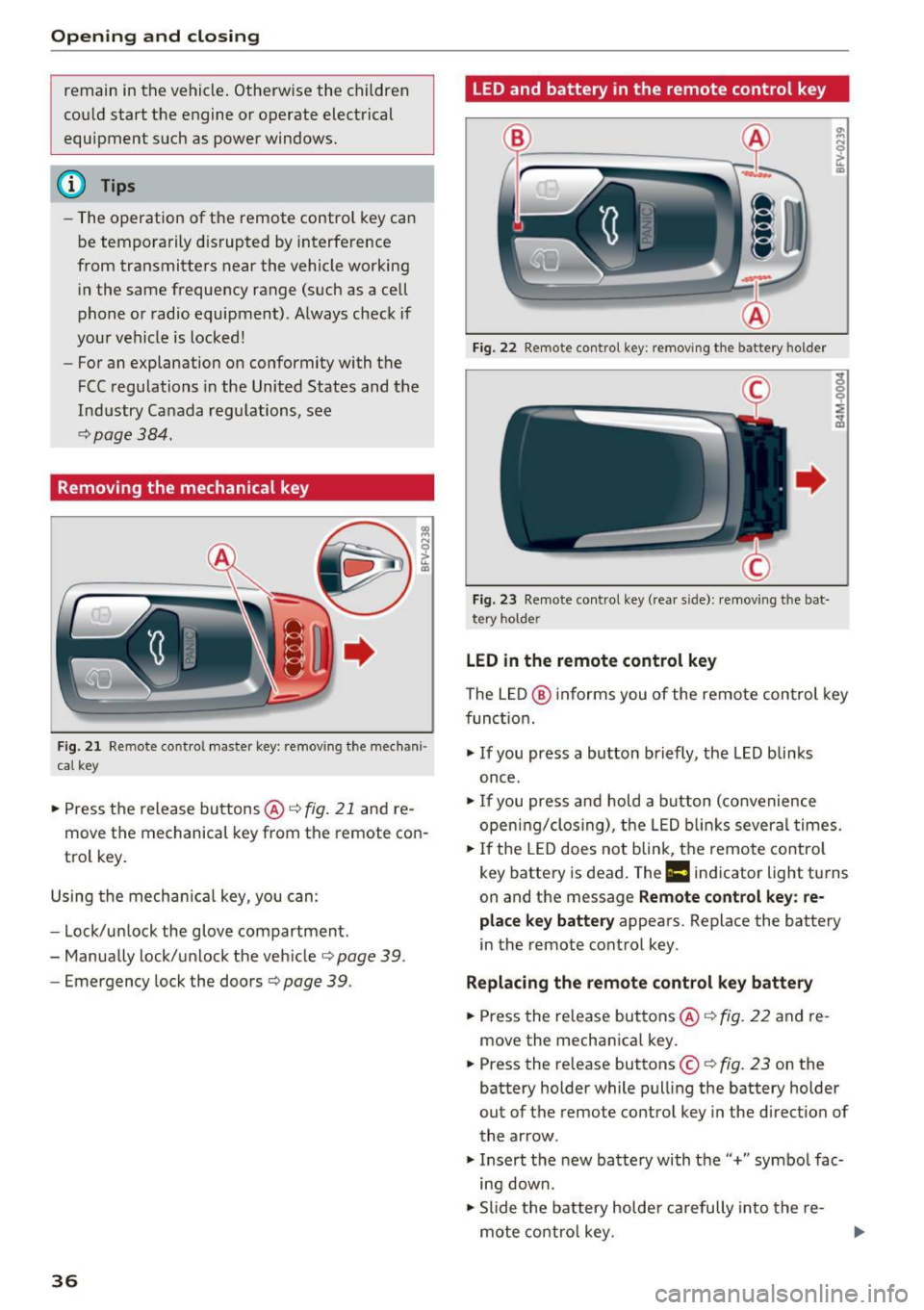
Removing the mechanical key
Fig. 2 1 Remote cont ro l ma ster key: remov ing t he mec han i·
cal ke y
.. Press the release buttons@¢ fig. 21 and re
move the mechanical key from the remote con
trol key .
Using the mecha nica l key , you can:
- Lock/un lock the glove compartment.
- Manually lock/u nlock the veh icle
c::;, page 39.
- Emergency lock the doors c::;, page 39 .
36
LED and battery in the remote control key
Fig. 22 Remote con tro l key : remo ving t he ba tte ry h olde r
Fig. 23 Remo te control key (rea r sid e): remov ing t he b at·
t ery ho lde r
LED in the remote control key
The L ED @ informs you of the remote con trol key
func tion.
"' If you press a bu tton briefly, the LED blinks
once .
"'If you press and hold a b utton (co nvenience
open ing/clos ing), the LED b links several times.
"' If the LED does not blink, the remote contro l
key battery is dead. The
Ill indicator light tu rns
on and the message
Remote control key : re
place key battery
appears. Replace the battery
i n the remote control key.
Replacing the remote control k ey batte ry
"'Press the release buttons @¢ fig. 22 and re
move the mechan ica l key.
"' Press the release buttons ©
c::;, fig. 23 on the
battery holder while pull ing the battery holder
out of the remote control key in the direction of
the arrow .
"' Insert the new battery with the'' +" symbo l fac·
ing down.
"' Slide the battery holde r carefully into the re·
mote co ntro l key .
Page 44 of 402
Opening and closing
this. Move the lid slowly to reduce the
amount of force needed .
- When the trailer socket is being used (for
example, for a bicycle rack), the luggage
compartment lid can be opened and closed
using the handle or the foot motion activa
tion (vehicles with convenience key*) .
Opening/closing the luggage compartment
lid with foot motion activation (kicking
movement)
Applies to: vehicles with convenience key and sensor-control
led luggage compartment lid
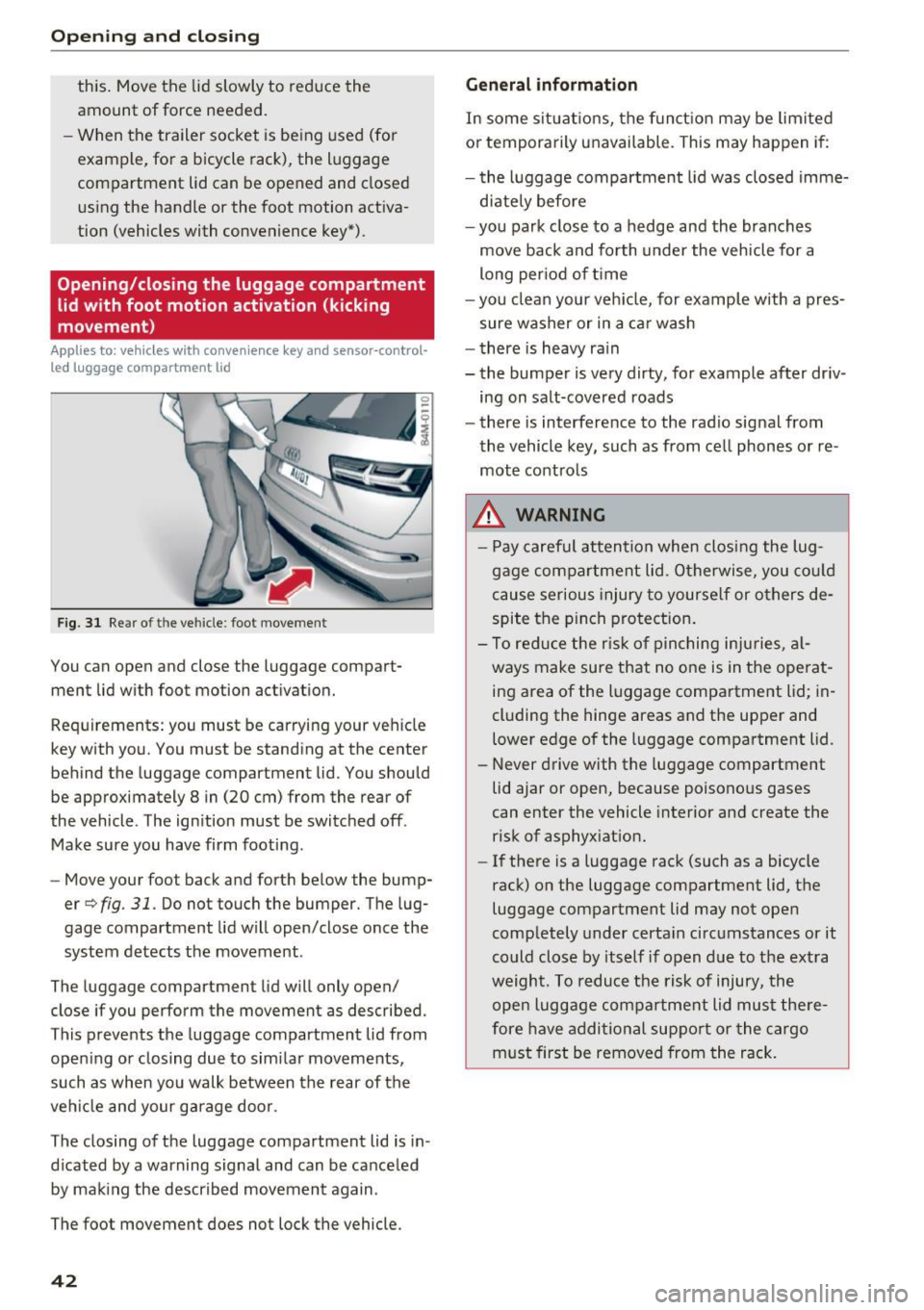
Fig. 31 Rear of th e ve hicle: fo ot move ment
You can open and close the luggage compar t
ment lid wi th foot mo tion activation.
Requirements: you must be carrying your vehicle
key with you. You must be standing at the center
behind the lugg age compartment lid. You should
be approximately 8 in (20 cm) from the rear of
the vehicle . T he ignition must be switched off .
Make sure you have firm footing .
- Move your foot back and forth below the bump
er
Q fig . 31. Do not touch the bumper. The lug
gage compartment lid will open/close once the system detects the movement .
The luggage compartmen t lid will only open/
close if you perform the movement as described.
This prevents the luggage compartment lid from opening or closing due to similar movements,
such as when you walk between the rear of the
vehicle and your garage door .
The closing of the luggage compartment lid is in
dicated by a warning signal and can be canceled by making the described movement again .
The foot movement does not lock the vehicle .
42
General information
In some situations, the function may be limited
or temporarily unavailable . This may happen if:
- the luggage compartment lid was closed imme
diately before
- you park close to a hedge and the branches
move back and forth under the vehicle for a
long period of time
-you clean your vehicle, for example with a pres
sure washer or in a car wash
- there is heavy rain
- the bumper is very dirty, for example after driv -
ing on salt-covered roads
- there is interference to the radio signal from
the vehicle key, such as from cell phones or re
mote controls
.&,. WARNING
- Pay careful attention when closing the lug
gage compartment lid. Otherwise, you could
cause serious injury to yourself or others de
spite the pinch protection.
- To reduce the risk of pinching injuries, al
ways make sure that no one is in the operat
ing area of the luggage compartment lid ; in
cluding the hinge areas and the upper and
lower edge of the luggage compartment lid .
- Never drive with the luggage compartment
lid ajar or open, because poisonous gases
can enter the vehicle interior and create the
risk of asphyxiation.
- If there is a luggage rack (such as a bicycle
rack) on the luggage compartment lid, the
luggage compartment lid may not open
completely under certain circumstances or it
could close by itself if open due to the extra
weight. To reduce the risk of injury, the open luggage compartment lid must there
fore have additional support or the cargo
must first be removed from the rack.
Page 159 of 402
u (0 ...... N r--. N ...... 0
0
:E
On/Off knob
CD ¢ fig. 158 until the MMI
switches off. If the MMI has been sw itched off
manually, it does
not switch on again automati
ca lly the next time the ignition is switched on .
Addition al functions :
- Ad ju sting th e volum e:
turn the On/Off knob CD
<=>fig . 158 .
-Muting : press the On/Off knob CD c> fig. 158
briefly .
-Select ing the pre viou s/nex t fun ct ion ( for ex
amp le , a radi o stat ion /tra ck ):
press the On/Off
knob
CD <=> fig . 158 brief ly toward the left l
t>r>I .
-Fast forwardi ng/rew inding (for example
so ng s):
press and hold the On/Off knob CD
¢ fig. 158 toward the left l
.,& WARNING
Adjust the volume of the audio system so that
signa ls from outside the vehicle, such as po
lice and fire sirens, can be heard eas ily at all
times.
@ Tips
The MM I switches off au tomatically if the en
gi ne is not r unning and the vehicle battery is
low.
Infotainment system
display
E xtending /retrac ting
The Infotainment system d isplay automatically
extends and retracts when you switch the MMI
on and off.
- Manuall y extending /retracting : press the C:I
button @ c> page 8, fig. 2.
When the MMI is switched on and the display is retracted, you can use certa in functio ns with the
On/Off knob and the MMI joystick funct ion
¢ page 156.
Multi M edia I nterfac e
(D Tips
-If the vehicle has a cell phone prep*, the In
fotainment system display will automat ica l
ly extend whenever there is an incoming
phone call.
- There may be delays when extending or re
tracting the display.
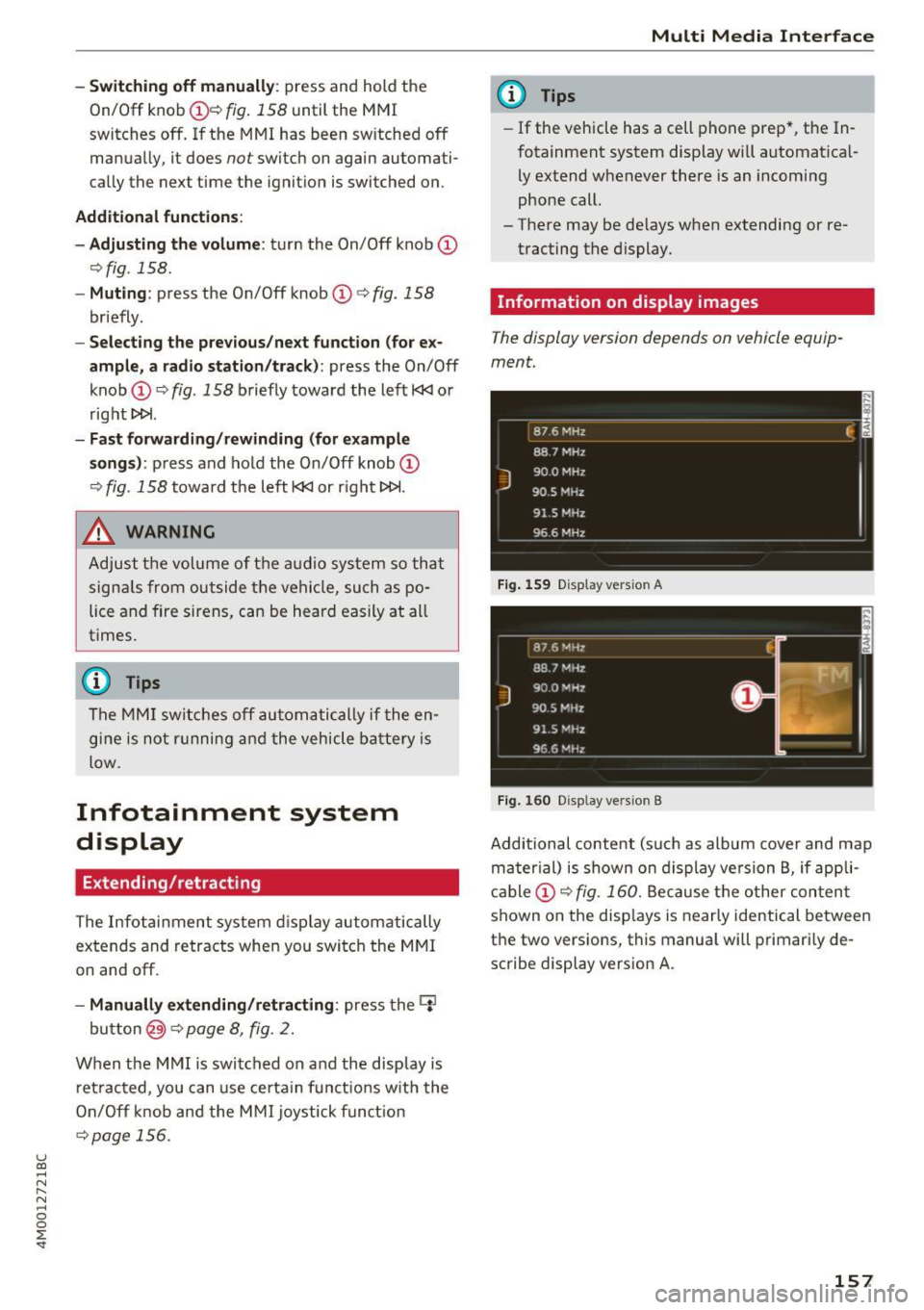
Information on display images
T he display version depends on v ehicle equip
ment.
87 6 MHz
88.7 MHz
J
900 MHz
90.5 MHz
91 5 MHz
96 6 MHz
·--------·----
F ig . 1 59 Display ve rs io n A
Fi g. 160 Disp la y ve rs ion B
f
Additional content (such as album cover and map
ma ter ial) is shown on display ve rsion B, if appli
cable
CD <=> fig . 160. Because the other conten t
shown on the disp lays is nearly identical between
the two versions, this manua l will primari ly de
scribe display version A .
157