trailer AUDI S4 2017 User Guide
[x] Cancel search | Manufacturer: AUDI, Model Year: 2017, Model line: S4, Model: AUDI S4 2017Pages: 386, PDF Size: 96.32 MB
Page 122 of 386
Ass is t
- Please note that the rear cross-traffic assist
may act ivate the brakes unexpectedly. Se
cure any cargo that you are transporting to
reduce the risk of damage or injury .
- An additional brake act ivat ion may be tr ig
gered within 20 seconds after an automat ic
brake activation.
- If there is an acoustic warning signa l from
the rear cross-traff ic assist, then the park
ing system may not warn you of detected
obstacles under certa in circumstances .
- The view of the radar sensors may be im paired by leaves, snow, heavy spray or d irt.
Clean the a rea in front of the sensors
~ page 116, fig . 112.
A WARNING
T he rear cross-t raff ic assist is s ubject to lim i
t at ions and cannot warn you before every im
pending collision:
- If the vehicle is too w ide fo r the pa rki ng
spa ce and covered by the ne ighbor ing
vehicles.
- People , such as cyclis ts, jogge rs, in line skat
ers and pedestrians, may not be detected
under certain circ umstances.
- If you are in a par allel par king sp ace.
(D Note
Also read this info rmation ~ CD in General in
formation on page 117.
(0 Tips
- You can cancel the automatic brake activa
tion with increasing braking force if you ap
ply the bra kes yourself or accele rate cons id
e rab ly.
- In some s ituations, rea r cross-traffic ass ist
may warn you even if t here is no cross traffi c
i n a critic al are a, for examp le w hen ba cking
i nto a parking space or maneuver ing.
- T he rea r cross -traffic ass ist also switches off
whe n you swi tch off the ESC.
- T he rea r cross traffic assist switches on and
off thro ugh the p arking aid<:?
page 12 4.
- T he system is not ava ilable when towing a
trailer.
120
' Messages
Applies to: vehicles with Audi side assist
A message appea rs in the ins trument cluster dis
play if the side ass ist sw itches off automat ica lly.
@j Audi side assist: currently unavailable . Sen
sor vi sion re stricted due to surroundings. See
owner' s manual
@j Audi side ass ist and ex it warning: currently
unav ailable . Sensor vi sion restricted due to sur
rounding s
The radar sensors ' vision is affected . The area in
front of the sensors must not be covered by bike
racks, stickers, leaves, snow or any other objects .
Clean the area in front of the sensors, if necessa
r y
<:? page 116, fig . 112.
@j Audi side ass ist: currently unavailable . See
owner's manual
@j Audi side ass ist and exit warning: currently
unavailable. See owne r's manual
Side assist ca nnot be switched on at this time be
cause ther e is a malfunction (for example, the
battery charge level may be too low).
@j Audi side as sist: malfunction! Plea se contact
Service
@j Audi side assi st and exit warning: malfunc
tion! Plea se contact Service
The system cannot guarantee that it will detect
vehicles correct ly and it has sw itched off. The
senso rs have been moved or are fa ulty . Have the
system checked by an authori zed Aud i dea ler o r
a uthorized Aud i Serv ice Facility soon.
@j Audi side assi st: unavailable in towing mode
@j Audi side ass ist and ex it warning: currently
unavailable. Towing mode
Side assist switches off automatically when the electrical connector in the factory-installed trail
er hitch is connected . There is no guarantee the
system will sw itch off when using a retrofitted
trailer hitch . Do not use side assist and the ex it
warning when tow ing a tra ile r.
Ill Rea r parking aid: obstacl e detection res trict-
ed ..,.
Page 126 of 386
Parking systems
Parking systems
General information
A ppl ies to: ve hicles w ith a rea r parking sys te m /pa rking sys
tem p lus/rearv iew camera/peripheral ca meras
Depending on your vehicle's equipment , various
parking aids will help you when parking and ma
neuvering.
The
rear parking system is an audible parking aid
that warns you of obstacles
behind the vehicle
¢ page 125.
Parking system plus assists you when parking by
using audio and visual signals to indicate objects
detected in
front of and behind the vehicle
¢ page 125.
The rearview camera shows the area behind the
vehicle in the Infotainment display . The lines in
the rearview camera image help you to park or
maneuver ¢
page 126. The parking system plus
functions are also available
¢page 125.
The peripheral cameras give various views to
help you when parking or maneuvering
¢ page 128 . fhe parking system plus functions
are also available
¢ page 125.
A WARNING
- Always look for traffic and check the area
around your vehicle by looking at it directly
as well. The parking system cannot replace
the driver 's attention. The driver is always
responsible when entering or leaving a park
ing space and during similar maneuvers.
- Please note that some surfaces, such as
clothing, are not detected by the system.
-
- Sensors and cameras have blind spots in
which people and objects cannot be detect ed . Be especially cautious of small children
and animals .
- Always keep your eyes on the vehicle's sur
roundings, using the rearview mirror as
well .
- The sensors can be displaced by impacts or
damage to the radiator grille, bumper,
wheel housing and the underbody . The park
ing system may be impaired as a result.
Have an authorized Audi dealer or author-
124
ized Audi Service Facility check their func
tion .
(D Note
-Some objects are not detected or displayed
by the system under certain circumstances:
- Objects such as barrier chains, trailer draw
bars, vertical poles or fences
- Objects above the sensors such as wall ex
tensions
- Objects with certain surfaces or structures
such as chain link fences or powder snow
- If you continue driving closer to a low ob
ject, it may disappear from the sensor range. Note that you will no longer be
warned about th is obstacle .
- Keep enough distance from the curb to
avoid damage to the rims.
(D Tips
-The system may provide a warning even
though there are no obstacles in the cover
age area in some situations, such as :
- certain road surfaces or when there is tall
grass.
- external ultrasonic sources such as from
cleaning vehicles .
- in heavy rain, snow, or thick vehicle ex
haust.
- We recommend that you practice parking in
a traffic-free location or parking lot to be
come familiar with the system . When doing
this, there should be good light and weath
er conditions.
- You can change the volume of the signals
and the display ¢
page 131.
-Please refer to the instructions for trailer
towing in
¢page 132.
- What appears in the infotainment display is
somewhat time-delayed.
- Th e sensors must be kept clean and free of
snow and ice for park assist to operate.
Page 129 of 386
<( a, .... N ,....
N .... 0 0
3 a,
The rearview camera is located above the rear li
cense plate bracket. Mak e sure that the lens for
the rearview camera
c::> fig. 124 is not covered by
deposits or any other obstructions because this
can impair the function of the rearview camera .
For information on cleaning, refer to
c::> page 337 .
The rearview camera coverage area includes (D
c::> fig. 123. Only this a rea is shown in the Info
tainment display . Objects that are outside of this
area @are not displayed.
A WARNING
-Always read and follow the applicable warn
ings
c::> .&. in General information on
page 124.
- If the position and the installation angle of
the rearview camera was changed, for ex
ample after a collision, do not continue to
use the system for safety reasons. Have it
checked by an authorized Audi dealer or au
thorized Audi Service Facility.
- Only use the rearview camera to assist you if
it shows a good, clear picture. For example,
the image may be affected by the sun shin
ing into the lens, dirt on the lens or if there
is a malfunction.
- Use the rearview camera only if the luggage
compartment lid is completely closed. Make
sure any objects you may have mounted on
the luggage compartment lid do not block
the rearview camera .
- The camera lens enlarges and distorts the field of vision . The object appears both al
tered and inexact on the screen .
- In certain situations , people or objects in
the display appear closer or farther away:
- For objects that do not touch the ground,
such as the bumper of a parked vehicle, a
trailer hitch or the rear of a truck. Do not use the orientation lines in this case.
- If driven from a level surface onto an in
cline, or a downward slope.
- If driven toward protruding objects.
- If the vehicle is carrying too much load in
the rear.
Parking systems
(D Note
-Always read and follow the applicable warn
ings
c::> (D in General information on
page 124.
- The orange colored orientation lines in the
Infotainment display show the vehicle path
based on the steering wheel angle. The
front of the vehicle swings out more than
the rear of the vehicle . Maintain plenty of
distance so that an exterior mirror or a cor
ner of the vehicle does not collide with any
obstacles.
Switching on/off
Appl ies to: vehicles wi th rearv iew camera
Switching on
.,. Shift into reverse, or
.,. Press the
PwA button in the center console
c::> page 126, fig. 120. A short confirmation
tone sounds and the LED in the button turns
on.
Switching off
.,. Drive faster than 6 mph (10 km/h), or
.,. Press the
p,qA button , or
.,. Switch the ignition off.
@ Tips
- The visual display in the right part of the
display should help you detect the critical
vehicle area.
- You can change the volume of the signals
and the display
<=:>page 131.
127
Page 130 of 386
Parking system s
Perpendicular parking
Applies to: ve hicles w ith rearview camera
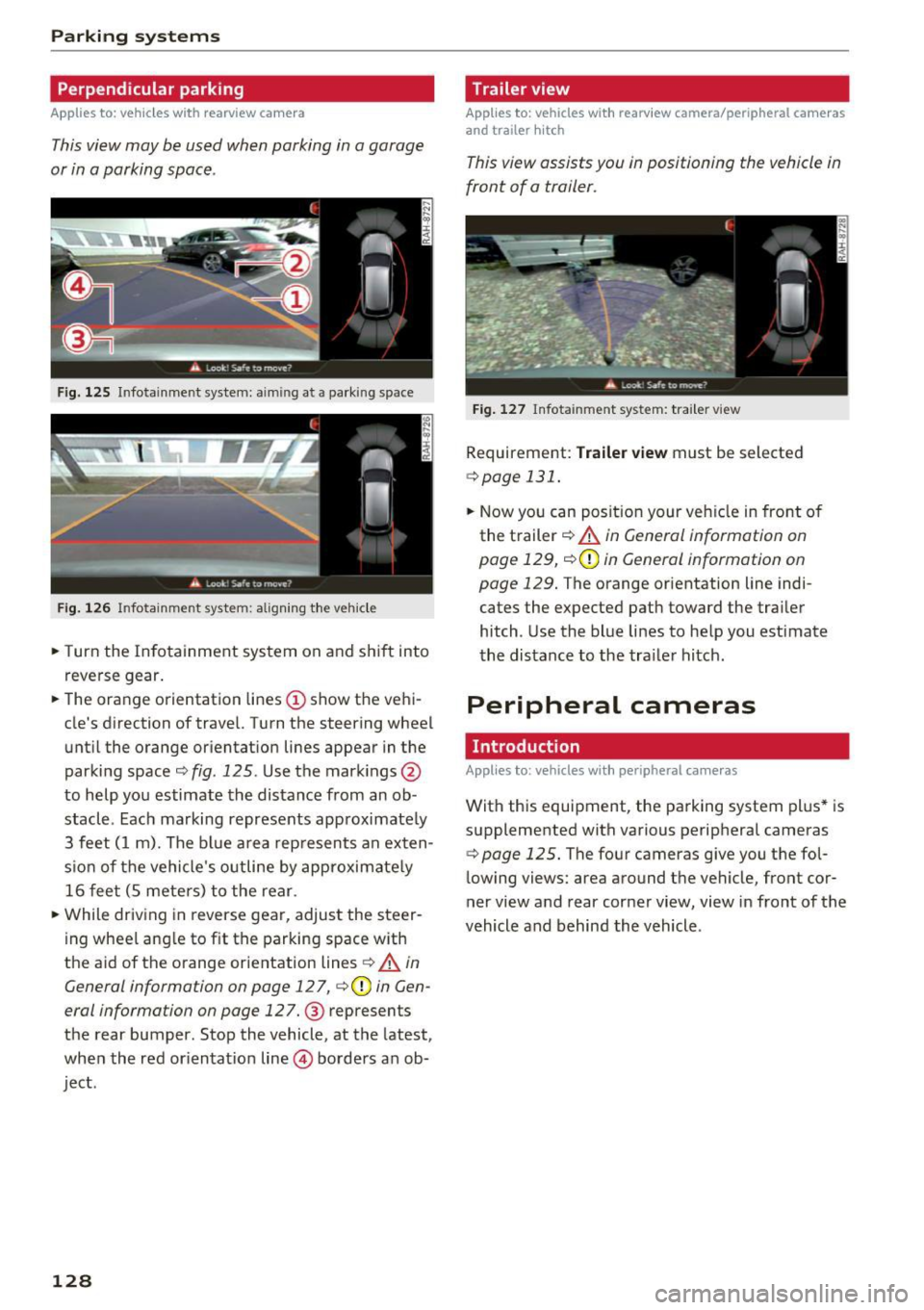
This view may be used when parking in a garage
or in a parking space .
Fig. 125 Infotainment system: aiming at a parking space
Fig . 126 Infotainment system: aligning the vehicle
.. Turn the Infotainment system on and shift into
reverse gear.
.. The orange orientation lines
(I) show the ve hi
cle's direction of travel. Turn the steering wheel
until the orange orientat ion lines appear in the
parking space
c:::> fig. 125 . Use the mark ings @
to help you estimate the distance from an ob
stacle. Each marking represents approximate ly
3 feet ( 1 m). The b lue area rep resents an exten
s ion of the vehicle 's o utline by approximate ly
16 feet (5 meters) to the rear.
.. While driving in reverse gear, adjust the steer
ing wheel ang le to f it the parking space with
the a id of the orange orientation lines
c:::> .&, in
General information on page 127,
c:::>@) in Gen
eral information on page 127. @ represents
the rear bumper. Stop the vehicle, at the latest,
when the red or ientat ion line @ borders an ob
ject.
128
Trailer view
App lies to : vehicles wit h rearview camera/peripheral cameras
and trailer hitch
This view assists you in positioning the vehicle in
front of a trailer.
Fig . 127 Infota inment system: tra iler view
Requirement: Tr ail er view must be selected
c:::> page 131 .
.. Now you can posit ion your veh icle in front of
the trailer
c:::> .&, in General information on
page 129,
c:::> (D in General information on
page 129. The orange orientation line indi
cates the expected path toward the trailer
hitch. Use the blue lines to help you estimate
the distance to the tra iler hitch.
Peripheral cameras
Introduction
App lies to: vehicles wit h peripheral cameras
With this equipment, the parking system plus* is
supplemented with various peripheral cameras
c:::> page 125. The four cameras give you the fol
lowing views: area around the vehicle, front cor
ner view and rear corner view, view in front of the
vehicle and behind the vehicle.
Page 132 of 386

Parking systems
Switching on
.. Shift into reverse , or
.. Press the
P1JJA button in the center console
c::> fig. 129 . A short conf irmation tone sounds
and the LED in the button turns on .
Selecting the mode
.. Turn the con trol knob to the symbol fo r the de
s ir ed mode @thr ough @¢
fig. 130 and press
the control knob .
Switching off
.. Drive faster than 6 mph (10 km/h), or
.. Press the P
1#A button, or
.. Switch the ignition off .
You may select from the following modes:
@ -Corner view (front) ¢
page 130
@-Front ¢ page 130
©-Surround ing ¢ page 130
@-Rear c::> page 131
© -Corner view (rear) ¢ page 130
You can also sw itch to trailer view¢ page 128.
Corner view (front)/corner view (rear)
Applies to: veh icles w ith per ip heral cameras
F ig . 131 In fotainme nt system: corner v iew (front)
Fig. 132 Infotainment sys tem: corner v iew (rear)
130 This view can assist you fo
r example, when you
are exiting from an area with poor visibility. The
area at the front and rear sides of the veh icles is
displayed.
.. To show the side view toward the front, select
the symbol @
c::> fig. 131 with the control knob
and press the control knob .
.. To show the side view toward the rear, select
the symbol ©
c::> fig. 132 with the control knob
and press the control knob .
Front
Applies to : ve hicles with pe ripheral cameras
Fig. 133 Infota inment sys tem: front mode
This view assists you fo r example, in using the
full maneuvering range in front of the vehicle.
The area in front of the vehicle is displayed . The
vehicle surround ings are shown in the right area
of the display. You can switch between the opti
cal display and camera image¢
page 131 .
.. Select the@ symbo l w ith the control knob. The
orange orientation lines mark the expected
path of the vehicle. Stop the vehicle at the lat
est when the red orientation line* borders an
object¢ &.
in General information on
page 129.
Peripheral
App lies to : vehicles with per ipheral cameras
Fig. 134 Infota inment system : peripheral mode
Page 134 of 386

Parking sy stem s
The new ly selected level is demonstrated briefly
by the sound generator .
View * -switch betwee n an optical d isp lay
(Graphi c) and camera image (Camera ) in the
right area o f the disp lay .
Tr ail er view * -show trailer view
Auto . front /rear camer a change * -the view be
h ind the veh icle
( Rear mode) is displayed auto
mat ica lly when you shift into reverse gear . The
view in front of the vehicle
( Fr ont mode) is d is
p layed automatically whe n you shift into t he for
ward gea rs. When first activating in a forwar d
gear with the P"'~ button, the front s ide v iew is
disp lay ed
(Co rner view (front) mode).
If yo u do not se t the./, th e view behind the vehi
cle
( Re ar mode) is a lways d isplayed and it does
not switch to the
F ront mode when a forward
gear is selected .
{D Tips
-Seve ral menus can be accessed w ith the
right contro l button only when the park ing
aid is active.
- T he volume settings are a utomat ica lly stor
ed and ass igned to the remote cont ro l key
that is being used.
Error messages
Applies to: vehicles with a rear parking system/parking sys
tem plus/rearview camera/peripheral cameras
Ill Rear parking aid : malfunction! Ob stacle s
c annot be d etected
Ill Front parking aid : malfunction! Obstacles
cann ot be d etected
Ill Parking aid: mal funct ion! Obstacles cannot
be d etected
When one of these messages appears, there is a
system ma lf u nction. The LED in the P
11.A. button a l
so blinks when switching it on. The relevant mes
sage only appears again when you manua lly act i
vate the parking aid w it h the button .
Ill Rear pa rki ng a id: obstacle detect ion restrict·
ed
132
The rear cross -traffic ass ist* is not ava ilable
¢ page 119 , Rear cross-traffic assist. Either the
ESC is switched off, or the radar sensors may be
covered by a b ike rack, st ickers, leaves, snow or
other objects . Switch the ESC on, or clean the
area in front of the sensors if necessary
¢ page 116, fig. 112 . If this message continues
to be displayed, dr ive immediately to a n author
iz ed Audi dealer or author ized A udi Se rvice Fa cili
ty to have the m alfu nction repaired.
Parking system plus*
If a sensor or speaker is faulty, the J¼ symbol
will appear in front of/behind the vehicle in the
Infotai nment system d isplay. If a rear sensor is
faulty, only obstacles that are in areas @and @
a re show n
¢page 125, fig. 119 . If a front senso r
is fau lty, only obsta cles tha t are in a reas © and
@ are shown.
Peripheral cameras*
There is a system malfunction if the % symbol
appears and the co rresponding area of the dis
play is show n in bl ack. The c amera is not wo rking
i n th is area.
D rive to an author ized A udi dealer or autho riz ed
A udi Se rvice Facil ity immed iate ly to have the
malfu nction cor rec ted .
Trailer hitch
Applies to: vehicles with a rear parking system/parking sys
tem plus/rearview camera/peripheral cameras and trailer hitch
When the trailer soc ket is in use, th e parking sys
tem rear sensors are not act ivated when you sh ift
i nto reverse gear or when you press the p,,1, but
ton . Th is resu lts in the following restrict ions .
Rear parking system*
There is no distance warning.
Park ing system plus*
There is no distan ce warn ing for the rear. The
front senso rs remain activated. The visu al display
switches to trailer mode . ..,.
Page 135 of 386

<( a, .... N ,....
N .... 0 0
3 a,
Rearview camera* /Peripheral cameras*
There is no distance warning for the rear. The
front sensors remain activated. The visual display
switches to trailer mode. The rearview camera
image will not show the orientation lines and the
blue surfaces.
Trailer hitches that are not installed at the
factory may cause the parking system to mal
function or they may restrict its function. Parking
systems
133
Page 197 of 386

<( a, .... N ,....
N .... 0 0
3 a,
Requirement: a destination must be entered and
the route guidance must be started.
.,. Press t he
I NAV/MAPI repeatedly unt il the Enter
d estination
men u is displayed ¢ page 187,
fig. 169.
... Se lect : right contro l button > Show alternat ive
route s.
Up to three route suggestions and their proper
ties are disp layed on the overview map when the
function is switched on~
¢fig. 175 .
If available, the followi ng info rmation w ill ap
pear on the route s uggestions :
- Route type (fast(!), fast a lternat ive @, eco
nomic route @)
- Distance to the destination and the ca lculated
arrival time
- T raffic congestion along the route including
t ime delays
The route that was calcu lated according to the
route criteria you selected is show n on the over
view map . The special p ropert ies of the route are
a lso displayed @~
fig. 175 and given as a spo
ken message.
Using the contro l knob, you can select the possi
b le routing for the alte rnative routes and show
them on map Selec t and confi rm the desired
ro ute that you would l ike to use for route guid
an ce.
Additional settings
Navigation settings
Appl ies to: ve hicles with navigation system
... Press t he I NAV/MAPI repeatedly unt il the Enter
d estination
menu is displayed ¢ page 187,
fig. 169.
.,. Se lect : rig ht contro l button > Navigation set-
tings .
Depending on the se lected function , the follow
in g settings can be se lected :
Show alternative routes
Up to three route suggestions are shown on the
map when this function is switched on (~)
¢page 194.
Navigation
Gas stat ion message
A message is displayed if the fue l g auge goes be
l ow the reserve marking when this function is
switched on(~). Confirming this message dis
plays a list of gas stations in the area. When a
gas station is selected, route gu idance from the
current veh icle posit io n is calculated.
Trailer mode*
Trailer mode is swi tched off at the fa ctory .
When this f unct ion is swi tched on (~), th e maxi
mum pe rm itted spee d for ve hicles w ith trailers is
i n co rpor ate d int o the ro ute guidance and the cal
c ul ated arriva l time adjus ts respec tively . Trai le r
mode is d isplayed using symbols --=" in the side
men u on the map .
Personal route assistance*
Personal rou te ass istance is swi tched off at the
f a ctory.
Yo ur trips are recorded and destina tions a re s ug
ges ted by the
M MI w hen th is func tio n i s sw itched
o n (~)
¢page 193.
Notification when nearby*
The not ificat ion when nea rby is sw itched off at
the factory .
The
MMI not ifies you when you are approaching
selected points of interest when this function is
switched on (~). Yo u can also have a
Notifica
tion tone .
Presentation mode
Pre sentation mode
helps yo u to effectively p lan
a route w ithout moving the vehicle . You can
Se
lec t starting point
when, for example, you would
lik e to calculate a route start ing from a location
othe r than the veh icle posit io n. Sta rt
Presenta
tion mode
to simu late route g uidance.
195
Page 199 of 386

<( a, .... N ,....
N .... 0 0
3 a,
(!) Orientation: the map is either displayed as a
2D no rth up m ap or in 2 D he adin g up direc
tion.
@ The distance to the destination includes the
calculated a rrival time.
@ When the Trailer mode function is switched
on(~), the corresponding symbol is dis
p layed next to the arriva l time.
© Scale: turn the con trol knob to the left or
right to decrease or increase the scale. When
the
Auto zoo m function is sw itched on(~),
an "A" for "Automa tic" is d isplayed in t he
magnifying glass .
® Altitude
@ Ve hicl e posi tion
0 Route information: various information wi ll
be d isp layed during active route guidance
(for example, the upcoming maneuver in
cluding calculated d istance and street
n ames) . The display also prov ides traff ic in
formation o r points of interest on the current
ro ute.
® Street being d riven on : displayed here as
"offroad" when the veh icle is stationary .
When the crosshairs are switched on ¢ fig . 178:
® Crosshairs: move the cross ha irs in the de
si red direction using the MMI touch control
pad* o r the control knob a nd set a po int on
the map as the dest ination or h ave info rma
tion about the foca l point displayed .
@ Speed limit disp lay1>: display of the maxi
mum permitted speed on the expressways
and h ighways.
@ E nterta inment s liding men u*: refer to
¢page 146.
@ Addit ional information on the crosshairs lo
cation : if you move the crosshairs to a loca
tion on the map, ava ilable info rmation for
the current crossha irs loca tion is d isp layed.
Pr ess the cont rol knob to open des tination
det ails o r to sta rt route gu idan ce. When the
crossha irs are t urned off, the road being cur
rently driven on is shown .
l) O nl y app lies to vehi cles w it h ou t ca mer a-b as ed speed lim it
d is play .
Navigation
@ Map contents (points of interest, favor ites).
When there are multiple points of interest in
the immediate v ic in ity, the symbols are
shown stacked on the map .
(§ Better route: If a better route is available fo r
the cur re nt rou te g uidance, i t w ill be dis
played on the m ap incl ud ing t he time saved.
More information can be found under
¢ page 202.
Map functions
Appl ies to : vehicles wi th navigat io n syste m
.,. Pr ess the !NAV/MAPI button repeatedly unti l
the map is displayed¢
page 196, fig. 177.
.,. Press the left control button .
The following map f unctions can be se lected:
Switch to destination input
T he free text sear ch in t he
Navigation menu is
displayed
¢ page 187, fig. 169.
Traffic messages
Current traffic information is displayed in the I n
fota inme nt system display. You can also find ad
di tional info rmat ion unde r¢
page 201.
Route list
The route list can on ly be displayed when route
guidance is active and contains informat ion re
gard ing the ro ute, the names of the streets and
the length of the route sections . When traveling
o n hig hways, poss ible parking lots and rest areas
are shown, wh ich you can se lect as a stopove r.
POis along the route
Requirement: route guidance must be active.
Searching for points of interest a long your cur
rent route Fo r additional informat ion, refer to
¢ page 190.
197
Page 332 of 386
Wheels
plus maximum load . The maxi
mum load includes the number of
passengers that the vehicle is in
tended to carry ("seat ing capaci
ty") with an assumed weight of
150 lbs (68 kg) for each passen
ger at a designated seating posi
tion and the total weight of any luggage in the vehicle. If you tow
a trailer , the weight of the trailer
hitch and the tongue weight of
the loaded trailer must be includ
ed as part of the vehicle load .
The
Gross Axle Weight Rating
(" GAWR") is the maximum load
that can be applied at each of the
vehicle 's two axles.
The fact that there is an upper limit to your vehicle's Gross Vehi
cle Weight Rating means that the
total weight of whatever is being
carried in the vehicle (including
the weight of a trailer hitch and
the tongue weight of the loaded
trailer) is limited . The more pas
sengers in the vehicle or passen
gers who are heavier than the
standard weights assumed mean
that less weight can be carried as
luggage.
The Gross Vehicle Weight Rating and the Gross Axle Weight Rating
330
are listed on the safety compli
ance sticker label located on the
driver's side B-pillar
~ page 327,
fig . 255 .
& WARNING ~ -
Overloading a vehicle can cause
loss of vehicle control, a crash
or other accident, serious per
sonal injury, and even death.
-Carrying more weight than your vehicle was designed to
carry will prevent the vehicle
from handling properly and increase the risk of the loss of
vehicle control.
-The brakes on a vehicle that
has been overloaded may not
be able to stop the vehicle
within a safe distance .
-Tires on a vehicle that has been overloaded can fail sud
denly, including a blowout and
sudden deflation, causing loss
of control and a crash .
-Always make sure that the to tal load being transported -
including the weight of a trail
er hitch and the tongue
weight of a loaded trailer - does not make the vehicle
heavier than the vehicle 's
Gross Vehicle Weight Rating.