phone BUICK RAINIER 2004 User Guide
[x] Cancel search | Manufacturer: BUICK, Model Year: 2004, Model line: RAINIER, Model: BUICK RAINIER 2004Pages: 452, PDF Size: 4.51 MB
Page 215 of 452
Battery Replacement
To change the batteries, do the following:
1. Loosen the screw on the battery compartment door
located on the left side of the headphone earpiece.
2. Replace the two AAA batteries in the compartment.
Make sure that they are installed correctly, using
the diagram on the inside of the battery
compartment.
3. Tighten the screw to close the compartment door.
Notice:Do not store the headphones in heat or
direct sunlight. This could damage the headphones
and repairs would not be covered by your warranty.
Keep the headphones stored in a cool, dry place.
If the headphones are to be stored for a long period
of time, remove the batteries and keep them in a cool,
dry place.
Stereo RCA Jacks
The RCA jacks are located behind the video screen.
The RCA jacks allow you to connect audio and
video from an auxiliary device such as a camcorder or
a video game unit to your RSE system. Standard
RCA cables are needed to connect the auxiliary device
to the RCA jacks. The yellow connector inputs video
and the red and white connectors input right and
left stereo audio. Refer to the manufacturer’s instructions
for proper connection of your auxiliary device.
To use the auxiliary inputs on the RSE system, connect
an external auxiliary device to the color-coded RCA
jacks and turn both the auxiliary device and the
RSE system power on. If the RSE system had been
previously in the DVD player mode, pressing the SRCE
button on the faceplate or the remote control will
toggle the RSE system between the auxiliary device
and the DVD player.
3-107
Page 216 of 452
How to Change the Video Format
when in the Auxiliary Mode
The auxiliary input video format is preset to NTSC.
In some countries, the video format may be in
PAL system. To change the video format, perform
the following:
1. Press the display menu button.
2. Press the down arrow button to highlight the
Video Format option.
3. Press the enter button to select Video Format.
4. Press the right or left arrow button to select
the desired video format.
5. Press the enter button to accept the change.
Audio Output
Audio from the DVD player or auxiliary inputs may
be heard through the following possible sources:
Wireless Headphones
Vehicle Speakers
Vehicle wired headphone jacks on the
Rear Seat Audio system (if equipped)The RSE system will always transmit the audio signal
by infrared to the wireless headphones, if there is audio
available. See “Headphones” previously for more
information.
The RSE system is capable of outputting audio to the
vehicle speakers by using the radio. The RSE
system may be selected as an audio source on the
radio if the RSE system power is on. Once the
RSE system is selected as an audio source on the radio
you may adjust the speaker volume on the radio. If
the RSE system power is not on, the RSE system will
not be an available source on the radio. Refer to
the radio information for the radio that your vehicle has
for more information.
The RSE system is capable of outputting audio to the
wired headphone jacks on the rear seat audio system
(if equipped). The RSE system may be selected as
an audio source on the rear seat audio system if
the RSE system power is on. Refer toRear Seat
Audio (RSA) on page 3-111for more information.
3-108
Page 218 of 452
Problem Recommended Action
After stopping the player,
I push Play but
sometimes the DVD
starts where I left off
and sometimes at the
beginning.If the stop button was
pressed one time, the
DVD player will resume
playing where the DVD
was stopped. If the stop
button was pressed two
times the DVD player will
begin to play from the
beginning of the DVD.
The auxiliary source is
running but there is no
picture or sound.Check that the DVD
player is in the auxiliary
source mode.
Check the auxiliary input
connections at both
devices.
My disc is stuck in the
player. The Load/Eject
button does not work.Turn the DVD power off,
then on and press the
Load/Eject button on the
DVD player.
Do not attempt to forcibly
remove the disc from the
DVD player. This could
permanently damage the
disc and DVD player.Problem Recommended Action
Sometimes the wireless
headphone audio cuts
out or buzzes.Check for obstructions,
low batteries, reception
range, and interference
from cellular telephone
towers or by using your
cellular telephone in
the vehicle.
Check that the
headphones are facing
the front of the vehicle.
I lost the remote and/or
the headphones.See your dealer for
assistance.
The DVD is playing,
but there is no picture
or sound.Check that the DVD
player is in DVD mode.
The audio/video skips
or jumps.The DVD or CD could
be dirty, scratched,
or damaged.
What is the best way to
clean the video screen?Wipe the video screen
with a damp, soft cloth.
The audio from the
radio for the Radio with
Six-Disc CD and XM™
has taken over the
audio from the DVD or
CD when using the
wired headphones.The RSE is working
correctly.
Use the wireless
headphones or have
the front seat passengers
listen to another audio
source.
3-110
Page 219 of 452
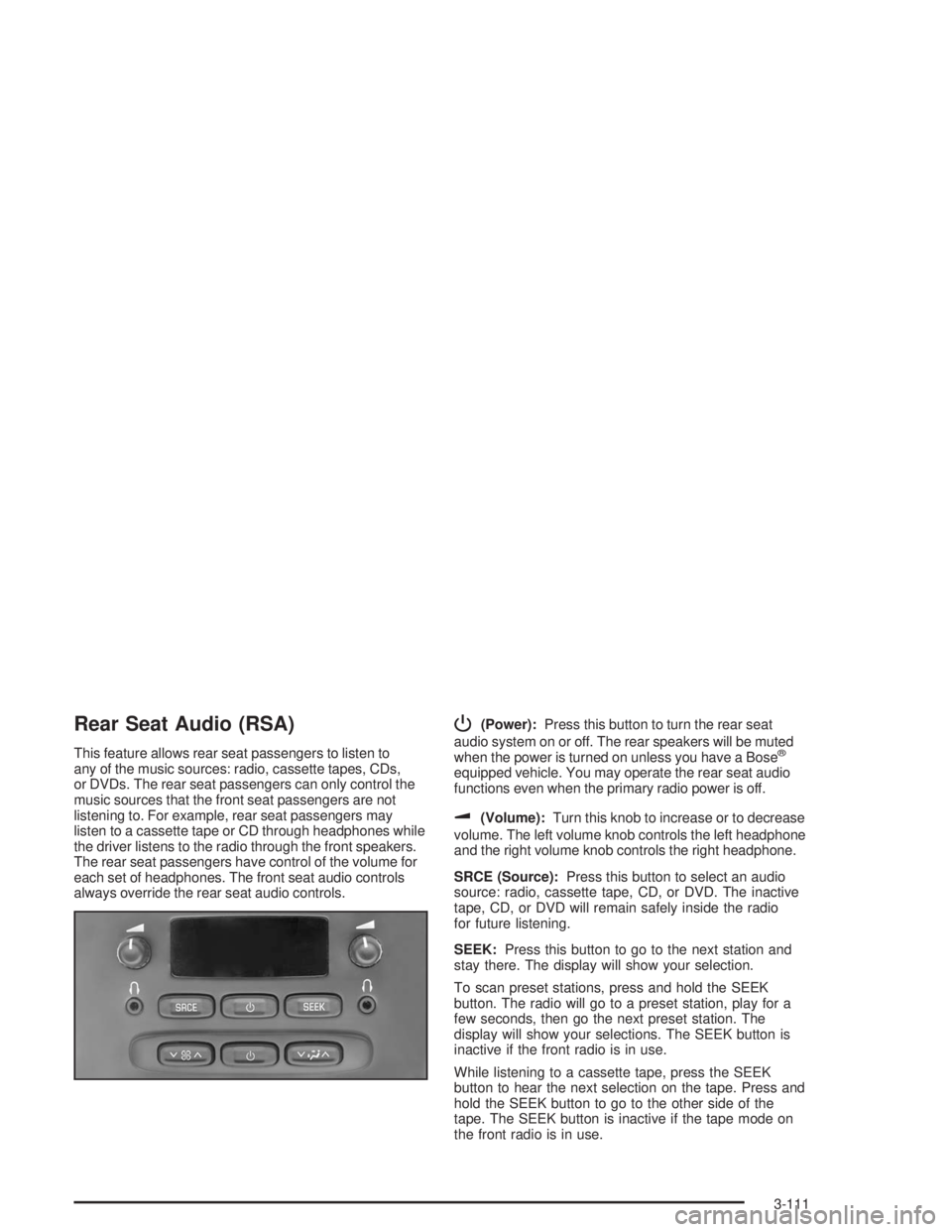
Rear Seat Audio (RSA)
This feature allows rear seat passengers to listen to
any of the music sources: radio, cassette tapes, CDs,
or DVDs. The rear seat passengers can only control the
music sources that the front seat passengers are not
listening to. For example, rear seat passengers may
listen to a cassette tape or CD through headphones while
the driver listens to the radio through the front speakers.
The rear seat passengers have control of the volume for
each set of headphones. The front seat audio controls
always override the rear seat audio controls.
P(Power):Press this button to turn the rear seat
audio system on or off. The rear speakers will be muted
when the power is turned on unless you have a Bose
®
equipped vehicle. You may operate the rear seat audio
functions even when the primary radio power is off.
u(Volume):Turn this knob to increase or to decrease
volume. The left volume knob controls the left headphone
and the right volume knob controls the right headphone.
SRCE (Source):Press this button to select an audio
source: radio, cassette tape, CD, or DVD. The inactive
tape, CD, or DVD will remain safely inside the radio
for future listening.
SEEK:Press this button to go to the next station and
stay there. The display will show your selection.
To scan preset stations, press and hold the SEEK
button. The radio will go to a preset station, play for a
few seconds, then go the next preset station. The
display will show your selections. The SEEK button is
inactive if the front radio is in use.
While listening to a cassette tape, press the SEEK
button to hear the next selection on the tape. Press and
hold the SEEK button to go to the other side of the
tape. The SEEK button is inactive if the tape mode on
the front radio is in use.
3-111
Page 222 of 452
DVD Distortion
You may experience audio distortion in the
IR headphones when operating cellular phones,
scanners, CB radios, Global Positioning Systems
(GPS)*, two-way radios, mobile fax, or walkie talkies.
It may be necessary to turn off the DVD player when
operating one of these devices in or near the vehicle.
* Excludes the OnStar
®System.
Radio Reception
AM
The range for most AM stations is greater than for FM,
especially at night. The longer range, however, can
cause stations to interfere with each other. AM can
pick up noise from things like storms and power lines.
Try reducing the treble to reduce this noise.
FM Stereo
FM stereo will give you the best sound, but FM signals
will reach only about 10 to 40 miles (16 to 65 km).
Tall buildings or hills can interfere with FM signals,
causing the sound to come and go.
XM™ Satellite Radio Service
(48 Contiguous US States)
XM™ Satellite Radio gives you digital radio reception
from coast to coast. Just as with FM, tall buildings
or hills can interfere with satellite radio signals, causing
the sound to come and go. Your radio may display
NO SIGNAL to indicate interference.
Care of Your Cassette Tape Player
A tape player that is not cleaned regularly can cause
reduced sound quality, ruined cassettes, or a damaged
mechanism. Cassette tapes should be stored in their
cases away from contaminants, direct sunlight, and
extreme heat. If they are not, they may not operate
properly or may cause failure of the tape player.
Your tape player should be cleaned regularly after every
50 hours of use. Your radio may display CLEAN to
indicate that you have used your tape player for 50 hours
without resetting the tape clean timer. If this message
appears on the display, your cassette tape player needs
to be cleaned. It will still play tapes, but you should clean
it as soon as possible to prevent damage to your tapes
and player. If you notice a reduction in sound quality,
try a known good cassette to see if the tape or the
tape player is at fault. If this other cassette has no
improvement in sound quality, clean the tape player.
3-114
Page 226 of 452
Your Driving, the Road, and
Your Vehicle
Defensive Driving
The best advice anyone can give about driving is: Drive
defensively.
Please start with a very important safety device in your
vehicle: Buckle up. SeeSafety Belts: They Are for
Everyone on page 1-7.
Defensive driving really means “be ready for anything.”
On city streets, rural roads or freeways, it means
“always expect the unexpected.”
Assume that pedestrians or other drivers are going to
be careless and make mistakes. Anticipate what
they might do. Be ready for their mistakes.Rear-end collisions are about the most preventable of
accidents. Yet they are common. Allow enough following
distance. It is the best defensive driving maneuver, in
both city and rural driving. You never know when the
vehicle in front of you is going to brake or turn suddenly.
Defensive driving requires that a driver concentrate on
the driving task. Anything that distracts from the driving
task — such as concentrating on a cellular telephone call,
reading, or reaching for something on the oor — makes
proper defensive driving more difficult and can even
cause a collision, with resulting injury. Ask a passenger to
help do things like this, or pull off the road in a safe place
to do them yourself. These simple defensive driving
techniques could save your life.
4-2
Page 256 of 452
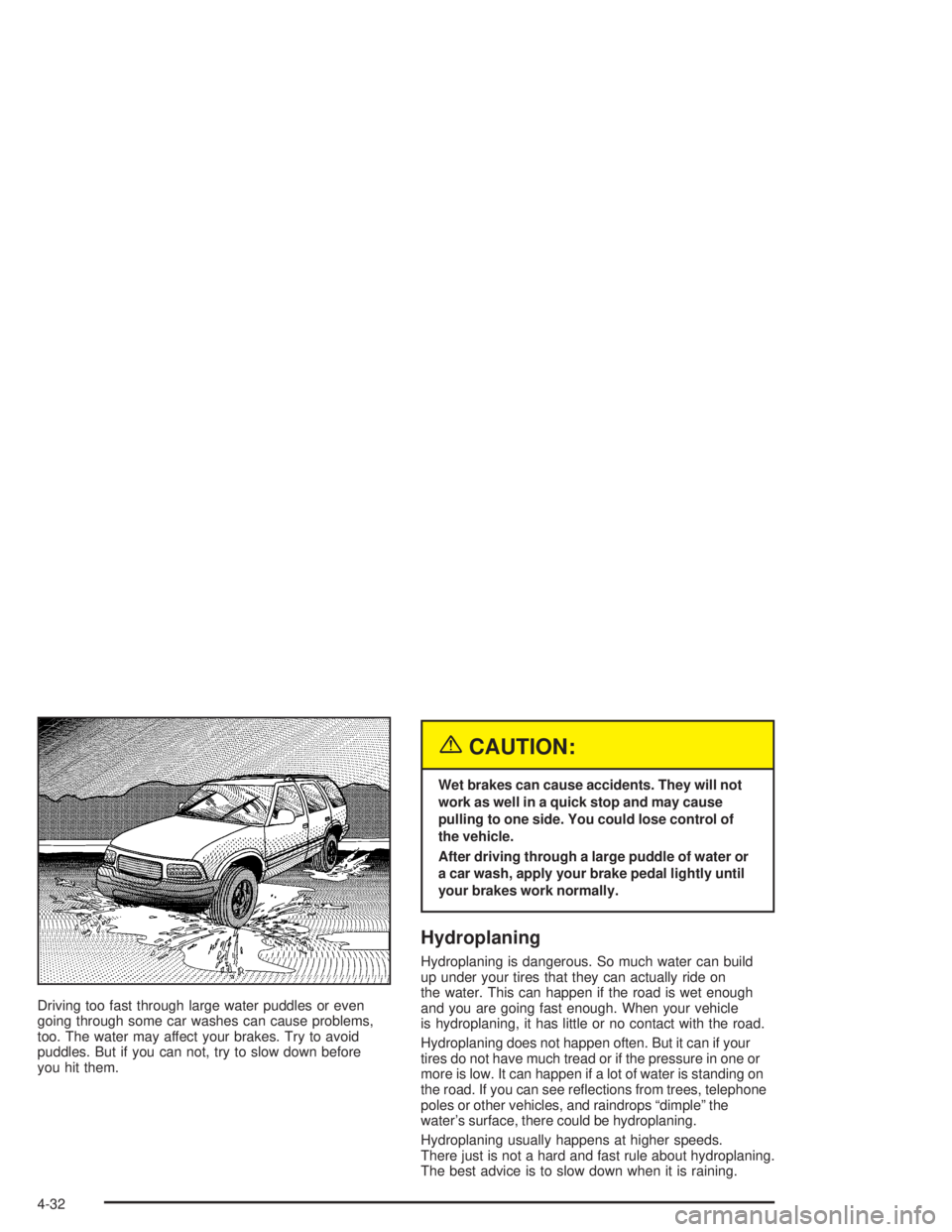
Driving too fast through large water puddles or even
going through some car washes can cause problems,
too. The water may affect your brakes. Try to avoid
puddles. But if you can not, try to slow down before
you hit them.
{CAUTION:
Wet brakes can cause accidents. They will not
work as well in a quick stop and may cause
pulling to one side. You could lose control of
the vehicle.
After driving through a large puddle of water or
a car wash, apply your brake pedal lightly until
your brakes work normally.
Hydroplaning
Hydroplaning is dangerous. So much water can build
up under your tires that they can actually ride on
the water. This can happen if the road is wet enough
and you are going fast enough. When your vehicle
is hydroplaning, it has little or no contact with the road.
Hydroplaning does not happen often. But it can if your
tires do not have much tread or if the pressure in one or
more is low. It can happen if a lot of water is standing on
the road. If you can see reections from trees, telephone
poles or other vehicles, and raindrops “dimple” the
water’s surface, there could be hydroplaning.
Hydroplaning usually happens at higher speeds.
There just is not a hard and fast rule about hydroplaning.
The best advice is to slow down when it is raining.
4-32
Page 421 of 452
Customer Assistance and Information...............7-2
Customer Satisfaction Procedure......................7-2
Online Owner Center......................................7-4
Customer Assistance for Text
Telephone (TTY) Users................................7-4
Customer Assistance Offices............................7-4
GM Mobility Program for Persons with
Disabilities..................................................7-6
Roadside Assistance Program..........................7-6
Courtesy Transportation...................................7-8
Vehicle Data Collection and Event
Data Records...........................................7-10Reporting Safety Defects................................7-11
Reporting Safety Defects to the United States
Government..............................................7-11
Reporting Safety Defects to the Canadian
Government..............................................7-12
Reporting Safety Defects to
General Motors.........................................7-12
Service Publications Ordering Information.........7-12
Section 7 Customer Assistance and Information
7-1
Page 423 of 452
STEP THREE:Both General Motors and your dealer
are committed to making sure you are completely
satised with your new vehicle. However, if you continue
to remain unsatised after following the procedure
outlined in Steps One and Two, you should le with the
BBB Auto Line Program to enforce any additional
rights you may have. Canadian owners refer to your
Warranty and Owner Assistance Information booklet for
information on the Canadian Motor Vehicle Arbitration
Plan (CAMVAP).
The BBB Auto Line Program is an out of court program
administered by the Council of Better Business Bureaus
to settle automotive disputes regarding vehicle repairs or
the interpretation of the New Vehicle Limited Warranty.
Although you may be required to resort to this informal
dispute resolution program prior to ling a court action,
use of the program is free of charge and your case will
generally be heard within 40 days. If you do not agree
with the decision given in your case, you may reject it and
proceed with any other venue for relief available to you.You may contact the BBB Auto Line Program using the
toll-free telephone number or write them at the following
address:
BBB Auto Line Program
Council of Better Business Bureaus, Inc.
4200 Wilson Boulevard
Suite 800
Arlington, VA 22203-1804
Telephone: 1-800-955-5100
This program is available in all 50 states and the
District of Columbia. Eligibility is limited by vehicle age,
mileage and other factors. General Motors reserves
the right to change eligibility limitations and/or
discontinue its participation in this program.
7-3
Page 424 of 452
Online Owner Center
The Owner Center is a resource for your GM ownership
needs. You can nd your specic vehicle information
all in one place.
The Owner Center allows you to:
Get e-mail service reminders.
Access information about your specic vehicle,
including tips and videos and an electronic
version of this owner’s manual. (United States only)
Keep track of your vehicle’s service history and
maintenance schedule.
Find GM dealers for service nationwide.
Receive special promotions and privileges only
available to members. (United States only)
Refer to the web for updated information.
To register your vehicle, visit www.MyGMLink.com.
(United States) or My GM Canada within
www.gmcanada.com (Canada).
Customer Assistance for Text
Telephone (TTY) Users
To assist customers who are deaf, hard of hearing, or
speech-impaired and who use Text Telephones (TTYs),
Buick has TTY equipment available at its Customer
Assistance Center. Any TTY user can communicate with
Buick by dialing: 1-800-83-BUICK. (TTY users in
Canada can dial 1-800-263-3830.)
Customer Assistance Offices
Buick encourages customers to call the toll-free number
for assistance. If a U.S. customer wishes to write to
Buick, the letter should be addressed to Buick’s
Customer Assistance Center.
7-4