change time BUICK RANDEZVOUS 2005 Owner's Guide
[x] Cancel search | Manufacturer: BUICK, Model Year: 2005, Model line: RANDEZVOUS, Model: BUICK RANDEZVOUS 2005Pages: 480, PDF Size: 2.96 MB
Page 240 of 480
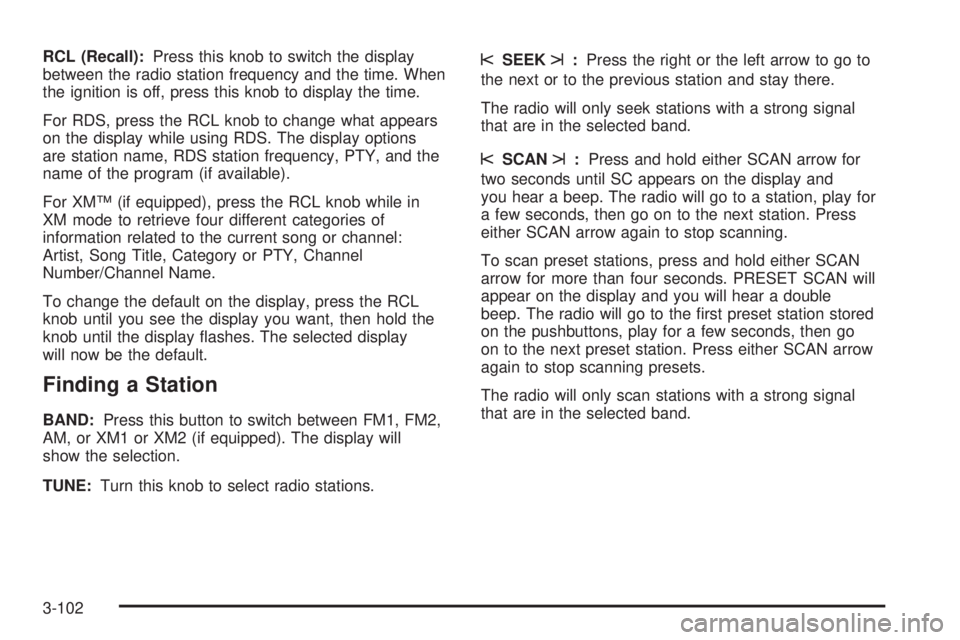
RCL (Recall):Press this knob to switch the display
between the radio station frequency and the time. When
the ignition is off, press this knob to display the time.
For RDS, press the RCL knob to change what appears
on the display while using RDS. The display options
are station name, RDS station frequency, PTY, and the
name of the program (if available).
For XM™ (if equipped), press the RCL knob while in
XM mode to retrieve four different categories of
information related to the current song or channel:
Artist, Song Title, Category or PTY, Channel
Number/Channel Name.
To change the default on the display, press the RCL
knob until you see the display you want, then hold the
knob until the display ashes. The selected display
will now be the default.
Finding a Station
BAND:Press this button to switch between FM1, FM2,
AM, or XM1 or XM2 (if equipped). The display will
show the selection.
TUNE:Turn this knob to select radio stations.
sSEEKt:Press the right or the left arrow to go to
the next or to the previous station and stay there.
The radio will only seek stations with a strong signal
that are in the selected band.
sSCANt:Press and hold either SCAN arrow for
two seconds until SC appears on the display and
you hear a beep. The radio will go to a station, play for
a few seconds, then go on to the next station. Press
either SCAN arrow again to stop scanning.
To scan preset stations, press and hold either SCAN
arrow for more than four seconds. PRESET SCAN will
appear on the display and you will hear a double
beep. The radio will go to the rst preset station stored
on the pushbuttons, play for a few seconds, then go
on to the next preset station. Press either SCAN arrow
again to stop scanning presets.
The radio will only scan stations with a strong signal
that are in the selected band.
3-102
Page 251 of 480
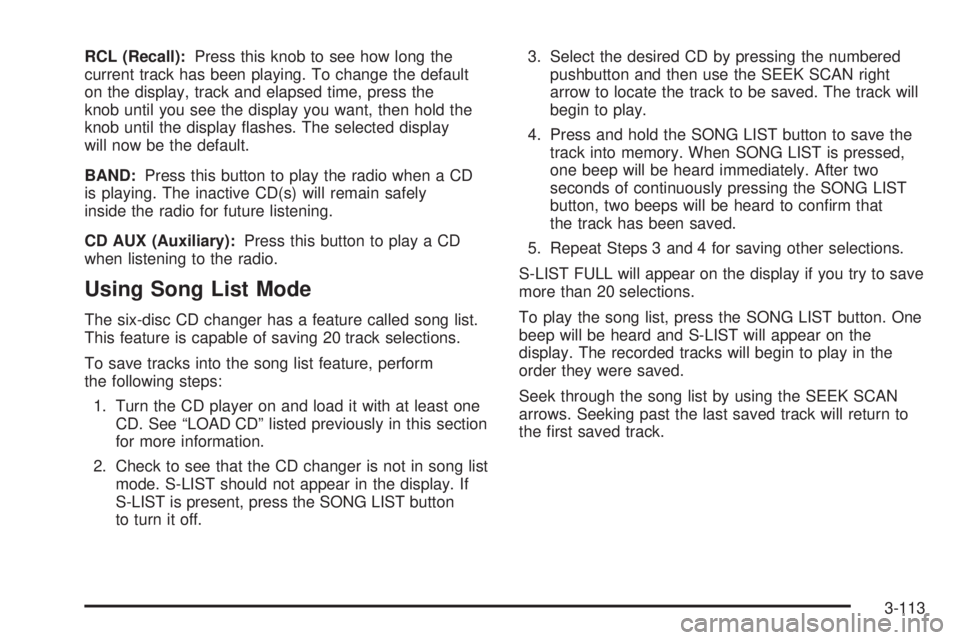
RCL (Recall):Press this knob to see how long the
current track has been playing. To change the default
on the display, track and elapsed time, press the
knob until you see the display you want, then hold the
knob until the display ashes. The selected display
will now be the default.
BAND:Press this button to play the radio when a CD
is playing. The inactive CD(s) will remain safely
inside the radio for future listening.
CD AUX (Auxiliary):Press this button to play a CD
when listening to the radio.
Using Song List Mode
The six-disc CD changer has a feature called song list.
This feature is capable of saving 20 track selections.
To save tracks into the song list feature, perform
the following steps:
1. Turn the CD player on and load it with at least one
CD. See “LOAD CD” listed previously in this section
for more information.
2. Check to see that the CD changer is not in song list
mode. S-LIST should not appear in the display. If
S-LIST is present, press the SONG LIST button
to turn it off.3. Select the desired CD by pressing the numbered
pushbutton and then use the SEEK SCAN right
arrow to locate the track to be saved. The track will
begin to play.
4. Press and hold the SONG LIST button to save the
track into memory. When SONG LIST is pressed,
one beep will be heard immediately. After two
seconds of continuously pressing the SONG LIST
button, two beeps will be heard to conrm that
the track has been saved.
5. Repeat Steps 3 and 4 for saving other selections.
S-LIST FULL will appear on the display if you try to save
more than 20 selections.
To play the song list, press the SONG LIST button. One
beep will be heard and S-LIST will appear on the
display. The recorded tracks will begin to play in the
order they were saved.
Seek through the song list by using the SEEK SCAN
arrows. Seeking past the last saved track will return to
the rst saved track.
3-113
Page 255 of 480
Notice:Do not store the headphones in heat or
direct sunlight. This could damage the headphones
and repairs would not be covered by your warranty.
Keep the headphones stored in a cool, dry place.
If there is a decreased audio signal during CD or DVD
play, there may be a low hissing noise through the
speakers and/or headphones. If the hissing sound in the
wireless headphones seems excessive, make sure
that the headphone batteries are fully charged. Some
amount of hissing is normal.
Battery Replacement
To change the batteries, do the following:
1. Loosen the screw on the battery compartment door
located on the left side of the headphone earpiece.
2. Replace the two AAA batteries in the compartment.
Make sure that they are installed correctly using the
diagram on the inside of the battery compartment.
3. Tighten the screw on the battery compartment door.
If the headphones are to be stored for a long period
of time, remove the batteries, and keep them in a cool,
dry place.
Stereo RCA Jacks
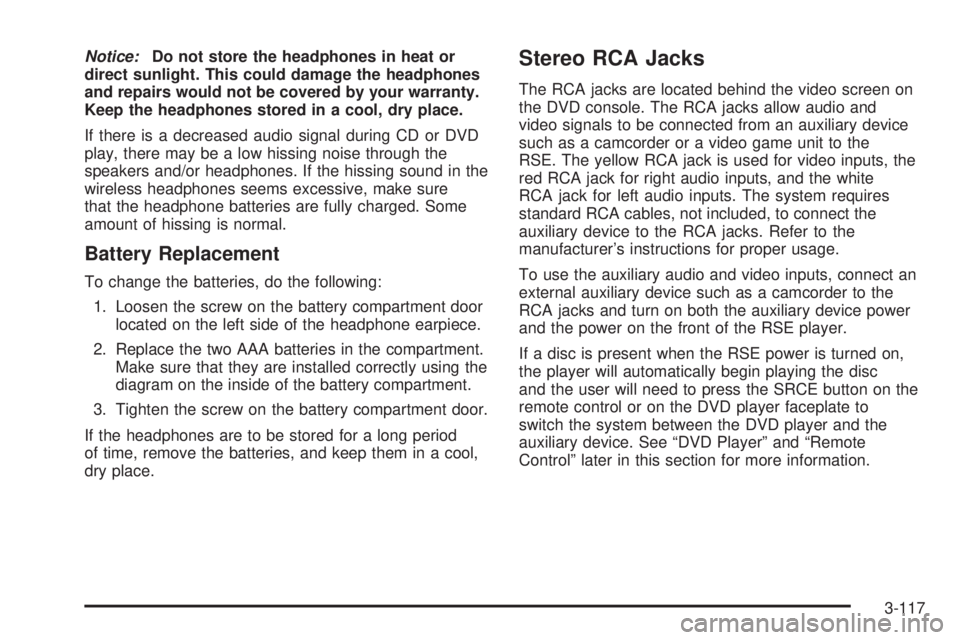
The RCA jacks are located behind the video screen on
the DVD console. The RCA jacks allow audio and
video signals to be connected from an auxiliary device
such as a camcorder or a video game unit to the
RSE. The yellow RCA jack is used for video inputs, the
red RCA jack for right audio inputs, and the white
RCA jack for left audio inputs. The system requires
standard RCA cables, not included, to connect the
auxiliary device to the RCA jacks. Refer to the
manufacturer’s instructions for proper usage.
To use the auxiliary audio and video inputs, connect an
external auxiliary device such as a camcorder to the
RCA jacks and turn on both the auxiliary device power
and the power on the front of the RSE player.
If a disc is present when the RSE power is turned on,
the player will automatically begin playing the disc
and the user will need to press the SRCE button on the
remote control or on the DVD player faceplate to
switch the system between the DVD player and the
auxiliary device. See “DVD Player” and “Remote
Control” later in this section for more information.
3-117
Page 258 of 480
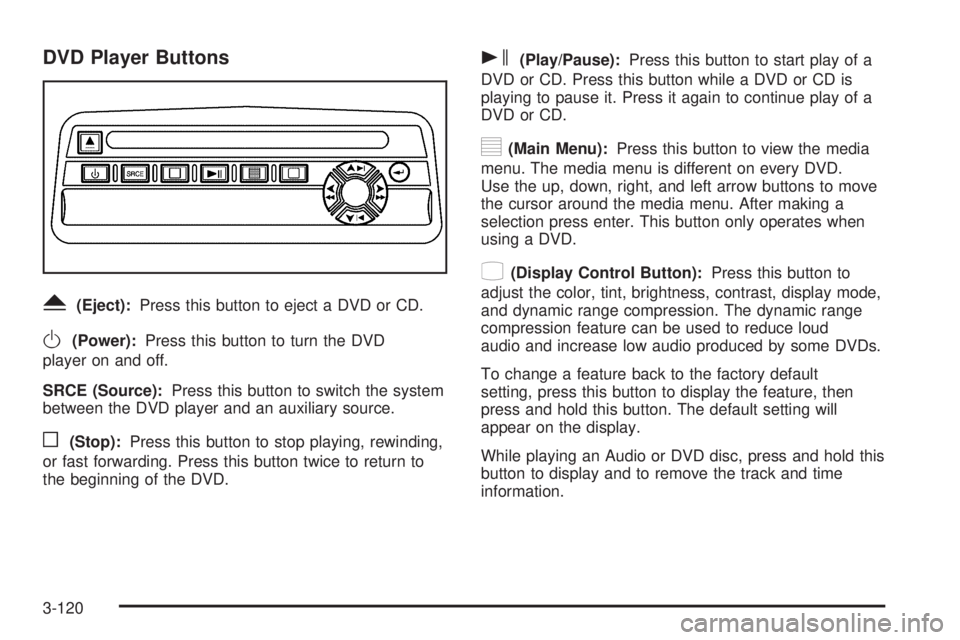
DVD Player Buttons
Y(Eject):Press this button to eject a DVD or CD.
O(Power):Press this button to turn the DVD
player on and off.
SRCE (Source):Press this button to switch the system
between the DVD player and an auxiliary source.
o(Stop):Press this button to stop playing, rewinding,
or fast forwarding. Press this button twice to return to
the beginning of the DVD.
s(Play/Pause):Press this button to start play of a
DVD or CD. Press this button while a DVD or CD is
playing to pause it. Press it again to continue play of a
DVD or CD.
y(Main Menu):Press this button to view the media
menu. The media menu is different on every DVD.
Use the up, down, right, and left arrow buttons to move
the cursor around the media menu. After making a
selection press enter. This button only operates when
using a DVD.
z(Display Control Button):Press this button to
adjust the color, tint, brightness, contrast, display mode,
and dynamic range compression. The dynamic range
compression feature can be used to reduce loud
audio and increase low audio produced by some DVDs.
To change a feature back to the factory default
setting, press this button to display the feature, then
press and hold this button. The default setting will
appear on the display.
While playing an Audio or DVD disc, press and hold this
button to display and to remove the track and time
information.
3-120
Page 263 of 480
Not all DVDs support all the feature defaults in the setup
menus. In the event a particular feature is not supported,
defaults will be provided by the DVD media.
Exit the setup menu by pressing the return button on
the remote control or the DVD player. If changes
are made to the system setup defaults, the disc will
resume play from the beginning and not where it
previously left off.
Battery Replacement
To change the remote control batteries, do the following:
1. Unclip the battery door located on the back of the
remote control.
2. Replace the two AA batteries in the compartment.
Make sure that they are installed correctly, using
the diagram on the inside of the battery
compartment.
3. Close the battery door.
If the remote control is to be stored for a long period of
time, remove the batteries and keep them in a cool,
dry place.
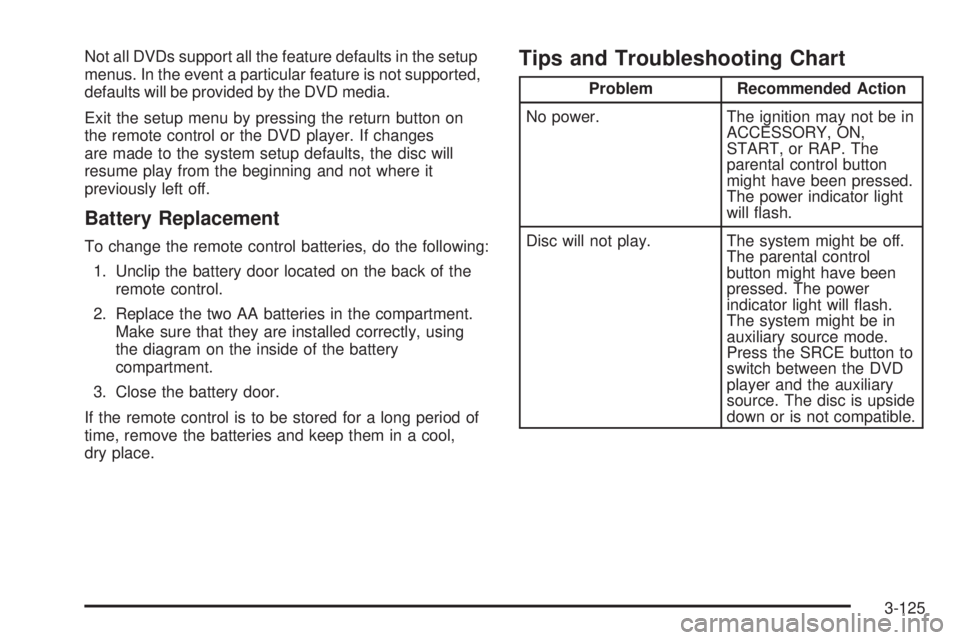
Tips and Troubleshooting Chart
Problem Recommended Action
No power. The ignition may not be in
ACCESSORY, ON,
START, or RAP. The
parental control button
might have been pressed.
The power indicator light
will ash.
Disc will not play. The system might be off.
The parental control
button might have been
pressed. The power
indicator light will ash.
The system might be in
auxiliary source mode.
Press the SRCE button to
switch between the DVD
player and the auxiliary
source. The disc is upside
down or is not compatible.
3-125
Page 265 of 480
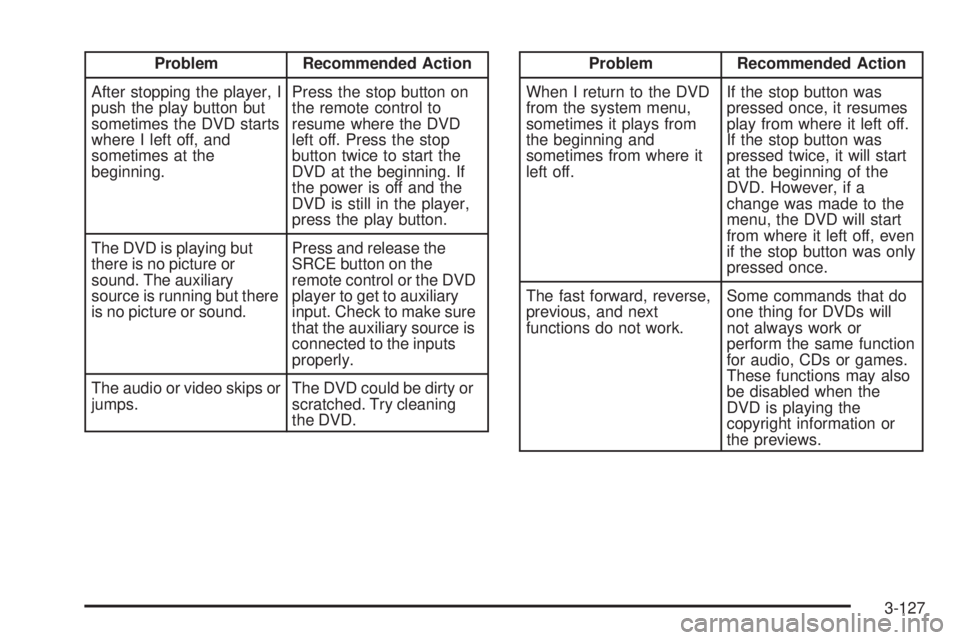
Problem Recommended Action
After stopping the player, I
push the play button but
sometimes the DVD starts
where I left off, and
sometimes at the
beginning.Press the stop button on
the remote control to
resume where the DVD
left off. Press the stop
button twice to start the
DVD at the beginning. If
the power is off and the
DVD is still in the player,
press the play button.
The DVD is playing but
there is no picture or
sound. The auxiliary
source is running but there
is no picture or sound.Press and release the
SRCE button on the
remote control or the DVD
player to get to auxiliary
input. Check to make sure
that the auxiliary source is
connected to the inputs
properly.
The audio or video skips or
jumps.The DVD could be dirty or
scratched. Try cleaning
the DVD.Problem Recommended Action
When I return to the DVD
from the system menu,
sometimes it plays from
the beginning and
sometimes from where it
left off.If the stop button was
pressed once, it resumes
play from where it left off.
If the stop button was
pressed twice, it will start
at the beginning of the
DVD. However, if a
change was made to the
menu, the DVD will start
from where it left off, even
if the stop button was only
pressed once.
The fast forward, reverse,
previous, and next
functions do not work.Some commands that do
one thing for DVDs will
not always work or
perform the same function
for audio, CDs or games.
These functions may also
be disabled when the
DVD is playing the
copyright information or
the previews.
3-127
Page 283 of 480

Remember: Anti-lock does not change the time you
need to get your foot up to the brake pedal or always
decrease stopping distance. If you get too close to
the vehicle in front of you, you will not have time to apply
your brakes if that vehicle suddenly slows or stops.
Always leave enough room up ahead to stop, even
though you have anti-lock brakes.
Using Anti-Lock
Do not pump the brakes. Just hold the brake pedal
down rmly and let anti-lock work for you. You may feel
a slight brake pedal pulsation or notice some noise,
but this is normal.
Braking in Emergencies
At some time, nearly every driver gets into a situation
that requires hard braking.
If you have anti-lock, you can steer and brake at the
same time. However, if you do not have anti-lock, your
rst reaction — to hit the brake pedal hard and hold
it down — may be the wrong thing to do. Your wheels
can stop rolling. Once they do, the vehicle cannot
respond to your steering. Momentum will carry it in
whatever direction it was headed when the wheels
stopped rolling. That could be off the road, into the very
thing you were trying to avoid, or into traffic.
If you do not have anti-lock, use a “squeeze” braking
technique. This will give you maximum braking while
maintaining steering control. You can do this by pushing
on the brake pedal with steadily increasing pressure.
In an emergency, you will probably want to squeeze the
brakes hard without locking the wheels. If you hear or feel
the wheels sliding, ease off the brake pedal. This will help
you retain steering control. If youdohave anti-lock, it is
different. SeeAnti-Lock Brake System (ABS)
on page 4-7.
In many emergencies, steering can help you more than
even the very best braking.
4-9
Page 289 of 480

Do not get too close to the vehicle you want to
pass while you are awaiting an opportunity. For one
thing, following too closely reduces your area of
vision, especially if you are following a larger
vehicle. Also, you will not have adequate space if
the vehicle ahead suddenly slows or stops.
Keep back a reasonable distance.
When it looks like a chance to pass is coming up,
start to accelerate but stay in the right lane and do
not get too close. Time your move so you will be
increasing speed as the time comes to move into the
other lane. If the way is clear to pass, you will have a
running start that more than makes up for the
distance you would lose by dropping back. And if
something happens to cause you to cancel your
pass, you need only slow down and drop back again
and wait for another opportunity.
If other vehicles are lined up to pass a slow vehicle,
wait your turn. But take care that someone is not
trying to pass you as you pull out to pass the slow
vehicle. Remember to glance over your shoulder and
check the blind spot.
Check your mirrors, glance over your shoulder, and
start your left lane change signal before moving out
of the right lane to pass. When you are far enough
ahead of the passed vehicle to see its front in your
inside mirror,activate your right lane change signal and move back
into the right lane. Remember that your right outside
mirror is convex. The vehicle you just passed may
seem to be farther away from you than it really is.
Try not to pass more than one vehicle at a time on
two-lane roads. Reconsider before passing the next
vehicle.
Do not overtake a slowly moving vehicle too rapidly.
Even though the brake lamps are not ashing, it may
be slowing down or starting to turn.
If you are being passed, make it easy for the
following driver to get ahead of you. Perhaps you can
ease a little to the right.
Loss of Control
Let us review what driving experts say about what
happens when the three control systems — brakes,
steering, and acceleration — do not have enough friction
where the tires meet the road to do what the driver
has asked.
In any emergency, do not give up. Keep trying to steer
and constantly seek an escape route or area of less
danger.
4-15
Page 312 of 480
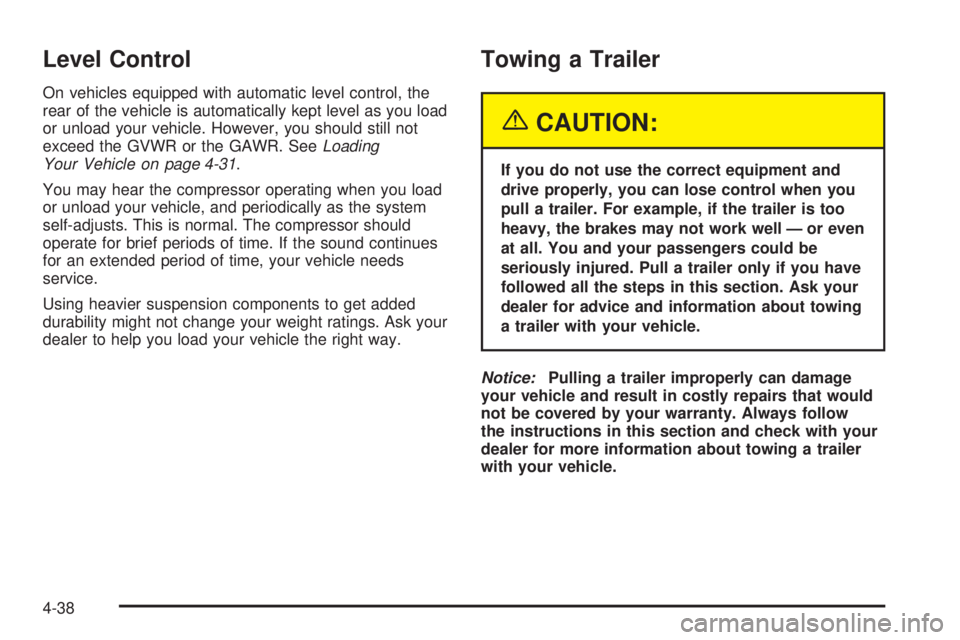
Level Control
On vehicles equipped with automatic level control, the
rear of the vehicle is automatically kept level as you load
or unload your vehicle. However, you should still not
exceed the GVWR or the GAWR. SeeLoading
Your Vehicle on page 4-31.
You may hear the compressor operating when you load
or unload your vehicle, and periodically as the system
self-adjusts. This is normal. The compressor should
operate for brief periods of time. If the sound continues
for an extended period of time, your vehicle needs
service.
Using heavier suspension components to get added
durability might not change your weight ratings. Ask your
dealer to help you load your vehicle the right way.
Towing a Trailer
{CAUTION:
If you do not use the correct equipment and
drive properly, you can lose control when you
pull a trailer. For example, if the trailer is too
heavy, the brakes may not work well — or even
at all. You and your passengers could be
seriously injured. Pull a trailer only if you have
followed all the steps in this section. Ask your
dealer for advice and information about towing
a trailer with your vehicle.
Notice:Pulling a trailer improperly can damage
your vehicle and result in costly repairs that would
not be covered by your warranty. Always follow
the instructions in this section and check with your
dealer for more information about towing a trailer
with your vehicle.
4-38
Page 313 of 480

Your vehicle can tow a trailer. To identify what the
vehicle trailering capacity is for your vehicle, you should
read the information in “Weight of the Trailer” that
appears later in this section. But trailering is different
than just driving your vehicle by itself. Trailering means
changes in handling, acceleration, braking, durability,
and fuel economy. Successful, safe trailering takes
correct equipment, and it has to be used properly.
That is the reason for this section. In it are many
time-tested, important trailering tips and safety rules.
Many of these are important for your safety and that of
your passengers. So please read this section carefully
before you pull a trailer.
Load-pulling components such as the engine, transaxle,
wheel assemblies and tires are forced to work harder
against the drag of the added weight. The engine
is required to operate at relatively higher speeds and
under greater loads, generating extra heat. The
trailer also adds considerably to wind resistance,
increasing the pulling requirements.If You Do Decide To Pull A Trailer
If you do, here are some important points:
There are many different laws, including speed limit
restrictions, having to do with trailering. Make sure
your rig will be legal, not only where you live
but also where you will be driving. A good source
for this information can be state or provincial police.
Consider using a sway control. See “Hitches” later in
this section.
Do not tow a trailer at all during the rst 500 miles
(800 km) your new vehicle is driven. Your engine,
axle or other parts could be damaged.
During the rst 500 miles (800 km) that you tow a
trailer, do not drive over 50 mph (80 km/h) and do
not make starts at full throttle. This helps your
engine and other parts of your vehicle wear in at
the heavier loads.
You can use THIRD (3) or, as you need to, a lower
gear when towing a trailer. Operating your vehicle
in THIRD (3) when towing a trailer will minimize heat
buildup and extend the life of your transaxle.
Three important considerations have to do with weight:
Weight of the trailer
Weight of the trailer tongue
Weight on your vehicle’s tires
4-39