manual radio set CHEVROLET BOLT EV 2021 User Guide
[x] Cancel search | Manufacturer: CHEVROLET, Model Year: 2021, Model line: BOLT EV, Model: CHEVROLET BOLT EV 2021Pages: 293, PDF Size: 9.21 MB
Page 118 of 293
Chevrolet Bolt EV Owner Manual (GMNA-Localizing-U.S./Canada-
14637856) - 2021 - CRC - 10/2/20
Infotainment System 117
To connect the infotainment system to a
secured mobile device hotspot, home
hotspot, or public hotspot, touch Settings on
the Home Page, followed by Wi-Fi, and then
Manage Wi-Fi Networks. Select the
appropriate Wi-Fi network, and follow the
on-screen prompts. Download speeds
may vary.
On most compatible mobile devices,
activation of the Wi-Fi hotspot is in the
Settings menu under Mobile Network
Sharing, Personal Hotspot, Mobile Hotspot,
or similar.
Availability of Over-the-Air vehicle software
updates varies by vehicle and country. For
more information on this feature, see
www.my.chevrolet.com/learn.
Radio
AM-FM Radio
Listening to AM-FM Radio
1. TouchT.
2. Touch Audio, then Source.
3. Touch FM or AM. The most recently listened to AM or FM radio station is
displayed. RDS (Radio Data System) function is only
available in countries that support this
function.
Searching for Stations Automatically
Pressgordto automatically search for
an available station with good reception.
If RDS is supported, it will tune to the
station and may include additional
information such as time, station
identification, and program information.
Searching for Stations Directly
1. Touch Tune.
2. Using the keypad, enter the desired station number.
Touching the period between digits is not
necessary. The radio will add it
automatically at the correct location.
Favorite Preset Operation
Saving Favorites 1. Select the band.
2. Select the desired station.
3. Touch
qor touch and hold the favorite
in the Favorites list to overwrite. 4. To delete it from the Favorites list, touch
q, or swipe the station from the list on
the right.
Up to 15 radio stations can be saved in the
Favorites list.
Listening to Favorites Directly 1. Touch Favorites to see the list of favorites.
2. Touch the desired station.
The steering wheel controls can also be used
to select favorites. See Steering Wheel
Controls 072.
Using the AM or FM Radio Tab
Current Station Information
1. Touch Browse Audio.
2. Touch Current Station Information to display the station information.
AM or FM Stations 1. Touch Browse Audio.
2. Touch AM Stations or FM Stations. The AM List or FM List is displayed.
FM Categories 1. Touch Browse Audio.
2. Touch FM Categories.
Page 119 of 293
Chevrolet Bolt EV Owner Manual (GMNA-Localizing-U.S./Canada-
14637856) - 2021 - CRC - 10/2/20
118 Infotainment System
3. Touch the desired category and station.The FM category list is only available for
RDS (Radio Data System).
Update AM or FM Stations 1. Touch Browse Audio.
2. Touch Update AM Stations or Update FM Stations.
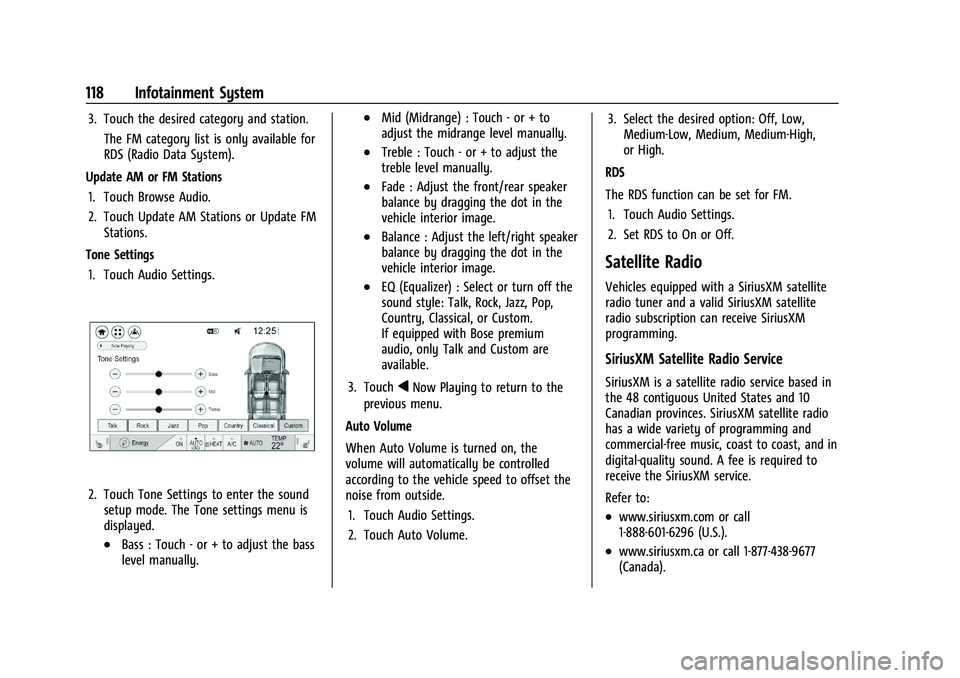
Tone Settings 1. Touch Audio Settings.
2. Touch Tone Settings to enter the sound setup mode. The Tone settings menu is
displayed.
.Bass : Touch - or + to adjust the bass
level manually.
.Mid (Midrange) : Touch - or + to
adjust the midrange level manually.
.Treble : Touch - or + to adjust the
treble level manually.
.Fade : Adjust the front/rear speaker
balance by dragging the dot in the
vehicle interior image.
.Balance : Adjust the left/right speaker
balance by dragging the dot in the
vehicle interior image.
.EQ (Equalizer) : Select or turn off the
sound style: Talk, Rock, Jazz, Pop,
Country, Classical, or Custom.
If equipped with Bose premium
audio, only Talk and Custom are
available.
3. Touch
qNow Playing to return to the
previous menu.
Auto Volume
When Auto Volume is turned on, the
volume will automatically be controlled
according to the vehicle speed to offset the
noise from outside. 1. Touch Audio Settings.
2. Touch Auto Volume. 3. Select the desired option: Off, Low,
Medium-Low, Medium, Medium-High,
or High.
RDS
The RDS function can be set for FM. 1. Touch Audio Settings.
2. Set RDS to On or Off.
Satellite Radio
Vehicles equipped with a SiriusXM satellite
radio tuner and a valid SiriusXM satellite
radio subscription can receive SiriusXM
programming.
SiriusXM Satellite Radio Service
SiriusXM is a satellite radio service based in
the 48 contiguous United States and 10
Canadian provinces. SiriusXM satellite radio
has a wide variety of programming and
commercial-free music, coast to coast, and in
digital-quality sound. A fee is required to
receive the SiriusXM service.
Refer to:
.www.siriusxm.com or call
1-888-601-6296 (U.S.).
.www.siriusxm.ca or call 1-877-438-9677
(Canada).
Page 120 of 293
Chevrolet Bolt EV Owner Manual (GMNA-Localizing-U.S./Canada-
14637856) - 2021 - CRC - 10/2/20
Infotainment System 119
Listening to SXM Radio
1. TouchT.
2. Touch Audio, then Source.
3. Touch SXM. The most recently listened to SXM channel is displayed.
Searching for Channels Automatically
Pressgordto automatically search for
available channels.
Searching for Channels Directly
1. Touch Tune.
2. Using the keypad, enter the desired channel.
Searching for Channels Using Favorites
Saving Favorites
1. Select the desired channel.
2. Touch
qor touch and hold the favorite
in the list to overwrite.
3. To delete a channel from Favorites, touch
q, or swipe the channel from the list on
the right.
Up to 15 channels can be saved in the
Favorites list. Listening to Favorites Directly
1. Touch Favorites to see the list of favorites.
2. Touch the desired channel.
Using the SXM Radio Tab
Browse Audio
.Current Channel Information
Touch Current Channel Information. The
channel information is displayed.
.SXM Channels
Touch SXM Channels. The SXM List is
displayed.
.SXM Categories
SXM categories are defined by the
SiriusXM service provider.
Touch SXM Categories, then touch the
desired category and channel.
Audio Settings
.Tone Settings
Set up sound features from the Tone
Settings menu. See “Tone Settings”under
“AM-FM Radio” previously in this section.
.Auto Volume Volume will be automatically controlled.
See
“Auto Volume” under“AM-FM Radio”
previously in this section.
.Explicit Content Filter
Choose this menu item to turn On or Off
the filtering of explicit channels from
SXM. A list item can be set to On or Off.
From the SXM Settings, touch Audio
Settings. Set Explicit Content Filter feature
to On or Off to allow for a filtered list of
channels.
Radio Reception
Unplug electronic devices from the accessory
power outlets if there is interference or
static in the radio.
FM
FM signals only reach about 16 to 65 km (10
to 40 mi). Although the radio has a built-in
electronic circuit that automatically works to
reduce interference, some static can occur,
especially around tall buildings or hills,
causing the sound to fade in and out.
AM
The range for most AM stations is greater
than for FM, especially at night. The longer
range can cause station frequencies to
Page 124 of 293
Chevrolet Bolt EV Owner Manual (GMNA-Localizing-U.S./Canada-
14637856) - 2021 - CRC - 10/2/20
Infotainment System 123
Playing Files RandomlyITouch
Zduring playback.
ITouch
Zagain to return to normal
playback.
Playing Files Repeatedly
1. Touch
"during playback.
2. Touch the desired option.
.Repeat All: Plays all files repeatedly.
.Repeat Song: Plays a current file
repeatedly.
.Repeat Off: Cancels the repeat
function.
Searching for a File by Using the Favorites
Saving Favorites 1. Select the desired file.
2. Touch
q, or touch and hold the favorite
in the list to overwrite.
3. To delete it from the Favorites list, touch
q, or swipe the file from the list on the
right.
Up to 15 media files can be saved in the
Favorites list. Listening to Favorites Directly
1. Touch the Favorites menu to see the Favorites list.
2. Touch the desired favorite to listen.
Browse Music 1. Touch Browse Music.
2. Touch the desired item: Playlists, Folders, Artists, Songs, Albums, Genres, and
Composers.
3. Touch the desired music to listen. The Infotainment Module will recognize
playlist files by the extensions .asx, m3u,
pls, wpl, b4s, and .xspf.
Tone Settings
Set up sound features from the Tone
Settings menu. See “Tone Settings”under
“AM-FM Radio” previously in this section.
Auto Volume
See “Auto Volume” under“AM-FM Radio”
previously in this section.
MTP (Media Transfer Protocol) Player
Playing Music from a Supported MTP Device
Connect the supported MTP device
containing music files to the USB port.
.Once the infotainment system finishes
reading the information on the device
that supports MTP (Media Transfer
Protocol), it will be automatically played.
If USB Auto Launch is set to Off in
Settings, it will not be automatically
played.
.If a non-readable device that supports
MTP is connected, then an error message
will appear and the infotainment system
will automatically switch to the previous
audio function.
.Depending on the connected device, some
files may not play.
.File loading may take a few minutes
depending on the type of MTP device or
the number of files/folders stored in the
MTP device.
.When connecting the MTP device, the
infotainment system scans audio files
first, and then picture files. While
scanning picture files, these files may not
be available until the loading indicator on
the audio screen disappears even if the
audio file in the MTP device is playing.
.If connecting an MTP device that has
external memory, it may be recognized as
USB1/USB2.
Page 125 of 293
Chevrolet Bolt EV Owner Manual (GMNA-Localizing-U.S./Canada-
14637856) - 2021 - CRC - 10/2/20
124 Infotainment System
.Other operations are the same as the USB
player. See“USB Player” under“USB Port”
previously in this section.
.The USB connection setting on the device
may need to be changed to MTP.
iPod/iPhone Player
This is limited to devices supporting the
iPod/iPhone connection.
Playing iPod/iPhone Music Files
Use an Apple certified cord to connect the
iPod/iPhone containing the music files to
the USB port.
.Once the infotainment system finishes
reading the information on the iPod/
iPhone, it will be automatically played
from the previously played point. If Auto
Launch in Settings is set to Off, it will not
be automatically played.
If the iPod/iPhone is already connected,
touch
T, Audio, Source, then iPod to play
the iPod/iPhone.
Ending iPod/iPhone Playback
1. Touch Source.
2. Select another function by touching AM, FM, AUX, or Bluetooth, or unplug the
iPod/iPhone. To remove the iPod/iPhone, select another
function, and then remove the iPod/iPhone.
Pause
ITouch
jduring playback.
ITouch
rto resume playback.
Playing the Next Song
ITouch
dto play the next song.
Playing the Previous Song
ITouch
gwithin two seconds of
playback time to play the
previous song.
Returning to the Beginning of the
Current Song
ITouch
gafter two seconds of
playback time.
Scanning Forward or Backward
IHold
gordduring playback to
rewind or fast forward. Release
gor
dto resume playback at normal
speed. Playing Files Randomly
ITouch
Zduring playback.
ITouch
Zagain to return to normal
playback.
Browse Music 1. Touch Browse Music.
2. Touch the desired music.
Tone Settings
Set up sound features from the Tone
Settings menu. See “Tone Settings”under
“AM-FM Radio” previously in this section.
Auto Volume
Volume will be automatically controlled. See
“Auto Volume” under“AM-FM Radio”
previously in this section.
Gallery (Pictures)
The infotainment system can view picture
files contained in the USB storage device.
Before Using the Picture System
.Only the following file extensions are
supported: *.jpg, *.bmp, *.png, *.gif.
.Animated GIF is not supported.
Page 126 of 293
Chevrolet Bolt EV Owner Manual (GMNA-Localizing-U.S./Canada-
14637856) - 2021 - CRC - 10/2/20
Infotainment System 125
.Some files may not operate due to a
different format or the condition of
the file.
Viewing a Picture
1. Connect the USB storage devicecontaining the picture files to the
USB port.
2. Press
{, thenT.
3. Touch Gallery, then select the desired picture folder.
4. Select the desired file.
.Touch the screen to hide the control bar.
Touch the screen again to show the
control bar.
.Some features are disabled while the
vehicle is in motion.
Viewing a Slide Show
.Touchzfrom the picture screen and the
slide show will play.
.Touch the screen to cancel the slide show
during slide show playback.
Viewing a Previous or Next Picture
From the picture screen, touchSorTto
view the previous or next picture.
Rotating a Picture
From the picture screen, touchwto rotate
the picture.
Enlarging a Picture
From the picture screen, touchTto enlarge
the picture.
Using the USB Picture Menu
1. From the picture screen, touch Menu.
2. Touch the desired menu.
.Slide Show Time: Select the slide
show interval.
.Clock/Temp Display: To display the
clock and temperature on the full
screen, select On or Off.
.Display Settings: Adjust the
brightness and contrast.
3. After the setting is complete, touch
0.
Auxiliary Devices
The AUX port is in the center console. The
infotainment system can play auxiliary
music connected by the auxiliary device.
Playing Music from an Auxiliary Device
Connect the auxiliary device containing the
music source to the AUX port. Once
connected with the infotainment system,
music can be played from the device.
.If the auxiliary device is already
connected, touch
T, Audio, Source, then
AUX to play music from the auxiliary
device.
.Use an AUX cable with a 3.5 mm (1/8 in)
type connector.
Tone Settings
From the AUX screen, touch Tone. See “Tone
Settings” under“AM-FM Radio” previously in
this section.
Bluetooth Audio
Bluetooth Music
If equipped, music may be played from a
paired Bluetooth device. Refer to the Phone
section for help pairing a device.
Before Playing Bluetooth Music
.The paired bluetooth device must support
Bluetooth profiles: A2DP or AVRCP.
Page 128 of 293
Chevrolet Bolt EV Owner Manual (GMNA-Localizing-U.S./Canada-
14637856) - 2021 - CRC - 10/2/20
Infotainment System 127
Browse Music
This function may not be supported
depending on the mobile phone.1. Touch Browse Music.
2. Touch the desired item. The number of relevant songs is displayed.
3. Touch the desired music to listen.
Tone Settings
From the Bluetooth music menu, sound
features can be set up. See “Tone Settings”
under “AM-FM Radio” previously in this
section.
Auto Volume
Volume will be automatically controlled. See
“Auto Volume” under“AM-FM Radio”
previously in this section.
Manage Bluetooth Devices
1. Touch Audio Settings.
2. Touch Manage Bluetooth Devices.
3. Select the desired device and then connect/disconnect or delete.
Playing Bluetooth Music
.Do not change the track too quickly when
playing Bluetooth music.
.It takes some time to transmit data from
the mobile phone or Bluetooth device to
the infotainment system. The
infotainment system outputs the audio
from the mobile phone or Bluetooth
device as it is transmitted.
.If the mobile phone or Bluetooth device is
not in the idle screen mode, it may not
automatically play despite being carried
out from the Bluetooth music play mode.
.The infotainment system transmits the
order to play from the mobile phone in
the Bluetooth music play mode. If this is
done in a different mode, then the device
transmits the order to stop. Depending on
the mobile phone’s options, this order to
play/stop may take time to activate.
.If Bluetooth music playback is not
functioning, then check to see if the
mobile phone is in the idle screen mode.
.Sometimes, sounds may be cut off during
Bluetooth music playback.
OnStar System
OnStar with 4G LTE
If equipped with OnStar 4G LTE, up to seven
devices, such as smartphones, tablets, and
laptops, can be connected to high-speed
Internet through the vehicle’s built-in Wi-Fi
hotspot.
Call 1-888-4-ONSTAR (1-888-466-7827) to
connect to an OnStar Advisor for assistance.
See www.onstar.com for a detailed
instruction guide, vehicle availability, details,
and system limitations. Services and apps
vary by make, model, year, carrier,
availability, and conditions. 4G LTE service is
available in select markets. 4G LTE
performance is based on industry averages
and vehicle systems design. Some services
require a data plan.
Phone
Bluetooth
Bluetooth Wireless Technology
Bluetooth wireless technology establishes a
wireless link between two devices supported
with Bluetooth. After the initial pairing, the
two devices can connect automatically when
Page 132 of 293
Chevrolet Bolt EV Owner Manual (GMNA-Localizing-U.S./Canada-
14637856) - 2021 - CRC - 10/2/20
Infotainment System 131
Only speed dial numbers already stored on
the mobile phone can be used for speed dial
calls. Up to two-digit speed dial numbers are
supported.
For two-digit speed dial numbers, touch and
hold the second digit to make a call to the
speed dial number.
Voice Mail
The default voice mail number is the phone
number of the currently connected mobile
phone. The voice mail number can be
changed in Bluetooth settings.
To dial a voice mail number:1. Touch
T.
2. Touch Phone, then Voice Mail.
Settings
Operation of the Settings Menu
The infotainment system can be customized
to make it easier to use.
1. Touch
T.
2. Touch Settings.
3. Touch the desired menu to select the item or to display the item’s
detailed menu. 4. Touch
0to return to the
previous menu.
Settings menus and functions may vary
depending on vehicle options.
Radio Settings
1. TouchT.
2. Touch Settings, then touch Radio Settings.
.Auto Volume: Volume will be
automatically controlled. See “Auto
Volume” under“AM-FM Radio”
previously in this section.
.Maximum Start-Up Volume: Set the
Maximum Start-Up Volume from 13
to 37.
.Audio Cues: Set the Audio Cues
feature to On or Off.
.Audio Cues Volume: Set the Audio
Cues Volume from 10 to 63.
.Audio Volume Setting: Set all Audio
Volume features.
Audio Cues Volume is only available when
Audio Cues is set to On.
Devices
1. TouchT. 2. Touch Settings, then touch Devices.
3. Select the desired device and connect/
disconnect or delete.
To add a new Bluetooth device, touch Add
Device.
Bluetooth Phone
1. TouchT.
2. Touch Settings, then Bluetooth Phone and touch
Yto scroll to the desired
mobile phone. This is only available
when the device is connected.
.My Number: Displays the current
connected phone number.
.Privacy: Set whether or not incoming
call alerts are shown on the
infotainment display.
.Sort Contacts: Set to First name,
surname or Surname, first name.
.Resync Device Contacts: Resync the
contacts list for the current connected
mobile phone.
Apple CarPlay
1. TouchT.
2. Touch Settings and find Apple CarPlay.
3. Select On or Off.
Page 134 of 293
Chevrolet Bolt EV Owner Manual (GMNA-Localizing-U.S./Canada-
14637856) - 2021 - CRC - 10/2/20
Infotainment System 133
transmitter key is no longer
registered and a confirmation
message displays.
If a Teen Driver transmitter key and a
non-Teen Driver transmitter key are both
present at start up, the vehicle will
recognize the non-Teen Driver transmitter
key to start the vehicle. The Teen Driver
settings will not be active.
Manage Settings
Use the PIN to change the following
settings:
Audio Volume Limit : Allows a maximum
radio volume to be set. Turn the audio
volume limit On or Off, and if equipped,
choose the maximum level for the audio
volume.
Teen Driver Speed Warning : Allows for
setting a visual and audible warning when a
certain speed is exceeded. The speed
warning is selectable from 64 km/h
(40 mph) to 120 km/h (75 mph). The speed
warning does not limit the speed of the
vehicle.
Teen Driver Speed Limiter (If Equipped) :
Allows the maximum speed of the vehicle to
be limited to 137 km/h (85 mph). When the
speed limiter is turned On and the vehicle is started with a Teen Driver key, the DIC
displays a message that the top speed is
limited to 137 km/h (85 mph).
When Teen Driver is Active:
.The radio will mute when the driver seat
belt is not fastened, and in some vehicles,
when the right front passenger seat belt
is not fastened. The audio from any
device paired to the vehicle will also be
muted.
.Certain electronic devices placed on the
front passenger seat could cause the
passenger sensing system to falsely sense
an unbuckled front passenger and mute
the radio. See
Passenger Sensing System
0 44.
.Some safety systems, such as Automatic
Emergency Braking, if equipped and
supported, cannot be turned off.
.The gap setting for the Forward Collision
Alert, if equipped, cannot be changed.
Report Card
The vehicle owner must secure the driver’s
consent to record certain vehicle data when
the vehicle is driven with a registered Teen
Driver key. There is one Report Card per
vehicle. Data is not recorded when Teen
Driver is not active. The Report Card data is collected from the
time Teen Driver is activated or the last
time the Report Card was reset. The
following items may be recorded:
.Distance Driven
–the total distance
driven.
.Maximum Speed –the maximum vehicle
speed recorded.
.Overspeed Warnings –the number of
times the speed warning setting was
exceeded.
.Forward Collision Alerts –the number of
times the driver was notified when
approaching a vehicle ahead too quickly
and at potential risk for a crash.
.Forward Collision Avoidance Braking –the
number of times the vehicle detected that
a forward collision was imminent and
applied the brakes. Also referred to as
Automatic Emergency Braking.
.Stability Control –the number of events
which required the use of electronic
stability control.
.ABS Active –the number of Antilock
Brake System activations.
.Tailgating Alerts –the number of times
the driver was alerted for following the
vehicle ahead too closely.
Page 135 of 293
Chevrolet Bolt EV Owner Manual (GMNA-Localizing-U.S./Canada-
14637856) - 2021 - CRC - 10/2/20
134 Infotainment System
.Traction Control–the number of times
the Traction Control System activated to
reduce wheel spin or loss of traction.
.Wide Open Throttle –the number of
times the accelerator pedal was pressed
nearly all the way down.
Delete Report Card Data
Data is saved for all trips until the data is
deleted using the PIN or until the maximum
count is exceeded. Each item will report a
maximum of 1,000 counts. The distance
driven will report a maximum of 64,374 km
(40,000 mi).
To delete Report Card data, do one of the
following:
.From the Report Card display, select
Reset.
.Select Clear All Teen Keys/PIN from the
Teen Driver menu. This will also
unregister any Teen Driver keys and
delete the PIN.
Forgotten PIN
See your dealer to reset the PIN.
Trademarks and License
Agreements
FCC Information
See Radio Frequency Statement 0271.
"Made for iPod," and "Made for iPhone,"
mean that an electronic accessory has been
designed to connect specifically to iPod or
iPhone, respectively, and has been certified
by the developer to meet Apple
performance standards. Apple is not
responsible for the operation of this device
or its compliance with safety and regulatory
standards. Please note that the use of this
accessory with iPod or iPhone may affect
wireless performance. iPhone, iPod, iPod
classic, iPod nano, iPod shuffle, and iPod
touch are trademarks of Apple Inc.,
registered in the U.S. and other countries.
If you decide to continue service after your
trial, your selected subscription plan will
automatically renew thereafter. You will be
charged at then-current rates. Fees and taxes
apply. Please see the SiriusXM Customer
Agreement at siriusxm.com for complete
terms and how to cancel, which includes
calling SiriusXM at 1-866-635-2349. All fees
and programming are subject to change.
Fees and Taxes: Subscription fee, taxes, one
time activation fee, and other fees may
apply. Subscription fee is consumer only. All
fees and programming subject to change.
Subscriptions subject to Customer
Agreement available at www.siriusxm.com.
SiriusXM service is only available in the
48 contiguous United States and Canada.
In Canada: Some deterioration of service
may occur in extreme northern latitudes.
This is beyond the control of SiriusXM
Satellite Radio.