park assist CHEVROLET BOLT EV 2021 User Guide
[x] Cancel search | Manufacturer: CHEVROLET, Model Year: 2021, Model line: BOLT EV, Model: CHEVROLET BOLT EV 2021Pages: 293, PDF Size: 9.21 MB
Page 170 of 293
Chevrolet Bolt EV Owner Manual (GMNA-Localizing-U.S./Canada-
14637856) - 2021 - CRC - 10/2/20
Driving and Operating 169
Once the vehicle speed reaches about
40 km/h (25 mph) or more, briefly press
+RES. The vehicle returns to the previous set
speed.
Increasing Speed While Using Cruise Control
If the cruise control system is already
activated:
.Press and hold +RES until the vehicle
accelerates to the desired speed, then
release it.
.To increase the speed in small increments,
briefly press +RES. For each press, the
vehicle goes about 1 km/h (1 mph) faster.
The speedometer reading can be displayed
in either English or metric units. See
Instrument Cluster 079. The increment
value used depends on the units displayed.
Reducing Speed While Using Cruise Control
If the cruise control system is already
activated:
.Press and hold −SET until the desired
lower speed is reached, then release it.
.To slow down in small increments, briefly
press −SET. For each press, the vehicle
goes about 1 km/h (1 mph) slower. The speedometer reading can be displayed
in either English or metric units. See
Instrument Cluster
079. The increment
value used depends on the units displayed.
Passing Another Vehicle While Using Cruise
Control
Use the accelerator pedal to increase the
vehicle speed. When you take your foot off
the pedal, the vehicle will slow down to the
previous set cruise speed. While pressing the
accelerator pedal or shortly following the
release to override cruise control, briefly
pressing −SET will result in cruise control set
to the current vehicle speed.
Using Cruise Control on Hills
How well the cruise control works on hills
depends upon the vehicle speed, load, and
the steepness of the hills. When going up
steep hills, you might have to step on the
accelerator pedal to maintain the vehicle
speed. When going downhill, you might
have to brake or shift to a lower gear to
keep your speed down. If the brake pedal is
applied, cruise control will disengage.
Ending Cruise Control
There are five ways to end cruise control:
.Step lightly on the brake pedal.
.Press*.
.Shift the electric drive unit to N (Neutral).
.Press5to turn the cruise control system
off completely.
.Activate Regen on Demand. See “Regen
on Demand” underRegenerative Braking
0 165.
Erasing Speed Memory
The cruise control set speed is erased from
memory if
5is pressed or if the vehicle is
turned off.
Driver Assistance Systems
This vehicle may have features that work
together to help avoid crashes or reduce
crash damage while driving, backing, and
parking. Read this entire section before
using these systems.
{Warning
Do not rely on the Driver Assistance
Systems. These systems do not replace
the need for paying attention and driving
safely. You may not hear or see alerts or
warnings provided by these systems.
(Continued)
Page 172 of 293
Chevrolet Bolt EV Owner Manual (GMNA-Localizing-U.S./Canada-
14637856) - 2021 - CRC - 10/2/20
Driving and Operating 171
.Front side and rear side panels
.Outside of the windshield in front of the
rearview mirror
.Side camera lens on the bottom of the
outside mirrors
.Rear side corner bumpers
.Rear Vision Camera above the license
plate
Radio Frequency
This vehicle may be equipped with driver
assistance systems that operate using radio
frequency. See Radio Frequency Statement
0 271.
Assistance Systems for Parking or
Backing
If equipped, the Rear Vision Camera (RVC),
Rear Park Assist (RPA), Surround Vision, and
Rear Cross Traffic Alert (RCTA) may help the
driver park or avoid objects. Always check
around the vehicle when parking or backing.
Rear Vision Camera (RVC)
When the vehicle is shifted into R (Reverse),
the RVC displays an image of the area
behind the vehicle in the infotainment
display. The previous screen displays when
the vehicle is shifted out of R (Reverse) after a short delay. To return to the previous
screen sooner, press Home or Back on the
infotainment system, shift into P (Park),
or reach a vehicle speed of approximately
12 km/h (8 mph) while in D (Drive).
Turn
Dto adjust the display brightness
while viewing the infotainment display.
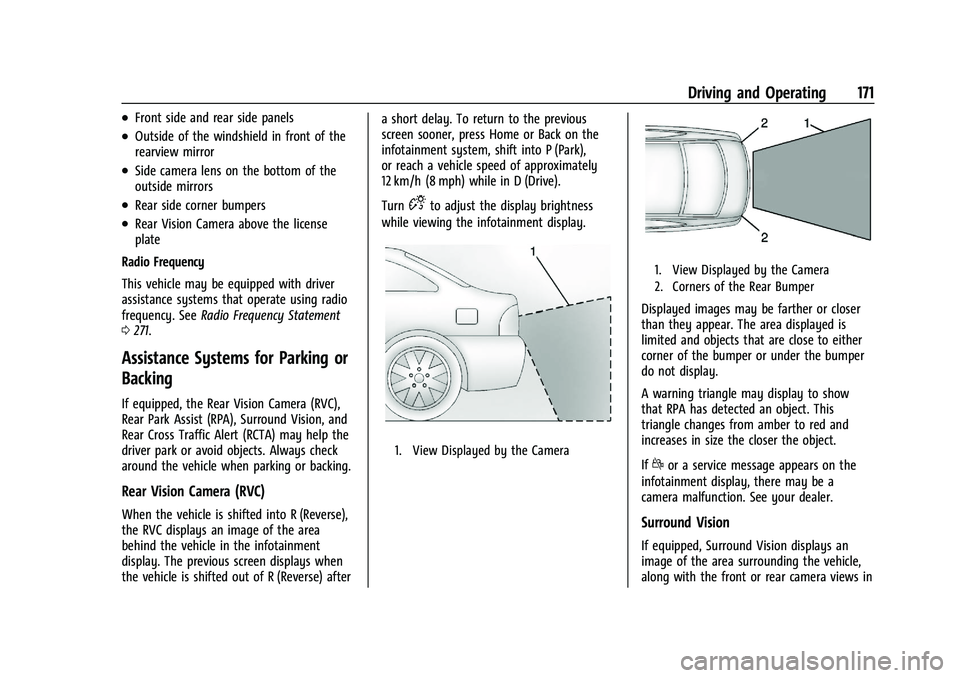
1. View Displayed by the Camera
1. View Displayed by the Camera
2. Corners of the Rear Bumper
Displayed images may be farther or closer
than they appear. The area displayed is
limited and objects that are close to either
corner of the bumper or under the bumper
do not display.
A warning triangle may display to show
that RPA has detected an object. This
triangle changes from amber to red and
increases in size the closer the object.
If
dor a service message appears on the
infotainment display, there may be a
camera malfunction. See your dealer.
Surround Vision
If equipped, Surround Vision displays an
image of the area surrounding the vehicle,
along with the front or rear camera views in
Page 173 of 293
Chevrolet Bolt EV Owner Manual (GMNA-Localizing-U.S./Canada-
14637856) - 2021 - CRC - 10/2/20
172 Driving and Operating
the infotainment display. The front camera
is in the grille or near the front emblem, the
side cameras are on the bottom of the
outside mirrors, and the rear camera is
above the license plate.
The Surround Vision system can be accessed
by selecting CAMERA in the infotainment
display or when the vehicle is shifted into
R (Reverse). To return to the previous screen
sooner, press any button on the
infotainment system, shift into P (Park),
or reach a vehicle speed of approximately
12 km/h (8 mph).
{Warning
The Surround Vision Cameras have blind
spots and will not display all objects near
the corners of the vehicle. Folding side
mirrors that are out of position will not
display surround view correctly. Always
check around the vehicle when parking or
backing.
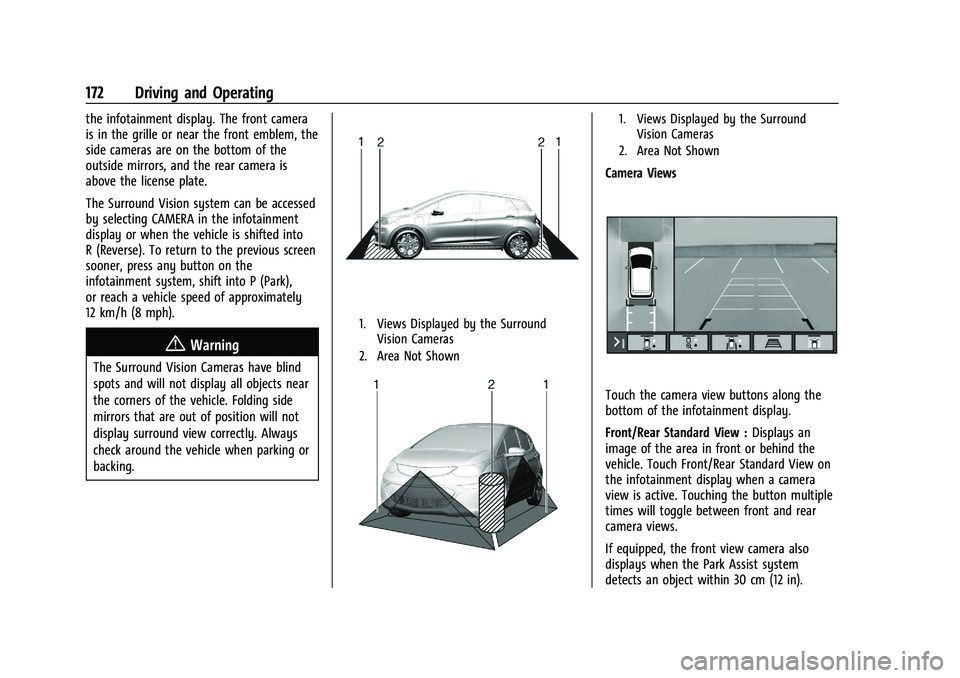
1. Views Displayed by the SurroundVision Cameras
2. Area Not Shown
1. Views Displayed by the Surround Vision Cameras
2. Area Not Shown
Camera Views
Touch the camera view buttons along the
bottom of the infotainment display.
Front/Rear Standard View : Displays an
image of the area in front or behind the
vehicle. Touch Front/Rear Standard View on
the infotainment display when a camera
view is active. Touching the button multiple
times will toggle between front and rear
camera views.
If equipped, the front view camera also
displays when the Park Assist system
detects an object within 30 cm (12 in).
Page 174 of 293
Chevrolet Bolt EV Owner Manual (GMNA-Localizing-U.S./Canada-
14637856) - 2021 - CRC - 10/2/20
Driving and Operating 173
Front/Rear Overhead View :Displays a Front
or Rear Overhead View of the vehicle.
Touching the button will toggle between the
two views.
Side Forward/Rearward View : Displays a
view that shows objects next to the front or
rear sides of the vehicle. Touch Side
Forward/Rearward View on the infotainment
display when a camera view is active.
Touching the button multiple times will
toggle between forward and rearward views.
Park Assist and RCTA are not available when
Side Forward/Rearward view is active.
Park Assist
If equipped with Rear Park Assist (RPA), as
the vehicle moves at speeds of less than
8 km/h (5 mph) the sensors on the bumpers
may detect objects up to 2.3 m (7.5 ft)
behind the vehicle within a zone of 25 cm
(10 in) high off the ground and below
bumper level. These detection distances may
be shorter during warmer or humid weather.
Blocked sensors will not detect objects and
can also cause false detections. Keep the
sensors clean of mud, dirt, snow, ice, and
slush; and clean sensors after a car wash in
freezing temperatures.
{Warning
The Park Assist system does not detect
children, pedestrians, bicyclists, animals,
or objects located below the bumper or
that are too close or too far from the
vehicle. It is not available at speeds
greater than 8 km/h (5 mph). To prevent
injury, death, or vehicle damage, even
with Park Assist, always check the area
around the vehicle and check all mirrors
before moving forward or backing.
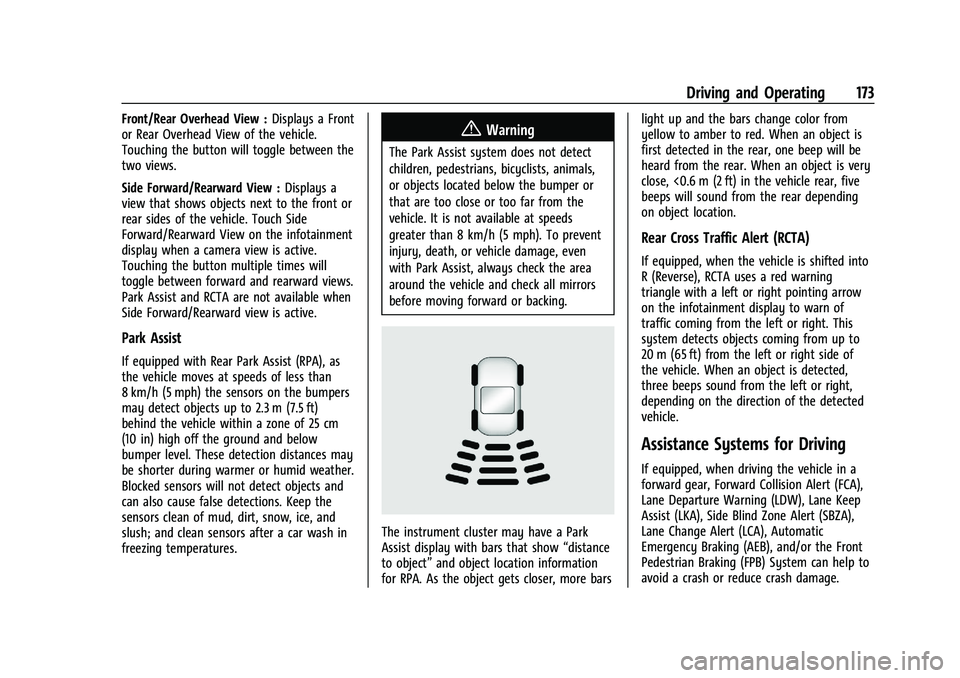
The instrument cluster may have a Park
Assist display with bars that show “distance
to object” and object location information
for RPA. As the object gets closer, more bars light up and the bars change color from
yellow to amber to red. When an object is
first detected in the rear, one beep will be
heard from the rear. When an object is very
close, <0.6 m (2 ft) in the vehicle rear, five
beeps will sound from the rear depending
on object location.
Rear Cross Traffic Alert (RCTA)
If equipped, when the vehicle is shifted into
R (Reverse), RCTA uses a red warning
triangle with a left or right pointing arrow
on the infotainment display to warn of
traffic coming from the left or right. This
system detects objects coming from up to
20 m (65 ft) from the left or right side of
the vehicle. When an object is detected,
three beeps sound from the left or right,
depending on the direction of the detected
vehicle.
Assistance Systems for Driving
If equipped, when driving the vehicle in a
forward gear, Forward Collision Alert (FCA),
Lane Departure Warning (LDW), Lane Keep
Assist (LKA), Side Blind Zone Alert (SBZA),
Lane Change Alert (LCA), Automatic
Emergency Braking (AEB), and/or the Front
Pedestrian Braking (FPB) System can help to
avoid a crash or reduce crash damage.
Page 177 of 293
Chevrolet Bolt EV Owner Manual (GMNA-Localizing-U.S./Canada-
14637856) - 2021 - CRC - 10/2/20
176 Driving and Operating
Warning (Continued)
.Detect a vehicle when weather limits
visibility, such as in fog, rain, or snow.
.Detect a vehicle ahead if it is partially
blocked by pedestrians or other
objects.
Complete attention is always required
while driving, and you should be ready to
take action and apply the brakes and/or
steer the vehicle to avoid crashes.
AEB may slow the vehicle to a complete
stop to try to avoid a potential crash. If this
happens, AEB may engage the Electric
Parking Brake (EPB) to hold the vehicle at a
stop. Release the EPB or firmly press the
accelerator pedal.
{Warning
AEB may automatically brake the vehicle
suddenly in situations where it is
unexpected and undesired. It could
respond to a turning vehicle ahead,
guardrails, signs, and other non-moving
objects. To override AEB, firmly press the
accelerator pedal, if it is safe to do so.
Intelligent Brake Assist (IBA)
IBA may activate when the brake pedal is
applied quickly by providing a boost to
braking based on the speed of approach and
distance to a vehicle ahead.
Minor brake pedal pulsations or pedal
movement during this time is normal and
the brake pedal should continue to be
applied as needed. IBA will automatically
disengage only when the brake pedal is
released.
{Warning
IBA may increase vehicle braking in
situations when it may not be necessary.
You could block the flow of traffic. If this
occurs, take your foot off the brake pedal
and then apply the brakes as needed.
AEB and IBA can be disabled through vehicle
personalization. See “Collision/Detection
Systems” underVehicle Personalization
0 101.
A system unavailable message may
display if:
.The front of the vehicle or windshield is
not clean.
.Heavy rain or snow is interfering with
object detection.
.There is a problem with the StabiliTrak
system.
The AEB system does not need service.
Front Pedestrian Braking (FPB)
System
If equipped, the FPB system may help avoid
or reduce the harm caused by front-end
crashes with nearby pedestrians when
driving in a forward gear. FPB displays an
amber indicator,
~, when a pedestrian is
detected ahead. When approaching a
detected pedestrian too quickly, FPB
provides a red flashing alert on the
windshield and rapidly beeps. FPB can
provide a boost to braking or automatically
brake the vehicle. This system includes
Intelligent Brake Assist (IBA), and the
Automatic Emergency Braking (AEB) System
may also respond to pedestrians. See
Automatic Emergency Braking (AEB) 0175.
The FPB system can detect and alert to
pedestrians in a forward gear at speeds
between 8 km/h (5 mph) and 80 km/h
(50 mph). During daytime driving, the
system detects pedestrians up to a distance
Page 186 of 293
Chevrolet Bolt EV Owner Manual (GMNA-Localizing-U.S./Canada-
14637856) - 2021 - CRC - 10/2/20
Driving and Operating 185
6. Once charging, the DC vehicle plug willbe locked to the DC charge port and
cannot be disconnected while charging is
active.
7. Verify that the Charging Status Indicator illuminates on top of the instrument
panel and an audible chirp occurs. See
Charging Status Feedback 0186.
Caution
Do not attempt to disconnect the DC
vehicle plug while charging is active. This
action may damage the vehicle or
charging station hardware.
Stop Charge
Controls on the charging station can be used
to stop the charge process at any time.
To stop the charge when inside the vehicle,
use the Stop button on the Charging screen,
or press the button on top of the AC vehicle
cord handle. Stop Charge
—Automatic
When the vehicle no longer needs to use
power from the charging station, it will stop
charging and the DC vehicle plug will be
unlocked from the DC charge port.
Energy can still be consumed from the
charging station when the vehicle’s displays
and indicators show that the battery is fully
charged. This is to ensure the battery is in
optimal temperature operating range to
maximize vehicle range. See Programmable
Charging 090.
End Charge 1. Wait until the charging process has been fully stopped, the vehicle plug is
unlocked, and the Charging Status
Indicator is solid green or off.
If the vehicle plug does not unlock from
the vehicle charge port after a charge,
contact Roadside Assistance for
assistance. See Roadside Assistance
Program 0266.
2. Unplug the DC vehicle plug from the DC charge port on the vehicle and close the
dust cover. 3. Close the charge port door by pressing
firmly in the center until it latches.
4. The Electric Parking Brake should be manually disengaged before driving the
vehicle.
5. To start another DC charge, remove the DC vehicle plug and reconnect.
Delayed Charging Override
To temporarily override a delayed charge
event, unplug the charge cord from the
charge port and then plug it back in within
five seconds. A single audible chirp will
sound and charging will begin immediately.
To cancel a temporary override, unplug the
charge cord, wait for 10 seconds, and then
plug the charge cord back in. A double
audible chirp will sound and charging will be
delayed.
See Programmable Charging 090 for
advanced charge scheduling options.
Page 216 of 293
Chevrolet Bolt EV Owner Manual (GMNA-Localizing-U.S./Canada-
14637856) - 2021 - CRC - 10/2/20
Vehicle Care 215
The instrument panel fuse block is on the
left side of the instrument panel. To access
the fuses, open the fuse panel door by
pulling out.
To reinstall the door, insert the top tab first,
then push the door back into its original
location.Fuses Usage
F01 Video processing module
F02 Indicator light solar sensor
F03 Side blind zone alert
F04 Passive entry, passive start F05 CGM
F06 Body control module 4 F07 Body control module 3
F08 Body control module 2
F09 Body control module 1 F10 Trailer interface module 1 F11 Amplifier
F12 Body control module 8
F13 Data link connector 1
F14 Automatic parking assist F15 - Fuses
Usage
F16 Single power inverter
module 1
F17 Body control module 6
F18 Body control module 5
F19 –
F20 –
F21 –
F22 –
F23 USB
F24 Wireless charging module F25 Reflected LED alert display
F26 Heated steering wheel F27 CGM 2
F28 Instrument cluster 2
F29 Trailer interface module 2
F30 - F31 OnStar
F32 Virtual keypass sensor
F33 Heating, ventilation, and
air conditioning module Fuses
Usage
F34 Virtual keypass module F35 Instrument cluster 1
F36 Radio F37 –
F38 –
F39 –
F40 –
F41 –
F42 –
F43 Body control module 7
F44 Sensing and diagnostic
module
F45 Front camera module
F46 Vehicle integration control
module
F47 Single power inverter
module 2
F48 -
F49 Auxiliary jack F50 Steering wheel controls
Page 278 of 293
Chevrolet Bolt EV Owner Manual (GMNA-Localizing-U.S./Canada-
14637856) - 2021 - CRC - 10/2/20
OnStar 277
Languages
The vehicle can be programmed to respond
in multiple languages. Press
Qand ask for
an Advisor. Advisors are available in English,
Spanish, and French. Available languages
may vary by country.
Potential Issues
OnStar cannot perform Remote Door Unlock
or Stolen Vehicle Assistance after the vehicle
has been off continuously for 10 days
without an ignition cycle. If the vehicle has
not been started for 10 days, OnStar can
contact Roadside Assistance or a locksmith
to help gain access to the vehicle.
Global Positioning System (GPS)
.Obstruction of the GPS can occur in a
large city with tall buildings; in parking
garages; around airports; in tunnels and
underpasses; or in an area with very
dense trees. If GPS signals are not
available, the OnStar system should still
operate to call OnStar. However, OnStar
could have difficulty identifying the exact
location.
.In emergency situations, OnStar can use
the last stored GPS location to send to
emergency responders. A temporary loss of GPS can cause loss of
the ability to send a Turn-by-Turn
Navigation route. The Advisor may give a
verbal route or may ask for a call back after
the vehicle is driven into an open area.
Cellular and GPS Antennas
Cellular reception is required for OnStar to
send remote signals to the vehicle. Do not
place items over or near the antenna to
prevent blocking cellular and GPS signal
reception.
Unable to Connect to OnStar Message
If there is limited cellular coverage or the
cellular network has reached maximum
capacity, this message may come on. Press
Qto try the call again or try again after
driving a few miles into another
cellular area.
Vehicle and Power Issues
OnStar services require a vehicle electrical
system, wireless service, and GPS satellite
technologies to be available and operating
for features to function properly. These
systems may not operate if the battery is
discharged or disconnected.
Add-on Electrical Equipment
The OnStar system is integrated into the
electrical architecture of the vehicle. Do not
add any electrical equipment. See Add-On
Electrical Equipment 0195. Added electrical
equipment may interfere with the operation
of the OnStar system and cause it to not
operate.
Vehicle Software Updates
OnStar or GM may remotely deliver
software updates or changes to the vehicle
without further notice or consent. These
updates or changes may enhance or
maintain safety, security, or the operation
of the vehicle or the vehicle systems.
Software updates or changes may affect or
erase data or settings that are stored in the
vehicle, such as saved navigation
destinations or pre-set radio stations.
Neither OnStar nor GM is responsible for
any affected or erased data or settings.
These updates or changes may also collect
personal information. Such collection is
described in the OnStar privacy statement or
separately disclosed at the time of
installation. These updates or changes may
also cause a system to automatically
communicate with GM servers to collect
information about vehicle system status,
Page 282 of 293
Chevrolet Bolt EV Owner Manual (GMNA-Localizing-U.S./Canada-
14637856) - 2021 - CRC - 10/2/20
Connected Services 281
.Request Roadside Assistance.
.Set a parking reminder with pin drop,
take a photo, make a note, and set a
timer.
.Connect with Chevrolet on social media.
Features are subject to change. For
myChevrolet mobile app information and
compatibility, see my.chevrolet.com.
An active OnStar or connected service plan
may be required. A compatible device,
factory-installed remote start, and power
locks are required. Data rates apply. See
www.onstar.com for details and system
limitations.
Remote Services
Contact an OnStar Advisor to unlock the
doors or sound the horn and flash the
lamps.
Marketplace
OnStar Advisors can provide offers from
restaurants and retailers on your route,
help locate hotels, or book a room. These
services vary by market.
Diagnostics
By monitoring and reporting on the vehicle's
key systems, OnStar Advanced Diagnostics,
if equipped, provides a way to keep up on
maintenance. Capabilities vary by model.
See www.onstar.com for details and system
limitations. Features are subject to change.
For updates on feature capabilities, see
my.chevrolet.com. Message and data rates
may apply.
Page 283 of 293
Chevrolet Bolt EV Owner Manual (GMNA-Localizing-U.S./Canada-
14637856) - 2021 - CRC - 10/2/20
282 Index
IndexA
Accessories and Modifications . . . . . . . . . . . 197
Accessory Power . . . . . . . . . . . . . . . . . . . . . . . . . .158
Add-On Electrical Equipment . . . . . . . . . . . . . 195
Additional InformationOnStar . . . . . . . . . . . . . . . . . . . . . . . . . . . . . . . . . 275
Additional Maintenance and Care . . . . . . . . 255
Agreements Trademarks and License . . . . . . . . . . . . . . . 134
Air Conditioning . . . . . . . . . . . . . . . . . . . . . . . . . 140
Air Conditioning Regular Operation . . . . . . .145
Air Filter, Passenger Compartment . . . . . . . 144
Air Intake . . . . . . . . . . . . . . . . . . . . . . . . . . . . . . . . 144
Air Vents . . . . . . . . . . . . . . . . . . . . . . . . . . . . . . . . .143
Airbag System
Check . . . . . . . . . . . . . . . . . . . . . . . . . . . . . . . . . . . 48
How Does an Airbag Restrain? . . . . . . . . . . 42
Passenger Sensing System . . . . . . . . . . . . . . 44
What Makes an Airbag Inflate? . . . . . . . . . 42
What Will You See after an AirbagInflates? . . . . . . . . . . . . . . . . . . . . . . . . . . . . . . 42
When Should an Airbag Inflate? . . . . . . . . 41
Where Are the Airbags? . . . . . . . . . . . . . . . . 40
Airbags
Adding Equipment to the Vehicle . . . . . . . 47
Passenger Status Indicator . . . . . . . . . . . . . . 84
Readiness Light . . . . . . . . . . . . . . . . . . . . . . . . . 84
Servicing Airbag-Equipped Vehicles . . . . . . 47 Airbags (cont'd)
System Check . . . . . . . . . . . . . . . . . . . . . . . . . . . 38
Alarm Vehicle Security . . . . . . . . . . . . . . . . . . . . . . . . 18
Alert Lane Change . . . . . . . . . . . . . . . . . . . . . . . . . . . 178
Side Blind Zone (SBZA) . . . . . . . . . . . . . . . . . 178
All-Season Tires . . . . . . . . . . . . . . . . . . . . . . . . . . 216
AM-FM Radio . . . . . . . . . . . . . . . . . . . . . . . . . . . . . 117
Antenna Multi-band . . . . . . . . . . . . . . . . . . . . . . . . . . . . . 120
Antilock Brake System (ABS) . . . . . . . . . . . . . 163
Warning Light . . . . . . . . . . . . . . . . . . . . . . . . . . 86
Appearance Care Exterior . . . . . . . . . . . . . . . . . . . . . . . . . . . . . . . . 244
Interior . . . . . . . . . . . . . . . . . . . . . . . . . . . . . . . . 247
Apple CarPlay and Android Auto . . . . . . . . . 129
Armrest Rear Seat . . . . . . . . . . . . . . . . . . . . . . . . . . . . . . . 32
Assistance Program, Roadside . . . . . . . . . . . . 266
Assistance Systems for Driving . . . . . . . . . . . 173
Assistance Systems for Parking and Backing . . . . . . . . . . . . . . . . . . . . . . . . . . . . . . . . . 171
Audio Bluetooth . . . . . . . . . . . . . . . . . . . . . . . . . . . . . . 125
Theft-Deterrent Feature . . . . . . . . . . . . . . . . . 114
Automatic Climate Control System . . . . . . . . . . . . . . . . 140