turn signal CHEVROLET BOLT EV 2021 User Guide
[x] Cancel search | Manufacturer: CHEVROLET, Model Year: 2021, Model line: BOLT EV, Model: CHEVROLET BOLT EV 2021Pages: 293, PDF Size: 9.21 MB
Page 88 of 293
Chevrolet Bolt EV Owner Manual (GMNA-Localizing-U.S./Canada-
14637856) - 2021 - CRC - 10/2/20
Instruments and Controls 87
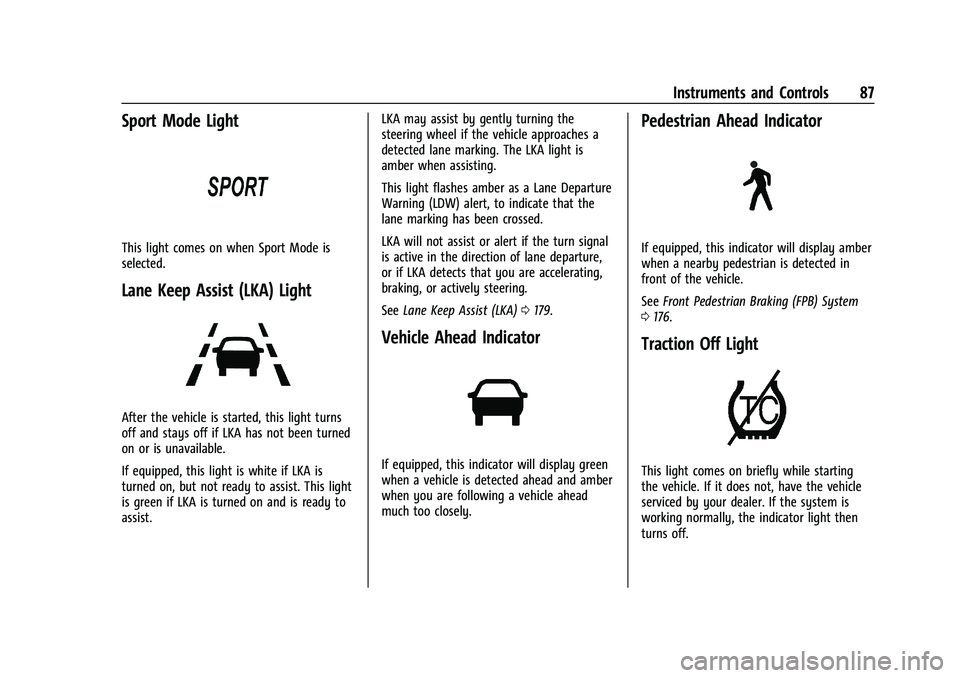
Sport Mode Light
This light comes on when Sport Mode is
selected.
Lane Keep Assist (LKA) Light
After the vehicle is started, this light turns
off and stays off if LKA has not been turned
on or is unavailable.
If equipped, this light is white if LKA is
turned on, but not ready to assist. This light
is green if LKA is turned on and is ready to
assist.LKA may assist by gently turning the
steering wheel if the vehicle approaches a
detected lane marking. The LKA light is
amber when assisting.
This light flashes amber as a Lane Departure
Warning (LDW) alert, to indicate that the
lane marking has been crossed.
LKA will not assist or alert if the turn signal
is active in the direction of lane departure,
or if LKA detects that you are accelerating,
braking, or actively steering.
See
Lane Keep Assist (LKA) 0179.
Vehicle Ahead Indicator
If equipped, this indicator will display green
when a vehicle is detected ahead and amber
when you are following a vehicle ahead
much too closely.
Pedestrian Ahead Indicator
If equipped, this indicator will display amber
when a nearby pedestrian is detected in
front of the vehicle.
See Front Pedestrian Braking (FPB) System
0 176.
Traction Off Light
This light comes on briefly while starting
the vehicle. If it does not, have the vehicle
serviced by your dealer. If the system is
working normally, the indicator light then
turns off.
Page 108 of 293
Chevrolet Bolt EV Owner Manual (GMNA-Localizing-U.S./Canada-
14637856) - 2021 - CRC - 10/2/20
Lighting 107
Lighting
Exterior Lighting
Exterior Lamp Controls . . . . . . . . . . . . . . . . 107
Exterior Lamps Off Reminder . . . . . . . . . . 108
Headlamp High/Low-Beam Changer . . . 108
Flash-to-Pass . . . . . . . . . . . . . . . . . . . . . . . . . . . 109
Daytime Running Lamps (DRL) . . . . . . . . 109
Automatic Headlamp System . . . . . . . . . . 109
Hazard Warning Flashers . . . . . . . . . . . . . . 110
Turn and Lane-Change Signals . . . . . . . . . 110
Interior Lighting
Instrument Panel IlluminationControl . . . . . . . . . . . . . . . . . . . . . . . . . . . . . . . 110
Courtesy Lamps . . . . . . . . . . . . . . . . . . . . . . . . 111
Dome Lamps . . . . . . . . . . . . . . . . . . . . . . . . . . . 111
Reading Lamps . . . . . . . . . . . . . . . . . . . . . . . . . 111
Lighting Features
Entry Lighting . . . . . . . . . . . . . . . . . . . . . . . . . . 111
Exit Lighting . . . . . . . . . . . . . . . . . . . . . . . . . . . 112
Battery Power Protection . . . . . . . . . . . . . . 112
Exterior Lighting Battery Saver . . . . . . . . . 112
Exterior Lighting
Exterior Lamp Controls
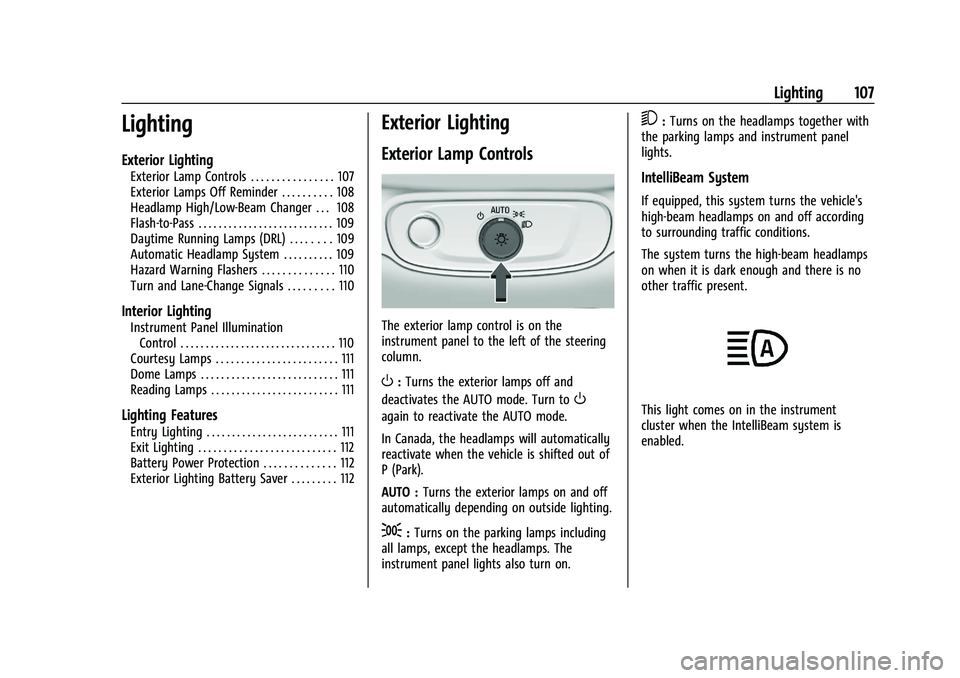
The exterior lamp control is on the
instrument panel to the left of the steering
column.
O: Turns the exterior lamps off and
deactivates the AUTO mode. Turn to
O
again to reactivate the AUTO mode.
In Canada, the headlamps will automatically
reactivate when the vehicle is shifted out of
P (Park).
AUTO : Turns the exterior lamps on and off
automatically depending on outside lighting.
;: Turns on the parking lamps including
all lamps, except the headlamps. The
instrument panel lights also turn on.
5: Turns on the headlamps together with
the parking lamps and instrument panel
lights.
IntelliBeam System
If equipped, this system turns the vehicle's
high-beam headlamps on and off according
to surrounding traffic conditions.
The system turns the high-beam headlamps
on when it is dark enough and there is no
other traffic present.
This light comes on in the instrument
cluster when the IntelliBeam system is
enabled.
Page 109 of 293
Chevrolet Bolt EV Owner Manual (GMNA-Localizing-U.S./Canada-
14637856) - 2021 - CRC - 10/2/20
108 Lighting
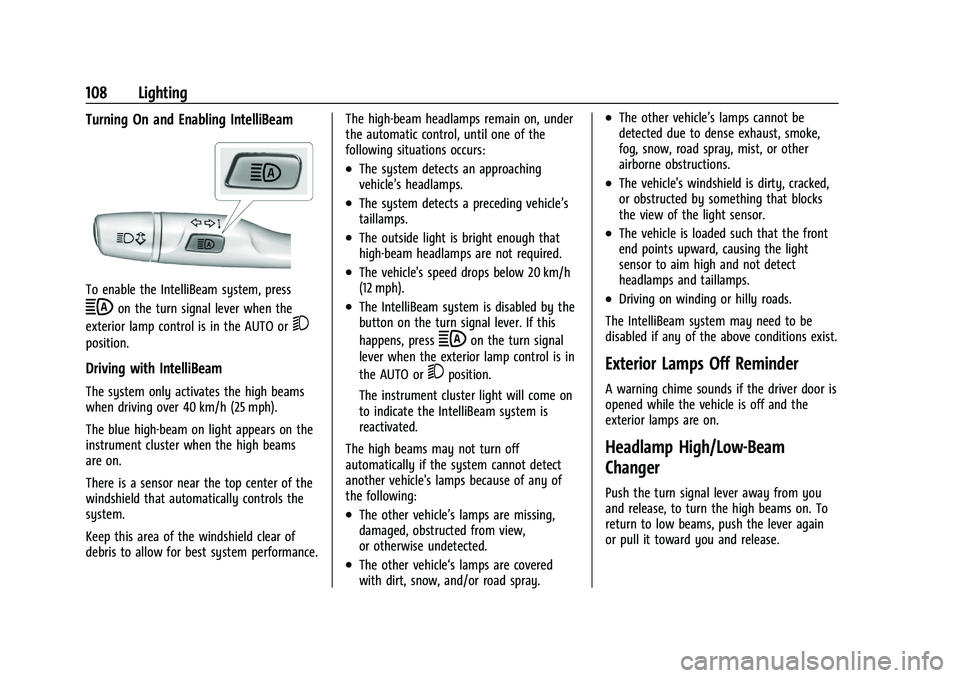
Turning On and Enabling IntelliBeam
To enable the IntelliBeam system, press
bon the turn signal lever when the
exterior lamp control is in the AUTO or
5
position.
Driving with IntelliBeam
The system only activates the high beams
when driving over 40 km/h (25 mph).
The blue high-beam on light appears on the
instrument cluster when the high beams
are on.
There is a sensor near the top center of the
windshield that automatically controls the
system.
Keep this area of the windshield clear of
debris to allow for best system performance. The high-beam headlamps remain on, under
the automatic control, until one of the
following situations occurs:
.The system detects an approaching
vehicle’s headlamps.
.The system detects a preceding vehicle’s
taillamps.
.The outside light is bright enough that
high-beam headlamps are not required.
.The vehicle's speed drops below 20 km/h
(12 mph).
.The IntelliBeam system is disabled by the
button on the turn signal lever. If this
happens, press
bon the turn signal
lever when the exterior lamp control is in
the AUTO or
5position.
The instrument cluster light will come on
to indicate the IntelliBeam system is
reactivated.
The high beams may not turn off
automatically if the system cannot detect
another vehicle's lamps because of any of
the following:
.The other vehicle’s lamps are missing,
damaged, obstructed from view,
or otherwise undetected.
.The other vehicle‘s lamps are covered
with dirt, snow, and/or road spray.
.The other vehicle’s lamps cannot be
detected due to dense exhaust, smoke,
fog, snow, road spray, mist, or other
airborne obstructions.
.The vehicle's windshield is dirty, cracked,
or obstructed by something that blocks
the view of the light sensor.
.The vehicle is loaded such that the front
end points upward, causing the light
sensor to aim high and not detect
headlamps and taillamps.
.Driving on winding or hilly roads.
The IntelliBeam system may need to be
disabled if any of the above conditions exist.
Exterior Lamps Off Reminder
A warning chime sounds if the driver door is
opened while the vehicle is off and the
exterior lamps are on.
Headlamp High/Low-Beam
Changer
Push the turn signal lever away from you
and release, to turn the high beams on. To
return to low beams, push the lever again
or pull it toward you and release.
Page 110 of 293
Chevrolet Bolt EV Owner Manual (GMNA-Localizing-U.S./Canada-
14637856) - 2021 - CRC - 10/2/20
Lighting 109
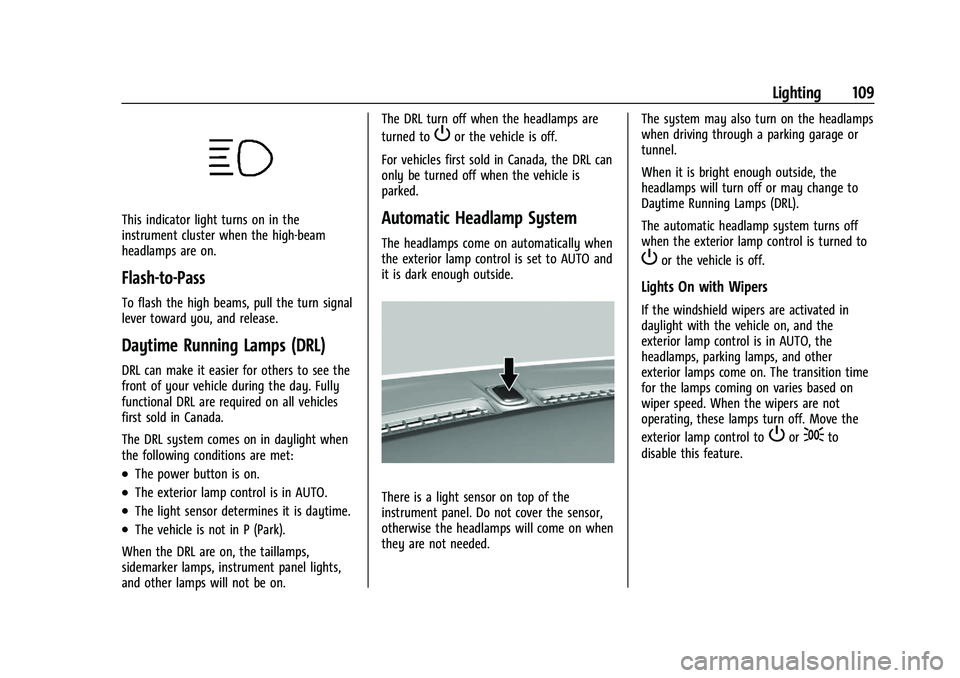
This indicator light turns on in the
instrument cluster when the high-beam
headlamps are on.
Flash-to-Pass
To flash the high beams, pull the turn signal
lever toward you, and release.
Daytime Running Lamps (DRL)
DRL can make it easier for others to see the
front of your vehicle during the day. Fully
functional DRL are required on all vehicles
first sold in Canada.
The DRL system comes on in daylight when
the following conditions are met:
.The power button is on.
.The exterior lamp control is in AUTO.
.The light sensor determines it is daytime.
.The vehicle is not in P (Park).
When the DRL are on, the taillamps,
sidemarker lamps, instrument panel lights,
and other lamps will not be on. The DRL turn off when the headlamps are
turned to
Por the vehicle is off.
For vehicles first sold in Canada, the DRL can
only be turned off when the vehicle is
parked.
Automatic Headlamp System
The headlamps come on automatically when
the exterior lamp control is set to AUTO and
it is dark enough outside.
There is a light sensor on top of the
instrument panel. Do not cover the sensor,
otherwise the headlamps will come on when
they are not needed. The system may also turn on the headlamps
when driving through a parking garage or
tunnel.
When it is bright enough outside, the
headlamps will turn off or may change to
Daytime Running Lamps (DRL).
The automatic headlamp system turns off
when the exterior lamp control is turned to
Por the vehicle is off.
Lights On with Wipers
If the windshield wipers are activated in
daylight with the vehicle on, and the
exterior lamp control is in AUTO, the
headlamps, parking lamps, and other
exterior lamps come on. The transition time
for the lamps coming on varies based on
wiper speed. When the wipers are not
operating, these lamps turn off. Move the
exterior lamp control to
Por;to
disable this feature.
Page 111 of 293
Chevrolet Bolt EV Owner Manual (GMNA-Localizing-U.S./Canada-
14637856) - 2021 - CRC - 10/2/20
110 Lighting
Hazard Warning Flashers
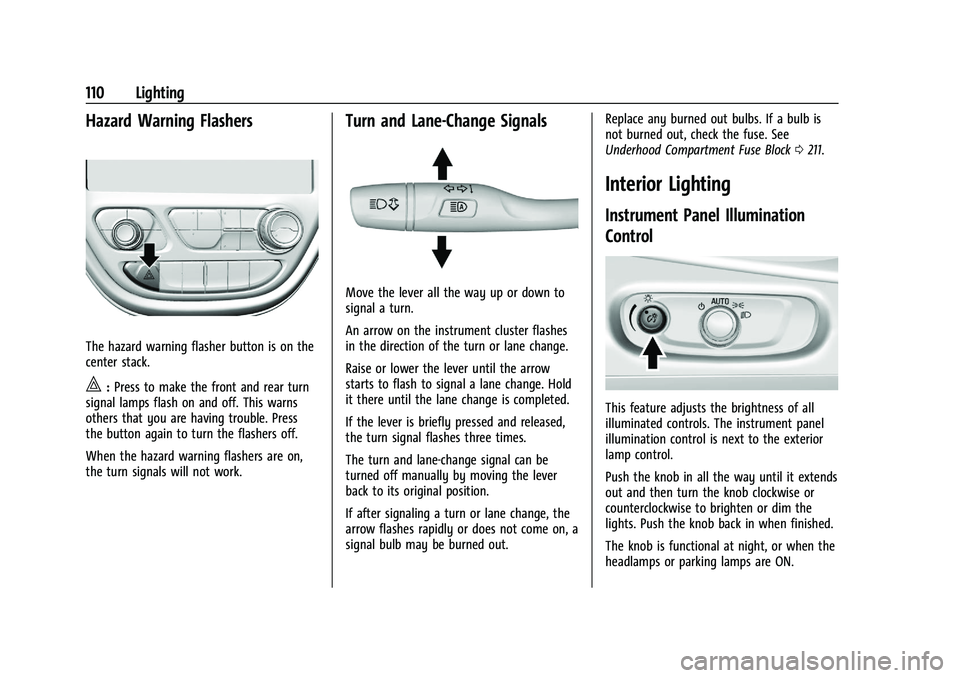
The hazard warning flasher button is on the
center stack.
|:Press to make the front and rear turn
signal lamps flash on and off. This warns
others that you are having trouble. Press
the button again to turn the flashers off.
When the hazard warning flashers are on,
the turn signals will not work.
Turn and Lane-Change Signals
Move the lever all the way up or down to
signal a turn.
An arrow on the instrument cluster flashes
in the direction of the turn or lane change.
Raise or lower the lever until the arrow
starts to flash to signal a lane change. Hold
it there until the lane change is completed.
If the lever is briefly pressed and released,
the turn signal flashes three times.
The turn and lane-change signal can be
turned off manually by moving the lever
back to its original position.
If after signaling a turn or lane change, the
arrow flashes rapidly or does not come on, a
signal bulb may be burned out. Replace any burned out bulbs. If a bulb is
not burned out, check the fuse. See
Underhood Compartment Fuse Block
0211.
Interior Lighting
Instrument Panel Illumination
Control
This feature adjusts the brightness of all
illuminated controls. The instrument panel
illumination control is next to the exterior
lamp control.
Push the knob in all the way until it extends
out and then turn the knob clockwise or
counterclockwise to brighten or dim the
lights. Push the knob back in when finished.
The knob is functional at night, or when the
headlamps or parking lamps are ON.
Page 120 of 293
Chevrolet Bolt EV Owner Manual (GMNA-Localizing-U.S./Canada-
14637856) - 2021 - CRC - 10/2/20
Infotainment System 119
Listening to SXM Radio
1. TouchT.
2. Touch Audio, then Source.
3. Touch SXM. The most recently listened to SXM channel is displayed.
Searching for Channels Automatically
Pressgordto automatically search for
available channels.
Searching for Channels Directly
1. Touch Tune.
2. Using the keypad, enter the desired channel.
Searching for Channels Using Favorites
Saving Favorites
1. Select the desired channel.
2. Touch
qor touch and hold the favorite
in the list to overwrite.
3. To delete a channel from Favorites, touch
q, or swipe the channel from the list on
the right.
Up to 15 channels can be saved in the
Favorites list. Listening to Favorites Directly
1. Touch Favorites to see the list of favorites.
2. Touch the desired channel.
Using the SXM Radio Tab
Browse Audio
.Current Channel Information
Touch Current Channel Information. The
channel information is displayed.
.SXM Channels
Touch SXM Channels. The SXM List is
displayed.
.SXM Categories
SXM categories are defined by the
SiriusXM service provider.
Touch SXM Categories, then touch the
desired category and channel.
Audio Settings
.Tone Settings
Set up sound features from the Tone
Settings menu. See “Tone Settings”under
“AM-FM Radio” previously in this section.
.Auto Volume Volume will be automatically controlled.
See
“Auto Volume” under“AM-FM Radio”
previously in this section.
.Explicit Content Filter
Choose this menu item to turn On or Off
the filtering of explicit channels from
SXM. A list item can be set to On or Off.
From the SXM Settings, touch Audio
Settings. Set Explicit Content Filter feature
to On or Off to allow for a filtered list of
channels.
Radio Reception
Unplug electronic devices from the accessory
power outlets if there is interference or
static in the radio.
FM
FM signals only reach about 16 to 65 km (10
to 40 mi). Although the radio has a built-in
electronic circuit that automatically works to
reduce interference, some static can occur,
especially around tall buildings or hills,
causing the sound to fade in and out.
AM
The range for most AM stations is greater
than for FM, especially at night. The longer
range can cause station frequencies to
Page 121 of 293
Chevrolet Bolt EV Owner Manual (GMNA-Localizing-U.S./Canada-
14637856) - 2021 - CRC - 10/2/20
120 Infotainment System
interfere with each other. Static can also
occur when things like storms and power
lines interfere with radio reception. When
this happens, try reducing the treble on the
radio.
SiriusXM Satellite Radio Service
If equipped, SiriusXM Satellite Radio Service
provides digital radio reception. Tall
buildings or hills can interfere with satellite
radio signals, causing the sound to fade in
and out. In addition, traveling or standing
under heavy foliage, bridges, garages,
or tunnels may cause loss of the SiriusXM
signal for a period of time. Some cellular
services may interfere with SXM reception
causing loss of signal.
Mobile Device Usage
Mobile device usage, such as making or
receiving calls, charging, or just having the
mobile device on may cause static
interference in the radio. Unplug the mobile
device or turn it off if this happens.
Multi-Band Antenna
The roof antenna may be used for radio,
navigation, and OnStar, depending on the
equipped options. Keep clear of obstructionsfor clear reception. If the vehicle has a
sunroof, and it is open, reception can also
be affected.
Audio Players
USB Port
The USB ports are in the center console and
are for data and charging. If equipped, there
are two USB charge ports in the rear of the
center console. The infotainment system can
play the music files contained in the USB
storage device or a device that supports
MTP or iPod/iPhone devices.
Caution
To avoid vehicle damage, unplug all
accessories and disconnect all accessory
cables from the vehicle when not in use.
Accessory cables left plugged into the
vehicle, unconnected to a device, could be
damaged or cause an electrical short if
the unconnected end comes in contact
with liquids or another power source such
as the accessory power outlet.
Before Using the Audio System
Supported Audio File Formats
.MP3 (MPEG-1 Layer 3, MPEG-2 Layer 3)
Constant Bit Rate (CBR) between 8 and
320 kbps
Variable Bit Rate (VBR)
Sampling frequencies of 8, 11.025, 12, 16,
22.05, 24, 32, 44.1, and 48 kHz
.Windows Media Audio
Windows Media Audio 10
CBR between 32 and 768 kbps
VBR (Standard), Professional, Lossless,
or higher according to Microsoft
specifications
Sampling frequencies of 8, 12, 16, 22, 32,
44.1, and 48 kHz
.AAC (MPEG-4 AAC, Low Complexity
Profile) and AAC+
CBR between 8 and 320 kbps
.OGG Vorbis
.Waveform (WAV
–PCM Windows format)
.Audio Interchange File Format (AIFF)
.3GPP (Generally used for mobile devices)
.Audio Books (MP3, AAC, AA)
Page 148 of 293
Chevrolet Bolt EV Owner Manual (GMNA-Localizing-U.S./Canada-
14637856) - 2021 - CRC - 10/2/20
Driving and Operating 147
Driving Information
Driving for Better Energy
Efficiency
Use the following tips to help maximize
energy efficiency and range.
In colder temperatures, while these
efficiency tips will help, the electric vehicle
driving range will be lower due to higher
energy usage including energy spent
heating the cabin.
The Range Impacts screen estimates the
influence of the main factors impacting
vehicle range. After charging is complete,
this information is reset. See“Range
Impacts” under. See Energy Information
0 97.
Acceleration/Braking/Coasting
Avoid rapid accelerations and decelerations.
Electric range is maximized at 89 km/h
(55 mph) and less.
Use cruise control when appropriate.
Plan ahead for decelerations and coast
whenever possible. Do not rush to traffic
signals, and do not shift to N (Neutral) to
coast. The vehicle recovers more energy while
coasting and braking in L (Low) than in D
(Drive) mode.
Using the steering wheel paddle during
deceleration recovers more energy. See
Regenerative Braking
0165.
Terrain and Vehicle Speed
Higher speeds and grade changes use more
energy and can significantly reduce electric
range.
Climate Setting
Using the heat and air conditioning systems
decreases the energy available for electric
driving.
Optimal energy efficiency is achieved when
the heat, air conditioning, and fan are
turned off.
Use the heated seat feature instead of
climate control system. Heating the seat
uses less energy than heating the vehicle
interior.
Use remote start to heat or cool the interior
when the vehicle is plugged in to maximize
the electric range by utilizing electricity
from the electrical outlet. In hot weather, avoid parking in direct
sunlight or use sunshades inside the vehicle.
Keep the inside of the windows clean to
reduce fogging, and turn off the front
defroster and rear defogger when they are
not needed.
Avoid driving with the windows open at
highway speeds.
Use the Enhanced Battery Gauge on the
Instrument Cluster to view the effect of
climate control settings on your estimated
range. See
Battery Gauge (High Voltage)
0 82.
Outside Temperature
On colder days, it is best to plug in the
vehicle overnight, and then remote start the
vehicle.
Allow the vehicle to warm up for
20 minutes before driving.
If possible, use a level 2 (240 volt) high
power charge station for best results. This
allows the interior of the vehicle and high
voltage battery to warm to optimal
temperature.
Page 179 of 293
Chevrolet Bolt EV Owner Manual (GMNA-Localizing-U.S./Canada-
14637856) - 2021 - CRC - 10/2/20
178 Driving and Operating
{Warning
FPB may alert or automatically brake the
vehicle suddenly in situations where it is
unexpected and undesired. It could falsely
alert or brake for objects similar in shape
or size to pedestrians, including shadows.
This is normal operation and the vehicle
does not need service. To override
Automatic Braking, firmly press the
accelerator pedal, if it is safe to do so.
Automatic Braking can be disabled through
vehicle personalization. See “Front Pedestrian
Detection” in“Collision/Detection Systems”
under Vehicle Personalization 0101.
Cleaning the System
If FPB does not seem to operate properly,
cleaning the outside of the windshield in
front of the rearview mirror may correct the
issue.
Side Blind Zone Alert (SBZA)
If equipped, the SBZA system is a
lane-changing aid that assists drivers with
avoiding crashes that occur with moving
vehicles in the side blind zone (or spot)
areas. When the vehicle is in a forward gear, the left or right side mirror display will light
up if a moving vehicle is detected in that
blind zone. If the turn signal is activated and
a vehicle is also detected on the same side,
the display will flash as an extra warning
not to change lanes. Since this system is
part of the Lane Change Alert (LCA) system,
read the entire LCA section before using this
feature.
Lane Change Alert (LCA)
If equipped, the LCA system is a
lane-changing aid that assists drivers with
avoiding lane change crashes that occur with
moving vehicles in the side blind zone (or
spot) areas or with vehicles rapidly
approaching these areas from behind. The
LCA warning display will light up in the
corresponding outside mirror and will flash
if the turn signal is on.
{Warning
LCA does not alert the driver to vehicles
outside of the system detection zones,
pedestrians, bicyclists, or animals. It may
not provide alerts when changing lanes
under all driving conditions. Failure to use
proper care when changing lanes may
(Continued)
Warning (Continued)
result in injury, death, or vehicle damage.
Before making a lane change, always
check mirrors, glance over your shoulder,
and use the turn signals.
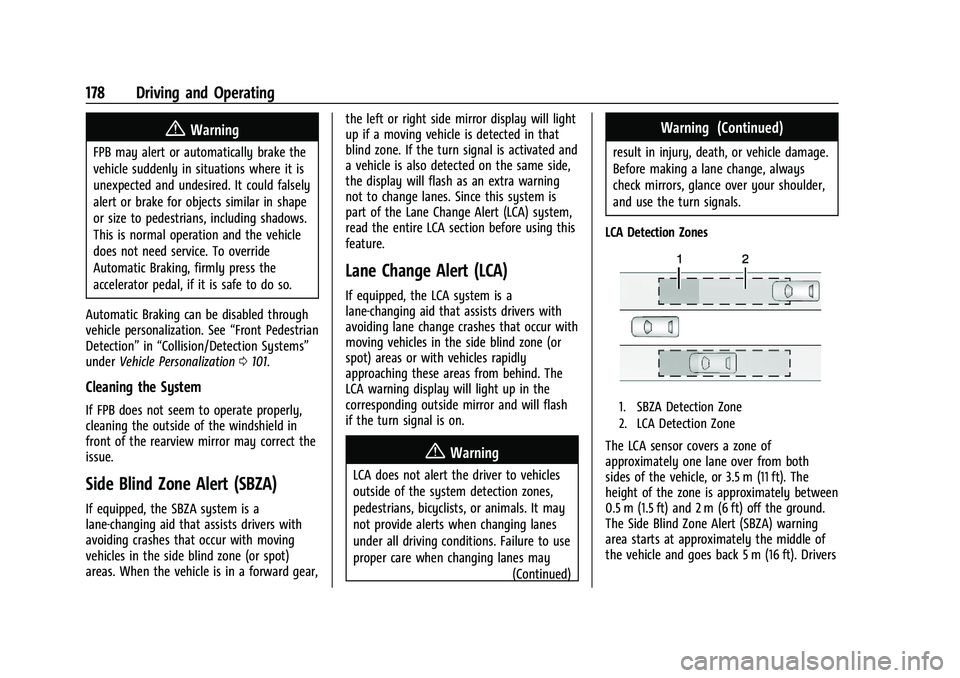
LCA Detection Zones
1. SBZA Detection Zone
2. LCA Detection Zone
The LCA sensor covers a zone of
approximately one lane over from both
sides of the vehicle, or 3.5 m (11 ft). The
height of the zone is approximately between
0.5 m (1.5 ft) and 2 m (6 ft) off the ground.
The Side Blind Zone Alert (SBZA) warning
area starts at approximately the middle of
the vehicle and goes back 5 m (16 ft). Drivers
Page 180 of 293
Chevrolet Bolt EV Owner Manual (GMNA-Localizing-U.S./Canada-
14637856) - 2021 - CRC - 10/2/20
Driving and Operating 179
are also warned of vehicles rapidly
approaching from up to 70 m (230 ft) behind
the vehicle.
How the System Works
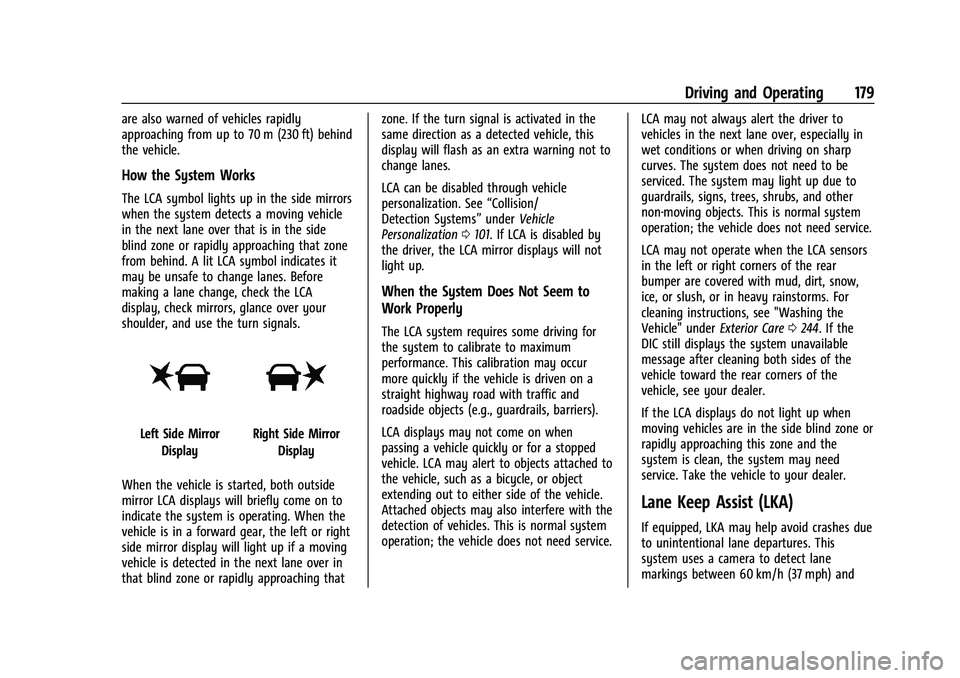
The LCA symbol lights up in the side mirrors
when the system detects a moving vehicle
in the next lane over that is in the side
blind zone or rapidly approaching that zone
from behind. A lit LCA symbol indicates it
may be unsafe to change lanes. Before
making a lane change, check the LCA
display, check mirrors, glance over your
shoulder, and use the turn signals.
Left Side MirrorDisplayRight Side Mirror Display
When the vehicle is started, both outside
mirror LCA displays will briefly come on to
indicate the system is operating. When the
vehicle is in a forward gear, the left or right
side mirror display will light up if a moving
vehicle is detected in the next lane over in
that blind zone or rapidly approaching that zone. If the turn signal is activated in the
same direction as a detected vehicle, this
display will flash as an extra warning not to
change lanes.
LCA can be disabled through vehicle
personalization. See
“Collision/
Detection Systems” underVehicle
Personalization 0101. If LCA is disabled by
the driver, the LCA mirror displays will not
light up.
When the System Does Not Seem to
Work Properly
The LCA system requires some driving for
the system to calibrate to maximum
performance. This calibration may occur
more quickly if the vehicle is driven on a
straight highway road with traffic and
roadside objects (e.g., guardrails, barriers).
LCA displays may not come on when
passing a vehicle quickly or for a stopped
vehicle. LCA may alert to objects attached to
the vehicle, such as a bicycle, or object
extending out to either side of the vehicle.
Attached objects may also interfere with the
detection of vehicles. This is normal system
operation; the vehicle does not need service. LCA may not always alert the driver to
vehicles in the next lane over, especially in
wet conditions or when driving on sharp
curves. The system does not need to be
serviced. The system may light up due to
guardrails, signs, trees, shrubs, and other
non-moving objects. This is normal system
operation; the vehicle does not need service.
LCA may not operate when the LCA sensors
in the left or right corners of the rear
bumper are covered with mud, dirt, snow,
ice, or slush, or in heavy rainstorms. For
cleaning instructions, see "Washing the
Vehicle" under
Exterior Care0244. If the
DIC still displays the system unavailable
message after cleaning both sides of the
vehicle toward the rear corners of the
vehicle, see your dealer.
If the LCA displays do not light up when
moving vehicles are in the side blind zone or
rapidly approaching this zone and the
system is clean, the system may need
service. Take the vehicle to your dealer.
Lane Keep Assist (LKA)
If equipped, LKA may help avoid crashes due
to unintentional lane departures. This
system uses a camera to detect lane
markings between 60 km/h (37 mph) and