change wheel CHEVROLET CORVETTE 2020 Owner's Manual
[x] Cancel search | Manufacturer: CHEVROLET, Model Year: 2020, Model line: CORVETTE, Model: CHEVROLET CORVETTE 2020Pages: 336, PDF Size: 5.21 MB
Page 7 of 336
Chevrolet Corvette Owner Manual (GMNA-Localizing-U.S./Canada/Mexico-
12470550) - 2020 - CRC - 4/23/20
6 Introduction
1.Air Vents 0143.
2. Turn Signal Lever. See Turn
and Lane-Change Signals
0 128.
Exterior Lamp Controls 0125.
3. Manual Shift Paddles. See Manual Mode 0174.
4. Instrument Cluster 094.
5. Windshield Wiper/Washer 087.
6. Near Field Communication Antenna (NFC). See “Pairing a
Phone” in the infotainment
manual.
7. Volume Control Knob. See the infotainment manual.
Infotainment Home Button. See
the infotainment manual.
8. Infotainment 0132.
9. Alarm System Indicator Light. See Vehicle Alarm System
0 26.
Light Sensor. See Automatic
Headlamp System 0127.
10. Dual Automatic Climate Control
System 0139. Driver and Passenger Heated
and Ventilated Seat Controls (If
Equipped). See
Heated and
Ventilated Front Seats 053.
11. Traction Control/Electronic
Stability Control 0182.
Curb View Camera (If
Equipped). See Assistance
Systems for Parking or Backing
0 200.
Front Lift System Control (If
Equipped). See Front Lift
System 0191.
12. Driver Mode Control 0184.
13. Shift Switches. See Dual
Clutch Transmission 0171.
14. Keyless Ignition. See Ignition
Positions 0165.
15. Driver Information Center (DIC) Controls. See Driver
Information Center (DIC) 0108.
16. Heated Steering Wheel 087 (If
Equipped).
17. Bluetooth Controls. See “Steering Wheel Controls” in
the infotainment manual. Voice Recognition Controls.
See
“Steering Wheel Controls”
in the infotainment manual.
18. Volume Control Buttons. See “Steering Wheel Controls” in
the infotainment manual.
19. Horn 087.
20. Favorites Select Buttons. See “Steering Wheel Controls” in
the infotainment manual.
21. Z-Mode Control. See Driver
Mode Control 0184.
22. Cruise Control 0196.
23. Electric Parking Brake 0179.
24. Data Link Connector (DLC) (Out of View). See Malfunction
Indicator Lamp (Check Engine
Light) 0102.
25. Instrument Panel Illumination
Control 0129.
26. Head-Up Display Controls (If Equipped). See Head-Up
Display (HUD) 0110.
Page 51 of 336
Chevrolet Corvette Owner Manual (GMNA-Localizing-U.S./Canada/Mexico-
12470550) - 2020 - CRC - 4/23/20
50 Seats and Restraints
{Warning
Sitting in a reclined position when
the vehicle is in motion can be
dangerous. Even when buckled
up, the seat belts cannot do
their job.
For proper protection when the
vehicle is in motion, have the
seatback upright. Then sit well
back in the seat and wear the
seat belt properly.
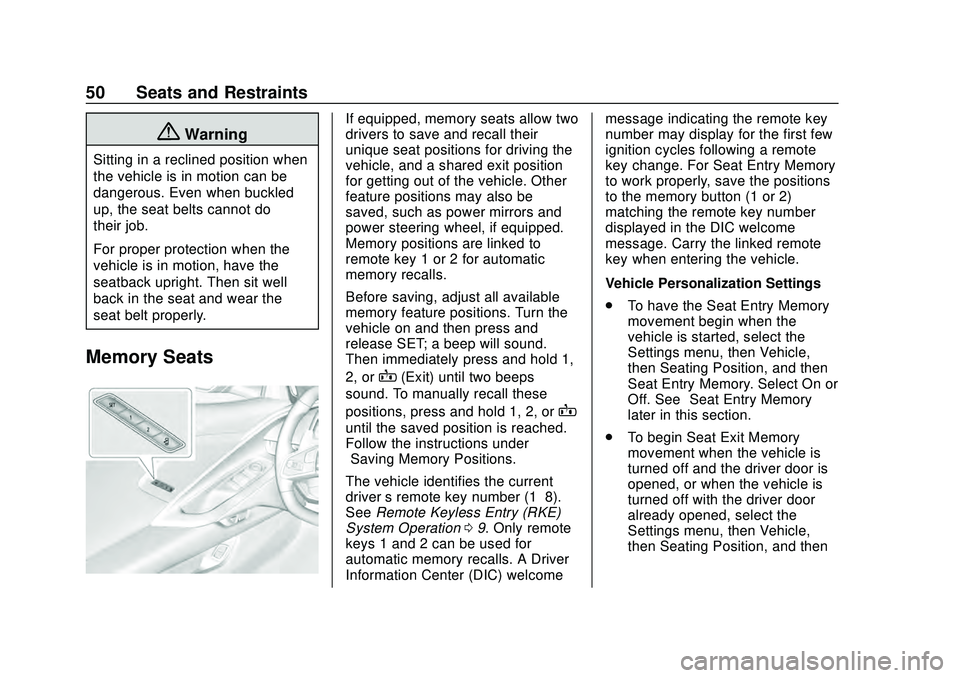
Memory Seats
If equipped, memory seats allow two
drivers to save and recall their
unique seat positions for driving the
vehicle, and a shared exit position
for getting out of the vehicle. Other
feature positions may also be
saved, such as power mirrors and
power steering wheel, if equipped.
Memory positions are linked to
remote key 1 or 2 for automatic
memory recalls.
Before saving, adjust all available
memory feature positions. Turn the
vehicle on and then press and
release SET; a beep will sound.
Then immediately press and hold 1,
2, or
B(Exit) until two beeps
sound. To manually recall these
positions, press and hold 1, 2, or
B
until the saved position is reached.
Follow the instructions under
“Saving Memory Positions.”
The vehicle identifies the current
driver ’s remote key number (1–8).
See Remote Keyless Entry (RKE)
System Operation 09. Only remote
keys 1 and 2 can be used for
automatic memory recalls. A Driver
Information Center (DIC) welcome message indicating the remote key
number may display for the first few
ignition cycles following a remote
key change. For Seat Entry Memory
to work properly, save the positions
to the memory button (1 or 2)
matching the remote key number
displayed in the DIC welcome
message. Carry the linked remote
key when entering the vehicle.
Vehicle Personalization Settings
.
To have the Seat Entry Memory
movement begin when the
vehicle is started, select the
Settings menu, then Vehicle,
then Seating Position, and then
Seat Entry Memory. Select On or
Off. See “Seat Entry Memory”
later in this section.
. To begin Seat Exit Memory
movement when the vehicle is
turned off and the driver door is
opened, or when the vehicle is
turned off with the driver door
already opened, select the
Settings menu, then Vehicle,
then Seating Position, and then
Page 54 of 336
Chevrolet Corvette Owner Manual (GMNA-Localizing-U.S./Canada/Mexico-
12470550) - 2020 - CRC - 4/23/20
Seats and Restraints 53
.Memory SET, 1, 2, orB
.Power mirror, with the driver or
passenger side mirror selected
. Power steering wheel,
if equipped
Seat Travel Limit
If the rearward or reclining seat or
seatback movement makes contact
with the carpet behind the seat, the
seat will automatically move forward
a small distance. If it remains in
contact, memory recall may not
complete. Move the seat and/or
seatback forward a small distance
away from the carpet behind the
seat and attempt the memory recall
again.
Obstructions
If something has blocked the driver
seat while recalling a memory
position, the recall may stop.
Remove the obstruction and try the
recall again. If the memory position
still does not recall, see your dealer.
Heated and Ventilated
Front Seats
{Warning
If temperature change or pain to
the skin cannot be felt, the seat
heater may cause burns. To
reduce the risk of burns, use care
when using the seat heater,
especially for long periods of
time. Do not place anything on
the seat that insulates against
heat, such as a blanket, cushion,
cover, or similar item. This may
cause the seat heater to
overheat. An overheated seat
heater may cause a burn or may
damage the seat.
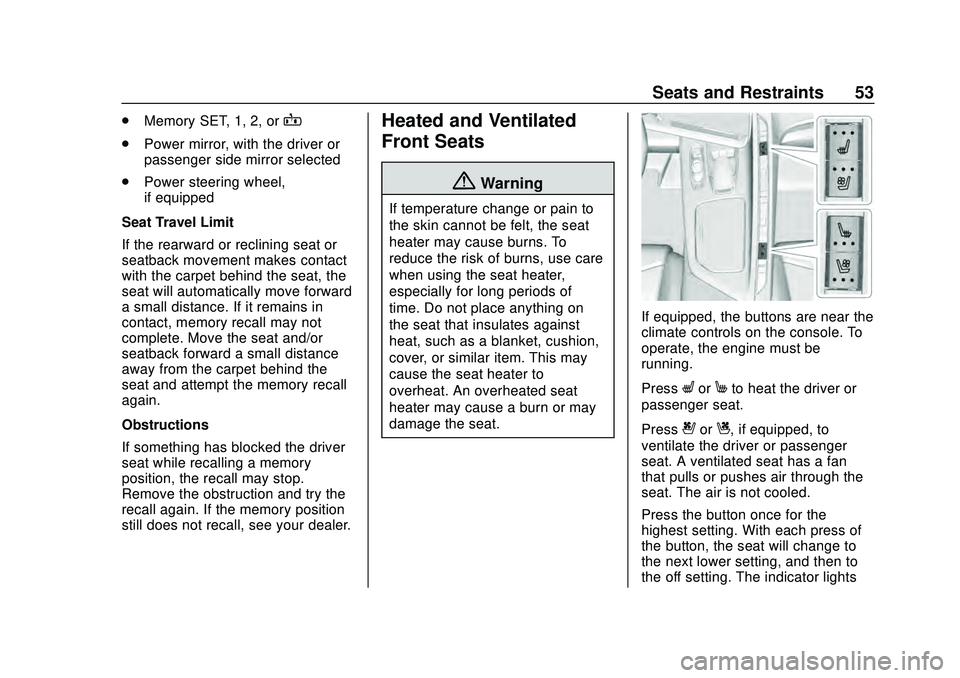
If equipped, the buttons are near the
climate controls on the console. To
operate, the engine must be
running.
Press
LorMto heat the driver or
passenger seat.
Press
{orC, if equipped, to
ventilate the driver or passenger
seat. A ventilated seat has a fan
that pulls or pushes air through the
seat. The air is not cooled.
Press the button once for the
highest setting. With each press of
the button, the seat will change to
the next lower setting, and then to
the off setting. The indicator lights
Page 73 of 336
Chevrolet Corvette Owner Manual (GMNA-Localizing-U.S./Canada/Mexico-
12470550) - 2020 - CRC - 4/23/20
72 Seats and Restraints
{Warning
Stowing articles under the
passenger seat or between the
passenger seat cushion and
seatback may interfere with the
proper operation of the passenger
sensing system.
Servicing the
Airbag-Equipped Vehicle
Airbags affect how the vehicle
should be serviced. There are parts
of the airbag system in several
places around the vehicle. Your
dealer and the service manual have
information about servicing the
vehicle and the airbag system. To
purchase a service manual, see
Publication Ordering Information
0311.
{Warning
For up to 10 seconds after the
vehicle is turned off and the
battery is disconnected, an airbag
can still inflate during improper
service. You can be injured if you
are close to an airbag when it
inflates. Avoid yellow connectors.
They are probably part of the
airbag system. Be sure to follow
proper service procedures, and
make sure the person performing
work for you is qualified to do so.
Adding Equipment to the
Airbag-Equipped Vehicle
Adding accessories that change the
vehicle's frame, bumper system,
height, front end, or side sheet
metal may keep the airbag system
from working properly.
The operation of the airbag system
can also be affected by changing,
including improperly repairing or
replacing, any parts of the following: .
Airbag system, including airbag
modules, front or side impact
sensors, sensing and diagnostic
module, or airbag wiring
. Front seats, including stitching,
seams or zippers
. Seat belts
. Steering wheel, instrument
panel, ceiling trim, or pillar
garnish trim
. Inner door seals, including
speakers
Your dealer and the service manual
have information about the location
of the airbag modules and sensors,
sensing and diagnostic module, and
airbag wiring along with the proper
replacement procedures.
In addition, the vehicle has a
passenger sensing system for the
front outboard passenger position,
which includes sensors that are part
of the passenger seat. The
passenger sensing system may not
operate properly if the original seat
trim is replaced with non-GM
covers, upholstery or trim, or with
GM covers, upholstery or trim
Page 96 of 336
Chevrolet Corvette Owner Manual (GMNA-Localizing-U.S./Canada/Mexico-
12470550) - 2020 - CRC - 4/23/20
Instruments and Controls 95
Cluster Menu
There is an interactive display area
in the center of the instrument
cluster.
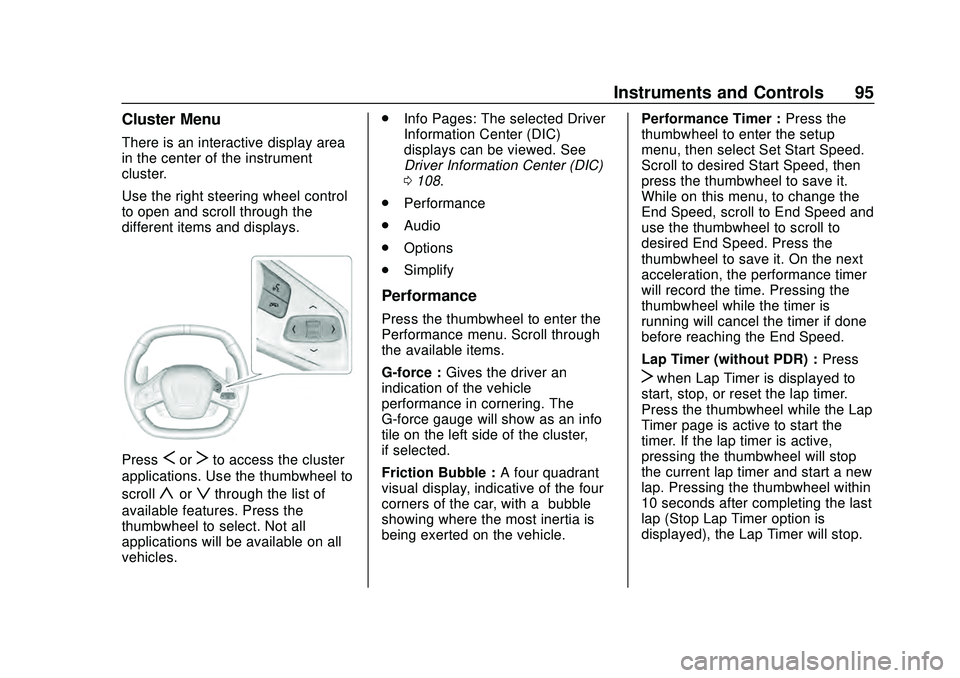
Use the right steering wheel control
to open and scroll through the
different items and displays.
PressSorTto access the cluster
applications. Use the thumbwheel to
scroll
yorzthrough the list of
available features. Press the
thumbwheel to select. Not all
applications will be available on all
vehicles. .
Info Pages: The selected Driver
Information Center (DIC)
displays can be viewed. See
Driver Information Center (DIC)
0108.
. Performance
. Audio
. Options
. Simplify
Performance
Press the thumbwheel to enter the
Performance menu. Scroll through
the available items.
G-force : Gives the driver an
indication of the vehicle
performance in cornering. The
G-force gauge will show as an info
tile on the left side of the cluster,
if selected.
Friction Bubble : A four quadrant
visual display, indicative of the four
corners of the car, with a “bubble”
showing where the most inertia is
being exerted on the vehicle. Performance Timer :
Press the
thumbwheel to enter the setup
menu, then select Set Start Speed.
Scroll to desired Start Speed, then
press the thumbwheel to save it.
While on this menu, to change the
End Speed, scroll to End Speed and
use the thumbwheel to scroll to
desired End Speed. Press the
thumbwheel to save it. On the next
acceleration, the performance timer
will record the time. Pressing the
thumbwheel while the timer is
running will cancel the timer if done
before reaching the End Speed.
Lap Timer (without PDR) : Press
Twhen Lap Timer is displayed to
start, stop, or reset the lap timer.
Press the thumbwheel while the Lap
Timer page is active to start the
timer. If the lap timer is active,
pressing the thumbwheel will stop
the current lap timer and start a new
lap. Pressing the thumbwheel within
10 seconds after completing the last
lap (Stop Lap Timer option is
displayed), the Lap Timer will stop.
Page 97 of 336
Chevrolet Corvette Owner Manual (GMNA-Localizing-U.S./Canada/Mexico-
12470550) - 2020 - CRC - 4/23/20
96 Instruments and Controls
Lap Timer (with PDR) :The lap
times recorded with the PDR system
will automatically be displayed in
this window. This only happens if a
track has been selected in the PDR
system and a video recording is
started. See Performance Data
Recorder (PDR) 0132.
Oil Temperature : Shows the
current oil temperature in either
degrees Celsius (°C) or degrees
Fahrenheit (°F).
Oil Pressure : Shows the current oil
pressure in either kilopascal (kPa) or
in pounds per square inch (psi).
Battery Voltage : Shows the
current battery voltage.
Transmission Fluid
Temperature : Shows the
temperature of the transmission fluid
in either degrees Celsius (°C) or
degrees Fahrenheit (°F).
Tire Status : Shows individual tire
pressures and overall temperature
as either Cold, Cool, Normal, Warm,
or Hot. Normal is typical for normal
driving while Warm is typical for aggressive driving. Unknown may
be displayed if tire temperature
information is unavailable.
eLSD (Z51 Only) :
Displays the
amount of rear differential coupling
when the Electronic Limited-Slip
Differential (eLSD) is active and
functioning during vehicle operation.
A reading of 1% is an open
differential and 100% is locked. It is
normal for the value to make small
or large changes due to driving
conditions and driver inputs. See
Limited-Slip Differential (with Z51)
0 195 or
Limited-Slip Differential (without
Z51) 0195.
Front Lift : During a driver
requested Front Lift (if equipped),
the driver may "remember" using
the
S, or dismiss the display by
pressing the thumbwheel. When the
Front Lift is Raised due to location,
the driver may delete that stored
location using the
S, or dismiss the
display by pressing the thumbwheel.
See Front Lift System 0191.
Audio
In the Audio menu, use the
thumbwheel to scroll through audio
presets.
Options
Use the thumbwheel to scroll
through items in the Options menu.
Units
Press the thumbwheel while Units is
displayed to enter the Units menu.
Choose US or metric units by
pressing the thumbwheel while the
desired item is highlighted.
A selected mark will be displayed
next to the selected item.
Display Themes
Press the thumbwheel to enter the
Display menu. There are six
instrument cluster display
configurations to choose from.
Sport, Tour, Track, Weather, My
Mode, and Z-Mode. The style of the
cluster will change depending on
the theme selected.
Default is linked to Driver mode.
Other display themes can be set
Page 104 of 336

Chevrolet Corvette Owner Manual (GMNA-Localizing-U.S./Canada/Mexico-
12470550) - 2020 - CRC - 4/23/20
Instruments and Controls 103
If the light is on steady :A
malfunction has been detected.
Diagnosis and service may be
required.
Check the following:
. If fuel has been added to the
vehicle using the capless funnel
adapter, make sure that it has
been removed. See “Filling the
Tank with a Portable Gas Can”
under Filling the Tank 0205.
The diagnostic system can
detect if the adapter has been
left installed in the vehicle,
allowing fuel to evaporate into
the atmosphere. A few driving
trips with the adapter removed
may turn off the light.
. Poor fuel quality can cause
inefficient engine operation and
poor driveability, which may go
away once the engine is warmed
up. If this occurs, change the
fuel brand. It may require at
least one full tank of the proper
fuel to turn the light off. See
Recommended Fuel 0204.
If the light remains on, see your
dealer.Emissions Inspection and
Maintenance Programs
If the vehicle requires an Emissions
Inspection/Maintenance test, the
test equipment will likely connect to
the vehicle's Data Link
Connector (DLC).
The DLC is under the instrument
panel to the left of the steering
wheel. Connecting devices that are
not used to perform an Emissions
Inspection/Maintenance test or to
service the vehicle may affect
vehicle operation. See Add-On
Electrical Equipment 0208. See
your dealer if assistance is needed.
The vehicle may not pass
inspection if:
. The light is on when the engine
is running. .
The light does not come on
when the ignition is in
Service Mode.
. Critical emission control systems
have not been completely
diagnosed. If this happens, the
vehicle would not be ready for
inspection and may require
several days of routine driving
before the system is ready for
inspection. This can happen if
the 12-volt battery has recently
been replaced or run down, or if
the vehicle has been recently
serviced.
See your dealer if the vehicle will
not pass or cannot be made ready
for the test.
Front Lift System Light
Page 109 of 336
Chevrolet Corvette Owner Manual (GMNA-Localizing-U.S./Canada/Mexico-
12470550) - 2020 - CRC - 4/23/20
108 Instruments and Controls
This light comes on when the
high-beam headlamps are in use.
SeeHeadlamp High/Low-Beam
Changer 0126.
Lamps On Reminder
This light comes on when the
exterior lamps are in use. See
Exterior Lamp Controls 0125.
Cruise Control Light
For vehicles with cruise control, the
cruise control light is white when the
cruise control is on and ready, and
turns green when the cruise control
is set and active.
The light turns off when the cruise
control is turned off. See Cruise
Control 0196.
Door Ajar Light
This light comes on when a door is
open or not securely latched. Before
driving, check that all doors are
properly closed.
Information Displays
Driver Information
Center (DIC)
The Info application is only available
when the ignition is on. The displays
show the status of many vehicle
systems.
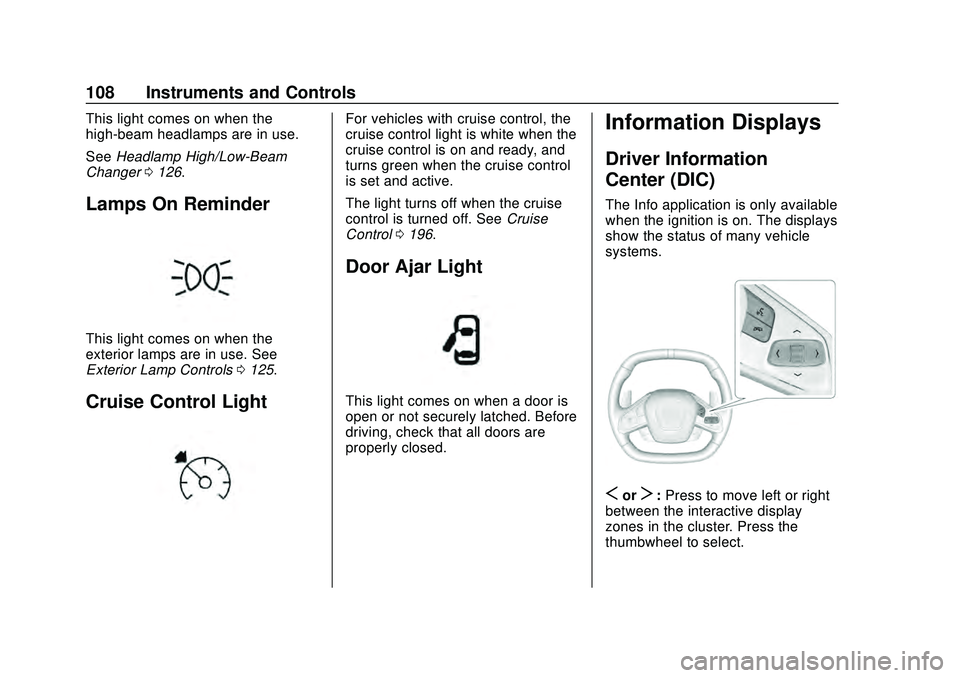
SorT:Press to move left or right
between the interactive display
zones in the cluster. Press the
thumbwheel to select.
Page 110 of 336
Chevrolet Corvette Owner Manual (GMNA-Localizing-U.S./Canada/Mexico-
12470550) - 2020 - CRC - 4/23/20
Instruments and Controls 109
yorz:Use the thumbwheel to
scroll up or down in a list. Press the
thumbwheel to select.
DIC Info Pages
The following is the list of all
possible DIC info displays.
Depending on the vehicle, some
may not be available.
Trip 1 or 2/Average Speed/
Average Fuel Economy : Trip
displays the current distance
traveled, in either kilometers (km) or
miles (mi), since the trip odometer
was last reset. The trip odometer
can be reset by pressing and
holding the thumbwheel while this
display is active.
Average Speed displays the
average speed of the vehicle in
kilometers per hour (km/h) or miles
per hour (mph). This average is
calculated based on the various
vehicle speeds recorded since the
last reset of this value. The average
speed can be reset by pressing and
holding the thumbwheel while this
display is active. Average Fuel Economy displays the
approximate average liters per
100 kilometers (L/100 km) or miles
per gallon (mpg). This number is
calculated based on the number of
L/100 km (mpg) recorded since the
last time this menu item was reset.
This number reflects only the
approximate average fuel economy
that the vehicle has right now, and
will change as driving conditions
change. The Average Fuel
Economy can be reset by pressing
and holding the thumbwheel while
this display is active.
Oil Life :
Displays an estimate of
the oil's remaining useful life.
If REMAINING OIL LIFE 99% is
displayed, that means 99% of the
current oil life remains.
When the remaining oil life is low,
the CHANGE ENGINE OIL SOON
message will appear on the display.
The oil should be changed as soon
as possible. See Engine Oil0218.
In addition to the engine oil life
system monitoring the oil life,
additional maintenance is recommended in the Maintenance
Schedule. See
Maintenance
Schedule 0286.
The Oil Life display must be reset
after each oil change. It will not
reset itself. Do not reset the Oil Life
display accidentally at any time
other than when the oil has just
been changed. It cannot be reset
accurately until the next oil change.
To reset the engine oil life system,
press and hold the thumbwheel for
several seconds while the Oil Life
display is active. See Engine Oil
Life System 0221.
Tire Pressure : Displays the
approximate pressures of all four
tires. Tire pressure is displayed in
either kilopascal (kPa) or in pounds
per square inch (psi). If the pressure
is low, the value for that tire is
shown in amber. See Tire Pressure
Monitor System 0255 and
Tire Pressure Monitor Operation
0 256.
Page 111 of 336
Chevrolet Corvette Owner Manual (GMNA-Localizing-U.S./Canada/Mexico-
12470550) - 2020 - CRC - 4/23/20
110 Instruments and Controls
Transmission Fluid Life :Displays
an estimate of the fluid's remaining
useful life. If REMAINING FLUID
LIFE 99% is displayed, that means
99% of the current fluid life remains.
When the remaining fluid life is low,
the CHANGE TRANSMISSION
FLUID SOON message will appear
on the display. The fluid should be
changed as soon as possible. See
Dual Clutch Transmission Fluid Life
System 0223. In addition to the
Transmission Fluid Life system
monitoring the fluid life, additional
maintenance is recommended in the
Maintenance Schedule. See
Maintenance Schedule 0286.
The Fluid Life display must be reset
after each fluid change. It will not
reset itself. Do not reset the Fluid
Life display accidentally at any time
other than when the fluid has just
been changed. It cannot be reset
accurately until the next fluid
change. To reset the Transmission
Fluid Life system, press and hold
SEL for several seconds while the
Fluid Life display is active. Fuel Economy :
Displays the
average fuel economy, the best fuel
economy over the selected
distance, and a bar graph showing
instantaneous fuel economy.
Pressing the thumbwheel will open
a menu to change the selected
distance or reset the current values.
Timer/Fuel Used : This display can
be used as a timer. To start/stop the
timer, press the thumbwheel while
this display is active and then select
the start/stop the timer. The display
will show the amount of time that
has passed since the timer was last
reset. To reset the timer to zero,
press the thumbwheel to access the
menu while this display is active.
Fuel Used displays the approximate
liters (L) or gallons (gal) of fuel that
have been used since last reset.
The fuel used can be reset by
pressing the thumbwheel and
selecting Reset Fuel Used in
the menu.
Economy Trend : Shows the
instantaneous fuel economy and
current gas mileage. Speed Limit :
Displays sign
information, which comes from a
roadway database in the on-board
navigation.
Engine Hours/Lifetime Revs :
Displays the total number of hours
the engine has run. It also shows
total engine revolutions divided by
10,000.
Head-Up Display (HUD)
{Warning
If the HUD image is too bright,
or too high in your field of view, it
may take you more time to see
things you need to see when it is
dark outside. Be sure to keep the
HUD image dim and placed low in
your field of view.
If equipped with HUD, some
information concerning the
operation of the vehicle is projected
onto the windshield.