window CHRYSLER ASPEN 2008 2.G Owner's Manual
[x] Cancel search | Manufacturer: CHRYSLER, Model Year: 2008, Model line: ASPEN, Model: CHRYSLER ASPEN 2008 2.GPages: 479, PDF Size: 4.3 MB
Page 109 of 479
²It is not recommended to store similar sounding
names in the UConnecttphonebook.
²The UConnecttphonebook nametag recognition rate
is optimized for the person who stored the name in the
phonebook.
²You can say9O9(letter9O9) for909(zero).98009must be
spoken9eight-zero-zero.9
²Even though international dialing for most number
combinations is supported, some shortcut dialing
number combinations may not be supported.
²In a convertible vehicle, system performance may be
compromised with the convertible top down.
Far End Audio Performance
²
Audio quality is maximized under:
²low-to-medium blower setting,
²low-to-medium vehicle speed,
²low road noise,
²smooth road surface,
²fully closed windows,
²dry weather conditions, and
²operation from the drivers seat.
²Performance, such as audio clarity, echo, and loudness
to a large degree rely on the phone and network, and
not the UConnecttsystem.
²Echo at the far end can sometimes be reduced by
lowering the in-vehicle audio volume.
²In a convertible vehicle, system performance may be
compromised with the convertible top down.
108 UNDERSTANDING THE FEATURES OF YOUR VEHICLE
Page 120 of 479

þCONTINUE (to continue recording)
þDELETE (to delete the recording)
²PLAY MEMOS (to play previously recorded memos)
Ð During the playback you may press the VR hard-
key to stop playing memos. You continue by saying
one of the following commands:
þREPEAT (to repeat a memo)
þNEXT (to play the next memo)
þPREVIOUS (to play the previous memo)
þDELETE (to delete a memo)
²DELETE ALL (to delete all memos)
NOTE:Keep in mind that you have to press the VR
hard-key first and wait for the beep, before speaking the
ªbarge inº commands.
Voice Training
For users experiencing difficulty with the system recog-
nizing their voice commands or numbers, the UConnectt
system Voice Training feature may be used.
1. Press the VR hard-key, speak ªSystem Setupº and once
you are in that menu then speak ªVoice Training.º This
will train your own voice to the system and will improve
recognition.
2. Repeat the words and phrases when prompted by the
UConnecttSystem. For best results, the Voice Training
session should be completed when the vehicle is parked,
engine running, all windows closed, and the blower fan
switched OFF. This procedure may be repeated with a
new user. The system will adapt to the last trained voice
only.
UNDERSTANDING THE FEATURES OF YOUR VEHICLE 119
3
Page 161 of 479
REAR PARK ASSIST SYSTEM Ð IF EQUIPPED
NOTE:The manufacturer suggests disabling the Rear
Park Assist System when towing a trailer. Refer to
ªPersonal Settings (Customer Programmable Features)º
under ªOverhead Console with Electronic Vehicle Infor-
mation Center (EVIC) ± If Equippedº in Section 3.
This system is used to help drivers determine if an
obstacle is in the way of the vehicle while it is backing up
in addition to the use of inside rearview and outside
mirrors.
When the driver selects REVERSE, the system scans for
objects behind the vehicle using four sensors located in
the rear bumper. Objects can be detected from up to 78.7
in (200 cm). A warning display above the rear window
provides both visible and audible warnings indicating
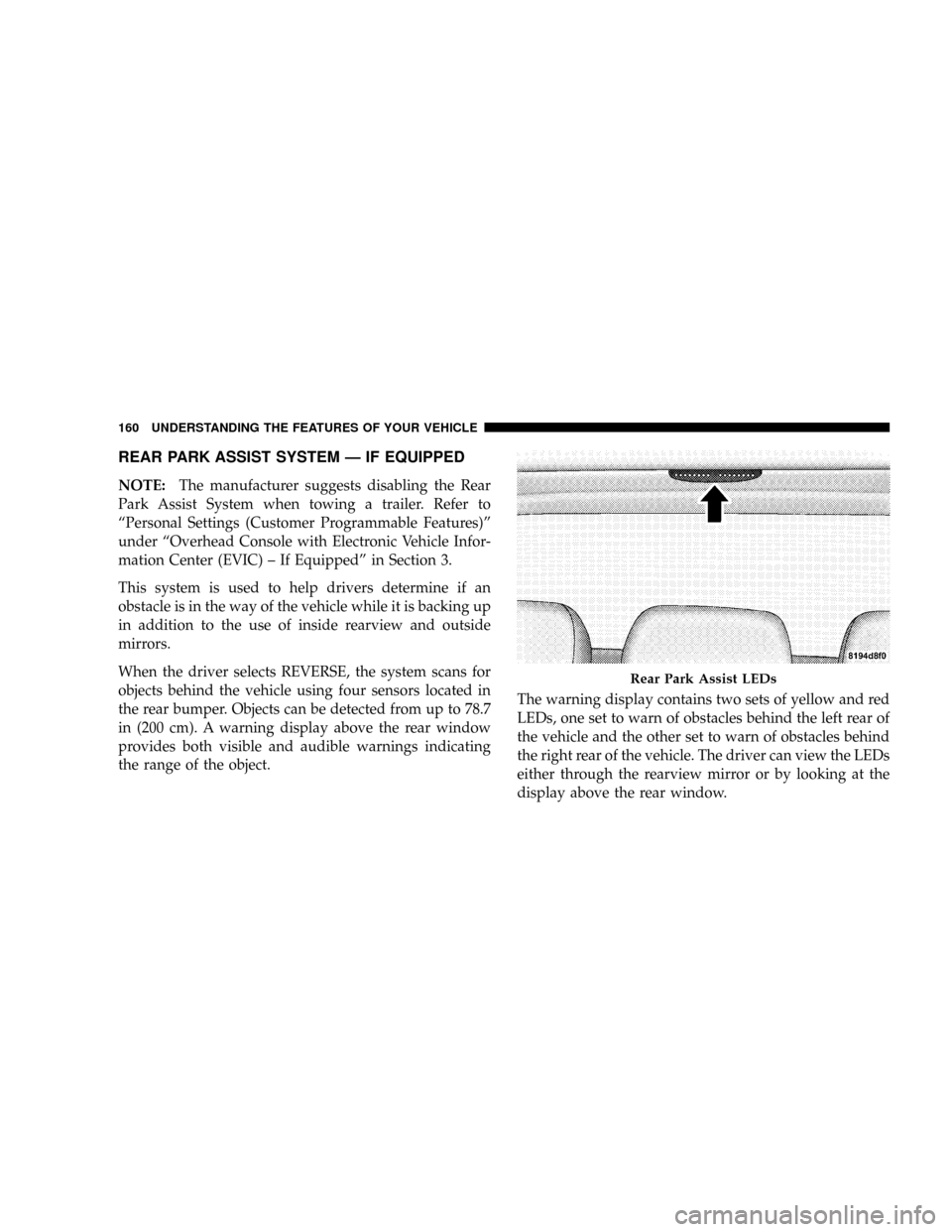
the range of the object.The warning display contains two sets of yellow and red
LEDs, one set to warn of obstacles behind the left rear of
the vehicle and the other set to warn of obstacles behind
the right rear of the vehicle. The driver can view the LEDs
either through the rearview mirror or by looking at the
display above the rear window.
Rear Park Assist LEDs
160 UNDERSTANDING THE FEATURES OF YOUR VEHICLE
Page 173 of 479
²ªHEADLAMP OFF DELAY > 0 SECº ± When this
feature is selected, the driver can choose to have the
headlamps remain on for 0, 30, 60, or 90 seconds when
exiting the vehicle. To make your selection, press and
release the RESET button until ª0,º ª30,º ª60,º or ª90º
appears.
NOTE:The headlamp switch must be in the ªAº auto
mode before this feature will work.
²HEADLAMPS W/WIPERS > ON ± When ON is
selected, the headlamps will automatically turn on
when the wiper switch is activated.
²EASY EXIT SEAT > ON ± When ON is selected, and
the key is removed from the ignition, the driver's seat
will automatically move rearward to allow easy exit.
²TILT MIRRORS IN ªRº > ON ± When ON is selected,
and the transmission is put in REVERSE, the outside
mirrors will tilt downward.
²ªKEY OFF POWER DELAY> OFFº ± When this feature
is selected, the power window switches, radio, hands±
free system (if equipped), and power outlets will
remain active for up to 10 minutes after the ignition
switch is turned off. Opening a vehicle door will
cancel this feature. To make your selection, press and
release the RESET button until ªOff,º ª45 sec.,º ª5
min.,º ª10 min.º appears.
²ªILLUMINATED APRCH > OFFº ± When this feature
is selected, the headlights will activate and remain on
for up to 90 seconds when the doors are unlocked with
the RKE Transmitter. To make your selection, press
and release the RESET button until ªOFF,º ª30 sec.,º
ª60 sec.,º or ª90 sec.º appears.
²PARK ASST. SYSTEM > ON ± When YES is selected,
the Rear Park Assist System is activated. When NO is
selected, the System is deactivated.
172 UNDERSTANDING THE FEATURES OF YOUR VEHICLE
Page 184 of 479
the panel is venting, pressing the ªcloseº end of the
rocker switch returns it to the closed position. Both
opening and closing operations in the vent mode occur
only while the switch is held.
NOTE:The sunroof will continue to operate for 10
minutes after the ignition is turned OFF or until the
driver's door is opened. This feature may be disabled by
your authorized dealer.
Express Open Feature
During the Express Open operation, any movement of
the switch will stop the sunroof and it will remain in a
partial open position. Again, momentarily pressing the
switch rearward will activate the Express Open Feature.
To close the sunroof, hold the switch in the forward
position. Again, any release of the switch will stop the
movement and the sunroof will remain in a partial opencondition until the switch is pushed forward again. To
close fully, hold the switch in the forward position until
the glass movement has stopped.
The sunshade can be opened manually. It will also open
as the sunroof opens. The sunshade cannot be closed if
the sunroof is open.
WARNING!
Never leave children alone in a vehicle. Leaving
unattended children in a vehicle is dangerous for a
number of reasons. A child or others could be seri-
ously or fatally injured. Don't leave the keys in the
ignition. A child could operate power windows,
other controls, or move the vehicle.
UNDERSTANDING THE FEATURES OF YOUR VEHICLE 183
3
Page 185 of 479
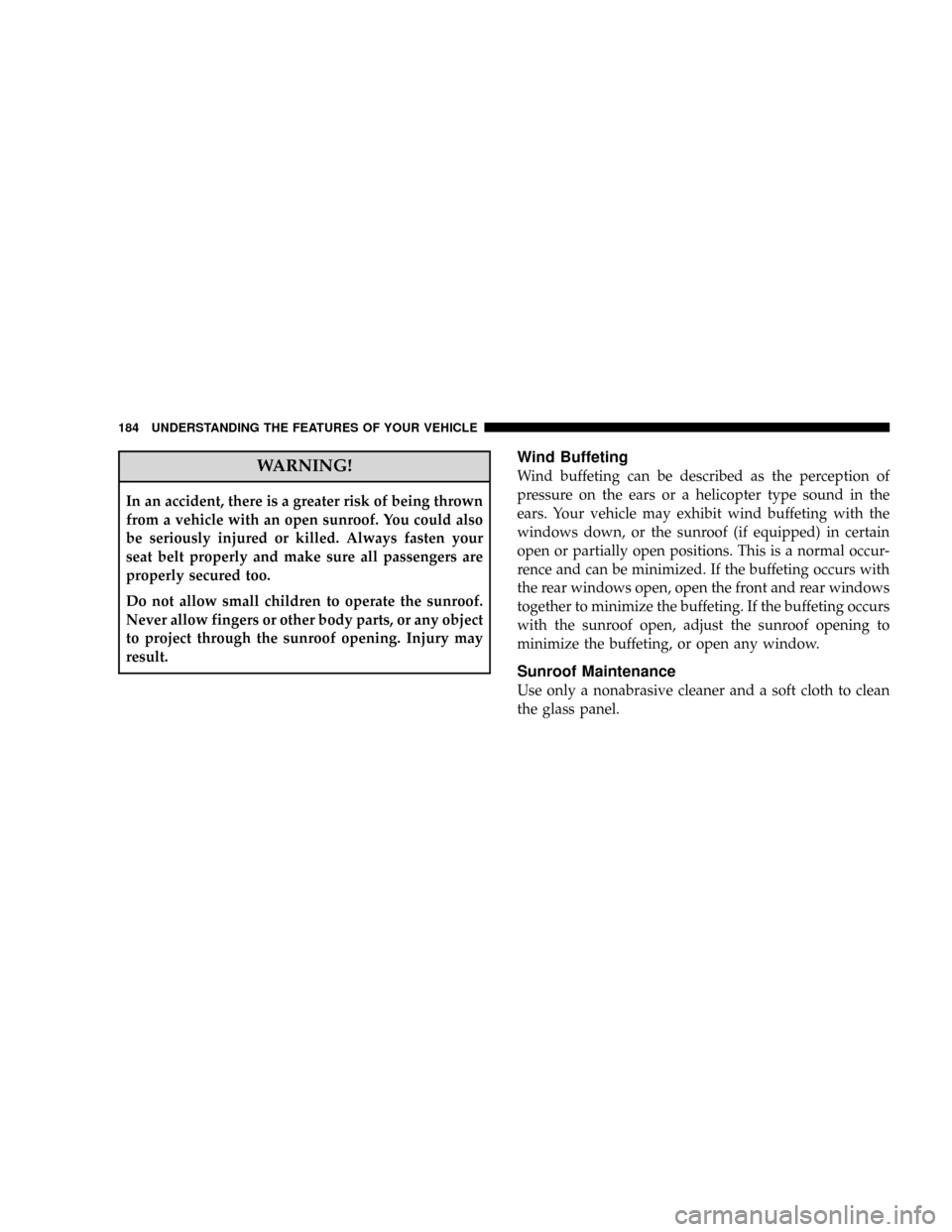
WARNING!
In an accident, there is a greater risk of being thrown
from a vehicle with an open sunroof. You could also
be seriously injured or killed. Always fasten your
seat belt properly and make sure all passengers are
properly secured too.
Do not allow small children to operate the sunroof.
Never allow fingers or other body parts, or any object
to project through the sunroof opening. Injury may
result.
Wind Buffeting
Wind buffeting can be described as the perception of
pressure on the ears or a helicopter type sound in the
ears. Your vehicle may exhibit wind buffeting with the
windows down, or the sunroof (if equipped) in certain
open or partially open positions. This is a normal occur-
rence and can be minimized. If the buffeting occurs with
the rear windows open, open the front and rear windows
together to minimize the buffeting. If the buffeting occurs
with the sunroof open, adjust the sunroof opening to
minimize the buffeting, or open any window.
Sunroof Maintenance
Use only a nonabrasive cleaner and a soft cloth to clean
the glass panel.
184 UNDERSTANDING THE FEATURES OF YOUR VEHICLE
Page 200 of 479
NOperating Instructions - Video Entertainment
System (VESŸ) (If Equipped).............241
mUniversal Consumer Interface (UCI) Ð
If Equipped...........................241
NConnecting The iPodtDevice............242
NControlling The iPodtUsing Radio Buttons . . . 242
NPlay Mode..........................242
NList Or Browse Mode..................244
mVideo Entertainment System (Sales Code XRV) Ð
If Equipped...........................246
mRemote Sound System Controls Ð If Equipped . . 246
NRight-Hand Switch Functions.............246
NLeft-Hand Switch Functions For Radio
Operation...........................247NLeft-Hand Switch Functions For Media
(i.e., CD) Operation....................247
mCompact Disc Maintenance................247
mRadio Operation And Cellular Phones........248
mClimate Controls.......................249
NManual Control......................249
NAir Conditioning Operation..............249
NFront Blower Control...................250
NFront Mode Control...................250
NRear Temperature Control Ð If Equipped....253
NRear Window Defrosting And Rear Window
Washer/Wiper.......................253
NAutomatic Temperature Control (ATC) Ð If
Equipped...........................254
INSTRUMENT PANEL AND CONTROLS 199
4
Page 201 of 479

NAutomatic Control....................254
NLevel Of Automatic Control..............255
NManual Control (ATC)..................256
NRear Zone Climate Control Ð If Equipped . . . 259
NRear Rotary Temperature Control..........260
NFront Unit To Rear Unit Chart............261NOperating Tips.......................261
NOperating Tips Chart...................263
mRear Window Features...................264
NRear Window Wiper/Washer.............264
NRear Window Defrosting................265
200 INSTRUMENT PANEL AND CONTROLS
Page 230 of 479

By pressing the SEEK button when the Music Type icon
is displayed, the radio will be tuned to the next frequency
station with the same selected Music Type name. The
Music Type function only operates when in the FM
mode.
If a preset button is activated while in the Music Type
(Program Type) mode, the Music Type mode will be
exited and the radio will tune to the preset station.
SETUP Button
Pressing the SETUP button allows you to select between
the following items:
²Set ClockÐ Pressing the SELECT button will allow
you to set the clock. Turn the TUNE/SCROLL control
knob to adjust the hours and then press and turn the
TUNE/SCROLL control knob to adjust the minutes.
Press the TUNE/SCROLL control knob again to save
changes.
AM and FM Buttons
Press the buttons to select AM or FM modes.
SET Button Ð To Set the Pushbutton Memory
When you are receiving a station that you wish to
commit to pushbutton memory, press the SET button.
The symbol SET 1 will now show in the display window.
Select the button (1 to 6) you wish to lock onto this station
and press and release that button. If a button is not
selected within five seconds after pressing the SET but-
ton, the station will continue to play but will not be
stored into pushbutton memory.
You may add a second station to each pushbutton by
repeating the above procedure with this exception: Press
the SET button twice and SET 2 will show in the display
window. Each button can be set for SET 1 and SET 2 in
both AM and FM. This allows a total of 12 AM and 12 FM
stations to be stored into pushbutton memory. The sta-
tions stored in SET 2 memory can be selected by pressing
the pushbutton twice.
INSTRUMENT PANEL AND CONTROLS 229
4
Page 241 of 479

SETUP Button
Pressing the SETUP button allows you to select the
following items:
²Display Sirius ID number Ð Press the AUDIO/
SELECT button to display the Sirius ID number. This
number is used to activate, deactivate, or change the
Sirius subscription.
SET Button ± To Set the Pushbutton Memory
When you are receiving a channel that you wish to
commit to pushbutton memory, press the SET button.
The symbol SET 1 will now show in the display window.
Select the button (1-6) you wish to lock onto this channel
and press and release that button. If a button is not
selected within five seconds after pressing the SET but-
ton, the channel will continue to play but will not be
stored into pushbutton memory.You may add a second channel to each pushbutton by
repeating the above procedure with this exception: Press
the SET button twice and SET 2 will show in the display
window. Each button can be set for SET 1 and SET 2. This
allows a total of 12 Satellite channels to be stored into
pushbutton memory. The channels stored in SET 2
memory can be selected by pressing the pushbutton
twice.
Every time a preset button is used, a corresponding
button number will display.
Buttons1-6
These buttons tune the radio to the channels that you
commit to pushbutton memory (12 Satellite stations).
240 INSTRUMENT PANEL AND CONTROLS