manual radio set CITROEN C3 AIRCROSS 2023 Owners Manual
[x] Cancel search | Manufacturer: CITROEN, Model Year: 2023, Model line: C3 AIRCROSS, Model: CITROEN C3 AIRCROSS 2023Pages: 244, PDF Size: 7.09 MB
Page 22 of 244
20
Instruments
Workflow
Use the buttons on each side of the touch screen
to access the menus, then use the buttons that
appear on the touch screen.
Certain functions may be displayed over 1 or 2
pages.
To deactivate / activate a function, press OFF/
ON.
To modify a setting (lighting duration, etc.) or
access additional information, press the symbol
for the function.
After a few moments with no action on the secondary page, the primary page is
displayed automatically.
Use this button to confirm.
Use this button to return to the previous
page.
Menus
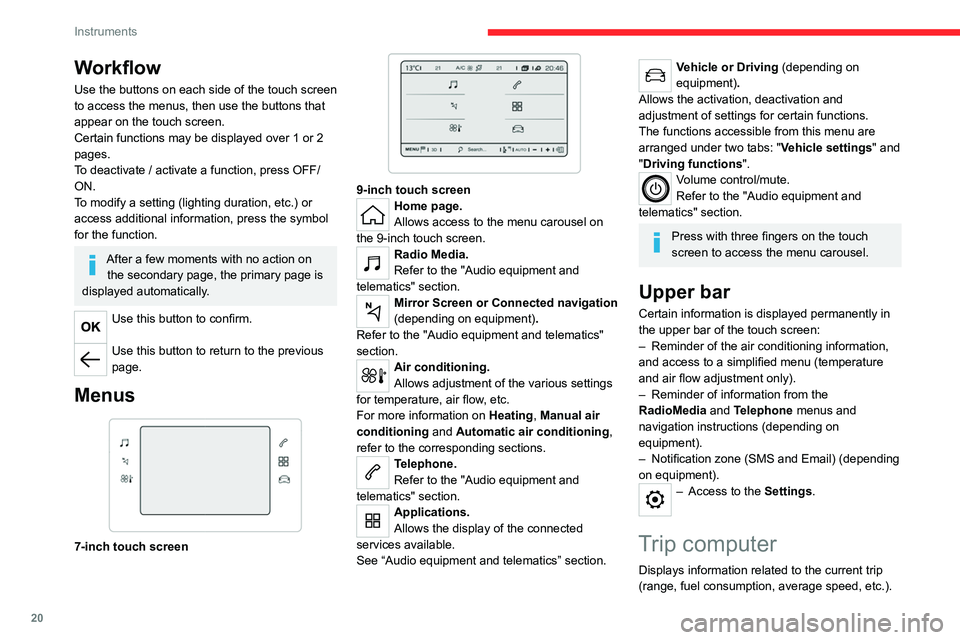
7-inch touch screen
9-inch touch screenHome page.
Allows access to the menu carousel on
the 9-inch touch screen.
Radio Media.
Refer to the "Audio equipment and
telematics" section.
Mirror Screen or Connected navigation
(depending on equipment) .
Refer to the "Audio equipment and telematics"
section.
Air conditioning.
Allows adjustment of the various settings
for temperature, air flow, etc.
For more information on Heating, Manual air
conditioning and Automatic air conditioning ,
refer to the corresponding sections.
Telephone.
Refer to the "Audio equipment and
telematics" section.
Applications.
Allows the display of the connected
services available.
See “Audio equipment and telematics” section.
Vehicle or Driving (depending on
equipment) .
Allows the activation, deactivation and
adjustment of settings for certain functions.
The functions accessible from this menu are
arranged under two tabs: " Vehicle settings" and
"Driving functions ".
Volume control/mute.
Refer to the "Audio equipment and
telematics" section.
Press with three fingers on the touch
screen to access the menu carousel.
Upper bar
Certain information is displayed permanently in
the upper bar of the touch screen:
–
Reminder of the air conditioning information,
and access to a simplified menu (temperature
and air flow adjustment only).
–
Reminder of information from the
RadioMedia
and Telephone menus and
navigation instructions (depending on
equipment).
–
Notification zone (SMS and Email) (depending
on equipment).
– Access to the Settings.
Trip computer
Displays information related to the current trip
(range, fuel consumption, average speed, etc.).
Information display
Details are displayed successively.
– The current information tab with:
• trip mileage.
• range.
• current fuel consumption.
• the Stop & Start time counter.
• information on the speed limit recognition
system (depending on version).
– Trip 1 with:
• average speed.
• average fuel consumption.
• distance travelled for the first trip.
Depending on your vehicle's equipment, a 2
nd trip
is available.
– Trip 2 with:
• average speed.
• average fuel consumption.
• distance travelled. for the second trip.
Trips 1 and 2 are independent and are used
identically.
For example, trip 1 can be used for daily figures
and trip 2 for monthly figures.
Page 152 of 244
150
In the event of a breakdown
When the vehicle is towed with its engine off, there is no longer braking and steering assistance.
A professional recovery service must be called in the following cases:
– broken down on a motorway or main road;
– not possible to put the gearbox into neutral, unlock the steering, or release the parking brake;
– not possible to tow a vehicle with an automatic gearbox, with the engine running;
– towing with only two wheels on the ground;
– four-wheel drive vehicle;
– no approved towbar available.
Towing constraints
Type of vehicle
(engine/gearbox) Front wheels on the
ground Rear wheels on the
ground Flatbed
4 wheels on the ground
with towbar
Internal combustion/Manual
Internal combustion/Automatic
In case of battery or electric parking brake failure, it is essential to call a p
rofessional using flatbed recovery vehicles (excluding manual gearbox).
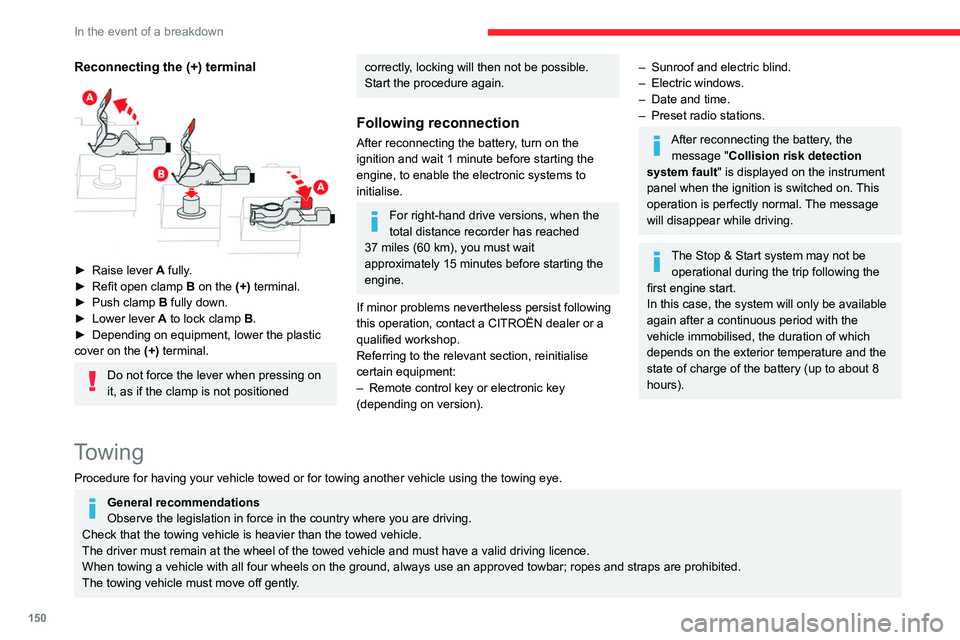
Reconnecting the (+) terminal
► Raise lever A fully.
► Refit open clamp B on the (+) terminal.
►
Push clamp
B fully down.
►
Lower lever
A
to lock clamp B.
►
Depending on equipment, lower the plastic
cover on the
(+) terminal.
Do not force the lever when pressing on
it, as if the clamp is not positioned
correctly, locking will then not be possible.
Start the procedure again.
Following reconnection
After reconnecting the battery, turn on the
ignition and wait 1 minute before starting the
engine, to enable the electronic systems to
initialise.
For right-hand drive versions, when the
total distance recorder has reached
37
miles (60 km), you must wait
approximately 15
minutes before starting the
engine.
If minor problems nevertheless persist following
this operation, contact a CITROËN dealer or a
qualified workshop.
Referring to the relevant section, reinitialise
certain equipment:
–
Remote control key or electronic key
(depending on version).
– Sunroof and electric blind.
– Electric windows.
–
Date and time.
–
Preset radio stations.
After reconnecting the battery, the message "Collision risk detection
system fault" is displayed on the instrument
panel when the ignition is switched on. This
operation is perfectly normal. The message
will disappear while driving.
The Stop & Start system may not be operational during the trip following the
first engine start.
In this case, the system will only be available
again after a continuous period with the
vehicle immobilised, the duration of which
depends on the exterior temperature and the
state of charge of the battery (up to about 8
hours).
Towing
Procedure for having your vehicle towed or for towing another vehicle using the towing eye.
General recommendations
Observe the legislation in force in the country where you are driving.
Check that the towing vehicle is heavier than the towed vehicle.
The driver must remain at the wheel of the towed vehicle and must have a valid driving licence.
When towing a vehicle with all four wheels on the ground, always use an approved towbar; ropes and straps are prohibited.
The towing vehicle must move off gently.
Page 161 of 244
159
Bluetooth® audio system
10Bluetooth® audio system
The different functions and settings described vary according to the version
and configuration of your vehicle.
As a safety measure and because it requires sustained attention by the driver,
the pairing of a Bluetooth mobile telephone
with the Bluetooth hands-free system of your
audio system must be done with the vehicle
stationary and the ignition on.
Your audio system is coded in such a way that it will only operate in your
vehicle.
All work on the system must be carried out
exclusively by a dealer or qualified workshop,
to avoid any risk of electrocution, fire or
mechanical faults.
To avoid discharging the battery, the audio system may switch off after a few
minutes if the engine is not running.
First steps
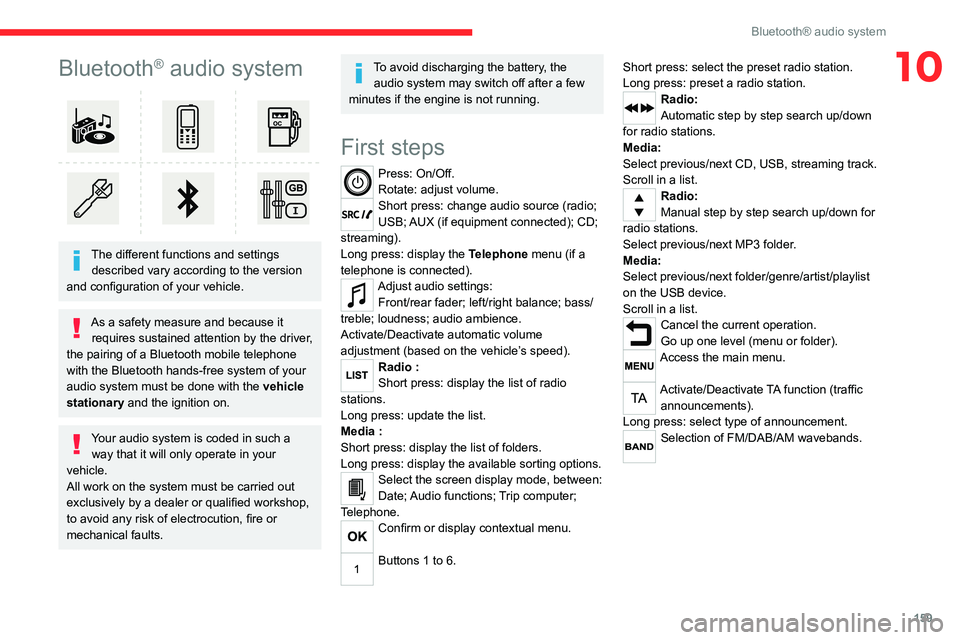
Press: On/Off.
Rotate: adjust volume.
Short press: change audio source (radio;
USB; AUX (if equipment connected); CD;
streaming).
Long press: display the Telephone menu (if a
telephone is connected).
Adjust audio settings: Front/rear fader; left/right balance; bass/
treble; loudness; audio ambience.
Activate/Deactivate automatic volume
adjustment (based on the vehicle’s speed).
Radio :
Short press: display the list of radio
stations.
Long press: update the list.
Media
:
Short press: display the list of folders.
Long press: display the available sorting options.
Select the screen display mode, between:
Date; Audio functions; Trip computer;
Telephone.
Confirm or display contextual menu.
Buttons 1 to 6. Short press: select the preset radio station.
Long press: preset a radio station.
Radio:
Automatic step by step search up/down
for radio stations.
Media:
Select previous/next CD, USB, streaming track.
Scroll in a list.
Radio:
Manual step by step search up/down for
radio stations.
Select previous/next MP3 folder.
Media:
Select previous/next folder/genre/artist/playlist
on the USB device.
Scroll in a list.
Cancel the current operation.
Go up one level (menu or folder).
Access the main menu.
Activate/Deactivate TA function (traffic announcements).
Long press: select type of announcement.
Selection of FM/DAB/AM wavebands.
Page 162 of 244
160
Bluetooth® audio system
"Telephone": Call, Directory
management, Telephone management,
Hang up.
"Trip computer".
"Maintenance": Diagnosis, Warning log,
etc.
"Connections": Manage connections,
search for devices.
"Personalisation-configuration ": Define
the vehicle parameters, Choice of
language, Display configuration, Choice of units,
Date and time adjustment.
Press the "MENU" button.
Move from one menu to another.
Enter a menu.
Radio
Selecting a station
Press the SOURCE button repeatedly
and select the radio.
Press this button to select a waveband
(FM / AM / DAB).
Press one of the buttons for an automatic
search for radio stations.
Press one of the buttons to carry out a
manual search up / down for radio
frequencies.
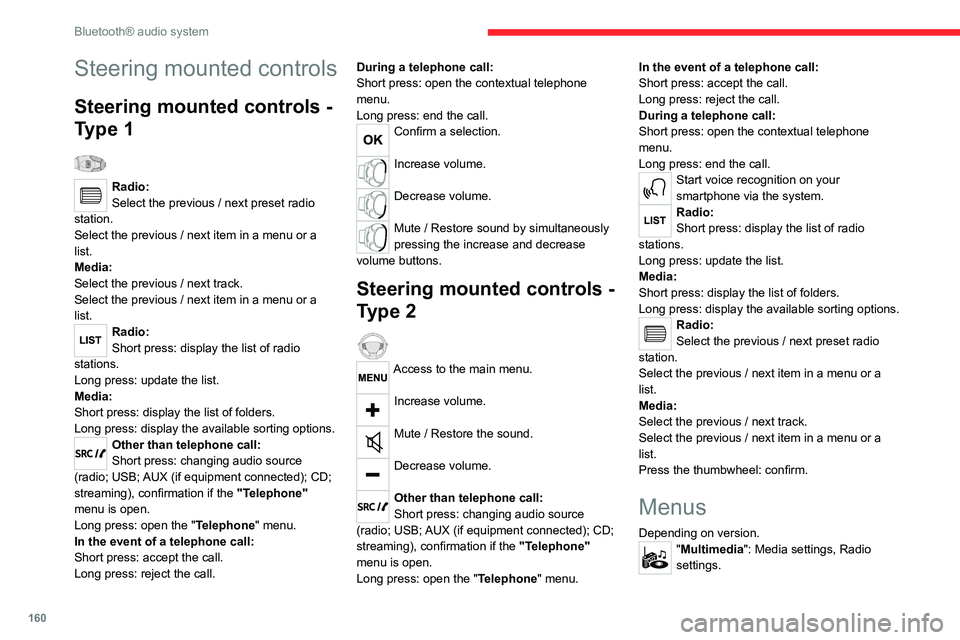
Steering mounted controls
Steering mounted controls -
Type 1
Radio:
Select the previous / next preset radio
station.
Select the previous / next item in a menu or a
list.
Media:
Select the previous / next track.
Select the previous / next item in a menu or a
list.
Radio:
Short press: display the list of radio
stations.
Long press: update the list.
Media:
Short press: display the list of folders.
Long press: display the available sorting options.
Other than telephone call:
Short press: changing audio source
(radio; USB; AUX (if equipment connected); CD;
streaming), confirmation if the "Telephone"
menu is open.
Long press: open the " Telephone" menu.
In the event of a telephone call:
Short press: accept the call.
Long press: reject the call. During a telephone call:
Short press: open the contextual telephone
menu.
Long press: end the call.
Confirm a selection.
Increase volume.
Decrease volume.
Mute / Restore sound by simultaneously
pressing the increase and decrease
volume buttons.
Steering mounted controls -
Type 2
Access to the main menu.
Increase volume.
Mute / Restore the sound.
Decrease volume.
Other than telephone call:
Short press: changing audio source
(radio; USB; AUX (if equipment connected); CD;
streaming), confirmation if the "Telephone"
menu is open.
Long press: open the " Telephone" menu. In the event of a telephone call:
Short press: accept the call.
Long press: reject the call.
During a telephone call:
Short press: open the contextual telephone
menu.
Long press: end the call.
Start voice recognition on your
smartphone via the system.
Radio:
Short press: display the list of radio
stations.
Long press: update the list.
Media:
Short press: display the list of folders.
Long press: display the available sorting options.
Radio:
Select the previous / next preset radio
station.
Select the previous / next item in a menu or a
list.
Media:
Select the previous / next track.
Select the previous / next item in a menu or a
list.
Press the thumbwheel: confirm.
Menus
Depending on version."Multimedia": Media settings, Radio
settings.
Page 171 of 244
169
Bluetooth® audio system
10balance and Le-Ri balance) to the middle
position, setting the musical ambience to "None",
setting loudness correction to "Active" in CD
mode and "Inactive" in Radio mode.
The preset stations do not function (no
sound, 87.5 MHz is displayed, etc.).
The wrong waveband is selected.
►
Press the BAND button to return to the
waveband (FM, FM2, DAB,
AM) on which the
stations are preset.
Traffic announcement (TA) is shown but I
receive no traffic information.
The radio station is not part of the regional traffic
information network.
►
T
une to a radio station that broadcasts traffic
information.
The reception quality of the tuned radio
station gradually deteriorates or the station
presets are inoperative (no sound, 87.5 MHz
is displayed, etc.).
The vehicle is too far from the selected station’s
transmitter, or no transmitter is present in the
geographical area.
►
Activate the RDS function to allow the system
to check for a more powerful transmitter in the
area.
The environment (hills, buildings, tunnels,
basement car parks, etc.) may block reception,
including in RDS mode.
This is a perfectly normal phenomenon, and is
not indicative of an audio system malfunction. The aerial is absent or has been damaged (for
example when going through an automatic car
wash or in an underground car park).
►
Have the aerial checked by a dealer
.
The sound intermittently cuts out for 1 or 2
seconds in radio mode.
During this brief sound cut-out, the RDS
searches for another frequency giving better
reception of the station.
►
Switch off the RDS function if the
phenomenon occurs too frequently and always
on the same route.
Media
The Bluetooth connection is cut.
The battery in the peripheral device may not be
sufficiently charged.
►
Charge the battery in the peripheral device.
The message "USB device error" is displayed
in the screen.
The USB stick has not been recognised, or may
be corrupted.
►
Reformat the USB memory stick.
The CD is systematically ejected or is not
played.
The CD is upside down, cannot be read, does
not contain audio files or contains audio files of a
format not recognised by the audio system.
The CD is protected by an anti-pirating system
not recognised by the audio system.
►
Check that the CD is inserted in the player
the right way up. ►
Check the condition of the CD: the CD cannot
be played if it is too badly damaged.
►
Check the content in the case of a burned
CD: read the recommendations in the "Audio"
section.
Due to poor quality
, certain burned CDs will not
be played by the audio system.
The CD audio quality is is poor.
The CD is scratched or of poor quality.
►
Insert good quality CDs and store them in
suitable conditions.
The audio settings (bass, treble, ambience) are
unsuitable.
►
Return bass and treble settings to 0, without
selecting an ambience.
I am unable to play the music files on my
smartphone via the USB port.
Depending on the smartphone, access by the
audio system to music on the smartphone may
have to be approved on the latter
.
►
Manually activate the MTP
profile on the
smartphone (USB settings menu).
Telephone
I am unable to access my voicemail.
Few telephones or service providers allow the
use of this function.
►
Call your voicemail, via the telephone menu,
using the number provided by your operator
.
I am unable to access my directory of
contacts.
►
Check the compatibility of your telephone.
Page 176 of 244
174
CITROËN Connect Radio
Enter the FM and AM waveband values
using the virtual keypad.
Press "OK" to confirm.
Radio reception may be affected by the
use of electrical equipment not approved
by the Brand, such as a USB charger
connected to the 12 V socket.
The exterior environment (hills, buildings,
tunnels, basement car parks, etc.) may
block reception, including in RDS mode.
This phenomenon is perfectly normal in the
context of radio wave transmission, and
in no way indicative of an audio system
malfunction.
Changing the waveband
Press Radio Media to display the main
page.
Press the "OPTIONS " button to access the
secondary page.
Press "Band" to change waveband.
Press in the shaded area to confirm.
Presetting a station
Select a radio station or frequency.Make a short press on the star outline. If
the star is solid, the radio station is
already preset.
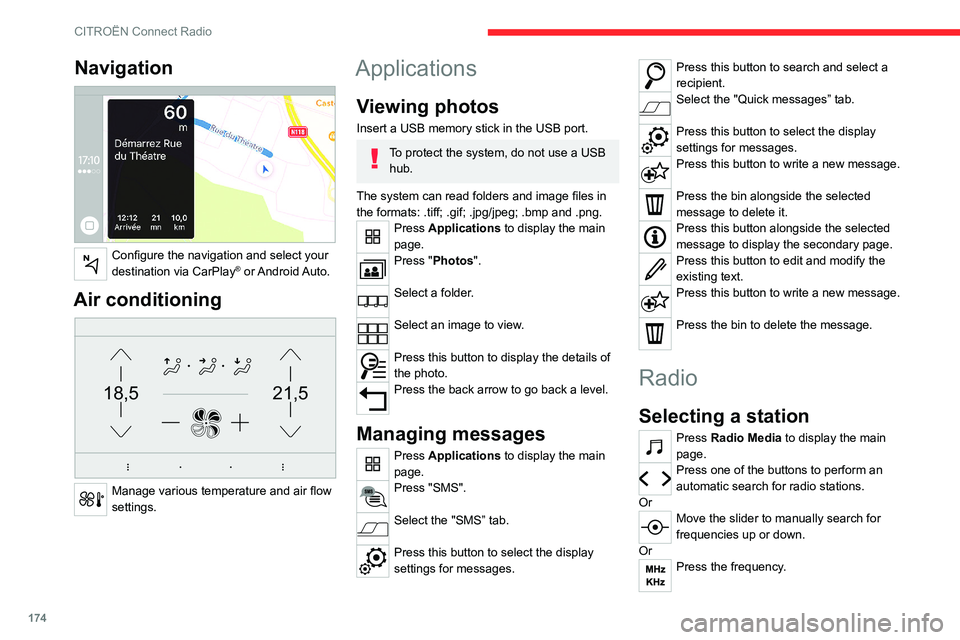
Navigation
Configure the navigation and select your
destination via CarPlay® or Android Auto.
Air conditioning
21,518,5
Manage various temperature and air flow
settings.
Applications
Viewing photos
Insert a USB memory stick in the USB port.
To protect the system, do not use a USB hub.
The system can read folders and image files in
the formats: .tiff; .gif; .jpg/jpeg; .bmp and .png.
Press Applications to display the main
page.
Press "Photos".
Select a folder.
Select an image to view.
Press this button to display the details of
the photo.
Press the back arrow to go back a level.
Managing messages
Press Applications to display the main
page.
Press "SMS".
Select the "SMS” tab.
Press this button to select the display
settings for messages.
Press this button to search and select a
recipient.
Select the "Quick messages” tab.
Press this button to select the display
settings for messages.
Press this button to write a new message.
Press the bin alongside the selected
message to delete it.
Press this button alongside the selected
message to display the secondary page.
Press this button to edit and modify the
existing text.
Press this button to write a new message.
Press the bin to delete the message.
Radio
Selecting a station
Press Radio Media to display the main
page.
Press one of the buttons to perform an
automatic search for radio stations.
Or
Move the slider to manually search for
frequencies up or down.
Or
Press the frequency.
Page 180 of 244
178
CITROËN Connect Radio
Press the "PHONE" button to display the
secondary page.
Press "Android Auto" to start the
application in the system.
Access to the different audio sources remains
available in the margin of the Android Auto
display, using the touch buttons located in the
upper bar.
Access to the menus for the system is possible
at any time using the dedicated buttons.
There may be a pause before applications become available,
depending on the quality of the network.
Pairing a Bluetooth®
telephone
The services available depend on the
network, the SIM card and the
compatibility of the Bluetooth devices used.
Consult the telephone user guide and the
service provider to check which services are
available.
The Bluetooth function must be activated and the telephone configured as "Visible
to all” (in the telphone settings).
To complete the pairing, whichever procedure is
used (from the telephone or from the system),
ensure that the code is the same in the system
and in the telephone.
Telephone
USB sockets
Depending on equipment, for more information
on the USB sockets compatible with CarPlay® or
Android Auto applications, refer to the "Ease of
use and comfort" section.
For the list of compatible smartphones,
visit the Manufacturer's website in your
country.
Synchronising a smartphone enables
users to display applications that support
the smartphone’s CarPlay
® or Android Auto
technology on the vehicle’s screen. For
CarPlay
® technology, the CarPlay® function
must first be activated on the smartphone.
Unlock the smartphone for the communication
process between the smartphone and the
system to work.
As principles and standards are constantly
changing, we recommend keeping the
smartphone's operating system up-to-
date, together with the date and time on
the smartphone and the system.
CarPlay® smartphone
connection
Depending on country.
On connecting the USB cable, the
CarPlay® function deactivates the
system's Bluetooth® mode.
The "CarPlay " function requires the use of
a compatible smartphone and compatible
applications.
Connect the USB cable. The smartphone
charges when connected by the USB
cable.
From the system, press Telephone to
display the CarPlay® interface.
Or
If the smartphone has already connected
by Bluetooth®.Connect the USB cable. The smartphone
charges when connected by the USB
cable.
From the system, press "Telephone" to
display the main page.
Press the "PHONE" button to go to the
secondary page.
Press "CarPlay" to display the CarPlay®
interface.
When the USB cable is disconnected
and the ignition is switched off then back
on, the system will not automatically switch to
Radio Media mode; the source must be
changed manually.
The CarPlay® navigation can be accessed
at any time by pressing the system's
Navigation button.
Android Auto smartphone connection
Depending on country.On the smartphone, download the
Android Auto application.
The "Android Auto" function requires the
use of a compatible smartphone and
applications.
Telephone not connected by
Bluetooth®
Connect a USB cable. The smartphone
charges when connected by a USB cable.
From the system, press "Telephone" to
display the main page.
Press "Android Auto" to start the
application in the system.
Depending on the smartphone, it may be
necessary to activate the "Android Auto"
function.
During the procedure, several screen
pages relating to certain features are
displayed.
Accept to start and complete the connection.
When connecting a smartphone to the
system, we recommend enabling
Bluetooth
® on the smartphone.
Telephone connected by Bluetooth®
From the system, press "Telephone" to
display the main page.
Page 200 of 244

198
CITROËN Connect Nav
Radio
Selecting a station
Press Radio Media to display the main
page.
Press "Frequency".
Press one of the buttons to perform an
automatic search for radio stations.
Or
Move the slider to manually search for
frequencies up or down.
Or
Press Radio Media to display the main
page.
Press the "OPTIONS " button to access the
secondary page.
Select "Radio stations" on the secondary
page.
Press "Frequency".
Enter the values using the virtual keypad.
First enter the units then click on the
decimals field to enter the figures after the
decimal point.
Press "OK" to confirm.
Radio reception may be affected by the
use of electrical equipment not approved
by the Brand, such as a USB charger
connected to the 12 V socket.
The exterior environment (hills, buildings,
tunnels, basement car parks, etc.) may
block reception, including in RDS mode.
This phenomenon is perfectly normal in the
context of radio wave transmission, and
in no way indicative of an audio system
malfunction.
Presetting a station
Select a radio station or frequency.
(refer to the corresponding section)
Press "Presets ".
Make a long press on one of the buttons
to preset the station.
Changing the waveband
Press Radio Media to display the main
page.
To change the waveband, press "Band…",
displayed at the top right of the screen.
Activating/Deactivating RDS
RDS, if activated, allows you to continue
listening to the same station by automatic
retuning to alternative frequencies.
Press Radio Media to display the main
page.
Press the "OPTIONS " button to access the
secondary page.
Select "Radio settings".
Select "General".
Activate/deactivate "Station follow ".
Press "OK" to confirm.
RDS station tracking may not be
available nationwide, as many radio
stations do not cover 100
% of the country.
This explains the loss of reception of the
station during a journey.
Displaying text information
The "Radio Text" function displays information
transmitted by the radio station relating to the
station or the currently playing song.
Press Radio Media to display the main
page.
Press the "OPTIONS " button to access the
secondary page.
Select "Radio settings".
Select "General".
Activate/deactivate "Display radio text".
Press "OK" to confirm.
Playing TA messages
The TA (Traffic Announcement) function gives
priority to TA alert messages. To operate, this
function needs good reception of a radio station
that carries this type of message. While traffic
information is being broadcast, the current
media is automatically interrupted so that the
TA message can be heard. Normal play of the
previously playing media resumes at the end of
the message.
Select "Announcements".
Activate/deactivate "Traffic announcement".
Press "OK" to confirm.
DAB (Digital Audio
Broadcasting) radio
Terrestrial Digital Radio
Digital radio provides higher quality sound.
The various "multiplexes/ensembles" offer a
choice of radio stations organised in alphabetical
order.
Press Radio Media to display the main
page.
Press “Band …" at the top right of the screen to
display the " DAB" waveband.
FM-DAB tracking
“DAB" does not cover 100 % of the territory.
When the digital radio signal is poor, “FM-DAB
auto follow-up" enables you to continue listening
to the same station by automatically switching to
the corresponding FM analogue station (if there
is one).
Press Radio Media to display the main
page.
Page 208 of 244
206
CITROËN Connect Nav
► Activate the audible warning in the
"Navigation" menu and check the voice volume
in the sound settings.
The system does not suggest a detour
around an incident on the route.
The route settings do not take account of
TMC
messages.
►
Configure the "T
raffic info" function in the
route settings list (None, Manual or Automatic).
I am receiving a "Danger zone" alert which is
not on my route.
As well as providing guided navigation, the
system announces all "Danger areas" positioned
in a cone located in front of the vehicle. It may
provide an alert for "Danger areas" located on
nearby or parallel roads.
►
Zoom the map to show the exact location
of the "Danger area".
You can select "On the
route" to stop receiving warnings or decrease the
warning duration.
Certain traffic jams along the route are not
indicated in real time.
On starting, a few minutes may elapse before
the system begins to receive traffic information.
►
W
ait until traffic information is being received
correctly (traffic information icons shown on the
map).
In certain countries, only major routes
(motorways, etc.) are listed for the traffic
information.
This is perfectly normal. The system is
dependent on the traffic information available.
The altitude is not displayed. On starting, GPS initialisation may take up to
3 minutes to receive more than 4 satellites
correctly.
►
W
ait until the system has started up
completely so that there is GPS coverage by at
least 4
satellites.
Depending on the geographical environment
(tunnel, etc.) or the weather, the conditions of
reception of the GPS signal may vary.
This behaviour is normal. The system is
dependent on the GPS signal reception
conditions.
My navigation is no longer connected.
During start-up and in certain geographical
areas, the connection may be unavailable.
►
Check that the online services are activated
(settings, contract).
Radio
The reception quality of the radio station
being listened to gradually deteriorates or
the station presets are not working (e.g.
no
sound, "87.5" MHz is displayed).
The vehicle is too far from the selected station’s
transmitter, or no transmitter is present in the
geographical area.
►
Activate the "RDS" function by means of the
short-cut menu to enable the system to check
whether there is a more powerful transmitter in
the geographical area.
The aerial is missing or damaged (e.g.
when
going through a car wash or in an underground
car park). ►
Have the aerial checked by a dealer
.
The surrounding area (e.g. hill, building, tunnel,
underground car park, etc.) is blocking reception,
including in RDS tracking mode.
This is a perfectly normal phenomenon, and is
not indicative of an audio system malfunction.
I cannot find some radio stations in the list of
stations received.
The name of the radio station changes.
The station is no longer received or its name has
changed in the list.
Some radio stations send other information
in place of their name (the title of the song for
example).
The system interprets these details as the station
name.
►
Press "Update list" in the "Radio stations"
secondary menu.
Media
Playback of my USB memory stick starts only
after a very long wait (around 2 to 3 minutes).
Some files supplied with the memory stick may
greatly slow down access to reading the memory
stick (multiplication by 10 of the cataloguing
time).
►
Delete the files supplied with the memory
stick and limit the number of sub-folders in the
file structure on the memory stick.
There may be an extended pause after
inserting a USB stick.
The system reads a variety of data (folder, title,
artist, etc.). This can take from a few seconds to
a few minutes.
This is perfectly normal.
Some characters in information about the
currently playing media may not be displayed
correctly.
The audio system is unable to process certain
types of character.
► Use standard characters to name tracks and
folders.
Playback of streaming files does not start.
The connected device does not automatically
launch playback.
► Start playback from the device.
Track names and playing times are not
displayed on the audio streaming screen.
The Bluetooth profile does not allow the transfer
of this information.
Telephone
I am unable to connect my Bluetooth
telephone.
The telephone's Bluetooth function may be
switched off or the device may not be visible.
► Check that the telephone has Bluetooth
switched on.
► Check in the telephone settings that it is
"visible to all".
► Deactivate then reactivate the telephone’s
Bluetooth function.
The Bluetooth telephone is not compatible with
the system.
Page 212 of 244

210
Event data recorders
Depending on the equipment level in question,
these include
–
multimedia data such as music, videos or
photos for playback in an integrated multimedia
system
–
address book data for use with an integrated
hands-free system or an integrated navigation
system
–
input destinations
–
data on the use of online services
This data for comfort and infotainment functions
can be stored locally in the vehicle or be kept on
a device that you have connected to the vehicle
(e.g. a smartphone, USB stick or MP3 player).
Data that you have input yourself can be deleted
at any time.
This data can only be transmitted out of the
vehicle at your request, particularly when using
online services in accordance with the settings
selected by you.
Smartphone integration,
e.g. Android Auto or Apple
CarPlay
If your vehicle is equipped accordingly, you can
connect your smartphone or another mobile
device to the vehicle so that you can control it
via the controls integrated in the vehicle. The
smartphone image and sound can be output
via the multimedia system in this case. At the
same time, specific information is transmitted
to your smartphone. Depending on the type of integration, this includes data such as position
data, day
/ night mode and other general vehicle
information. For more information, please
see the operating instructions for the vehicle /
infotainment system.
Integration allows selected smartphone apps to
be used, such as navigation or music playback.
No further integration is possible between
smartphone and vehicle, in particular active
access to vehicle data. The nature of further
data processing is determined by the provider of
the app used. Whether you can define settings,
and if so which ones, is dependent on the app
in question and your smartphone's operating
system.
Online services
If your vehicle has a radio network connection,
this allows data to be exchanged between your
vehicle and other systems. The radio network
connection is made possible by means of a
transmitter device in your vehicle or a mobile
device provided by you (e.g. a smartphone).
Online functions can be used via this radio
network connection. These include online
services and applications
/ apps provided to you
by the manufacturer or other providers.
Proprietary services
In the case of the manufacturer's online services,
the relevant functions are described by the
manufacturer in an appropriate location (e.g.
Owner's Manual, the manufacturer's website) and the associated data protection information is
provided. Personal data may be used to provide
online services. Data exchange for this purpose
takes place via a protected connection, e.g.
using the manufacturer's IT systems provided
for the purpose. Collection, processing and use
of personal data for the purposes of preparation
of services take place solely on the basis of
legal permission, e.g. in the case of a legally
prescribed emergency communication system or
a contractual agreement, or by virtue of consent.
You can activate or deactivate the services and
functions (which are subject to charges to some
extent) and, in some cases, the vehicle's entire
radio network connection. This does not include
statutory functions and services such as an
emergency communication system.
Third party services
If you make use of online services from other
providers (third parties), these services are
subject to the liability and data protection and
usage conditions of the provider in question. The
manufacturer frequently has no influence over
the content exchanged in this regard.
Therefore, please note the nature, scope and
purpose of the collection and use of personal
data within the scope of third party services
provided by the service provider in question.