Wi dow CITROEN C4 2018 Manual PDF
[x] Cancel search | Manufacturer: CITROEN, Model Year: 2018, Model line: C4, Model: CITROEN C4 2018Pages: 317, PDF Size: 9.31 MB
Page 217 of 317
215
C4-cactus_en_Chap08_En-cas-de-panne_ed01-2016
Do not force the lever as locking will not be possible if the clamp is not
p
ositioned correctly; start the procedure
ag
ain.
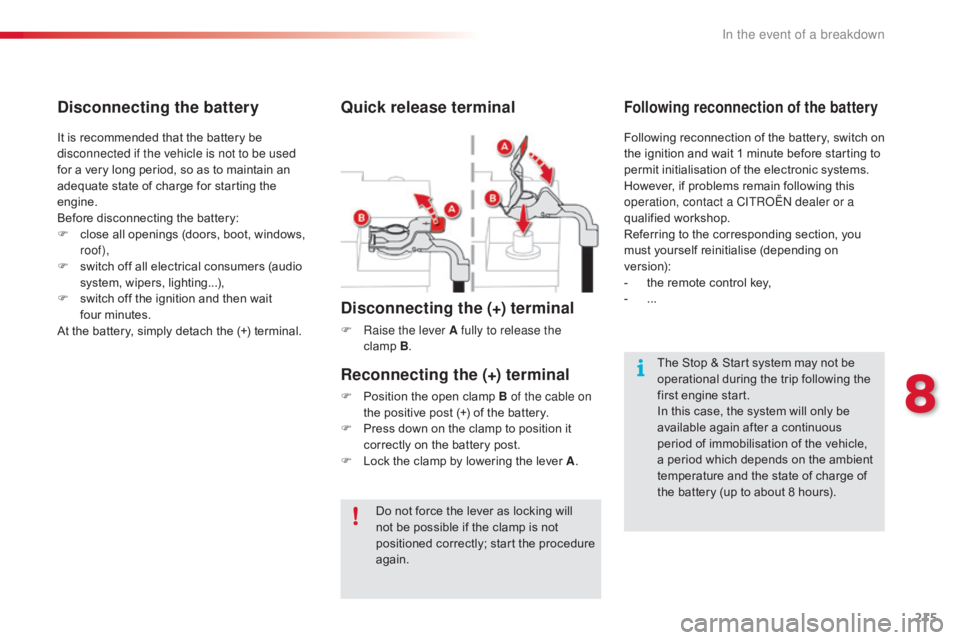
Quick release terminal
Disconnecting the (+) terminal
F Raise the lever A fully to release the clamp B.
The
Stop & Start system may not be
o
perational during the trip following the
f
irst engine start.
In
this case, the system will only be
a
vailable again after a continuous
p
eriod of immobilisation of the vehicle,
a
period which depends on the ambient
t
emperature and the state of charge of
t
he battery (up to about 8 hours).
It
is
recommended
that
the
battery
be
d
isconnected if the vehicle is not to be used
for
a
very
long
period,
so
as
to
maintain
an
a
dequate
state
of
charge
for
starting
the
e
ngine.
Before
disconnecting
the
battery:
F
c
lose
all
openings
(doors,
boot,
windows,
r
oof),
F
s
witch
off
all
electrical
consumers
(audio
s
ystem,
wipers,
lighting...),
F
s
witch
off
the
ignition
and
then
wait
f
our minutes.
At
the
battery,
simply
detach
the
(+)
terminal.
Disconnecting the battery
Following reconnection of the battery, switch on t
he ignition and wait 1 minute before starting to
p
ermit initialisation of the electronic systems.
H
owever, if problems remain following this
o
peration, contact a CITROËN dealer or a
qualified
w
orkshop.
Referring
to the corresponding section, you
m
ust
y
ourself
r
einitialise
(
depending
o
n
ve
rsion):
-
t
he remote control key,
-
...
Following reconnection of the battery
Reconnecting the (+) terminal
F Position the open clamp B of the cable on
the positive post (+) of the battery.
F
P
ress down on the clamp to position it
c
orrectly on the battery post.
F
L
ock the clamp by lowering the lever A.
8
In the event of a breakdown
Page 218 of 317
216
C4-cactus_en_Chap08_En-cas-de-panne_ed01-2016
To w i n g
General recommendations
Observe the legislation in force in your country.
E nsure that the weight of the towing vehicle is higher than that of the towed vehicle.
The
driver must remain at the wheel of the towed vehicle and must have a valid driving licence.
When
towing a vehicle with all four wheels on the ground, always use an approved towing arm;
r
ope and straps are prohibited.
The
towing vehicle must move off gently.
When
towing a vehicle with the engine off, there is no longer any power assistance for braking
o
r steering.
In
the following cases, you must always call on a professional recovery service:
-
v
ehicle broken down on a motor way or fast road,
-
f
our-wheel drive vehicle,
-
w
hen it is not possible to put the gearbox into neutral, unlock the steering, or release the
par
king
b
rake,
-
t
owing with only two wheels on the ground,
-
w
here there is no approved towing arm available...
Procedure
for
having
your
vehicle
towed
or
for
towing
another vehicle using a removable towing eye.
The towing eye is stowed under the boot floor,
or
may
be
located
under
the
front
passenger
sea
t, d
epending o
n v
ersion.
In the event of a breakdown
Page 219 of 317
217
C4-cactus_en_Chap08_En-cas-de-panne_ed01-2016
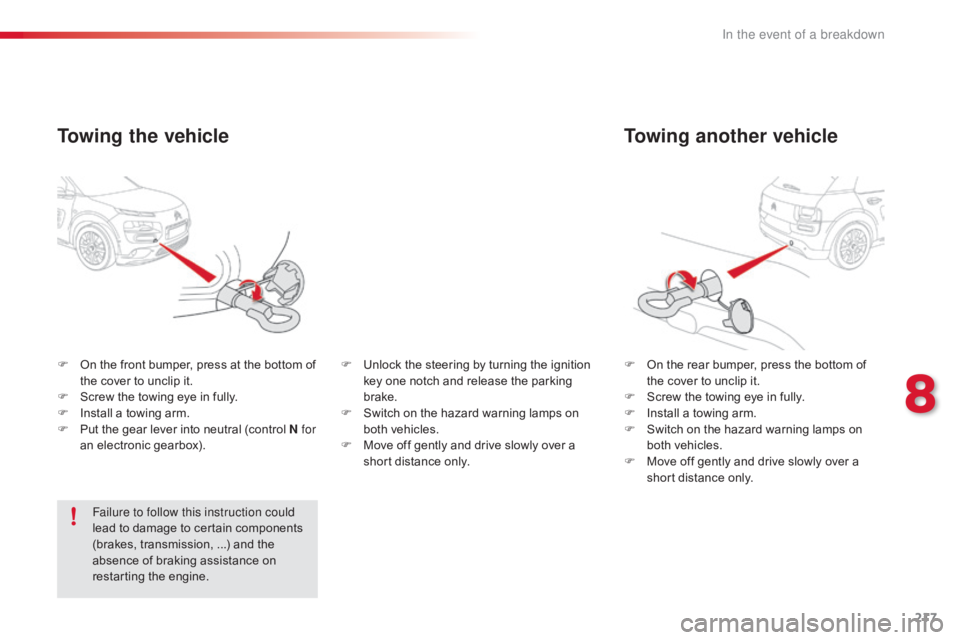
Towing another vehicle
F On the rear bumper, press the bottom of t
he cover to unclip it.
F
S
crew the towing eye in fully.
F
I
nstall a towing arm.
F
S
witch on the hazard warning lamps on
b
oth vehicles.
F
M
ove off gently and drive slowly over a
s
hort distance only.
F
O
n
the
front
bumper,
press
at
the
bottom
of
t
he
cover
to
unclip
it.
F
S
crew
the
towing
eye
in
fully.
F
I
nstall
a
towing
arm.
F
P
ut
the
gear
lever
into
neutral
(control
N for
an
electronic
gearbox).
Towing the vehicle
Failure to follow this instruction could
lead to damage to certain components
(
brakes, transmission, ...) and the
a
bsence of braking assistance on
r
estarting the engine. F
U
nlock the steering by turning the ignition
k
ey one notch and release the parking
b
rake.
F
S
witch on the hazard warning lamps on
b
oth vehicles.
F
M
ove off gently and drive slowly over a
s
hort distance only.
8
In the event of a breakdown
Page 220 of 317
218
C4-cactus_en_Chap08_En-cas-de-panne_ed01-2016
Running out of fuel (Diesel)
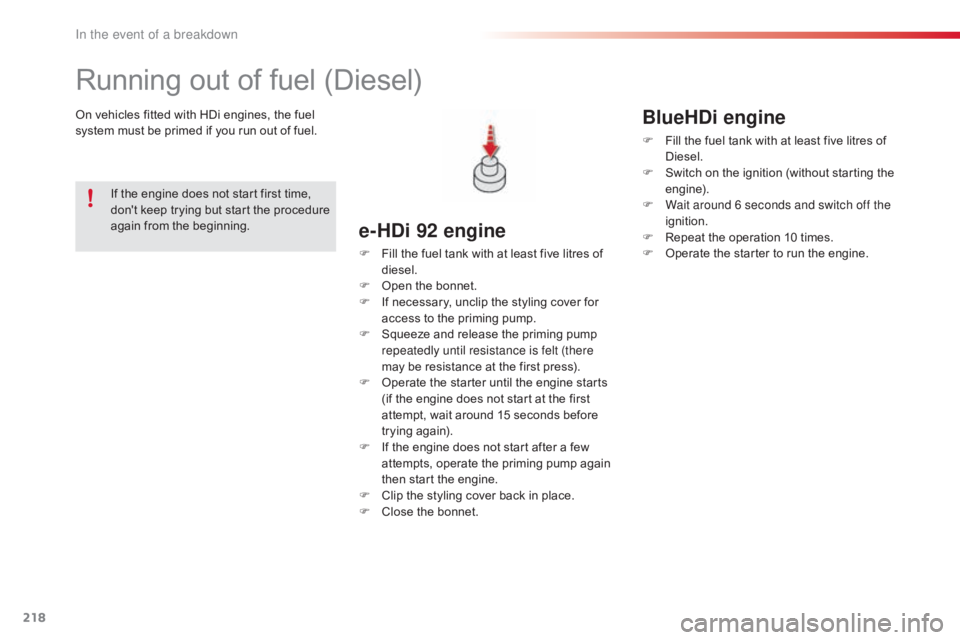
On vehicles fitted with HDi engines, the fuel system must be primed if you run out of fuel.
e-HDi 92 engine
F Fill the fuel tank with at least five litres of d
iesel.
F
O
pen the bonnet.
F
I
f necessary, unclip the styling cover for
a
ccess to the priming pump.
F
S
queeze and release the priming pump
r
epeatedly until resistance is felt (there
may
be resistance at the first press).
F
O
perate the starter until the engine starts
(
if the engine does not start at the first
a
ttempt, wait around 15 seconds before
t
rying
ag
ain).
F
I
f the engine does not start after a few
a
ttempts, operate the priming pump again
t
hen start the engine.
F
C
lip the styling cover back in place.
F
C
lose the bonnet.
If
the
engine
does
not
start
first
time,
d
on't
keep
trying
but
start
the
procedure
a
gain
from
the
beginning.
BlueHDi engine
F Fill
the fuel tank with at least five litres of D
iesel.
F
S
witch on the ignition (without starting the
e
ngine).
F
W
ait around 6 seconds and switch off the
ignition.
F
R
epeat the operation 10 times.
F
O
perate the starter to run the engine.
In the event of a breakdown
Page 229 of 317
227
C4-cactus_en_Chap10a_BTA_ed01-2016
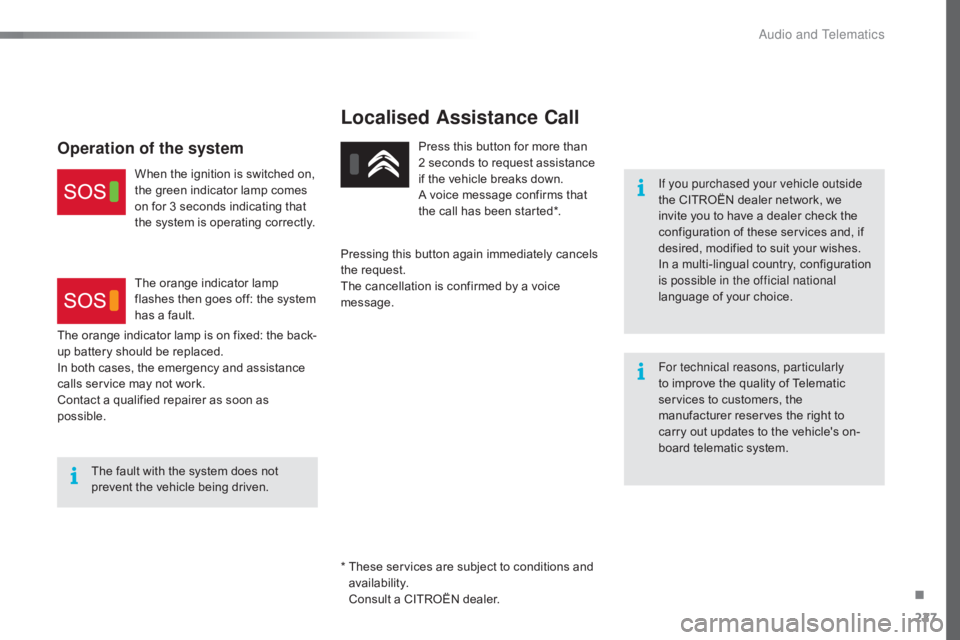
Localised Assistance Call
If you purchased your vehicle outside
the CITROËN dealer network, we
i
nvite you to have a dealer check the
c
onfiguration of these services and, if
d
esired, modified to suit your wishes.
In
a multi-lingual country, configuration
i
s possible in the official national
language
of your choice.
For technical reasons, particularly
to
improve the quality of Telematic
s
ervices to customers, the
m
anufacturer reserves the right to
c
arry out updates to the vehicle's on-
board
telematic system.
The
fault
with
the
system
does
not
p
revent
the
vehicle
being
driven. Press
this
button
for
more
than
2
seconds
to
request
assistance
i
f
the
vehicle
breaks
down.
A
voice
message
confirms
that
t
he
call
has
been
started*.
Pressing
this
button
again
immediately
cancels
t
he
request.
The
cancellation
is
confirmed
by
a
voice
m
essage.
The
orange
indicator
lamp
is
on
fixed:
the
back-
up
battery
should
be
replaced.
In
both
cases,
the
emergency
and
assistance
c
alls
service
may
not
work.
Contact
a
qualified
repairer
as
soon
as
p
ossible.
Operation of the system
When the ignition is switched on, t he green indicator lamp comes
o
n for 3 seconds indicating that
t
he system is operating correctly.
The
orange indicator lamp
f
lashes then goes off: the system
h
as a fault.
*
T
hese services are subject to conditions and
a
vailability.
C
onsult a CITROËN dealer.
.
Audio and Telematics
Page 244 of 317
242
C4-cactus_en_Chap10b_SMEGplus_ed01-2016
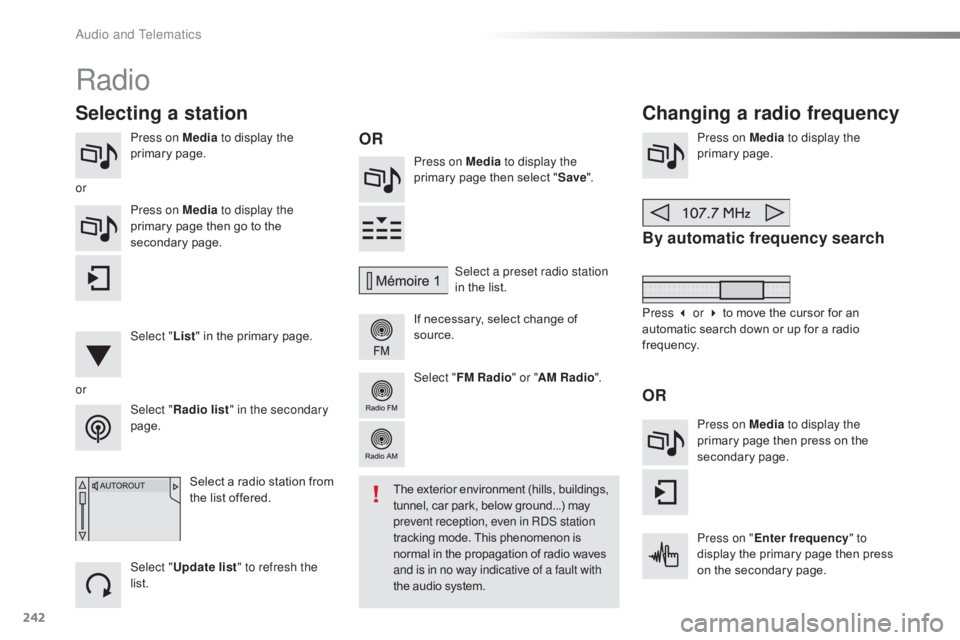
Press on Media to display the
primary pag e. Press on Media to display the
primary
page then select "Save ".
If
necessary, select change of
s
ource.Press on Media
to display the
primary pag e.
By automatic frequency search
Select "Radio list " in the secondary
page. Select a preset radio station
in
the list.
Select " FM Radio " or "AM Radio ".
Select a radio station from
t
he list offered.
Select " Update list " to refresh the
list. Press on Media to display the
primary page then go to the
s
econdary
pag
e.
Select " List" in the primary page.
Radio
Changing a radio frequency
Selecting a station
OR
orOR
The exterior environment (hills, buildings, t
unnel, car park, below ground...) may p
revent reception, even in RDS station
tracking
mode. This phenomenon is
n
ormal in the propagation of radio waves
a
nd is in no way indicative of a fault with
the
audio system.
or
Press 3 or 4 to move the cursor for an
a
utomatic search down or up for a radio
f
requency.
Press on Media to display the
primary page then press on the
s
econdary
pag
e.
Press on " Enter frequency " to
display
the primary page then press
o
n the secondary page.
Audio and Telematics
Page 250 of 317
248
C4-cactus_en_Chap10b_SMEGplus_ed01-2016
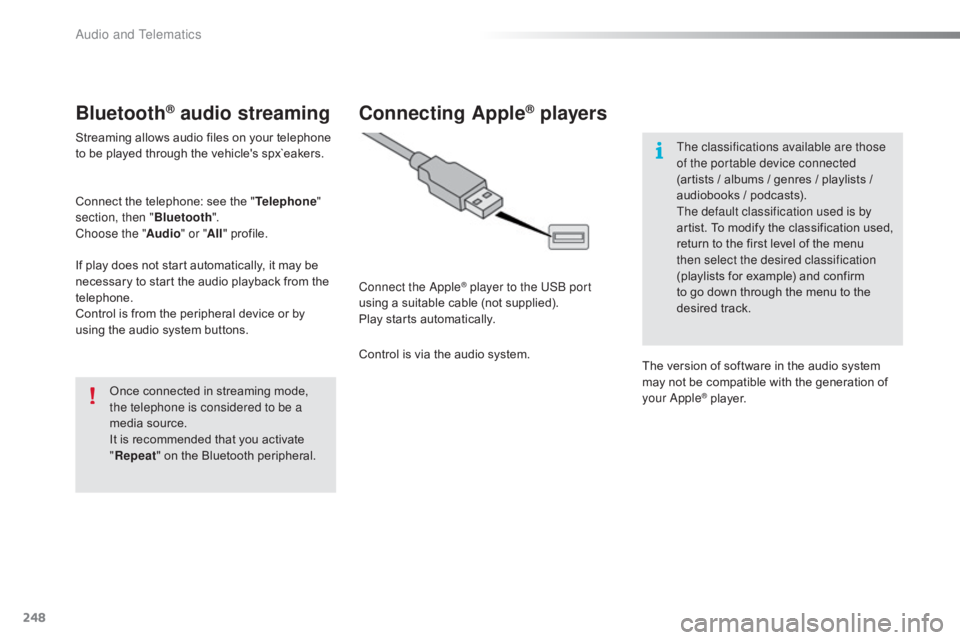
Bluetooth® audio streaming
Streaming allows audio files on your telephone to be played through the vehicle's spx`eakers.
Connect
the telephone: see the "Telephone "
section, then " Bluetooth".
Choose the " Audio" or "All"
pro
file.
If
play does not start automatically, it may be
n
ecessary to start the audio playback from the
t
elephone.
Control
is from the peripheral device or by
u
sing the audio system buttons.
Once
connected in streaming mode,
t
he telephone is considered to be a
media
source.
It
is recommended that you activate
"R
epeat"
on the Bluetooth peripheral.
Connecting Apple® players
Connect the Apple® player to the USB port
using
a
suitable
cable (not supplied).
Play
starts
automatically.
Control
is
via
the
audio system. The classifications available are those
of the portable device connected
(artists
/ albums / genres / playlists /
a
udiobooks / podcasts).
The default classification used is by
artist. To modify the classification used,
r
eturn to the first level of the menu
t
hen select the desired classification
(playlists for example) and confirm t
o go down through the menu to the
de
sired
t
rack.
The
version of software in the audio system
m
ay not be compatible with the generation of
y
our Apple
® player.
Audio and Telematics
Page 264 of 317
262
C4-cactus_en_Chap10b_SMEGplus_ed01-2016
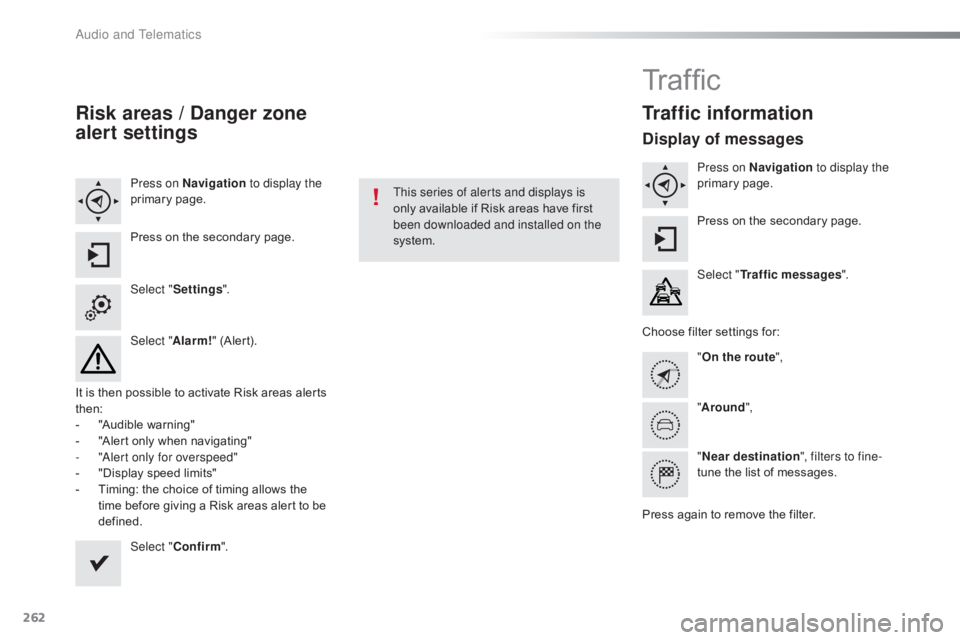
Risk areas / Danger zone
alert settings
Press on Navigation to display the
primary pag e.
Press
on the secondary page.
Select " Settings ".
Select " Alarm!"
(Alert).
It
is
then
possible to activate Risk areas alerts
t
hen:
-
"
Audible warning"
-
"
Alert
only when navigating"
-
"
Alert only for overspeed"
-
"
Display speed limits"
-
T
iming: the choice of timing allows the
t
ime
before giving a Risk areas alert to be
de
fined. Select " Confirm ". This series of alerts and displays is
only
available if Risk areas have first
b
een downloaded and installed on the
system.
Tr a f fi c
Traffic information
Display of messages
Press on Navigation to display the
primary pag e.
Press
on the secondary page.
Select " Traffic messages ".
Choose
filter settings for:
" On the route ",
" Around ",
" Near destination ", filters to fine-
tune
the list of messages.
Press
again to remove the filter.
Audio and Telematics
Page 287 of 317
285
C4-cactus_en_Chap10b_SMEGplus_ed01-2016
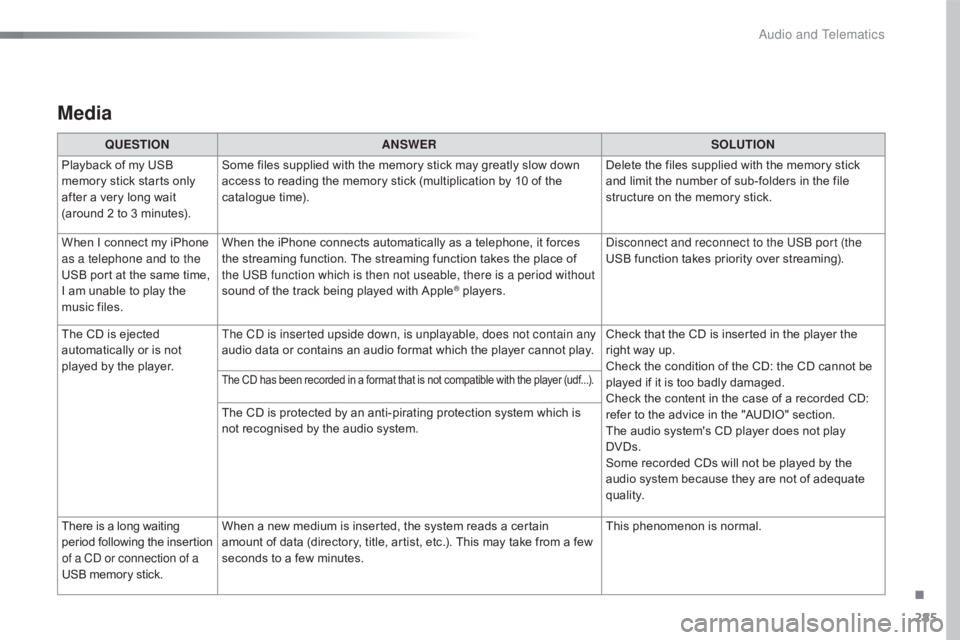
Media
QUESTIONANSWER SOLUTION
Playback of my USB
m
emory stick starts only
a
fter
a
very long wait
(
around
2 to 3 minutes). Some
files supplied with the memory stick may greatly slow down
a
ccess to reading the memory stick (multiplication by 10 of the
c
atalogue time). Delete
the files supplied with the memory stick
a
nd limit the number of sub-folders in the file
s
tructure on the memory stick.
When
I
connect my iPhone
a
s a telephone and to the
USB
port at the same time,
I
am
unable to play the
m
usic
files. When
the iPhone connects automatically as a telephone, it forces
t
he streaming function. The streaming function takes the place of
t
he USB function which is then not useable, there is a period without
sound
of the track being played with Apple
® players.D isconnect and reconnect to the USB port (the
USB function takes priority over streaming).
The
CD
is
ejected
a
utomatically
or
is
not
p
layed
by
the
player. The CD is inserted upside down, is unplayable, does not contain any
audio
data
or
contains
an
audio
format
which the player cannot play.Check
that the CD is inserted in the player the
r
ight way up.
Check
the condition of the CD: the CD cannot be
p
layed if it is too badly damaged.
Check
the content in the case of a recorded CD:
r
efer to the advice in the "AUDIO" section.
The
audio system's CD player does not play
DV
Ds.
Some
recorded CDs will not be played by the
a
udio system because they are not of adequate
q
uality.
The CD has been recorded in a format that is not compatible with the player (udf...).
The CD is protected by an anti-pirating protection system which is not recognised by the audio system.
There
is
a
long
waiting
p
eriod
f
ollowing
t
he
i
nsertion
o
f a CD or connection of a
USB
memory
stick. When
a new medium is inserted, the system reads a certain
a
mount of data (directory, title, artist, etc.). This may take from a few
s
econds to a few minutes. This
phenomenon is normal.
.
Audio and Telematics
Page 291 of 317

289
C4-cactus_en_Chap10b_SMEGplus_ed01-2016
Telephone
QUESTIONANSWER SOLUTION
I
cannot connect my
B
luetooth
t
elephone. The
telephone's Bluetooth function may be switched off or the
t
elephone may not be visible. Check
that your telephone's Bluetooth function is
s
witched on.
Check
in the telephone settings that it is "visible
t
o all".
The
Bluetooth telephone is not compatible with the system.You
can check the compatibility of your
t
elephone at www.citroen.co.uk (services).
The
volume of the
t
elephone connected
in
Bluetooth mode is
ina
udible. The
volume depends both on the system and on the telephone. Increase the volume of the audio system, to
m
aximum if required, and increase the volume of
t
he telephone if necessary.
The
ambient noise level has an influence on the quality of
t
elephone
c
ommunication. Reduce
the ambient noise level (close the
w
indows, reduce the booster fan speed, slow
down...).
Some
contacts are
d
uplicated in the list. The
options for synchronizing contacts are synchronizing the
c
ontacts on the SIM card, the contacts on the telephone, or both.
W
hen both synchronizations are selected, some contacts may be
dup
licated. Select "Display SIM card contacts" or "Display
telephone
c
ontacts".
Contacts are not shown in
alphabetical
o
rder. Some
telephones offer display options. Depending on the settings
c
hosen, contacts can be transferred in a specific order.Modify
the display setting in the telephone
d
i r e c to r y.
The
system does not
r
eceive
SMS
text
messages. The
Bluetooth mode does not permit sending SMS text messages
t
o the system.
.
Audio and Telematics