AUX Citroen C5 RHD 2015 (RD/TD) / 2.G Owner's Manual
[x] Cancel search | Manufacturer: CITROEN, Model Year: 2015, Model line: C5 RHD, Model: Citroen C5 RHD 2015 (RD/TD) / 2.GPages: 344, PDF Size: 12.96 MB
Page 9 of 344
7
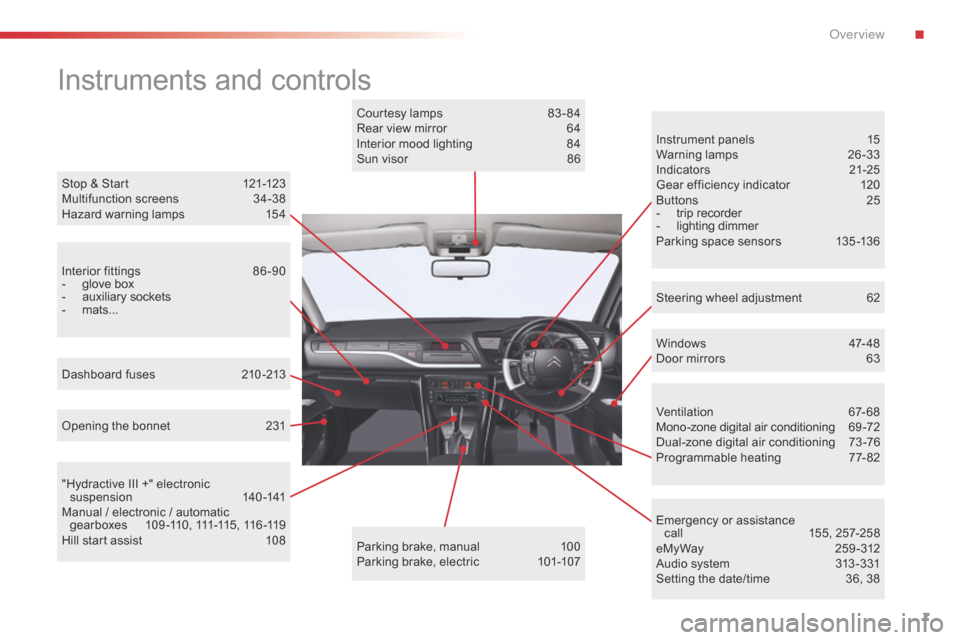
Instruments and controls
Instrument panels 15
Warning lamps 2 6-33
Indicators
2
1-25
Gear efficiency indicator
1
20
Buttons
2
5
-
trip recorder
-
lighting dimmer
P
arking space sensors
1
35 -136
Windows
4
7- 48
Door mirrors
6
3
Opening the bonnet
2
31
Dashboard fuses
2
10 -213
"Hydractive III +" electronic suspension
14
0 -141
Manual / electronic / automatic g e a r b o x e s
1
0 9 -11 0 , 111 -115 , 11 6 -11 9
Hill start assist
1
08 Courtesy lamps
8
3 - 84
Rear view mirror
6
4
Interior mood lighting
8
4
Sun visor
8
6
Parking brake, manual
1
00
Parking brake, electric
1
01-107
Stop & Start
1
21-123
Multifunction screens
3
4-38
Hazard warning lamps
1
54
Ventilation
6
7-68
Mono-zone digital air conditioning
6
9 -72
Dual-zone digital air conditioning
7
3-76
Programmable heating
7
7-82
Emergency or assistance call
1
55, 257-258
e My Way
2
59 - 312
Audio system
3
13 -331
Setting the date/time
3
6, 38
Steering wheel adjustment
6
2
Interior fittings
8
6 -90
-
glove box
-
auxiliary sockets
-
mats...
.
O
Page 37 of 344
35
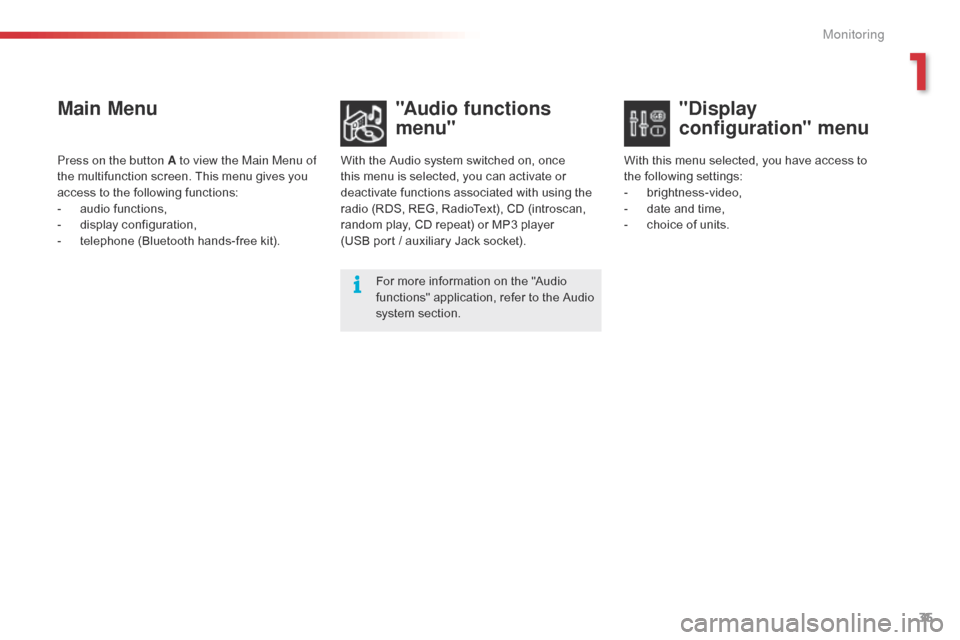
Main Menu"Audio functions
menu"
With the Audio system switched on, once
this menu is selected, you can activate or
deactivate functions associated with using the
radio (RDS, REG, RadioText), CD (introscan,
random play, CD repeat) or MP3 player
(USB
port / auxiliary Jack socket).For more information on the "Audio
functions" application, refer to the Audio
system section.
Press on the button A to view the Main Menu of
the multifunction screen. This menu gives you
access to the following functions:
-
a
udio functions,
-
d
isplay configuration,
-
t
elephone (Bluetooth hands-free kit). With this menu selected, you have access to
the following settings:
-
b
rightness-video,
-
d
ate and time,
-
c
hoice of units.
"Display
configuration" menu
1
Monitoring
Page 90 of 344

88
Front armrest
Comfort and storage system for the driver and front passenger.
Adjustment
To optimise your driving position:
F l ift the control A ,
F
p
ush the armrest for wards.
The armrest returns to its initial position when
you push it rear wards.
Driver's oddments tray
F Pull the handle towards you.
Cup holder / USB port and/or
auxiliary JACK socket*
The front armrest includes a cup holder and a
USB port and/or auxiliary JACK socket.
The USB port allows connection of a portable
device, sending the audio files to your audio
system so that they can be heard via the
vehicle's speakers.
F
L
ift the armrest to access the cup holder or
the USB port and/or auxiliary JACK socket.
* Depending on equipment.
Ease of use and comfort
Page 263 of 344

01
261
Continuous press:
reinitialisation of the system.
o
pen the "Telephone" menu
and display the list of recent
calls or accept an incoming call.
FIRST STEPS
Short press: select pre-set radio station.
Long press: pre-set the current station.
a
ccess to the "MUSIC" menu, and display of the CD/MP3/
a
pple
® tracks and folders.
Long press: display the audio settings screen for the
"MEDIA" (CD/USB/iPod/Streaming/AUX) sources.a
ccess to the "RADIO" menu and
display the list of stations received.
Long press: display the audio settings
screen for the radio tuner source.
Page 296 of 344
08
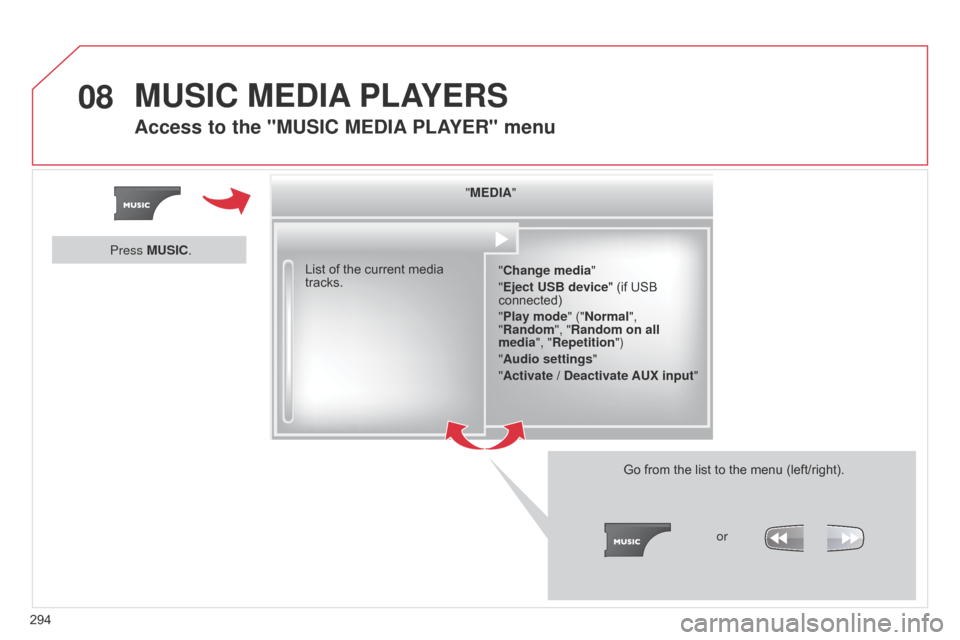
294"MEDIA"
"Change media"
"Eject USB device" (if USB
connected)
"Play mode" ("Normal",
"Random", "Random on all
media", "Repetition")
"Audio settings "
"Activate / Deactivate AUX input "
List of the current media
tracks.
Go from the list to the menu (left/right).or
Press MUSIC.
MUSIC MEDIA
PLAYERS
Access to the "MUSIC MEDIA PLAYER " menu
Page 297 of 344
08
295
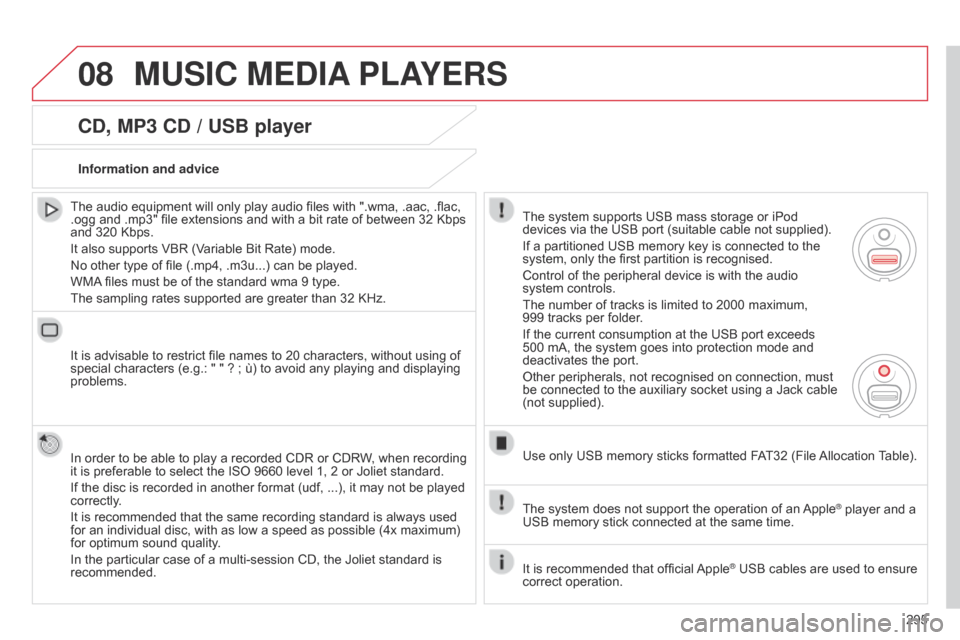
CD, MP3 CD / USB player
The audio equipment will only play audio files with ".wma, .aac, .flac,
.ogg and .mp3" file extensions and with a bit rate of between 32 Kbps
and 320 Kbps.
It also supports VBR (Variable Bit Rate) mode.
No other type of file (.mp4, .m3u...) can be played.
WMA files must be of the standard wma 9 type.
The sampling rates supported are greater than 32 KHz.
It is advisable to restrict file names to 20 characters, without using of
special characters (e.g.: " " ? ; ù) to avoid any playing and displaying
problems.
In order to be able to play a recorded CDR or CDRW, when recording
it is preferable to select the ISO 9660 level 1, 2 or Joliet standard.
If the disc is recorded in another format (udf, ...), it may not be played
correctly.
It is recommended that the same recording standard is always used
for an individual disc, with as low a speed as possible (4x maximum)
for optimum sound quality.
In the particular case of a multi-session CD, the Joliet standard is
recommended. Information and advice
The system supports USB mass storage or iPod
devices via the USB port (suitable cable not supplied).
If a partitioned USB memory key is connected to the
system, only the first partition is recognised.
Control of the peripheral device is with the audio
system controls.
The number of tracks is limited to 2000 maximum,
999
tracks per folder.
If the current consumption at the USB port exceeds
500 mA, the system goes into protection mode and
deactivates the port.
Other peripherals, not recognised on connection, must
be connected to the auxiliary socket using a Jack cable
(not supplied).
Use only USB memory sticks formatted FAT32 (File Allocation Table).
The system does not support the operation of an Apple
® player and a
USB memory stick connected at the same time.
It is recommended that official Apple
® USB cables are used to ensure
correct operation.
MUSIC MEDIA PLAYERS
Page 298 of 344
08
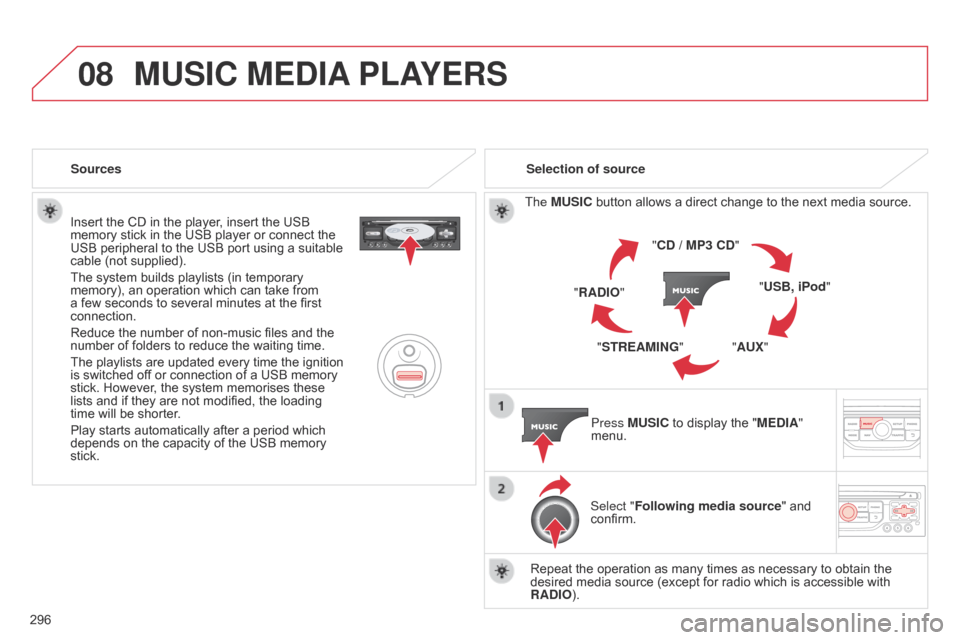
296Insert the CD in the player, insert the USB
memory stick in the USB player or connect the
USB peripheral to the USB port using a suitable
cable (not supplied).
The system builds playlists (in temporary
memory), an operation which can take from
a few seconds to several minutes at the first
connection.
Reduce the number of non-music files and the
number of folders to reduce the waiting time.
The playlists are updated every time the ignition
is switched off or connection of a USB memory
stick. However, the system memorises these
lists and if they are not modified, the loading
time will be shorter.
Play starts automatically after a period which
depends on the capacity of the USB memory
stick.
Selection of source
The MUSIC button allows a direct change to the next media source.
"CD / MP3 CD"
"USB, iPod"
"AUX"
"STREAMING"
"RADIO"
Press MUSIC to display the "MEDIA"
menu.
Select "Following media source " and
confirm.
Repeat the operation as many times as necessary to obtain the
desired media source (except for radio which is accessible with
RADIO).
Sources
MUSIC MEDIA
PLAYERS
Page 301 of 344

08
299
MUSIC MEDIA PLAYERS
Using the auxiliary input (AUX)
JACK/USB audio cable not supplied
Connect the portable device
(MP3, WMA player…) to the
JACK auxiliary audio socket or
USB port using a suitable cable.
Press MUSIC to display the "MUSIC"
menu. Select "Activate
/ Deactivate AUX
input " and confirm.
First adjust the volume of your portable
device (to a high level). Then adjust the
volume of your audio system.
Display and management of the controls are via the portable device.
Page 306 of 344

11
304
SCREEN MENU MAP(S)
1
1
2
1
1
2
2
2
2
2
2
2
3
3
2
2
2
1
Random on all media
Repetition
Audio settings
Activate / Deactivate AUX
input
"MUSIC" MENU
Change Media
Read mode
Normal
Random
All passengers
Le-Ri balance
Fr-Re balance
Auto. Volume
Update radio list
Bass
Treble
Loudness
Distribution
d
river
1
2
1
1
3
3
3
3
3
3
2Equalizer
"RADIO" MENUChange Waveband
Options
RDS station tracking
Audio settings
none
Classical
Jazz
Rock
T
echno
Vocal
2
2
2
2
USB/iPod
AUX CD
Bluetooth streaming
2
2
FM
AM
3Activated / Deactivated
3Activated / Deactivated
Page 316 of 344

01
314
FIRST STEPS
Eject CD.Select source:
radio, audio CD / MP3 CD, USB,
Jack connection, Streaming,
AUX.
Select the screen display
mode:
Date, audio functions, trip
computer, telephone. Automatic frequency search
down/up.
Select previous/next CD, MP3
or USB track.
Audio settings: front/
rear fader, left/right
balance, bass/treble,
loudness, audio
ambiences.
d
isplay the list of
local stations.
Long press: CD
tracks or MP3
folders (CD / USB).
TA (Traffic Announcements)
on/off.
Long press: PTY* (radio
Programme TYpe) mode.
Display main menu.
The DARK button changes the screen display
for improved driving comfort at night.
1
st press: upper bar only illuminated.
2nd press: black screen.
3rd press: return to standard display.
On/off, volume setting.
Buttons 1 to 6:
Select a pre-set radio station.
Long press: pre-set a station. Select next frequency down/up.
Select previous/next MP3 folder.
Select previous/next folder / genre /
artist / playlist (USB).Confirm.
Selection of AM / FM
wavebands.
Abandon the current
operation.
* Available according to version.