USB CITROEN DS3 CABRIO DAG 2017 Handbook (in English)
[x] Cancel search | Manufacturer: CITROEN, Model Year: 2017, Model line: DS3 CABRIO DAG, Model: CITROEN DS3 CABRIO DAG 2017Pages: 444, PDF Size: 14.09 MB
Page 48 of 444

DS3_en_Chap01_controle-de-marche_ed02-2015
With the Audio system switched on, once this
menu has been selected you can activate or
deactivate the functions associated with use
of
t
he
r
adio
(
RDS,
R
EG,
R
adioText),
t
he
C
D
(i
ntroscan,
s
huffle,
C
D
r
epeat)
o
r
t
he
M
P3
pl
ayer
(
USB
p
ort
/ a
uxiliary
s
ocket).
For more information on the "Audio functions"
application,
r
efer
t
o
t
he
"
Audio
s
ystem"
s
ection.
"Audio functions"
menu"Trip computer" menu
Once this menu has been selected, you can
consult i
nformation c oncerning t he s tatus o f t he ve
hicle
(
warnings
l
og,
s
tatus
o
f
f
unctions,
e
tc.)
Alert log
This summarises the active warning messages, displaying t hem i n s uccession i n t he mu
ltifunction
sc
reen.
Status of functions
This summarises the status (active or inactive) of the v ehicle's f unctions.
Enter distance to destination
This allows you to enter an approximate distance u ntil y our f inal d estination. F
Pr
ess the "ME
nU
"
b
utton
t
o
g
ain
a
ccess
to t
he general menu
.
F
Pr
ess the arrows, then the "OK"
button to
select the " Trip computer "
m
enu.
F
In t
he "
Trip computer " menu, select one
of
t
he
f
ollowing
a
pplications:
Page 96 of 444
DS3_en_Chap03_confort_ed02-2015
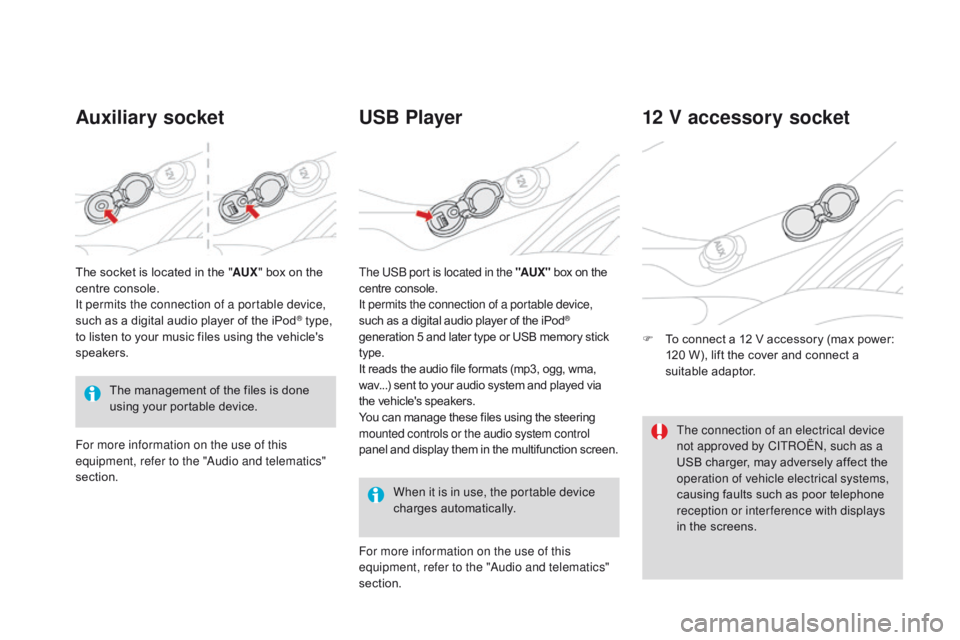
Auxiliary socketUSB Player
When it is in use, the portable device
charges au
tomatically.
12 V accessory socket
F To connect a 1 2 V a ccessory ( max p ower: 12
0 W ), l ift t he c over a nd c onnect a su
itable
ad
aptor.
The
m
anagement
o
f
t
he
f
iles
i
s
d
one
us
ing
y
our
p
ortable
d
evice.
The
s
ocket
i
s
l
ocated
i
n
t
he
"
AU
X
"
b
ox
o
n
t
he
ce
ntre
c
onsole.
It permits the connection of a portable device,
such
a
s
a d
igital
a
udio
p
layer
o
f
t
he
i
Pod
® type,
to l
isten t
o y
our m
usic f
iles u
sing t
he v
ehicle's sp
eakers.
For more information on the use of this
equipment, refer to the "Audio and telematics"
section. For more information on the use of this
equipment, refer to the "Audio and telematics"
section. The USB port is located in the "AUX "
b
ox
o
n
t
he
ce
ntre
c
onsole.
It permits the connection of a portable device,
such a s a d igital a udio p layer o f t he i Pod®
generation 5 a
nd l
ater t
ype o
r U
SB m
emory s tick ty
pe.
It
r
eads
t
he
a
udio
f
ile
f
ormats
(
mp3,
o
gg,
w
ma,
wa
v...)
s
ent
t
o
y
our
a
udio
s
ystem
a
nd
p
layed
v
ia
th
e
v
ehicle's
s
peakers.
You
c
an
m
anage
t
hese
f
iles
u
sing
t
he
s
teering
mo
unted controls or the audio system control
panel
a
nd
d
isplay
t
hem
i
n
t
he
m
ultifunction
s
creen. The connection of an electrical device
not approved by CITROËN, such as a
USB
c
harger,
m
ay
a
dversely
a
ffect
t
he
op
eration of vehicle electrical systems,
causing
f
aults
s
uch
a
s
p
oor
t
elephone
re
ception or inter ference with displays
in
t
he
s
creens.
Page 295 of 444
3
2
293
DS3_en_Chap11c_SMEGplus_ed02-2015
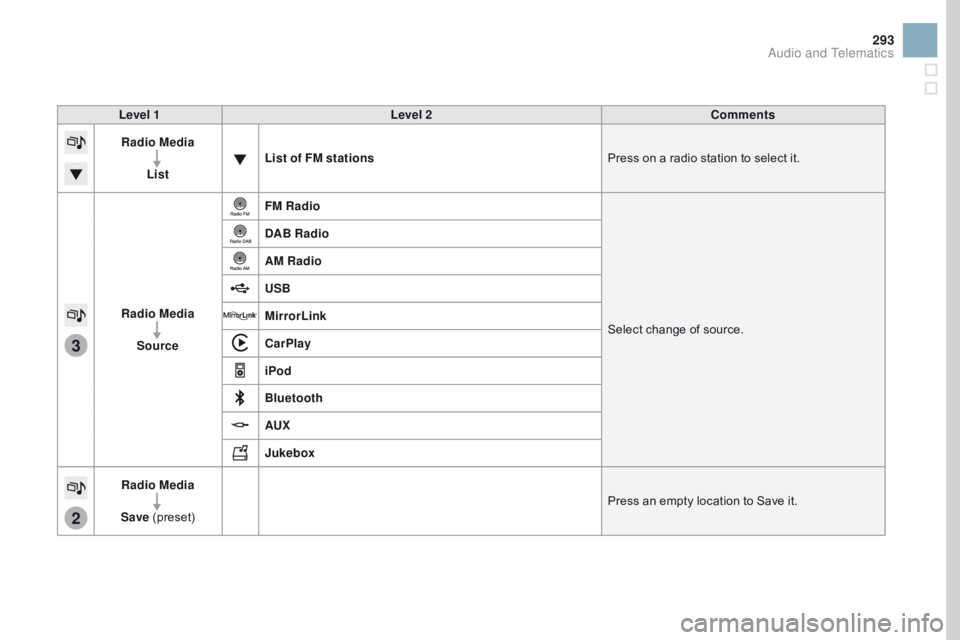
Level 1Level 2 Comments
Radio Media
List List of FM stations
Press
o
n
a r
adio
s
tation
t
o
s
elect
i
t.
Radio Media Source FM Radio
Select
c
hange
o
f
s
ource.
DAB Radio
AM Radio
USB
MirrorLink
CarPlay
iPod
Bluetooth
AUX
Jukebox
Radio Media
Save
(p
reset) Press
a
n
e
mpty
l
ocation
t
o
S
ave
i
t.
Audio and Telematics
Page 300 of 444
2
3
3
1
DS3_en_Chap11c_SMEGplus_ed02-2015
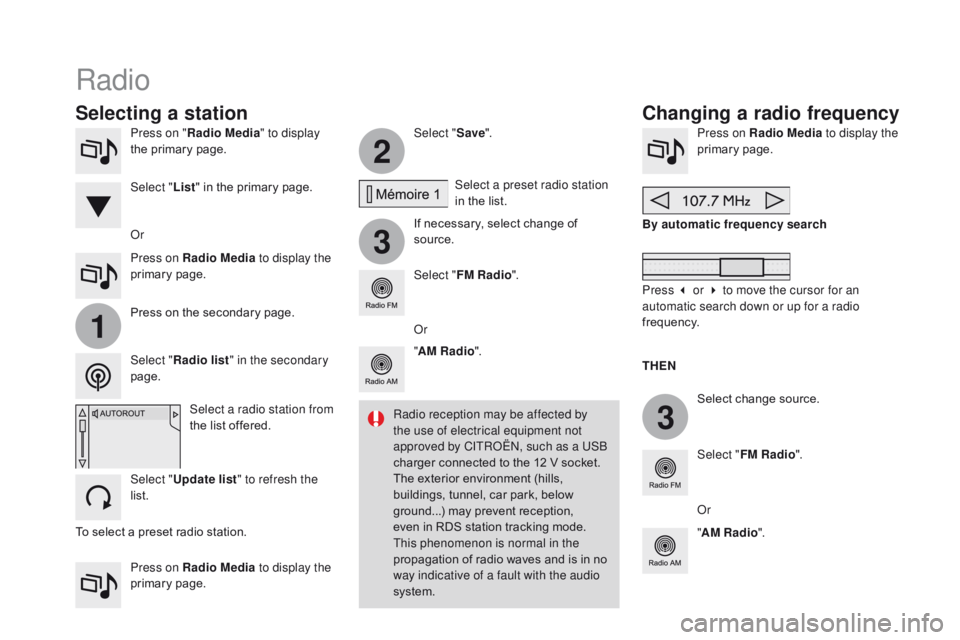
Press on "Radio Media " to display
the p rimary p age.
Press on Radio Media to display the
primary
page
. Select "
Save".
If
n
ecessary,
s
elect
c
hange
o
f
so
urce.Press on Radio Media
to display the
primary page .
Select
c
hange
s
ource.
"
AM Radio ". By automatic frequency search
Select "FM Radio ".
" AM Radio ".
Press on Radio Media
to display the
primary
page
.
Or Select a preset radio station
in
t
he
l
ist.
Select " FM Radio ".
Select a radio station from
the
l
ist
o
ffered.
Select " Update list " to refresh the
list. Press
o
n
t
he
s
econdary
p
age.
Select " Radio list " in the secondary
page. Select " List"
i
n
t
he
p
rimary
p
age.
Radio
Changing a radio frequency
Selecting a station
THEn
Ra
dio reception may be affected by
the use of electrical equipment not
approved by CITROËN, such as a USB
charger
c
onnected
t
o
t
he
1
2
V s
ocket.
The
e
xterior
e
nvironment
(
hills,
bu
ildings,
t
unnel,
c
ar
p
ark,
b
elow
gr
ound...)
m
ay
p
revent
r
eception,
ev
en
i
n
R
DS
s
tation
t
racking
m
ode.
Th
is phenomenon is normal in the
propagation
o
f
r
adio
w
aves
a
nd
i
s
i
n
n
o
wa
y indicative of a fault with the audio
system. Or
Press 3 or 4 to move the cursor for an
automatic search down or up for a radio
frequency.
Or
To
s
elect
a p
reset
r
adio
s
tation.
Page 304 of 444
3
DS3_en_Chap11c_SMEGplus_ed02-2015
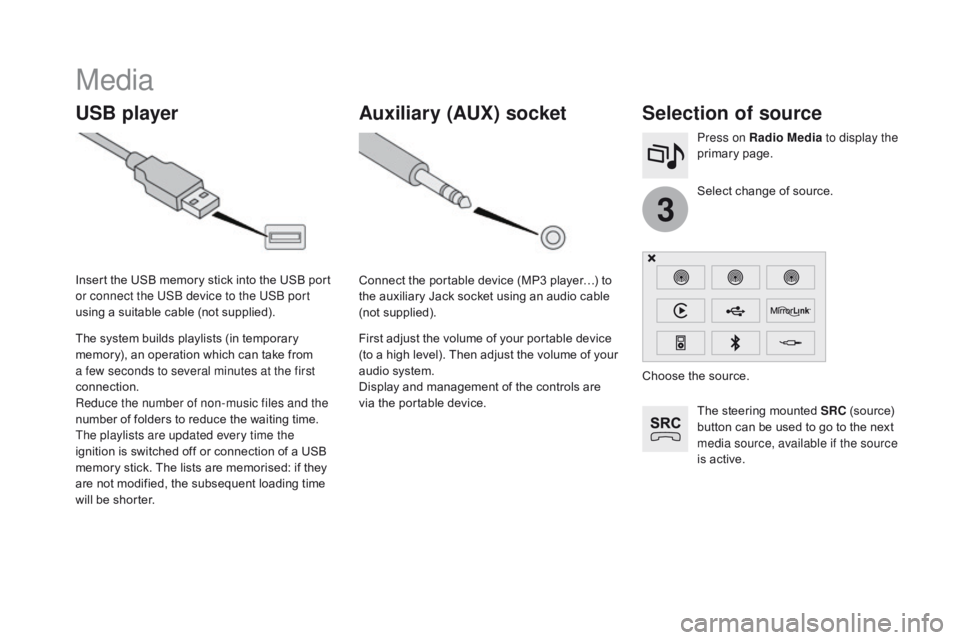
Media
USB playerSelection of source
The steering mounted SRC (source) bu
tton c an b e u sed t o g o t o t he n ext me
dia source, available if the source
is
a
ctive.
Select
c
hange
o
f
s
ource.
Press on Radio Media
to display the
primary
page
.
The
s
ystem
b
uilds
p
laylists
(
in
t
emporary
me
mory),
a
n
o
peration
w
hich
c
an
t
ake
f
rom
a fe
w seconds to several minutes at the first
connection.
Reduce the number of non-music files and the
number o
f f
olders t
o r
educe t
he w
aiting t
ime.
The playlists are updated every time the
ignition
i
s
s
witched
o
ff
o
r
c
onnection
o
f
a U
SB
me
mory
s
tick.
T
he
l
ists
a
re
m
emorised:
i
f
t
hey
ar
e
n
ot
m
odified,
t
he
s
ubsequent
l
oading
t
ime
wi
ll
b
e
s
horter.
Insert
t
he
U
SB
m
emory
s
tick
i
nto
t
he
U
SB
p
ort
or c
onnect the USB device to the USB port
using
a s
uitable
c
able
(
not
s
upplied).
Auxiliary (AUX) socket
Connect the portable device (MP3 player…) to th
e a uxiliary J ack s ocket u sing a n a udio c able (n
ot
supp
lied).
First
a
djust
t
he
v
olume
o
f
y
our
p
ortable
d
evice
(t
o
a h
igh
l
evel).
T
hen
a
djust
t
he
v
olume
o
f
y
our
au
dio
s
ystem.
Display
a
nd
m
anagement
o
f
t
he
c
ontrols
a
re
vi
a
t
he
p
ortable
d
evice. Choose
t
he
s
ource.
Page 305 of 444
303
DS3_en_Chap11c_SMEGplus_ed02-2015
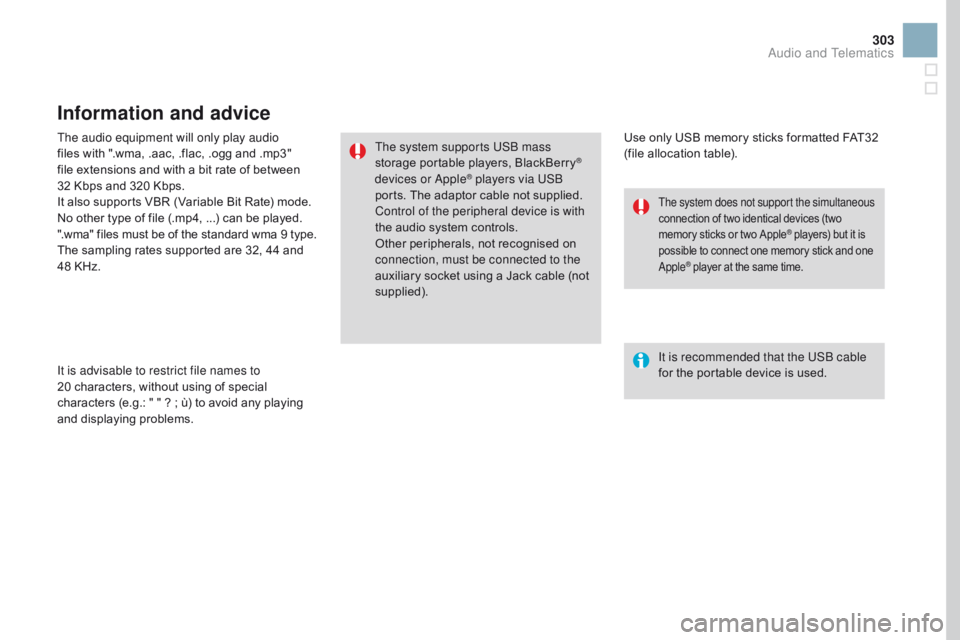
The audio equipment will only play audio
files with " .wma, . aac, . flac, . ogg a nd . mp3" fi
le
e
xtensions
a
nd
w
ith
a b
it
r
ate
o
f
b
etween
32 K
bps
a
nd
3
20
K
bps.
It
a
lso
s
upports
V
BR
(
Variable
B
it
R
ate)
m
ode.
No
o
ther
t
ype
o
f
f
ile
(
.mp4, ...)
c
an
b
e
p
layed.
".wma"
f
iles
m
ust
b
e
o
f
t
he
s
tandard
w
ma
9 t
ype.
The
s
ampling
r
ates
s
upported
a
re
3
2,
4
4
a
nd
48 K
Hz.
It is advisable to restrict file names to
20 characters,
w
ithout
u
sing
o
f
s
pecial
ch
aracters
(
e.g.:
" " ? ; ù
)
t
o
a
void
a
ny
p
laying
an
d
di
splaying
proble
ms.
Information and advice
Use only USB memory sticks formatted FAT32 (file a llocation t able).
The system supports USB mass
storage
p
ortable
p
layers,
B
lackBerry
®
devices or Apple® players via USB
ports. T
he a
daptor c able n ot s upplied.
Control of the peripheral device is with
the
a
udio
s
ystem
c
ontrols.
Other
p
eripherals,
n
ot
r
ecognised
o
n
con
nection, must be connected to the
auxiliary
s
ocket
u
sing
a J
ack
c
able
(
not
supp
lied). It is recommended that the USB cable
for
t
he
p
ortable
d
evice
i
s
u
sed.
The system does not support the simultaneous
connection of t wo i dentical d evices ( two me
mory
s
ticks
o
r
t
wo
A
pple
® players) but it is po
ssible t
o c
onnect o
ne m
emory s tick a nd o ne Apple® player at the same time.
Audio and Telematics
Page 306 of 444
DS3_en_Chap11c_SMEGplus_ed02-2015
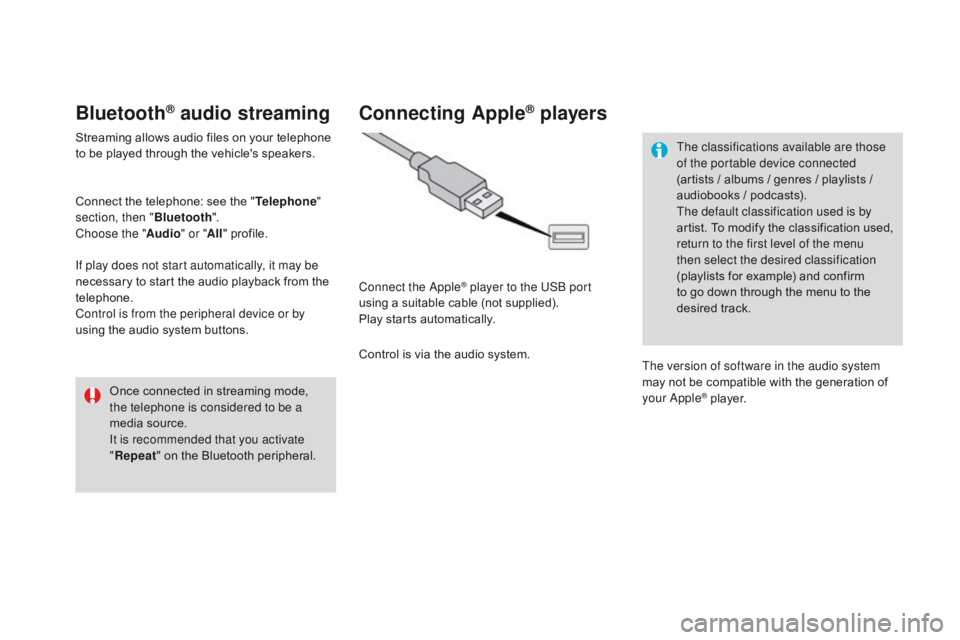
Bluetooth® audio streaming
Streaming allows audio files on your telephone to be p layed t hrough t he v ehicle's s peakers.
Connect
t
he
t
elephone:
s
ee
t
he
"T
elephone"
section, then " Bluetooth".
Choose the " Audio" or "All"
prof
ile.
If play does not start automatically, it may be
necessary
t
o
s
tart
t
he
a
udio
p
layback
f
rom
t
he
te
lephone.
Control is from the peripheral device or by
using
t
he
a
udio
s
ystem
b
uttons.
Once
c
onnected
i
n
s
treaming
m
ode,
th
e telephone is considered to be a
media
s
ource.
It is recommended that you activate
" Repeat "
o
n
t
he
B
luetooth
p
eripheral.
Connecting Apple® players
Connect the Apple® player to the USB port
using a s
uitable c
able ( not s upplied).
Play
s
tarts
a
utomatically.
Control
i
s
v
ia
t
he
a
udio
s
ystem. The classifications available are those
of the portable device connected
(artists
/ a
lbums
/ g
enres
/ p
laylists
/ au
diobooks
/ p
odcasts).
The default classification used is by
artist.
T
o
m
odify
t
he
c
lassification
u
sed,
re
turn to the first level of the menu
then select the desired classification
(playlists f or e xample) a nd c onfirm to g
o d own t hrough t he m enu t o t he desi
red
tr
ack.
The version of software in the audio system
may
n
ot
b
e
c
ompatible
w
ith
t
he
g
eneration
o
f
yo
ur Apple
® player.
Page 307 of 444
12
13
15
305
DS3_en_Chap11c_SMEGplus_ed02-2015
Managing the Jukebox
Connect the device (MP3 player...) to the USB port o r a uxiliary J ack s ocket u sing a s uitable au
dio
c
able.
When no audio file is copied to the
system,
w
hich
h
as
a c
apacity
o
f
8 G
B,
al
l
o
f
t
he
J
ukebox
f
unction
s
ymbols
a
re
gr
eyed
a
nd
a
re
n
ot
a
vailable.
Select " Media list ". Select t
he m agnifying g lass t o e nter th
e folder or album and select audio
file
b
y
a
udio
f
ile.
Select copy " Copy Jukebox ". Select "
Confirm " then "Copy".
Select " Sor t by folder ". Select "
new f
older" to create a
folder
s
tructure
i
n
t
he
J
ukebox.
" Sor t by album ". Select "
Keep structure " to retain the structure
from
t
he
d
evice.
While
c
opying
t
he
s
ystem
r
eturns
t
o
t
he
pr
imary
p
age;
y
ou
c
an
g
o
b
ack
t
o
t
he
c
opy
v
iew
at a
ny
t
ime
b
y
s
electing
t
his
b
utton.
Or Or
Audio and Telematics
Page 339 of 444
337
DS3_en_Chap11c_SMEGplus_ed02-2015
Media
QUESTIOnAnSWERSOLUTIOn
Pl
ayback
o
f
m
y
U
SB
me
mory
s
tick
s
tarts
o
nly
af
ter
a v
ery
l
ong
w
ait
(a
round
2 t
o
3 m
inutes). Some
f
iles
s
upplied
w
ith
t
he
m
emory
s
tick
m
ay
g
reatly
s
low
d
own
ac
cess
t
o
r
eading
t
he
m
emory
s
tick
(
multiplication
b
y
1
0
o
f
t
he
ca
talogue
t
ime). Delete
t
he
f
iles
s
upplied
w
ith
t
he
m
emory
s
tick
an
d limit the number of sub-folders in the file
structure
o
n
t
he
m
emory
s
tick.
When I connect my iPhone
as telephone and to the
USB port at the same
time, I am unable to play
the
m
usic
f
iles. When the iPhone connects automatically as a telephone, it forces
the
s
treaming
f
unction.
T
he
s
treaming
f
unction
t
akes
t
he
p
lace
of t
he USB function which is then not useable, there is a period
without
s
ound
o
f
t
he
t
rack
b
eing
p
layed
w
ith
A
pple
® players.Di sconnect
a
nd
r
econnect
t
o
t
he
U
SB
p
ort
(
the
US
B
f
unction
t
akes
p
riority
o
ver
s
treaming).
Some characters in the
media information are not
displayed correctly while
playing. The
a
udio
s
ystem
d
oes
n
ot
d
isplay
s
ome
t
ypes
o
f
c
haracters. Use
s
tandard
c
haracters
t
o
n
ame
t
racks
a
nd
fo
lders.
Playing
o
f
s
treaming
f
iles
do
es
n
ot
s
tart. The
p
eripheral
d
evice
c
onnected
d
oes
n
ot
s
upport
a
utomatic
p
lay. Start
t
he
p
layback
f
rom
t
he
d
evice.
The
n
ames
o
f
t
racks
a
nd
th
e
t
rack
l
ength
a
re
n
ot
di
splayed on the screen
when
st
reaming
aud
io. The
B
luetooth
p
rofile
d
oes
n
ot
a
llow
t
he
t
ransfer
o
f
t
his
i
nformation.
Audio and Telematics
Page 344 of 444
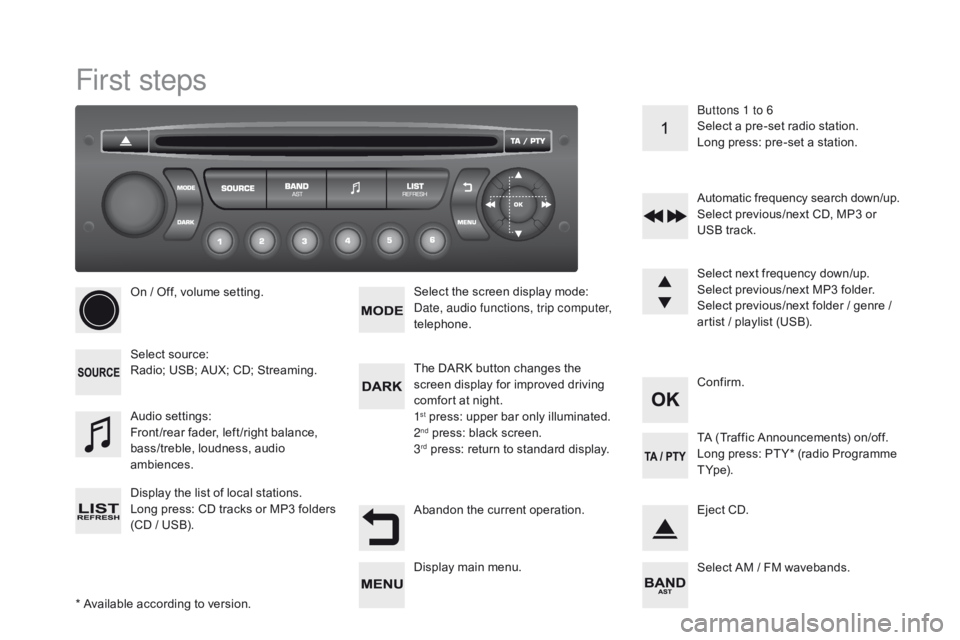
DS3_en_Chap11d_RD45_ed02-2015
First steps
* Available according to version.
On
/ O
ff,
v
olume
s
etting.
Select
so
urce:
Radio;
U
SB;
A
UX;
C
D;
S
treaming.
Display
t
he
l
ist
o
f
l
ocal
s
tations.
Long
pr
ess:
CD tr
acks
or MP
3
fo
lders
(C
D
/ U
SB). Select
t
he
s
creen
d
isplay
m
ode:
Date, audio functions, trip computer,
telephone.
Audio
set
tings:
Front /rear
f
ader,
l
eft /right
b
alance,
ba
ss/treble,
l
oudness,
a
udio
amb
iences.
The
D
ARK
b
utton
c
hanges
t
he
sc
reen
d
isplay
f
or
i
mproved
d
riving
co
mfort
a
t
n
ight.
1
st press: upper bar only illuminated.
2nd press: black screen.
3rd press: return to standard display. Se lect
n
ext
f
requency
d
own/up.
Select
p
revious/next
M
P3
f
older.
Select
p
revious/next
f
older
/ g
enre
/ ar
tist
/ p
laylist
(
USB).
Abandon
t
he
c
urrent
o
peration. Confirm. Buttons 1 to 6
Select
a p
re-set
r
adio
s
tation.
Long
p
ress:
p
re-set
a s
tation.
Automatic
f
requency
s
earch
d
own/up.
Select
p
revious/next
C
D,
M
P3
o
r
US
B
t
rack.
Eject
C
D.
Display
m
ain
m
enu. TA (
Traffic A nnouncements) o n/off.
Long p ress: P T Y* ( radio P rogramme T Y
p e).
Select
A
M
/ F
M
w
avebands.