radio FIAT DUCATO 2018 Owner handbook (in English)
[x] Cancel search | Manufacturer: FIAT, Model Year: 2018, Model line: DUCATO, Model: FIAT DUCATO 2018Pages: 304, PDF Size: 14.93 MB
Page 273 of 304
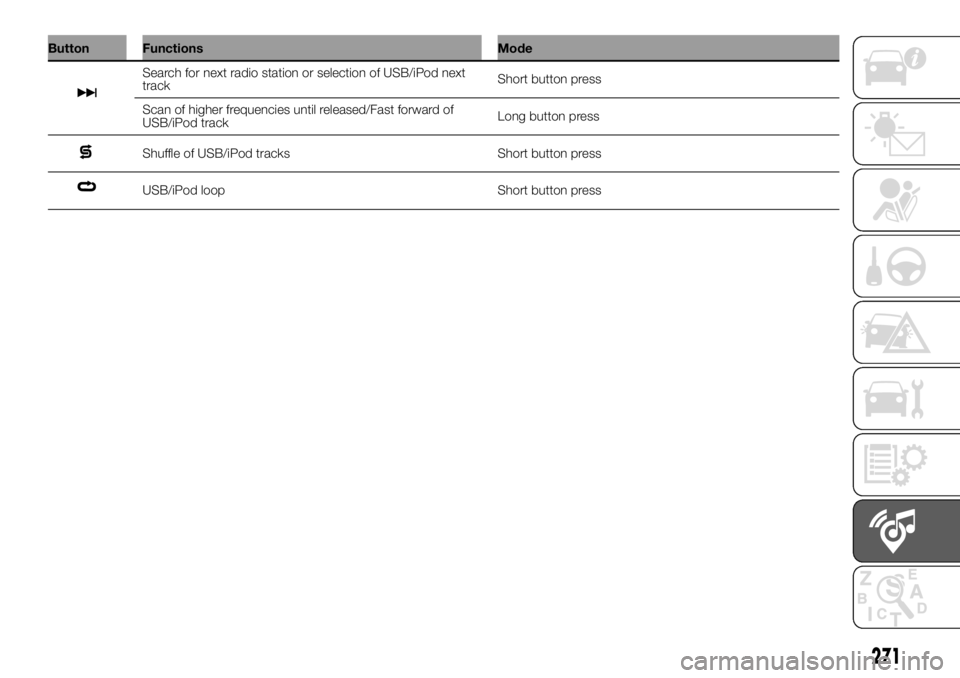
Button Functions Mode
Search for next radio station or selection of USB/iPod next
trackShort button press
Scan of higher frequencies until released/Fast forward of
USB/iPod trackLong button press
Shuffle of USB/iPod tracks Short button press
USB/iPod loop Short button press
271
Page 275 of 304
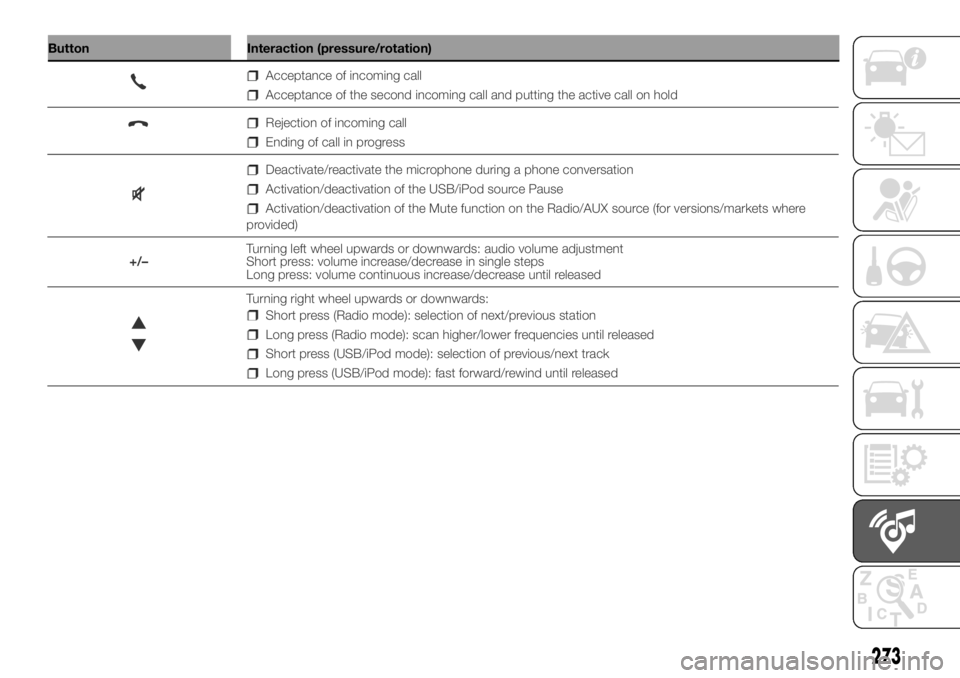
Button Interaction (pressure/rotation)
273
Acceptance of incoming call
Acceptance of the second incoming call and putting the active call on hold
Rejection of incoming call
Ending of call in progress
Deactivate/reactivate the microphone during a phone conversation
Activation/deactivation of the USB/iPod source Pause
Activation/deactivation of the Mute function on the Radio/AUX source (for versions/markets where
provided)
+/–Turning left wheel upwards or downwards: audio volume adjustment
Short press: volume increase/decrease in single steps
Long press: volume continuous increase/decrease until released
Turning right wheel upwards or downwards:
Short press (Radio mode): selection of next/previous station
Long press (Radio mode): scan higher/lower frequencies until released
Short press (USB/iPod mode): selection of previous/next track
Long press (USB/iPod mode): fast forward/rewind until released
Page 276 of 304

OPERATION
SWITCHING THE SYSTEM
ON/OFF
The system is switched on/off by
pressing the
button/knob.
The electronic volume adjustment
control rotates continuously (360°) in
both directions, without stop positions.
Turn the button/knob clockwise to
increase the radio volume or
anticlockwise to decrease it.
RADIO (TUNER) MODE
The system is equipped with the
following tuners: AM, FM and DAB (for
versions/markets, where provided).
Radio mode selection
Press the RADIO button on the front
panel to activate radio mode.
Selecting a frequency band
The different tuning modes can be
selected by pressing the RADIO button
on the front panel.
Displayed information
After the desired radio station is
selected on the display, the following
information is shown (INFO mode
activated):
In the upper part:the preset station,
the time and the other active radio
settings are highlighted (e.g.: TA).In the central part:the name of the
current station, the frequency and
the radio text information (if any) are
highlighted.
FM station list
Press the BROWSE ENTER button/
knob to display the complete list of the
FM stations that can be received.
TheA-B-Cbutton can be used,
depending on the chosen letter, to jump
alphabetically to the first of the
FM/DAB stations available for that
letter.
AM/FM radio station storage
(Where provided)
The preset stations are available in all
system modes and are selected by
touching one of the presetting buttons
1-2-3-4-5-6on the front panel.
If you are tuned to a radio station that
you wish to store, hold down the button
on the display which corresponds to
the desired preset until an acoustic
confirmation signal is emitted.
The system can store up to 18 radio
stations in each mode.AM/FM radio station selection
To search for the desired radio station
press the
orbuttons, use
the wheel on the steering wheel
controls
or turn the "BROWSE/
ENTER" knob.
Previous/next radio station search
Briefly press the
orbutton
or use the wheel on the steering wheel
controls
: when the button is
released the previous or next
radio station is displayed.
When searching forwards, if the system
reaches the end of the band, it will
automatically stop on the station where
the search has started from.
Previous/next radio station fast
search
Hold down the
orbutton to
start the fast search: when the button is
released, the first tunable radio is
played.
DAB station list
Press the BROWSE ENTER button/
knob to display:
the list of all DAB stations;
the list of stations filtered by
"Genres";
the list of stations filtered by
"Ensembles" (broadcast group).
274
MULTIMEDIA
Page 277 of 304
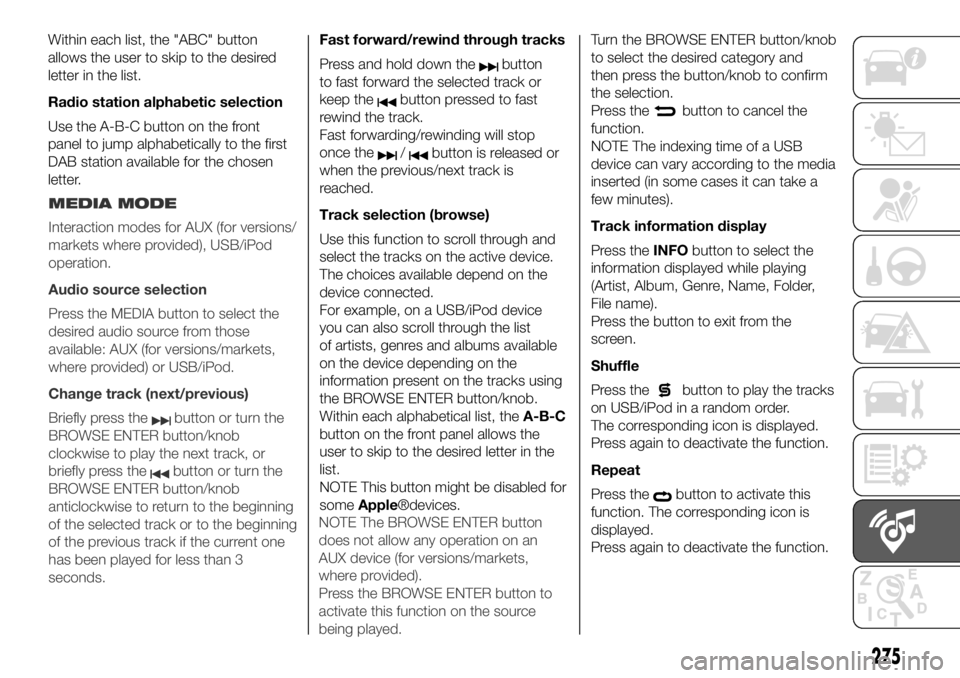
Within each list, the "ABC" button
allows the user to skip to the desired
letter in the list.
Radio station alphabetic selection
Use the A-B-C button on the front
panel to jump alphabetically to the first
DAB station available for the chosen
letter.Fast forward/rewind through tracks
Press and hold down the
button
to fast forward the selected track or
keep the
button pressed to fast
rewind the track.
Fast forwarding/rewinding will stop
once the
/button is released or
when the previous/next track is
reached.
Track selection (browse)
Use this function to scroll through and
select the tracks on the active device.
The choices available depend on the
device connected.
For example, on a USB/iPod device
you can also scroll through the list
of artists, genres and albums available
on the device depending on the
information present on the tracks using
the BROWSE ENTER button/knob.
Within each alphabetical list, theA-B-C
button on the front panel allows the
user to skip to the desired letter in the
list.
NOTE This button might be disabled for
someApple®devices.Turn the BROWSE ENTER button/knob
to select the desired category and
then press the button/knob to confirm
the selection.
Press the
button to cancel the
function.
NOTE The indexing time of a USB
device can vary according to the media
inserted (in some cases it can take a
few minutes).
Track information display
Press theINFObutton to select the
information displayed while playing
(Artist, Album, Genre, Name, Folder,
File name).
Press the button to exit from the
screen.
Shuffle
Press the
button to play the tracks
on USB/iPod in a random order.
The corresponding icon is displayed.
Press again to deactivate the function.
Repeat
Press the
button to activate this
function. The corresponding icon is
displayed.
Press again to deactivate the function.
275
MEDIA MODE
Interaction modes for AUX (for versions/
markets where provided), USB/iPod
operation.
Audio source selection
Press the MEDIA button to select the
desired audio source from those
available: AUX (for versions/markets,
where provided) or USB/iPod.
Change track (next/previous)
Briefly press the
button or turn the
BROWSE ENTER button/knob
clockwise to play the next track, or
briefly press the
button or turn the
BROWSE ENTER button/knob
anticlockwise to return to the beginning
of the selected track or to the beginning
of the previous track if the current one
has been played for less than 3
seconds.NOTE The BROWSE ENTER button
does not allow any operation on an
AUX device (for versions/markets,
where provided).
Press the BROWSE ENTER button to
activate this function on the source
being played.
Page 278 of 304
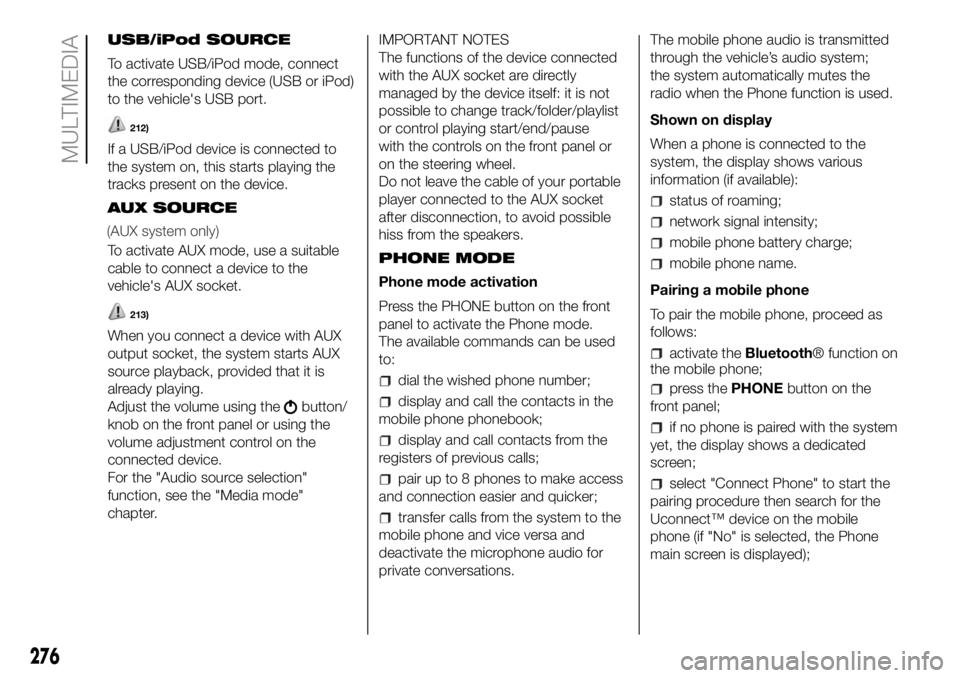
USB/iPod SOURCE
To activate USB/iPod mode, connect
the corresponding device (USB or iPod)
to the vehicle's USB port.
212)
If a USB/iPod device is connected to
the system on, this starts playing the
tracks present on the device.
AUX SOURCE
To activate AUX mode, use a suitable
cable to connect a device to the
vehicle's AUX socket.
213)
When you connect a device with AUX
output socket, the system starts AUX
source playback, provided that it is
already playing.
Adjust the volume using the
button/
knob on the front panel or using the
volume adjustment control on the
connected device.
For the "Audio source selection"
function, see the "Media mode"
chapter.IMPORTANT NOTES
The functions of the device connected
with the AUX socket are directly
managed by the device itself: it is not
possible to change track/folder/playlist
or control playing start/end/pause
with the controls on the front panel or
on the steering wheel.
Do not leave the cable of your portable
player connected to the AUX socket
after disconnection, to avoid possible
hiss from the speakers.
PHONE MODE
Phone mode activation
Press the PHONE button on the front
panel to activate the Phone mode.
The available commands can be used
to:
dial the wished phone number;
display and call the contacts in the
mobile phone phonebook;
display and call contacts from the
registers of previous calls;
pair up to 8 phones to make access
and connection easier and quicker;
transfer calls from the system to the
mobile phone and vice versa and
deactivate the microphone audio for
private conversations.The mobile phone audio is transmitted
through the vehicle’s audio system;
the system automatically mutes the
radio when the Phone function is used.
Shown on display
When a phone is connected to the
system, the display shows various
information (if available):
status of roaming;
network signal intensity;
mobile phone battery charge;
mobile phone name.
Pairing a mobile phone
To pair the mobile phone, proceed as
follows:
activate theBluetooth® function on
the mobile phone;
press thePHONEbutton on the
front panel;
if no phone is paired with the system
yet, the display shows a dedicated
screen;
select "Connect Phone" to start the
pairing procedure then search for the
Uconnect™ device on the mobile
phone (if "No" is selected, the Phone
main screen is displayed);
276
MULTIMEDIA
(AUX system only)
Page 280 of 304
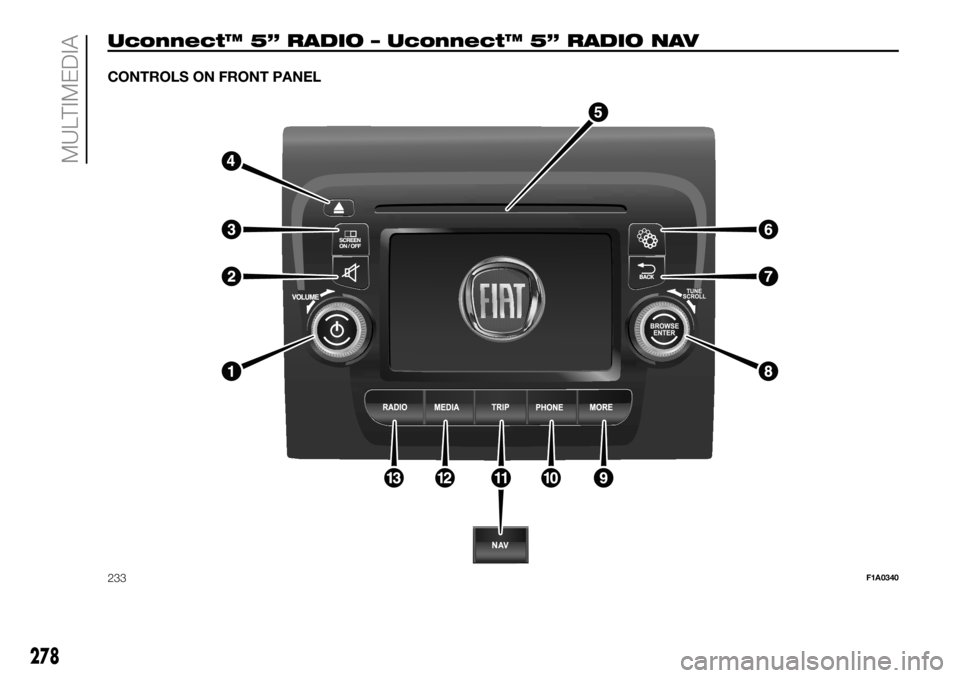
Uconnect™ 5” RADIO – Uconnect™ 5” RADIO NAV
CONTROLS ON FRONT PANEL
233F1A0340
278
MULTIMEDIA
Page 281 of 304
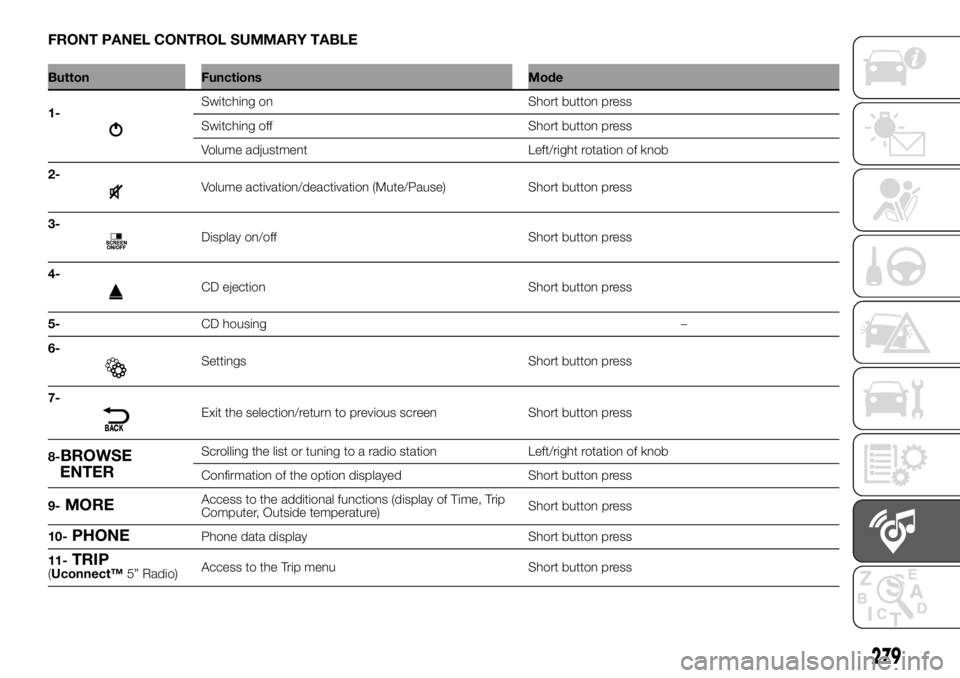
FRONT PANEL CONTROL SUMMARY TABLE
Button Functions Mode
1-
Switching on Short button press
Switching off Short button press
Volume adjustment Left/right rotation of knob
2-
Volume activation/deactivation (Mute/Pause) Short button press
3-
Display on/off Short button press
4-
CD ejection Short button press
5-CD housing–
6-
Settings Short button press
7-
Exit the selection/return to previous screen Short button press
8-
BROWSE
ENTERScrolling the list or tuning to a radio station Left/right rotation of knob
Confirmation of the option displayed Short button press
9-
MOREAccess to the additional functions (display of Time, Trip
Computer, Outside temperature)Short button press
10-
PHONEPhone data display Short button press
11-
TRIP(Uconnect™5” Radio)Access to the Trip menu Short button press
279
Page 282 of 304
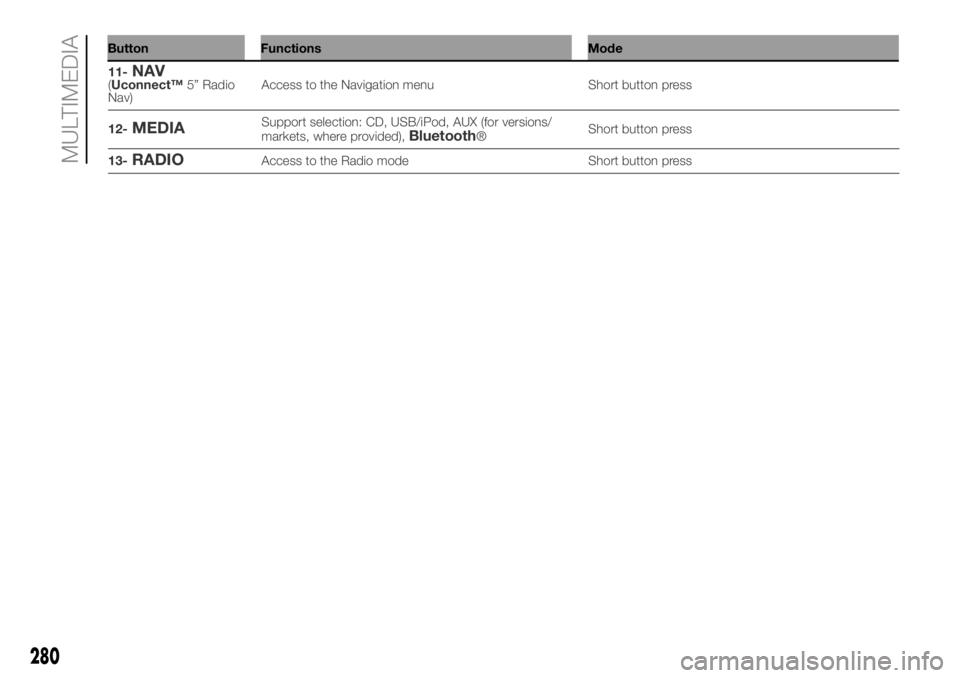
Button Functions Mode
280
MULTIMEDIA
11-NAV(Uconnect™5” Radio
Nav)Access to the Navigation menu Short button press
12-
MEDIASupport selection: CD, USB/iPod, AUX (for versions/
markets, where provided),Bluetooth®Short button press
13-
RADIOAccess to the Radio mode Short button press
Page 284 of 304
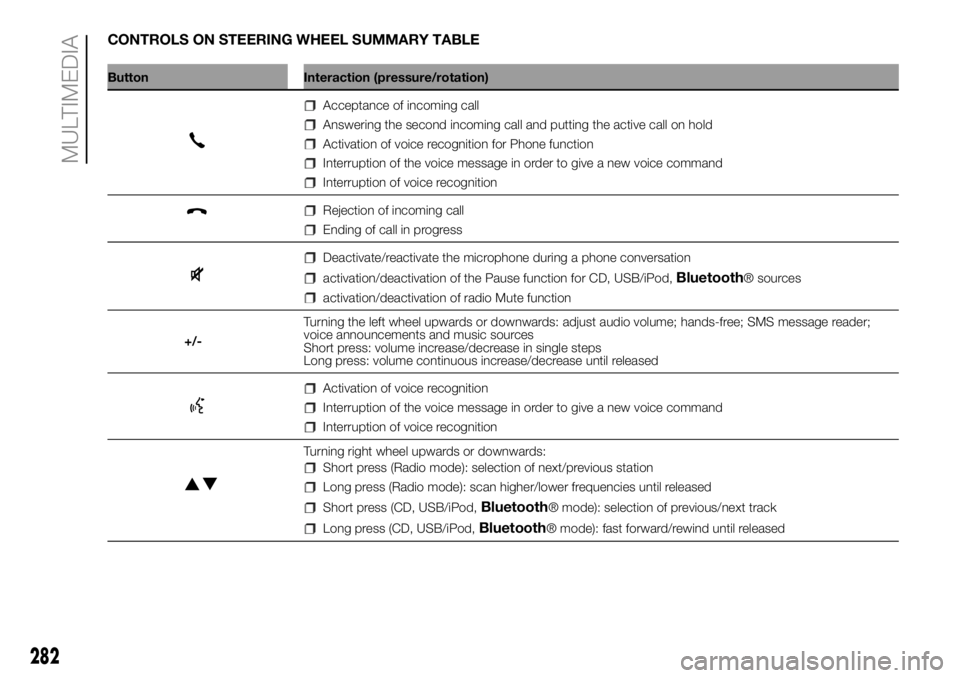
CONTROLS ON STEERING WHEEL SUMMARY TABLE
Button Interaction (pressure/rotation)
Acceptance of incoming call
Answering the second incoming call and putting the active call on hold
Activation of voice recognition for Phone function
Interruption of the voice message in order to give a new voice command
Interruption of voice recognition
Rejection of incoming call
Ending of call in progress
Deactivate/reactivate the microphone during a phone conversation
activation/deactivation of the Pause function for CD, USB/iPod,Bluetooth® sources
activation/deactivation of radio Mute function
+/-Turning the left wheel upwards or downwards: adjust audio volume; hands-free; SMS message reader;
voice announcements and music sources
Short press: volume increase/decrease in single steps
Long press: volume continuous increase/decrease until released
Activation of voice recognition
Interruption of the voice message in order to give a new voice command
Interruption of voice recognition
Turning right wheel upwards or downwards:
Short press (Radio mode): selection of next/previous station
Long press (Radio mode): scan higher/lower frequencies until released
Short press (CD, USB/iPod,Bluetooth® mode): selection of previous/next track
Long press (CD, USB/iPod,Bluetooth® mode): fast forward/rewind until released
282
MULTIMEDIA
Page 285 of 304
OPERATION
SWITCHING THE SYSTEM
ON/OFF
The system is switched on/off by
pressing the button/knob.
Turn the button/knob clockwise to
increase the radio volume or
anticlockwise to decrease it.
Radio (Tuner) mode
After the desired radio station is
selected, the following information is
shown on the display:
At the top: the list of radio stations
stored (preset) is displayed; the station
currently playing is highlighted.
In the middle: display of the name of
the current radio station and the
buttons for selecting the previous or
next radio station. At the bottom:
display of the following buttons:
In the middle: display of the name of
the current radio station and the
buttons for selecting the previous or
next radio station. At the bottom:
display of the following buttons:
"Browse": list of the radio stations
available;
"AM/FM", "AM/DAB", "FM/DAB":
selection of the desired frequency band
(button reconfigurable according to
the band selected: AM,FM or DAB);
"Tune" : manual radio station tuning
(not available for DAB radios);
"Info": additional information on the
source being listened to;
"Audio": access to the "Audio
settings" screen.
Audio menu
To access the "Audio" menu, press the
button on the front panel, scroll
through the menu, then select and
press the "Audio" option on the display.
The following adjustments can be
carried out using the "Audio" menu:
"Equaliser" (for versions/markets,
where provided);
"Balance/Fader" (left/right and
front/rear audio balance adjustment);
"Volume/Speed" (excluding versions
with Hi-Fi system) speed-dependent
automatic volume adjustment;
"Loudness" (for versions/markets,
where provided);
"Auto-On Radio";
"Radio Off Delay".
To exit the "Audio" menu, press the
/Done button.Track selection (browse)
Use this function to scroll through and
select the tracks on the active device.
The selection options depend on the
device connected or the CD type
inserted.
For example, on an audio CD you can
select the track to be played, while on a
CD-ROM, a USB/iPod orBluetooth®
device you can also scroll through the
list of artists, genres and albums avail-
able depending on the information
present on the tracks.
NOTE A fewBluetooth® devices do
not offer the possibility of scrolling
tracks through all categories.
Within each list, the "ABC" button
allows the user to skip to the desired
letter in the list.
NOTE This button might be disabled for
someApple®devices.
283
MEDIA MODE
Press the "Source" button to select the
desired audio source among those
available: CD, AUX (for versions/
markets, where provided), USB/iPod or
Bluetooth®.NOTE The "Browse" button does not
allow any operation on an AUX device
(for versions/markets, where provided).
Press the "Browse" button to activate
this function on the source being
played.
Turn the BROWSE ENTER button/knob
to select the desired category and
then press the button/knob to confirm
the selection.
Press the "X" button to cancel the
function.