service FORD E-450 2019 Repair Manual
[x] Cancel search | Manufacturer: FORD, Model Year: 2019, Model line: E-450, Model: FORD E-450 2019Pages: 329, PDF Size: 6.24 MB
Page 231 of 329
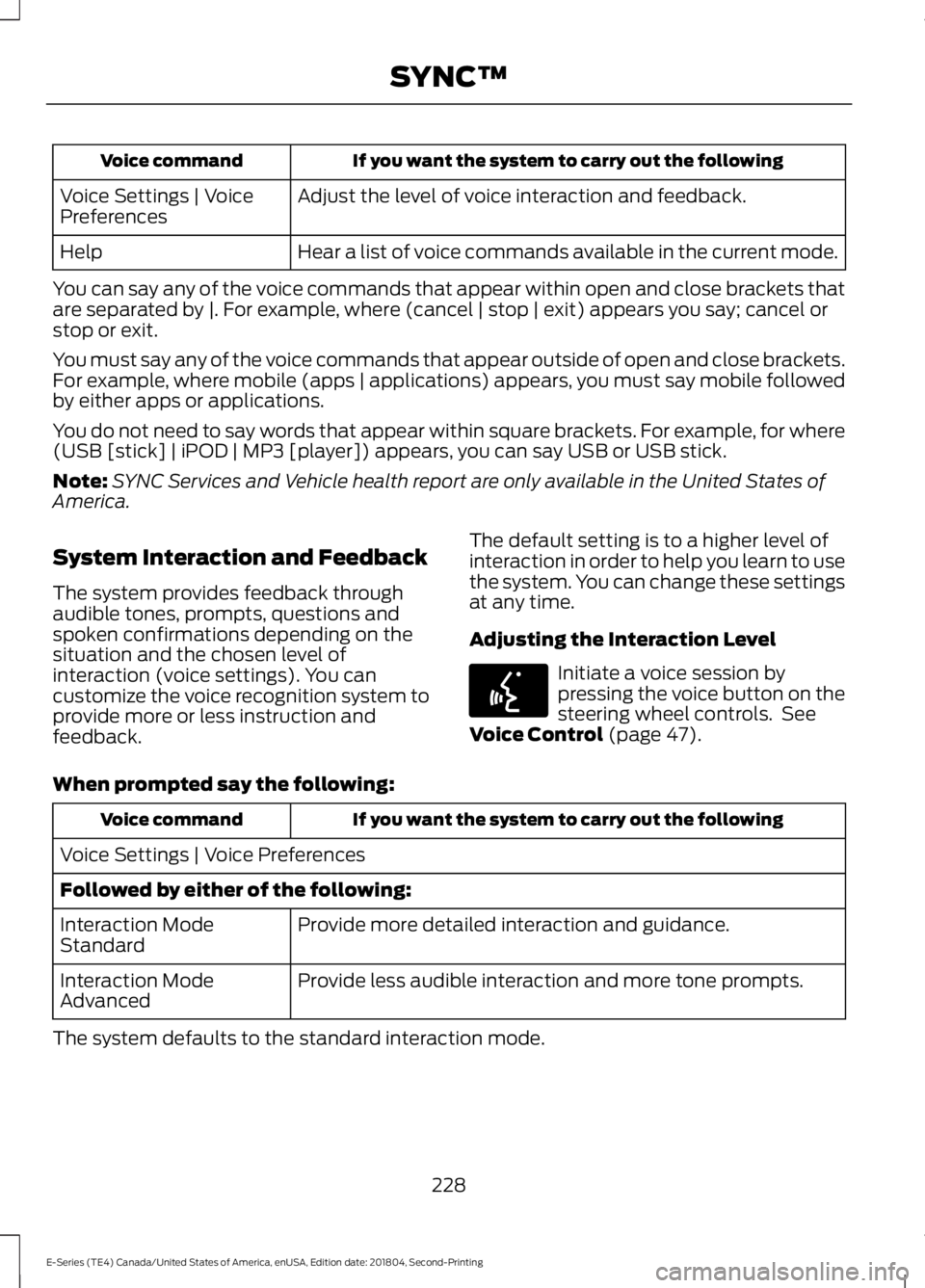
If you want the system to carry out the following
Voice command
Adjust the level of voice interaction and feedback.
Voice Settings | Voice
Preferences
Hear a list of voice commands available in the current mode.
Help
You can say any of the voice commands that appear within open and close brackets that
are separated by |. For example, where (cancel | stop | exit) appears you say; cancel or
stop or exit.
You must say any of the voice commands that appear outside of open and close brackets.
For example, where mobile (apps | applications) appears, you must say mobile followed
by either apps or applications.
You do not need to say words that appear within square brackets. For example, for where
(USB [stick] | iPOD | MP3 [player]) appears, you can say USB or USB stick.
Note: SYNC Services and Vehicle health report are only available in the United States of
America.
System Interaction and Feedback
The system provides feedback through
audible tones, prompts, questions and
spoken confirmations depending on the
situation and the chosen level of
interaction (voice settings). You can
customize the voice recognition system to
provide more or less instruction and
feedback. The default setting is to a higher level of
interaction in order to help you learn to use
the system. You can change these settings
at any time.
Adjusting the Interaction Level Initiate a voice session by
pressing the voice button on the
steering wheel controls. See
Voice Control (page 47).
When prompted say the following: If you want the system to carry out the following
Voice command
Voice Settings | Voice Preferences
Followed by either of the following: Provide more detailed interaction and guidance.
Interaction Mode
Standard
Provide less audible interaction and more tone prompts.
Interaction Mode
Advanced
The system defaults to the standard interaction mode.
228
E-Series (TE4) Canada/United States of America, enUSA, Edition date: 201804, Second-Printing SYNC™E142599
Page 237 of 329
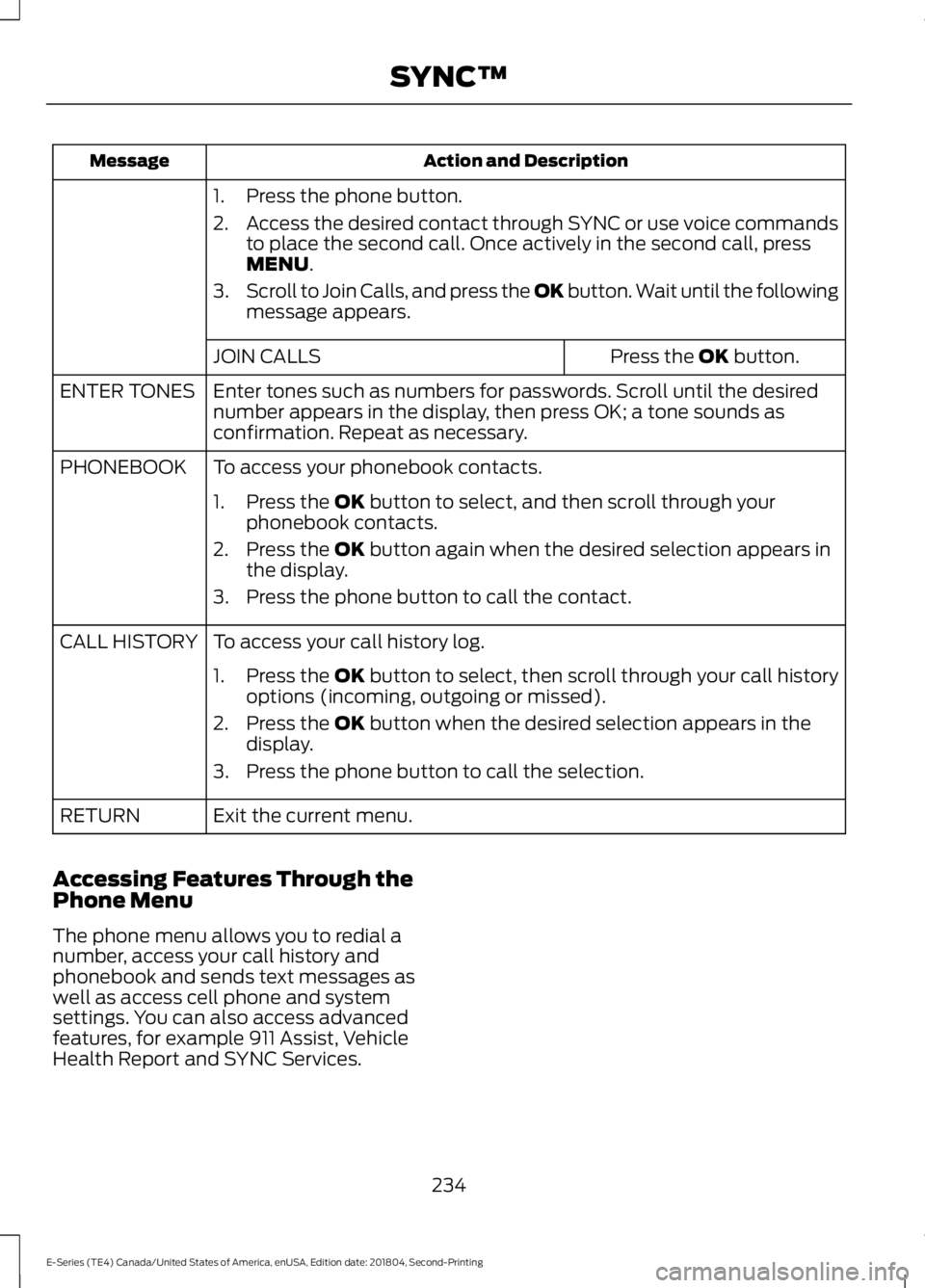
Action and Description
Message
1. Press the phone button.
2.Access the desired contact through SYNC or use voice commands
to place the second call. Once actively in the second call, press
MENU.
3. Scroll to Join Calls, and press the
OK button. Wait until the following
message appears.
Press the
OK button.
JOIN CALLS
Enter tones such as numbers for passwords. Scroll until the desired
number appears in the display, then press OK; a tone sounds as
confirmation. Repeat as necessary.
ENTER TONES
To access your phonebook contacts.
PHONEBOOK
1. Press the
OK button to select, and then scroll through your
phonebook contacts.
2. Press the
OK button again when the desired selection appears in
the display.
3. Press the phone button to call the contact.
To access your call history log.
CALL HISTORY
1.Press the OK button to select, then scroll through your call history
options (incoming, outgoing or missed).
2. Press the
OK button when the desired selection appears in the
display.
3. Press the phone button to call the selection.
Exit the current menu.
RETURN
Accessing Features Through the
Phone Menu
The phone menu allows you to redial a
number, access your call history and
phonebook and sends text messages as
well as access cell phone and system
settings. You can also access advanced
features, for example 911 Assist, Vehicle
Health Report and SYNC Services.
234
E-Series (TE4) Canada/United States of America, enUSA, Edition date: 201804, Second-Printing SYNC™
Page 239 of 329
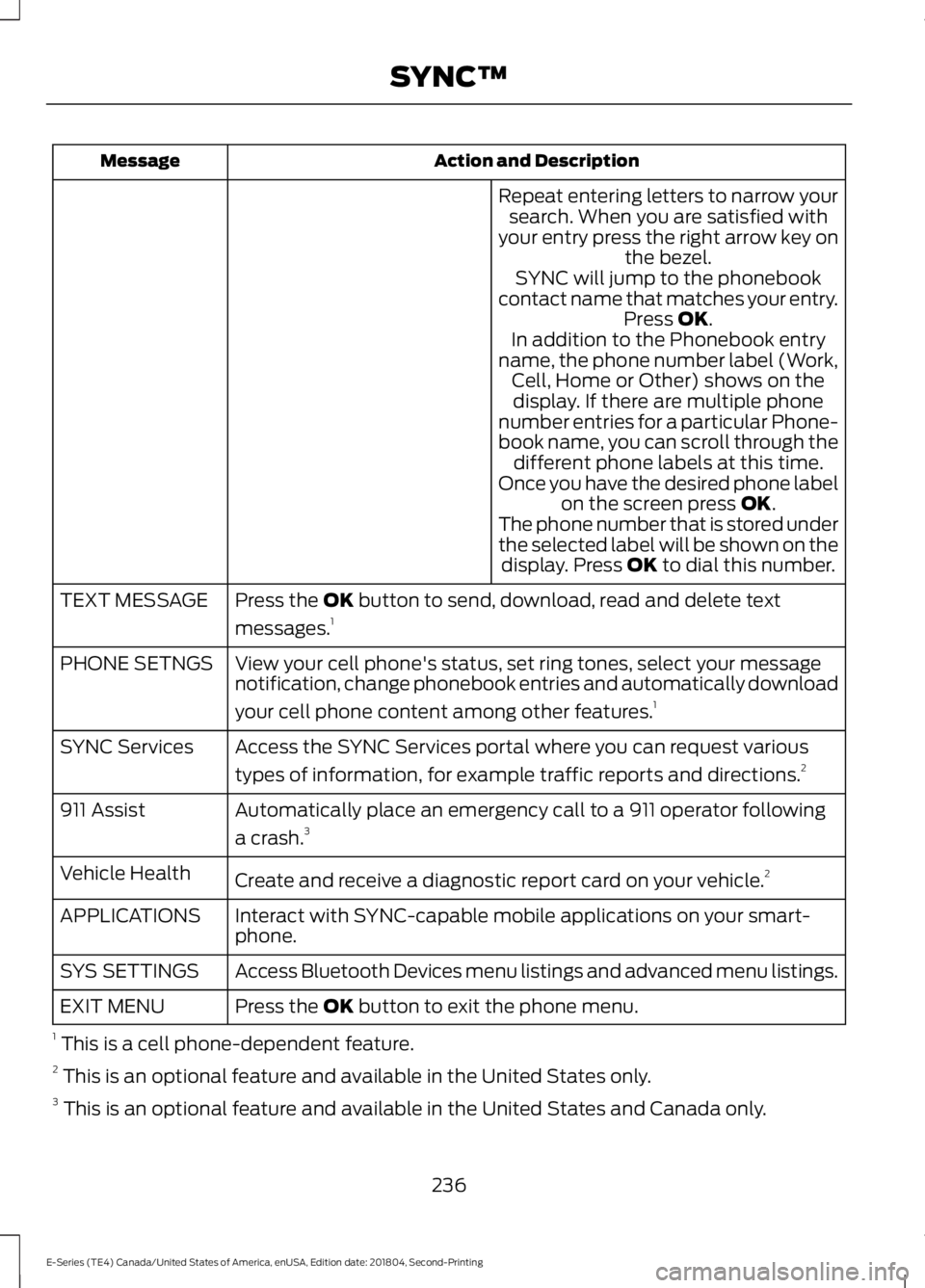
Action and Description
Message
Repeat entering letters to narrow yoursearch. When you are satisfied with
your entry press the right arrow key on the bezel.
SYNC will jump to the phonebook
contact name that matches your entry. Press OK.
In addition to the Phonebook entry
name, the phone number label (Work, Cell, Home or Other) shows on thedisplay. If there are multiple phone
number entries for a particular Phone-
book name, you can scroll through the different phone labels at this time.
Once you have the desired phone label on the screen press
OK.
The phone number that is stored under
the selected label will be shown on the display. Press
OK to dial this number.
Press the
OK button to send, download, read and delete text
messages. 1
TEXT MESSAGE
View your cell phone's status, set ring tones, select your message
notification, change phonebook entries and automatically download
your cell phone content among other features. 1
PHONE SETNGS
Access the SYNC Services portal where you can request various
types of information, for example traffic reports and directions. 2
SYNC Services
Automatically place an emergency call to a 911 operator following
a crash.3
911 Assist
Create and receive a diagnostic report card on your vehicle. 2
Vehicle Health
Interact with SYNC-capable mobile applications on your smart-
phone.
APPLICATIONS
Access Bluetooth Devices menu listings and advanced menu listings.
SYS SETTINGS
Press the
OK button to exit the phone menu.
EXIT MENU
1 This is a cell phone-dependent feature.
2 This is an optional feature and available in the United States only.
3 This is an optional feature and available in the United States and Canada only.
236
E-Series (TE4) Canada/United States of America, enUSA, Edition date: 201804, Second-Printing SYNC™
Page 246 of 329
SYNC™ APPLICATIONS AND
SERVICES (IF EQUIPPED)
In order for the following features to work,
your cell phone must be compatible with
SYNC. To check your phone's
compatibility, visit www.SYNCMyRide.com,
www.SYNCMyRide.ca or
www.syncmaroute.ca.
• SYNC Services *
: Provides access to
traffic, directions and information such
as travel, horoscopes, stock prices and
more.
• 911 Assist: Can alert 911 in the event of
an emergency.
• Vehicle Health Report *
: Provides a
diagnostic and maintenance report
card of your vehicle.
* This is an optional feature and available
in the United States only.
911 Assist
(If Equipped) WARNING:
Unless the 911 Assist
setting is set on before a crash, the
system will not dial for help which could
delay response time, potentially
increasing the risk of serious injury or
death after a crash. WARNING:
Do not wait for 911
Assist to make an emergency call if you
can do it yourself. Dial emergency
services immediately to avoid delayed
response time which could increase the
risk of serious injury or death after a
crash. If you do not hear 911 Assist within
five seconds of the crash, the system or
phone may be damaged or
non-functional. WARNING:
Always place your
phone in a secure location in your vehicle
so it does not become a projectile or get
damaged in a crash. Failure to do so may
cause serious injury to someone or
damage the phone which could prevent
911 Assist from working properly.
Note: The SYNC 911 Assist feature must be
set on before the incident.
Note: Before setting this feature on, make
sure that you read the 911 Assist Privacy
Notice later in this section for important
information.
Note: If any user turns 911 Assist on or off,
that setting applies for all paired phones. If
911 Assist is turned off, either a voice
message plays or a display message (or
icon) comes on (or both) when your vehicle
is started after a previously paired phone
connects.
Note: Every phone operates differently.
While SYNC 911 Assist works with most
cellular phones, some may have trouble
using this feature.
If a crash deploys an airbag (excluding
knee airbags and rear inflatable safety
belts [if equipped]) or activates the fuel
pump shut-off, your SYNC-equipped
vehicle may be able to contact emergency
services by dialing 911 through a paired and
connected Bluetooth-enabled phone. You
can learn more about the 911 Assist
feature, visit www.SYNCMyRide.com,
www.SYNCMyRide.ca or
www.syncmaroute.ca.
See
Supplementary Restraints System
(page 32). Important information about
airbag deployment is in this chapter.
See
Roadside Emergencies (page 119).
Important information about the fuel pump
shut-off is in this chapter.
243
E-Series (TE4) Canada/United States of America, enUSA, Edition date: 201804, Second-Printing SYNC™
Page 247 of 329
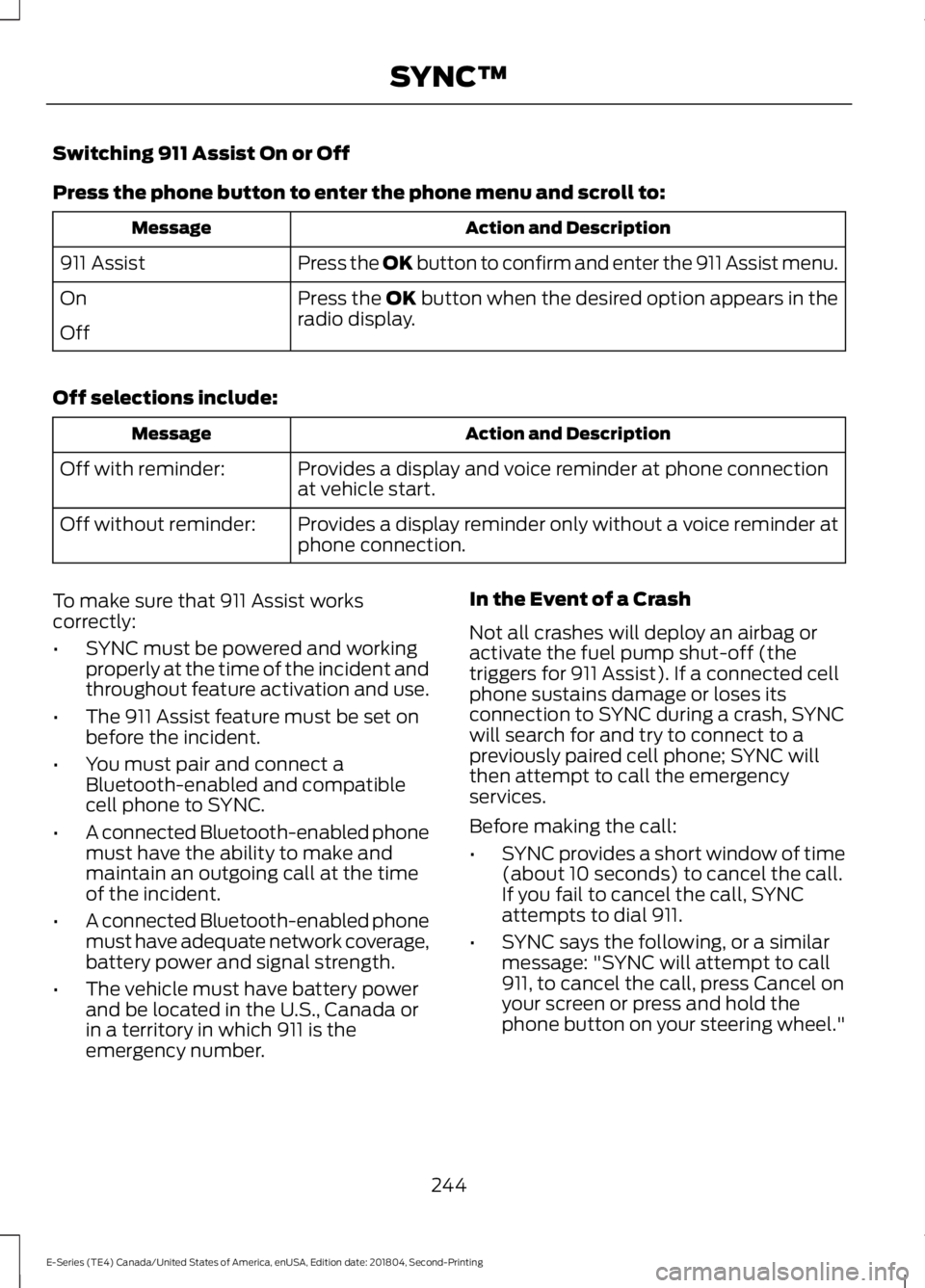
Switching 911 Assist On or Off
Press the phone button to enter the phone menu and scroll to:
Action and Description
Message
Press the OK button to confirm and enter the 911 Assist menu.
911 Assist
Press the OK button when the desired option appears in the
radio display.
On
Off
Off selections include: Action and Description
Message
Provides a display and voice reminder at phone connection
at vehicle start.
Off with reminder:
Provides a display reminder only without a voice reminder at
phone connection.
Off without reminder:
To make sure that 911 Assist works
correctly:
• SYNC must be powered and working
properly at the time of the incident and
throughout feature activation and use.
• The 911 Assist feature must be set on
before the incident.
• You must pair and connect a
Bluetooth-enabled and compatible
cell phone to SYNC.
• A connected Bluetooth-enabled phone
must have the ability to make and
maintain an outgoing call at the time
of the incident.
• A connected Bluetooth-enabled phone
must have adequate network coverage,
battery power and signal strength.
• The vehicle must have battery power
and be located in the U.S., Canada or
in a territory in which 911 is the
emergency number. In the Event of a Crash
Not all crashes will deploy an airbag or
activate the fuel pump shut-off (the
triggers for 911 Assist). If a connected cell
phone sustains damage or loses its
connection to SYNC during a crash, SYNC
will search for and try to connect to a
previously paired cell phone; SYNC will
then attempt to call the emergency
services.
Before making the call:
•
SYNC provides a short window of time
(about 10 seconds) to cancel the call.
If you fail to cancel the call, SYNC
attempts to dial 911.
• SYNC says the following, or a similar
message: "SYNC will attempt to call
911, to cancel the call, press Cancel on
your screen or press and hold the
phone button on your steering wheel."
244
E-Series (TE4) Canada/United States of America, enUSA, Edition date: 201804, Second-Printing SYNC™
Page 248 of 329
If you do not cancel the call, and SYNC
makes a successful call, a pre-recorded
message plays for the 911 operator, and
then the occupant(s) in your vehicle is able
to talk with the operator. Be prepared to
provide your name, phone number and
location immediately, because not all 911
systems are capable of receiving this
information electronically.
911 Assist May Not Work If
•
Your cellular phone or 911 Assist
hardware sustains damage in a crash.
• The vehicle's battery or the SYNC
system has no power.
• The phone(s) thrown from your vehicle
are the ones paired and connected to
the system.
911 Assist Privacy Notice
When you turn on 911 Assist, it may
disclose to emergency services that your
vehicle has been in a crash involving the
deployment of an airbag or activation of
the fuel pump shut-off. Certain versions or
updates to 911 Assist may also be capable
of electronically or verbally disclosing to
911 operators your vehicle location or other
details about your vehicle or crash to assist
911 operators to provide the most
appropriate emergency services. If you do
not want to disclose this information, do
not turn the feature on.
Vehicle Health Report (If
Equipped, United States Only) WARNING: Always follow
scheduled maintenance instructions,
regularly inspect your vehicle, and seek
repair for any damage or problem you
suspect. Vehicle Health Report
supplements, but cannot replace, normal
maintenance and vehicle inspection.
Vehicle Health Report only monitors certain systems electronically monitored
by your vehicle and will not monitor or
report the status of any other system,
(such as brake lining wear). Failure to
perform scheduled maintenance and
regularly inspect your vehicle may result
in vehicle damage and serious injury.
Note: This feature is only available in the
United States.
Note: Your Vehicle Health Report feature
requires activation before use. Visit
www.SYNCMyRide.com to register. There
is no fee or subscription associated with
Vehicle Health Report, but you must register
to use this feature.
Note: This feature may not function
properly if you have enabled caller ID
blocking on your cellular phone. Before
running a report, review the Vehicle Health
Report Privacy Notice.
Note: In order to allow a break-in period for
your vehicle, you may not be able to create
a Vehicle Health Report until your vehicle
odometer has reached 200 miles.
Note: Cellular phone and SMS charges may
apply when making a report.
Register for Vehicle Health Report and set
your report preferences at
www.SYNCMyRide.com. After registering,
you can request a Vehicle Health Report
(inside your vehicle). Return to your
account at www.SYNCMyRide.com to view
your report. You can also choose for SYNC
to remind you automatically to run reports
at specific mileage intervals.
The system allows you to check your
vehicle's overall health in the form of a
diagnostic report card. The Vehicle Health
Report contains valuable information, for
example:
• Vehicle diagnostic information
• Scheduled maintenance
245
E-Series (TE4) Canada/United States of America, enUSA, Edition date: 201804, Second-Printing SYNC™
Page 249 of 329
•
Open recalls and Field Service Actions
• Items noted during vehicle inspections
by an authorized dealer that still need
servicing. You can run a vehicle health report after
your vehicle has been running a minimum
of 60 seconds. Choose one of the following
options.
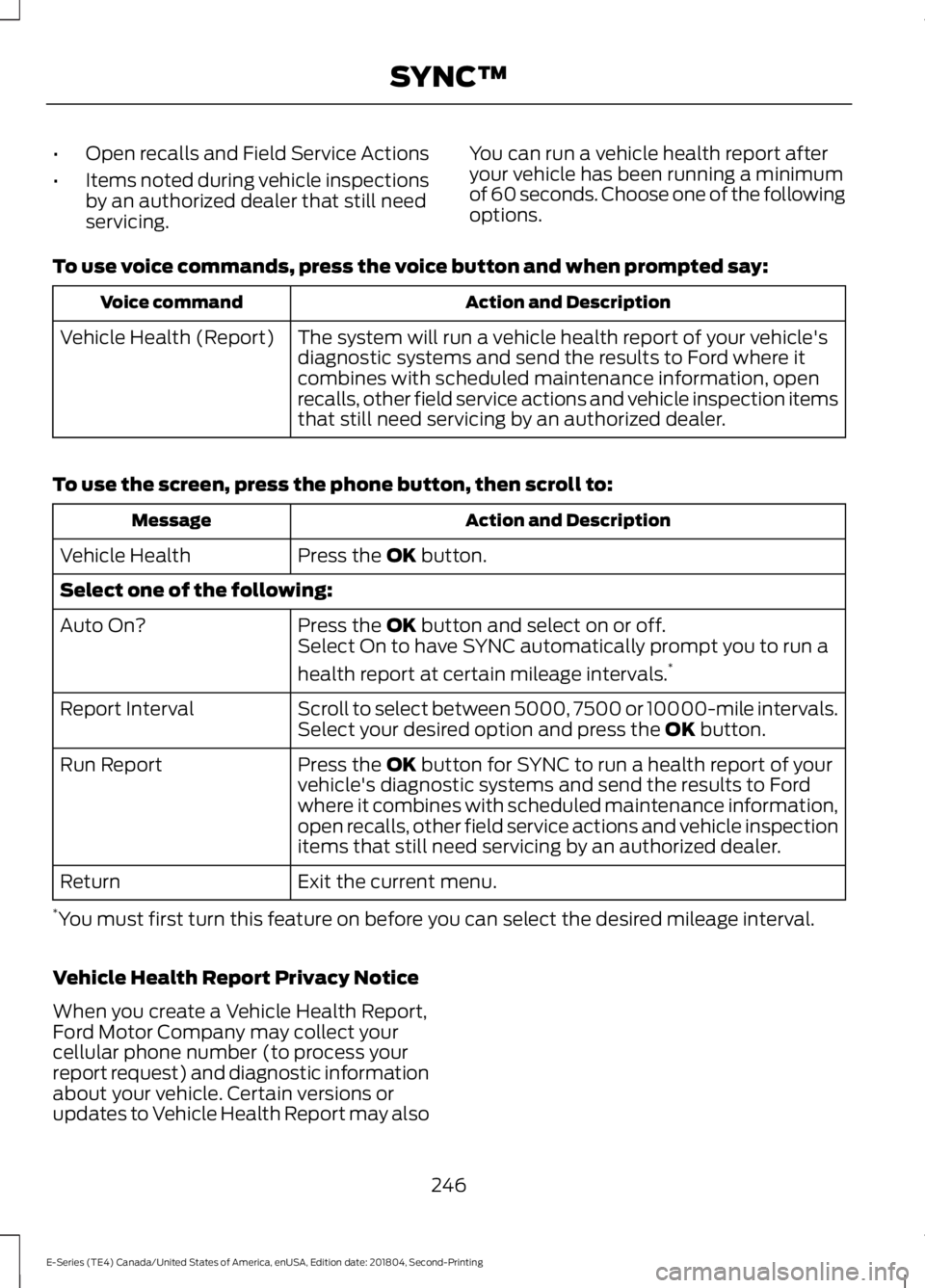
To use voice commands, press the voice button and when prompted say: Action and Description
Voice command
The system will run a vehicle health report of your vehicle's
diagnostic systems and send the results to Ford where it
combines with scheduled maintenance information, open
recalls, other field service actions and vehicle inspection items
that still need servicing by an authorized dealer.
Vehicle Health (Report)
To use the screen, press the phone button, then scroll to: Action and Description
Message
Press the OK button.
Vehicle Health
Select one of the following:
Press the
OK button and select on or off.
Auto On?
Select On to have SYNC automatically prompt you to run a
health report at certain mileage intervals. *
Scroll to select between 5000, 7500 or 10000-mile intervals.
Select your desired option and press the
OK button.
Report Interval
Press the
OK button for SYNC to run a health report of your
vehicle's diagnostic systems and send the results to Ford
where it combines with scheduled maintenance information,
open recalls, other field service actions and vehicle inspection
items that still need servicing by an authorized dealer.
Run Report
Exit the current menu.
Return
* You must first turn this feature on before you can select the desired mileage interval.
Vehicle Health Report Privacy Notice
When you create a Vehicle Health Report,
Ford Motor Company may collect your
cellular phone number (to process your
report request) and diagnostic information
about your vehicle. Certain versions or
updates to Vehicle Health Report may also
246
E-Series (TE4) Canada/United States of America, enUSA, Edition date: 201804, Second-Printing SYNC™
Page 250 of 329
collect more vehicle information. Ford may
use your vehicle information it collects for
any purpose. If you do not want to disclose
your cellular phone number or vehicle
information, do not run the feature or set
up your Vehicle Health Report profile at
www.SYNCMyRide.com. See
www.SYNCMyRide.com (Vehicle Health
Report Terms and Conditions, and Privacy
Statement) for more information.
SYNC Services: Traffic, Directions
& Information (TDI) (If Equipped,
United States Only)
Note:
SYNC Services varies by trim level
and model year and may require a
subscription. Traffic alerts and turn-by-turn
directions available in select markets.
Message and data rates may apply. Ford
Motor Company reserves the right to change
or discontinue this product service at any
time without prior notification or incurring
any future obligation.
Note: SYNC Services requires activation
before use. Visit www.SYNCMyRide.com to
register and check your eligibility for
complimentary services. Standard phone
and message rates may apply. Subscription
may be required. You must also have the
active SYNC Services Bluetooth-enabled
cellular phone paired and connected to the
system in order to connect to, and use,
SYNC Services. See Using SYNC™ With
Your Phone (page 230).
Note: This feature does not function
properly if you have enabled caller ID
blocking on your cellular phone. Make sure
your cellular phone is not blocking caller ID
before using SYNC Services. Note:
The driver is ultimately responsible
for the safe operation of the vehicle, and
therefore, must evaluate whether it is safe
to follow the suggested directions. Any
navigation features provided are only an aid.
Make your driving decisions based on your
observations of local conditions and existing
traffic regulations. Do not follow the route
suggestions if doing so would result in an
unsafe or illegal maneuver, place you in an
unsafe situation, or if you would be directed
into an area that you consider unsafe. Maps
used by this system may be inaccurate
because of errors, changes in roads, traffic
conditions or driving conditions.
Note: When you connect, the service uses
GPS technology and advanced vehicle
sensors to collect your vehicle's current
location, travel direction and speed to help
provide you with the directions, traffic
reports, or business searches you request.
Further, to provide the services you request,
for continuous improvement, the service
may collect and record call details and voice
communications. For more information, see
SYNC Services Terms and Conditions at
www.SYNCMyRide.com. If you do not want
Ford or its service providers to collect your
vehicle travel information or other
information identified in the Terms and
Conditions, do not subscribe or use the
service.
SYNC Services uses advanced vehicle
sensors, integrated GPS technology and
comprehensive map and traffic data, to
give you personalized traffic reports,
precise turn-by-turn directions, business
search, news, sports, weather and more.
For a complete list of services, or to learn
more, please visit www.SYNCMyRide.com.
247
E-Series (TE4) Canada/United States of America, enUSA, Edition date: 201804, Second-Printing SYNC™
Page 251 of 329
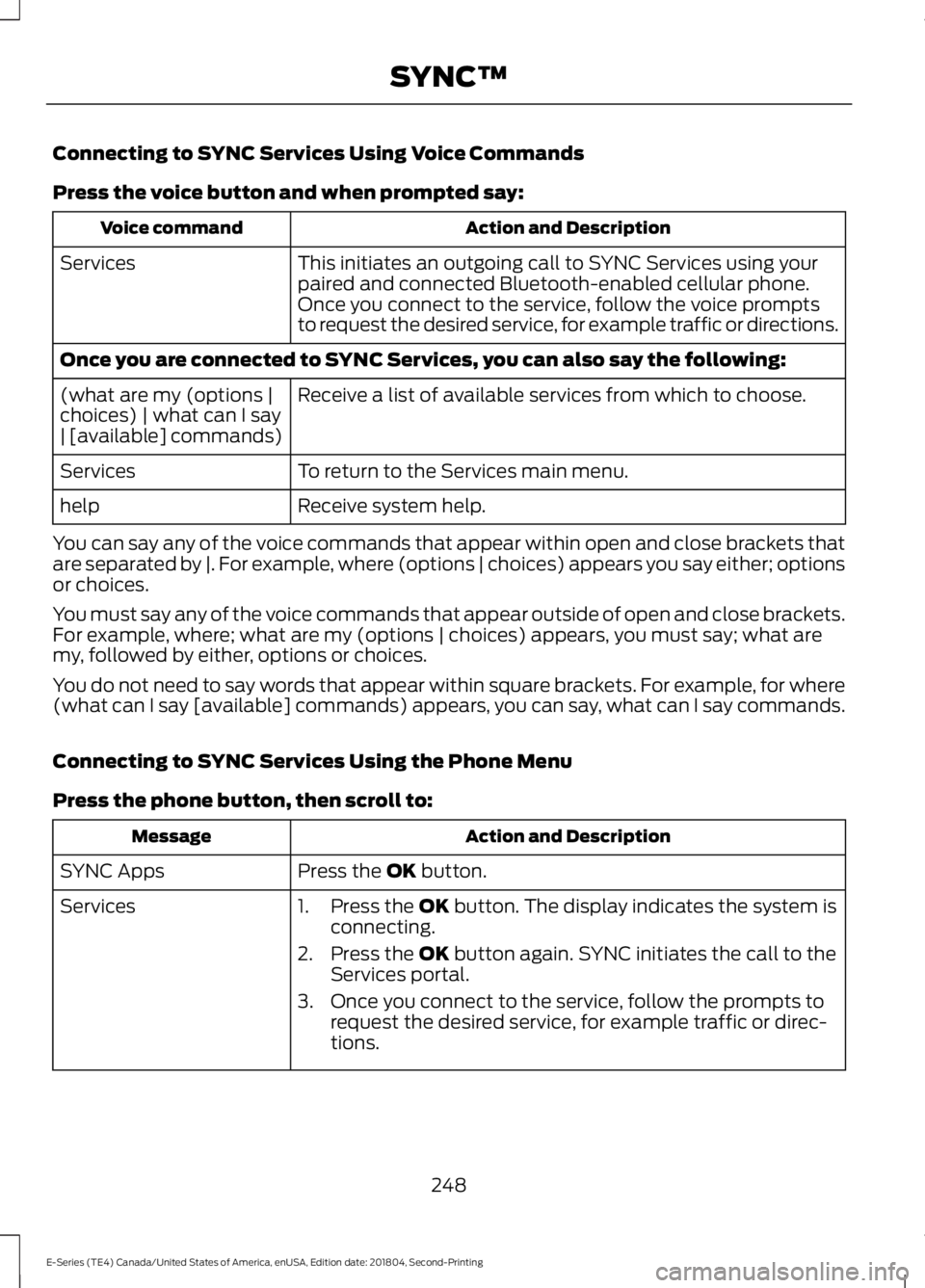
Connecting to SYNC Services Using Voice Commands
Press the voice button and when prompted say:
Action and Description
Voice command
This initiates an outgoing call to SYNC Services using your
paired and connected Bluetooth-enabled cellular phone.
Services
Once you connect to the service, follow the voice prompts
to request the desired service, for example traffic or directions.
Once you are connected to SYNC Services, you can also say the following: Receive a list of available services from which to choose.
(what are my (options |
choices) | what can I say
| [available] commands)
To return to the Services main menu.
Services
Receive system help.
help
You can say any of the voice commands that appear within open and close brackets that
are separated by |. For example, where (options | choices) appears you say either; options
or choices.
You must say any of the voice commands that appear outside of open and close brackets.
For example, where; what are my (options | choices) appears, you must say; what are
my, followed by either, options or choices.
You do not need to say words that appear within square brackets. For example, for where
(what can I say [available] commands) appears, you can say, what can I say commands.
Connecting to SYNC Services Using the Phone Menu
Press the phone button, then scroll to: Action and Description
Message
Press the OK button.
SYNC Apps
Services 1. Press the
OK button. The display indicates the system is
connecting.
2. Press the
OK button again. SYNC initiates the call to the
Services portal.
3. Once you connect to the service, follow the prompts to request the desired service, for example traffic or direc-
tions.
248
E-Series (TE4) Canada/United States of America, enUSA, Edition date: 201804, Second-Printing SYNC™
Page 252 of 329
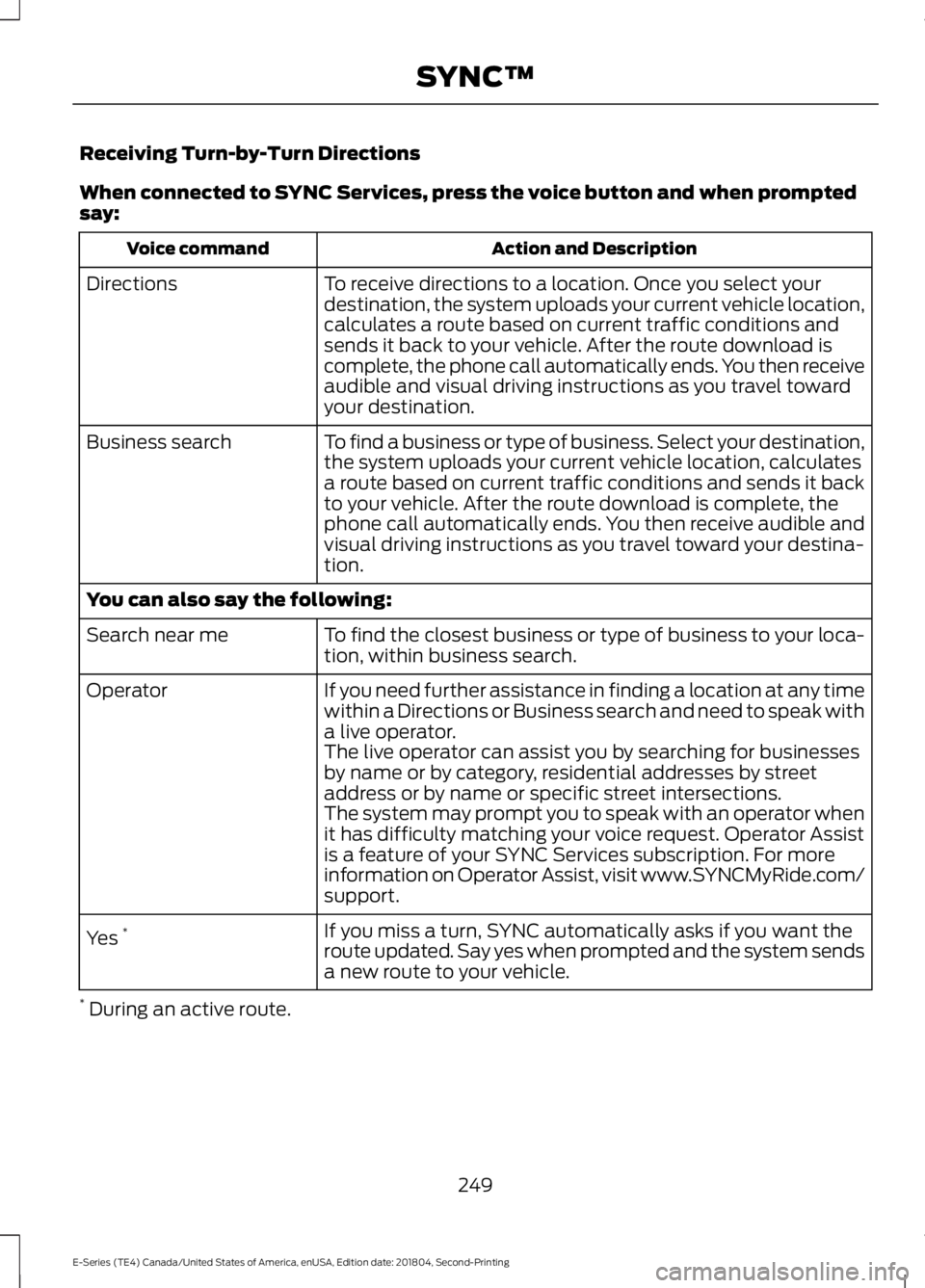
Receiving Turn-by-Turn Directions
When connected to SYNC Services, press the voice button and when prompted
say:
Action and Description
Voice command
To receive directions to a location. Once you select your
destination, the system uploads your current vehicle location,
calculates a route based on current traffic conditions and
sends it back to your vehicle. After the route download is
complete, the phone call automatically ends. You then receive
audible and visual driving instructions as you travel toward
your destination.
Directions
To find a business or type of business. Select your destination,
the system uploads your current vehicle location, calculates
a route based on current traffic conditions and sends it back
to your vehicle. After the route download is complete, the
phone call automatically ends. You then receive audible and
visual driving instructions as you travel toward your destina-
tion.
Business search
You can also say the following:
To find the closest business or type of business to your loca-
tion, within business search.
Search near me
If you need further assistance in finding a location at any time
within a Directions or Business search and need to speak with
a live operator.
Operator
The live operator can assist you by searching for businesses
by name or by category, residential addresses by street
address or by name or specific street intersections.
The system may prompt you to speak with an operator when
it has difficulty matching your voice request. Operator Assist
is a feature of your SYNC Services subscription. For more
information on Operator Assist, visit www.SYNCMyRide.com/
support.
If you miss a turn, SYNC automatically asks if you want the
route updated. Say yes when prompted and the system sends
a new route to your vehicle.
Yes
*
* During an active route.
249
E-Series (TE4) Canada/United States of America, enUSA, Edition date: 201804, Second-Printing SYNC™