USB FORD MUSTANG 2018 Owner's Manual
[x] Cancel search | Manufacturer: FORD, Model Year: 2018, Model line: MUSTANG, Model: FORD MUSTANG 2018Pages: 506, PDF Size: 7.66 MB
Page 359 of 506
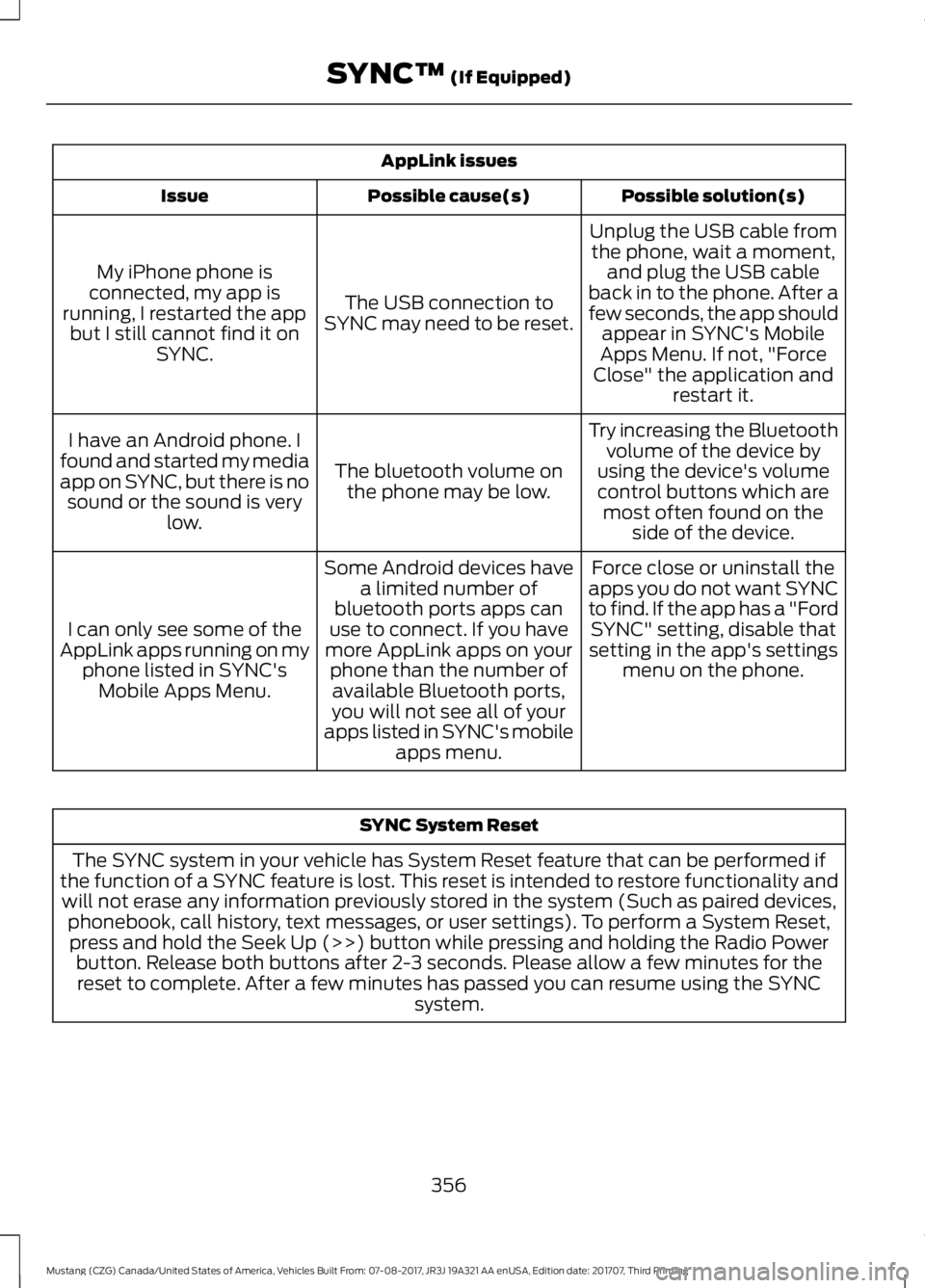
AppLink issues
Possible solution(s)
Possible cause(s)
Issue
Unplug the USB cable fromthe phone, wait a moment, and plug the USB cable
back in to the phone. After a
few seconds, the app should appear in SYNC's Mobile
Apps Menu. If not, "Force
Close" the application and restart it.
The USB connection to
SYNC may need to be reset.
My iPhone phone is
connected, my app is
running, I restarted the app but I still cannot find it on SYNC.
Try increasing the Bluetoothvolume of the device by
using the device's volume control buttons which are most often found on the side of the device.
The bluetooth volume on
the phone may be low.
I have an Android phone. I
found and started my media
app on SYNC, but there is no sound or the sound is very low.
Force close or uninstall the
apps you do not want SYNC
to find. If the app has a "Ford SYNC" setting, disable that
setting in the app's settings menu on the phone.
Some Android devices have
a limited number of
bluetooth ports apps can
use to connect. If you have
more AppLink apps on your phone than the number ofavailable Bluetooth ports,
you will not see all of your
apps listed in SYNC's mobile apps menu.
I can only see some of the
AppLink apps running on my phone listed in SYNC'sMobile Apps Menu. SYNC System Reset
The SYNC system in your vehicle has System Reset feature that can be performed if
the function of a SYNC feature is lost. This reset is intended to restore functionality and will not erase any information previously stored in the system (Such as paired devices, phonebook, call history, text messages, or user settings). To perform a System Reset,press and hold the Seek Up (>>) button while pressing and holding the Radio Power button. Release both buttons after 2-3 seconds. Please allow a few minutes for thereset to complete. After a few minutes has passed you can resume using the SYNC system.
356
Mustang (CZG) Canada/United States of America, Vehicles Built From: 07-08-2017, JR3J 19A321 AA enUSA, Edition date: 201707, Third Printing SYNC™ (If Equipped)
Page 363 of 506
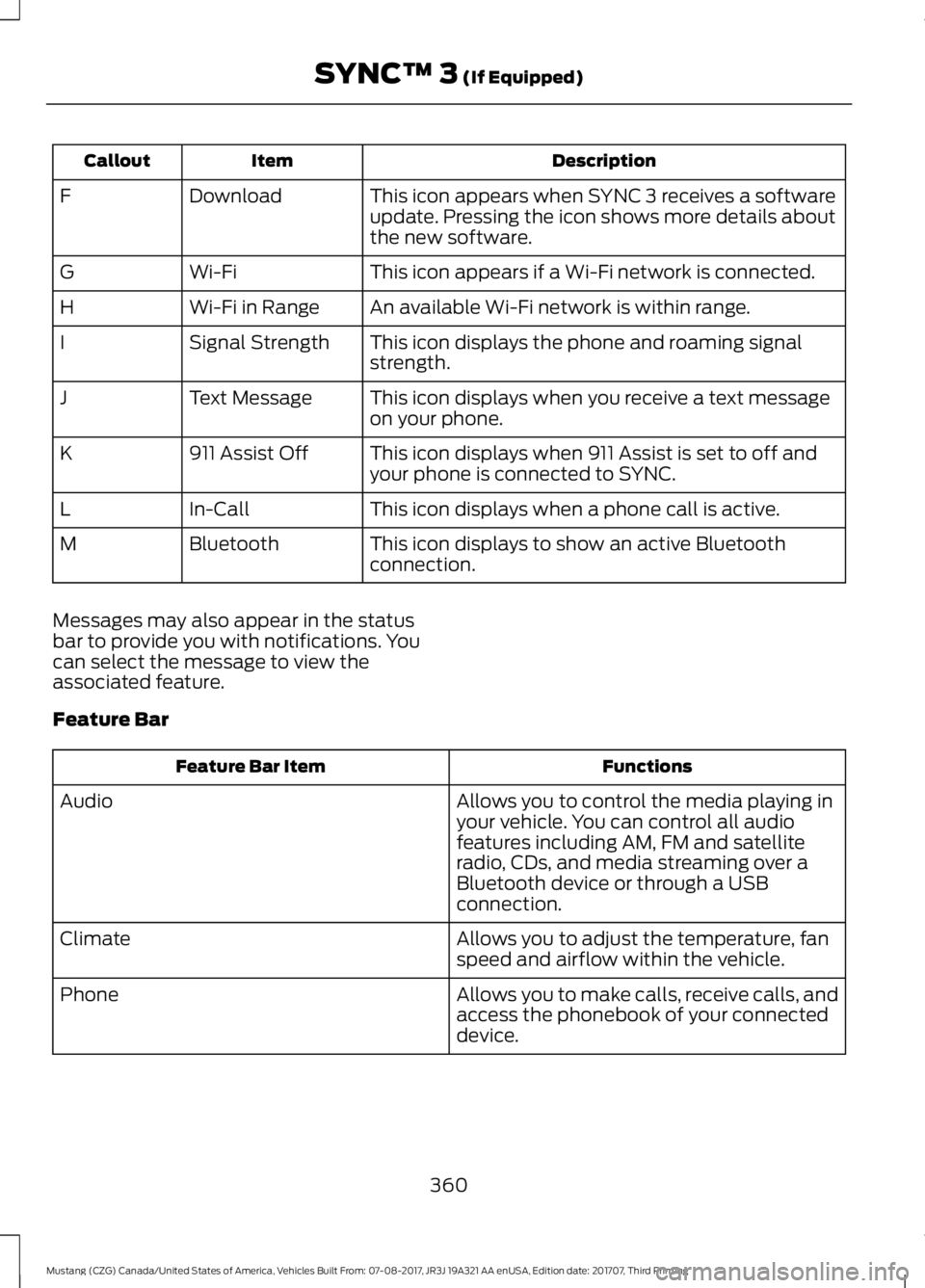
Description
Item
Callout
This icon appears when SYNC 3 receives a software
update. Pressing the icon shows more details about
the new software.
Download
F
This icon appears if a Wi-Fi network is connected.
Wi-Fi
G
An available Wi-Fi network is within range.
Wi-Fi in Range
H
This icon displays the phone and roaming signal
strength.
Signal Strength
I
This icon displays when you receive a text message
on your phone.
Text Message
J
This icon displays when 911 Assist is set to off and
your phone is connected to SYNC.
911 Assist Off
K
This icon displays when a phone call is active.
In-Call
L
This icon displays to show an active Bluetooth
connection.
Bluetooth
M
Messages may also appear in the status
bar to provide you with notifications. You
can select the message to view the
associated feature.
Feature Bar Functions
Feature Bar Item
Allows you to control the media playing in
your vehicle. You can control all audio
features including AM, FM and satellite
radio, CDs, and media streaming over a
Bluetooth device or through a USB
connection.
Audio
Allows you to adjust the temperature, fan
speed and airflow within the vehicle.
Climate
Allows you to make calls, receive calls, and
access the phonebook of your connected
device.
Phone
360
Mustang (CZG) Canada/United States of America, Vehicles Built From: 07-08-2017, JR3J 19A321 AA enUSA, Edition date: 201707, Third Printing SYNC™ 3 (If Equipped)
Page 364 of 506
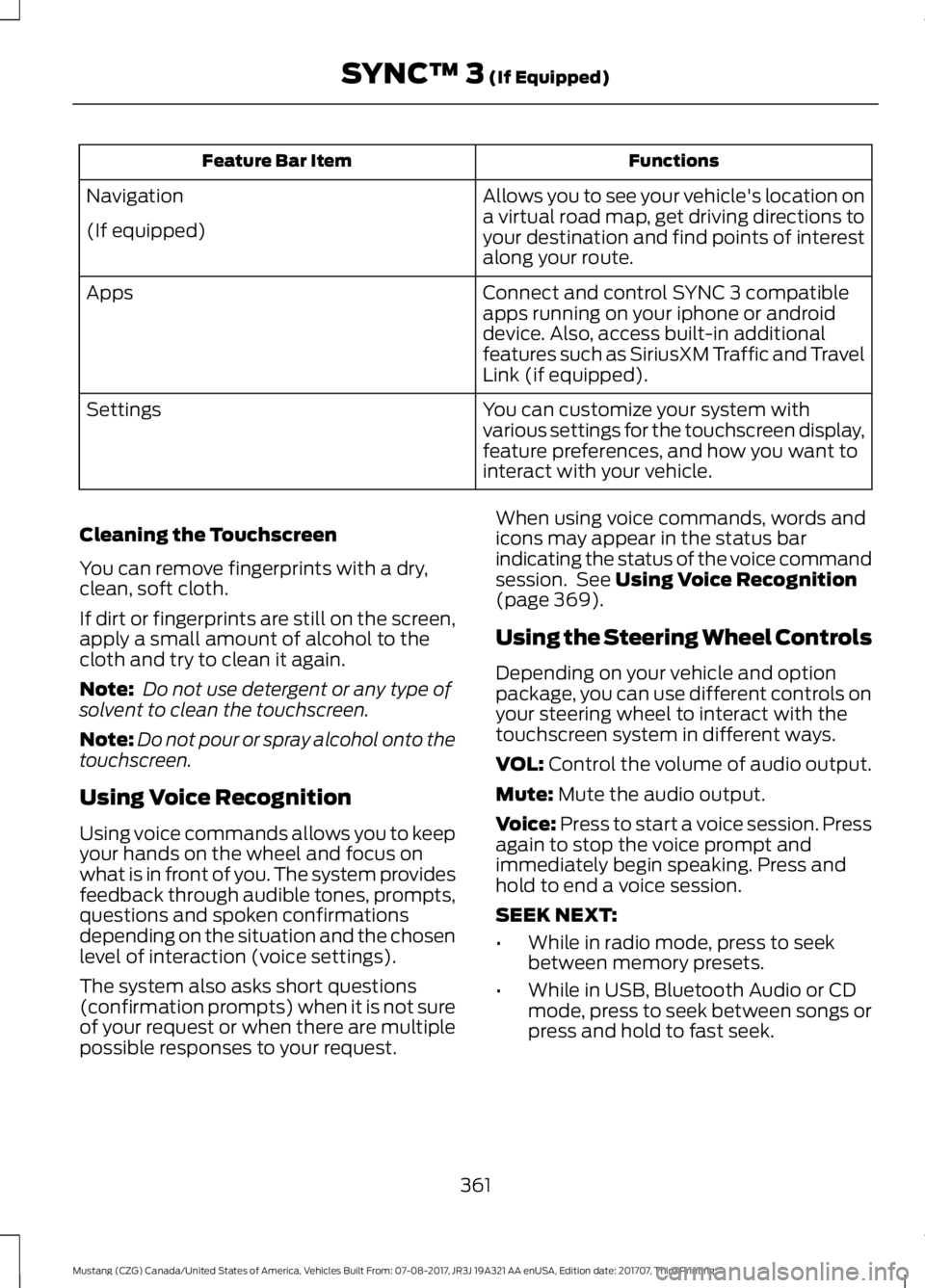
Functions
Feature Bar Item
Allows you to see your vehicle's location on
a virtual road map, get driving directions to
your destination and find points of interest
along your route.
Navigation
(If equipped)
Connect and control SYNC 3 compatible
apps running on your iphone or android
device. Also, access built-in additional
features such as SiriusXM Traffic and Travel
Link (if equipped).
Apps
You can customize your system with
various settings for the touchscreen display,
feature preferences, and how you want to
interact with your vehicle.
Settings
Cleaning the Touchscreen
You can remove fingerprints with a dry,
clean, soft cloth.
If dirt or fingerprints are still on the screen,
apply a small amount of alcohol to the
cloth and try to clean it again.
Note: Do not use detergent or any type of
solvent to clean the touchscreen.
Note: Do not pour or spray alcohol onto the
touchscreen.
Using Voice Recognition
Using voice commands allows you to keep
your hands on the wheel and focus on
what is in front of you. The system provides
feedback through audible tones, prompts,
questions and spoken confirmations
depending on the situation and the chosen
level of interaction (voice settings).
The system also asks short questions
(confirmation prompts) when it is not sure
of your request or when there are multiple
possible responses to your request. When using voice commands, words and
icons may appear in the status bar
indicating the status of the voice command
session. See Using Voice Recognition
(page 369).
Using the Steering Wheel Controls
Depending on your vehicle and option
package, you can use different controls on
your steering wheel to interact with the
touchscreen system in different ways.
VOL:
Control the volume of audio output.
Mute:
Mute the audio output.
Voice:
Press to start a voice session. Press
again to stop the voice prompt and
immediately begin speaking. Press and
hold to end a voice session.
SEEK NEXT:
• While in radio mode, press to seek
between memory presets.
• While in USB, Bluetooth Audio or CD
mode, press to seek between songs or
press and hold to fast seek.
361
Mustang (CZG) Canada/United States of America, Vehicles Built From: 07-08-2017, JR3J 19A321 AA enUSA, Edition date: 201707, Third Printing SYNC™ 3
(If Equipped)
Page 365 of 506
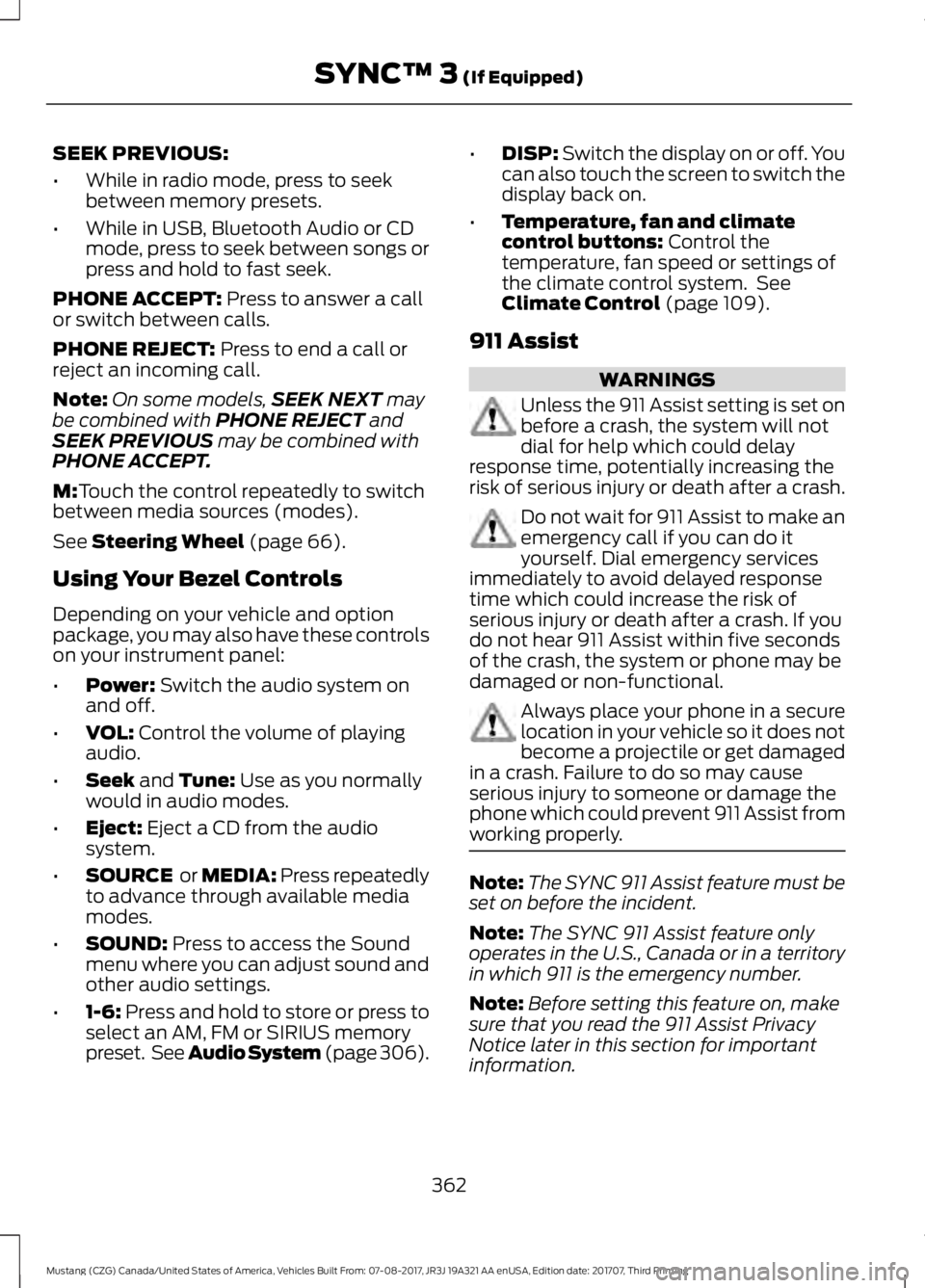
SEEK PREVIOUS:
•
While in radio mode, press to seek
between memory presets.
• While in USB, Bluetooth Audio or CD
mode, press to seek between songs or
press and hold to fast seek.
PHONE ACCEPT: Press to answer a call
or switch between calls.
PHONE REJECT:
Press to end a call or
reject an incoming call.
Note: On some models, SEEK NEXT
may
be combined with PHONE REJECT and
SEEK PREVIOUS may be combined with
PHONE ACCEPT.
M:
Touch the control repeatedly to switch
between media sources (modes).
See
Steering Wheel (page 66).
Using Your Bezel Controls
Depending on your vehicle and option
package, you may also have these controls
on your instrument panel:
• Power:
Switch the audio system on
and off.
• VOL:
Control the volume of playing
audio.
• Seek
and Tune: Use as you normally
would in audio modes.
• Eject:
Eject a CD from the audio
system.
• SOURCE
or MEDIA: Press repeatedly
to advance through available media
modes.
• SOUND:
Press to access the Sound
menu where you can adjust sound and
other audio settings.
• 1-6:
Press and hold to store or press to
select an AM, FM or SIRIUS memory
preset. See Audio System (page
306). •
DISP:
Switch the display on or off. You
can also touch the screen to switch the
display back on.
• Temperature, fan and climate
control buttons:
Control the
temperature, fan speed or settings of
the climate control system. See
Climate Control
(page 109).
911 Assist WARNINGS
Unless the 911 Assist setting is set on
before a crash, the system will not
dial for help which could delay
response time, potentially increasing the
risk of serious injury or death after a crash. Do not wait for 911 Assist to make an
emergency call if you can do it
yourself. Dial emergency services
immediately to avoid delayed response
time which could increase the risk of
serious injury or death after a crash. If you
do not hear 911 Assist within five seconds
of the crash, the system or phone may be
damaged or non-functional. Always place your phone in a secure
location in your vehicle so it does not
become a projectile or get damaged
in a crash. Failure to do so may cause
serious injury to someone or damage the
phone which could prevent 911 Assist from
working properly. Note:
The SYNC 911 Assist feature must be
set on before the incident.
Note: The SYNC 911 Assist feature only
operates in the U.S., Canada or in a territory
in which 911 is the emergency number.
Note: Before setting this feature on, make
sure that you read the 911 Assist Privacy
Notice later in this section for important
information.
362
Mustang (CZG) Canada/United States of America, Vehicles Built From: 07-08-2017, JR3J 19A321 AA enUSA, Edition date: 201707, Third Printing SYNC™ 3
(If Equipped)
Page 369 of 506
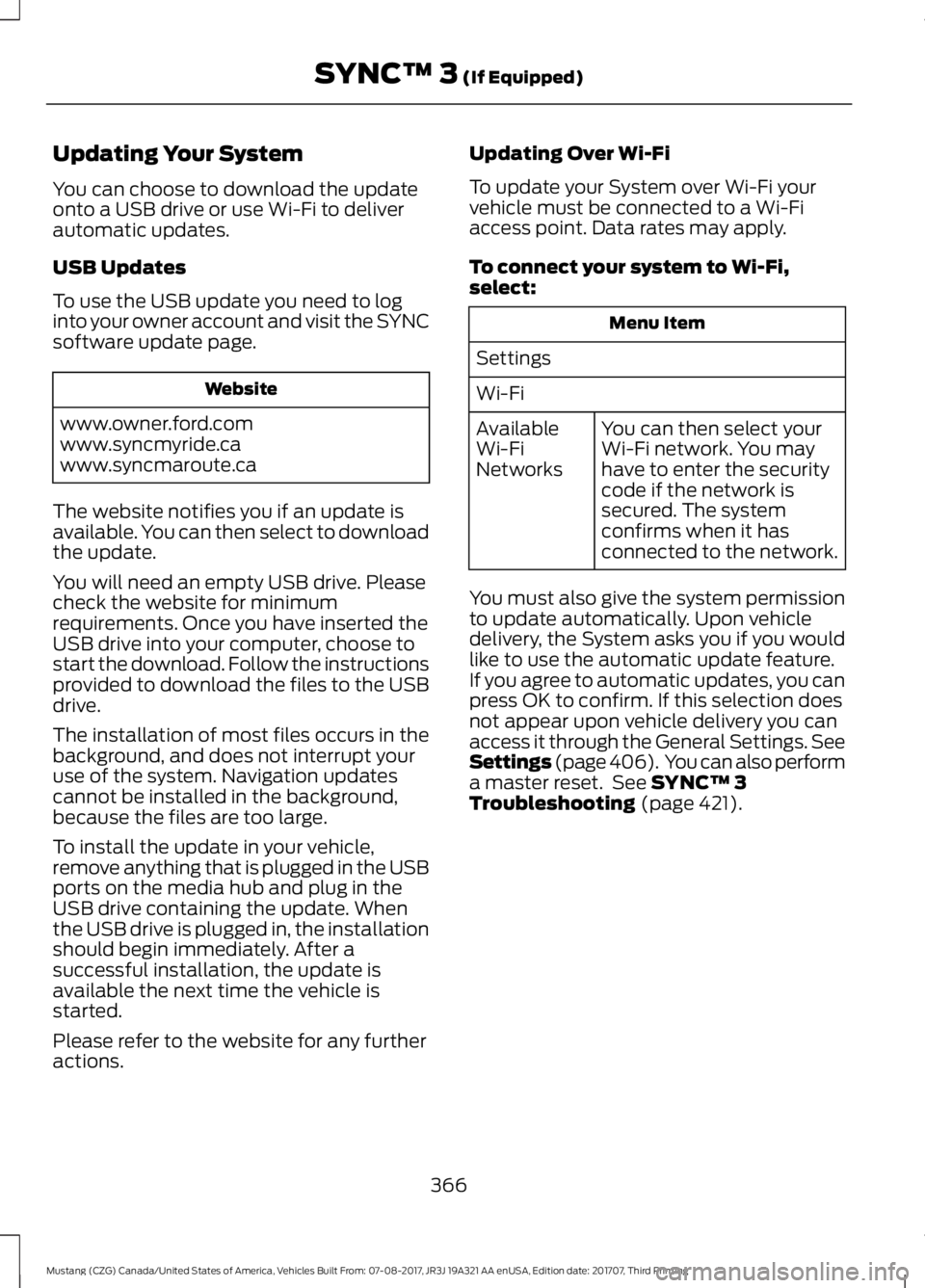
Updating Your System
You can choose to download the update
onto a USB drive or use Wi-Fi to deliver
automatic updates.
USB Updates
To use the USB update you need to log
into your owner account and visit the SYNC
software update page.
Website
www.owner.ford.com
www.syncmyride.ca
www.syncmaroute.ca
The website notifies you if an update is
available. You can then select to download
the update.
You will need an empty USB drive. Please
check the website for minimum
requirements. Once you have inserted the
USB drive into your computer, choose to
start the download. Follow the instructions
provided to download the files to the USB
drive.
The installation of most files occurs in the
background, and does not interrupt your
use of the system. Navigation updates
cannot be installed in the background,
because the files are too large.
To install the update in your vehicle,
remove anything that is plugged in the USB
ports on the media hub and plug in the
USB drive containing the update. When
the USB drive is plugged in, the installation
should begin immediately. After a
successful installation, the update is
available the next time the vehicle is
started.
Please refer to the website for any further
actions. Updating Over Wi-Fi
To update your System over Wi-Fi your
vehicle must be connected to a Wi-Fi
access point. Data rates may apply.
To connect your system to Wi-Fi,
select:
Menu Item
Settings
Wi-Fi You can then select your
Wi-Fi network. You may
have to enter the security
code if the network is
secured. The system
confirms when it has
connected to the network.
Available
Wi-Fi
Networks
You must also give the system permission
to update automatically. Upon vehicle
delivery, the System asks you if you would
like to use the automatic update feature.
If you agree to automatic updates, you can
press OK to confirm. If this selection does
not appear upon vehicle delivery you can
access it through the General Settings. See
Settings (page 406). You can also perform
a master reset. See SYNC™ 3
Troubleshooting (page 421).
366
Mustang (CZG) Canada/United States of America, Vehicles Built From: 07-08-2017, JR3J 19A321 AA enUSA, Edition date: 201707, Third Printing SYNC™ 3
(If Equipped)
Page 373 of 506
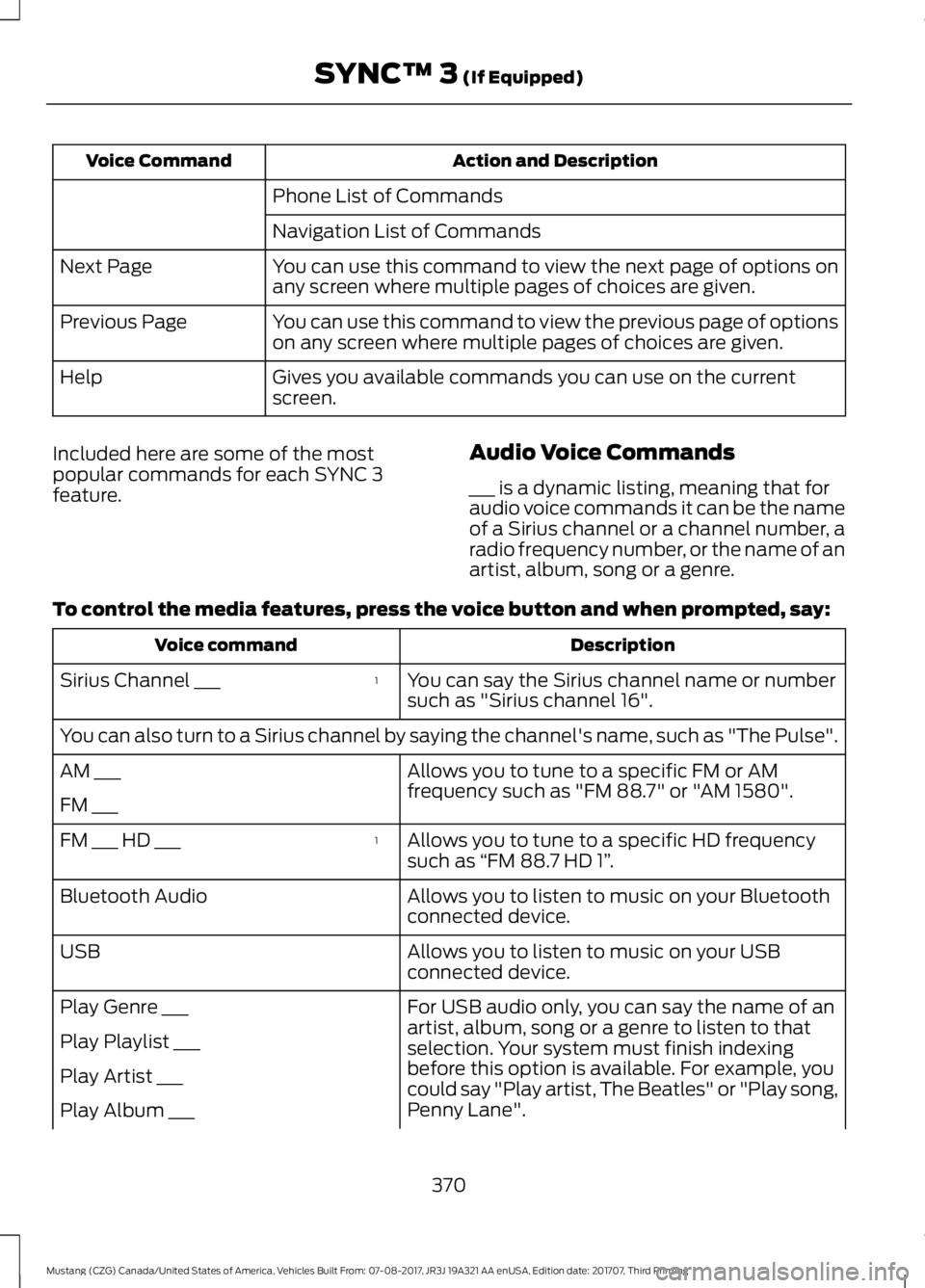
Action and Description
Voice Command
Phone List of Commands
Navigation List of Commands
You can use this command to view the next page of options on
any screen where multiple pages of choices are given.
Next Page
You can use this command to view the previous page of options
on any screen where multiple pages of choices are given.
Previous Page
Gives you available commands you can use on the current
screen.
Help
Included here are some of the most
popular commands for each SYNC 3
feature. Audio Voice Commands
___ is a dynamic listing, meaning that for
audio voice commands it can be the name
of a Sirius channel or a channel number, a
radio frequency number, or the name of an
artist, album, song or a genre.
To control the media features, press the voice button and when prompted, say: Description
Voice command
You can say the Sirius channel name or number
such as "Sirius channel 16".
1
Sirius Channel ___
You can also turn to a Sirius channel by saying the channel's name, such as "The Pulse".
Allows you to tune to a specific FM or AM
frequency such as "FM 88.7" or "AM 1580".
AM ___
FM ___
Allows you to tune to a specific HD frequency
such as “FM 88.7 HD 1” .
1
FM ___ HD ___
Allows you to listen to music on your Bluetooth
connected device.
Bluetooth Audio
Allows you to listen to music on your USB
connected device.
USB
For USB audio only, you can say the name of an
artist, album, song or a genre to listen to that
selection. Your system must finish indexing
before this option is available. For example, you
could say "Play artist, The Beatles" or "Play song,
Penny Lane".
Play Genre ___
Play Playlist ___
Play Artist ___
Play Album ___
370
Mustang (CZG) Canada/United States of America, Vehicles Built From: 07-08-2017, JR3J 19A321 AA enUSA, Edition date: 201707, Third Printing SYNC™ 3 (If Equipped)
Page 374 of 506
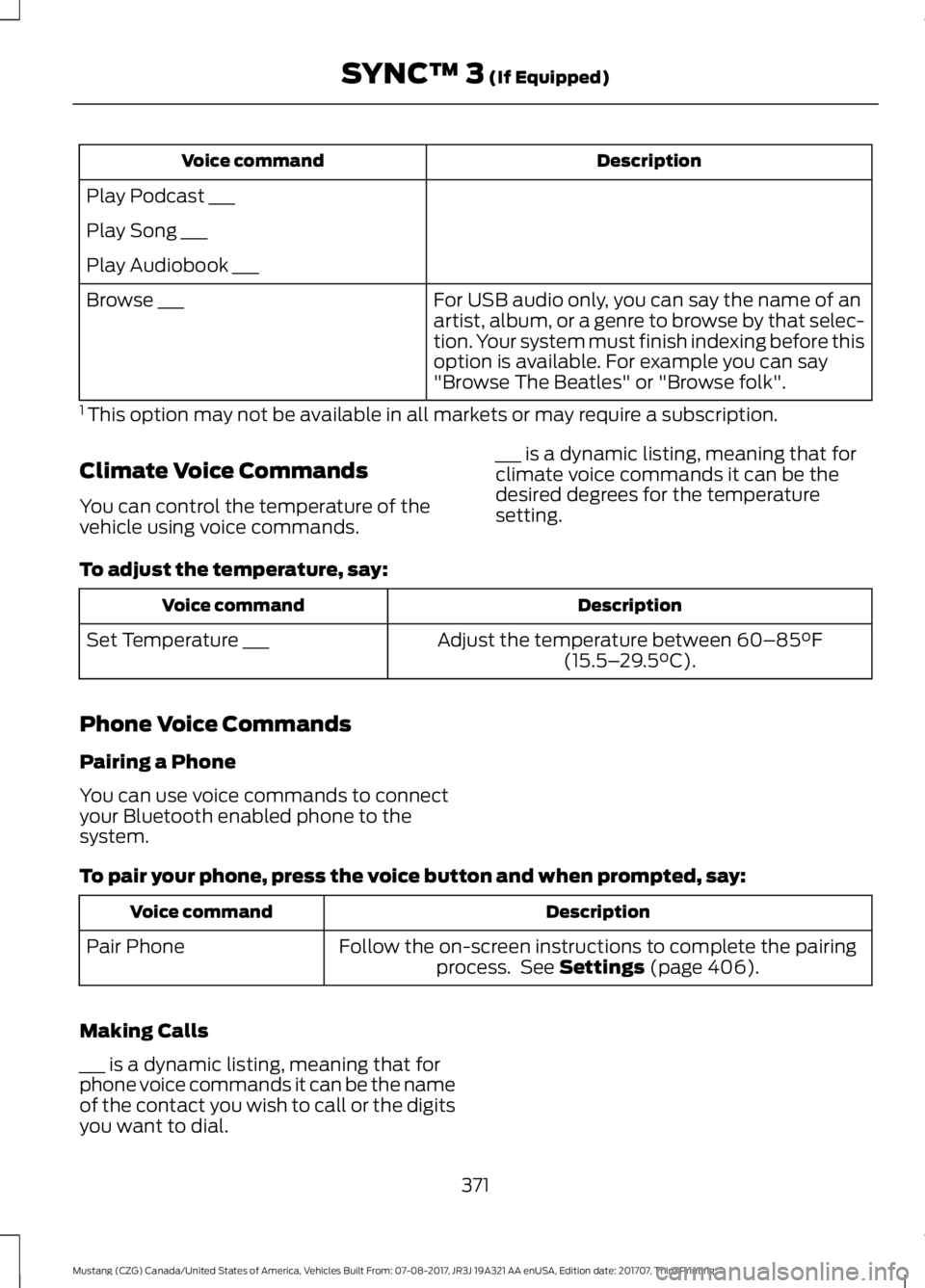
Description
Voice command
Play Podcast ___
Play Song ___
Play Audiobook ___ For USB audio only, you can say the name of an
artist, album, or a genre to browse by that selec-
tion. Your system must finish indexing before this
option is available. For example you can say
"Browse The Beatles" or "Browse folk".
Browse ___
1 This option may not be available in all markets or may require a subscription.
Climate Voice Commands
You can control the temperature of the
vehicle using voice commands. ___ is a dynamic listing, meaning that for
climate voice commands it can be the
desired degrees for the temperature
setting.
To adjust the temperature, say: Description
Voice command
Adjust the temperature between 60–85°F
(15.5– 29.5°C).
Set Temperature ___
Phone Voice Commands
Pairing a Phone
You can use voice commands to connect
your Bluetooth enabled phone to the
system.
To pair your phone, press the voice button and when prompted, say: Description
Voice command
Follow the on-screen instructions to complete the pairingprocess. See
Settings (page 406).
Pair Phone
Making Calls
___ is a dynamic listing, meaning that for
phone voice commands it can be the name
of the contact you wish to call or the digits
you want to dial. 371
Mustang (CZG) Canada/United States of America, Vehicles Built From: 07-08-2017, JR3J 19A321 AA enUSA, Edition date: 201707, Third Printing SYNC™ 3
(If Equipped)
Page 380 of 506
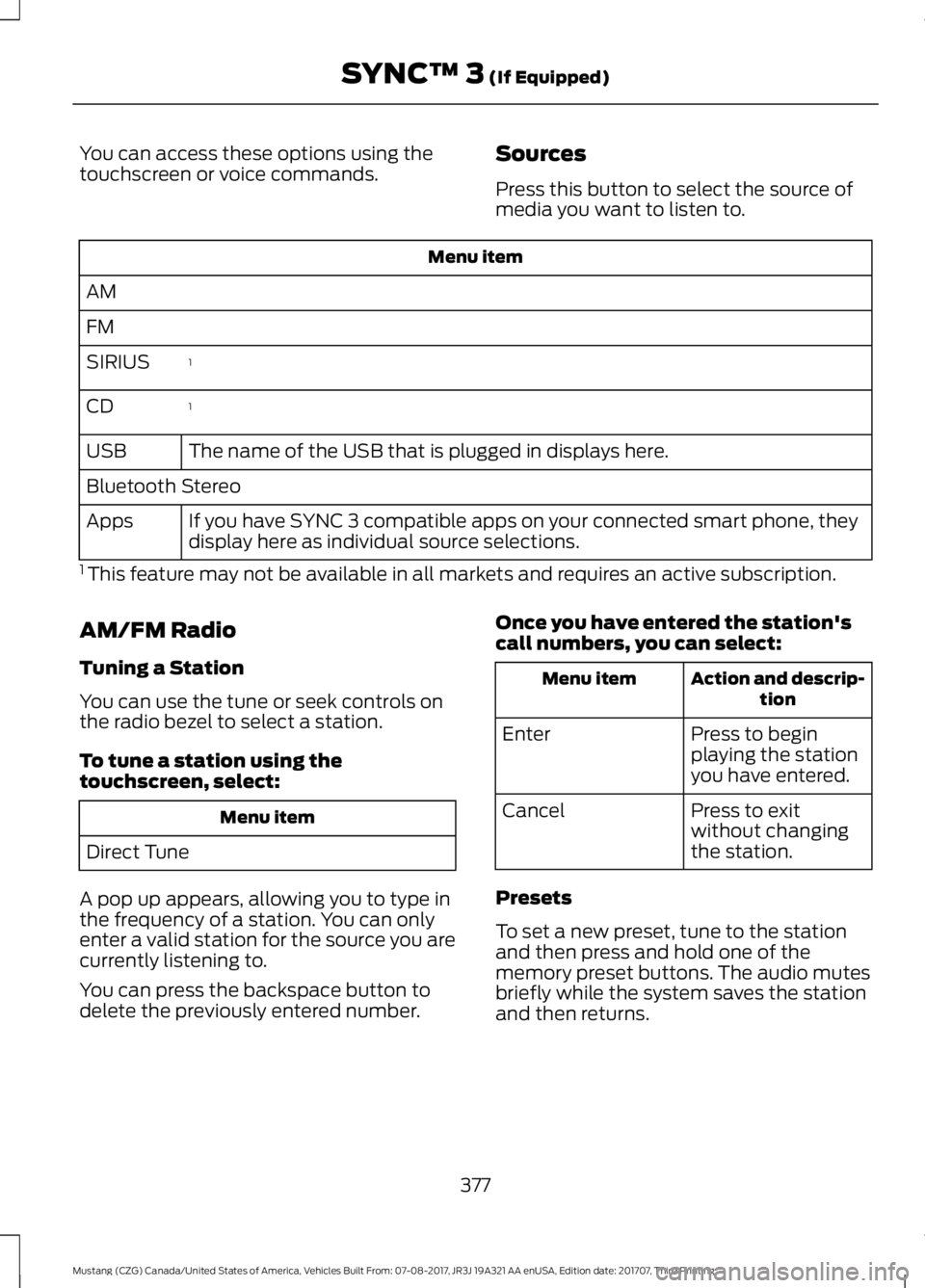
You can access these options using the
touchscreen or voice commands.
Sources
Press this button to select the source of
media you want to listen to.Menu item
AM
FM 1
SIRIUS
1
CD
The name of the USB that is plugged in displays here.
USB
Bluetooth Stereo
If you have SYNC 3 compatible apps on your connected smart phone, they
display here as individual source selections.
Apps
1 This feature may not be available in all markets and requires an active subscription.
AM/FM Radio
Tuning a Station
You can use the tune or seek controls on
the radio bezel to select a station.
To tune a station using the
touchscreen, select: Menu item
Direct Tune
A pop up appears, allowing you to type in
the frequency of a station. You can only
enter a valid station for the source you are
currently listening to.
You can press the backspace button to
delete the previously entered number. Once you have entered the station's
call numbers, you can select: Action and descrip-
tion
Menu item
Press to begin
playing the station
you have entered.
Enter
Press to exit
without changing
the station.
Cancel
Presets
To set a new preset, tune to the station
and then press and hold one of the
memory preset buttons. The audio mutes
briefly while the system saves the station
and then returns.
377
Mustang (CZG) Canada/United States of America, Vehicles Built From: 07-08-2017, JR3J 19A321 AA enUSA, Edition date: 201707, Third Printing SYNC™ 3 (If Equipped)
Page 387 of 506
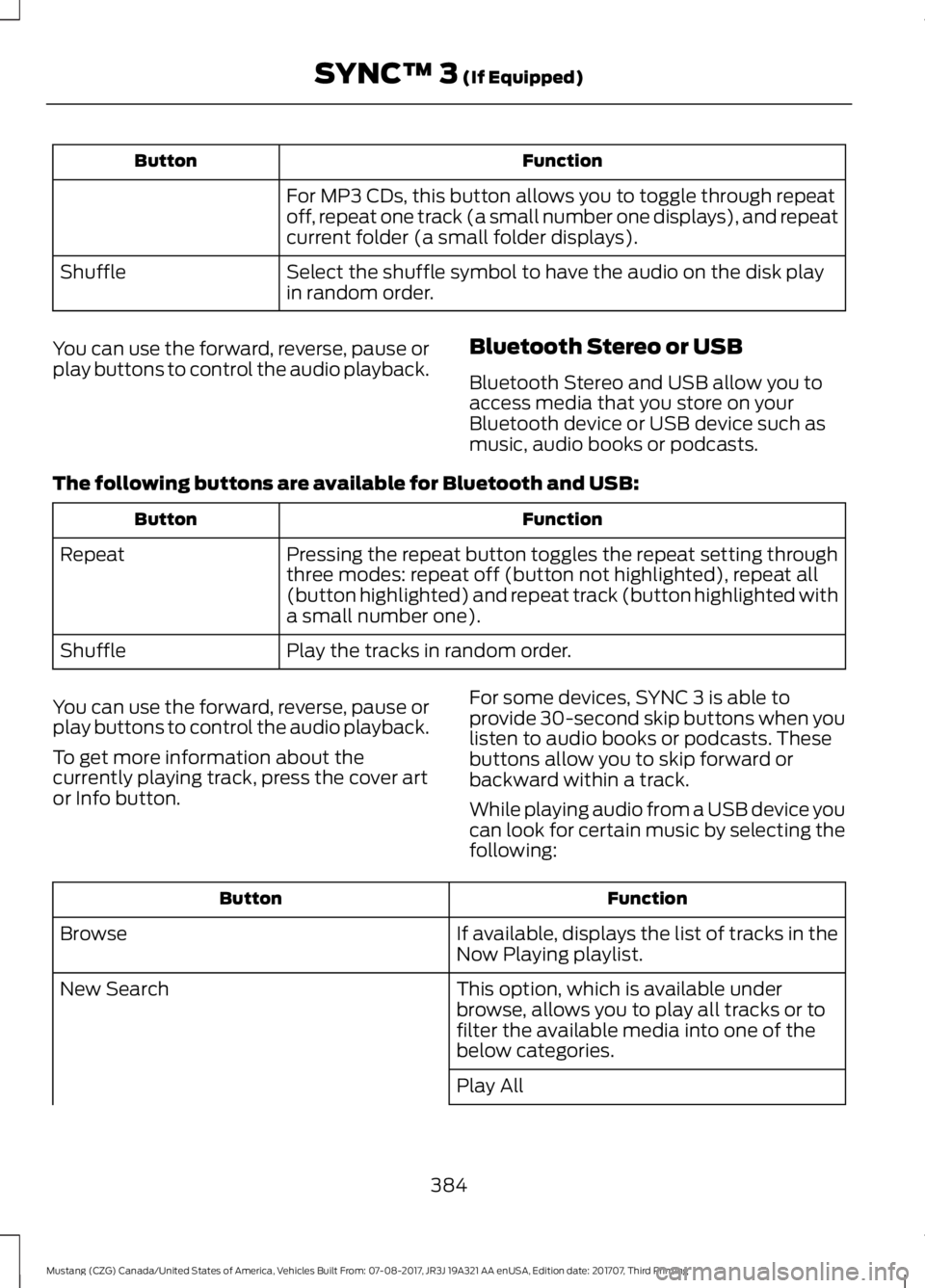
Function
Button
For MP3 CDs, this button allows you to toggle through repeat
off, repeat one track (a small number one displays), and repeat
current folder (a small folder displays).
Select the shuffle symbol to have the audio on the disk play
in random order.
Shuffle
You can use the forward, reverse, pause or
play buttons to control the audio playback. Bluetooth Stereo or USB
Bluetooth Stereo and USB allow you to
access media that you store on your
Bluetooth device or USB device such as
music, audio books or podcasts.
The following buttons are available for Bluetooth and USB: Function
Button
Pressing the repeat button toggles the repeat setting through
three modes: repeat off (button not highlighted), repeat all
(button highlighted) and repeat track (button highlighted with
a small number one).
Repeat
Play the tracks in random order.
Shuffle
You can use the forward, reverse, pause or
play buttons to control the audio playback.
To get more information about the
currently playing track, press the cover art
or Info button. For some devices, SYNC 3 is able to
provide 30-second skip buttons when you
listen to audio books or podcasts. These
buttons allow you to skip forward or
backward within a track.
While playing audio from a USB device you
can look for certain music by selecting the
following: Function
Button
If available, displays the list of tracks in the
Now Playing playlist.
Browse
This option, which is available under
browse, allows you to play all tracks or to
filter the available media into one of the
below categories.
New Search
Play All
384
Mustang (CZG) Canada/United States of America, Vehicles Built From: 07-08-2017, JR3J 19A321 AA enUSA, Edition date: 201707, Third Printing SYNC™ 3 (If Equipped)
Page 388 of 506
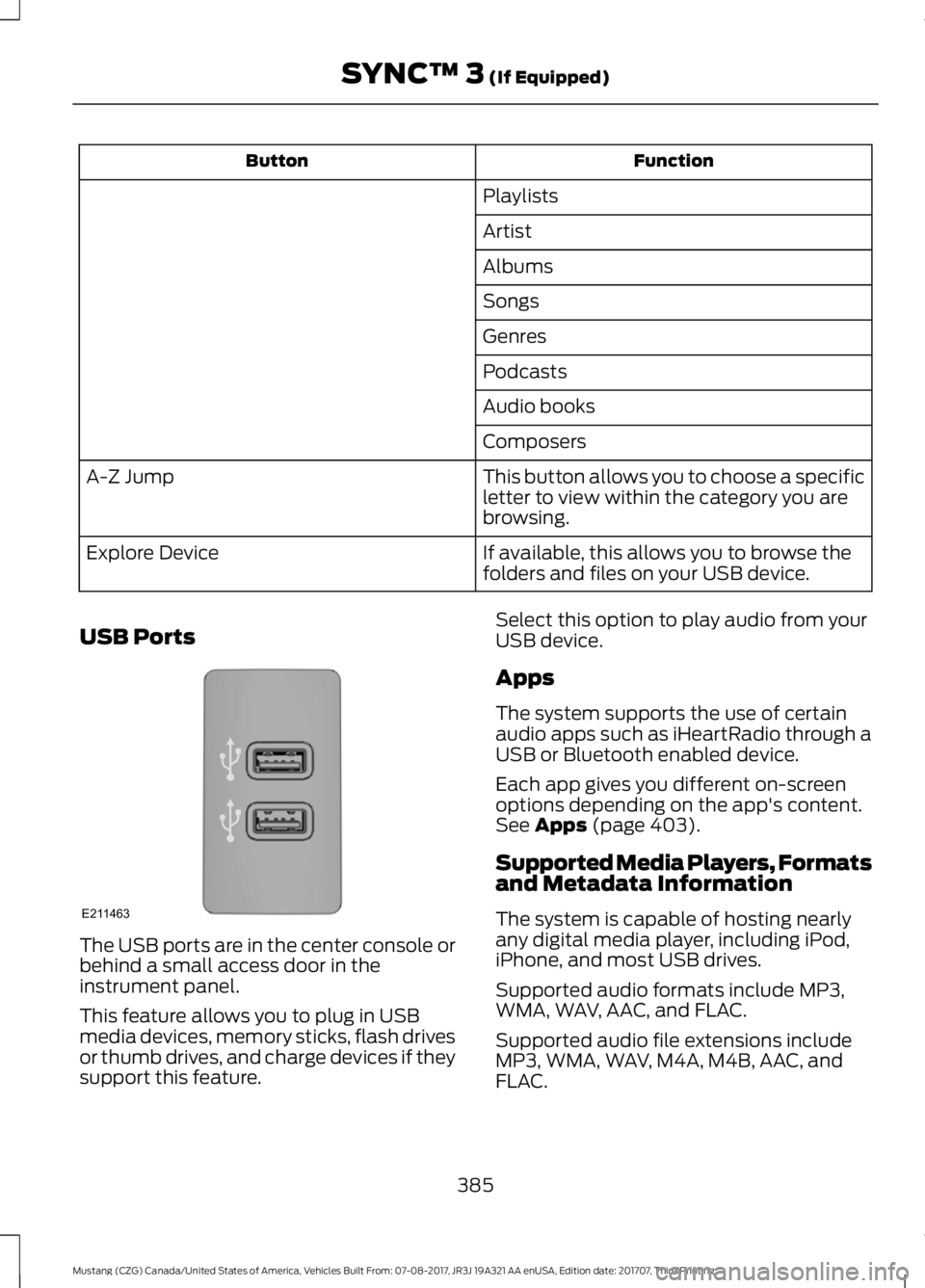
Function
Button
Playlists
Artist
Albums
Songs
Genres
Podcasts
Audio books
Composers
This button allows you to choose a specific
letter to view within the category you are
browsing.
A-Z Jump
If available, this allows you to browse the
folders and files on your USB device.
Explore Device
USB Ports The USB ports are in the center console or
behind a small access door in the
instrument panel.
This feature allows you to plug in USB
media devices, memory sticks, flash drives
or thumb drives, and charge devices if they
support this feature. Select this option to play audio from your
USB device.
Apps
The system supports the use of certain
audio apps such as iHeartRadio through a
USB or Bluetooth enabled device.
Each app gives you different on-screen
options depending on the app's content.
See Apps (page 403).
Supported Media Players, Formats
and Metadata Information
The system is capable of hosting nearly
any digital media player, including iPod,
iPhone, and most USB drives.
Supported audio formats include MP3,
WMA, WAV, AAC, and FLAC.
Supported audio file extensions include
MP3, WMA, WAV, M4A, M4B, AAC, and
FLAC.
385
Mustang (CZG) Canada/United States of America, Vehicles Built From: 07-08-2017, JR3J 19A321 AA enUSA, Edition date: 201707, Third Printing SYNC™ 3
(If Equipped)E211463