audio HONDA ACCORD 2015 9.G User Guide
[x] Cancel search | Manufacturer: HONDA, Model Year: 2015, Model line: ACCORD, Model: HONDA ACCORD 2015 9.GPages: 593
Page 120 of 593
119
uuLocking and Unlocking the Doors uAuto Door Locking/Unlocking
Controls
Auto Door Locking/UnlockingYour vehicle locks and unlocks all doors automatically when a certain condition is
met.■Drive lock mode
All doors lock when the vehicle’s speed reaches about 10 mph (15 km/h).■Driver’s door open mode
All doors unlock when the driver’s door is opened.■
Auto Door Locking
■
Auto Door Unlocking
1 Auto Door Locking/Unlocking
You can turn off or change to another auto door
locking/unlocking setting using the audio/
information screen or multi-inf ormation display
*.
2 Customized Features P. 97, 298
* Not available on all models
Page 132 of 593
131Controls
Operating the Switches Around the Steering WheelIgnition Switch
*
1Ignition Switch
*
You cannot take the key out unless the shift lever is
in (P.
If you open the driver's door when the key is in LOCK
( 0 or ACCESSORY
(q, a warning buzzer will sound
to remind you to take the key out.
If the key won't turn from LOCK
( 0 to ACCESSORY
(q, turn the key while moving the steering wheel left
and right. The steering wheel will unlock, allowing
the key to turn.
3
WARNING
Removing the key from the ignition switch
while driving locks the steering. This can
cause you to lose co ntrol of the vehicle.
Remove the key from the ignition switch
only when parked.Manual transmission modelsContinuously variable transmission (CVT) modelsAll models
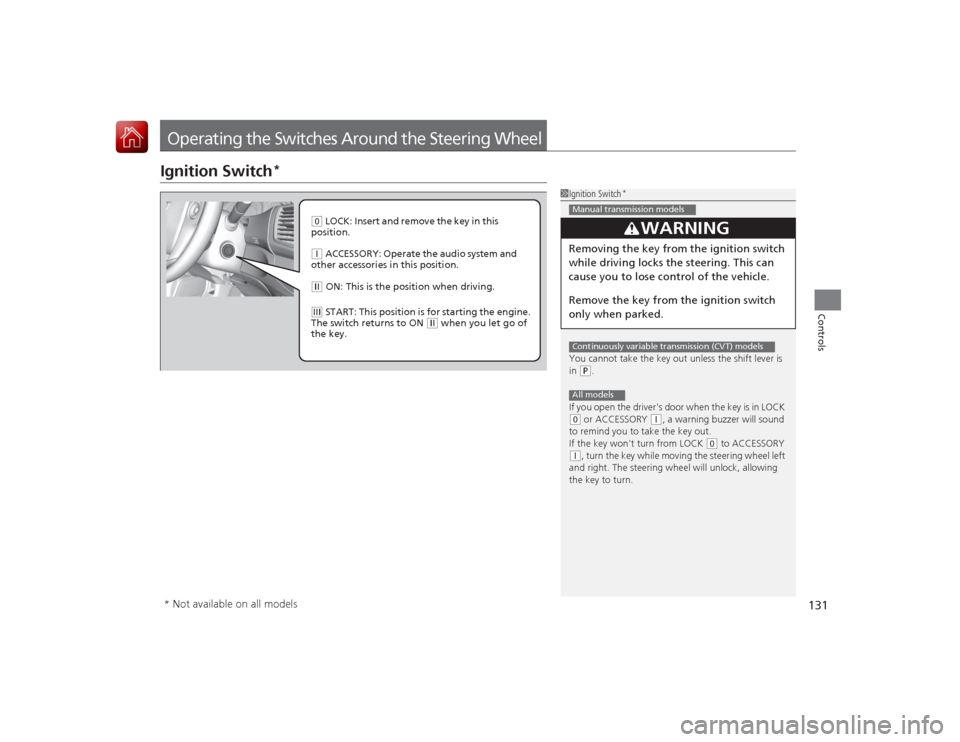
( 0 LOCK: Insert and remove the key in this
position.( q ACCESSORY: Operate the audio system and
other accessories in this position.( w ON: This is the pos ition when driving.(e START: This position is for starting the engine.
The switch returns to ON
( w when you let go of
the key.
* Not available on all models
Page 133 of 593
132
uuOperating the Switches Around the Steering Wheel uENGINE START/STOP Button
*
Controls
ENGINE START/STOP Button
*
*1 : Except U.S. automatic transmission/CVT models■
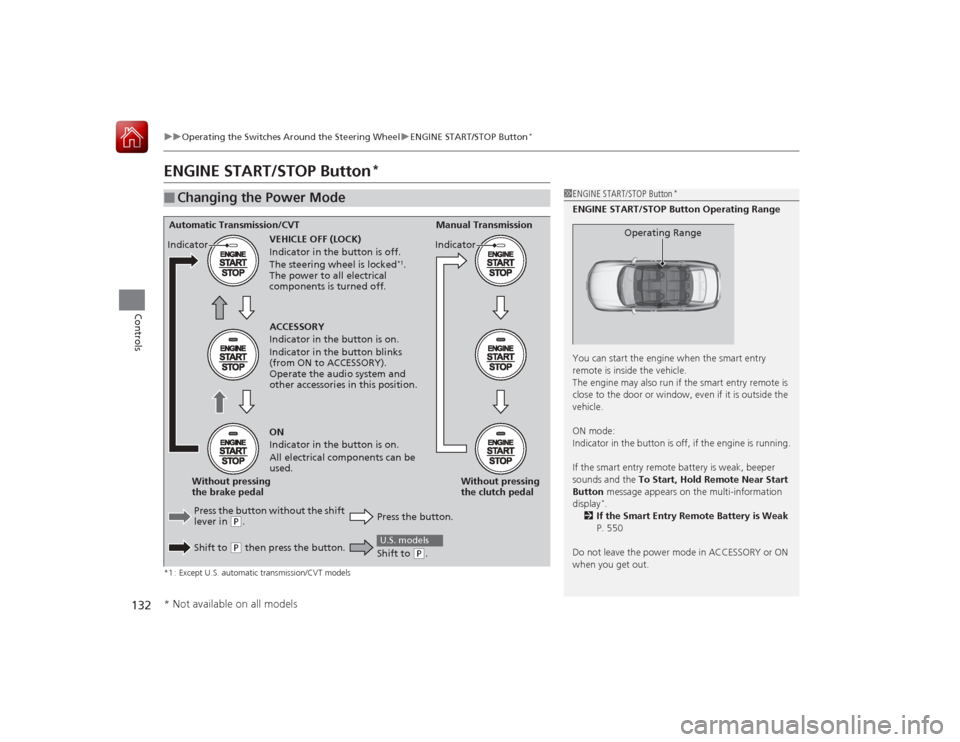
Changing the Power Mode
1ENGINE START/STOP Button
*
ENGINE START/STOP Button Operating Range
You can start the engine when the smart entry
remote is inside the vehicle.
The engine may also run if the smart entry remote is
close to the door or window, even if it is outside the
vehicle.
ON mode:
Indicator in the button is off, if the engine is running.
If the smart entry remote battery is weak, beeper
sounds and the To Start, Hold Remote Near Start
Button message appears on the multi-infor mation
display
*.
2 If the Smart Entry Remote Battery is Weak
P. 550
Do not leave the power mode in ACCESSORY or ON
when you get out.
Operating Range
Automatic Transmission/CVT Manual Transmission
VEHICLE OFF (LOCK)
Indicator in the button is off.
The steering wheel is locked
*1.
The power to all electrical
components is turned off.
Press the button without the shift
lever in
( P.
Shift to ( P then press the button. Press the button.Without pressing
the clutch pedal
Without pressing
the brake pedal ACCESSORY
Indicator in the button is on.
Indicator in the button blinks
(from ON to ACCESSORY).
Operate the audio system and
other accessories in this position.
ON
Indicator in the button is on.
All electrical components can be
used.
Indicator
Indicator
Shift to
(
P.
U.S. models
* Not available on all models
Page 136 of 593
135
uuOperating the Switches Around the Steering Wheel uIgnition Switch and Power Mode Comparison
Controls
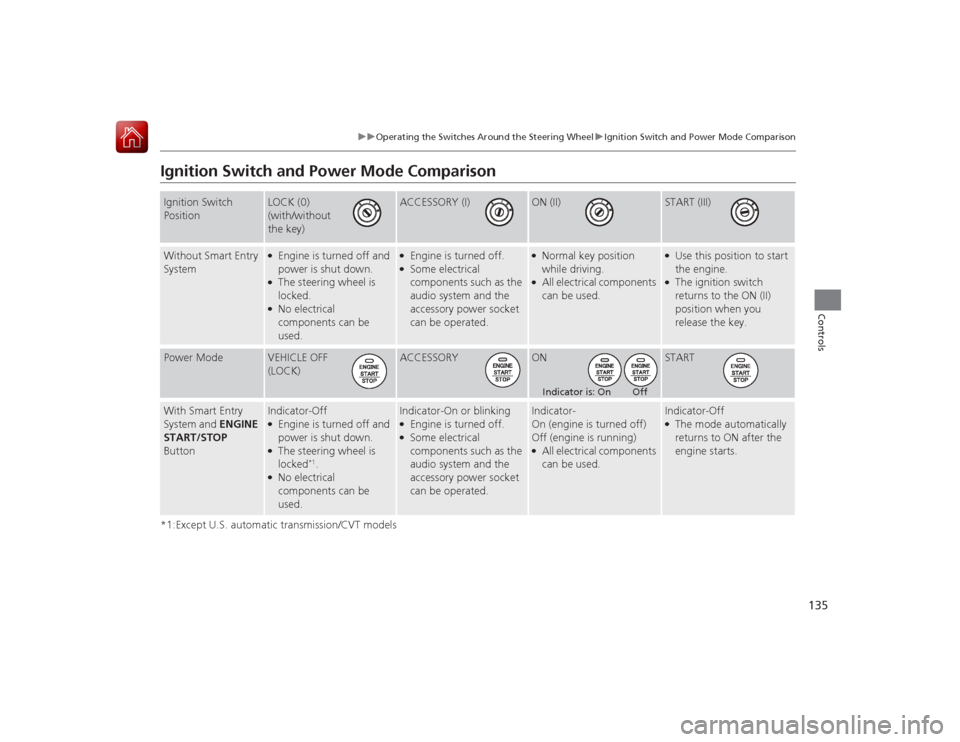
Ignition Switch and Power Mode Comparison*1:Except U.S. automatic transmission/CVT modelsIgnition Switch
Position
LOCK (0)
(with/without
the key)
ACCESSORY (I)
ON (II)
START (III)
Without Smart Entry
System
●Engine is turned off and
power is shut down.●The steering wheel is
locked.●No electrical
components can be
used.
●Engine is turned off.●Some electrical
components such as the
audio system and the
accessory power socket
can be operated.
●Normal key position
while driving.●All electrical components
can be used.
●Use this position to start
the engine.●The ignition switch
returns to the ON (II)
position when you
release the key.
Power Mode
VEHICLE OFF
(LOCK)
ACCESSORY
ON
START
With Smart Entry
System and ENGINE
START/STOP
Button
Indicator-Off●Engine is turned off and
power is shut down.●The steering wheel is
locked
*1.
●No electrical
components can be
used.
Indicator-On or blinking●Engine is turned off.●Some electrical
components such as the
audio system and the
accessory power socket
can be operated.
Indicator-
On (engine is turned off)
Off (engine is running)●All electrical components
can be used.
Indicator-Off●The mode automatically
returns to ON after the
engine starts.
Indicator is: On Off
Page 144 of 593
143
uuOperating the Switches Around the Steering Wheel uDriving Position Memory System
*
Continued
Controls
Driving Position Memory System
*
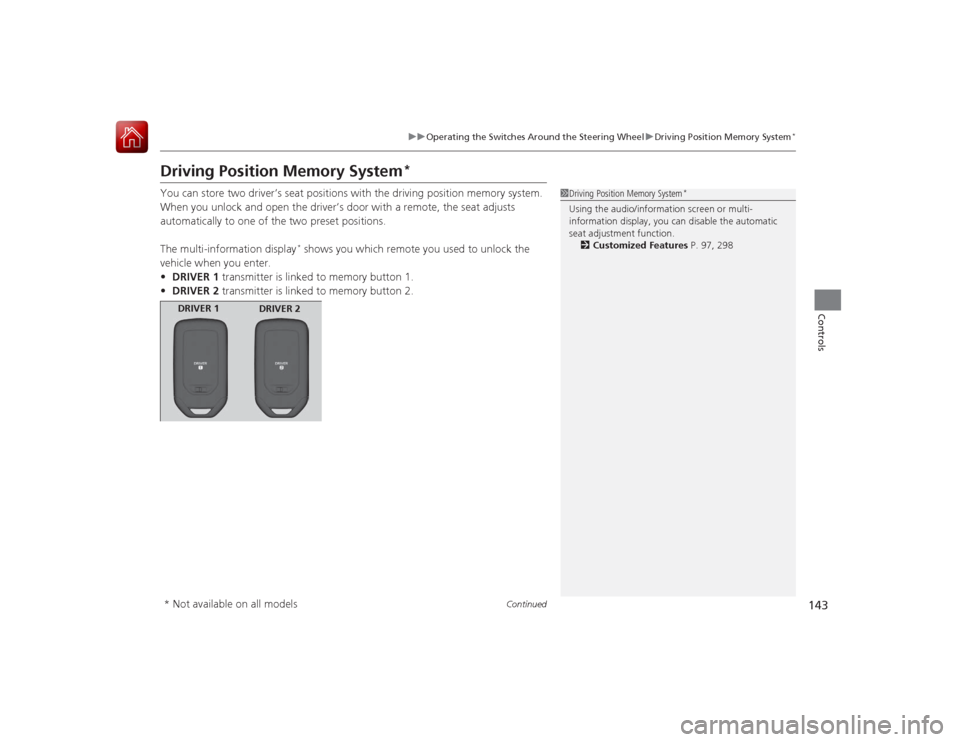
You can store two driver’s seat positions with the driving position memory system.
When you unlock and open the driver’s door with a remote, the seat adjusts
automatically to one of the two preset positions.
The multi-information display
* shows you which remote you used to unlock the
vehicle when you enter.
• DRIVER 1 transmitter is linked to memory button 1.
• DRIVER 2 transmitter is linked to memory button 2.
1Driving Position Memory System
*
Using the audio/information screen or multi-
information display, you can disable the automatic
seat adjustment function.
2 Customized Features P. 97, 298
DRIVER 1
DRIVER 2
* Not available on all models
Page 174 of 593
173
Features
This chapter describes how to operate technology features.
Audio SystemUSB Port .......................................... 175
Auxiliary Input Jack .......................... 176
Audio System Theft Protection
*....... 177
Region Setting ................................. 178
Audio Remote Controls .................... 179
Audio System Basic Operation ........ 180
Audio/Information Screen ................ 181
Display Setup ................................... 186
Playing AM/FM Radio ....................... 187
Playing a CD .................................... 189
Playing an iPod ................................ 192
Playing Internet Radio ...................... 195
Playing a USB Flash Drive ................. 197
Playing Bluetooth ® Audio ................. 200
Models with one display
Audio System Basic Operation ........ 202
Audio with Touch Screen ................. 203
Audio/Information Screen ................ 206
Display Setup ................................... 212
Playing AM/FM Radio ....................... 213
Playing SiriusXM ® Radio
*................. 217
Playing a CD .................................... 220
Playing an iPod ................................ 223
Playing Internet Radio ...................... 227
Playing a USB Flash Drive ................. 230
Playing Bluetooth® Audio................. 233
Audio System Basic Operation ........ 235
Audio with Touch Screen ................. 236
Audio/Information Screen ................ 238
Models with two displaysModels with navigation system
Display Setup ................................... 243
Voice Control Operation .................. 244
Playing AM/FM Radio....................... 252
Playing SiriusXM ® Radio ................... 256
Playing a CD .................................... 259Playing Hard Disk Drive (HDD) Audio .... 262Playing an iPod ................................ 272
Playing Internet Radio ...................... 280
Playing a USB Flash Drive ................. 283
Playing Bluetooth ® Audio ................ 286
Audio Error Messages ...................... 288General Information on the Audio System
.....294
Customized Features........................ 298
HomeLink ® Universal Transceiver
*... 336
Bluetooth® HandsFreeLink ®..... 338 , 375
Compass
*.......................................... 413
* Not available on all models
Page 175 of 593
174Features
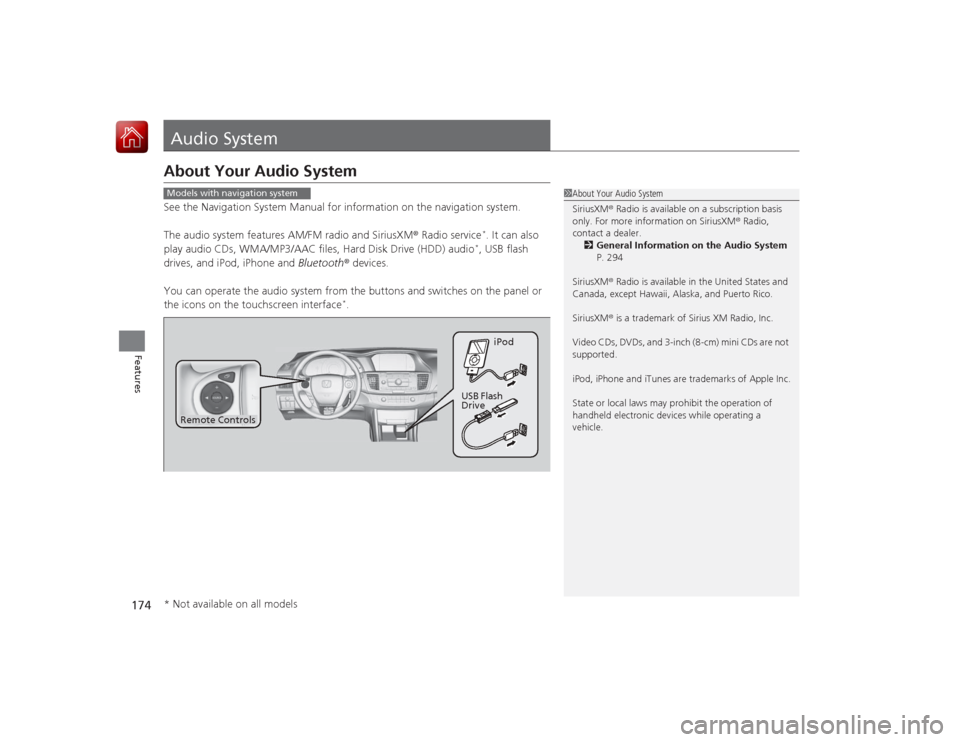
Audio SystemAbout Your Audio SystemSee the Navigation System Manual for information on the navigation system.
The audio system features AM/FM radio and SiriusXM® Radio service
*. It can also
play audio CDs, WMA/MP3/AAC files, Hard Disk Drive (HDD) audio*, USB flash
drives, and iPod, iPhone and Bluetooth® devices.
You can operate the audio system from the buttons and switches on the panel or
the icons on the touchscreen interface
*.
1 About Your Audio System
SiriusXM ® Radio is available on a subscription basis
only. For more information on SiriusXM ® Radio,
contact a dealer.
2 General Information on the Audio System
P. 294
SiriusXM ® Radio is available in the United States and
Canada, except Hawaii, Alaska, and Puerto Rico.
SiriusXM ® is a trademark of Sirius XM Radio, Inc.
Video CDs, DVDs, and 3-inch (8-cm) mini CDs are not
supported.
iPod, iPhone and iTunes are trademarks of Apple Inc.
State or local laws may prohibit the operation of
handheld electronic devices while operating a
vehicle.
Models with navigation system
Remote Controls iPod
USB Flash
Drive
* Not available on all models
Page 176 of 593
175
uuAudio System uUSB Port
Features
USB Port
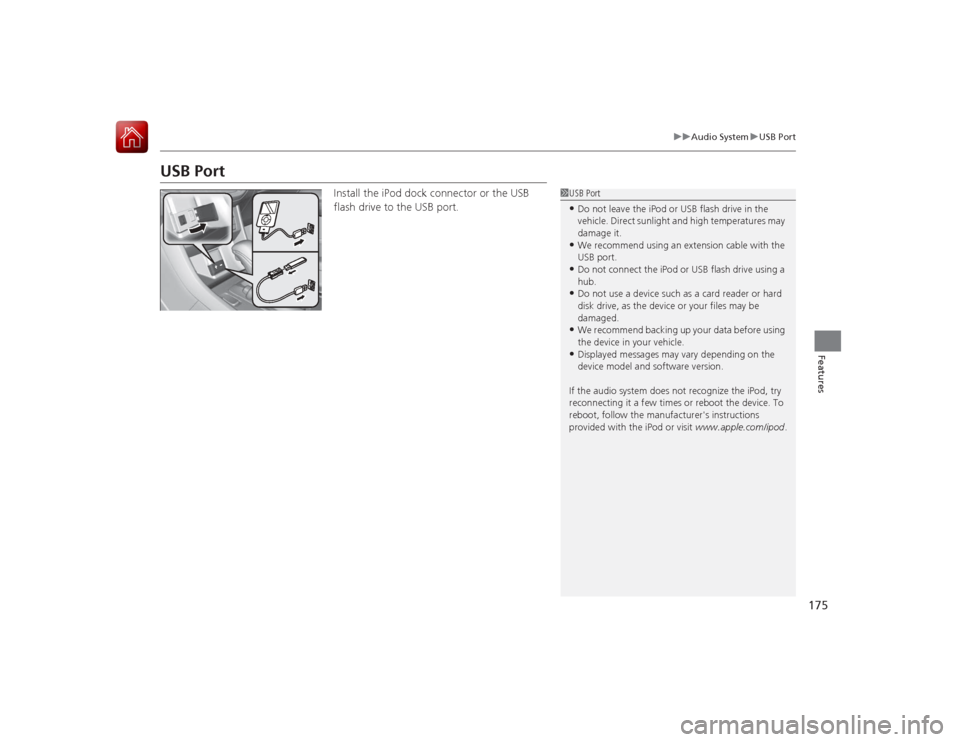
Install the iPod dock connector or the USB
flash drive to the USB port.
1USB Port•Do not leave the iPod or USB flash drive in the
vehicle. Direct sunlight and high temperatures may
damage it.•We recommend using an extension cable with the
USB port.•Do not connect the iPod or USB flash drive using a
hub.•Do not use a device such as a card reader or hard
disk drive, as the device or your files may be
damaged.•We recommend backing up your data before using
the device in your vehicle.•Displayed messages may vary depending on the
device model and software version.
If the audio system does not recognize the iPod, try
reconnecting it a few times or reboot the device. To
reboot, follow the manufacturer's instructions
provided with the iPod or visit www.apple.com/ipod.
Page 177 of 593
176
uuAudio System uAuxiliary Input Jack
Features
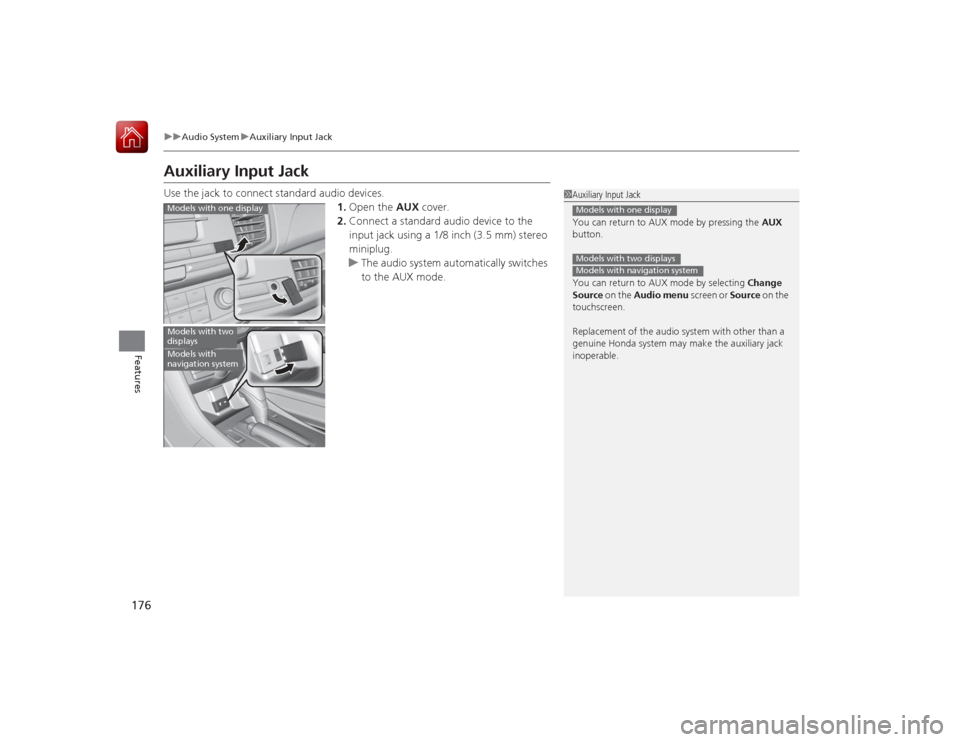
Auxiliary Input JackUse the jack to connect standard audio devices.
1.Open the AUX cover.
2. Connect a standard audio device to the
input jack using a 1/8 inch (3.5 mm) stereo
miniplug.
u The audio system automatically switches
to the AUX mode.
1Auxiliary Input Jack
You can return to AUX mode by pressing the AUX
button.
You can return to AUX mode by selecting Change
Source on the Audio menu screen or Source on the
touchscreen.
Replacement of the audio system with other than a
genuine Honda system may make the auxiliary jack
inoperable.Models with one displayModels with two displaysModels with navigation system
Models with one displayModels with two
displaysModels with
navigation system
Page 178 of 593
177
uuAudio System uAudio System Theft Protection
*
Features
Audio System Theft Protection
*
The audio system is disabled when it is disconnected from the power source, such as
when the 12-volt battery is disconnected or goes dead.■Reactivating the audio system
1. Set the power mode to ON, and turn on the audio system.
u If you set the power mode to ACCESSORY, you will be requested to enter the
audio security code. See step 3.
2. Press and hold the power button again for more than two seconds.
u The audio system is reactivated when the system’s control unit recognizes that
the system is in your vehicle.
If the control unit fails to recognize, Enter PIN Code appears on the audio/
information screen.
3. If the two steps do not work, you can enter the audio security code using the
touch screen. If you enter an incorrect digit, continue to the last digit, then try
again. If you do not enter code correctly after 10 tries, leave the system for one
hour before trying again, or visit a dealer to have the system reset.
1 Audio System Theft Protection
*
Find the audio system's security code and serial
number label in your owner’s manual kit.
We recommend that you write down the serial
number in this owner’s manual.
Do not store the label in your vehicle. If you lose the
label, you must first retrieve the serial number, and
then obtain the code.
You can find out about your serial number and
security code from a dealer.
You can register the security code at Honda Owners
(owners.honda.com. ), and find information on how
to retrieve the serial number and obtain the code at
radio-navicode.honda.com .U.S. models
* Not available on all models