lock HYUNDAI COUPE 2012 Workshop Manual
[x] Cancel search | Manufacturer: HYUNDAI, Model Year: 2012, Model line: COUPE, Model: HYUNDAI COUPE 2012Pages: 391, PDF Size: 6.88 MB
Page 171 of 391
Features of your vehicle
94
4
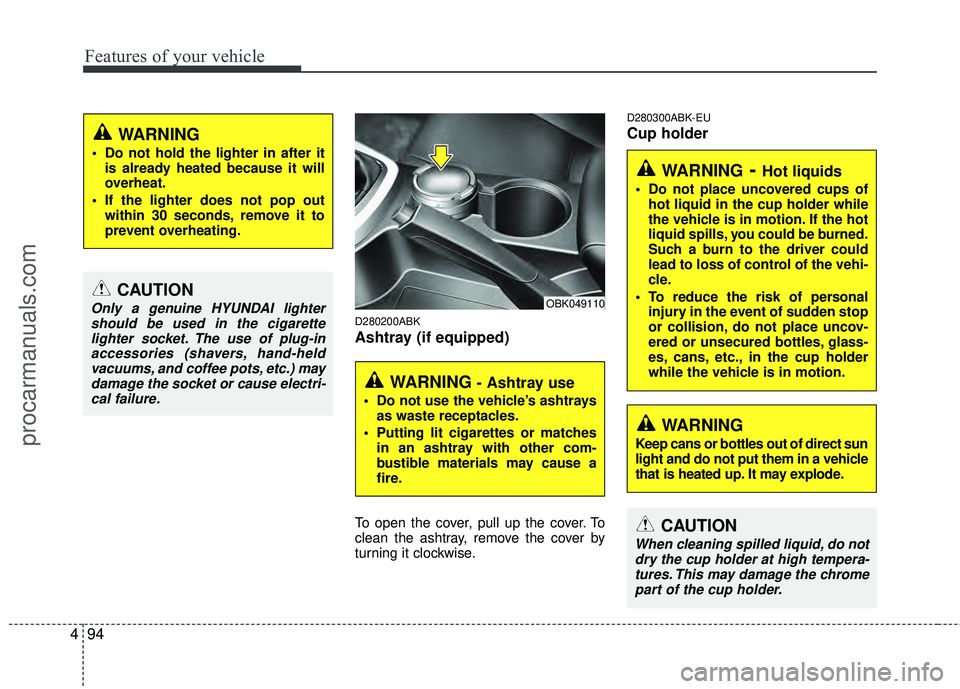
D280200ABK
Ashtray (if equipped)
To open the cover, pull up the cover. To
clean the ashtray, remove the cover by
turning it clockwise.
D280300ABK-EU
Cup holder
CAUTION
Only a genuine HYUNDAI lighter
should be used in the cigarettelighter socket. The use of plug-in accessories (shavers, hand-heldvacuums, and coffee pots, etc.) maydamage the socket or cause electri-cal failure.
WARNING
Do not hold the lighter in after it is already heated because it will
overheat.
If the lighter does not pop out within 30 seconds, remove it to
prevent overheating.
WARNING - Ashtray use
Do not use the vehicle’s ashtraysas waste receptacles.
Putting lit cigarettes or matches in an ashtray with other com-
bustible materials may cause a
fire.
OBK049110
WARNING- Hot liquids
Do not place uncovered cups ofhot liquid in the cup holder while
the vehicle is in motion. If the hot
liquid spills, you could be burned.
Such a burn to the driver could
lead to loss of control of the vehi-
cle.
To reduce the risk of personal injury in the event of sudden stop
or collision, do not place uncov-
ered or unsecured bottles, glass-
es, cans, etc., in the cup holder
while the vehicle is in motion.
WARNING
Keep cans or bottles out of direct sun
light and do not put them in a vehicle
that is heated up. It may explode.
CAUTION
When cleaning spilled liquid, do notdry the cup holder at high tempera-tures. This may damage the chromepart of the cup holder.
procarmanuals.com
Page 173 of 391
Features of your vehicle
96
4
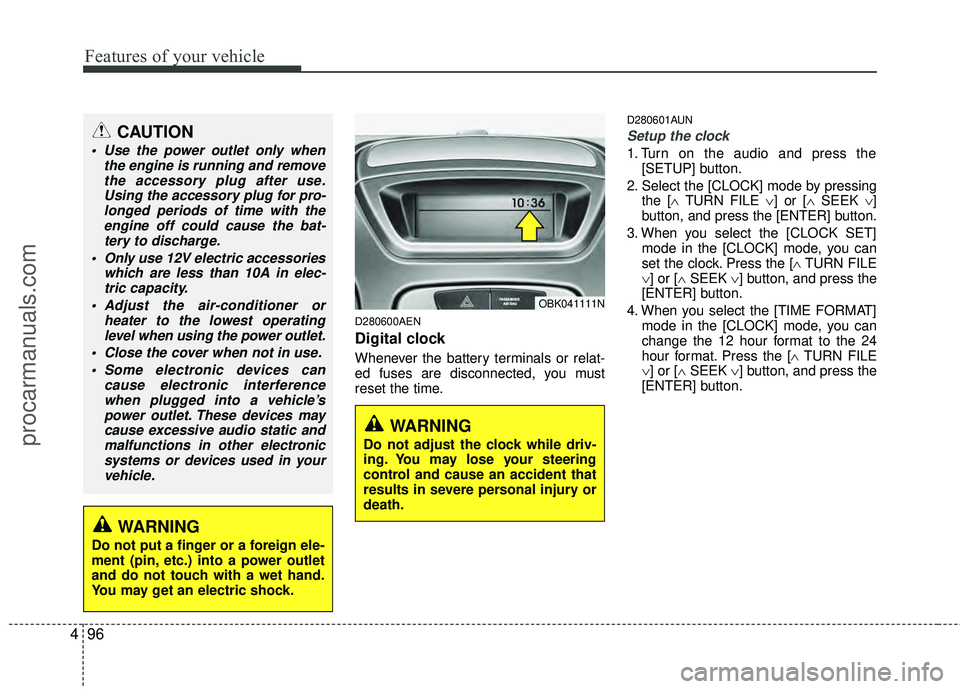
D280600AEN
Digital clock
Whenever the battery terminals or relat-
ed fuses are disconnected, you must
reset the time.
D280601AUN
Setup the clock
1. Turn on the audio and press the
[SETUP] button.
2. Select the [CLOCK] mode by pressing the [∧ TURN FILE ∨] or [∧ SEEK ∨]
button, and press the [ENTER] button.
3. When you select the [CLOCK SET] mode in the [CLOCK] mode, you can
set the clock. Press the [∧ TURN FILE
∨] or [∧ SEEK ∨] button, and press the
[ENTER] button.
4. When you select the [TIME FORMAT] mode in the [CLOCK] mode, you can
change the 12 hour format to the 24
hour format. Press the [∧ TURN FILE
∨] or [∧ SEEK ∨] button, and press the
[ENTER] button.
OBK041111N
CAUTION
Use the power outlet only when the engine is running and removethe accessory plug after use.Using the accessory plug for pro-longed periods of time with the engine off could cause the bat-tery to discharge.
Only use 12V electric accessories which are less than 10A in elec-tric capacity.
Adjust the air-conditioner or heater to the lowest operatinglevel when using the power outlet.
Close the cover when not in use. Some electronic devices can cause electronic interferencewhen plugged into a vehicle’spower outlet. These devices maycause excessive audio static andmalfunctions in other electronicsystems or devices used in yourvehicle.
WARNING
Do not adjust the clock while driv-
ing. You may lose your steering
control and cause an accident that
results in severe personal injury or
death.
WARNING
Do not put a finger or a foreign ele-
ment (pin, etc.) into a power outlet
and do not touch with a wet hand.
You may get an electric shock.
procarmanuals.com
Page 179 of 391
Features of your vehicle
102
4
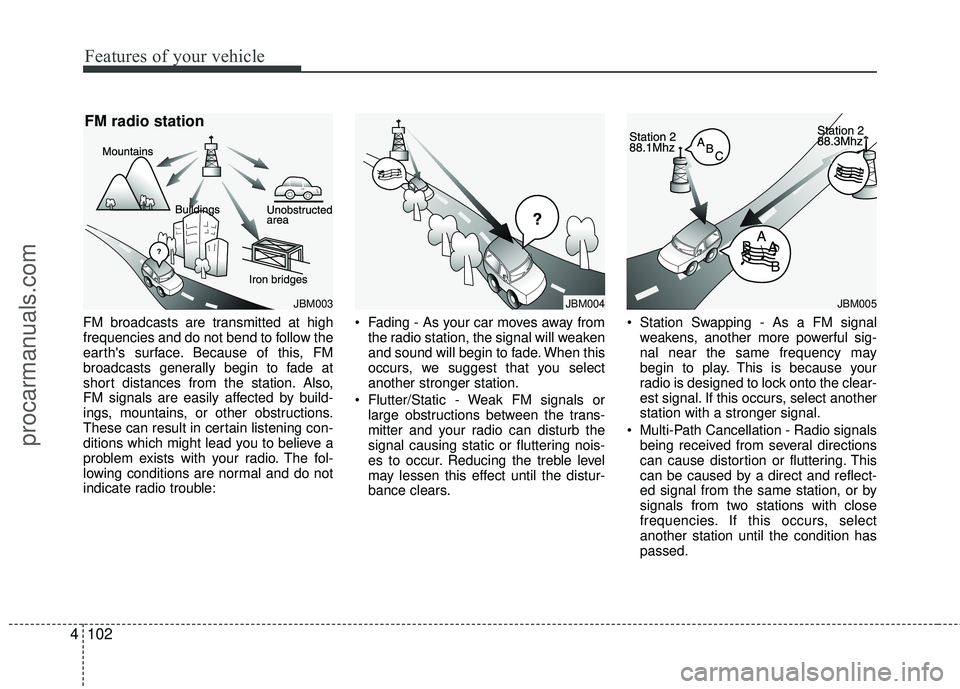
FM broadcasts are transmitted at high
frequencies and do not bend to follow the
earth's surface. Because of this, FM
broadcasts generally begin to fade at
short distances from the station. Also,
FM signals are easily affected by build-
ings, mountains, or other obstructions.
These can result in certain listening con-
ditions which might lead you to believe a
problem exists with your radio. The fol-
lowing conditions are normal and do not
indicate radio trouble: Fading - As your car moves away from
the radio station, the signal will weaken
and sound will begin to fade. When this
occurs, we suggest that you select
another stronger station.
Flutter/Static - Weak FM signals or large obstructions between the trans-
mitter and your radio can disturb the
signal causing static or fluttering nois-
es to occur. Reducing the treble level
may lessen this effect until the distur-
bance clears. Station Swapping - As a FM signal
weakens, another more powerful sig-
nal near the same frequency may
begin to play. This is because your
radio is designed to lock onto the clear-
est signal. If this occurs, select another
station with a stronger signal.
Multi-Path Cancellation - Radio signals being received from several directions
can cause distortion or fluttering. This
can be caused by a direct and reflect-
ed signal from the same station, or by
signals from two stations with close
frequencies. If this occurs, select
another station until the condition has
passed.
JBM005JBM003
FM radio station
JBM004
procarmanuals.com
Page 180 of 391
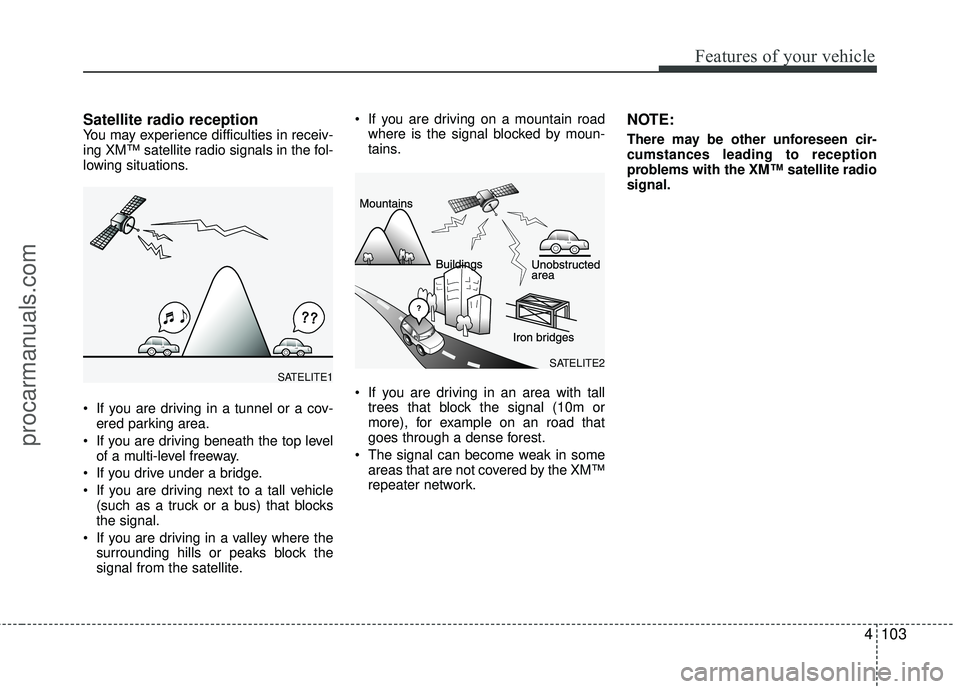
Satellite radio receptionYou may experience difficulties in receiv-
ing XM™ satellite radio signals in the fol-
lowing situations.
If you are driving in a tunnel or a cov-ered parking area.
If you are driving beneath the top level of a multi-level freeway.
If you drive under a bridge.
If you are driving next to a tall vehicle (such as a truck or a bus) that blocks
the signal.
If you are driving in a valley where the surrounding hills or peaks block the
signal from the satellite. If you are driving on a mountain road
where is the signal blocked by moun-
tains.
If you are driving in an area with tall trees that block the signal (10m or
more), for example on an road that
goes through a dense forest.
The signal can become weak in some areas that are not covered by the XM™
repeater network.NOTE:
There may be other unforeseen cir-
cumstances leading to reception
problems with the XM™ satellite radio
signal.
4103
Features of your vehicle
SATELITE2SATELITE1
procarmanuals.com
Page 183 of 391
Features of your vehicle
106
4
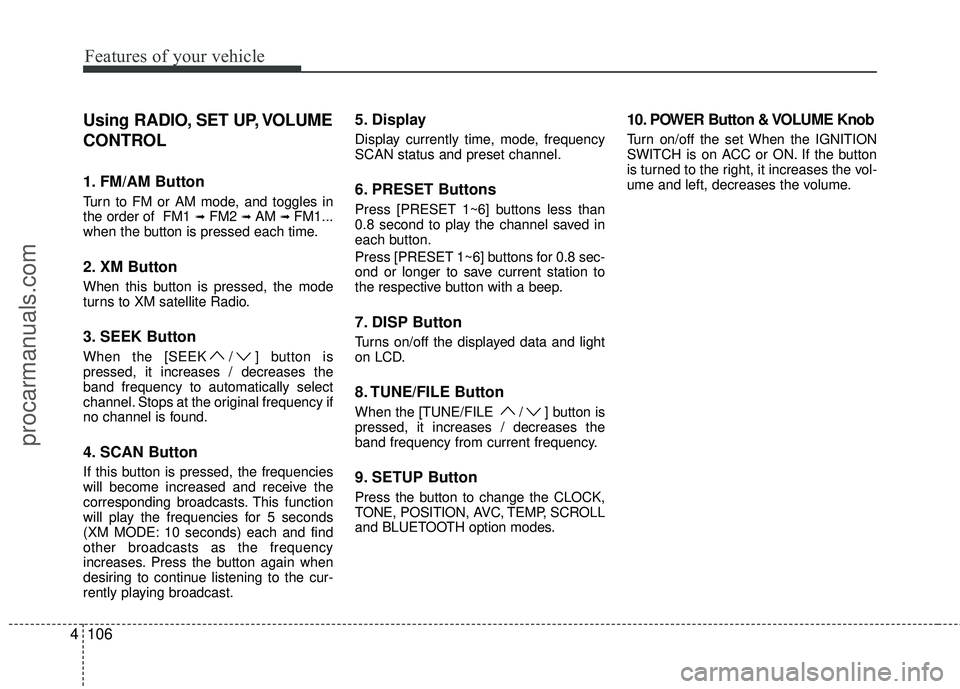
Using RADIO, SET UP, VOLUME
CONTROL
1. FM/AM Button
Turn to FM or AM mode, and toggles in
the order of FM1 ➟FM2 ➟ AM ➟ FM1...
when the button is pressed each time.
2. XM Button
When this button is pressed, the mode
turns to XM satellite Radio.
3. SEEK Button
When the [SEEK / ] button is
pressed, it increases / decreases the
band frequency to automatically select
channel. Stops at the original frequency if
no channel is found.
4. SCAN Button
If this button is pressed, the frequencies
will become increased and receive the
corresponding broadcasts. This function
will play the frequencies for 5 seconds
(XM MODE: 10 seconds) each and find
other broadcasts as the frequency
increases. Press the button again when
desiring to continue listening to the cur-
rently playing broadcast.
5. Display
Display currently time, mode, frequency
SCAN status and preset channel.
6. PRESET Buttons
Press [PRESET 1~6] buttons less than
0.8 second to play the channel saved in
each button.
Press [PRESET 1~6] buttons for 0.8 sec-
ond or longer to save current station to
the respective button with a beep.
7. DISP Button
Turns on/off the displayed data and light
on LCD.
8. TUNE/FILE Button
When the [TUNE/FILE / ] button is
pressed, it increases / decreases the
band frequency from current frequency.
9. SETUP Button
Press the button to change the CLOCK,
TONE, POSITION, AVC, TEMP, SCROLL
and BLUETOOTH option modes.
10. POWER Button & VOLUME Knob
Turn on/off the set When the IGNITION
SWITCH is on ACC or ON. If the button
is turned to the right, it increases the vol-
ume and left, decreases the volume.
procarmanuals.com
Page 195 of 391
Features of your vehicle
118
4
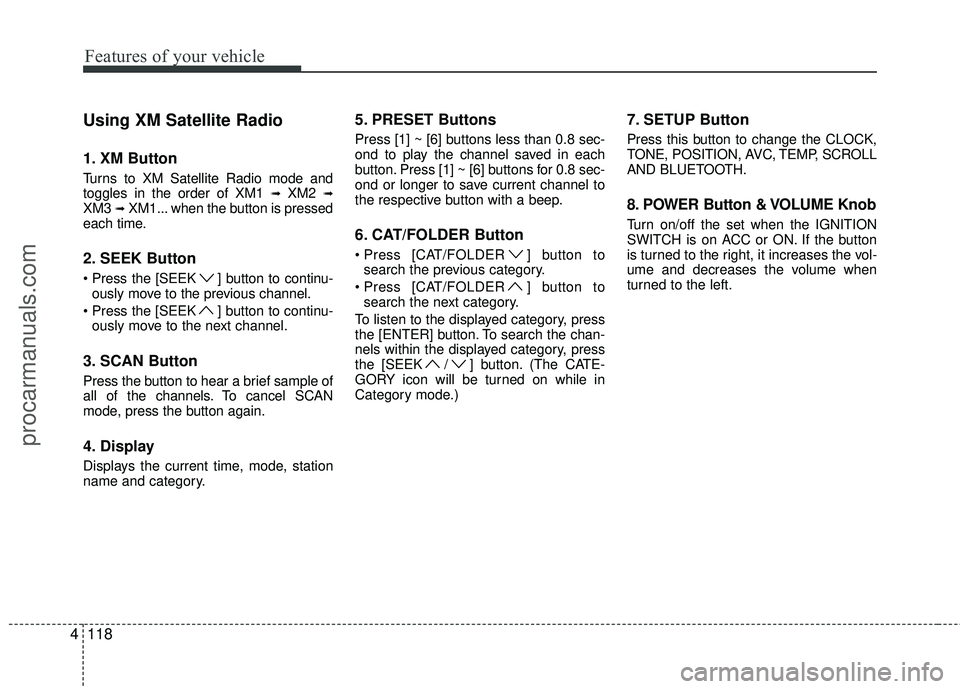
Using XM Satellite Radio
1. XM Button
Turns to XM Satellite Radio mode and
toggles in the order of XM1 ➟XM2 ➟XM3 ➟XM1... when the button is pressed
each time.
2. SEEK Button
] button to continu- ously move to the previous channel.
] button to continu- ously move to the next channel.
3. SCAN Button
Press the button to hear a brief sample of
all of the channels. To cancel SCAN
mode, press the button again.
4. Display
Displays the current time, mode, station
name and category.
5. PRESET Buttons
Press [1] ~ [6] buttons less than 0.8 sec-
ond to play the channel saved in each
button. Press [1] ~ [6] buttons for 0.8 sec-
ond or longer to save current channel to
the respective button with a beep.
6. CAT/FOLDER Button
[CAT/FOLDER ] button tosearch the previous category.
[CAT/FOLDER ] button to search the next category.
To listen to the displayed category, press
the [ENTER] button. To search the chan-
nels within the displayed category, press
the [SEEK / ] button. (The CATE-
GORY icon will be turned on while in
Category mode.)
7. SETUP Button
Press this button to change the CLOCK,
TONE, POSITION, AVC, TEMP, SCROLL
AND BLUETOOTH.
8. POWER Button & VOLUME Knob
Turn on/off the set when the IGNITION
SWITCH is on ACC or ON. If the button
is turned to the right, it increases the vol-
ume and decreases the volume when
turned to the left.
procarmanuals.com
Page 206 of 391
4129
Features of your vehicle
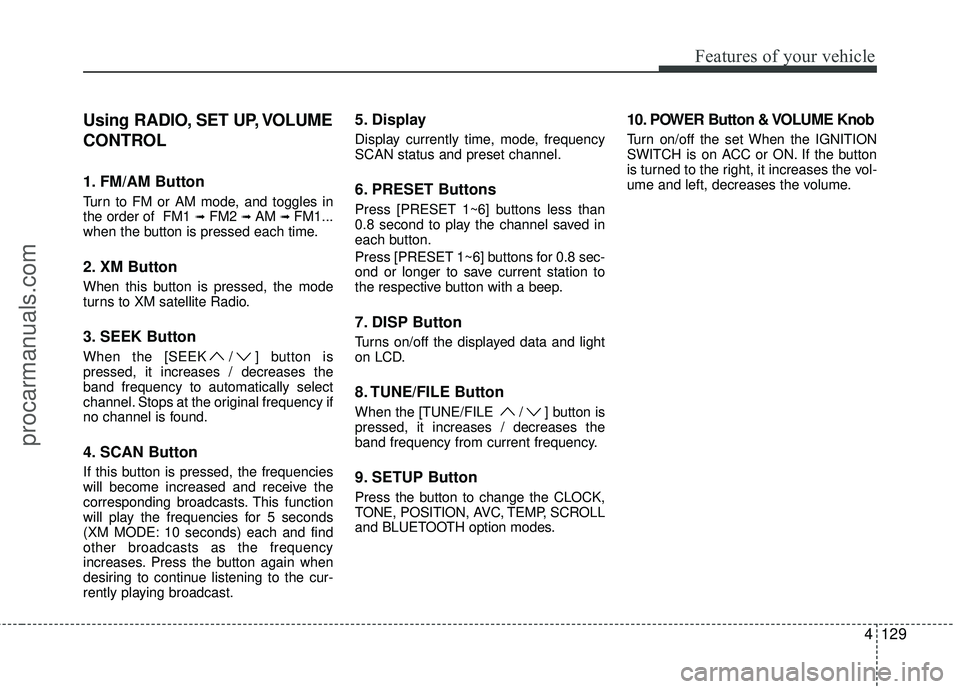
Using RADIO, SET UP, VOLUME
CONTROL
1. FM/AM Button
Turn to FM or AM mode, and toggles in
the order of FM1 ➟FM2 ➟ AM ➟ FM1...
when the button is pressed each time.
2. XM Button
When this button is pressed, the mode
turns to XM satellite Radio.
3. SEEK Button
When the [SEEK / ] button is
pressed, it increases / decreases the
band frequency to automatically select
channel. Stops at the original frequency if
no channel is found.
4. SCAN Button
If this button is pressed, the frequencies
will become increased and receive the
corresponding broadcasts. This function
will play the frequencies for 5 seconds
(XM MODE: 10 seconds) each and find
other broadcasts as the frequency
increases. Press the button again when
desiring to continue listening to the cur-
rently playing broadcast.
5. Display
Display currently time, mode, frequency
SCAN status and preset channel.
6. PRESET Buttons
Press [PRESET 1~6] buttons less than
0.8 second to play the channel saved in
each button.
Press [PRESET 1~6] buttons for 0.8 sec-
ond or longer to save current station to
the respective button with a beep.
7. DISP Button
Turns on/off the displayed data and light
on LCD.
8. TUNE/FILE Button
When the [TUNE/FILE / ] button is
pressed, it increases / decreases the
band frequency from current frequency.
9. SETUP Button
Press the button to change the CLOCK,
TONE, POSITION, AVC, TEMP, SCROLL
and BLUETOOTH option modes.
10. POWER Button & VOLUME Knob
Turn on/off the set When the IGNITION
SWITCH is on ACC or ON. If the button
is turned to the right, it increases the vol-
ume and left, decreases the volume.
procarmanuals.com
Page 218 of 391
4141
Features of your vehicle
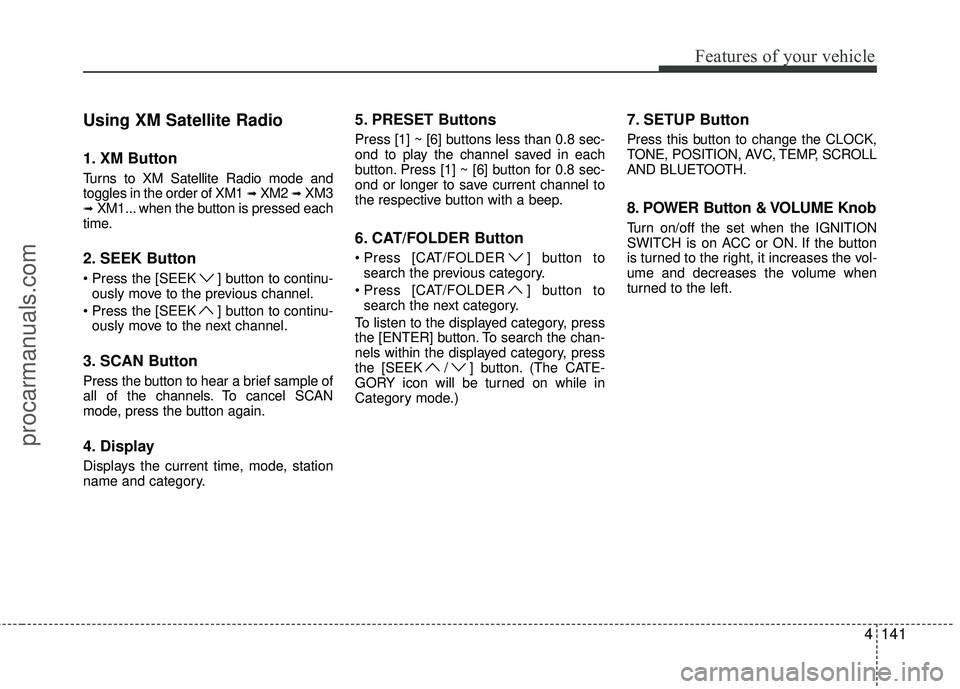
Using XM Satellite Radio
1. XM Button
Turns to XM Satellite Radio mode and
toggles in the order of XM1 ➟XM2 ➟XM3➟XM1... when the button is pressed each
time.
2. SEEK Button
] button to continu- ously move to the previous channel.
] button to continu- ously move to the next channel.
3. SCAN Button
Press the button to hear a brief sample of
all of the channels. To cancel SCAN
mode, press the button again.
4. Display
Displays the current time, mode, station
name and category.
5. PRESET Buttons
Press [1] ~ [6] buttons less than 0.8 sec-
ond to play the channel saved in each
button. Press [1] ~ [6] button for 0.8 sec-
ond or longer to save current channel to
the respective button with a beep.
6. CAT/FOLDER Button
[CAT/FOLDER ] button tosearch the previous category.
[CAT/FOLDER ] button to search the next category.
To listen to the displayed category, press
the [ENTER] button. To search the chan-
nels within the displayed category, press
the [SEEK / ] button. (The CATE-
GORY icon will be turned on while in
Category mode.)
7. SETUP Button
Press this button to change the CLOCK,
TONE, POSITION, AVC, TEMP, SCROLL
AND BLUETOOTH.
8. POWER Button & VOLUME Knob
Turn on/off the set when the IGNITION
SWITCH is on ACC or ON. If the button
is turned to the right, it increases the vol-
ume and decreases the volume when
turned to the left.
procarmanuals.com
Page 230 of 391
53
Driving your vehicle
E020100AUN
Before entering vehicle
• Be sure that all windows, outside mir-ror(s), and outside lights are clean.
Check the condition of the tires.
Check under the vehicle for any sign of leaks.
Be sure there are no obstacles behind you if you intend to back up.
E020200AUN
Necessary inspections
Fluid levels, such as engine oil, engine
coolant, brake fluid, and washer fluid
should be checked on a regular basis, with
the exact interval depending on the fluid.
Further details are provided in section 7,
“Maintenance”.
E020300AUN
Before starting
Close and lock all doors.
Position the seat so that all controls are
easily reached.
Adjust the inside and outside rearview mirrors.
Be sure that all lights work.
Check all gauges.
Check the operation of warning lights when the ignition switch is turned to
the ON position.
Release the parking brake and make sure the brake warning light goes out.
For safe operation, be sure you are famil-
iar with your vehicle and its equipment.
BEFORE DRIVING
WARNING
All passengers must be properly
belted whenever the vehicle is mov-
ing. Refer to “Seat belts” in section
3 for more information on their
proper use.
CALIFORNIA PROPOSI-
TION 65 WARNING
Engine exhaust and a wide variety
of automobile components and
parts, including components found
in the interior furnishings in a vehi-
cle, contain or emit chemicals
known to the State of California to
cause cancer and birth defects and
reproductive harm. In addition, cer-
tain fluids contained in vehicles
and certain products of component
wear contain or emit chemicals
known to the State of California to
cause cancer and birth defects or
other reproductive harm.
WARNING
Always check the surrounding
areas near your vehicle for people,
especially children, before putting a
car into D (Drive) or R (Reverse).
WARNING
Driving while distracted can result in
a loss of vehicle control, that may
lead to an accident, severe personal
injury, and death. The driver’s pri-
mary responsibility is in the safe and
legal operation of a vehicle, and use
of any handheld devices, other
equipment, or vehicle systems which
take the driver’s eyes, attention and
focus away from the safe operation
of a vehicle or which are not permis-
sible by law should never be used
during operation of the vehicle.
procarmanuals.com
Page 232 of 391
55
Driving your vehicle
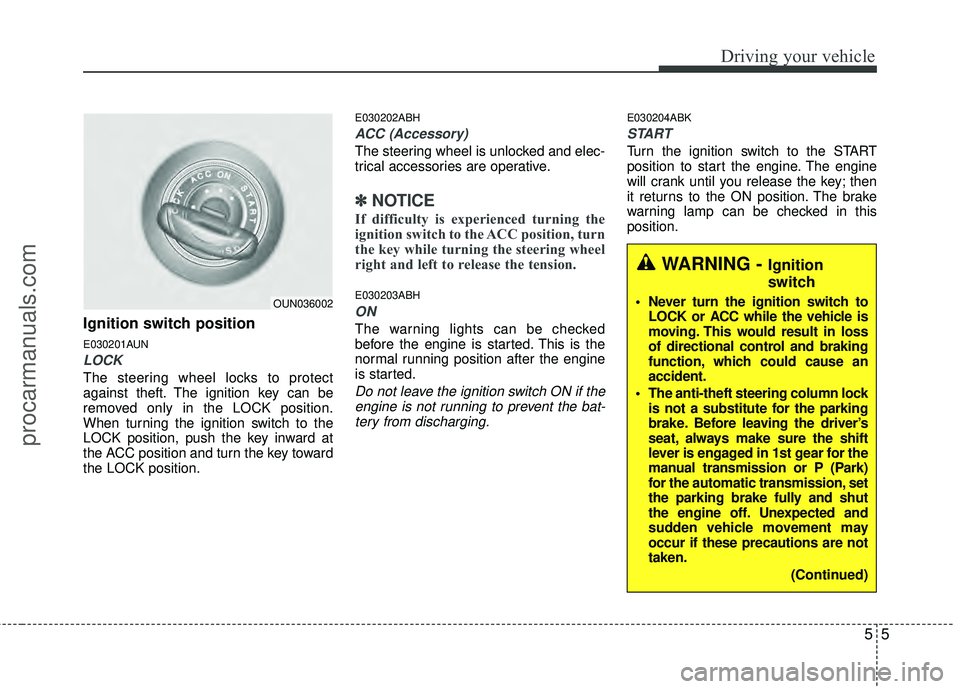
Ignition switch position
E030201AUN
LOCK
The steering wheel locks to protect
against theft. The ignition key can be
removed only in the LOCK position.
When turning the ignition switch to the
LOCK position, push the key inward at
the ACC position and turn the key toward
the LOCK position.
E030202ABH
ACC (Accessory)
The steering wheel is unlocked and elec-
trical accessories are operative.
✽ ✽NOTICE
If difficulty is experienced turning the
ignition switch to the ACC position, turn
the key while turning the steering wheel
right and left to release the tension.
E030203ABH
ON
The warning lights can be checked
before the engine is started. This is the
normal running position after the engine
is started.
Do not leave the ignition switch ON if the
engine is not running to prevent the bat-tery from discharging.
E030204ABK
START
Turn the ignition switch to the START
position to start the engine. The engine
will crank until you release the key; then
it returns to the ON position. The brake
warning lamp can be checked in this
position.
WARNING - Ignition
switch
Never turn the ignition switch to LOCK or ACC while the vehicle is
moving. This would result in loss
of directional control and braking
function, which could cause an
accident.
The anti-theft steering column lock is not a substitute for the parking
brake. Before leaving the driver’s
seat, always make sure the shift
lever is engaged in 1st gear for the
manual transmission or P (Park)
for the automatic transmission, set
the parking brake fully and shut
the engine off. Unexpected and
sudden vehicle movement may
occur if these precautions are not
taken.
(Continued)OUN036002
procarmanuals.com