key HYUNDAI TUCSON HYBRID 2022 Owner's Manual
[x] Cancel search | Manufacturer: HYUNDAI, Model Year: 2022, Model line: TUCSON HYBRID, Model: HYUNDAI TUCSON HYBRID 2022Pages: 630, PDF Size: 77.98 MB
Page 170 of 630
05
5-13
Mechanical key
If the Smart Key does not operate
normally, you can lock or unlock the
driver’s door by using the mechanical
key.
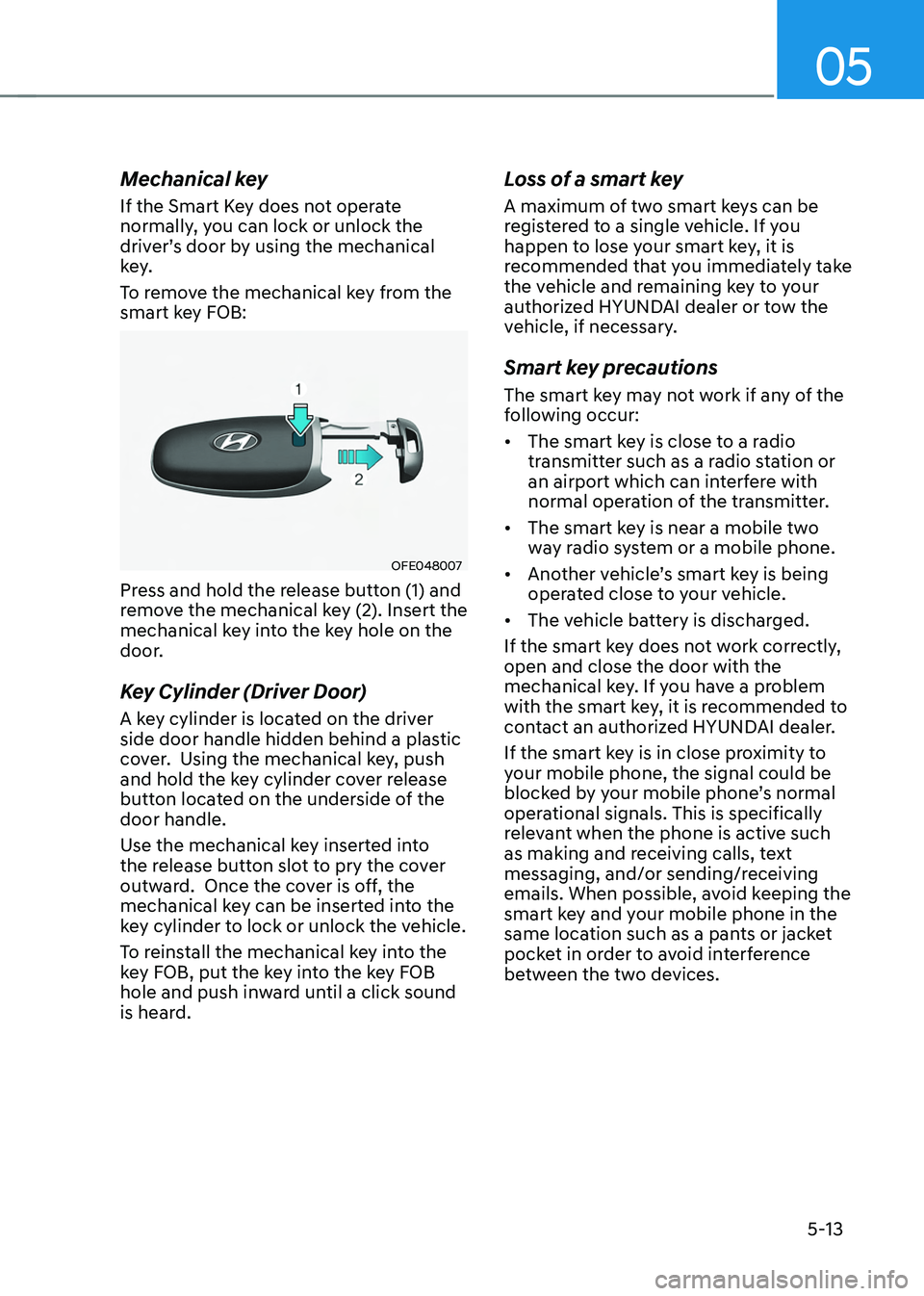
To remove the mechanical key from the
smart key FOB:
OFE048007
Press and hold the release button (1) and
remove the mechanical key (2). Insert the
mechanical key into the key hole on the
door.
Key Cylinder (Driver Door)
A key cylinder is located on the driver
side door handle hidden behind a plastic
cover. Using the mechanical key, push
and hold the key cylinder cover release
button located on the underside of the
door handle.
Use the mechanical key inserted into
the release button slot to pry the cover
outward. Once the cover is off, the
mechanical key can be inserted into the
key cylinder to lock or unlock the vehicle.
To reinstall the mechanical key into the
key FOB, put the key into the key FOB
hole and push inward until a click sound
is heard.
Loss of a smart key
A maximum of two smart keys can be
registered to a single vehicle. If you
happen to lose your smart key, it is
recommended that you immediately take
the vehicle and remaining key to your
authorized HYUNDAI dealer or tow the
vehicle, if necessary.
Smart key precautions
The smart key may not work if any of the
following occur:
• The smart key is close to a radio
transmitter such as a radio station or
an airport which can interfere with
normal operation of the transmitter.
• The smart key is near a mobile two
way radio system or a mobile phone.
• Another vehicle’s smart key is being
operated close to your vehicle.
• The vehicle battery is discharged.
If the smart key does not work correctly,
open and close the door with the
mechanical key. If you have a problem
with the smart key, it is recommended to
contact an authorized HYUNDAI dealer.
If the smart key is in close proximity to
your mobile phone, the signal could be
blocked by your mobile phone’s normal
operational signals. This is specifically
relevant when the phone is active such
as making and receiving calls, text
messaging, and/or sending/receiving
emails. When possible, avoid keeping the
smart key and your mobile phone in the
same location such as a pants or jacket
pocket in order to avoid interference
between the two devices.
Page 171 of 630
Convenient features
5-14
Information
This device complies with Part 15 of the
FCC rules.
Operation is subject to the following three
conditions:
1.
This device may not cause harmful
interference.
2.
This device must accept any
interference r
eceived, including
interference that may cause undesired
operation.
3.
Changes or modifications not expr
essly
approved by the party responsible
for compliance could void the user’s
authority to operate the device.
NOTICE
• Keep the smart key away from
electromagnetic materials that
blocks electromagnetic waves to the
key surface.
• Always have the smart key with
you when leaving the vehicle. If the
smart key is left near the vehicle, the
vehicle battery may be discharged.
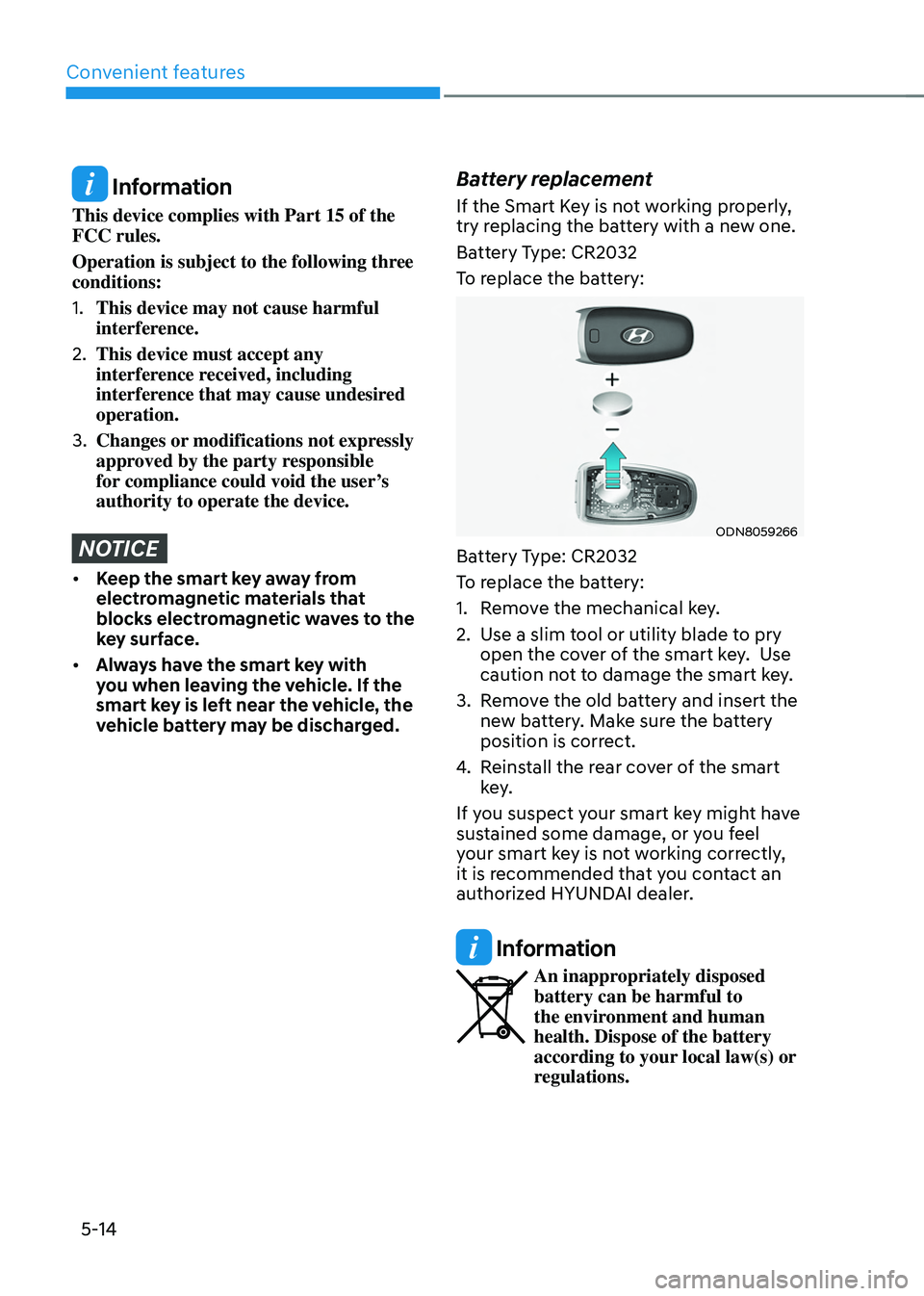
Battery replacement
If the Smart Key is not working properly,
try replacing the battery with a new one.
Battery Type: CR2032
To replace the battery:
ODN8059266
Battery Type: CR2032
To replace the battery:
1.
Remo
ve the mechanical key.
2.
Use a slim t
ool or utility blade to pry
open the cover of the smart key. Use
caution not to damage the smart key.
3.
Remo
ve the old battery and insert the
new battery. Make sure the battery
position is correct.
4.
Reins
tall the rear cover of the smart
key.
If you suspect your smart key might have
sustained some damage, or you feel
your smart key is not working correctly,
it is recommended that you contact an
authorized HYUNDAI dealer.
Information
An inappropriately disposed
battery can be harmful to
the environment and human
health. Dispose of the battery
according to your local law(s) or
regulations.
Page 172 of 630
05
5-15
Immobilizer system (if equipped)
The immobilizer system helps protect
your vehicle from theft. If an improperly
coded key (or other device) is used, the
engine’s fuel system is disabled.
When the Engine Start/Stop button
is pressed to the ON position, the
immobilizer system indicator should
come on briefly, then go off. If the
indicator starts to blink, the system does
not recognize the coding of the key.
Place the ignition switch to the LOCK/
OFF position, then place the ignition
switch to the ON position again.
The system may not recognize your
key’s coding if another immobilizer key
or other metal object (i.e. key chain) is
near the key. The engine may not start
because the metal may interrupt the
transponder signal from transmitting
normally.
If the system repeatedly does not
recognize the coding of the key, it is
recommended that you contact your
HYUNDAI dealer.
Do not attempt to alter this system
or add other devices to it. Electrical
problems could result that may make
your vehicle inoperable. WARNING
In order to prevent theft of your
vehicle, do not leave spare keys
anywhere in your vehicle. Your
immobilizer password is a customer
unique password and should be kept
confidential.
NOTICE
The transponder in your key is an
important part of the immobilizer
system. It is designed to give years
of trouble-free service, however you
should avoid exposure to moisture,
static electricity and rough handling.
Immobilizer system malfunction could
occur.
Information
This device complies with Part 15 of the
FCC rules.
Operation is subject to the following three
conditions:
1.
This device may not cause harmful
interference.
2.
This device must accept any
interference r
eceived, including
interference that may cause undesired
operation.
3.
Changes or modifications not expr
essly
approved by the party responsible
for compliance could void the user’s
authority to operate the device.
Page 173 of 630
Convenient features
5-16
hyundai Digital Key
(if equipped)
Digital Key Application
To use Hyundai Digital Key mobile app,
you should install the Hyundai Digital
Key application on your Android phone.
Search ‘Hyundai digital key’ in the
Google Play Store and download the app.
Please refer to the detailed manual of the
digital key app. The option can be found
under the following app menu:
Menu → Application Info → Tutorial
Please review the contents of the manual
before using the app.
à This service is only av
ailable for
Android smartphones. Please confirm
supported/compatible devices on our
website.
WARNING
Delete Digital Key Settings When
Purchasing a Used Vehicle
If any of the digital key (smartphone key
or card key) is already registered when
you press ON button after unlocking the
doors, the message ‘Digital key(s) active’
appears on the instrument cluster once.
If you sell your vehicle or purchase a
used Hyundai vehicle equipped with the
Digital Key feature, you should confirm
the message and delete the registered
smartphone key and card key. For more
information, please contact the Hyundai
Customer Care Center.
If the card key does not work properly,
please delete the card key and register
the smartphone key and re-register the
card key.
For vehicle maintenance
If you need to have your Digital Key
System repaired or replaced, please
ensure your Smartphone Key is still
active. You may have to pair your phone
again.
In the case, re-initialize your Digital Keys
using the Hyundai Digital Key mobile app.
Digital key (smartphone) NFC
function
You can use the smartphone Digital Key
feature once Near Field Communication
(NFC) setting has been enabled on your
phone.
To enable NFC, go to Settings on your
smart phone.
In addition, your smart phone screen
should be unlocked when using the
Digital Key feature.
à To enable the user se
ttings for NFC on
your smart phone, go to the Settings
app on your phone. For further
assistance, refer to your smart phone
manual.
Page 174 of 630
05
5-17
Digital key (smartphone)
ODN8A059129
ODN8A059240
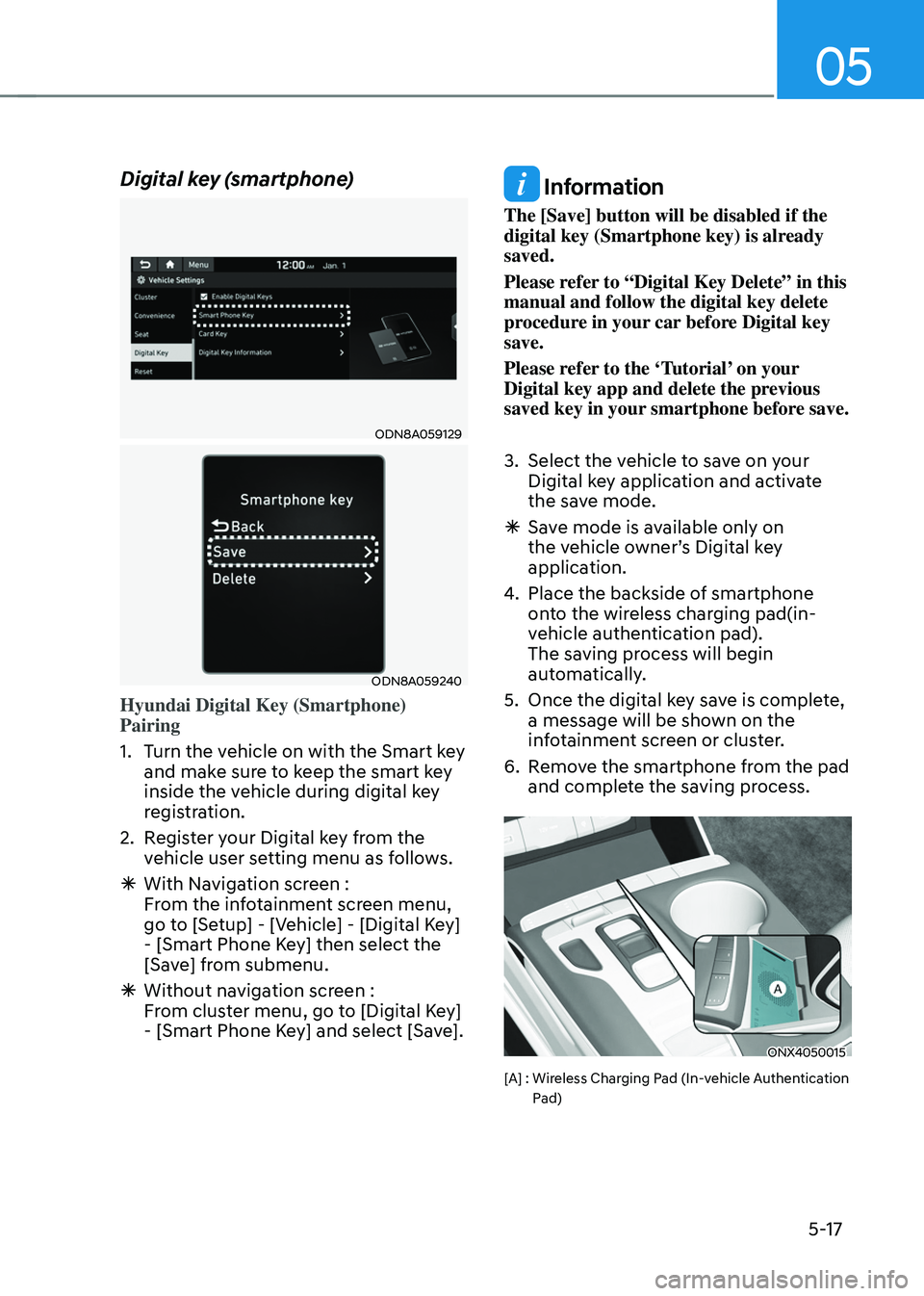
Hyundai Digital Key (Smartphone)
Pairing
1.
Turn the v
ehicle on with the Smart key
and make sure to keep the smart key
inside the vehicle during digital key
registration.
2.
Regis
ter your Digital key from the
vehicle user setting menu as follows.
à With Naviga
tion screen :
From the infotainment screen menu,
go to [Setup] - [Vehicle] - [Digital Key]
- [Smart Phone Key] then select the
[Save] from submenu.
à Without naviga
tion screen :
From cluster menu, go to [Digital Key]
- [Smart Phone Key] and select [Save].
Information
The [Save] button will be disabled if the
digital key (Smartphone key) is already
saved.
Please refer to “Digital Key Delete” in this
manual and follow the digital key delete
procedure in your car before Digital key
save.
Please refer to the ‘Tutorial’ on your
Digital key app and delete the previous
saved key in your smartphone before save.
3.
Select the vehicle t
o save on your
Digital key application and activate
the save mode.
à Sav
e mode is available only on
the vehicle owner’s Digital key
application.
4.
Place the backside o
f smartphone
onto the wireless charging pad(in-
vehicle authentication pad).
The saving process will begin
automatically.
5.
Once the digital ke
y save is complete,
a message will be shown on the
infotainment screen or cluster.
6.
Remo
ve the smartphone from the pad
and complete the saving process.
ONX4050015
[A] : Wireless Charging Pad (In-vehicle Authentication
P
ad)
Page 175 of 630
Convenient features
5-18
ODN8A059129
ODN8A059130
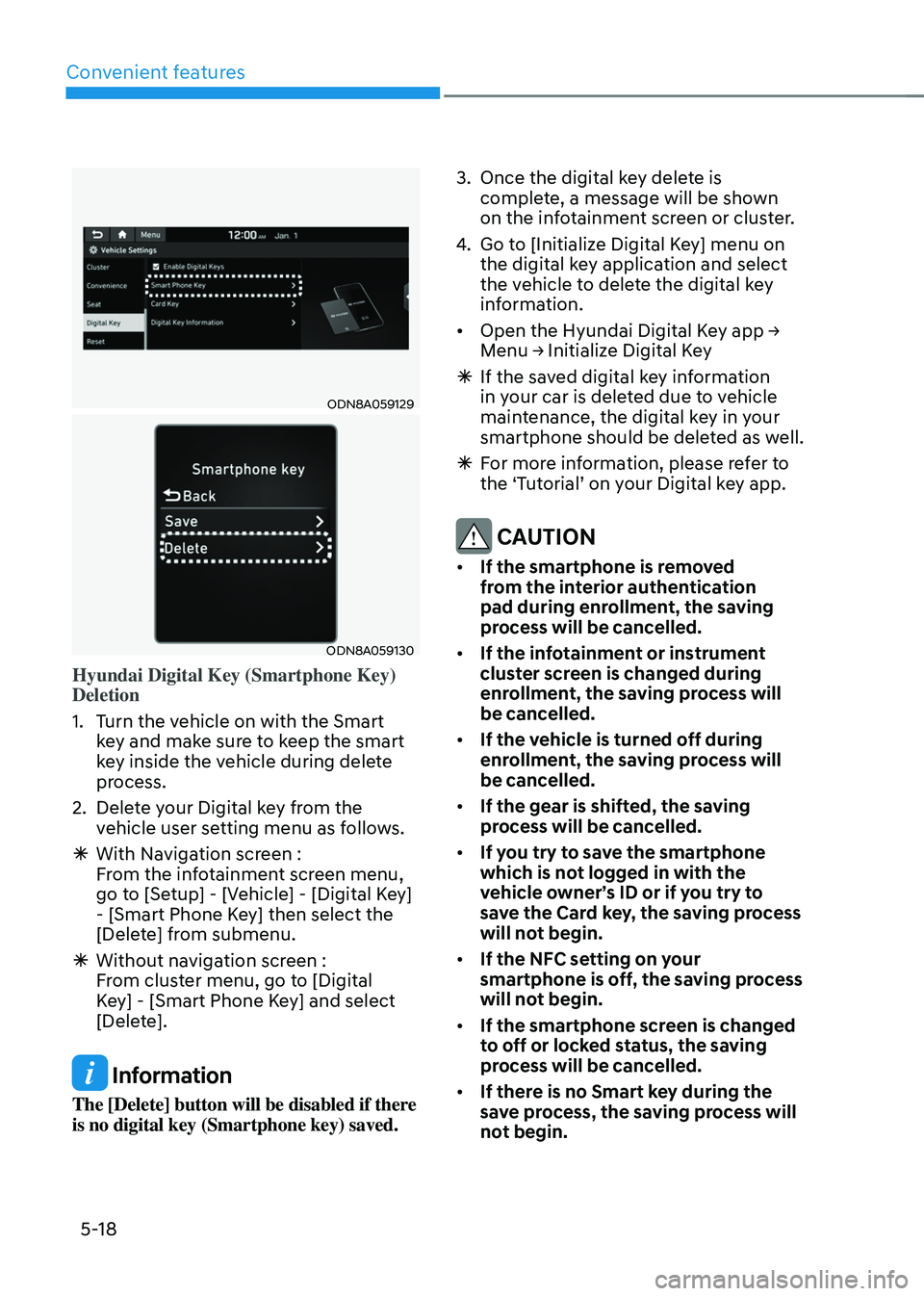
Hyundai Digital Key (Smartphone Key)
Deletion
1.
Turn the v
ehicle on with the Smart
key and make sure to keep the smart
key inside the vehicle during delete
process.
2.
Delet
e your Digital key from the
vehicle user setting menu as follows.
à With Naviga
tion screen :
From the infotainment screen menu,
go to [Setup] - [Vehicle] - [Digital Key]
- [Smart Phone Key] then select the
[Delete] from submenu.
à Without naviga
tion screen :
From cluster menu, go to [Digital
Key] - [Smart Phone Key] and select
[Delete].
Information
The [Delete] button will be disabled if there
is no digital key (Smartphone key) saved. 3.
Once the digital ke
y delete is
complete, a message will be shown
on the infotainment screen or cluster.
4.
Go to [Initializ
e Digital Key] menu on
the digital key application and select
the vehicle to delete the digital key
information.
• Open
the Hyundai Digital K
ey
app → Menu → Initializ
e
Digital K
ey
Ã
If the sav
ed digital key information
in your car is deleted due to vehicle
maintenance, the digital key in your
smartphone should be deleted as well.
à For mor
e information, please refer to
the ‘Tutorial’ on your Digital key app.
CAUTION
• If the smartphone is removed
from the interior authentication
pad during enrollment, the saving
process will be cancelled.
• If the infotainment or instrument
cluster screen is changed during
enrollment, the saving process will
be cancelled.
• If the vehicle is turned off during
enrollment, the saving process will
be cancelled.
• If the gear is shifted, the saving
process will be cancelled.
• If you try to save the smartphone
which is not logged in with the
vehicle owner’s ID or if you try to
save the Card key, the saving process
will not begin.
• If the NFC setting on your
smartphone is off, the saving process
will not begin.
• If the smartphone screen is changed
to off or locked status, the saving
process will be cancelled.
• If there is no Smart key during the
save process, the saving process will
not begin.
Page 176 of 630
05
5-19
Set up main vehicle
You can manage multiple digital keys
from the Digital key app. From the list of
digital keys you own, select the vehicle
you want to make your priority vehicle.
For more information, please refer to
the ‘Tutorial’ on your Digital key app.
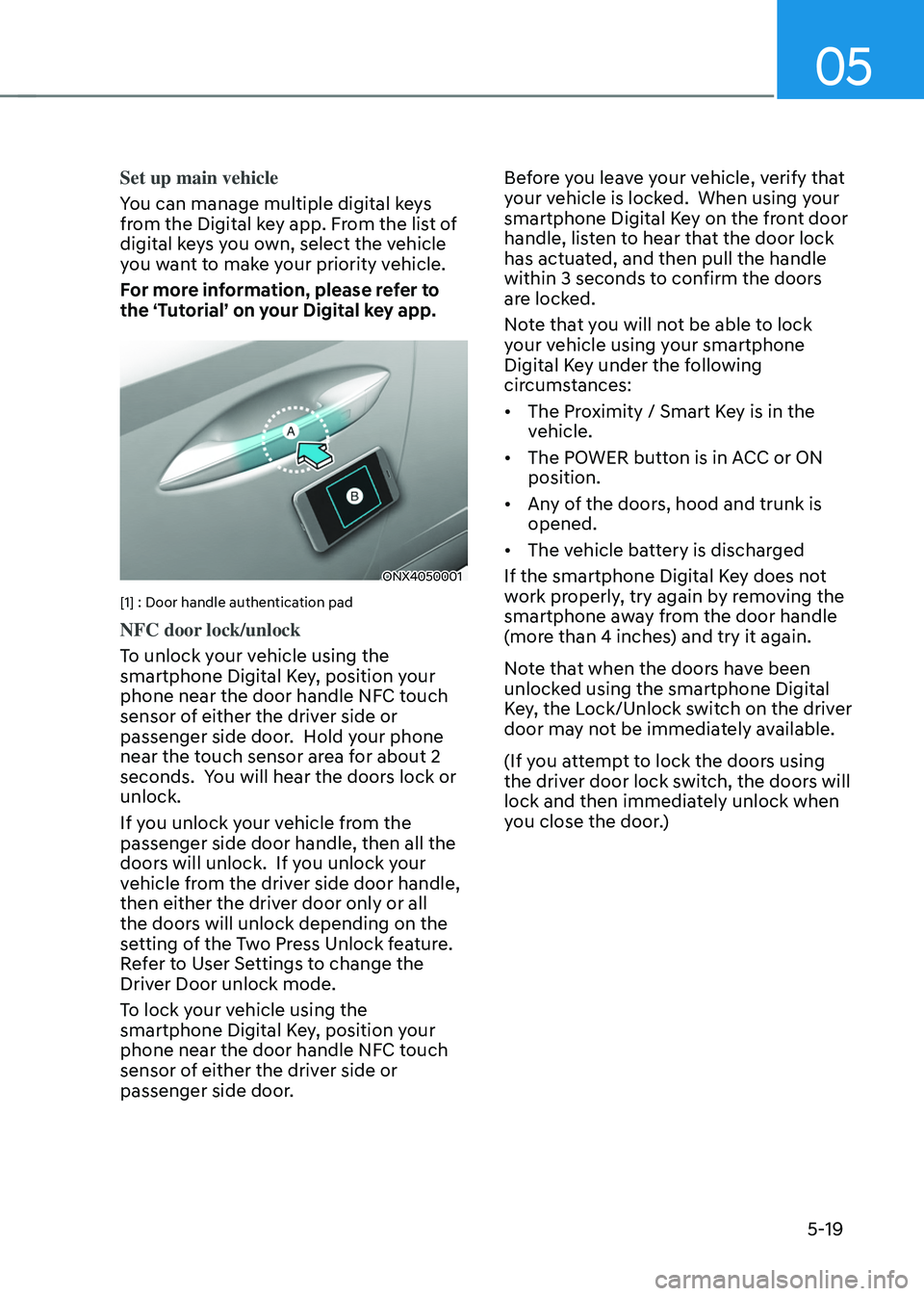
ONX4050001
[1] : Door handle authentication pad
NFC door lock/unlock
To unlock your vehicle using the
smartphone Digital Key, position your
phone near the door handle NFC touch
sensor of either the driver side or
passenger side door. Hold your phone
near the touch sensor area for about 2
seconds. You will hear the doors lock or
unlock.
If you unlock your vehicle from the
passenger side door handle, then all the
doors will unlock. If you unlock your
vehicle from the driver side door handle,
then either the driver door only or all
the doors will unlock depending on the
setting of the Two Press Unlock feature.
Refer to User Settings to change the
Driver Door unlock mode.
To lock your vehicle using the
smartphone Digital Key, position your
phone near the door handle NFC touch
sensor of either the driver side or
passenger side door. Before you leave your vehicle, verify that
your vehicle is locked. When using your
smartphone Digital Key on the front door
handle, listen to hear that the door lock
has actuated, and then pull the handle
within 3 seconds to confirm the doors
are locked.
Note that you will not be able to lock
your vehicle using your smartphone
Digital Key under the following
circumstances:
•
The Proximity / Smart Key is in the
vehicle.
• The POWER button is in ACC or ON
position.
• Any of the doors, hood and trunk is
opened.
• The vehicle battery is discharged
If the smartphone Digital Key does not
work properly, try again by removing the
smartphone away from the door handle
(more than 4 inches) and try it again.
Note that when the doors have been
unlocked using the smartphone Digital
Key, the Lock/Unlock switch on the driver
door may not be immediately available.
(If you attempt to lock the doors using
the driver door lock switch, the doors will
lock and then immediately unlock when
you close the door.)
Page 177 of 630
Convenient features
5-20
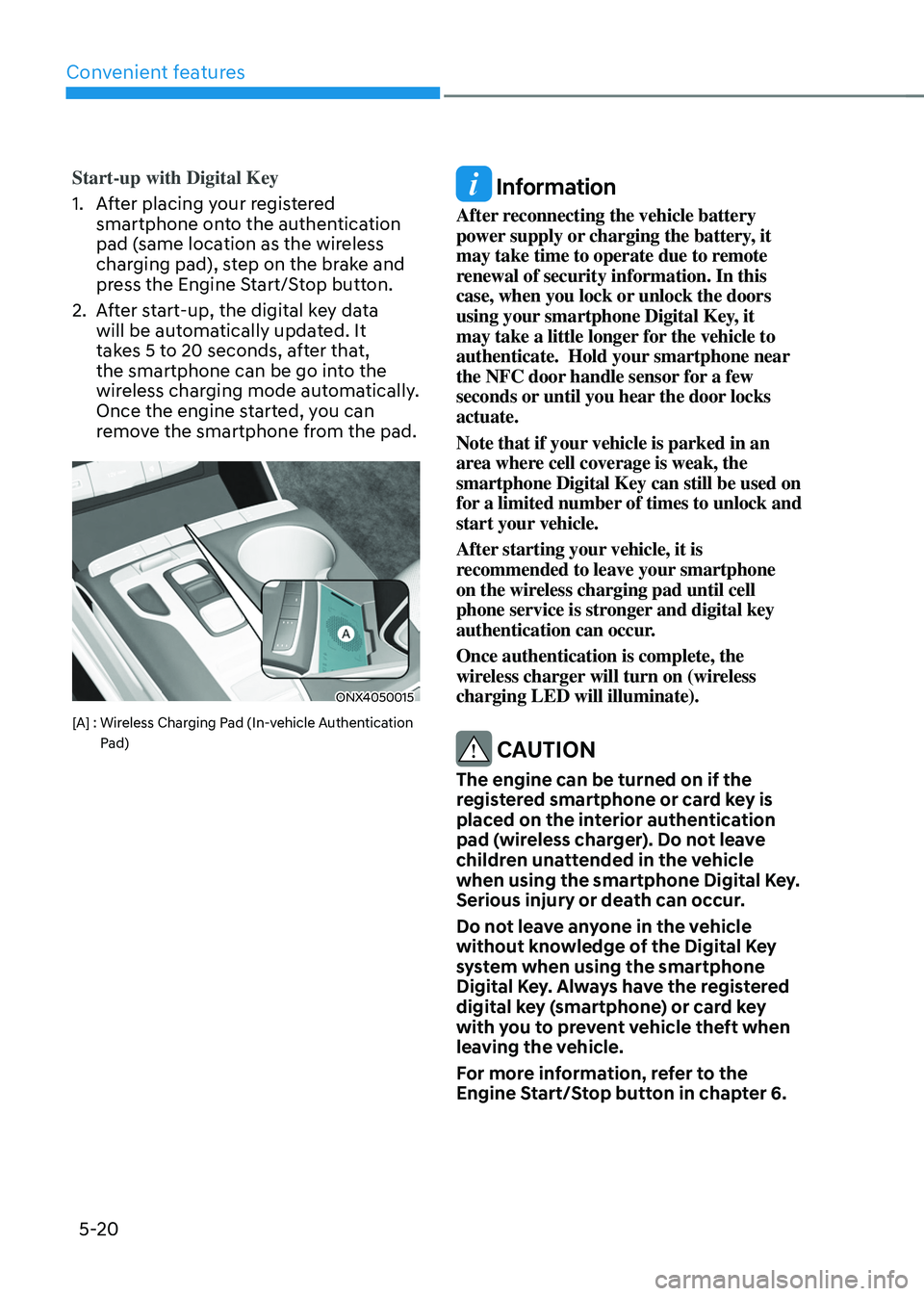
Start-up with Digital Key
1.
Aft
er placing your registered
smartphone onto the authentication
pad (same location as the wireless
charging pad), step on the brake and
press the Engine Start/Stop button.
2.
Aft
er start-up, the digital key data
will be automatically updated. It
takes 5 to 20 seconds, after that,
the smartphone can be go into the
wireless charging mode automatically.
Once the engine started, you can
remove the smartphone from the pad.
ONX4050015
[A] : Wireless Charging Pad (In-vehicle Authentication
P
ad)
Information
After reconnecting the vehicle battery
power supply or charging the battery, it
may take time to operate due to remote
renewal of security information. In this
case, when you lock or unlock the doors
using your smartphone Digital Key, it
may take a little longer for the vehicle to
authenticate. Hold your smartphone near
the NFC door handle sensor for a few
seconds or until you hear the door locks
actuate.
Note that if your vehicle is parked in an
area where cell coverage is weak, the
smartphone Digital Key can still be used on
for a limited number of times to unlock and
start your vehicle.
After starting your vehicle, it is
recommended to leave your smartphone
on the wireless charging pad until cell
phone service is stronger and digital key
authentication can occur.
Once authentication is complete, the
wireless charger will turn on (wireless
charging LED will illuminate).
CAUTION
The engine can be turned on if the
registered smartphone or card key is
placed on the interior authentication
pad (wireless charger). Do not leave
children unattended in the vehicle
when using the smartphone Digital Key.
Serious injury or death can occur.
Do not leave anyone in the vehicle
without knowledge of the Digital Key
system when using the smartphone
Digital Key. Always have the registered
digital key (smartphone) or card key
with you to prevent vehicle theft when
leaving the vehicle.
For more information, refer to the
Engine Start/Stop button in chapter 6.
Page 178 of 630
05
5-21
Remote Control with Digital Key
To use the remote control function with
your android smartphone, Bluetooth
must be turned on.
Remote Control Connection with Digital
Key
1.
Open the Hyundai digital ke
y
application on your smart phone.
Select your vehicle within the app.
2.
Approach with the activ
ated
smartphone app to your vehicle
and you can check whether the
connection is available. If it enables
your smartphone to connect, connect
with your vehicle by pressing the
connect button. The remote control
function is activated after completing
the process.
Remote Control Operation with Digital
Key
You can execute the remote control
operation including door lock/unlock,
panic on/off, remote start / remote
stop and trunk opening. The icon for
each function will be highlighted and
alarm/vibration also provided when the
operation is performed.
Note that you cannot lock your vehicle
using the Hyundai digital key app if any
of the following occurs:
• The POWER button is in ACC or ON
position.
• Any doors are open.
When the smartphone and the vehicle
are connected by the Bluetooth function
but the remote control command
cannot be received over 5 minutes, the
remote control connection is cancelled
automatically. CAUTION
• If metallic window tint was applied
to your vehicle, it may cause
bad Bluetooth connection or
performance degradation of the
digital key.
• If multiple users operate the remote
control function simultaneously, the
connection between the digital key
and the vehicle might result in failed
commands. Please connect and
operate the remote control function
only the necessary user.
• When using the remote control
operation, the driver (the remote
control user) should leave the vehicle
after confirming the door lock (the
chime sounds once and the hazard
warning lights blink).
• The remote functions of the Digital
Key app enables the vehicle to be
controlled from a set distance. If
the digital key or the vehicle goes
beyond the operable distance, the
remote control function might be
disconnected or cancelled.
• If the digital key (smartphone) is
connected with the vehicle for the
remote control, the driver with the
key goes far away from the vehicle,
the function might not work.
• If the remote control operation
is executed where the mobile
connection is weak, Bluetooth
connection is poor due to several
Bluetooth devices or there is an
object such as metal or concrete, it
might be delayed or the operable
distance might decrease. You should
not cover the smartphone with your
hand or place other devices which
can cause frequency interference. It
may result in poor performance.
• If the remote control function is not
available, please use NFC function to
lock or unlock the doors.
Page 179 of 630
Convenient features
5-22
Remote Start with Digital Key
• Using the Hyundai Digital Key app
on your phone, press the Door Lock
button and then press the Remote
Start button (buttons must be pressed
within about 4 seconds). If all the
doors of your vehicle are closed
(including the hood and the liftgate),
the engine will be automatically
started.
Note that when the remote start
feature is activated, the hazard
warning lights will blink two times
and a chime will sound before engine
startup. Also note the following:
• The climate control system will come
on using the same settings from when
you last used the vehicle
• To turn off the engine, press the
Remote Engine Stop button within the
Hyundai Digital Key app.
• The engine will remain running for
approximately 10 minutes, and then
engine will automatically shut OFF.
• To keep the engine running, access
the vehicle and place the smartphone
on the wireless charging pad
(authentication pad) while the engine
is still in remote engine-ON mode.
For more information, refer to the Engine
Start/Stop button in chapter 6. Vehicle information Display
The digital key application displays
the vehicle information such as
driving or door conditions through the
communication with the vehicle.
•
How to check : Select the vehicle
what you want to check and touch
the vehicle image, then vehicle
information display page will be
shown.
• Contents : accumulated odometer,
latest fuel economy, driving range,
fuel remaining, tire pressure, doors
lock/unlock status and last data
updated time.
ÃNo
te that displayed vehicle data may
be slightly different from the current
vehicle condition
à For mor
e information, please refer to
the ‘Tutorial’ on your Digital key app.