phone INFINITI Q50 HYBRID 2014 Infiniti Intouch
[x] Cancel search | Manufacturer: INFINITI, Model Year: 2014, Model line: Q50 HYBRID, Model: INFINITI Q50 HYBRID 2014Pages: 274, PDF Size: 1.43 MB
Page 137 of 274
8. Information and settings
8-14
(page 9-22)
Notice to Bluetooth®Hands-free
phone users
This is to avoid various services by Infiniti
Connection Response Specialists (such as
route guidance) and Infiniti Connection
emergency support staff being interrupted
by incoming calls. Incoming phone calls
received while the vehicle is connected to
the Service Center will not be listed in the
call history of the Bluetooth
®Hands-free
phone system. However those incoming
calls may be listed in the call history of
your mobile phone, depending on its
capabilities. After disconnecting communi-
cation with the Infiniti Connection Re-
sponse Specialist or Infiniti Connection
emergency support staff, check the incom-
ing call history on your mobile phone when
it is safe to do so.
Service application
A separately purchased Infiniti Connection
subscription is required. For detailed in-
formation, contact an INFINITI retailer or
refer to the following Infiniti Connection
website:
www.infiniticonnection.com (for U.S.) https://canada.infiniticonnection.com (for
Canada)
INFO:
If the vehicle is owned by another person and is
resold, the subscription for this service must be
canceled and all data stored on the device must
be deleted.
Operating tips
WARNING!
.
Use the Infiniti Connection services after
stopping your vehicle in a safe location.
If you have to use the Infiniti Connection
services while driving, exercise extreme
caution at all times so full attention may
be given to vehicle operation.
. If you are unable to devote full attention
to vehicle operation while talking with
the Infiniti Connection services, pull off
the road to a safe location and stop your
vehicle.
.Do not use the Infiniti Connection
service with the engine or the hybrid
system stopped. Doing so may dis-
charge the vehicle battery. .
The Infiniti Connection services cannot
be used under the following conditions:
—
Infiniti Connection subscription has ex-
pired.
—The vehicle is outside the area where thecellular network service is receivable.
—The vehicle is in a location with poorsignal reception such as tunnels, under-
ground parking garages, behind build-
ings or in mountainous areas.
—The line is busy.
—The TCU (Telematics Control Unit) orother systems of your vehicle are not
working properly.
—The Infiniti Connection services networksystem is disabled.
. Information Feeds download cannot be
used when the vehicle is connected to
the Infiniti Connection Data Center and
Infiniti Connection Response Center.
. Communication with the Infiniti Con-
nection Data Center is related to the
data communication mode and may
cause occasional difficulty in receiving
signals, and the signal receivable area
may be limited compared to regular
mobile phones.
Page 139 of 274
![INFINITI Q50 HYBRID 2014 Infiniti Intouch 8. Information and settings
8-16
INFO:
.
You can also connect to an Infiniti Connec-
tion Interactive Voice Menu by touching the
IVR soft button
*1on the map.
.After selecting [Connect to Voice Menu],](/img/42/34966/w960_34966-138.png "INFINITI Q50 HYBRID 2014 Infiniti Intouch 8. Information and settings
8-16
INFO:
.
You can also connect to an Infiniti Connec-
tion Interactive Voice Menu by touching the
IVR soft button
*1on the map.
.After selecting [Connect to Voice Menu],")
8. Information and settings
8-16
INFO:
.
You can also connect to an Infiniti Connec-
tion Interactive Voice Menu by touching the
IVR soft button
*1on the map.
.After selecting [Connect to Voice Menu], it
may take some time until the system
initiates connection, depending on the
technical environment and whether the
TCU (Telematics Control Unit) is being used
by other services.
.To avoid disconnecting the line, do not turn
off the engine or hybrid system.
.If a phone call is received while the system
is connecting to the operator at the Infiniti
Connection Response Center, a message
asking if you would like to answer the
phone will be displayed.
USING MY SCHEDULE
Allows you to provide in-vehicle access to
your personal Google CalendarTM
1. Push
Page 140 of 274
.Content settings can be made using the
Infiniti Connection website. For more de-
tails, contact the Infiniti Connection support
line at 1-800-334-7858 (for U.S.) /1-855-
892-7418 (for Canada) or refer to the Infiniti
Connection website www.infiniticonnection.
com (for U.S.)/https://canada.infiniticon-
nection.com (for Canada).
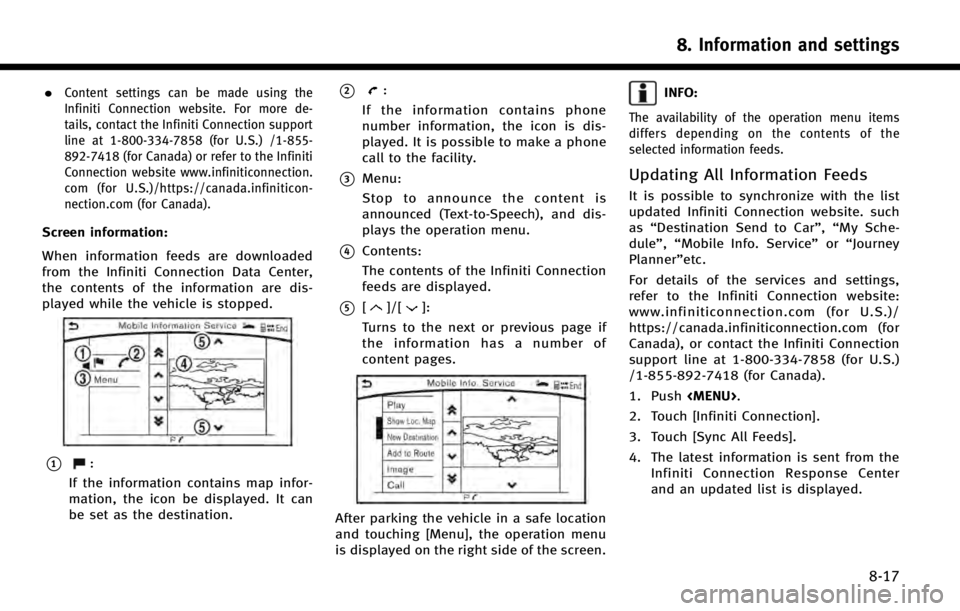
Screen information:
When information feeds are downloaded
from the Infiniti Connection Data Center,
the contents of the information are dis-
played while the vehicle is stopped.
*1:
If the information contains map infor-
mation, the icon be displayed. It can
be set as the destination.
*2:
If the information contains phone
number information, the icon is dis-
played. It is possible to make a phone
call to the facility.
*3Menu:
Stop to announce the content is
announced (Text-to-Speech), and dis-
plays the operation menu.
*4Contents:
The contents of the Infiniti Connection
feeds are displayed.
*5[]/[]:
Turns to the next or previous page if
the information has a number of
content pages.
After parking the vehicle in a safe location
and touching [Menu], the operation menu
is displayed on the right side of the screen.
INFO:
The availability of the operation menu items
differs depending on the contents of the
selected information feeds.
Updating All Information Feeds
It is possible to synchronize with the list
updated Infiniti Connection website. such
as “Destination Send to Car”, “My Sche-
dule”, “Mobile Info. Service” or“Journey
Planner”etc.
For details of the services and settings,
refer to the Infiniti Connection website:
www.infiniticonnection.com (for U.S.)/
https://canada.infiniticonnection.com (for
Canada), or contact the Infiniti Connection
support line at 1-800-334-7858 (for U.S.)
/1-855-892-7418 (for Canada).
1. Push
Page 145 of 274
![INFINITI Q50 HYBRID 2014 Infiniti Intouch 8. Information and settings
8-22
SETTINGS SCREEN
The system can be customized to make it easier for you to use.
Step 1Step 2 Setting item Result
Push <Menu> [Settings] [Bluetooth] Set the Bluetooth®A](/img/42/34966/w960_34966-144.png "INFINITI Q50 HYBRID 2014 Infiniti Intouch 8. Information and settings
8-22
SETTINGS SCREEN
The system can be customized to make it easier for you to use.
Step 1Step 2 Setting item Result
Push <Menu> [Settings] [Bluetooth] Set the Bluetooth®A")
8. Information and settings
8-22
SETTINGS SCREEN
The system can be customized to make it easier for you to use.
Step 1Step 2 Setting item Result
Push
Page 150 of 274
![INFINITI Q50 HYBRID 2014 Infiniti Intouch INFO:
The displayed items vary depending on the
equipped options.
The order of displayed items can be sorted.
QUICK SETTING MENU SCREEN
Touch [] on the lower touch screen
display (lower display) to se](/img/42/34966/w960_34966-149.png "INFINITI Q50 HYBRID 2014 Infiniti Intouch INFO:
The displayed items vary depending on the
equipped options.
The order of displayed items can be sorted.
QUICK SETTING MENU SCREEN
Touch [] on the lower touch screen
display (lower display) to se")
INFO:
The displayed items vary depending on the
equipped options.
The order of displayed items can be sorted.
QUICK SETTING MENU SCREEN
Touch [] on the lower touch screen
display (lower display) to set the display of
the setting menu items.
The following items are available settings.
Setting item Result
[Day/Night]: Adjust the upper and lower screen brightness. Toggle the map color between the day screen and night screen.
[Bass]: Adjust the speaker tone quality and sound balance by touching [+]/[-], [L]/ [R] or [R]/[F].
[Treble]:
[Balance]:
[Fade]:
[Volume Adjustment]: This turns on and off, as well as adjusts, the volume for various functions including, phone, navigation voice guidance (if so equipped), as well as
system beeps
8. Information and settings
8-27
Page 156 of 274

9 Navigation (if so equipped)
Safety information ............................................... 9-3
Map data authentication...................................... 9-3
Map operation ..................................................... 9-4Map types ....................................................... 9-4
Road color....................................................... 9-6
Displaying current vehicle location .................. 9-6
Moving map .................................................... 9-7
Changing scale of map .................................... 9-8
Change map .................................................... 9-9
Setting split screen ......................................... 9-9
Map view settings ......................................... 9-10
Setting information on map ........................... 9-13
Traffic information on map ............................ 9-13
Setting destination ............................................ 9-14 Changing region ............................................ 9-14
Destination screen......................................... 9-15
Finding address............................................. 9-18
Finding points of interest .............................. 9-19
Setting home as destination.......................... 9-20
Setting intersection ....................................... 9-21
Finding nearby place ..................................... 9-21
Using Journey Planner ................................... 9-22
Searching from history .................................. 9-23
Setting freeway entrance/exit ........................ 9-23
Setting city center ......................................... 9-23 Searching from Stored Location ................... 9-24
Setting by phone number ............................ 9-24
Setting from stored routes ........................... 9-25
Setting by Infiniti Connection
TM.................. 9-25
Setting point on map ................................... 9-27
Procedures after setting route ...................... 9-27
Route guidance ................................................. 9-29
About route guidance .................................. 9-29
Guidance screen settings ............................. 9-34
Canceling Route ........................................... 9-34
Route menu screen ...................................... 9-35
Editing route................................................ 9-35
Recalculating route ...................................... 9-38
Searching for detour route using
traffic information ........................................ 9-38
Setting detour route .................................... 9-39
Route guidance settings .............................. 9-39
Viewing traffic information ................................ 9-43
Viewing available traffic information.................. 9-44
Viewing traffic information list ..................... 9-45
Display urgent traffic information................. 9-46
Traffic Information Settings .......................... 9-46
Traffic information on map ........................... 9-47
Storing a location/route .................................... 9-48 Storing location ........................................... 9-48
Page 160 of 274

*6Starting point:
Displays the vehicle location, with
which the route is set, as the starting
point.
*7Speed limit icon:
Displays the speed limit of the current
driving road.
*8Reception level indication:
Indicates the approximate level of
reception of the connected cellular
phone.
*9Battery status:
Indicates the battery status of the
connected cellular phone in four le-
vels.
*10Infiniti Connection antenna icon
When the system connects to the
Infiniti Connection Data Center, an
antenna icon will appear on the
screen.
“Infiniti Connection features”
(page 8-10)
*11Clock
Display current time.
“Clock settings” (page 2-20)
*12Remaining time and distance to
the destination:
Indicates the approximate remaining
time and distance to the destination or
waypoint. This indicator will appear
when a destination or waypoint is set
and route guidance is started.
*13IVR soft button (if so equipped):
Touch the icon to connect to the Infiniti
Connection
TMInteractive Voice Menu.“Connecting to Interactive Voice
Menu” (page 8-15)
*14Upper display icon:
Touch the icon to display the shortcut
menu.
“ Upper touch screen display
(upper display)” (page 2-10)
*15Scale indicator:
Indicates the scale of the map.
Touch the icon to display the scale bar.
The map scale can be adjusted using
the scale bar.
“Changing scale of map”
(page 9-8)
*16/Direction indicator:
Indicates the directional setting of the
map. Touch the icon to change the setting.
: North always pointing up.
: Direction of the vehicle always
pointing up.
*17Avoid area (green):
Displays the areas to avoid that are
stored in the Address Book. During the
route search, the route guidance is
performed by searching for a route
that avoids those areas.
*18Street name:
Displays the name of the street that
the vehicle is currently driving on.
*19Suggested route:
Appears in bold blue during route
guidance.
*20Stored location (yellow):
Displays the locations that are stored
in the Address Book. The icons can be
changed according to your prefer-
ences.
*21Destination:
Indicates the destination location of
the route guidance.
Upon reaching the destination, the
address will be displayed on the map
9. Navigation (if so equipped)
9-5
Page 172 of 274
![INFINITI Q50 HYBRID 2014 Infiniti Intouch Step 1Step 2 Setting item Action
Push <MENU> [Destination] [City Center] Sets the center of a city as the destination.
“Setting city center”(page 9-23)
[Phone Numbers] Searches for a point of inte](/img/42/34966/w960_34966-171.png "INFINITI Q50 HYBRID 2014 Infiniti Intouch Step 1Step 2 Setting item Action
Push <MENU> [Destination] [City Center] Sets the center of a city as the destination.
“Setting city center”(page 9-23)
[Phone Numbers] Searches for a point of inte")
Step 1Step 2 Setting item Action
Push
Page 179 of 274
![INFINITI Q50 HYBRID 2014 Infiniti Intouch 9. Navigation (if so equipped)
9-24
3. Enter the name of the city and touch[List]. A list screen is displayed.
INFO:
Touch [Last 5 Cities] to display the last five
cities recently set as destinations.](/img/42/34966/w960_34966-178.png "INFINITI Q50 HYBRID 2014 Infiniti Intouch 9. Navigation (if so equipped)
9-24
3. Enter the name of the city and touch[List]. A list screen is displayed.
INFO:
Touch [Last 5 Cities] to display the last five
cities recently set as destinations.")
9. Navigation (if so equipped)
9-24
3. Enter the name of the city and touch[List]. A list screen is displayed.
INFO:
Touch [Last 5 Cities] to display the last five
cities recently set as destinations.
4. Touch the preferred destination from
the list.
INFO:
Touch [Map] to preview on the upper
display.
5. The selected destination is displayedon the upper display. Touch [Start] after
confirming the location of the displayed
destination.
SEARCHING FROM STORED LOCA-
TION
Storing frequently used destinations in the
Address Book makes it easy to set a
destination. Locations should be stored in
the Address Book before using this func-
tion.
“Storing location” (page 9-48)
1. Push
Page 180 of 274
.Only the locations included in the database
in the map data can be searched for by
phone number. Residential phone numbers
cannot be used to search for a location.
1. Push