service INFINITI Q60 COUPE 2018 Infiniti Intouch
[x] Cancel search | Manufacturer: INFINITI, Model Year: 2018, Model line: Q60 COUPE, Model: INFINITI Q60 COUPE 2018Pages: 292, PDF Size: 1.45 MB
Page 189 of 292
![INFINITI Q60 COUPE 2018 Infiniti Intouch 8. Touch a street as the second street fromthe list. An intersection list screen is
displayed.
INFO:
Touch [Map] to display intersection at
the center of the map on the upper
display.
9. Touch interse](/img/42/34989/w960_34989-188.png "INFINITI Q60 COUPE 2018 Infiniti Intouch 8. Touch a street as the second street fromthe list. An intersection list screen is
displayed.
INFO:
Touch [Map] to display intersection at
the center of the map on the upper
display.
9. Touch interse")
8. Touch a street as the second street fromthe list. An intersection list screen is
displayed.
INFO:
Touch [Map] to display intersection at
the center of the map on the upper
display.
9. Touch intersection from the list.
10. The selected destination is displayed at the center of the map on the upper
display. Touch [Start] to start route
guidance.
FINDING NEARBY PLACE
A facility located near the current vehicle
location or another location that you move
to by scrolling the map can be set as the
destination. This allows you to set the
destination to a facility located near the
current vehicle location or another location
that you move to by scrolling the map.
1. Push
Page 190 of 292
![INFINITI Q60 COUPE 2018 Infiniti Intouch 9. Navigation (if so equipped)
INFO:
.Touch [Update List] to update the listinformation.
.Touch [Details] to preview the routeon the upper display.
.Touchto display facility informa-
tion.
4. The sele](/img/42/34989/w960_34989-189.png "INFINITI Q60 COUPE 2018 Infiniti Intouch 9. Navigation (if so equipped)
INFO:
.Touch [Update List] to update the listinformation.
.Touch [Details] to preview the routeon the upper display.
.Touchto display facility informa-
tion.
4. The sele")
9. Navigation (if so equipped)
INFO:
.Touch [Update List] to update the listinformation.
.Touch [Details] to preview the routeon the upper display.
.Touchto display facility informa-
tion.
4. The selected route plan is displayed. Touch [Start] after confirming the loca-
tion of the displayed destination.
INFO:
. Journey Planner is an Infiniti InTouch
TM
Services feature. Subscription is required
to use the Infiniti InTouchTMServices.
. Journey Planner cannot be used if [De-
cline] is touched on the Start-up Screen.
. Refer to the INFINITI Owner’s Portal
Website for how to set the destination
using Journey Planner.
SEARCHING FROM HISTORY
A previous destination can be set as the
destination.
Up to 100 previous destinations will be
automatically stored. If the number of pre-
vious destinations exceeds 100, the oldest
one will be replaced by the newest one.
1. Push
Page 192 of 292
9. Navigation (if so equipped)
2. After the tone sounds, speak a com-mand.
To set the destination from the Stored
Locations:
“ Stored Locations”
SETTING BY PHONE NUMBER
If the phone number of a facility is known, it
is possible to search for a facility by entering
the phone number.
INFO:
. If the area code of the specified tele-
phone number does not exist in the map
data, the system cannot search for the
location.
. Only the locations included in the data-
base in the map data can be searched for
by phone number. Residential phone
numbers cannot be used to search for a
location.
1. Push
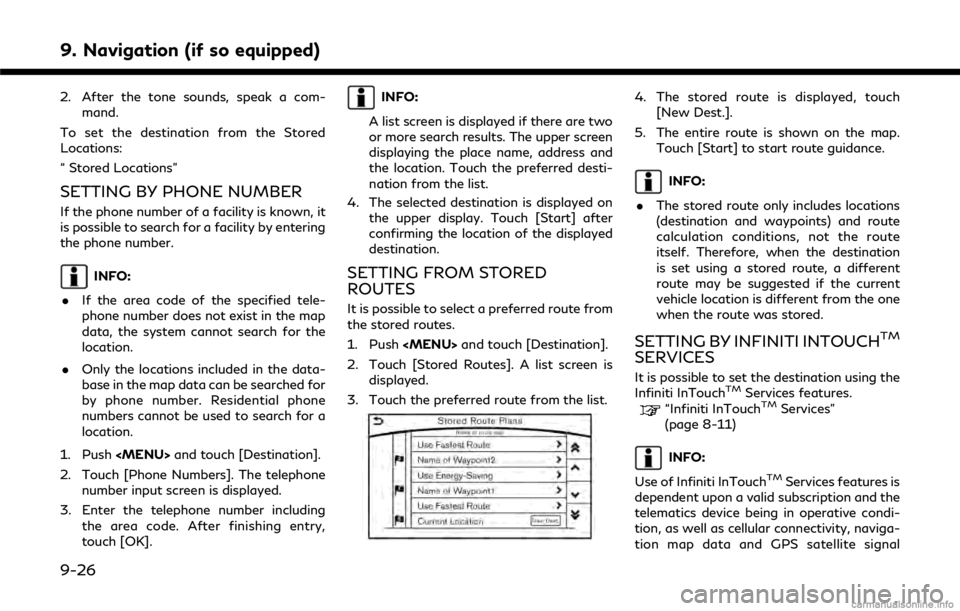
Page 193 of 292

reception being available.
Searching by connecting Data Cen-
ter
It is possible to find a point of interest by
inputting a keyword and connecting to the
Infiniti InTouch
TMServices Data Center. The
searched location can be set as a destina-
tion.
1. Push
Page 194 of 292
![INFINITI Q60 COUPE 2018 Infiniti Intouch 9. Navigation (if so equipped)
INFO:
Select [Update List] to update the list
information.
4. The selected destination is displayed. Touch [Start] to start route guidance.
INFO:
Refer to the INFINITI O](/img/42/34989/w960_34989-193.png "INFINITI Q60 COUPE 2018 Infiniti Intouch 9. Navigation (if so equipped)
INFO:
Select [Update List] to update the list
information.
4. The selected destination is displayed. Touch [Start] to start route guidance.
INFO:
Refer to the INFINITI O")
9. Navigation (if so equipped)
INFO:
Select [Update List] to update the list
information.
4. The selected destination is displayed. Touch [Start] to start route guidance.
INFO:
Refer to the INFINITI Owner’s Portal Web-
site for the destination setting using Google
send to car.
Using Destination Send to Car
Destination Send-to-Vehicle enables you to
search for destinations from a point of
interest (POI) database accessed within the
Infiniti InTouch
TMServices website.
1. Push
Page 211 of 292
VIEWING TRAFFIC INFORMA-
TION
SiriusXM Traffic information is a subscrip-
tion service offered by SiriusXM Satellite
Radio.
This service provides real-time information
regarding traffic flow, accidents, road con-
struction and other incidents, where avail-
able.
SiriusXM Traffic combines information from
commercial and public traffic data providers
including government departments of trans-
portation, police, emergency services, road
sensors, cameras and aircraft reports. The
traffic information is broadcast to the
vehicle by the SiriusXM satellites. Traffic
information available for the route the driver
selected is shown on the navigation screen
so traffic conditions between you and the
destination are known. Three types of real-
time traffic information for major roadways
are shown on the navigation system:. Unscheduled traffic data for example,
accidents and disabled vehicles.
. Scheduled traffic data, for example road
construction and road closures. .
Traffic flow information (rate of speed
data).WARNING
SiriusXM Traffic information is not a
substitute for attentive driving. Traffic
conditions change constantly and emer-
gency situations can arise without warn-
ing. Relying only on SiriusXM Traffic
information may lead to a collision and
could result in serious personal injury.
NOTE:
Flow information is provided only for roads
equipped with traffic sensors and is not
available in all markets covered by the
service. Flow data may not be available on
portions of a road that is under construc-
tion.
SiriusXM Traffic information is available in
limited markets. To subscribe or to check if
this service is available in the area:
call 1-866-635-2349 or see www.siriusxm.
com/siriusxmtraffic
INFO:
If a contract is not completed for SiriusXM
Traffic information service, a message ap-
pears, and it will not be possible to check the
information on the traffic information sys-
tem.
9. Navigation (if so equipped)
9-45
Page 212 of 292
9. Navigation (if so equipped)
VIEWING AVAILABLE TRAFFIC
INFORMATION
NavTraffic information is a subscription
service offered by SiriusXM Satellite Radio.
This service provides real-time information
regarding traffic flow, accidents, road con-
struction and other incidents, where avail-
able.
NavTraffic combines information from com-
mercial and public traffic data providers
including government departments of trans-
portation, police, emergency services, road
sensors, cameras and aircraft reports. The
traffic information is broadcast to the
vehicle by the SiriusXM satellites. Available
traffic information on the route the driver
selected is shown on the navigation screen
so traffic conditions between you and the
destination are known. Three types of real-
time traffic information for major roadways
are shown on the navigation system:
* Unscheduled traffic data for example,
accidents and disabled vehicles.
* Scheduled traffic data, for example road
construction and road closures.
* Traffic flow information (rate of speed
data).
WARNING
NavTraffic information is not a substi-
tute for attentive driving. Traffic condi-
tions change constantly and emergency
situations can arise without warning.
Relying only on NavTraffic information
may lead to a collision and could result in
serious personal injury.
NOTE:
Flow information is provided only for roads
equipped with traffic sensors and is not
available in all markets covered by the
service. Flow data may not be available on
portions of a road that is under construc-
tion.
“SiriusXM Travel Link®” (page 8-4)
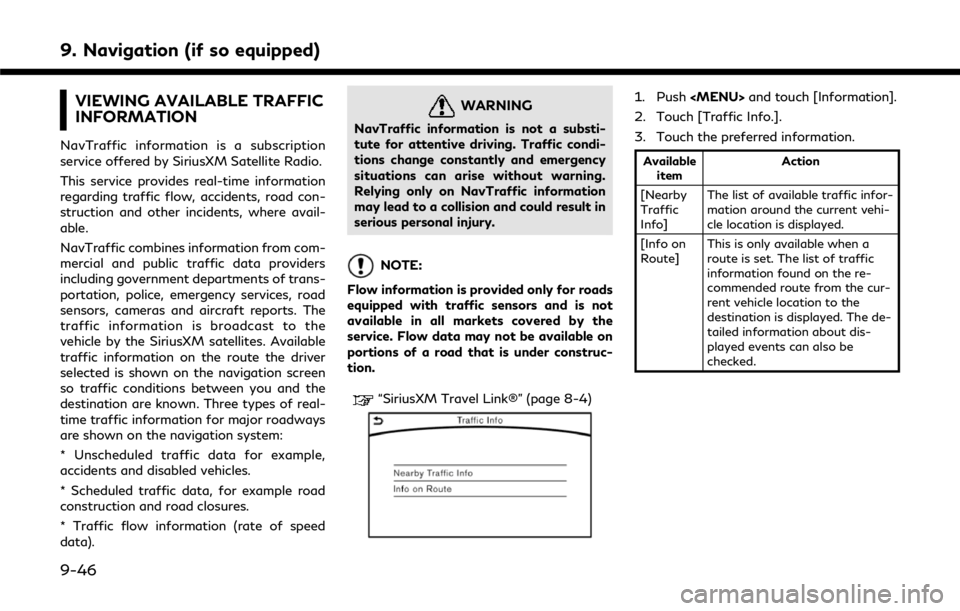
1. Push
Page 214 of 292
![INFINITI Q60 COUPE 2018 Infiniti Intouch 9. Navigation (if so equipped)
Available setting items. [Use Traffic Info]:
Enables all traffic information related
functions.
. [Show Incidents on Map]:
Displays the traffic incidents (e.g., acci-
de](/img/42/34989/w960_34989-213.png "INFINITI Q60 COUPE 2018 Infiniti Intouch 9. Navigation (if so equipped)
Available setting items. [Use Traffic Info]:
Enables all traffic information related
functions.
. [Show Incidents on Map]:
Displays the traffic incidents (e.g., acci-
de")
9. Navigation (if so equipped)
Available setting items. [Use Traffic Info]:
Enables all traffic information related
functions.
. [Show Incidents on Map]:
Displays the traffic incidents (e.g., acci-
dent) on the map screen.
. [Show Traffic Info]:
Displays the traffic flow with an arrow
on the map screen.
. [Traffic Announcements]:
Announces the traffic information event
on the route.
INFO:
. Even when [Show Traffic Info] and
[Show Incidents on Map] are set to off,
the list display of [Info on Route] and
[Nearby Traffic Info] will not be af-
fected.
. Even when [Traffic Announcement] is
set to off, the route guidance will not be
affected. Also, the announcement of
emergency information and weather in-
formation will not be turned off.
Voice command
1. Push <
>located on the steering-
wheel.
2. After the tone sounds, speak a com- mand.
To turn the traffic information system on
or off:
“Traffic Information”
TRAFFIC INFORMATION ON
MAP
With a subscription to SiriusXM Traffic
service, traffic information is displayed on
both 2D map and Birdview™ map screen.
“Notes on SiriusXM Traffic informa-
tion” (page 8-10)
Screen information
Traffic indicator:
Displays the reception condition of
traffic information transmitted from
the provider. When reception condition of traffic
information transmitted from the pro-
vider is not detected, the traffic in-
dicator will be “grayed-out”.
Estimated travel time to destination
calculated with consideration of traffic
information on route.
Road conditions
Free Flow: Green arrow
Moderate traffic: Yellow arrow
Heavy traffic: Red arrow
Section affected by serious traffic
event: Purple arrow
Traffic information icon:
If a route is not already set, all of the
traffic information icons on the map
screen are displayed in color. When a
route is already set, the icons on the
route are displayed in color, and the
icons outside the route are displayed in
gray.
: Accident
: Closed road
: Information
: Road work
9-48
Page 229 of 292

*When driving on a road not displayed on
the map screen or a road that has been
changed due to additional construction
or other reasons.
*When the GPS positioning accuracy is
low.
INFO:
. The vehicle icon may be misaligned when
starting the vehicle just after starting the
engine or the hybrid system.
. The vehicle icon may also be misaligned if
different sized tires or tire chains are
installed.
. The system has a function that auto-
matically corrects the vehicle icon posi-
tion when it is misaligned from the actual
position.
. Vehicle position correction by GPS may
not function when the vehicle is stopped.
. If the vehicle icon position does not
return to normal even after driving for a
while, correct the vehicle icon position
manually.
Detailed Map Coverage Areas
(MCA) for navigation system
This system is designed to help guiding to
the destination, and it also performs other
functions as outlined in this manual. How-
ever, the system must be used safely and
properly. Information concerning road con-
ditions, traffic signs and the availability of
services may not always be up-to-date. The system is not a substitute for safe, proper
and legal driving.
Map data covers select metropolitan areas
in the United States and Canada.
Map data includes two types of areas:
“Detailed coverage areas” providing all de-
tailed road data and other areas showing
“Main roads only”.
INFO:
Detailed map data is not available in many
areas and is generally limited to select major
metropolitan areas.
When gray road is displayed on map
. When you are driving on a road displayed
in gray after the vehicle has deviated
from the suggested route during route
guidance, automatic rerouting may not
start immediately.
. The navigation system does not provide
route guidance for roads displayed in
dark green. Therefore, if the destination
is set on a road displayed in dark green,
the enlarged map display will return to
the ordinary map screen at some point
on a suggested route that is near the
destination. Also, voice guidance will
9. Navigation (if so equipped)
9-63
Page 234 of 292
9. Navigation (if so equipped)
WARNING
.This navigation system should not be
used as a substitute for your own
judgement. Any route suggestions
made by this navigation system may
never override any local traffic reg-
ulations, your own judgement, and/or
knowledge of safe driving practices.
Disregard route suggestions by the
navigation system if such suggestions
would: cause you to perform an
hazardous or illegal maneuver, place
you in an hazardous situation, or
route you into an area you consider
unsafe.
. The advice provided by the navigation
system is to be regarded only as a
suggestion. There may be situations
where the navigation system displays
the vehicle’s location incorrectly, fails
to suggest the shortest course, and/
or fails to direct you to your desired
destination. In such situations, rely on
your own driving judgement, taking
into account current driving condi-
tions. .
Do not use the navigation system to
route you to emergency services. The
database does not contain a complete
listing of locations of emergency
service providers such as police, fire
stations, hospitals and clinics. Please
use your judgement and your ability
to ask for directions in these situa-
tions.
. As the driver you solely are respon-
sible for your driving safety.
— In order to avoid traffic accidents, do not operate the system while
driving.
— In order to avoid traffic accidents, operate the system only when the
vehicle is stopped at a safe place
and the parking brake is set.
— In order to avoid traffic accidents or traffic offence, remember that ac-
tual road conditions and traffic
regulations take precedence over
the information contained on the
navigation system.
— Accordingly, the Software may con- tain inaccurate or incomplete infor-
mation due the passage of time,
changing circumstances, and due to the nature of the sources used.
Please observe the actual traffic
circumstances and regulations at
all times while driving.
— In a situation when actual road conditions and traffic regulations
differ from the information con-
tained on the navigation system,
then abide by traffic rules.
— The navigation system does not provide, or account for in any way,
information regarding traffic and
road laws; speed restrictions; road
conditions including road slope,
grade, and/or surface conditions;
obstruction information including
bridge and tunnel height and width,
and/or other prevailing driving
and/or road conditions. Always rely
on your own driving judgment, tak-
ing into account current driving
conditions.
— Minimize the amount of time spent viewing the screen while driving.
The marks of companies displayed by this
product to indicate business locations are
the marks of their respective owners. The
9-68