change time JEEP GRAND CHEROKEE 2015 WK2 / 4.G Owner's Manual
[x] Cancel search | Manufacturer: JEEP, Model Year: 2015, Model line: GRAND CHEROKEE, Model: JEEP GRAND CHEROKEE 2015 WK2 / 4.GPages: 717, PDF Size: 18.54 MB
Page 345 of 717
time with GPS” button on the touchscreen until a check-
mark appears next to the setting, showing that setting has
been selected. Press the back arrow button on the touch-
screen to return to the previous menu.
•Set Time Hours
This feature will allow you to adjust the hours. The “Sync
time with GPS” button on the touchscreen must be
unchecked. To make your selection, press the “+” or “–”
buttons on the touchscreen to adjust the hours up or
down. Press the back arrow button on the touchscreen to
return to the previous menu.
•Set Time Minutes
This feature will allow you to adjust the minutes. The
“Sync time with GPS” button on the touchscreen must be
unchecked. To make your selection, press the “+” or “–”
buttons on the touchscreen to adjust the minutes up or
down. Press the back arrow button on the touchscreen to
return to the previous menu.
•Time Format
This feature will allow you to select the time format
display setting. Press the “Time Format” button on the
touchscreen until a check-mark appears next to the
“12hrs” or “24hrs” setting, showing that setting has been
selected. Press the back arrow button on the touchscreen
to return to the previous menu.
•Show Time In Status Bar — If Equipped
This feature will allow you to turn on or shut off the
digital clock in the status bar. To change the Show Time
Status setting press the “Show Time in Status Bar” button
on the touchscreen until a check-mark appears next to
setting, indicating that the setting has been selected. Press
the back arrow button on the touchscreen to return to the
previous menu.
4
UNDERSTANDING YOUR INSTRUMENT PANEL 343
Page 346 of 717
Safety & Driving Assistance
After pressing the “Safety & Driving Assistance” button
on the touchscreen the following settings will be avail-
able:
•Forward Collision Warning — If Equipped
The Front Collision Warning (FCW) feature provides an
audible and/or visual warning to potential forward
collisions. The feature can be can be set to Far, or set to
Near. The default status of FCW is the Far setting. This
means the system will warn you of a possible collision
with the vehicle in front of you when you are farther
away. This gives you the most reaction time. To change
the setting for more dynamic driving, select the Near
setting. This warns you of a possible collision when you
are much closer to the vehicle in front of you. To change
the FCW status, press and release the “Near” or “Far”
button. Then press the back arrow button on the touch-
screen.
For further information, refer to “Adaptive Cruise Con-
trol (ACC)” in “Understanding The Features Of Your
Vehicle”.
•Forward Collision Warning (FCW) Active Braking —
If Equipped
The FCW system includes Advanced Brake Assist (ABA).
When this feature is selected, the ABA applies additional
brake pressure when the driver requests insufficient
brake pressure to avoid a potential frontal collision. The
ABA system becomes active at 5 mph (8 km/h). To make
your selection, press the “Forward Collision Warning
(FCW) with Mitigation - Active Braking” button on the
touchscreen, until a check-mark appears next to setting,
indicating that the setting had been selected. Press the
back arrow button on the touchscreen to return to the
previous menu. For further information, refer to “For-
ward Collision Warning (FCW) With Mitigation” in “Un-
derstanding The Features Of Your Vehicle.”
344 UNDERSTANDING YOUR INSTRUMENT PANEL
Page 350 of 717
had been selected. Press the back arrow button on the
touchscreen to return to the previous menu.
•Hill Start Assist — If Equipped
When this feature is selected, the Hill Start Assist (HSA)
system is active. Refer to “Electronic Brake Control
System” in “Starting And Operating” for system function
and operating information. To make your selection, press
the “Hill Start Assist” button on the touchscreen, until a
check-mark appears next to setting, indicating that the
setting had been selected. Press the back arrow button on
the touchscreen to return to the previous menu.
Lights
After pressing the Lights button on the touchscreen the
following settings will be available.
•Headlight Off Delay
When this feature is selected, it allows adjustment of the
amount of time the headlights remain on after the engine
is shut off. To change the Headlights Off Delay setting,
press the “+” or “-” button on the touchscreen to select
your desired time interval, and choose either 0 sec, 30 sec,
60 sec or 90 seconds. Press the back arrow button on the
touchscreen to return to the previous menu, or push the
back button on the faceplate.
•Headlight Illumination On Approach
When this feature is selected, the headlights will activate
and remain on for 0, 30, 60, or 90 seconds when the doors
are unlocked with the Remote Keyless Entry (RKE)
transmitter. To change the Illuminated Approach status,
press the “+” or “–” button on the touchscreen to select
your desired time interval. Press the back arrow button
on the touchscreen to return to the previous menu, or
push the back button on the faceplate.
348 UNDERSTANDING YOUR INSTRUMENT PANEL
Page 356 of 717
Engine Off Options
After pressing the Engine Off Options button on the
touchscreen the following settings will be available.
•Easy Exit Seat — If Equipped
This feature provides automatic driver seat positioning to
enhance driver mobility when entering and exiting the
vehicle. To make your selection, press the “Easy Exit
Seat” button on the touchscreen until a check-mark
appears next to setting, showing that setting has been
selected. Press the back arrow button on the touchscreen
to return to the previous menu.
•Engine Off Power Delay
When this feature is selected, the power window
switches, radio, Uconnect® phone system (if equipped),
DVD video system (if equipped), power sunroof (if
equipped), and power outlets will remain active for up to
10 minutes after the ignition is cycled to OFF. Opening
either front door will cancel this feature. To change the
Engine Off Power Delay status press the press the “+” or
“-” button to choose from “0 seconds,” “45 seconds,” “5
minutes,” or “10 minutes.” Press the back arrow button
on the touchscreen to return to the previous menu.
•Headlight Off Delay
When this feature is selected, the driver can choose to
have the headlights remain on for 0, 30, 60, or 90 seconds
when exiting the vehicle. To change the Headlight Off
Delay status press the “+” or “-” button on the touch-
screen to select your desired time interval. Press the back
arrow button on the touchscreen to return to the previous
menu.
•Auto Entry/Exit Suspension — If Equipped
When this feature is selected, the driver can choose to
automatically lower the vehicle from ride height position
when the vehicle is shifted to park. To change the mode
status press the “Auto Entry/Exit Suspension” button on
354 UNDERSTANDING YOUR INSTRUMENT PANEL
Page 381 of 717
•Other compression formats such as AAC, MP3 Pro,
Ogg Vorbis, and ATRAC3 will not play. The Blu-ray™
player will automatically skip the file and begin play-
ing the next available file.
•If you are creating your own files, the recommended
fixed bit rate for MP3 files is between 96 and 192Kbps
and the recommended fixed bit rate for WMA files is
between 64 and 192Kbps. Variable bit rates are also
supported. For both formats, the recommended
sample rate is either 44.1kHz or 48kHz.
•To change the current file, use the remote control’s or
Blu-ray™ Disc player ’s$button to advance to the
next file, or the#button to return to the start of the
current or previous file.
Disc Errors
If the Blu-ray™ Disc player is unable to read the disc, a
#Disc Error#message is displayed on the rear screen and
Radio displays. A dirty, damaged, or incompatible disc
format are all potential causes for a#Disc Error#message.
If a disc has a damaged track which results in audible or
visible errors that persists for two seconds, the Blu-ray™
Disc player will attempt to continue playing the disc by
skipping forward one to three seconds at a time. If the
end of the disc is reached, the Blu-ray™ Disc player will
return to the beginning of the disc and attempt to play
the start of the first track.
The Blu-ray™ Disc player may shut down during ex-
tremely hot conditions, such as when the vehicle’s inte-
rior temperature is above 120° F (48.9° C). When this
occurs, the player will display#High Temp#and will shut
off the Rear Seat displays until a safe temperature is
reached. This shutdown is necessary to protect the optics
of the Blu-ray™ Disc player.
4
UNDERSTANDING YOUR INSTRUMENT PANEL 379
Page 426 of 717
and START. To change the ignition positions without
starting the vehicle and use the accessories follow these
steps:
•Starting with the ignition in the OFF position,
•Push the ENGINE START/STOP button once to place
the ignition to the ACC position (DID will display
“ACC”),
•Push the ENGINE START/STOP button a second time
to place the ignition to the RUN position (DID will
display “ON/RUN”),
•Push the ENGINE START/STOP button a third time to
return the ignition to the OFF position (DID will
display “OFF”).
Extreme Cold Weather (Below –20°F Or−29°C)
To ensure reliable starting at these temperatures, use of
an externally powered electric engine block heater (avail-
able from your authorized dealer) is recommended.
If Engine Fails To Start
WARNING!
•Never pour fuel or other flammable liquid into the
throttle body air inlet opening in an attempt to start
the vehicle. This could result in flash fire causing
serious personal injury.
(Continued)
424 STARTING AND OPERATING
Page 431 of 717
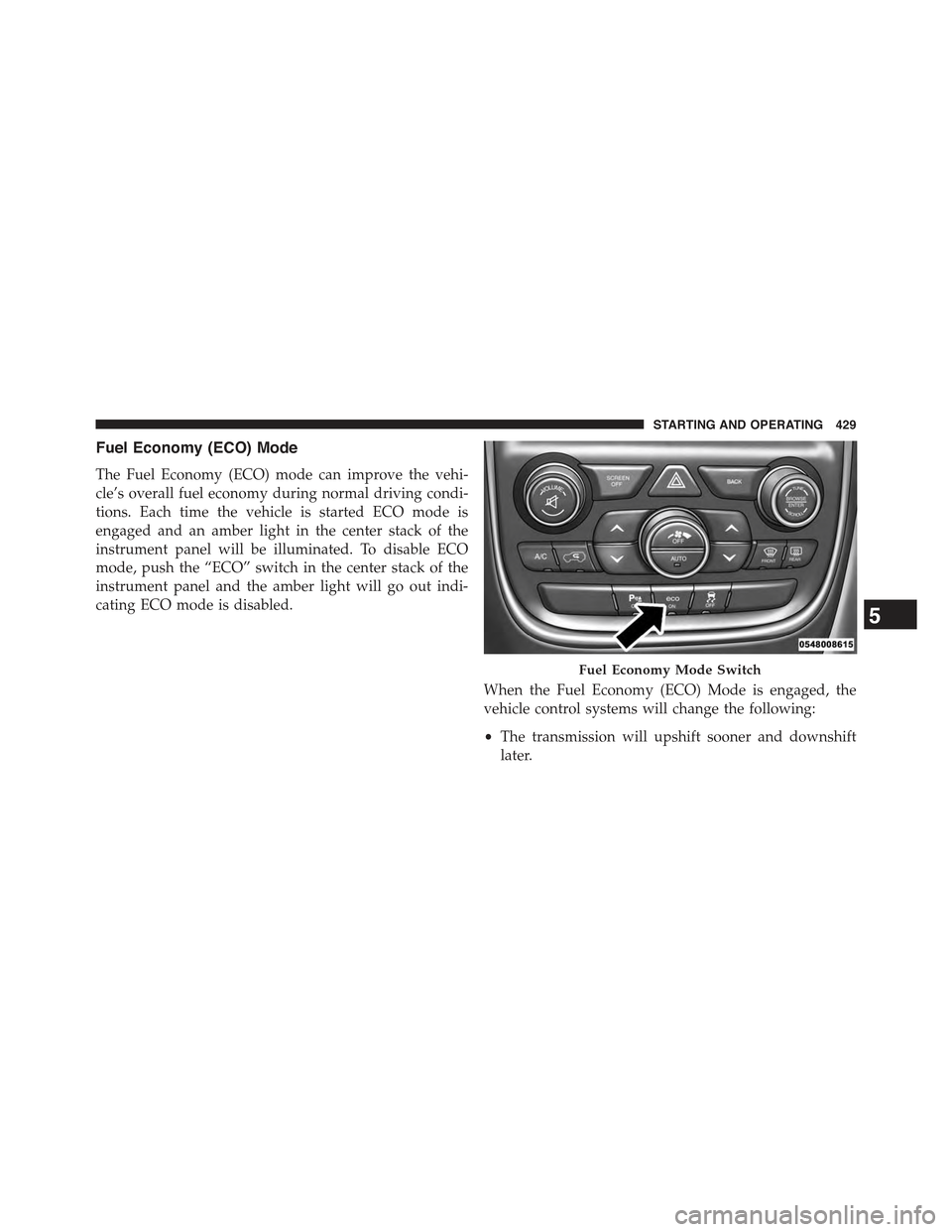
Fuel Economy (ECO) Mode
The Fuel Economy (ECO) mode can improve the vehi-
cle’s overall fuel economy during normal driving condi-
tions. Each time the vehicle is started ECO mode is
engaged and an amber light in the center stack of the
instrument panel will be illuminated. To disable ECO
mode, push the “ECO” switch in the center stack of the
instrument panel and the amber light will go out indi-
cating ECO mode is disabled.
When the Fuel Economy (ECO) Mode is engaged, the
vehicle control systems will change the following:
•The transmission will upshift sooner and downshift
later.
Fuel Economy Mode Switch
5
STARTING AND OPERATING 429
Page 451 of 717
launches, to minimize wheel slippage. If equipped
with air suspension, the default ride height for Snow is
NRH.
•Auto– Fully automatic full time four-wheel drive
operation can be used on and off road. Balances
traction with seamless steering feel to provide im-
proved handling and acceleration over two-wheel
drive vehicles. If equipped with air suspension, the
level will change to NRH.
•Sand– Off road calibration for use on low traction
surfaces such as sand or wet grass. Driveline is maxi-
mized for traction. Some binding may be felt on less
forgiving surfaces. The electronic brake controls are set
to limit traction control management of throttle and
wheel spin. If equipped with air suspension, the
default ride height for Sand is NRH.
•Mud– Off road calibration for use on low traction
surfaces such as mud. Driveline is maximized for
traction. Some binding may be felt on less forgiving
surfaces. The electronic brake controls are set to limit
traction control management of throttle and wheel
spin. If equipped with air suspension, the level will
change to Off Road 1.
•Rock– Off road calibration only available in 4WD Low
range. The vehicle is raised (if equipped with Air
Suspension) for improved ground clearance. Traction
based tuning with improved steer-ability for use on
high traction off-road surfaces. Use for low speed
obstacles such as large rocks, deep ruts, etc. If
equipped with air suspension, the vehicle level will
change to Off-Road 2. If the Selec-Terrain™ switch is in
ROCK mode, and the transfer case is switched from
4WD Low to 4WD High, the Selec-Terrain™ system
will return to AUTO.
5
STARTING AND OPERATING 449
Page 455 of 717
The system requires that the engine be running for all
changes. When lowering the vehicle all of the doors,
including the liftgate, must be closed. If a door is opened
at any time while the vehicle is lowering the change will
not be completed until the open door(s) is closed.
The Quadra-Lift™ air suspension system uses a lifting
and lowering pattern which keeps the headlights from
incorrectly shining into oncoming traffic. When raising
the vehicle, the rear of the vehicle will move up first and
then the front. When lowering the vehicle, the front will
move down first and then the rear.
After the engine is turned off, it may be noticed that the
air suspension system operates briefly, this is normal. The
system is correcting the position of the vehicle to ensure
a proper appearance.
To assist with changing a spare tire, the Quadra-Lift™ air
suspension system has a feature which allows the auto-
matic leveling to be disabled. Refer to “Uconnect® Set-
tings” in “Understanding Your Instrument Panel” for
further information.
NOTE:If equipped with a touch screen radio all
enabling/disabling of air suspension features must be
done through the radio. Refer to “Uconnect® Access
Settings” in “Understanding Your Instrument Panel” for
further information.
WARNING!
The air suspension system uses a high pressure
volume of air to operate the system. To avoid per-
sonal injury or damage to the system, see your
authorized dealer for service.
5
STARTING AND OPERATING 453
Page 457 of 717
Driver Information Display (DID) Messages
When the appropriate conditions exist, a message will
appear in the DID display. Refer to “Driver Information
Display (DID)” in “Understanding Your Instrument
Panel” for further information.
Operation
The indicator lamps 3 through 6 will illuminate to show
the current position of the vehicle. Flashing indicator
lamps will show a position which the system is working
to achieve. When raising, if multiple indicator lamps are
flashing on the “Up” button, the highest flashing indica-
tor lamp is the position the system is working to achieve.
When lowering, if multiple indicators are flashing on the
#Up#button the lowest solid indicator lamp is the posi-
tion the system is working to achieve.
Pressing the “UP” button once will move the suspension
one position higher from the current position, assuming
all conditions are met (i.e. engine running, speed below
threshold, etc). The “UP” button can be pressed multiple
times, each press will raise the requested level by one
position up to a maximum position of OR2 or the highest
position allowed based on current conditions (i.e. vehicle
speed, etc).
Pressing the “DOWN” button once will move the sus-
pension one position lower from the current level, as-
suming all conditions are met (i.e. engine running, doors
closed, speed below threshold, etc). The “DOWN” button
can be pressed multiple times. Each press will lower the
requested level by one position down to a minimum of
Park Mode or the lowest position allowed based on
current conditions (i.e. vehicle speed, etc.)
Automatic height changes will occur based on vehicle
speed and the current vehicle height. The indicator lamps
and DID messages will operate the same for automatic
changes and user requested changes.
5
STARTING AND OPERATING 455