ad blue JEEP GRAND CHEROKEE 2023 User Guide
[x] Cancel search | Manufacturer: JEEP, Model Year: 2023, Model line: GRAND CHEROKEE, Model: JEEP GRAND CHEROKEE 2023Pages: 424, PDF Size: 15.48 MB
Page 235 of 424
MULTIMEDIA233
Removing Bluetooth® Headphones
1. From the Controls screen, press the Manage Headphones button.
2. Press the Settings button (gear icon) next to the set of headphones you wish to remove.
3. Press “Delete Device”; the Bluetooth® headphones will be removed from the system.
NAVIGATION
Navigation allows you to assist the driver in
searching for destinations using Uconnect’s
built-in Navigation system. For information on the
full functionality of Navigation, refer to your
Uconnect Radio Instruction Manual.
When a new route is selected from the Passenger
Screen, a confirmation will be sent to the driver.
The driver will be able to confirm or deny the route.
NOTE:Using Navigation on the Passenger Screen will not
affect the Navigation screen in the Uconnect
system. The Driver can continue to use Navigation
while the Passenger Screen can “suggest” new
routes or stops.
CAMERA
Camera will display the equipped vehicle camera
feed. When selected, press the desired Camera
button. The feed from that camera will display in
the center of the touchscreen. Press the X button
or Back Arrow button to return to the Home screen.
NOTE:The Passenger Screen will lose access to a camera
if the driver chooses to view it on the Uconnect
system or if a condition would activate the camera
on the Uconnect system (the rearview camera
being activated when the vehicle is shifted into
REVERSE).
3RD PARTY APPS
If equipped, your vehicle may contain some 3rd
party apps, which will further enhance your
Uconnect system.
McIntosh
McIntosh is a 3rd party app that can enhance your
Uconnect system’s media player. For the app to be
effective, there must be audio playback in the
Uconnect media player. McIntosh can control the
playback of audio as well as display the output
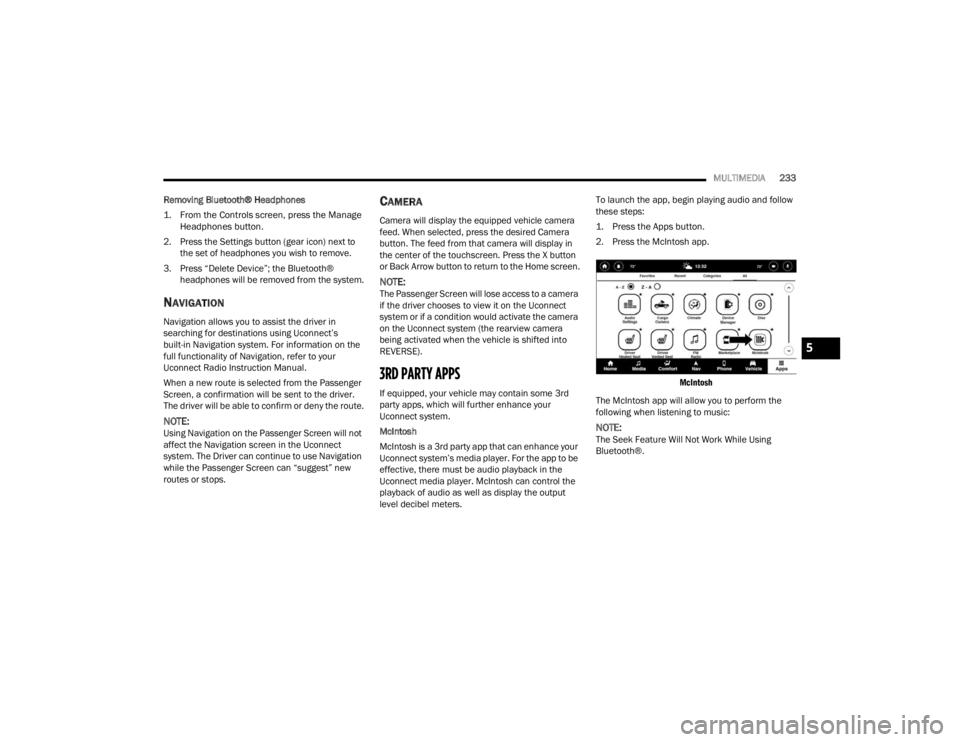
level decibel meters. To launch the app, begin playing audio and follow
these steps:
1. Press the Apps button.
2. Press the McIntosh app.
McIntosh
The McIntosh app will allow you to perform the
following when listening to music:
NOTE:The Seek Feature Will Not Work While Using
Bluetooth®.
5
23_WL_OM_EN_USC_t.book Page 233
Page 240 of 424
238MULTIMEDIA
PARENTAL CONTROLS (USING THE REAR
S
CREENS)
If parental controls were not set during the first
time start up of the system, they can be set by
following these steps:
1. Push the Gear/Settings button on the Voice
Remote with Alexa or tap the screen to access
Settings in the “quick menu”.
2. Select the Gear/Settings icon on the screen.
3. Select “Settings” on the screen.
4. While in Settings, select “Preferences”.
5. Select “Parental Controls”; from here you can turn Parental Controls on or off and set up a
PIN for the controls using the Voice Remote
with Alexa.
VOICE REMOTE WITH ALEXA PAIRING
(U
SING THE REAR SCREENS)
If the Voice Remote with Alexa needs to be paired
again or a new remote is being paired, follow these
procedures:
1. Install batteries into the remote.
2. Tap the screen and Select the Gear/Settings
icon on the screen.
3. Select “Settings” on the screen.
4. In Settings, select “Controllers & Bluetooth® Devices”.
5. From this menu, select “Add New Remote”.
6. Follow the on-screen steps for Voice Remote with Alexa pairing.
A long press on the Home button can also re-pair a
Voice Remote with Alexa that has become
disconnected.
NOTE:Your vehicle is included with two Voice Remotes
with Alexa. A Voice Remote with Alexa can be
paired to each rear screen. It will function with the
rear screen it was paired with. The pairing steps
will need to be done for each rear screen.
MEDIA SOURCES INPUT (USING THE
F
RONT RADIO AND REAR SCREENS)
Front Radio Screen
Users can select inputs for each rear screen from
the front radio touchscreen by selecting the Rear
Seat tab and choosing the desired content by
selecting “Launch Source” on the Screen 1 or
Screen 2 tab.
Inputs available within Launch Source under
“Inputs” are “Fire TV”, “HDMI”, and “USB”.
Rear Screens
To select inputs on the rear screen, scroll down on
the Fire TV Home screen and select your desired
input under “Input”.
Inputs can also be selected from the Brand tab in
the top menu. While in this tab, scroll down to
“Inputs” for selection options.
NOTE:The Brand tab naming in the top menu will depend
on the naming of the vehicle’s brand.
23_WL_OM_EN_USC_t.book Page 238
Page 244 of 424
242MULTIMEDIA
USING THE VIDEO USB PORT
Plug in a USB drive or mass storage device and
play your favorite music or movies.
NOTE:To view USB media on the rear screens, insert a
USB drive into the port. The USB drive port is
located under the radio controls in the instrument
panel.
On the rear screen you can browse the content of
the USB device by going to the USB source in the
inputs. Use the search feature to find your media
faster.
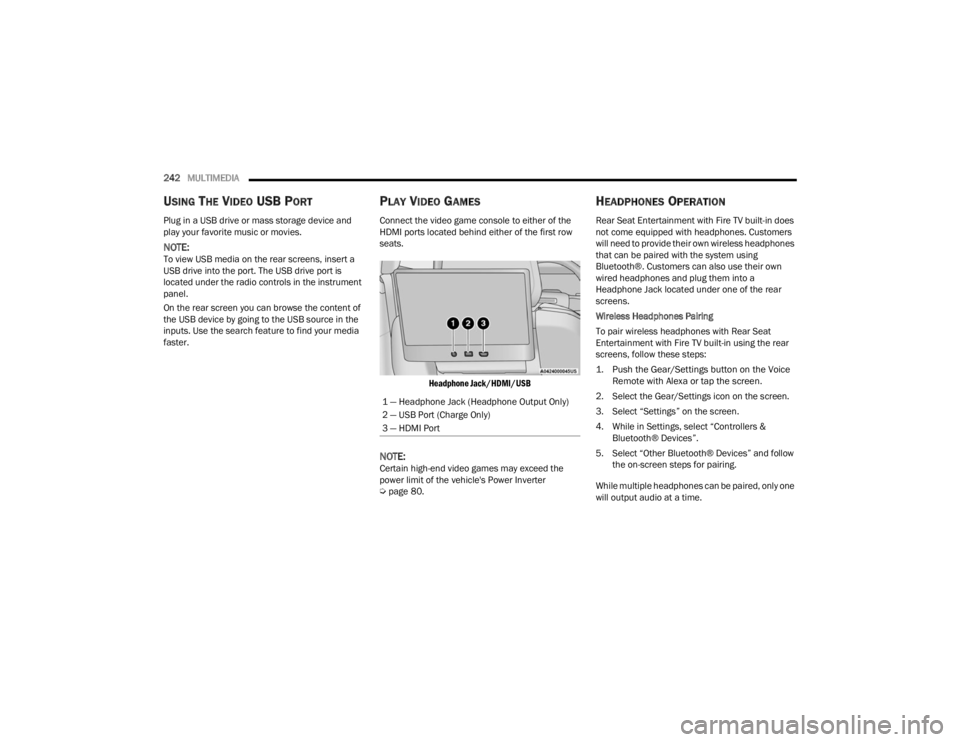
PLAY VIDEO GAMES
Connect the video game console to either of the
HDMI ports located behind either of the first row
seats.
Headphone Jack/HDMI/USB
NOTE:Certain high-end video games may exceed the
power limit of the vehicle's Power Inverter
Úpage 80.
HEADPHONES OPERATION
Rear Seat Entertainment with Fire TV built-in does
not come equipped with headphones. Customers
will need to provide their own wireless headphones
that can be paired with the system using
Bluetooth®. Customers can also use their own
wired headphones and plug them into a
Headphone Jack located under one of the rear
screens.
Wireless Headphones Pairing
To pair wireless headphones with Rear Seat
Entertainment with Fire TV built-in using the rear
screens, follow these steps:
1. Push the Gear/Settings button on the Voice
Remote with Alexa or tap the screen.
2. Select the Gear/Settings icon on the screen.
3. Select “Settings” on the screen.
4. While in Settings, select “Controllers & Bluetooth® Devices”.
5. Select “Other Bluetooth® Devices” and follow the on-screen steps for pairing.
While multiple headphones can be paired, only one
will output audio at a time.
1 — Headphone Jack (Headphone Output Only)
2 — USB Port (Charge Only)
3 — HDMI Port
23_WL_OM_EN_USC_t.book Page 242
Page 245 of 424
MULTIMEDIA243
REAR CLIMATE CONTROLS
The Rear Climate Controls can also be controlled using Rear Seat Entertainment with Fire TV built-in Ú page 66.
Rear Climate Controls can be accessed by using the Vehicle menu. Tap on either rear screen and select the Vehicle icon or press the Vehicle button on the Voice
Remote with Alexa. Then select the Rear Climate Controls option.
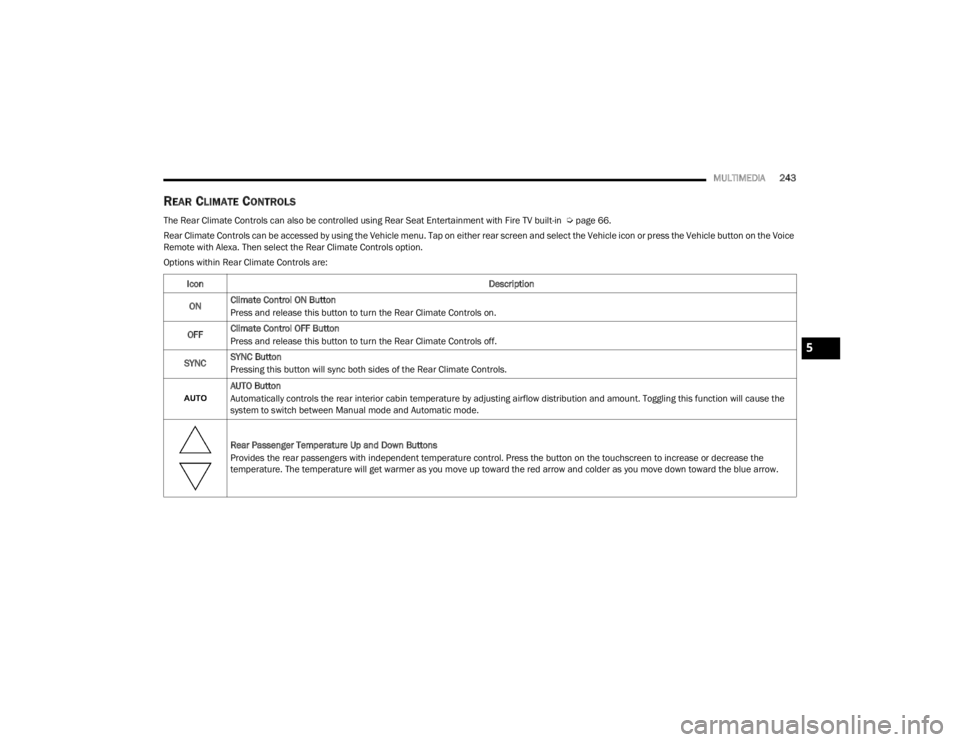
Options within Rear Climate Controls are:
Icon Description
ON Climate Control ON Button
Press and release this button to turn the Rear Climate Controls on.
OFF Climate Control OFF Button
Press and release this button to turn the Rear Climate Controls off.
SYNC SYNC Button
Pressing this button will sync both sides of the Rear Climate Controls.
AUTO Button
Automatically controls the rear interior cabin temperature by adjusting airflow distribution and amount. Toggling this function will cause the
system to switch between Manual mode and Automatic mode.
Rear Passenger Temperature Up and Down Buttons
Provides the rear passengers with independent temperature control. Press the button on the touchscreen to increase or decrease the
temperature. The temperature will get warmer as you move up toward the red arrow and colder as you move down toward the blue arrow.
5
23_WL_OM_EN_USC_t.book Page 243
Page 357 of 424

SERVICING AND MAINTENANCE355
CavityCartridge Fuse Micro FuseDescription
* If Equipped
F01 ––Crank Batt
F02 ––Spare
F03 500 Amp Gray –Starter
F04 250 Amp Gray –Alternator
F05 ––Spare
F06 ––Aux Battery Input
F07 100 Amp Gray –Rad Fan
F08 80 Amp Gray –Electrical Power Steering Module
(EPS) #1
F09 80 Amp Gray –Electrical Power Steering Module
(EPS) #2
F10 80 Amp Gray –Feed to IPDC
F11 150 Amp Gray –PCR *
F12 ––Not Populated
F13 40 Amp Green –Starter
F14 –10 Amp RedGNMM / VPMS*
F15 –10 Amp RedECM*
F16 –15 Amp BlueCluster
F17A –10 Amp RedEPS
F17B Not Populated
F18 ––Spare
8
23_WL_OM_EN_USC_t.book Page 355
Page 359 of 424

SERVICING AND MAINTENANCE357
F38 ––Not Populated
F39 ––Not Populated
F40 –5 Amp TanBattery Sensor #1
F41 –20 Amp YellowCADM MAP*
F42 ––Not Populated
F43 –10 Amp RedEngine Control Module (ECM)
F44 ––Not Populated
F45 –15 Amp BlueFront Axle Disconnect
F46 ––Not Populated
F47 ––Not Populated
F48 –10 Amp RedCVPAM
F49 ––Not Populated
F50 ––Not Populated
F51 –20 Amp YellowFuel Pump
F52 ––Not Populated
F53 ––Not Populated
F54 –20 Amp YellowHeadlamp LT
F55 –15 Amp BlueBPCM *
F56 ––Not Populated
F57 ––Not Populated
Cavity Cartridge Fuse Micro FuseDescription
* If Equipped
8
23_WL_OM_EN_USC_t.book Page 357
Page 360 of 424

358SERVICING AND MAINTENANCE
F58 ––Not Populated
F59 ––Not Populated
F60 ––Not Populated
F61 ––Not Populated
F62 ––Not Populated
F63 –20 Amp YellowCamera Washer Front
F64 –15 Amp BlueSmart Bar Control Module
F65 –15 Amp BlueACT Grille Shutter / ACT Rear Axle
Coolant Valve / Active Air Dam
F66 –20 Amp YellowHorns
F67 –10 Amp RedDTCM / ASBS / Switchable Engine
Mount / BSM #2
F68 –20 Amp YellowHeadlamp RT
F69 ––Not Populated
F70 –20 Amp YellowIGN Coil / IGN Capacitors / Fuel Inj
F71 ––Not Populated
F72 ––Not Populated
F73 ––Not Populated
F74 ––Not Populated
F75 ––Not Populated
F76 –5 Amp TanIDCM *
Cavity Cartridge Fuse Micro FuseDescription
* If Equipped
23_WL_OM_EN_USC_t.book Page 358
Page 361 of 424

SERVICING AND MAINTENANCE359
F77 –20 Amp YellowTCM SBW
F78 –20 Amp YellowECM
F79 –10 Amp RedFuel Door / ELCM / Fuel Injectors *
F80 20 Amp Blue –ECM
F81 40 Amp Green –BCM Feed
F82 ––Not Populated
F83 40 Amp Green –
LTR Coolant Pump* / Trans Oil Pump *
F84 ––Not Populated
F85 –10 Amp RedPCR *
F86 50 Amp Red –BSM Feed #1
F87 ––Not Populated
F88 50 Amp Red –BSM Feed Motor #2
F89 ––Not Populated
F90 ––Not Populated
F91 ––Not Populated
F92 20 Amp Blue –Front De-Icer
F93 ––Not Populated
F94 –10 Amp RedA/C Compressor Clutch
F95 –10 Amp RedBatt Cool Heater *
F96 –5 Amp TanElect Cool Heater *
Cavity Cartridge Fuse Micro FuseDescription
* If Equipped
8
23_WL_OM_EN_USC_t.book Page 359
Page 362 of 424

360SERVICING AND MAINTENANCE
F97 ––Not Populated
F98 ––Not Populated
F99 ––Not Populated
F100A ––Not Populated
F100B ––Not Populated
F101 ––Not Populated
F102 ––Not Populated
F103 30 Amp Pink –Frt Wiper
F104A –15 Amp BluePECP Low Temp Passive Pump *
F104B AHP High Temp Aux Pump *
F105A –15 Amp BlueBCP Low Temp Active Pump *
F105B LTR Coolant Pump
CavityCartridge Fuse Micro FuseDescription
* If Equipped
23_WL_OM_EN_USC_t.book Page 360
Page 363 of 424
SERVICING AND MAINTENANCE361
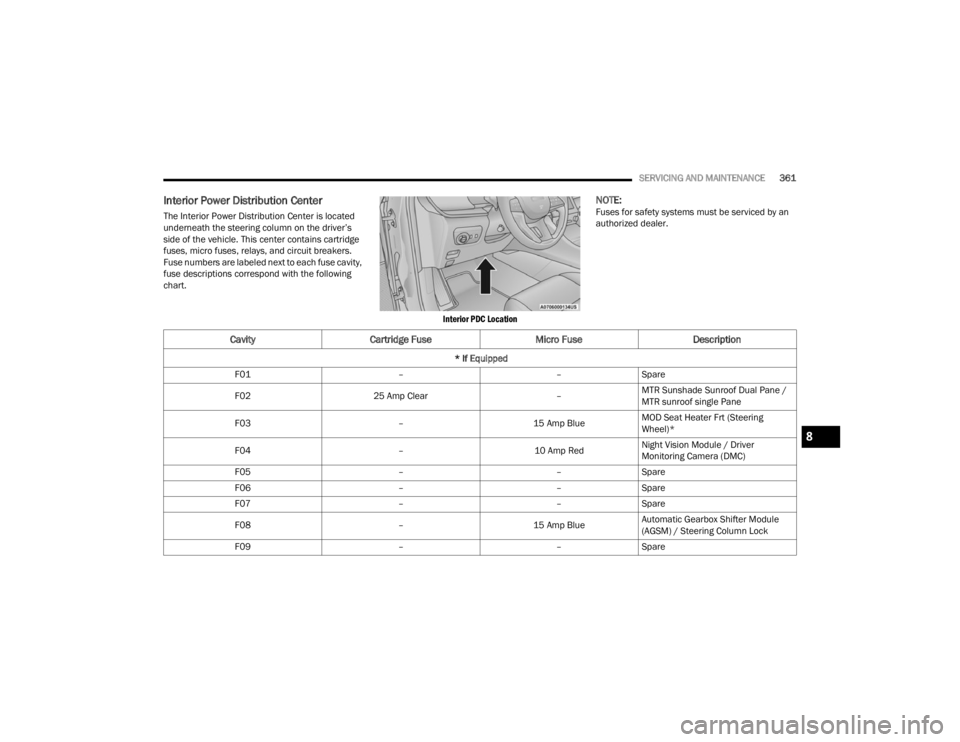
Interior Power Distribution Center
The Interior Power Distribution Center is located
underneath the steering column on the driver’s
side of the vehicle. This center contains cartridge
fuses, micro fuses, relays, and circuit breakers.
Fuse numbers are labeled next to each fuse cavity,
fuse descriptions correspond with the following
chart.
Interior PDC Location
NOTE:Fuses for safety systems must be serviced by an
authorized dealer.
CavityCartridge Fuse Micro FuseDescription
* If Equipped
F01 ––Spare
F02 25 Amp Clear –MTR Sunshade Sunroof Dual Pane /
MTR sunroof single Pane
F03 –15 Amp BlueMOD Seat Heater Frt (Steering
Wheel)*
F04 –10 Amp RedNight Vision Module / Driver
Monitoring Camera (DMC)
F05 ––Spare
F06 ––Spare
F07 ––Spare
F08 –15 Amp BlueAutomatic Gearbox Shifter Module
(AGSM) / Steering Column Lock
F09 ––Spare
8
23_WL_OM_EN_USC_t.book Page 361