change wheel MERCEDES-BENZ E-Class CABRIOLET 2014 C207 User Guide
[x] Cancel search | Manufacturer: MERCEDES-BENZ, Model Year: 2014, Model line: E-Class CABRIOLET, Model: MERCEDES-BENZ E-Class CABRIOLET 2014 C207Pages: 394, PDF Size: 5.28 MB
Page 195 of 394

front, for vehicle speed, for braking in good
time and for staying in you
rlane.
Do not use DISTRONIC PLUS:
R in road and traffic conditions which do not
allow you to maintain a constan tspeed e.g.
in heavy traffic or on winding roads
R on slippery road surfaces .Braking or
accelerating could cause the drive wheels
to lose traction and the vehicle could then
skid
R when there is poor visibility, e.g. due to fog,
heavy rain or snow
DISTRONIC PLUS may not detect narrow
vehicles driving in front, e.g. motorcycles, or
vehicles driving on a different line.
In particular, the detection of obstacles can
be impaired if:
R dirt on the sensors or anything else
covering the sensors
R snow or heavy rain
R interference by other rada rsources
R strong radar reflections, for example, in
parking garages
If DISTRONIC PLUS no longer detects a
vehicle in front, DISTRONIC PLUS may
unexpectedly accelerate the vehicle to the
stored speed.
This speed may:
R be too high if you are driving in a filter lane
or an exit lane
R be so high in the right lane that you pass
vehicles driving on the left (left-hand drive
countries)
R be so high in the left lane that you pass
vehicles driving on the right (right-hand
drive countries)
If there is a change of drivers, advise the new
driver of the speed stored. Cruise control lever 0002
To store the current speed or a higher
speed
0003 To store the current speed or a lower
speed
0023 To deactivate DISTRONIC PLUS
0022 To store the current speed or call up the
last stored speed
0020 To set the specified minimum distance
Activating DISTRONIC PLUS Activation conditions
In order to activate DISTRONIC PLUS, the
following conditions must be fulfilled:
R
the engine must be started. It may take up
to two minutes after pulling away before
DISTRONIC PLUS is operational.
R the parking brake must be released.
R ESP ®
must be active, but not intervening.
R Active Parking Assist must not be
activated.
R the transmission must be in position D.
R the driver's door must be closed when you
shift from Pto Dor your seat belt must be
fastened.
R the front-passenger door must be closed.
R the vehicle must not skid. Driving systems
193Driving and parking Z
Page 203 of 394
Pay attention also to the importan
tsafety
notes for DISTRONIC PLUS (Y page 192).
The steering interventions are carried out
with a limited steering moment. The system
requires the driver to keep his hands on the
steering wheel and to steer himself.
If you do no tstee ryourself or if take your
hands off the steering wheel for a prolonged
period of time, the system will first alert you
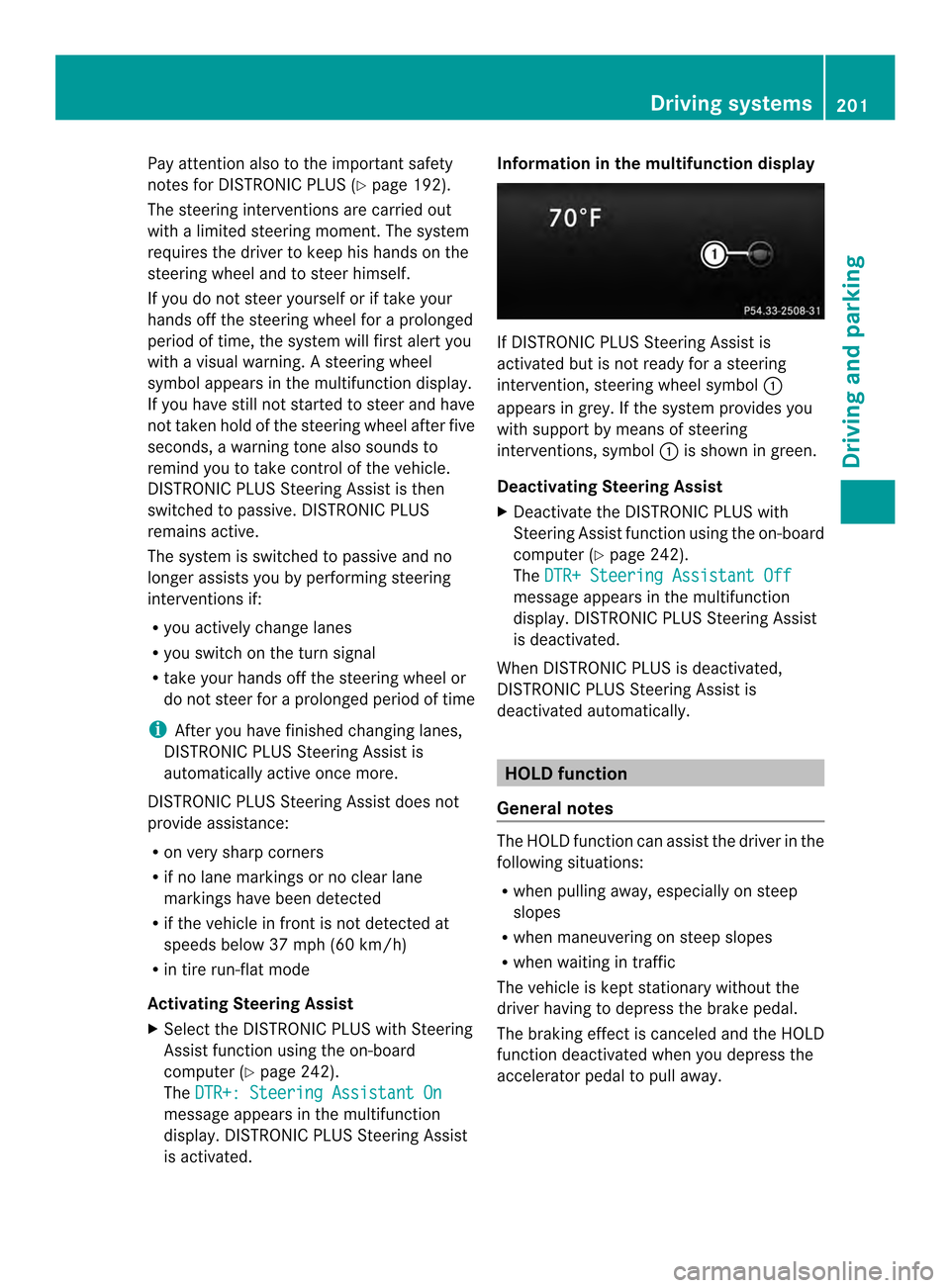
with a visual warning. Asteering wheel
symbol appears in the multifunctio ndisplay.
If you have still not started to steer and have
not taken hold of the steering wheel after five
seconds, a warning tone also sounds to
remind you to take control of the vehicle.
DISTRONIC PLUS Steering Assist is then
switched to passive .DISTRONIC PLUS
remains active.
The system is switched to passive and no
longer assists you by performing steering
interventions if:
R you actively change lanes
R you switch on the turn signal
R take yourh ands off the steering wheel or
do no tstee rfor a prolonged period of time
i After you have finished changing lanes,
DISTRONIC PLUS Steering Assist is
automatically active once more.
DISTRONIC PLUS Steering Assist does not
provide assistance:
R on very sharp corners
R if no lane markings or no clear lane
markings have been detected
R if the vehicle in front is not detected at
speeds below 37 mph (60 km/h)
R in tire run-flat mode
Activating Steering Assist
X Select the DISTRONIC PLUS with Steering
Assist function using the on-board
computer (Y page 242).
The DTR+: Steering Assistant On message appears in the multifunction
display .DISTRONIC PLUS Steering Assist
is activated. Information in the multifunction display
If DISTRONIC PLUS Steering Assist is
activated but is not ready for a steering
intervention, steering wheels
ymbol0002
appears in grey. If th esystem provides you
with suppor tby means of steering
interventions, symbol 0002is shown in green.
Deactivating Steering Assist
X Deactivate the DISTRONIC PLUS with
Steering Assis tfunction using the on-board
computer (Y page 242).
The DTR+ Steering Assistant Off message appears in the multifunction
display. DISTRONIC PLU
SSteering Assist
is deactivated.
When DISTRONIC PLU Sis deactivated,
DISTRONIC PLUS Steering Assist is
deactivated automatically. HOLD function
General notes The HOLD function can assist the driver in the
following situations:
R
when pulling away, especially on steep
slopes
R when maneuvering on steep slopes
R when waiting in traffic
The vehicle is kept stationary without the
driver having to depress the brake pedal.
The braking effect is canceled and the HOLD
function deactivated when you depress the
accelerator pedal to pull away. Driving systems
201Driving and parking Z
Page 212 of 394
The
Park Assist Active Accelerate and Brake Observe Surroundings
message appears in the multifunction
display.
i You will achieve the best results by
waiting for the steering procedure to
complete before pulling away.
X Drive forwards and be ready to brake at all
times.
Active Parking Assist brakes the vehicle to
a standstill.
The Park Assist Active Select R Observe Surroundings message appears in
the multifunction display.
Further transmission shifts may be
necessary.
As soon as the parking procedure is
complete, the Park Assist Disabled message appears in the multifunction display
and you will hear a tone. The vehicle is now
parked. The vehicle is kept stationary without
the driver having to depress the brake pedal.
The braking effect is canceled when you
depress the accelerator pedal.
Active Parking Assist no longer supports you
with steering interventions and brake
applications. When Active Parking Assist is
finished, you must steer and brake again
yourself. PARKTRONIC is still available.
X
Maneuver if necessary.
X Always observe the warning messages
displayed by PARKTRONIC (Y page 205).
Parking tips:
R The way your vehicle is positioned in the
parking space after parking is dependent
on various factors. These include the
position and shape of the vehicles parked
in fronta nd behind it and the conditions of
the location. It may be the case tha tActive
Parking Assist guides you too far into a
parking space, or not far enough into it. In
some cases, it may also lead you across or
onto the curb .Ifnecessary, you should cancel the parking procedure with Active
Parking Assist.
R You can also engage forward gear
prematurely. The vehicle redirects and
does not drive as far into the parking space.
Should a gear be changed too early, the
parking procedure will be canceled. A
sensible parking position can no longer be
achieved from this position.
Exiting aparking space In order that Active Parking Assist can
support you whe
nyou exit the parking space:
R the border of the parking space must be
high enough at the front and the rear. A
curb is too small, for example.
R the border of the parking space must not
be too wide, as the position of the vehicle
must not exceed an angle of 45° to the
starting position as it is maneuvering into
the parking space.
R a maneuvering distance of at least 3.3 ft
(1.0 m) must be available.
i Vehicles with automatic transmission:
If PARKTRONIC detects obstacles, Active
Parking Assist brakes automatically whilst
the vehicle exits the parking space. You are
responsible for braking in good time.
Active Parking Assist can only assist you with
exiting a parking space if you have parked the
vehicle parallel to the direction of travel using
Active Parking Assist.
X Start the engine.
X Switch on the turn signal in the direction
you are pulling away.
X Shift the transmission to position Dor R.
The Start Park Assist? Yes: OK No: 0007
message appears in the multifunction
display.
X To cancel the procedure: press the
0007 button on the multifunction steering
wheel or pull away.
or 210
Driving systemsDriving and parking
Page 217 of 394
X
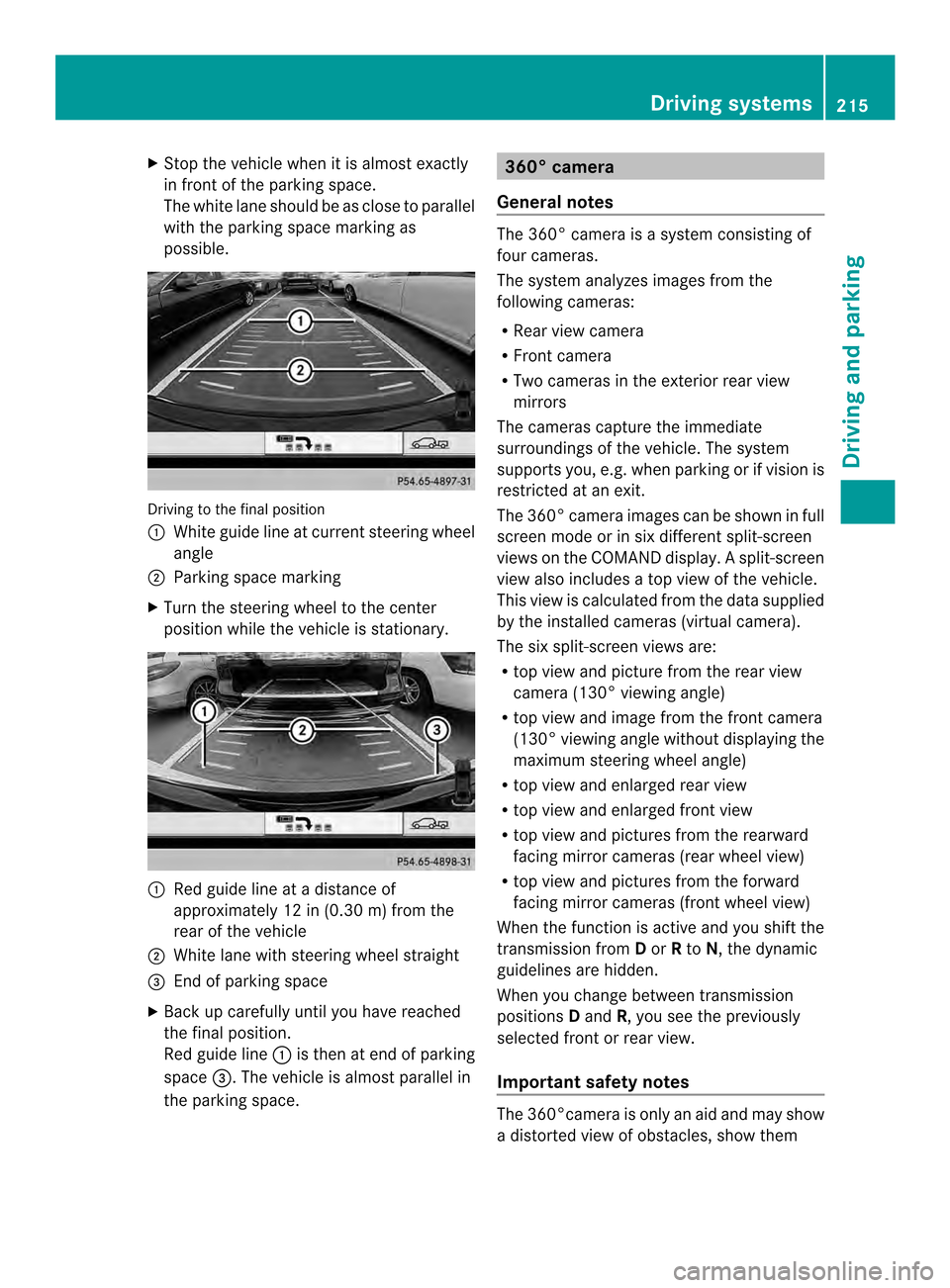
Stop the vehicle when it is almos texactly
in front of the parking space.
The white lane should be as close to parallel
with the parking space marking as
possible. Driving to the final position
0002
White guide line at current steering wheel
angle
0003 Parking space marking
X Turn the steering wheel to the center
positio nwhile the vehicle is stationary. 0002
Red guide line at a distance of
approximately 12 in (0.30 m) from the
rear of the vehicle
0003 White lane with steering wheel straight
0023 End of parking space
X Back up carefully until you have reached
the final position.
Red guide line 0002is then at end of parking
space 0023.The vehicle is almost parallel in
the parking space. 360° camera
General notes The 360° camera is a system consisting of
four cameras.
The system analyzes images from the
following cameras:
R
Rear view camera
R Front camera
R Two cameras in the exterior rear view
mirrors
The cameras capture the immediate
surroundings of the vehicle. The system
supports you, e.g. when parking or if vision is
restricted at an exit.
The 360° camera images can be shown in full
screen mode or in six different split-screen
views on the COMAND display. Asplit-screen
view also includes a top view of the vehicle.
This view is calculated from the data supplied
by the installed cameras (virtual camera).
The six split-screen views are:
R top view and picture from the rear view
camera (130 °viewing angle)
R top view and image from the front camera
(130° viewing angle without displaying the
maximum steering wheel angle)
R top view and enlarged rear view
R top view and enlarged front view
R top view and pictures fro mthe rearward
facing mirror cameras (rear wheel view)
R top view and pictures from the forward
facing mirror cameras (front wheel view)
When the function is active and you shift the
transmission from Dor Rto N, the dynamic
guidelines are hidden.
When you change between transmission
positions Dand R, you see the previously
selected front or rear view.
Important safety notes The 360°camera is only an aid and may show
a distorted view of obstacles, show them Driving systems
215Driving and parking Z
Page 223 of 394
Activating ATTENTION ASSIST
X
Activate ATTENTION ASSIST using the on-
board computer (Y page 242).
The system determines the attention level
of the driver depending on the setting
selected:
Standard selected: the sensitivity with
which the system determine sthe attention
level is set to normal.
Sensitive selected: the sensitivity is set
higher. The attention level detected by
Attention Assist is adapted accordingly and
the driver is warned earlier.
When ATTENTION ASSIST is deactivated, the
0002 symbol and OFF appearint he
multifunction display in the assistance
display when the engine is running.
When ATTENTION ASSIST has been
deactivated, it is automatically reactivated
after the engine has been stopped. The
sensitivity selected corresponds to the last
selection activated (standard/sensitive).
Warning in the multifunction display If fatigue or increasing lapses in
concentration are detected, a warning
appears in the multifunction display:
Attention Assist: Take a Break! In addition to the message shown in the
multifunction display, you will then hear a
warning tone.
X If necessary, take a break.
X Confirm the message by pressing the
000B button on the steering wheel.
On long journeys, take regular breaks in good
time to allow yourself to rest properly. If you
do not take a break and ATTENTION ASSIST
still detects increasing lapses in
concentration, you will be warned again after
15 minutes at the earliest. This will only
happen if ATTENTION ASSIST still detects
typical indicators of fatigue or increasing
lapses in concentration. Lane Tracking package
General notes The Lane Tracking package consists of Blind
Spot Assist (Y
page 221) and Lane Keeping
Assist (Y page 223).
Blind Spot Assist General notes
Blind Spot Assist uses a radar sensor system
to monitor the areas on both sides of your
vehicle. It supports you from a speed of
approximately 20 mph
(30 km/h). A warning
display in the exterio rmirrors draws your
attention to vehicles detected in the
monitored area. If you then switch on the
corresponding tur nsignal to change lanes,
you will also receive a visual and audible
collision warning. Blind Spot Assist uses
sensors in the rear bumper for monitoring
purposes.
Important safety notes G
WARNING
Blind Spot Assist does not react to:
R vehicles overtaken too closely on the side,
placing the minthe blind spot area
R vehicles which approach with a large speed
differential and overtake your vehicle
As a result, Blind Spot Assist may not give
warnings in such situations. There is a risk of
an accident.
Always observe the traffic conditions
carefully, and maintain a safe lateral distance.
Blind Spot Assist is only an aid. It may fail to
detect some vehicles and is no substitute for
attentive driving. Always ensure that there is
sufficient distance to the side for other road
users and obstacles.
i USA only:
This device has been approved by the FCC
as a "VehicularR adar System". The radar
sensor is intended for use in an automotive
radar system only. Removing, tampering Driving systems
221Driving and parking Z
Page 235 of 394
Outside temperature display
You should pay special attention to road
conditions when temperatures are around
freezing point.
The outside temperature display is in the
multifunction display (Y page 234).
Changes in the outside temperature are
displayed after a short delay. Speedometer with segments
The segments in the speedometer indicate
which speed range is available.
R Cruise control activated (Y page 189):
The segments light up from the stored
speed to the maximum speed.
R DISTRONIC PLUS activated (Y page 191):
One or two segments in the set speed
range light up.
R DISTRONIC PLUS detects avehicle in front:
The segments between the speed of the
vehicle in fron tand the stored speed light
up. Operating the on-board computer
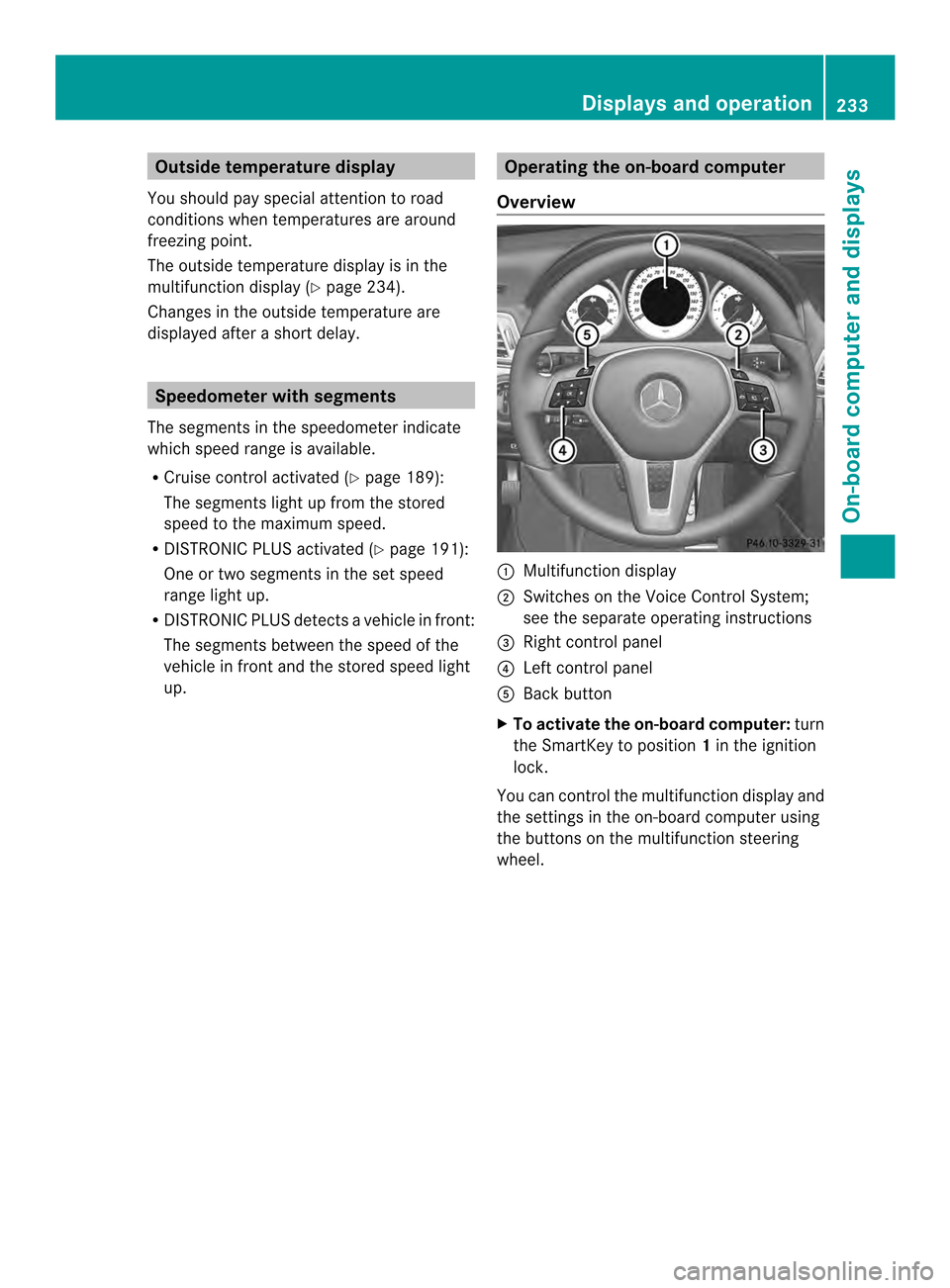
Overview 0002
Multifunctio ndisplay
0003 Switches on the Voice Control System;
see the separate operating instructions
0023 Right control panel
0022 Left control panel
0020 Back button
X To activat ethe on-board computer: turn
the SmartKey to position 1in the ignition
lock.
You can control the multifunction display and
the settings in the on-board computer using
the buttons on the multifunction steering
wheel. Displays and operation
233On-board computer and displays Z
Page 239 of 394
Navigation syste
mmenu
Displaying navigation instructions In the
Navi menu, the multifunction display
shows navigation instructions. For more
informatio nonnavigation ,see the separate
operating instructions.
X Switch on COMAND (see the separate
operating instructions).
X Press the 0002or0005 button on the
steering wheel to select the Navi menu.
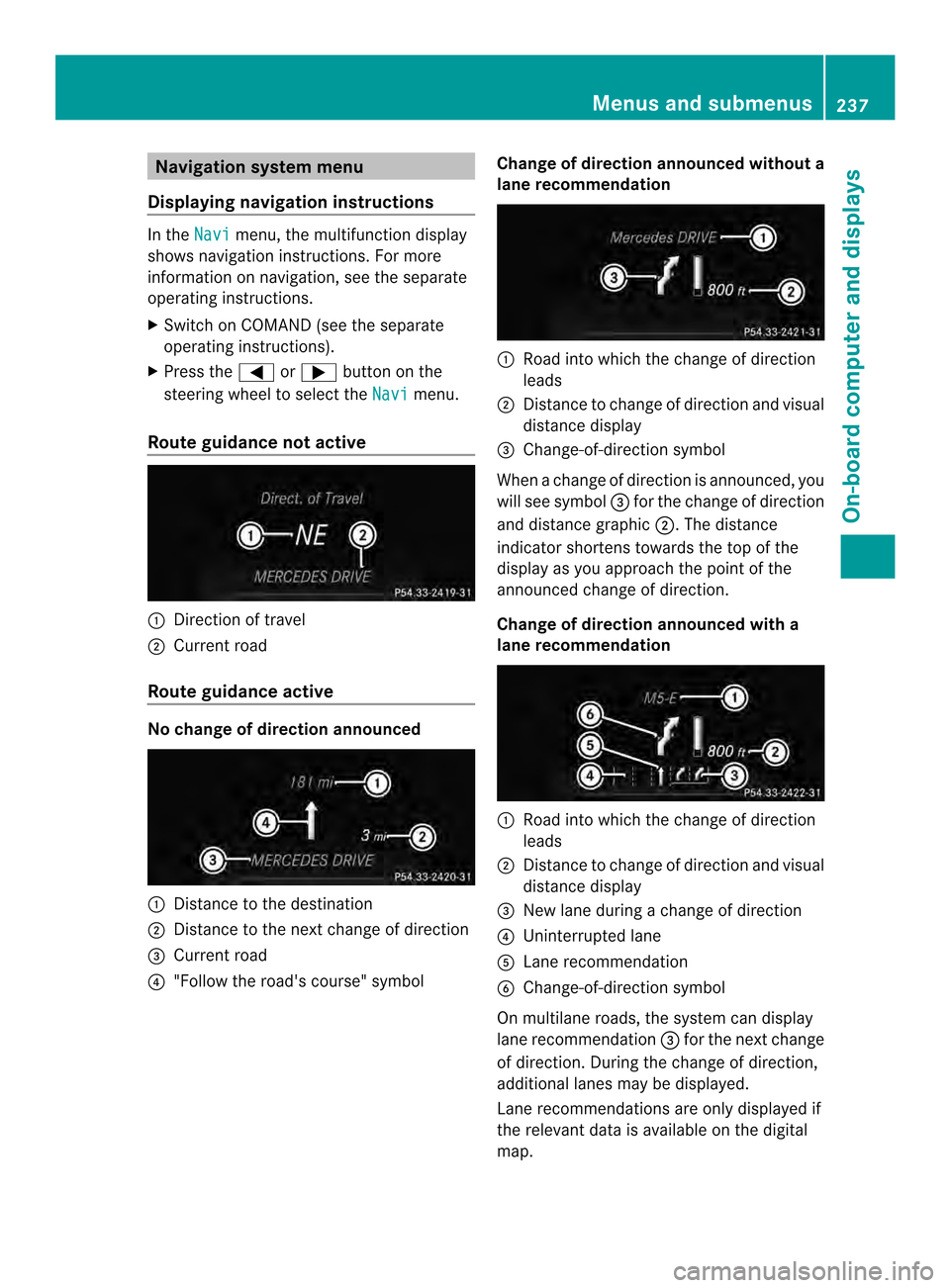
Route guidance not active 0002
Direction of travel
0003 Current road
Route guidance active No change of direction announced
0002
Distance to the destination
0003 Distance to the next change of direction
0023 Current road
0022 "Follow the road's course" symbol Change of direction announced without a
lane recommendation 0002
Road into which the change of direction
leads
0003 Distance to change of direction and visual
distance display
0023 Change-of-direction symbol
When a change of direction is announced, you
will see symbol 0023for the change of direction
and distance graphic 0003.The distance
indicator shortens towards the top of the
display as you approach the point of the
announced change of direction.
Change of direction announced with a
lane recommendation 0002
Road into which the change of direction
leads
0003 Distance to change of direction and visual
distance display
0023 New lane during a change of direction
0022 Uninterrupted lane
0020 Lane recommendation
0021 Change-of-direction symbol
On multilane roads, the system can display
lane recommendation 0023for the next change
of direction. During the change of direction,
additional lanes may be displayed.
Lane recommendations are only displayed if
the relevant data is available on the digital
map. Menus and submenus
237On-board computer and displays Z
Page 240 of 394
Other status indicators of the
navigation system R
0001:y ou have reached the destination or an
intermediate destination.
R New Route... or
Calculating Route :
calculating a new route
R Off Map or
Off Mapped Road :t
he vehicle
position is outside the area of the digital
map (off-map position).
R No Route :n
o route could be calculated to
the selected destination. Audio menu
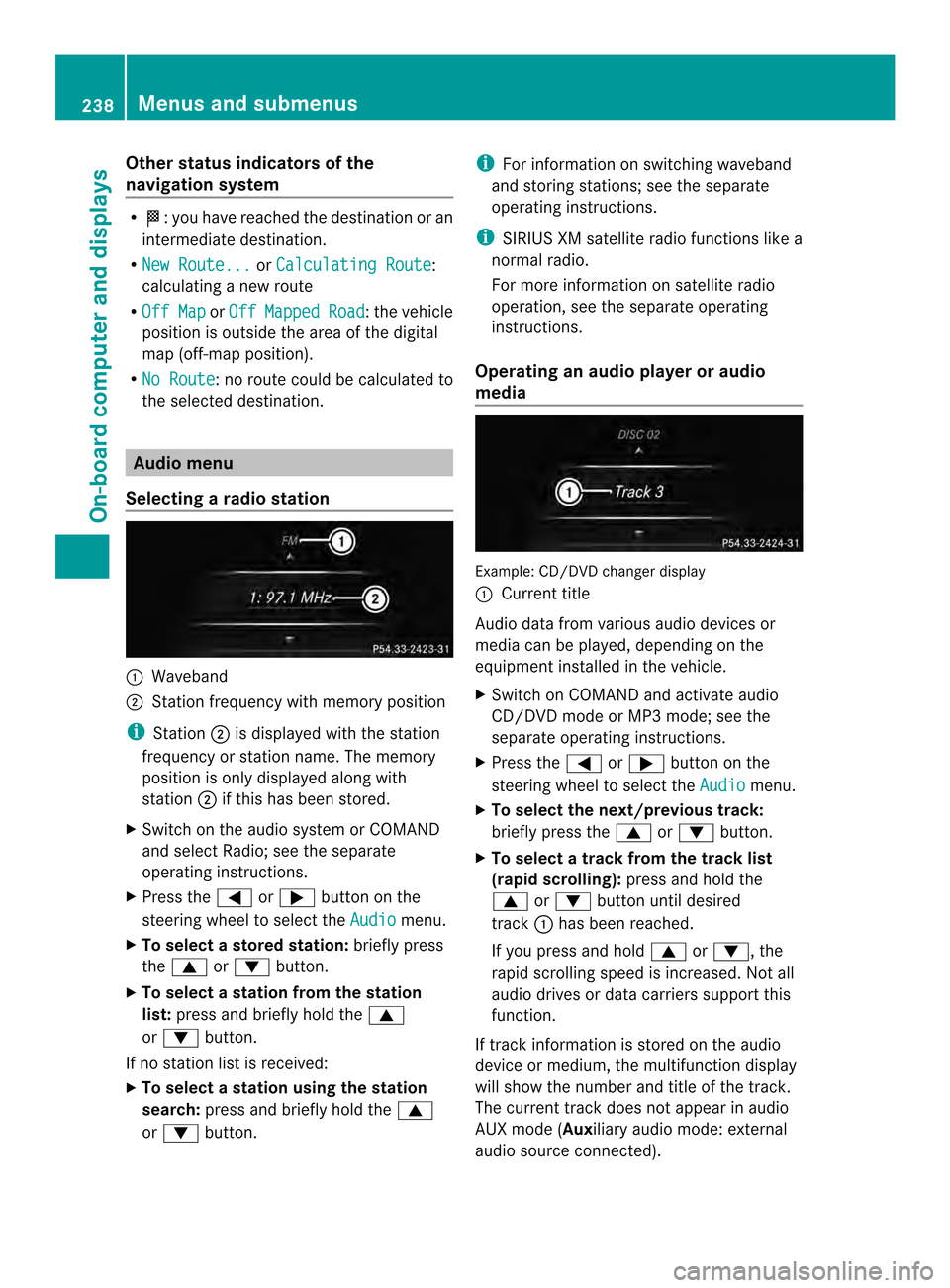
Selecting aradio station 0002
Waveband
0003 Station frequency with memory position
i Station 0003is displayed with the station
frequency or station name. The memory
position is only displayed along with
station 0003if this has bee nstored.
X Switch on the audio syste morCOMAND
and select Radio; see the separate
operating instructions.
X Press the 0002or0005 button on the
steering wheel to select the Audio menu.
X To select astore dstation: briefly press
the 0003 or0004 button.
X To select a station from the station
list: press and briefly hold the 0003
or 0004 button.
If no statio nlist is received:
X To select astation using the station
search: press and briefly hold the 0003
or 0004 button. i
For informatio nonswitching waveband
and storing stations; see the separate
operating instructions.
i SIRIUS XM satellite radio functions like a
normal radio.
For more informatio nonsatellite radio
operation, see the separate operating
instructions.
Operating an audio player or audio
media Example
:CD/DVD change rdisplay
0002 Current title
Audio data from various audio devices or
media can be played, depending on the
equipmen tinstalled in the vehicle.
X Switch on COMAND and activate audio
CD/DVD mode or MP3 mode; see the
separate operating instructions.
X Press the 0002or0005 button on the
steering wheel to select the Audio menu.
X To select the next/previous track:
briefly press the 0003or0004 button.
X To select a track from the track list
(rapi dscrolling): press and hold the
0003 or0004 buttonuntil desired
track 0002has been reached.
If you press and hold 0003or0004, the
rapid scrolling speed is increased .Not all
audio drives or data carriers support this
function.
If track information is stored on the audio
device or medium, the multifunction display
will show the number and title of the track.
The current track does not appear in audio
AUX mode (Auxiliary audio mode: external
audio source connected). 238
Menus and submenusOn-board computer and displays
Page 241 of 394
Video DVD operation
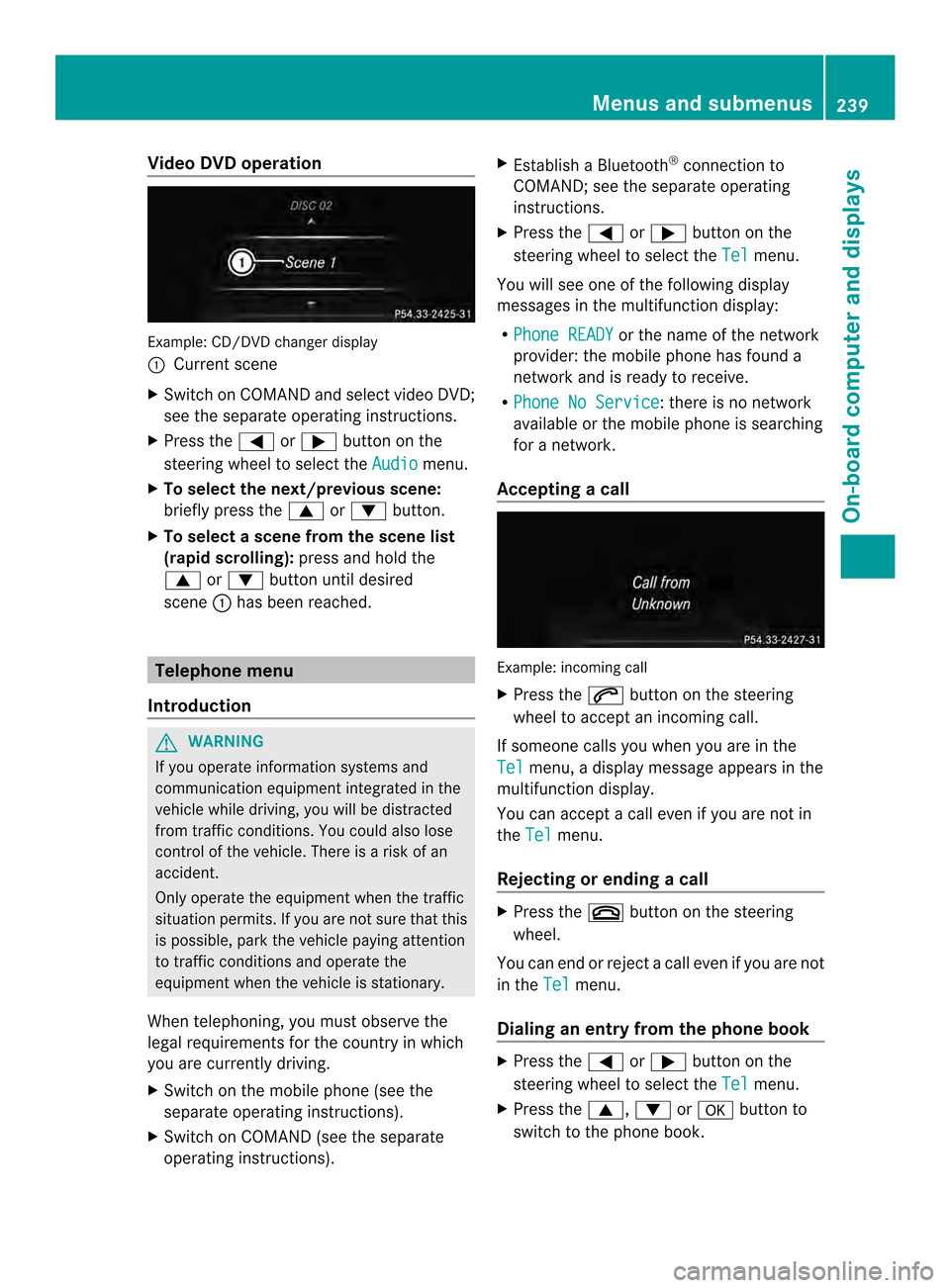
Example
:CD/DVD change rdisplay
0002 Current scene
X Switch on COMAN Dand select video DVD;
see the separate operating instructions.
X Press the 0002or0005 button on the
steering wheel to select the Audio menu.
X To select the next/previous scene:
briefly press the 0003or0004 button.
X To select ascene from the scene list
(rapid scrolling): press and hold the
0003 or0004 buttonuntil desired
scene 0002has been reached. Telephone menu
Introduction G
WARNING
If you operate informatio nsystems and
communication equipment integrated in the
vehicle while driving, you will be distracted
from traffic conditions. You could also lose
control of the vehicle. There is a risk of an
accident.
Only operate the equipmen twhen the traffic
situation permits. If you are not sure that this
is possible, park the vehicle paying attention
to traffic conditions and operate the
equipment when the vehicle is stationary.
When telephoning, you must observe the
legal requirements for the country in which
you are currently driving.
X Switch on the mobile phone (see the
separate operating instructions).
X Switch on COMAND (see the separate
operating instructions). X
Establish a Bluetooth ®
connection to
COMAND; see the separate operating
instructions.
X Press the 0002or0005 button on the
steering wheel to select the Tel menu.
You will see one of the following display
messages in the multifunction display:
R Phone READY or the name of the network
provider: the mobile phone has found a
network and is ready to receive.
R Phone No Service : there is no network
available or the mobile phone is searching
for a network.
Accepting acall Example: incoming call
X
Press the 0004button on the steering
wheel to accep tanincoming call.
If someone calls you when you are in the
Tel menu, a display message appears in the
multifunctio ndisplay.
You can accept a call even if you are not in
the Tel menu.
Rejecting or ending acall X
Press the 000Dbutton on the steering
wheel.
You can end or reject a call even if you are not
in the Tel menu.
Dialing an entry from the phone book X
Press the 0002or0005 button on the
steering wheel to select the Tel menu.
X Press the 0003,0004or000B button to
switch to the phone book. Menus and submenus
239On-board computer and displays Z
Page 302 of 394
Av
oice connection is established between
the Mercedes-Benz Customer Assistance
Center and the vehicle occupants.
From the vehicle remote malfunction
diagnosis, the Mercedes-Benz Customer
Assistance Center can ascertain the nature of
the problem (Y page 303).
The Mercedes-Benz Customer Assistance
Center either sends a qualified Mercedes-
Benz technician or makes arrangements for
your vehicle to be transported to the nearest
authorized Mercedes-Benz Center.
You may be charged for services such as
repair work and/or towing.
Further details are available in your mbrace
manual.
i The system has not been able to initiate
a roadside assistance call, if:
R the indicator lamp for Roadside
Assistance call button 0002is flashing
continuously.
R no voice connection to the Mercedes-
Benz Customer Assistance Center was
established.
This can occur if the relevant mobile phone
network is not available, for example.
The Call Failed message appears in the
multifunction display.
X To end acall: press the 000Dbutton on the
multifunctio nsteering wheel.
or
X Press the corresponding button for ending
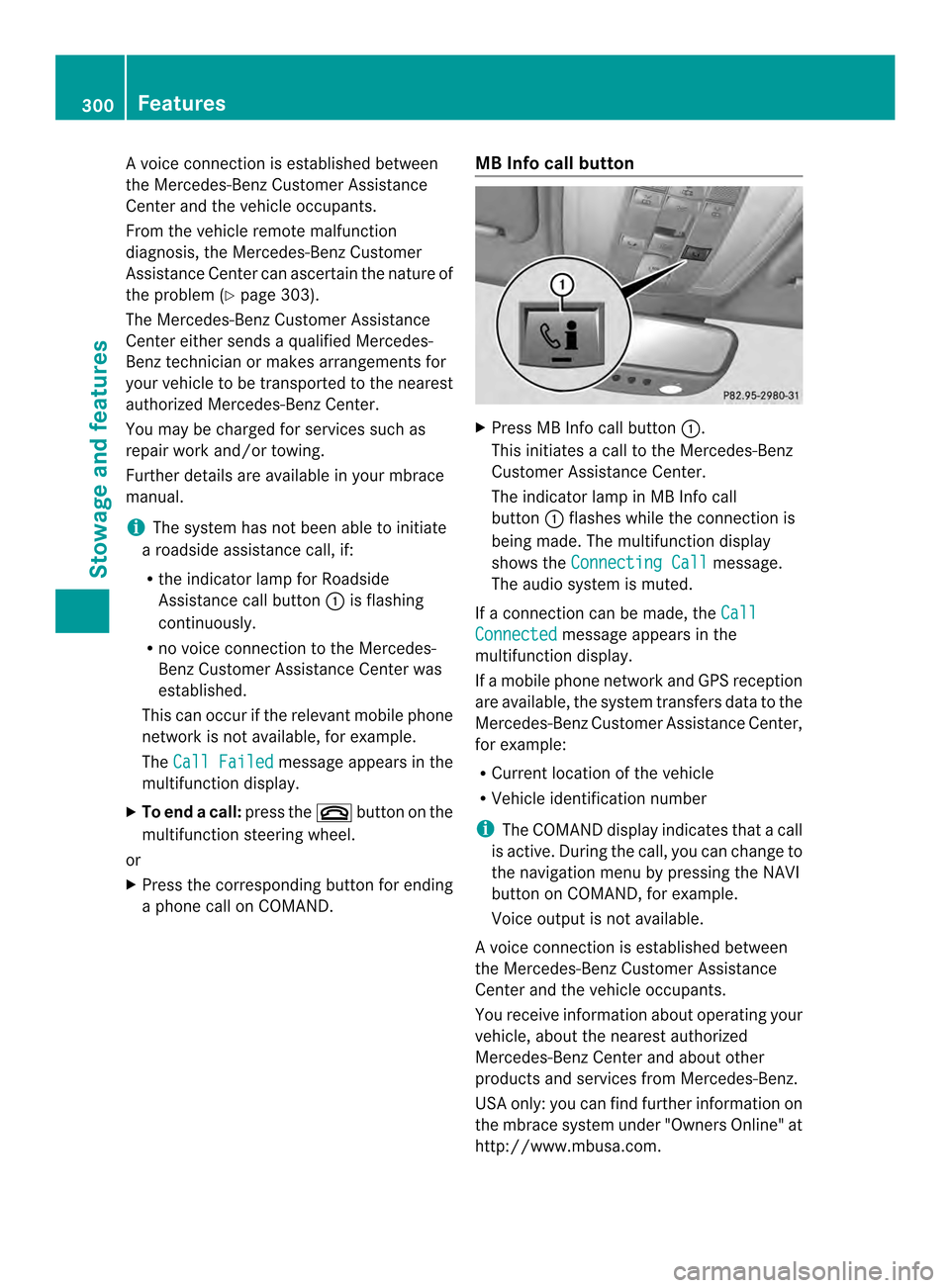
a phone call on COMAND. MB Info call button X
Press MB Info call button 0002.
This initiates a call to the Mercedes-Benz
Customer Assistance Center.
The indicator lamp in MB Info call
button 0002flashes while the connectio nis
being made. The multifunction display
shows the Connecting Call message.
The audio system is muted.
If a connection can be made, the Call Connected message appears in the
multifunction display.
If a mobile phone network and GPS reception
are available, the system transfers data to the
Mercedes-Benz Customer Assistance Center,
for example:
R Current location of the vehicle
R Vehicle identification number
i The COMAND display indicates that a call
is active. During the call, you can change to
the navigation menu by pressing the NAVI
button on COMAND, for example.
Voice output is not available.
Av oice connection is established between
the Mercedes-Benz Customer Assistance
Center and the vehicle occupants.
You receive information about operating your
vehicle, about the nearest authorized
Mercedes-Benz Center and about other
products and services from Mercedes-Benz.
USA only: you can find further information on
the mbrace system under "Owners Online" at
http://www.mbusa.com. 300
FeaturesStowage and features