change wheel MERCEDES-BENZ GLC SUV 2019 User Guide
[x] Cancel search | Manufacturer: MERCEDES-BENZ, Model Year: 2019, Model line: GLC SUV, Model: MERCEDES-BENZ GLC SUV 2019Pages: 673, PDF Size: 11.51 MB
Page 241 of 673
The sy
stem may also be impaired or may not
function in thefo llowing situations:
R The sensors in there ar bumper are dirty,
damaged or co vered, for ins tanceby a
st icke r or ice and sno w.
R The exterior lighting is malfunctioning.
Ac tivating/deactivating Active Lane Change
Assi st
Multimedia sy stem:
4 © 5
Settings 5
Assistance
5 Active Lane Change Assist #
Activate or deacti vate the function.
Fu nction of Active Eme rgency Stop Assist
If th e driver continually ignores the visual or
acoustic warning toput their hands on thesteer‐
ing wheel, theBeginning emergency stop mes‐
sage appears in the multifunction displa y.Ifthe
driver still does not respond, Active Dis tance
Assi stDISTRONIC reduces the speed. The vehi‐
cle is decelerated in stages toast andstill.
Depending on the count ry, at speeds below
60 km/h the hazard warning lights switch on
automaticall y. When
theve hicle is stationar y,thefo llowing
actions are car ried out:
R theve hicle is secured with the electric park‐
ing brake
R Active Dis tance Assi stDISTRONIC is ended
R theve hicle is unloc ked
R if possible, an emer gency call is placed to
th e Mercedes-Benz emer gency call centre
The driver can cancel the deceleration at any
time byper form ing one of thefo llowing actions:
R steering
R braking or accelerating
R pressing a steering-wheel button
R operating Touch Control
R activating or deactivating Active Dis tance
Assi stDISTRONIC Overvi
ewofActive Di stance Assist
DISTRO NIC displa ysinthe instrument clus‐
ter The assis
tance graphic and thest atus display
show thest atus of thefo llowing functions in the
instrument clus ter:
R Active Dis tance Assi stDISTRONIC
R Route-based speed adap tation
R Active Steering Assist 238
Driving and parking
Page 260 of 673
To
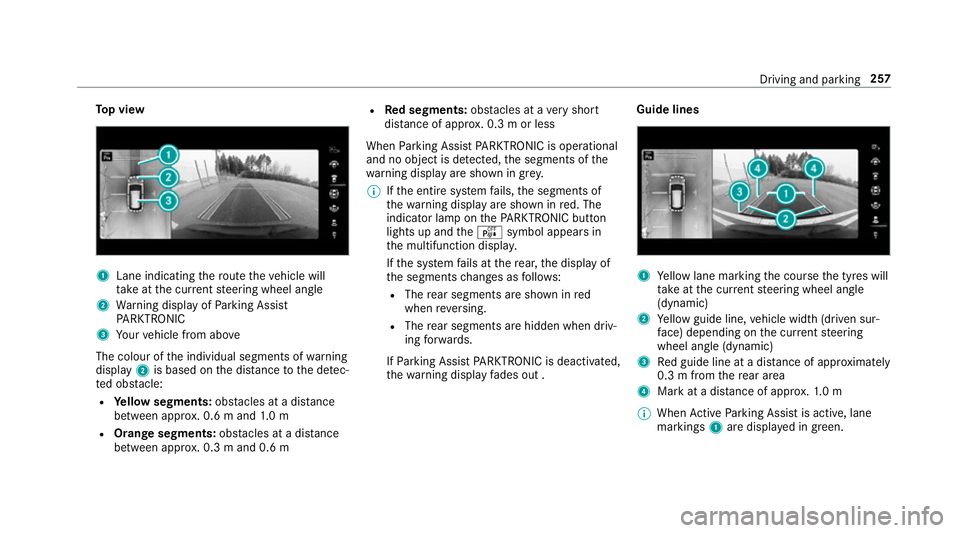
p view 1
Lane indicating thero ute theve hicle will
ta ke atthe cur rent steering wheel angle
2 Warning display of Parking Assist
PA RKTRONIC
3 Your vehicle from abo ve
The colour of the individual segments of warning
display 2is based on the dis tance tothe de tec‐
te d obs tacle:
R Yellow segments: obstacles at a di stance
between appr ox. 0.6 m and 1.0 m
R Orange segments: obstacles at a di stance
between appr ox. 0.3 m and 0.6 m R
Red segments: obstacles at a very short
dis tance of appr ox. 0.3 m or less
When Parking Assist PARKTRONIC is operational
and no object is de tected, the segments of the
wa rning display are shown in gr ey.
% Ifth e entire sy stem fails, the segments of
th ewa rning display are shown in red. The
indicator lamp on thePA RKTRONIC but ton
lights up and theé symbol appears in
th e multifunction displa y.
If th e sy stem fails at there ar, the display of
th e segments changes as follo ws:
R The rear segments are shown in red
when reve rsing.
R The rear segments are hidden when driv‐
ing forw ards.
If Pa rking Assist PARKTRONIC is deacti vated,
th ewa rning display fades out . Guide lines
1
Yellow lane marking the course the tyres will
ta ke atthe cur rent steering wheel angle
(dynamic)
2 Yellow guide line, vehicle width (driven sur‐
fa ce) depending on the cur rent steering
wheel angle (dynamic)
3 Red guide line at a dis tance of appr oximately
0.3 m from there ar area
4 Mark at a distance of appr ox.1. 0 m
% When Active Parking Assist is active, lane
markings 1are displa yed in green. Driving and parking
257
Page 266 of 673
#
If,forex ample, thePlease engage reverse
gear message appears in the media display:
select the cor responding transmission posi‐
tion.
The vehicle drives into the selected parking
space.
On completion of the parking procedure, the
Parking Assist finished, take control of vehicle
display message appears. Further manoeuvring
may still be necessar y. #
After completion of the parking procedure,
safeguard theve hicle against rolling away.
When requ ired bylegal requirements or local
conditions: turn the wheels towa rdsth eke rb.
% You can stop theve hicle and change the
transmission position du ring the parking pro‐
cedure. The sy stem then calculates a new
ve hicle path. The parking procedure can
th en be continued. If no new vehicle path is
av ailable, the transmission position will be
ch anged again. If theve hicle has not yet
re ached the parking space, the parking pro‐
cedure will be cancelled, should a gear be
ch anged. Exiting a pa
rking space with Active Parking
Assist
Re quirements:
R The vehicle has been par ked with Active
Pa rking Assist.
Please no tethat you are responsible forth eve hi‐
cle and sur roundings during the entire parking
procedure. #
Start theve hicle. #
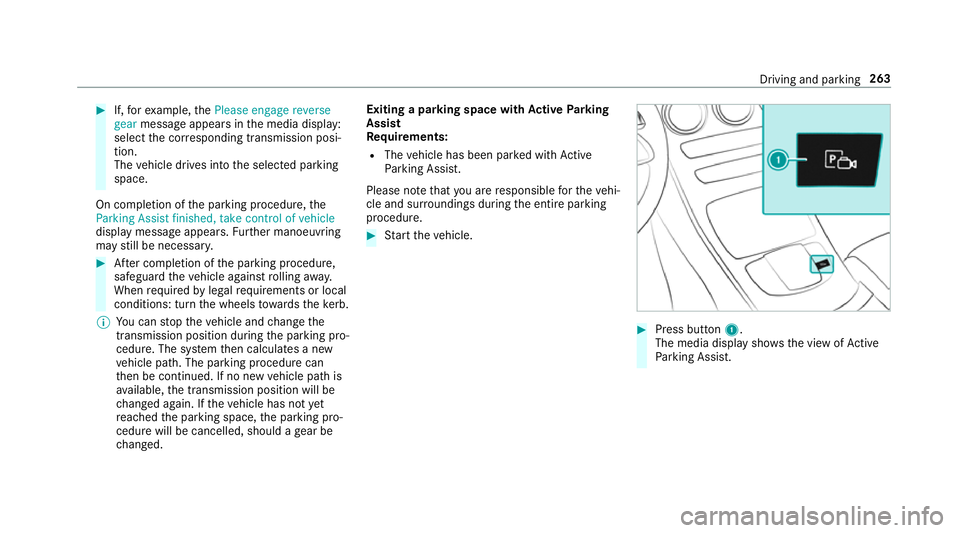
Press button 1.
The media display sho wsthe view of Active
Pa rking Assist. Driving and parking
263
Page 301 of 673
R
Ifyo u use thevo ice control sy stem in an
emer gency your voice can change and your
te lephone call, e.g. an emer gency call, can
th ereby be unnecessarily dela yed.
R Familiarise yourself with thevo ice control
sy stem functions before starting the journe y.
R Comply with the loading guidelines
(/ page 116). Operation
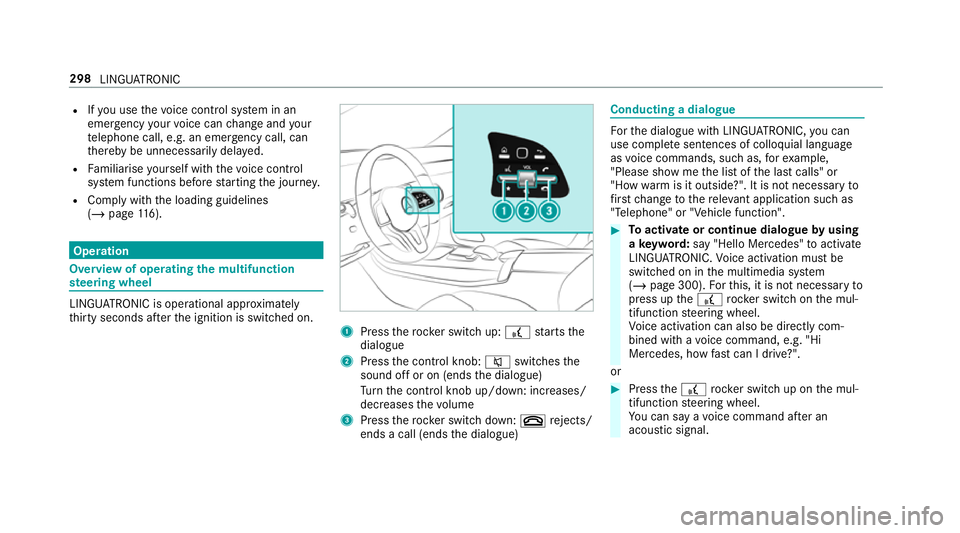
Overview of operating
the multifunction
st eering wheel LINGU
ATRO NIC is operational appr oximately
th irty seconds af terth e ignition is switched on. 1
Press therock er switch up: £starts the
dialogue
2 Press the control knob: 8switches the
sound off or on (ends the dialogue)
Tu rn the control knob up/down: increases/
decreases thevo lume
3 Press therock er switch down: ~rejects/
ends a call (ends the dialogue) Conducting a dialogue
Fo
rth e dialogue with LINGU ATRO NIC, you can
use co mplete sentences of colloquial language
as voice commands, such as, forex ample,
"Please show me the list of the last calls" or
"How warm is it outside?". It is not necessary to
fi rs tch ange tothere leva nt application su chas
"Telephone" or "Vehicle function". #
Toactivate or continue dialogue byusing
a ke yword: say "Hello Mercedes" toactivate
LINGU ATRO NIC. Voice activation must be
switched on in the multimedia sy stem
(/ page 300). Forth is, it is not necessary to
press up the£ rock er switch on the mul‐
tifunction steering wheel.
Vo ice activation can also be directly com‐
bined with a voice command, e.g. "Hi
Mercedes, how fastcan I drive?".
or #
Press the£ rocker switch up on the mul‐
tifunction steering wheel.
Yo u can say a voice command af ter an
acou stic signal. 298
LINGU ATRO NIC
Page 302 of 673
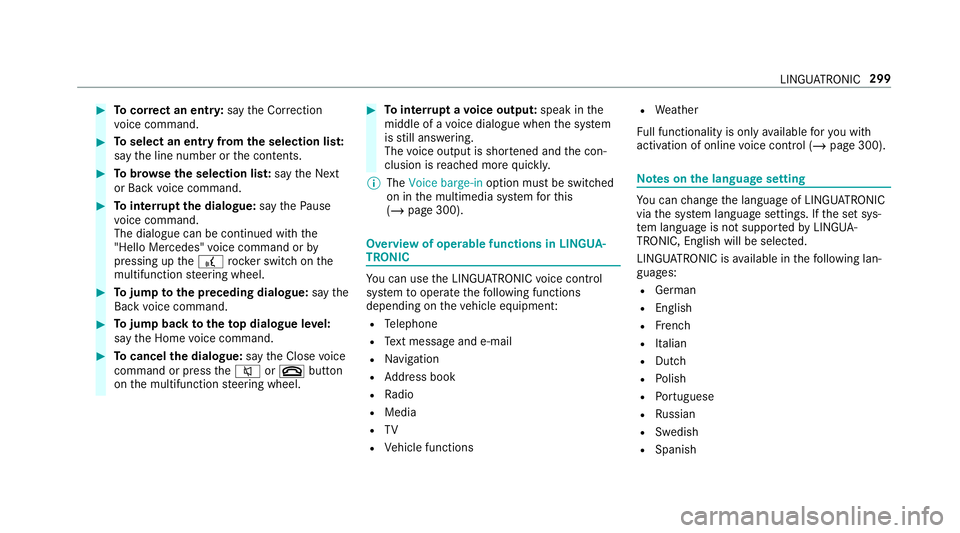
#
Tocor rect an ent ry:say theCorrection
vo ice command. #
Toselect an entry from the selection lis t:
say the line number or the conte nts. #
Tobrows eth e selection lis t:say theNext
or Back voice command. #
Tointer rupt the dialogue: saythePause
vo ice command.
The dialogue can be continued with the
"Hello Mercedes" voice command or by
pressing up the£ rock er switch on the
multifunction steering wheel. #
Tojump tothe preceding dialogue: saythe
Back voice command. #
Tojump back totheto p dialogue le vel:
say theHome voice command. #
Tocancel the dialogue: saytheClose voice
command or press the8 or~ button
on the multifunction steering wheel. #
Tointer rupt avo ice output: speak inthe
middle of a voice dialogue when the sy stem
is still answering.
The voice output is shor tened and the con‐
clusion is reached more quickl y.
% The Voice barge-in option must be switched
on in the multimedia sy stem forth is
(/ page 300). Overview of operable functions in LINGUA‐
TRONIC
Yo
u can use the LINGU ATRO NIC voice control
sy stem tooperate thefo llowing functions
depending on theve hicle equipment:
R Telephone
R Text messa geand e-mail
R Navigation
R Address book
R Radio
R Media
R TV
R Vehicle functions R
Weather
Fu ll functionality is only available foryo u with
activation of online voice control (/ page 300). Note
s onthe language setting Yo
u can change the language of LINGU ATRO NIC
via the sy stem language settings. If the set sys‐
te m language is not suppor tedby LINGUA‐
TRONIC, English will be selected.
LINGU ATRO NIC is available in thefo llowing lan‐
guages:
R German
R English
R French
R Italian
R Dutch
R Polish
R Portuguese
R Russian
R Swedish
R Spanish LINGU
ATRO NIC 299
Page 366 of 673
#
Select the desired setting.
Ve hicles with a multicontour seat:
In addition tothe seat backrest and seat cush‐
ion, the lumbar region can be activated forthe
function. #
Switch Including lumbar on or off.
Setting the du ration #
Select Zforth e desired seat.
The following running times are available:
R Short (16 minutes) R
Medium (32 minutes)
R Long (96 minutes) #
Select a running time.
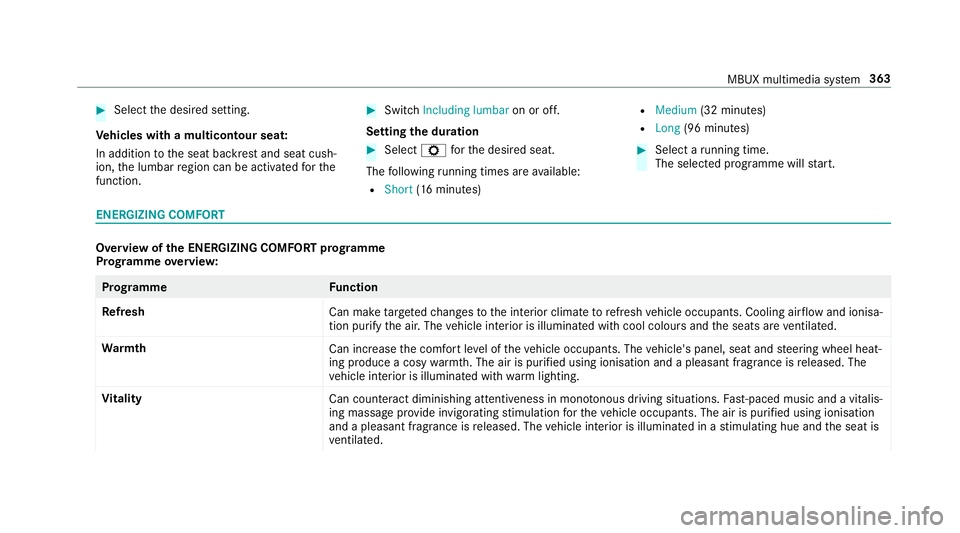
The selected programme will start. ENERGIZING COMFORT
Overview of
the ENERGIZING COMFORT prog ramme
Prog ramme overview: Prog
ramme Function
Re fresh
Can maketargeted changes tothe interior climate torefresh vehicle occupants. Cooling air flow and ionisa‐
tion purify the air. The vehicle interior is illuminated with cool colours and the seats are ventilated.
Wa rmth
Can increase the comfort le vel of theve hicle occupants. The vehicle's panel, seat and steering wheel heat‐
ing produce a cosy warmth. The air is pu rified using ionisation and a pleasant fragrance is released. The
ve hicle interior is illuminated with warm lighting.
Vi tality
Can countera ct diminishing attentiveness in mono tonous driving situations. Fast-paced music and a vitalis‐
ing massa geprov ide invigorating stimulation forth eve hicle occupants. The air is purified using ionisation
and a pleasant fragrance is released. The vehicle interior is illuminated in a stimulating hue and the seat is
ve ntilated. MBUX multimedia sy
stem 363
Page 392 of 673
Using
quick- access for a destination in form a‐
tion, alternative route and POIs
Re quirements:
R The POI categories forqu ick- access are con‐
fi gured (/ page372). #
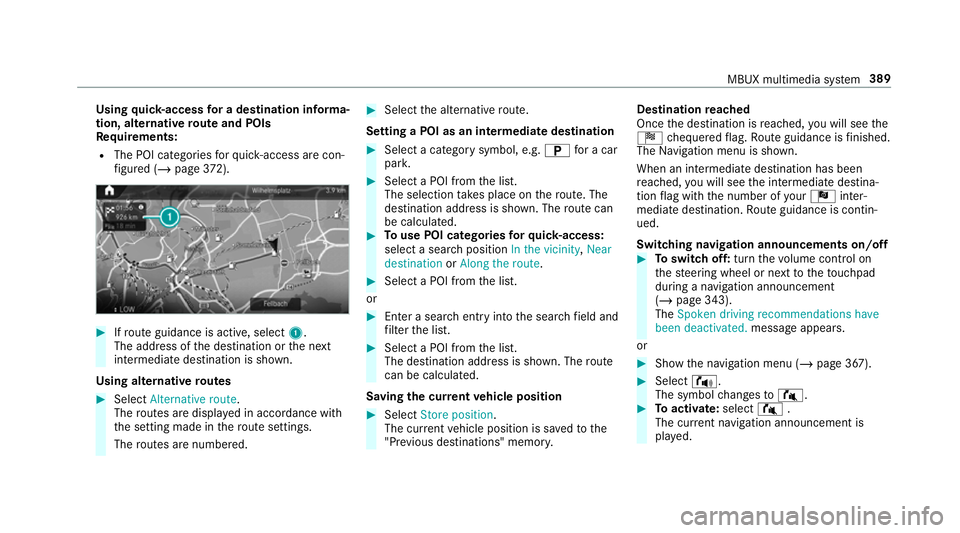
Ifro ute guidance is active, select 1.
The address of the destination or the next
intermediate destination is shown.
Using alternative routes #
Select Alternative route .
The routes are displ ayed in accordance with
th e setting made in thero ute settings.
The routes are numbered. #
Select the alternative route.
Setting a POI as an intermediate destination #
Select a category symbol, e.g. Bfor a car
par k. #
Select a POI from the list.
The selection take s place on thero ute. The
destination address is shown. The route can
be calculated. #
Touse POI catego ries forqu ick- access:
select a sea rch position In the vicinity, Near
destination orAlong the route. #
Select a POI from the list.
or #
Ente r a sear chentry intothe sear chfield and
fi lter the list. #
Select a POI from the list.
The destination address is shown. The route
can be calculated.
Saving the cur rent vehicle position #
Select Store position .
The cur rent vehicle position is sa vedto the
"Pr evious destinations" memo ry.Destination
reached
Once the destination is reached, you will see the
Í chequered flag. Route guidance is finished.
The Navigation menu is shown.
When an intermediate destination has been
re ached, you will see the intermediate destina‐
tion flag with the number of your Î inter‐
mediate destination. Route guidance is contin‐
ued.
Swit ching navigation announcements on/off #
Toswitch off: turnthevo lume control on
th esteering wheel or next totheto uchpad
during a navigation announcement
(/ page 343).
The Spoken driving recommendations have
been deactivated. message appears.
or #
Show the navigation menu (/ page 367). #
Select !.
The symbol changes to# . #
Toactivate: select#.
The cur rent navigation announcement is
pl ay ed. MBUX multimedia sy
stem 389
Page 393 of 673
The symbol
changes to! .
% This function can be added and called up
from thefa vo urites within the navigation cat‐
egor y.
Switching navigation announcements on or
off during a phone call #
Press the© button on thesteering wheel
or on theto uchpad.
or #
Tap on © inthe media displa y.#
Select Settings . #
Select System . #
Select Audio. #
Select Navigation and traffic announce-
ments . #
Switch Driving recommendations during call
on or off.
When the option is switched on, the display
button is activated. #
Tolea vethe menu: selectq. Ad
justing the volume of navigation
announcements
Multimedia sy stem:
4 © 5
Settings 5
System 5
Audio
5 Navigation and traffic announcements #
Select Driving recommendation vol. . #
Set thevo lume. #
Tolea vethe menu: selectq.
Ro ute guidance is active #
Turn thevo lume control on thesteering
wheel or next totheto uchpad during a navi‐
ga tion announcement.
Switching audio fadeout on or off during nav‐
igation announcements #
Press the© button on thesteering wheel
or on theto uchpad.
or #
Tap on © inthe media displa y. #
Select Settings . #
Select System . #
Select Audio. #
Switch Audio fadeout on or off.
When the option is switched on, the display
button is activated. #
Tolea vethe menu: selectq.
Re peating navigation announcements
Re quirements:
R aro ute has already been created.
R route guidance is active.
Multimedia sy stem:
4 Navigation (Navigation) #
Select !. #
Select #.
The cur rent navigation announcement is
re peated.
% This function can be added and called up
from thefa vo urites within the navigation cat‐
egor y.
Cancelling route guidance
Re quirements:
R aro ute has already been created.
R route guidance is active. 390
MBUX multimedia sy stem
Page 469 of 673
Selecting a
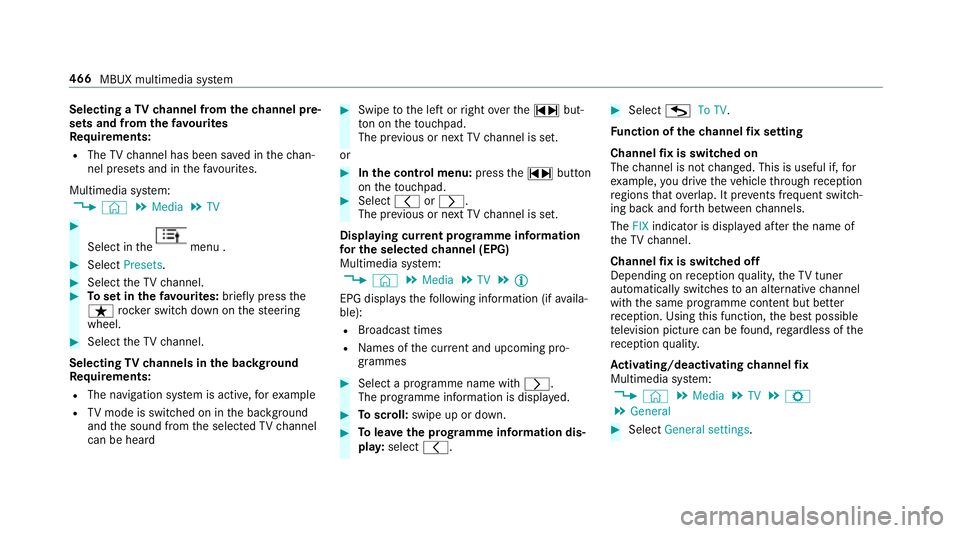
TVchannel from thech annel pre‐
sets and from thefa vo urites
Re quirements:
R The TVchannel has been sa ved in thech an‐
nel presets and in thefa vo urites.
Multimedia sy stem:
4 © 5
Media 5
TV #
Select in the menu .
#
Select Presets. #
Select theTV channel. #
Toset in thefa vo urites: briefly press the
ß rocker switch down on thesteering
wheel. #
Select theTV channel.
Selecting TVchannels in the bac kground
Re quirements:
R The navigation sy stem is active, forex ample
R TVmode is switched on in the bac kground
and the sound from the selected TVchannel
can be heard #
Swipe tothe left or right over the~ but‐
to n on theto uchpad.
The pr evious or next TVchannel is set.
or #
Inthe control menu: pressthe~ button
on theto uchpad. #
Select qorr.
The pr evious or next TVchannel is set.
Displ aying cur rent prog ramme in form ation
fo r the selected channel (EPG)
Multimedia sy stem:
4 © 5
Media 5
TV 5
Õ
EPG displa ys thefo llowing information (if availa‐
ble):
R Broadcast times
R Names of the cur rent and upcoming pro‐
grammes #
Select a programme name wi thr .
The programme information is displa yed. #
Toscroll: swipe up or down. #
Tolea vethe prog ramme in form ation dis‐
pla y:select q. #
Select GTo TV.
Fu nction of thech annel fix setting
Channel fix is switched on
The channel is not changed. This is useful if, for
ex ample, you drive theve hicle thro ugh reception
re gions that ove rlap. It pr events frequent switch‐
ing ba ckand forth between channels.
The FIXindicator is displa yed af terth e name of
th eTV channel.
Channel fix is switched off
Depending on reception qualit y,theTV tuner
au tomatical lyswitches toan alternative channel
with the same programme conte nt but better
re ception. Using this function, the best possible
te levision picture can be found, rega rdless of the
re ception qualit y.
Ac tivating/deactivating channel fix
Multimedia sy stem:
4 © 5
Media 5
TV 5
Z
5 General #
Select General settings. 466
MBUX multimedia sy stem
Page 499 of 673
In
theeve nt of a flat tyre, thefo llowing options
are available depending on your vehicle's equip‐
ment:
R Vehicles with MOExtended tyres: it is pos‐
sible tocontinue the journey for a short
period of time. Make sure you obse rvethe
no tes on MOExtended tyres (run-flat tyres)
(/ page 496).
R Vehicles with a TIREFIT kit: you can repair
th e tyre so that it is possible tocontinue the
jou rney for a short period of time. Todo this,
use the TIREFIT kit (/ page 497).
R Vehicles with Mercedes me connect: you
can make a call for breakdown assi stance via
th eove rhead control panel in the case of a
breakdown (/ page 434).
R Allvehicles: change the wheel
(/ page 530).
% The emer gency spa rewheel is only available
in cer tain countries. Note
s on MOExtended tyres (run-flat tyres) &
WARNING Risk of accident when driving
in eme rgency mode
When driving in emer gency mode, the han‐
dling characteristics are impaired. e.g. when
cornering, when accelerating stronglyand
when braking. #
Do not exceed the permissible maxi‐
mum speed. #
Avoid any abrupt steering and driving
maneuvers as well as driving over
obs tacles (curbs, pot holes, off-road).
This applies, in pa rticular, toa loaded
ve hicle. #
Stop driving in the emer gency mode if
yo u notice:
R banging noise
R vehicle vibration
R smoke which smells like rubber
R continuous ESP ®
inter vention
R crac ksin tire side walls #
After driving in emergency mode ha ve
th erims checkedby aqu alified special‐
ist workshop with rega rd totheir fur ther
use. #
The defective tire must be replaced in
eve rycase. Wi
th MOExtended tyres (run-flat tyres), you can
continue todrive your vehicle even if there is a
tot al loss of pressure in one or more tyres. How‐
eve r,th e tyre af fected must not show any clearly
visible damage.
Yo u can recognise MOExtended tyres bythe
MOExtended marking which appears onthe side
wa ll of the tyre.
Ve hicles with tyre pressure loss warning sys‐
te m: MOExtended tyres may only be used in
conjunction wi than activated tyre pressure loss
wa rning sy stem.
Ve hicles with tyre pressure monitoring sys‐
te m: MOExtended tyres may only be used in
conjunction wi than activated tyre pressure mon‐
itoring sy stem. 496
Breakdown assis tance