light MERCEDES-BENZ S-Class 2015 W222 Comand Manual
[x] Cancel search | Manufacturer: MERCEDES-BENZ, Model Year: 2015, Model line: S-Class, Model: MERCEDES-BENZ S-Class 2015 W222Pages: 298, PDF Size: 6.39 MB
Page 64 of 298
X
Call up Vehicle Settings
Vehicle Settings (Ypage 58).
X To select Interior Lighting Delayed
Interior Lighting Delayed
Switch-off
Switch-off: turn and press the controller. The setting element is active.
X To change the delayed switch-off time: turn
the controller.
You can find further information in the vehicle
Operator's Manual.
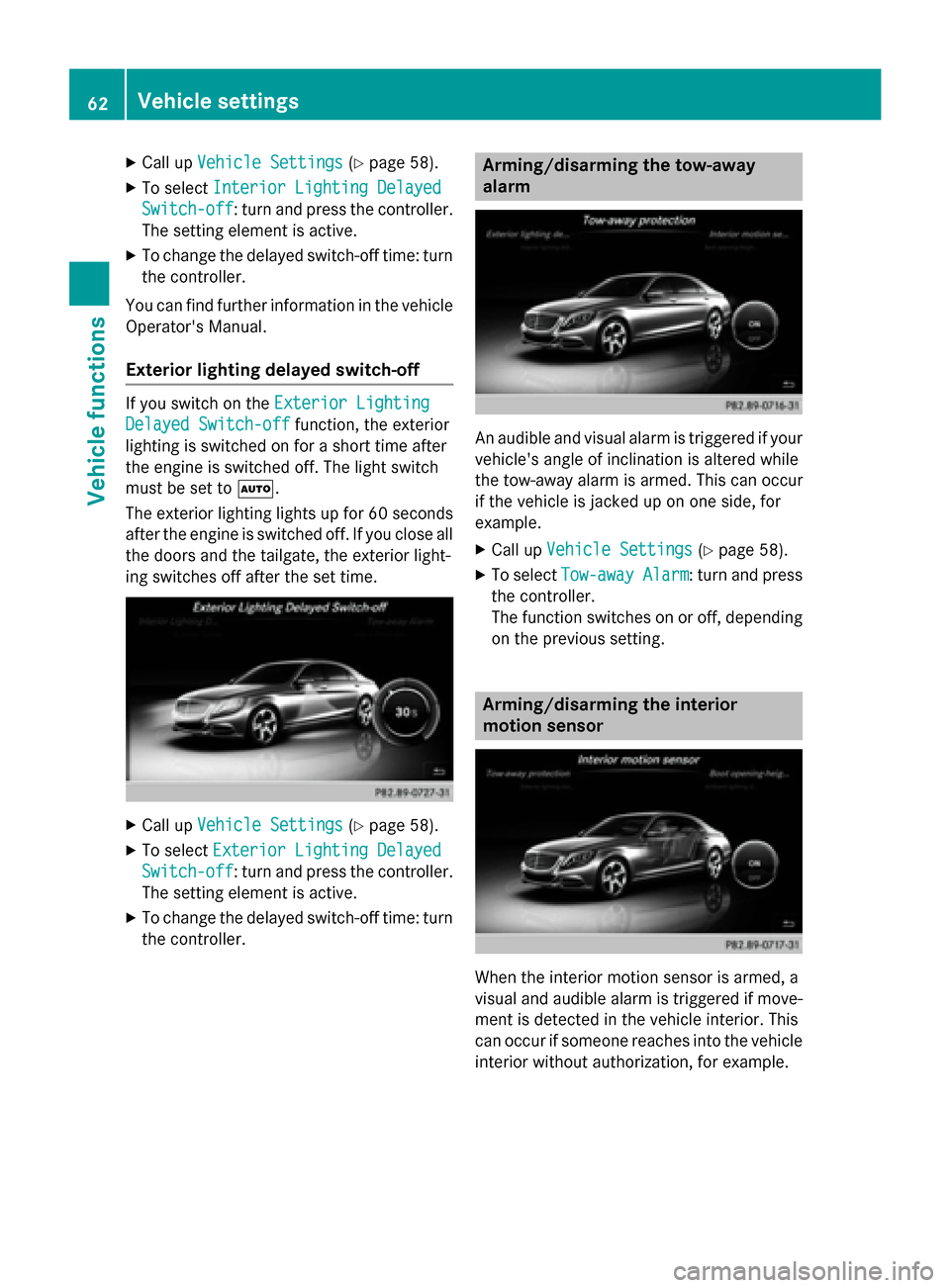
Exterior lighting delayed switch-off If you switch on the
Exterior Lighting
Exterior Lighting
Delayed Switch-off
Delayed Switch-off function, the exterior
lighting is switched on for a short time after
the engine is switched off. The light switch
must be set to 0058.
The exterior lighting lights up for 60 seconds after the engine is switched off. If you close all
the doors and the tailgate, the exterior light-
ing switches off after the set time. X
Call up Vehicle Settings Vehicle Settings (Ypage 58).
X To select Exterior Lighting Delayed
Exterior Lighting Delayed
Switch-off
Switch-off: turn and press the controller. The setting element is active.
X To change the delayed switch-off time: turn
the controller. Arming/disarming the tow-away
alarm
An audible and visual alarm is triggered if your
vehicle's angle of inclination is altered while
the tow-away alarm is armed. This can occur
if the vehicle is jacked up on one side, for
example.
X Call up Vehicle Settings Vehicle Settings (Ypage 58).
X To select Tow-away Alarm
Tow-away Alarm : turn and press
the controller.
The function switches on or off, depending on the previous setting. Arming/disarming the interior
motion sensor
When the interior motion sensor is armed, a
visual and audible alarm is triggered if move-
ment is detected in the vehicle interior. This
can occur if someone reaches into the vehicle interior without authorization, for example. 62
Vehicle settingsVehicle functions
Page 78 of 298
Your COMAND equipment
These operating instructions describe all
standard and optional equipment available
for your COMAND system at the time of pur-
chase. Country-specific differences are pos-
sible. Please note that your COMAND system may not be equipped with all the features
described. This also applies to safety-relevant
systems and functions. Therefore, the equip-
ment on your COMAND system may differ
from that in the descriptions and illustrations. Should you have any questions concerning
equipment and operation, please consult an
authorized Mercedes-Benz Center. Introduction
Important safety notes
G
WARNING
If you operate information systems and com-
munication equipment integrated in the vehi- cle while driving, you will be distracted from
traffic conditions. You could also lose control of the vehicle. There is a risk of an accident.
Only operate the equipment when the traffic
situation permits. If you are not sure that this
is possible, park the vehicle paying attention
to traffic conditions and operate the equip-
ment when the vehicle is stationary.
You must observe the legal requirements for
the country in which you are currently driving when operating COMAND.
COMAND calculates the route to the destina-
tion without taking account of the following,
for example:
R traffic lights
R stop and yield signs
R merging lanes
R parking or stopping in a no parking/no
stopping zone
R other road and traffic rules and regulations
R narrow bridges COMAND can give incorrect navigation com-
mands if the actual street/traffic situation
does not correspond with the digital map's
data. Digital maps do not cover all areas nor
all routes in an area. For example, a route may
have been diverted or the direction of a one-
way street may have changed.
For this reason, you must always observe
road and traffic rules and regulations during
your journey. Road and traffic rules and reg-
ulations always have priority over the sys-
tem's driving recommendations.
Navigation announcements are intended to
direct you while driving without diverting your attention from the road and driving.
Please always use this feature instead of con-sulting the map display for directions. Look-
ing at the icons or map display can distract
you from traffic conditions and driving, and
increase the risk of an accident. General notes
Operational readiness of the navigation system The navigation system must determine the
position of the vehicle before first use or
whenever operational status is restored.
Therefore, you may have to drive for a while
before precise route guidance is possible.
GPS reception Among other things, correct functioning of
the navigation system depends on GPS recep-
tion. In certain situations, GPS reception may
be impaired, there may be interference or
there may be no reception at all, e.g. in tun-
nels or parking garages.
i Using roof carriers may impair the correct
functioning of a roof antenna (phone, sat-
ellite radio, GPS). 76
Int
roductionNavigation
Page 81 of 298
X
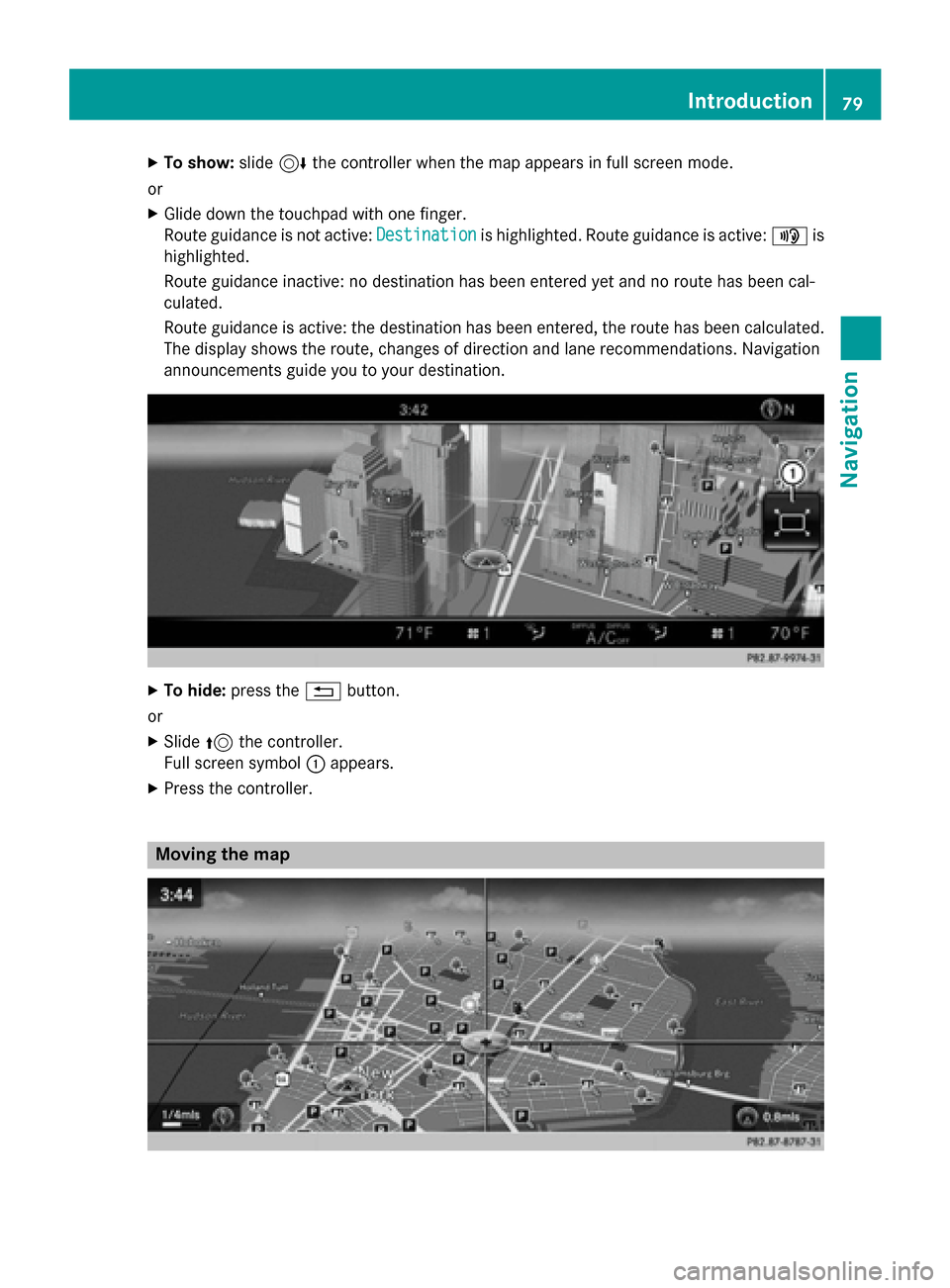
To show: slide6the controller when the map appears in full screen mode.
or X Glide down the touchpad with one finger.
Route guidance is not active: Destination Destinationis highlighted. Route guidance is active: 008Fis
highlighted.
Route guidance inactive: no destination has been entered yet and no route has been cal-
culated.
Route guidance is active: the destination has been entered, the route has been calculated.
The display shows the route, changes of direction and lane recommendations. Navigation
announcements guide you to your destination. X
To hide: press the 0038button.
or X Slide 5the controller.
Full screen symbol 0043appears.
X Press the controller. Moving the map Introduction
79Navigation Z
Page 82 of 298
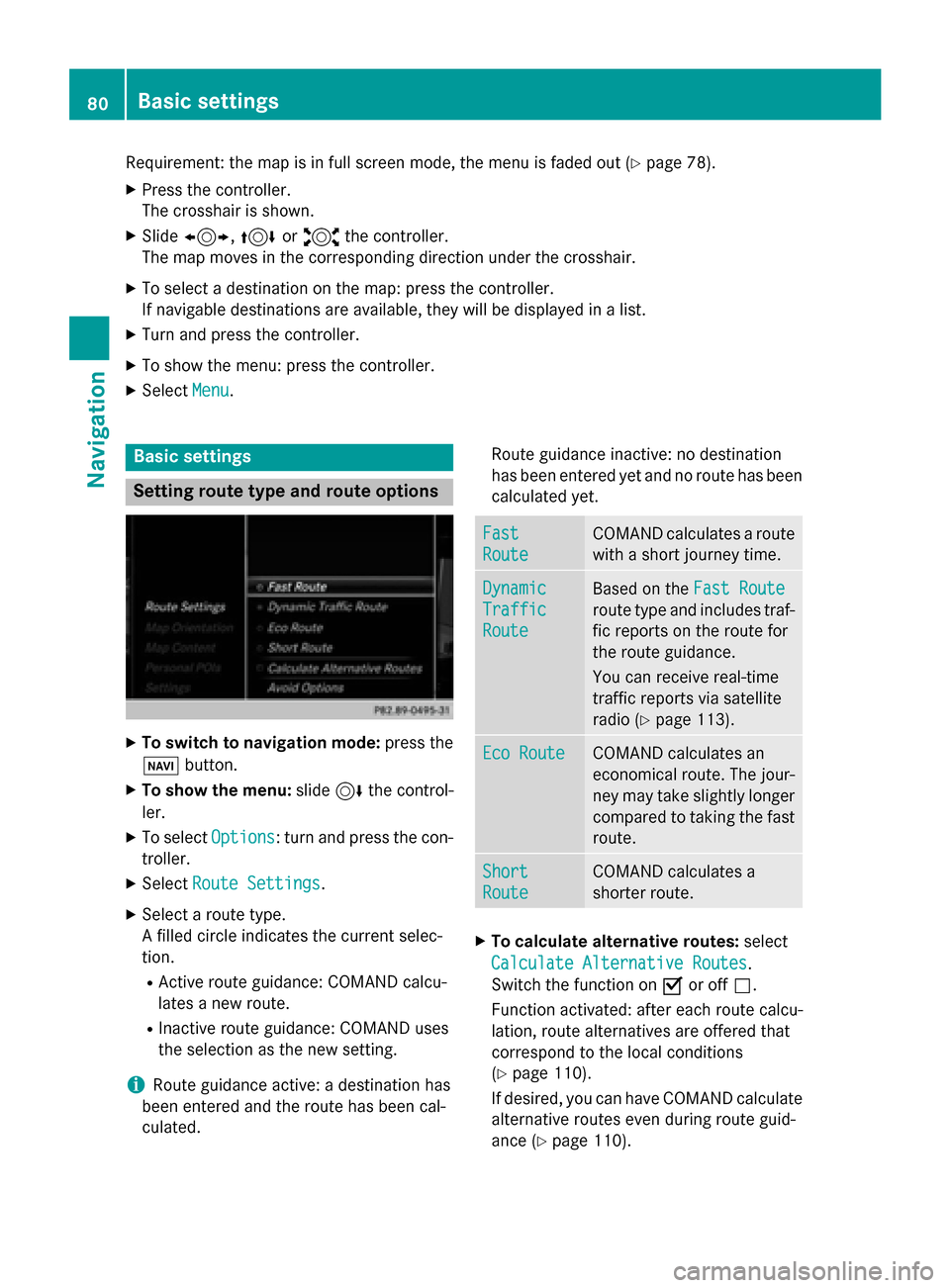
Requirement: the map is in full screen mode, the menu is faded out (Y
page 78).
X Press the controller.
The crosshair is shown.
X Slide 1, 4or2 the controller.
The map moves in the corresponding direction under the crosshair.
X To select a destination on the map: press the controller.
If navigable destinations are available, they will be displayed in a list.
X Turn and press the controller.
X To show the menu: press the controller.
X Select Menu
Menu. Basic settings
Setting route type and route options
X
To switch to navigation mode: press the
00BE button.
X To show the menu: slide6the control-
ler.
X To select Options
Options: turn and press the con-
troller.
X Select Route Settings Route Settings.
X Select a route type.
A filled circle indicates the current selec-
tion.
R Active route guidance: COMAND calcu-
lates a new route.
R Inactive route guidance: COMAND uses
the selection as the new setting.
i Route guidance active: a destination has
been entered and the route has been cal-
culated. Route guidance inactive: no destination
has been entered yet and no route has been
calculated yet. Fast Fast
Route Route COMAND calculates a route
with a short journey time. Dynamic
Dynamic
Traffic Traffic
Route Route Based on the
Fast Route
Fast Route
route type and includes traf-
fic reports on the route for
the route guidance.
You can receive real-time
traffic reports via satellite
radio (Y page 113). Eco Route Eco Route COMAND calculates an
economical route. The jour-
ney may take slightly longer
compared to taking the fast route. Short Short
Route Route COMAND calculates a
shorter route.
X
To calculate alternative routes: select
Calculate Alternative Routes
Calculate Alternative Routes .
Switch the function on 0073or off 0053.
Function activated: after each route calcu-
lation, route alternatives are offered that
correspond to the local conditions
(Y page 110).
If desired, you can have COMAND calculate alternative routes even during route guid-
ance (Y page 110). 80
Basic settingsNavigation
Page 84 of 298
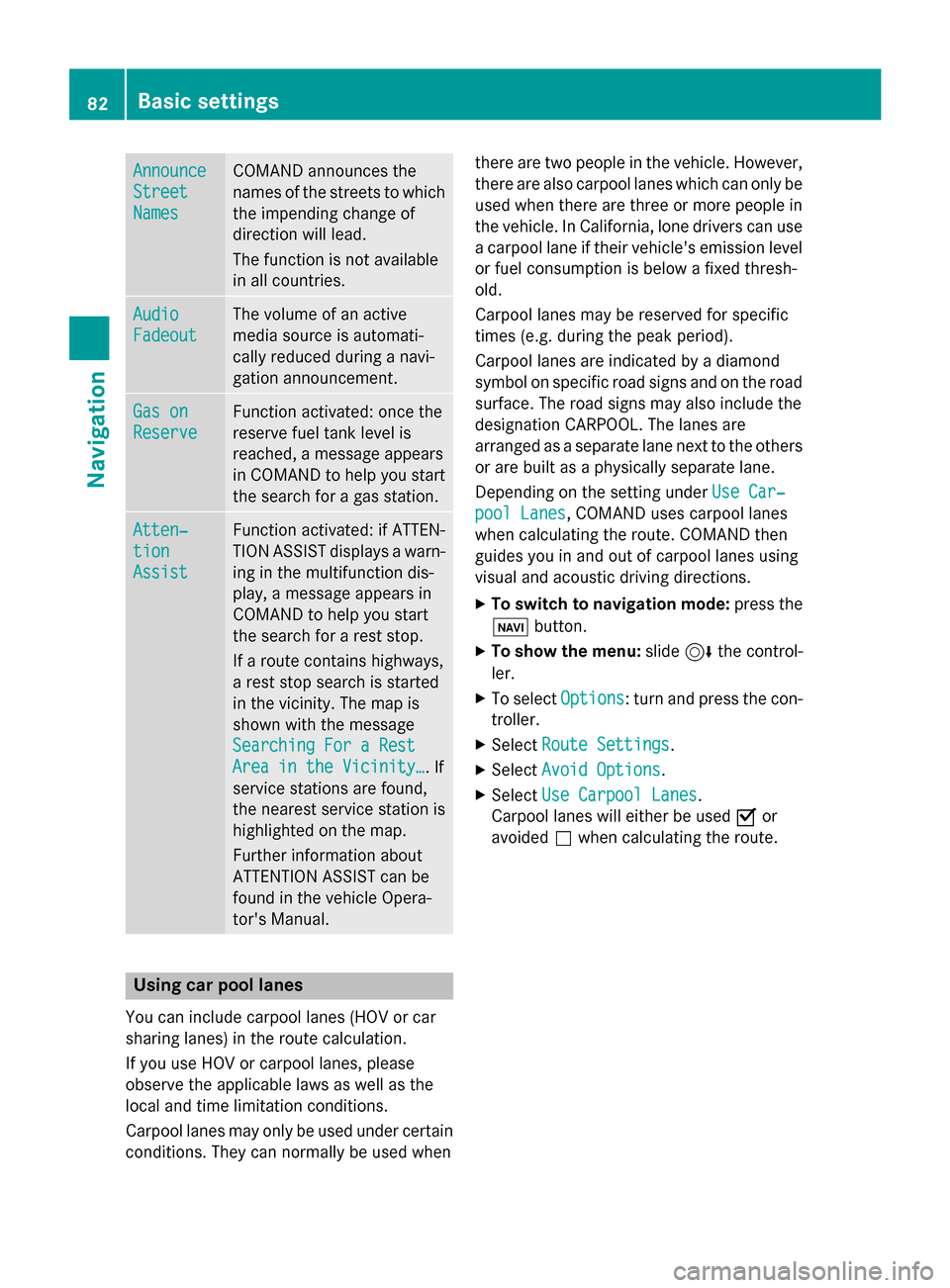
Announce
Announce
Street Street
Names Names COMAND announces the
names of the streets to which the impending change of
direction will lead.
The function is not available
in all countries. Audio Audio
Fadeout Fadeout The volume of an active
media source is automati-
cally reduced during a navi-
gation announcement.
Gas on Gas on
Reserve Reserve Function activated: once the
reserve fuel tank level is
reached, a message appears
in COMAND to help you start the search for a gas station. Atten‐ Atten‐
tion tion
Assist Assist Function activated: if ATTEN-
TION ASSIST displays a warn-
ing in the multifunction dis-
play, a message appears in
COMAND to help you start
the search for a rest stop.
If a route contains highways,
a rest stop search is started
in the vicinity. The map is
shown with the message
Searching For a Rest Searching For a Rest
Area in the Vicinity… Area in the Vicinity…. If
service stations are found,
the nearest service station is
highlighted on the map.
Further information about
ATTENTION ASSIST can be
found in the vehicle Opera-
tor's Manual. Using car pool lanes
You can include carpool lanes (HOV or car
sharing lanes) in the route calculation.
If you use HOV or carpool lanes, please
observe the applicable laws as well as the
local and time limitation conditions.
Carpool lanes may only be used under certain
conditions. They can normally be used when there are two people in the vehicle. However,
there are also carpool lanes which can only be
used when there are three or more people in
the vehicle. In California, lone drivers can use
a carpool lane if their vehicle's emission level or fuel consumption is below a fixed thresh-
old.
Carpool lanes may be reserved for specific
times (e.g. during the peak period).
Carpool lanes are indicated by a diamond
symbol on specific road signs and on the road surface. The road signs may also include the
designation CARPOOL. The lanes are
arranged as a separate lane next to the others
or are built as a physically separate lane.
Depending on the setting under Use Car‐ Use Car‐
pool Lanes
pool Lanes, COMAND uses carpool lanes
when calculating the route. COMAND then
guides you in and out of carpool lanes using
visual and acoustic driving directions.
X To switch to navigation mode: press the
00CB button.
X To show the menu: slide6the control-
ler.
X To select Options Options: turn and press the con-
troller.
X Select Route Settings
Route Settings.
X Select Avoid Options
Avoid Options.
X Select Use Carpool Lanes
Use Carpool Lanes.
Carpool lanes will either be used 0073or
avoided 0053when calculating the route. 82
Basic settingsNavigation
Page 89 of 298
Requirement for exploring a destination: mbrace must be activated for Internet access
(Y page 173). Keyword search
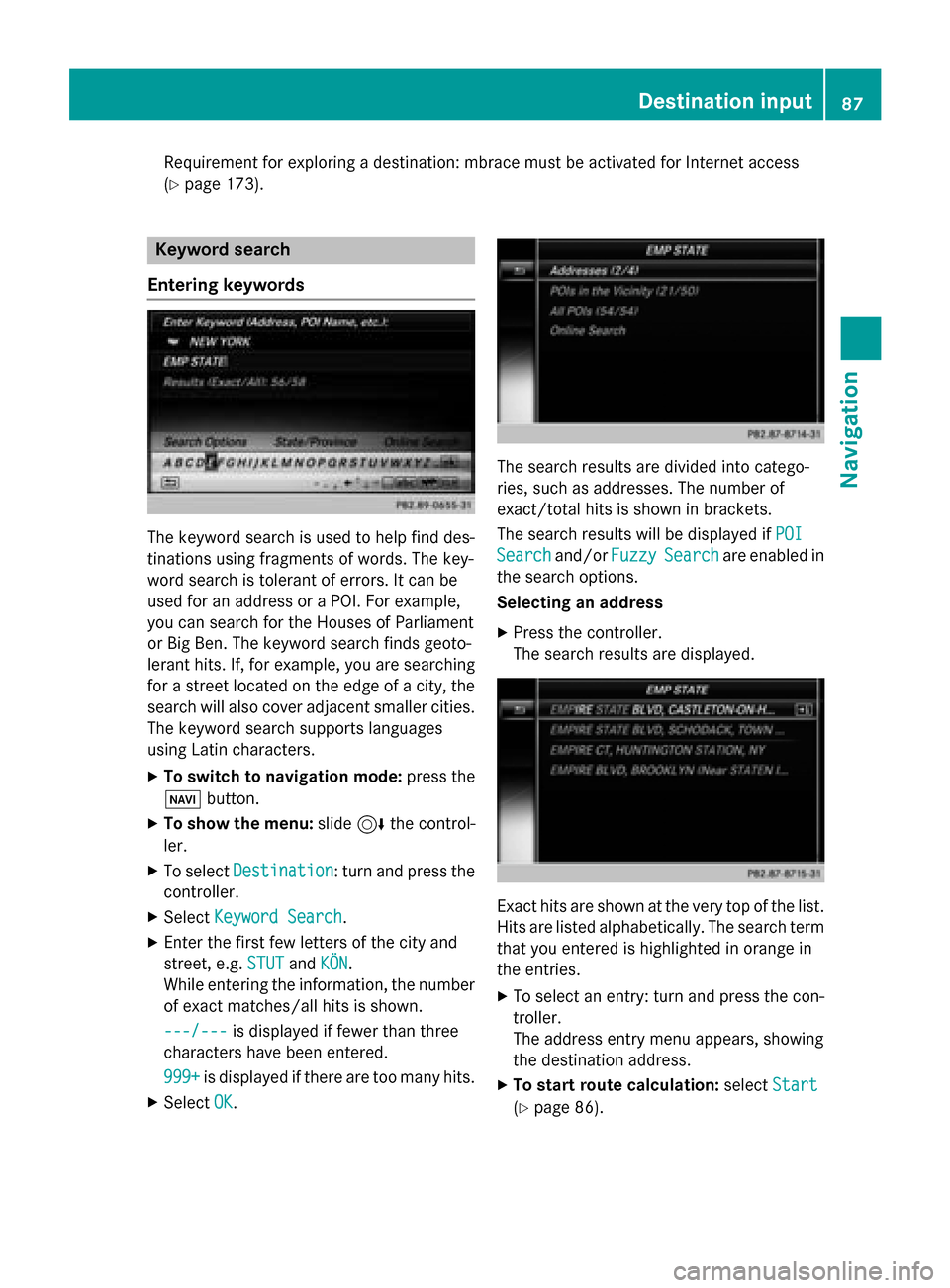
Entering keywords The keyword search is used to help find des-
tinations using fragments of words. The key-
word search is tolerant of errors. It can be
used for an address or a POI. For example,
you can search for the Houses of Parliament
or Big Ben. The keyword search finds geoto-
lerant hits. If, for example, you are searching for a street located on the edge of a city, thesearch will also cover adjacent smaller cities.
The keyword search supports languages
using Latin characters.
X To switch to navigation mode: press the
00BE button.
X To show the menu: slide6the control-
ler.
X To select Destination
Destination: turn and press the
controller.
X Select Keyword Search
Keyword Search .
X Enter the first few letters of the city and
street, e.g. STUT STUTandKÖN
KÖN.
While entering the information, the number of exact matches/all hits is shown.
---/---
---/--- is displayed if fewer than three
characters have been entered.
999+
999+ is displayed if there are too many hits.
X Select OK
OK. The search results are divided into catego-
ries, such as addresses. The number of
exact/total hits is shown in brackets.
The search results will be displayed if
POI POI
Search
Search and/orFuzzy
FuzzySearch
Search are enabled in
the search options.
Selecting an address
X Press the controller.
The search results are displayed. Exact hits are shown at the very top of the list.
Hits are listed alphabetically. The search term
that you entered is highlighted in orange in
the entries.
X To select an entry: turn and press the con-
troller.
The address entry menu appears, showing
the destination address.
X To start route calculation: selectStart Start
(Y page 86). Destination input
87Navigation Z
Page 97 of 298
Selection Action
Using Map
Using Map X
Enter a destination
using the map
(Y page 93). From Memory From Memory
Card Card X
Select a personal POI
(Y page 99). From From
Mercedes- Mercedes-
Benz Apps Benz Apps X
Enter a destination
from Mercedes-Benz
Apps (Y page 96). Using Geo- Using Geo-
Coordinates Coordinates X
Enter a destination
using the geo-coordi-
nates (Y page 97). X
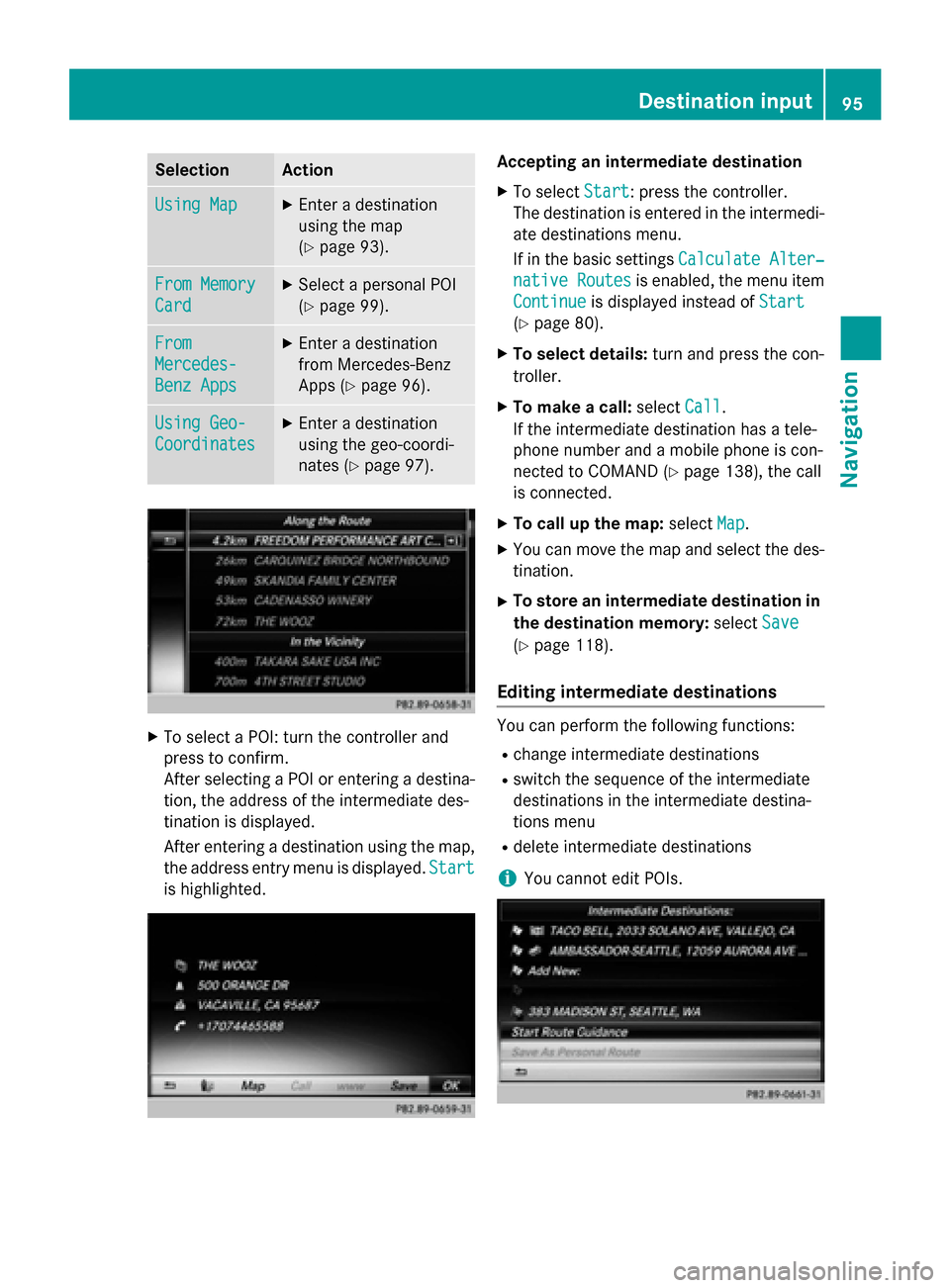
To select a POI: turn the controller and
press to confirm.
After selecting a POI or entering a destina- tion, the address of the intermediate des-
tination is displayed.
After entering a destination using the map,
the address entry menu is displayed. Start
Start
is highlighted. Accepting an intermediate destination
X To select Start
Start: press the controller.
The destination is entered in the intermedi-
ate destinations menu.
If in the basic settings Calculate Alter‐ Calculate Alter‐
native Routes
native Routes is enabled, the menu item
Continue Continue is displayed instead of Start Start
(Y page 80).
X To select details: turn and press the con-
troller.
X To make a call: selectCall
Call.
If the intermediate destination has a tele-
phone number and a mobile phone is con-
nected to COMAND (Y page 138), the call
is connected.
X To call up the map: selectMap
Map.
X You can move the map and select the des-
tination.
X To store an intermediate destination in
the destination memory: selectSave Save
(Y page 118).
Editing intermediate destinations You can perform the following functions:
R
change intermediate destinations
R switch the sequence of the intermediate
destinations in the intermediate destina-
tions menu
R delete intermediate destinations
i You cannot edit POIs. Destination input
95Navigation Z
Page 100 of 298
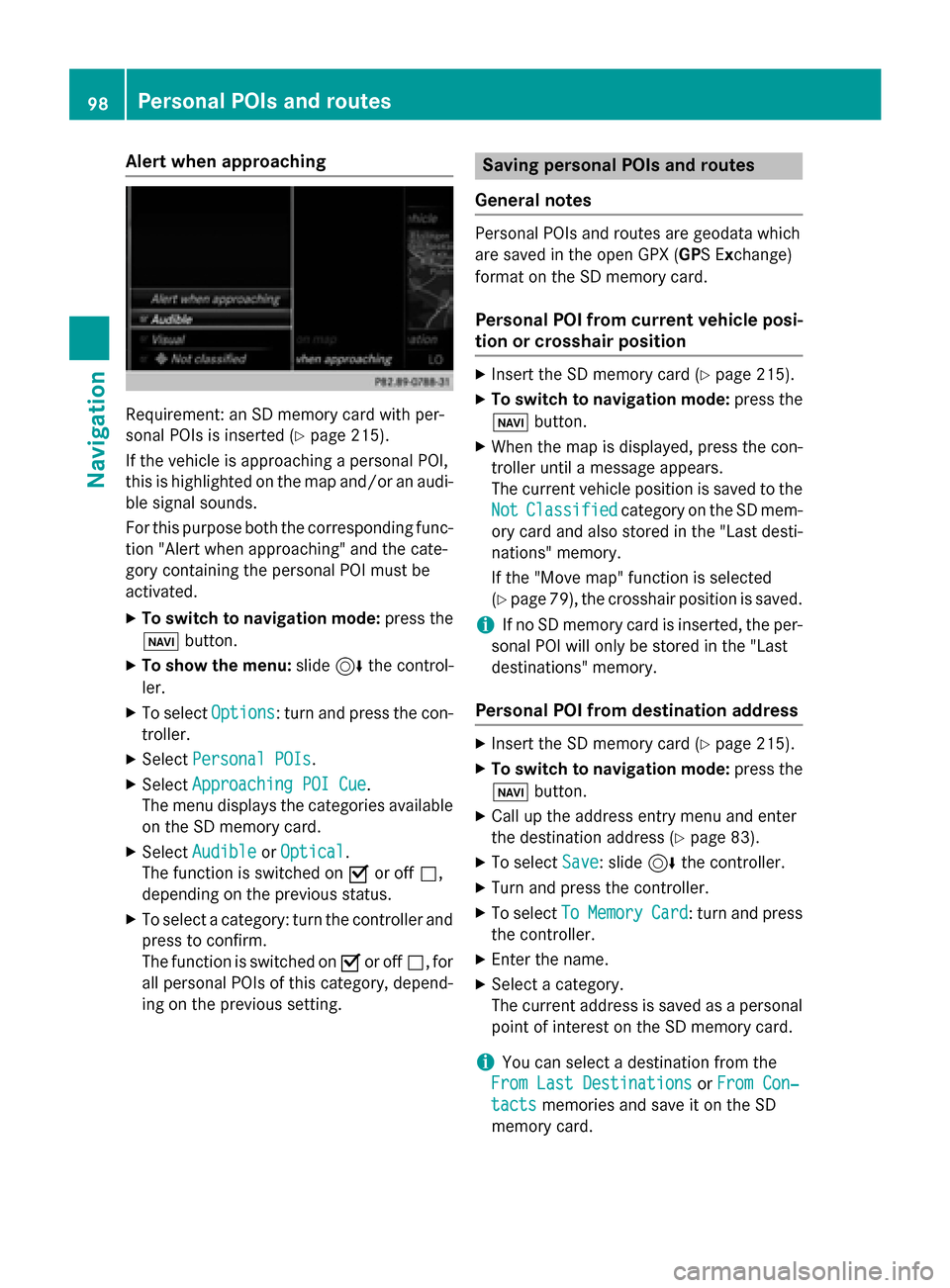
Alert when approaching
Requirement: an SD memory card with per-
sonal POIs is inserted (Y page 215).
If the vehicle is approaching a personal POI,
this is highlighted on the map and/or an audi-
ble signal sounds.
For this purpose both the corresponding func-
tion "Alert when approaching" and the cate-
gory containing the personal POI must be
activated.
X To switch to navigation mode: press the
00CB button.
X To show the menu: slide6the control-
ler.
X To select Options
Options: turn and press the con-
troller.
X Select Personal POIs Personal POIs.
X Select Approaching POI Cue
Approaching POI Cue .
The menu displays the categories available on the SD memory card.
X Select Audible
Audible orOptical
Optical.
The function is switched on 0073or off 0053,
depending on the previous status.
X To select a category: turn the controller and
press to confirm.
The function is switched on 0073or off 0053, for
all personal POIs of this category, depend-
ing on the previous setting. Saving personal POIs and routes
General notes Personal POIs and routes are geodata which
are saved in the open GPX (
GPS Exchange)
format on the SD memory card.
Personal POI from current vehicle posi-
tion or crosshair position X
Insert the SD memory card (Y page 215).
X To switch to navigation mode: press the
00CB button.
X When the map is displayed, press the con-
troller until a message appears.
The current vehicle position is saved to the
Not Not Classified
Classified category on the SD mem-
ory card and also stored in the "Last desti-
nations" memory.
If the "Move map" function is selected
(Y page 79), the crosshair position is saved.
i If no SD memory card is inserted, the per-
sonal POI will only be stored in the "Last
destinations" memory.
Personal POI from destination address X
Insert the SD memory card (Y page 215).
X To switch to navigation mode: press the
00CB button.
X Call up the address entry menu and enter
the destination address (Y page 83).
X To select Save Save: slide 6the controller.
X Turn and press the controller.
X To select To
ToMemory
Memory Card
Card: turn and press
the controller.
X Enter the name.
X Select a category.
The current address is saved as a personal
point of interest on the SD memory card.
i You can select a destination from the
From Last Destinations From Last Destinations orFrom Con‐
From Con‐
tacts
tacts memories and save it on the SD
memory card. 98
Personal POIs and routesNavigation
Page 102 of 298
Selecting a register
X Slide 9the controller.
X To select a character: turn and press the
controller.
Selecting character set for sorting
X To highlight 0054, slide9the controller.
X Press the controller.
The available character sets are displayed.
The 003Bdot indicates the current setting.
X Turn and press the controller.
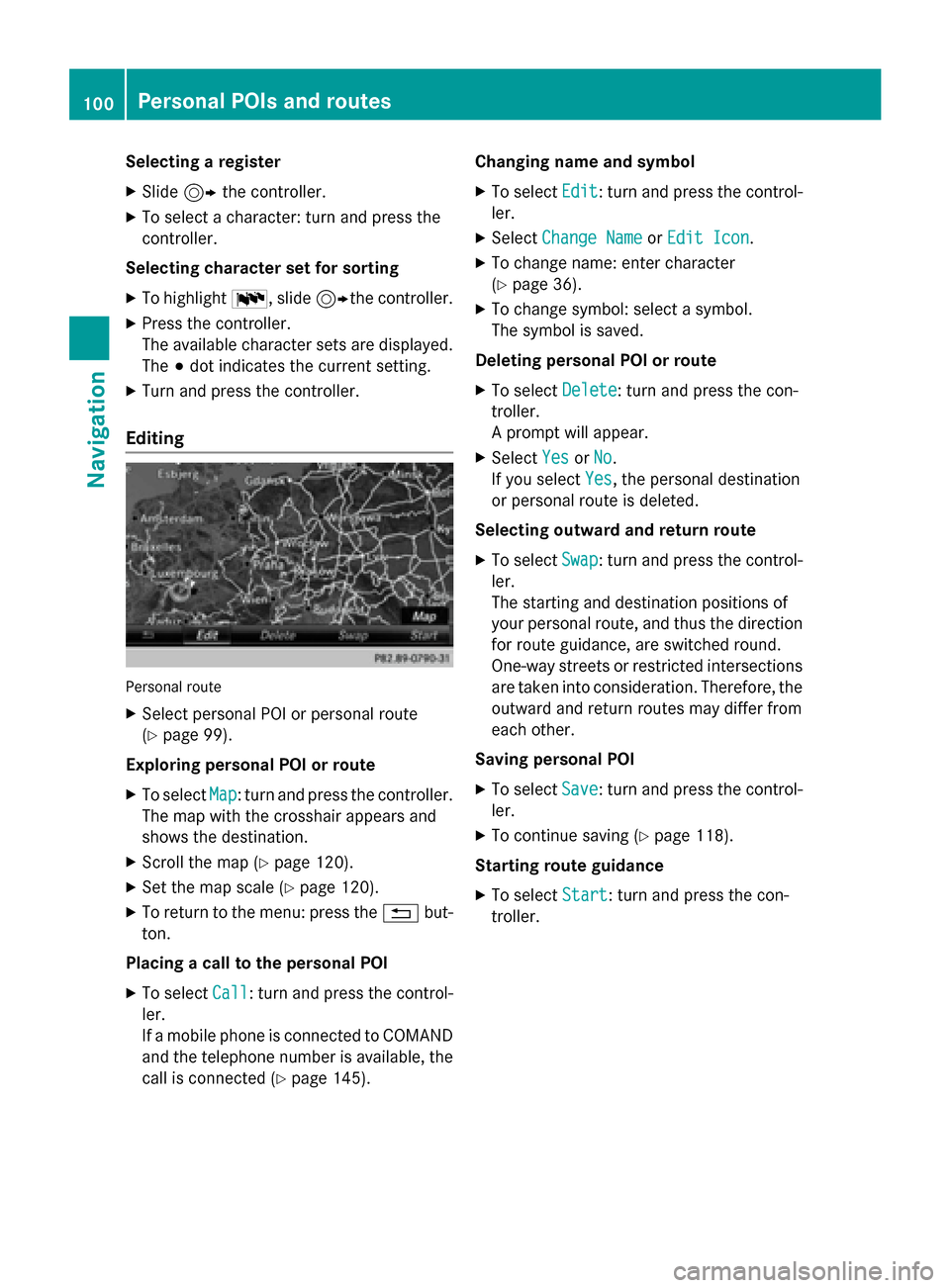
Editing Personal route
X Select personal POI or personal route
(Y page 99).
Exploring personal POI or route X To select Map Map: turn and press the controller.
The map with the crosshair appears and
shows the destination.
X Scroll the map (Y page 120).
X Set the map scale (Y page 120).
X To return to the menu: press the 0038but-
ton.
Placing a call to the personal POI X To select Call
Call: turn and press the control-
ler.
If a mobile phone is connected to COMAND and the telephone number is available, the
call is connected (Y page 145). Changing name and symbol
X To select Edit
Edit: turn and press the control-
ler.
X Select Change Name Change Name orEdit Icon
Edit Icon.
X To change name: enter character
(Y page 36).
X To change symbol: select a symbol.
The symbol is saved.
Deleting personal POI or route
X To select Delete Delete: turn and press the con-
troller.
A prompt will appear.
X Select Yes YesorNo
No.
If you select Yes
Yes, the personal destination
or personal route is deleted.
Selecting outward and return route
X To select Swap
Swap: turn and press the control-
ler.
The starting and destination positions of
your personal route, and thus the direction for route guidance, are switched round.
One-way streets or restricted intersections
are taken into consideration. Therefore, the outward and return routes may differ from
each other.
Saving personal POI
X To select Save
Save: turn and press the control-
ler.
X To continue saving (Y page 118).
Starting route guidance
X To select Start Start: turn and press the con-
troller. 100
Personal POIs and routesNavigation
Page 103 of 298

Recording the route
General notes When recording the route, bear in mind the
following:
R if the SD memory card is inserted, it must
not removed during recording.
R if route recording is started manually, it
must be finished manually before COMAND is switched off (e .g. when the engine is
switched off).
R COMAND minimizes the number of route
points recorded. Therefore when the
recorded route is subsequently com-
menced, it may differ from the route that
was originally recorded.
Starting/finishing route recording X
Insert the SD memory card (Y page 215).
X To switch to navigation mode: press the
00CB button.
X To show the menu: slide6the control-
ler.
X To select Destination
Destination: turn and press the
controller.
X Select From Memory Card From Memory Card.
X Select Start Route Recording
Start Route Recording .
The route is recorded and REC appears at
the bottom edge of the screen.
X To stop recording, select End Route
End Route
Recording
Recording from the menu.
The route is stored under Personal
Personal
Routes
Routes .
Displaying/editing the recorded route X
Insert the SD memory card (Y page 215).
X To switch to navigation mode: press the
00CB button.
X To show the menu: slide6the control-
ler.
X To select Destination
Destination: turn and press the
controller.
X Select From Memory Card
From Memory Card. X
Select Personal Routes
Personal Routes .
Previously recorded routes are displayed.
X To select Route: turn and press the con-
troller.
The map appears with a menu. The
recorded route is shown on the map in blue.
Starting route calculation
X Select Start Start.
Changing the name and symbol
X Select Edit Edit.
X Select Change Name
Change Name orEdit Icon
Edit Icon.
X To change the name: enter characters
(Y page 36).
X To change symbol: select a symbol.
The symbol is saved. Route guidance
General notes
For this reason, you must always observe
road and traffic rules and regulations during
your journey. Road and traffic rules and reg-
ulations always have priority over system
driving recommendations.
COMAND calculates the route to the destina- tion without taking account of the following,
for example:
R traffic lights
R stop and yield signs
R merging lanes
R parking or stopping in a no parking/no
stopping zone
R other road and traffic rules and regulations
R narrow bridges
COMAND may give differing navigation com-
mands if the actual street/traffic situation
does not correspond with the digital map's
data. For example, if the road layout or the
direction of a one-way street has been
changed.
For this reason, you must always observe
road and traffic rules and regulations during Route guidance
101Navigation Z