turn signal MERCEDES-BENZ S-CLASS SEDAN 2012 User Guide
[x] Cancel search | Manufacturer: MERCEDES-BENZ, Model Year: 2012, Model line: S-CLASS SEDAN, Model: MERCEDES-BENZ S-CLASS SEDAN 2012Pages: 536, PDF Size: 39.39 MB
Page 146 of 536
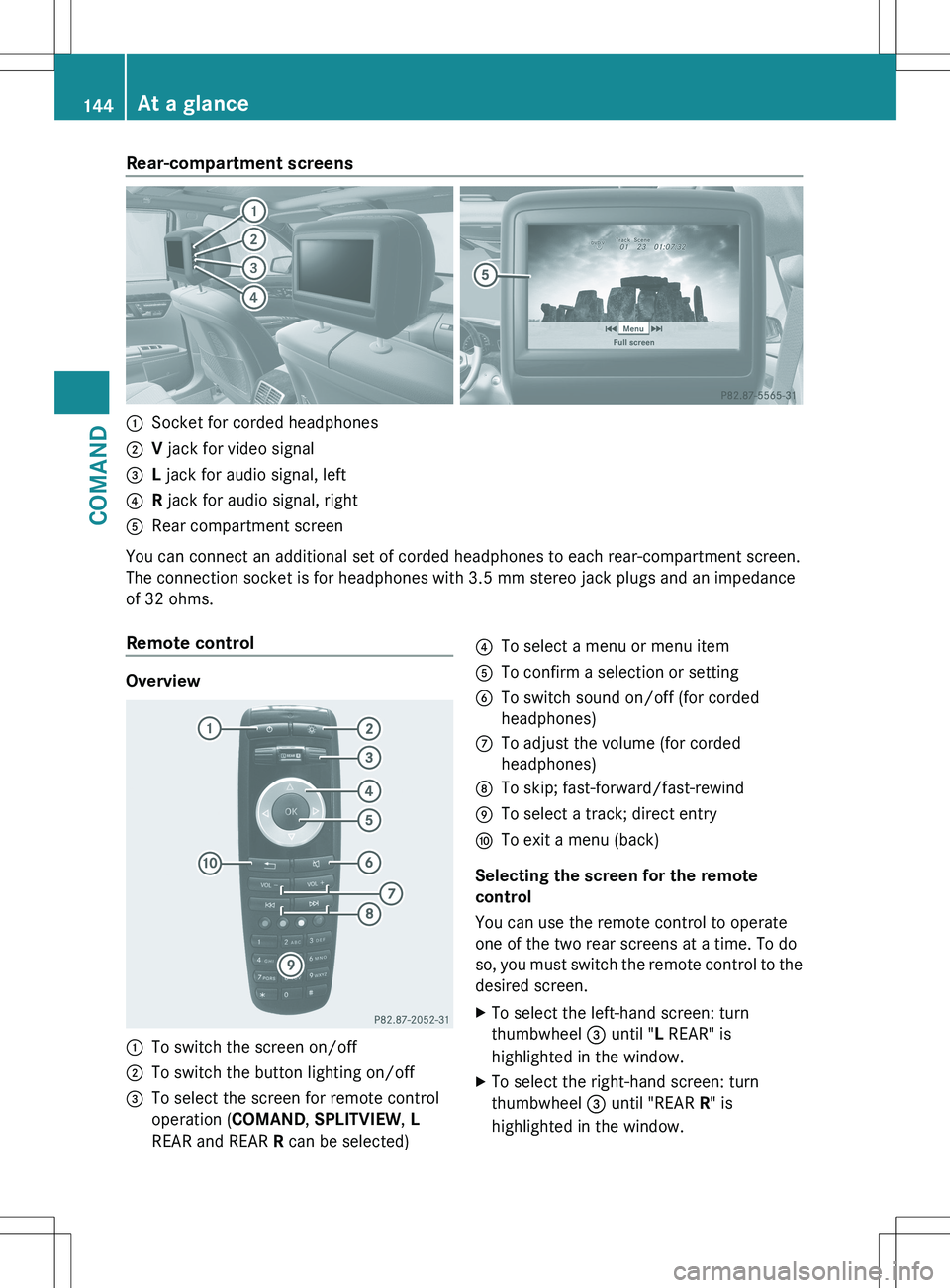
Rear-compartment screens:Socket for corded headphones;V jack for video signal=L jack for audio signal, left?R jack for audio signal, rightARear compartment screen
You can connect an additional set of corded headphones to each rear-compartment screen.
The connection socket is for headphones with 3.5 mm stereo jack plugs and an impedance
of 32 ohms.
Remote control
Overview
:To switch the screen on/off;To switch the button lighting on/off=To select the screen for remote control
operation ( COMAND, SPLITVIEW , L
REAR and REAR R can be selected)?To select a menu or menu itemATo confirm a selection or settingBTo switch sound on/off (for corded
headphones)CTo adjust the volume (for corded
headphones)DTo skip; fast-forward/fast-rewindETo select a track; direct entryFTo exit a menu (back)
Selecting the screen for the remote
control
You can use the remote control to operate
one of the two rear screens at a time. To do
so, you must switch the remote control to the
desired screen.
XTo select the left-hand screen: turn
thumbwheel = until " L REAR" is
highlighted in the window.XTo select the right-hand screen: turn
thumbwheel = until "REAR R" is
highlighted in the window.144At a glanceCOMAND
Page 148 of 536
Cordless headphones
Overview
The cordless headphones for the rear compartment can be recognized by the "DIGITAL AUDIO"
inscription on the battery compartment cover and by the fact that there is no SPLITVIEW
symbol ( Y page 126)( Y page 126).
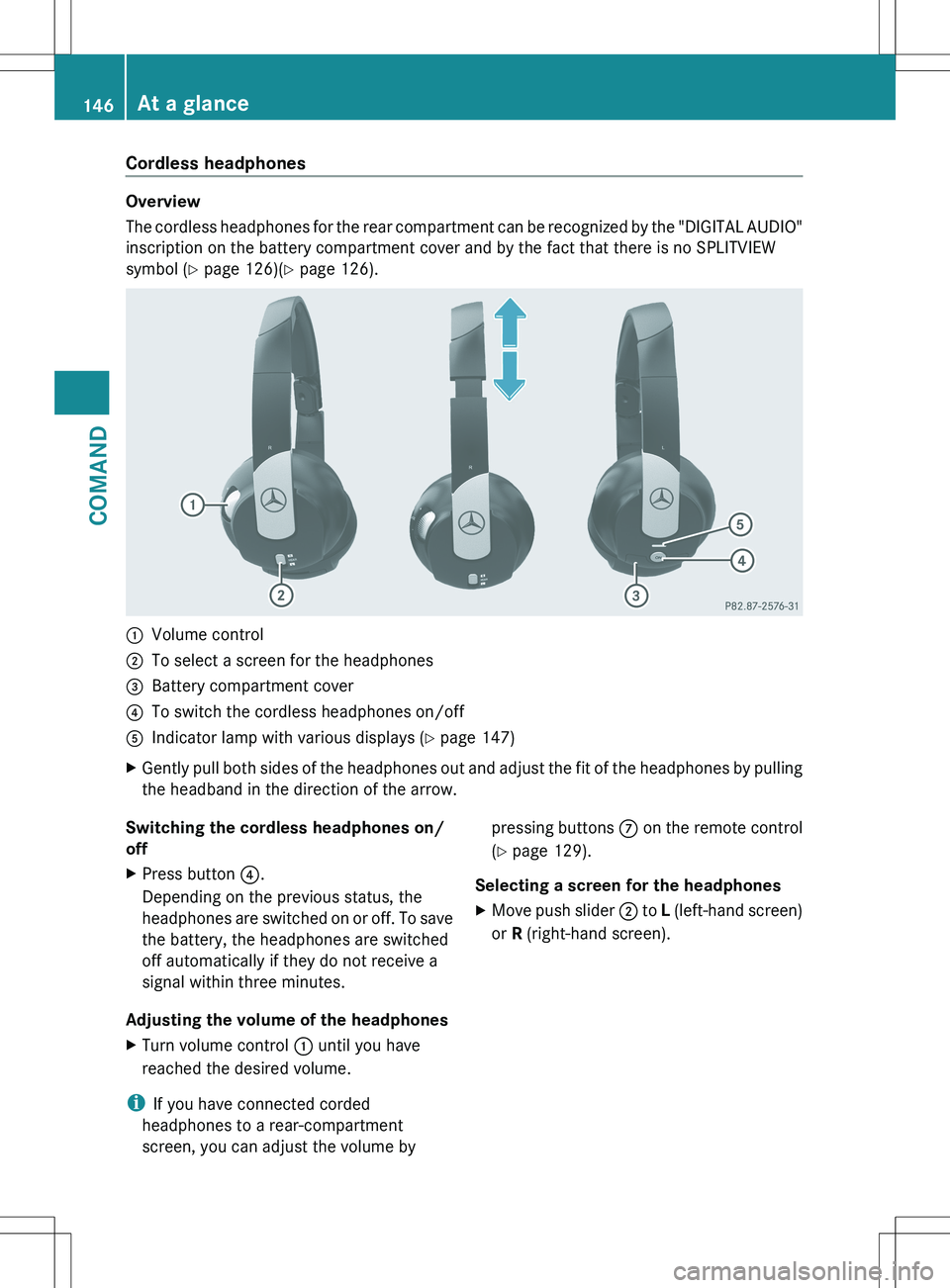
:Volume control;To select a screen for the headphones=Battery compartment cover?To switch the cordless headphones on/offAIndicator lamp with various displays ( Y page 147)XGently pull both sides of the headphones out and adjust the fit of the headphones by pulling
the headband in the direction of the arrow.Switching the cordless headphones on/
offXPress button ?.
Depending on the previous status, the
headphones are switched on or off. To save
the battery, the headphones are switched
off automatically if they do not receive a
signal within three minutes.
Adjusting the volume of the headphones
XTurn volume control : until you have
reached the desired volume.
i If you have connected corded
headphones to a rear-compartment
screen, you can adjust the volume by
pressing buttons C on the remote control
( Y page 129).
Selecting a screen for the headphonesXMove push slider ; to L (left-hand screen)
or R (right-hand screen).146At a glanceCOMAND
Page 166 of 536
on the same street: call up an address
destination from the last destinations.XSelect Change by turning cVd and sliding
ZV Æ the COMAND controller and press
W to confirm.
All destination entry functions are
available.XEdit/enter the destination as described for
destination entry ( Y page 157).
Entering a destination using the map
Calling up the map
XTo activate navigation mode: press the
S function button once or twice.XTo show the menu: press W the COMAND
controller.XSelect Destination in the navigation
system menu bar by turning cVd the
COMAND controller and pressing W to
confirm.XSelect Via Map and press W to confirm.
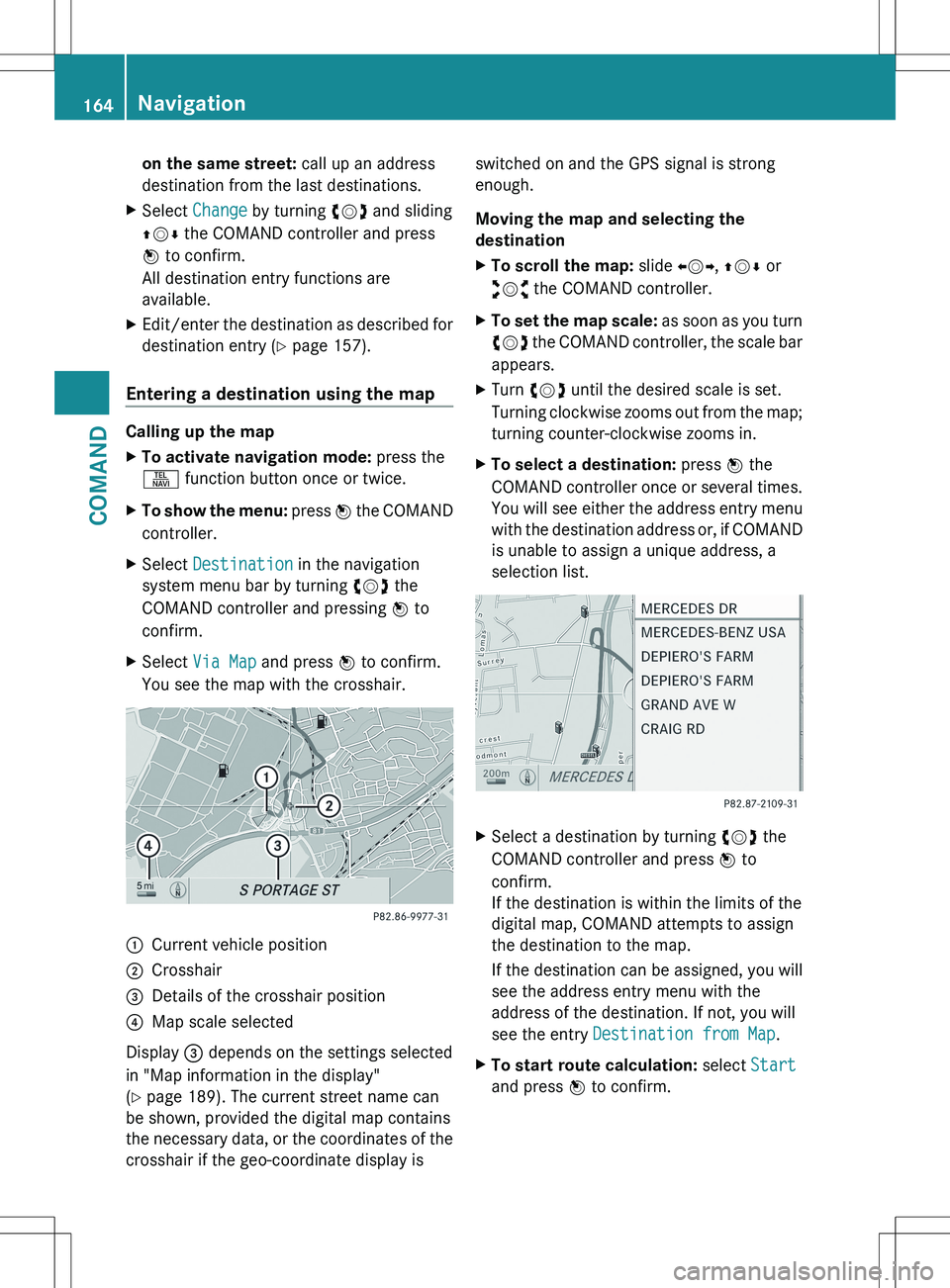
You see the map with the crosshair.:Current vehicle position;Crosshair=Details of the crosshair position?Map scale selected
Display = depends on the settings selected
in "Map information in the display"
( Y page 189). The current street name can
be shown, provided the digital map contains
the necessary data, or the coordinates of the
crosshair if the geo-coordinate display is
switched on and the GPS signal is strong
enough.
Moving the map and selecting the
destinationXTo scroll the map: slide XVY, ZV Æ or
aVb the COMAND controller.XTo set the map scale: as soon as you turn
cVd the COMAND controller, the scale bar
appears.XTurn cVd until the desired scale is set.
Turning clockwise zooms out from the map;
turning counter-clockwise zooms in.XTo select a destination: press W the
COMAND controller once or several times.
You will see either the address entry menu
with the destination address or, if COMAND
is unable to assign a unique address, a
selection list.XSelect a destination by turning cVd the
COMAND controller and press W to
confirm.
If the destination is within the limits of the
digital map, COMAND attempts to assign
the destination to the map.
If the destination can be assigned, you will
see the address entry menu with the
address of the destination. If not, you will
see the entry Destination from Map .XTo start route calculation: select Start
and press W to confirm.164NavigationCOMAND
Page 192 of 536
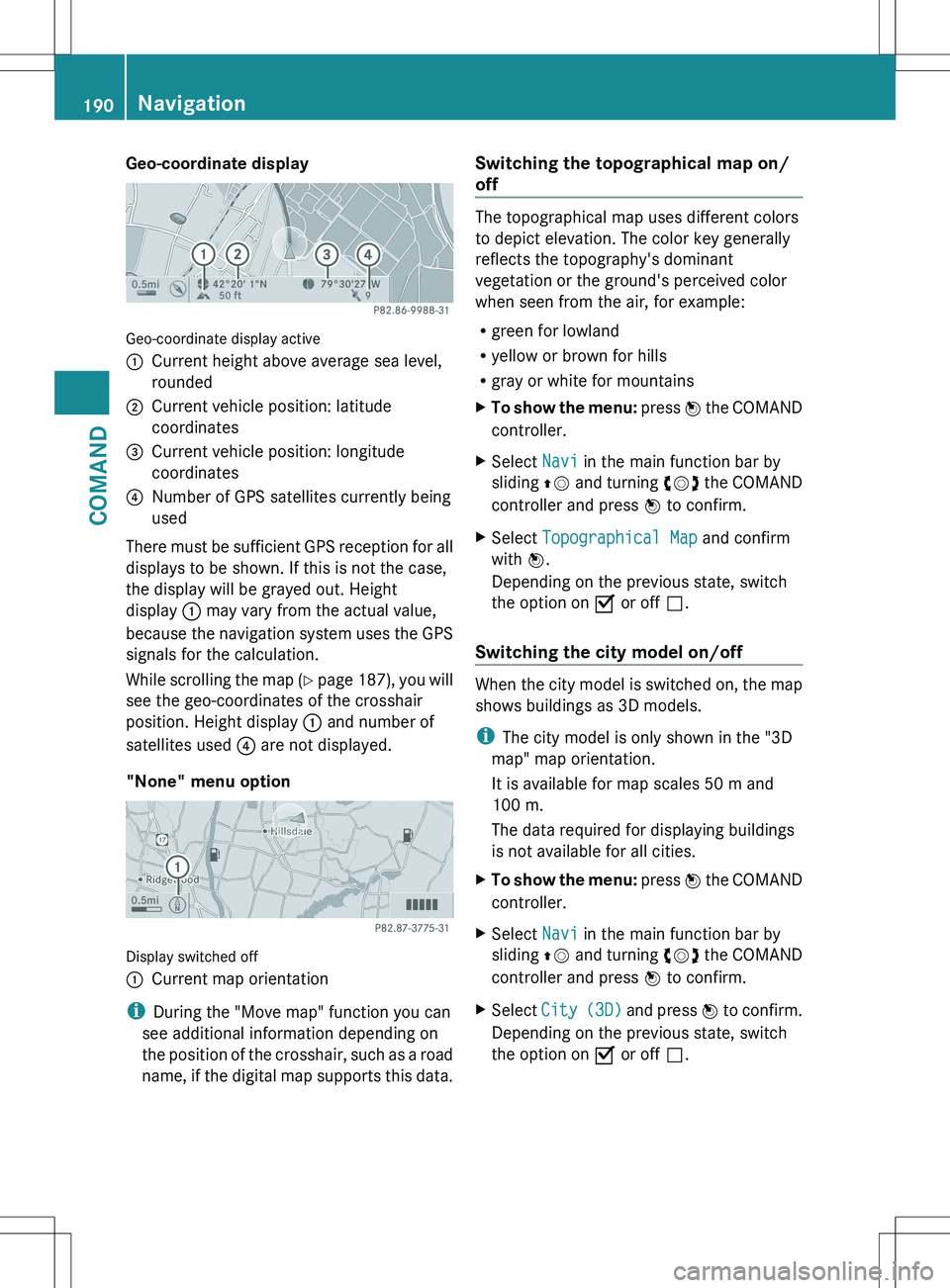
Geo-coordinate display
Geo-coordinate display active
:Current height above average sea level,
rounded;Current vehicle position: latitude
coordinates=Current vehicle position: longitude
coordinates?Number of GPS satellites currently being
used
There must be sufficient GPS reception for all
displays to be shown. If this is not the case,
the display will be grayed out. Height
display : may vary from the actual value,
because the navigation system uses the GPS
signals for the calculation.
While scrolling the map (Y page 187), you will
see the geo-coordinates of the crosshair
position. Height display : and number of
satellites used ? are not displayed.
"None" menu option
Display switched off
:Current map orientation
i During the "Move map" function you can
see additional information depending on
the position of the crosshair, such as a road
name, if the digital map supports this data.
Switching the topographical map on/
off
The topographical map uses different colors
to depict elevation. The color key generally
reflects the topography's dominant
vegetation or the ground's perceived color
when seen from the air, for example:
R green for lowland
R yellow or brown for hills
R gray or white for mountains
XTo show the menu: press W the COMAND
controller.XSelect Navi in the main function bar by
sliding ZV and turning cVd the COMAND
controller and press W to confirm.XSelect Topographical Map and confirm
with W.
Depending on the previous state, switch
the option on O or off ª.
Switching the city model on/off
When the city model is switched on, the map
shows buildings as 3D models.
i The city model is only shown in the "3D
map" map orientation.
It is available for map scales 50 m and
100 m.
The data required for displaying buildings
is not available for all cities.
XTo show the menu: press W the COMAND
controller.XSelect Navi in the main function bar by
sliding ZV and turning cVd the COMAND
controller and press W to confirm.XSelect City (3D) and press W to confirm.
Depending on the previous state, switch
the option on O or off ª.190NavigationCOMAND
Page 205 of 536
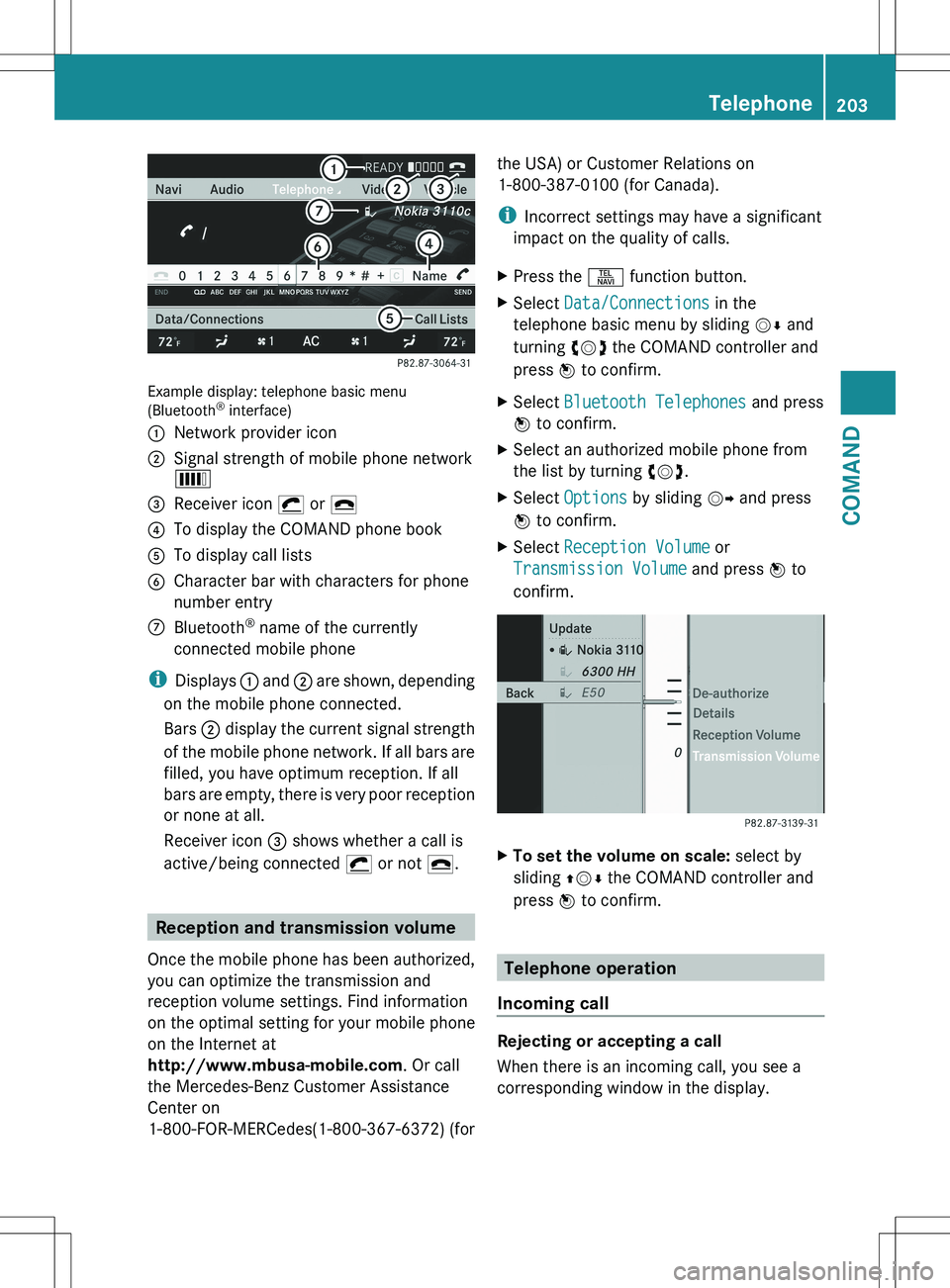
Example display: telephone basic menu
(Bluetooth ®
interface)
:Network provider icon;Signal strength of mobile phone network
È=Receiver icon ¡ or ¢?To display the COMAND phone bookATo display call listsBCharacter bar with characters for phone
number entryCBluetooth ®
name of the currently
connected mobile phone
i Displays : and ; are shown, depending
on the mobile phone connected.
Bars ; display the current signal strength
of the mobile phone network. If all bars are
filled, you have optimum reception. If all
bars are empty, there is very poor reception
or none at all.
Receiver icon = shows whether a call is
active/being connected ¡ or not ¢.
Reception and transmission volume
Once the mobile phone has been authorized,
you can optimize the transmission and
reception volume settings. Find information
on the optimal setting for your mobile phone
on the Internet at
http://www.mbusa-mobile.com . Or call
the Mercedes-Benz Customer Assistance
Center on
1-800-FOR-MERCedes(1-800-367-6372) (for
the USA) or Customer Relations on
1-800-387-0100 (for Canada).
i Incorrect settings may have a significant
impact on the quality of calls.XPress the S function button.XSelect Data/Connections in the
telephone basic menu by sliding VÆ and
turning cVd the COMAND controller and
press W to confirm.XSelect Bluetooth Telephones and press
W to confirm.XSelect an authorized mobile phone from
the list by turning cVd.XSelect Options by sliding VY and press
W to confirm.XSelect Reception Volume or
Transmission Volume and press W to
confirm.XTo set the volume on scale: select by
sliding ZVÆ the COMAND controller and
press W to confirm.
Telephone operation
Incoming call
Rejecting or accepting a call
When there is an incoming call, you see a
corresponding window in the display.
Telephone203COMANDZ
Page 224 of 536
http://www.siriuscanada.com
(Canada).
Once the connection has been established:XFollow the instructions of the service staff.
The activation process may take up to ten
minutes. If the activation is completed
successfully, the No Service message
appears in the display, followed by the
satellite radio main menu.
i If registration is not included when
purchasing the system, your credit card
details will be required to activate your
account.
If the satellite receiver is not installed or is
not installed correctly, the Device not
available message will appear.
Switching on satellite radio mode
Notes
Important notes on registration, see
"Registering satellite radio" ( Y page 221).
Switching on satellite radio mode
XSelect Audio in the main function bar by
sliding ZV and turning cVd the COMAND
controller and press W to confirm.
If satellite radio mode was the last mode
selected, it will now be active.
If another audio mode is switched on, you
can now switch to satellite radio mode in
the audio menu.XSelect Audio by sliding ZV the COMAND
controller and pressing W to confirm.
The audio menu appears.XSelect Sat. Radio and press W to
confirm.
The No Service message appears when
starting up or if no signal is being received.
If the satellite receiver is not installed or is
not installed correctly, the Device not
available message will appear.Once COMAND receives the signal, the
satellite radio display appears. The station
last selected is played.
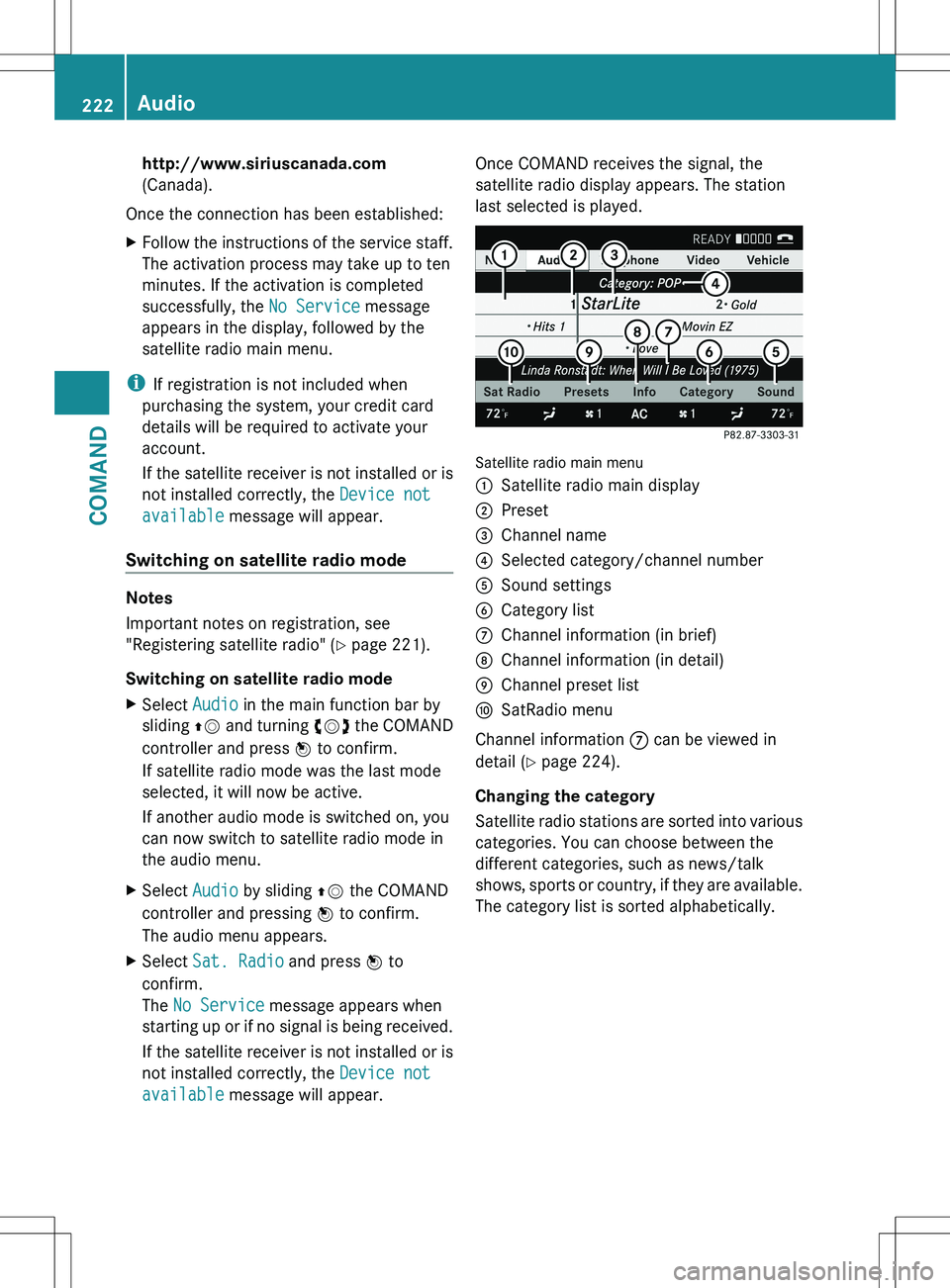
Satellite radio main menu
1Satellite radio main display2Preset3Channel name4Selected category/channel number5Sound settings6Category list7Channel information (in brief)8Channel information (in detail)9Channel preset listaSatRadio menu
Channel information 7 can be viewed in
detail ( Y page 224).
Changing the category
Satellite radio stations are sorted into various
categories. You can choose between the
different categories, such as news/talk
shows, sports or country, if they are available.
The category list is sorted alphabetically.
222AudioCOMAND
Page 282 of 536
Useful information
i This Operator's Manual describes all
models and all standard and optional
equipment of your vehicle available at the
time of publication of the Operator's
Manual. Country-specific differences are
possible. Please note that your vehicle may
not be equipped with all features
described. This also applies to safety-
related systems and functions.
i Please read the information on qualified
specialist workshops ( Y page 31).
Exterior lighting
Important safety notes
For reasons of safety, Mercedes-Benz
recommends that you drive with the lights
switched on even during the daytime. In some
countries, operation of the headlamps varies
due to legal requirements and self-imposed
obligations.
Information about driving abroad
To convert to symmetrical low beam
when driving abroad: switch the headlamps
to symmetrical low beam in countries in
which traffic drives on the opposite side of the
road from the country where the vehicle is
registered. This prevents glare to oncoming
traffic. Symmetrical lights do not illuminate
as large an area of the edge of the road.
Have the headlamps converted at a qualified
specialist workshop as close to the border as
possible before driving in these countries.
To convert to asymmetrical low beam
after returning: have the headlamps
converted back to asymmetrical low beam at
a qualified specialist workshop as soon as
possible after crossing the border and
returning to the original country.
Light switch
Operation
Depending on the date of manufacture of your
vehicle, the c or à symbol for the
automatic headlamp mode/daytime running
lamps is located on the light switch.
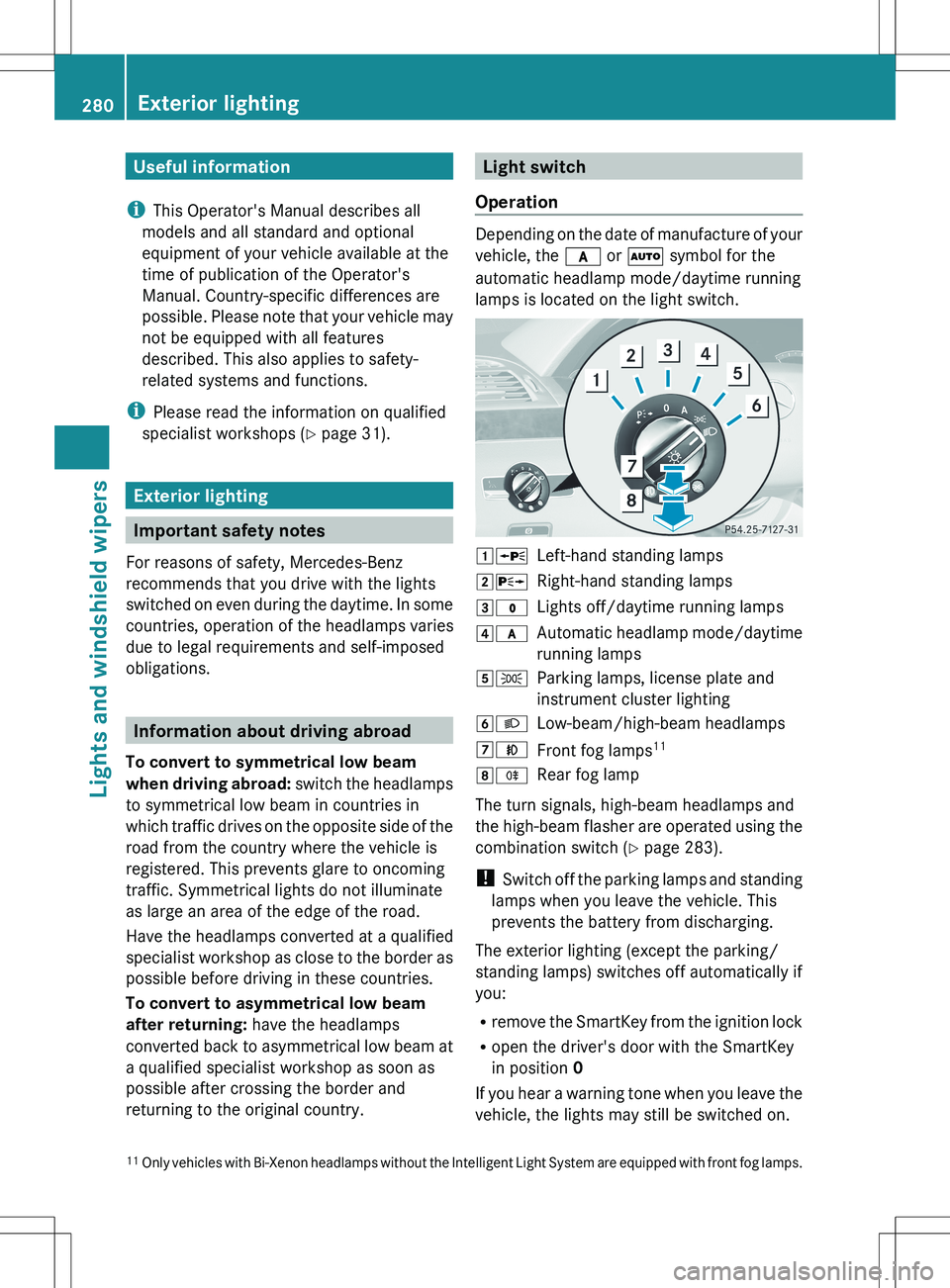
1 WLeft-hand standing lamps2XRight-hand standing lamps3$Lights off/daytime running lamps4cAutomatic headlamp mode/daytime
running lamps5 TParking lamps, license plate and
instrument cluster lighting6 LLow-beam/high-beam headlamps7NFront fog lamps 118
RRear fog lamp
The turn signals, high-beam headlamps and
the high-beam flasher are operated using the
combination switch ( Y page 283).
! Switch off the parking lamps and standing
lamps when you leave the vehicle. This
prevents the battery from discharging.
The exterior lighting (except the parking/
standing lamps) switches off automatically if
you:
R remove the SmartKey from the ignition lock
R open the driver's door with the SmartKey
in position 0
If you hear a warning tone when you leave the
vehicle, the lights may still be switched on.
11 Only vehicles with Bi-Xenon headlamps without the Intelligent Light System are equipped with front fog lamps.280Exterior lightingLights and windshield wipers
Page 285 of 536
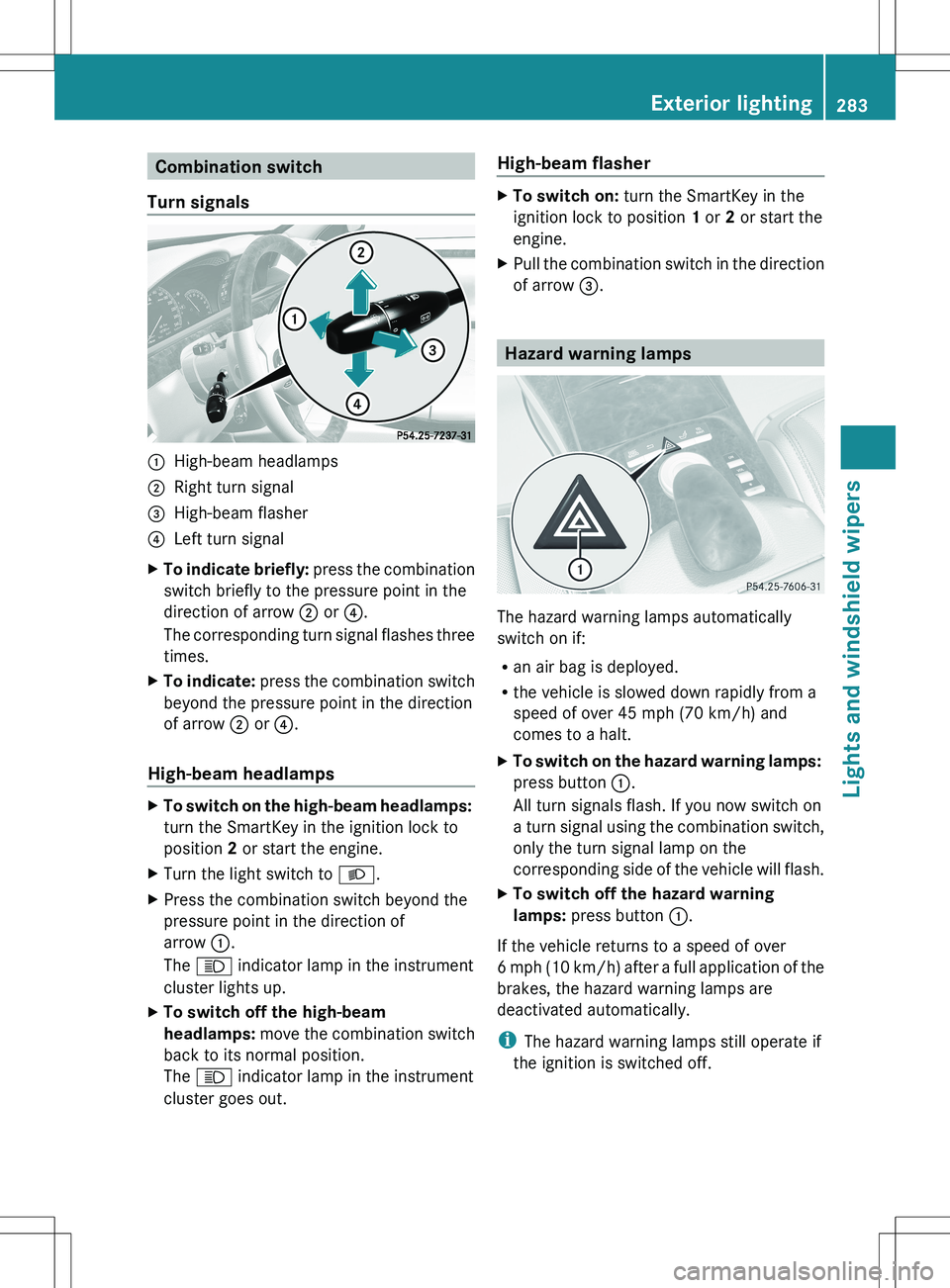
Combination switch
Turn signals:High-beam headlamps;Right turn signal=High-beam flasher?Left turn signalXTo indicate briefly: press the combination
switch briefly to the pressure point in the
direction of arrow ; or ?.
The corresponding turn signal flashes three
times.XTo indicate: press the combination switch
beyond the pressure point in the direction
of arrow ; or ?.
High-beam headlamps
XTo switch on the high-beam headlamps:
turn the SmartKey in the ignition lock to
position 2 or start the engine.XTurn the light switch to L.XPress the combination switch beyond the
pressure point in the direction of
arrow :.
The K indicator lamp in the instrument
cluster lights up.XTo switch off the high-beam
headlamps: move the combination switch
back to its normal position.
The K indicator lamp in the instrument
cluster goes out.High-beam flasherXTo switch on: turn the SmartKey in the
ignition lock to position 1 or 2 or start the
engine.XPull the combination switch in the direction
of arrow =.
Hazard warning lamps
The hazard warning lamps automatically
switch on if:
R an air bag is deployed.
R the vehicle is slowed down rapidly from a
speed of over 45 mph (70 km/h) and
comes to a halt.
XTo switch on the hazard warning lamps:
press button :.
All turn signals flash. If you now switch on
a turn signal using the combination switch,
only the turn signal lamp on the
corresponding side of the vehicle will flash.XTo switch off the hazard warning
lamps: press button :.
If the vehicle returns to a speed of over
6 mph (10 km/h) after a full application of the
brakes, the hazard warning lamps are
deactivated automatically.
i The hazard warning lamps still operate if
the ignition is switched off.
Exterior lighting283Lights and windshield wipersZ
Page 286 of 536
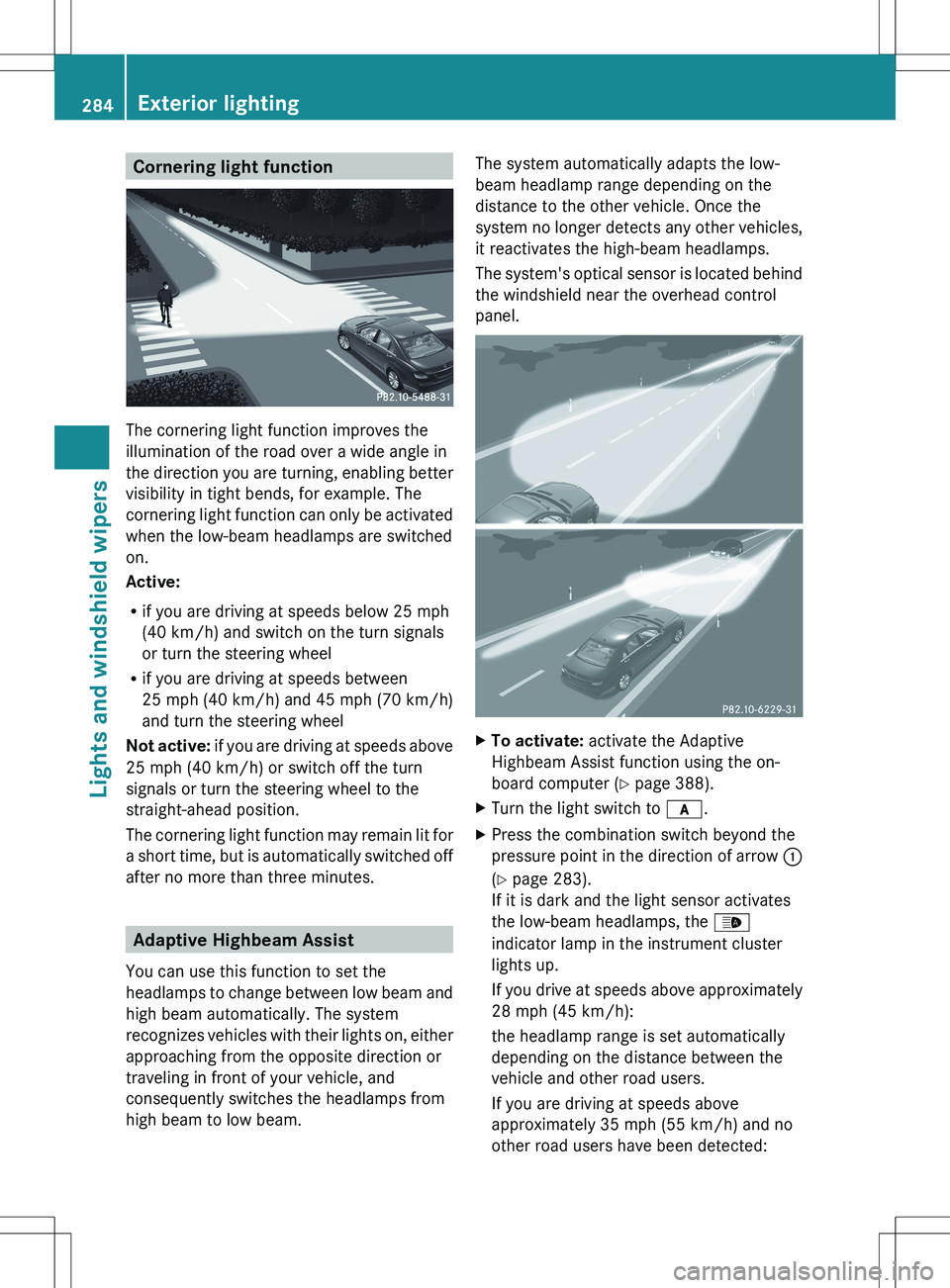
Cornering light function
The cornering light function improves the
illumination of the road over a wide angle in
the direction you are turning, enabling better
visibility in tight bends, for example. The
cornering light function can only be activated
when the low-beam headlamps are switched
on.
Active:
R if you are driving at speeds below 25 mph
(40 km/h) and switch on the turn signals
or turn the steering wheel
R if you are driving at speeds between
25 mph (40 km/h) and 45 mph (70 km/h)
and turn the steering wheel
Not active: if you are driving at speeds above
25 mph (40 km/h) or switch off the turn
signals or turn the steering wheel to the
straight-ahead position.
The cornering light function may remain lit for
a short time, but is automatically switched off
after no more than three minutes.
Adaptive Highbeam Assist
You can use this function to set the
headlamps to change between low beam and
high beam automatically. The system
recognizes vehicles with their lights on, either
approaching from the opposite direction or
traveling in front of your vehicle, and
consequently switches the headlamps from
high beam to low beam.
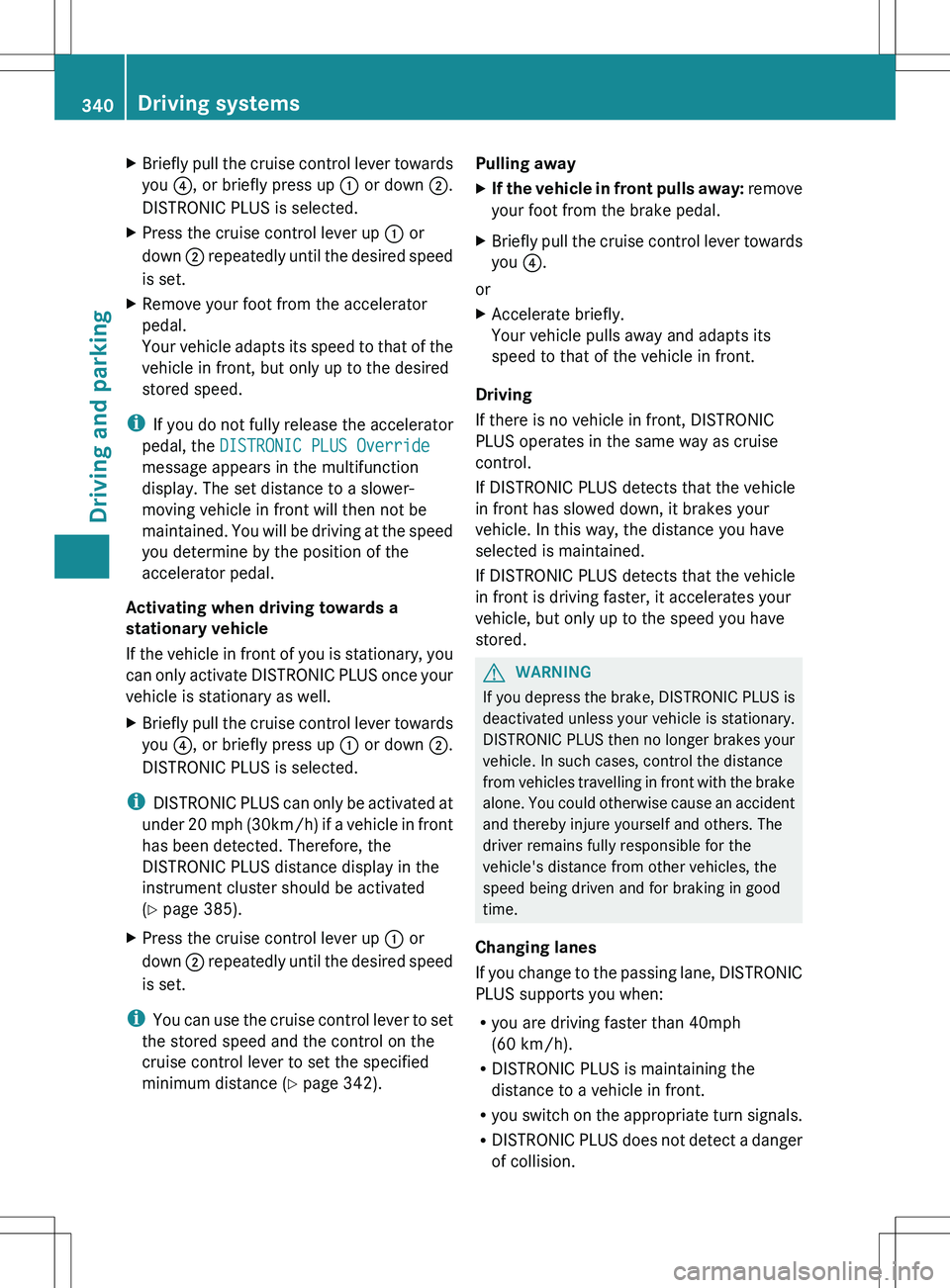
The system automatically adapts the low-
beam headlamp range depending on the
distance to the other vehicle. Once the
system no longer detects any other vehicles,
it reactivates the high-beam headlamps.
The system's optical sensor is located behind
the windshield near the overhead control
panel.XTo activate: activate the Adaptive
Highbeam Assist function using the on-
board computer ( Y page 388).XTurn the light switch to c.XPress the combination switch beyond the
pressure point in the direction of arrow :
( Y page 283).
If it is dark and the light sensor activates
the low-beam headlamps, the _
indicator lamp in the instrument cluster
lights up.
If you drive at speeds above approximately
28 mph (45 km/h):
the headlamp range is set automatically
depending on the distance between the
vehicle and other road users.
If you are driving at speeds above
approximately 35 mph (55 km/h) and no
other road users have been detected:284Exterior lightingLights and windshield wipers
Page 342 of 536
XBriefly pull the cruise control lever towards
you ?, or briefly press up : or down ;.
DISTRONIC PLUS is selected.XPress the cruise control lever up : or
down ; repeatedly until the desired speed
is set.XRemove your foot from the accelerator
pedal.
Your vehicle adapts its speed to that of the
vehicle in front, but only up to the desired
stored speed.
i If you do not fully release the accelerator
pedal, the DISTRONIC PLUS Override
message appears in the multifunction
display. The set distance to a slower-
moving vehicle in front will then not be
maintained. You will be driving at the speed
you determine by the position of the
accelerator pedal.
Activating when driving towards a
stationary vehicle
If the vehicle in front of you is stationary, you
can only activate DISTRONIC PLUS once your
vehicle is stationary as well.
XBriefly pull the cruise control lever towards
you ?, or briefly press up : or down ;.
DISTRONIC PLUS is selected.
i DISTRONIC PLUS can only be activated at
under 20 mph ( 30km/h) if a vehicle in front
has been detected. Therefore, the
DISTRONIC PLUS distance display in the
instrument cluster should be activated
( Y page 385).
XPress the cruise control lever up : or
down ; repeatedly until the desired speed
is set.
i You can use the cruise control lever to set
the stored speed and the control on the
cruise control lever to set the specified
minimum distance ( Y page 342).
Pulling awayXIf the vehicle in front pulls away: remove
your foot from the brake pedal.XBriefly pull the cruise control lever towards
you ?.
or
XAccelerate briefly.
Your vehicle pulls away and adapts its
speed to that of the vehicle in front.
Driving
If there is no vehicle in front, DISTRONIC
PLUS operates in the same way as cruise
control.
If DISTRONIC PLUS detects that the vehicle
in front has slowed down, it brakes your
vehicle. In this way, the distance you have
selected is maintained.
If DISTRONIC PLUS detects that the vehicle
in front is driving faster, it accelerates your
vehicle, but only up to the speed you have
stored.
GWARNING
If you depress the brake, DISTRONIC PLUS is
deactivated unless your vehicle is stationary.
DISTRONIC PLUS then no longer brakes your
vehicle. In such cases, control the distance
from vehicles travelling in front with the brake
alone. You could otherwise cause an accident
and thereby injure yourself and others. The
driver remains fully responsible for the
vehicle's distance from other vehicles, the
speed being driven and for braking in good
time.
Changing lanes
If you change to the passing lane, DISTRONIC
PLUS supports you when:
R you are driving faster than 40mph
(60 km/h).
R DISTRONIC PLUS is maintaining the
distance to a vehicle in front.
R you switch on the appropriate turn signals.
R DISTRONIC PLUS does not detect a danger
of collision.
340Driving systemsDriving and parking