phone MERCEDES-BENZ S-CLASS SEDAN 2012 Manual PDF
[x] Cancel search | Manufacturer: MERCEDES-BENZ, Model Year: 2012, Model line: S-CLASS SEDAN, Model: MERCEDES-BENZ S-CLASS SEDAN 2012Pages: 536, PDF Size: 39.39 MB
Page 240 of 536
iThe Normal Track Sequence option is
automatically selected when you change
the disc you are currently listening to or
when you select a different medium. If an
option is selected, it remains selected after
COMAND is switched on or off.
Media Interface mode
Connection options
Overview
You will find the connection sockets in the
glove box.
Device-specific adapter cables are required
to connect external devices to the Media
Interface. These cables are included in the
Media Interface scope of delivery.
i Store individual parts in a safe place.
Only use genuine Mercedes-Benz
connection cables.
You can connect the following data carriers
to COMAND via the Media Interface:
R iPod ®
R USB devices (USB sticks, USB hard drives,
MP3 players)
i iPod ®
is a registered trademark of Apple
Inc., Cupertino, California, USA.
Supported iPod ®
variants
The following are examples of supported
iPod ®
variants:
R iPod ®
nano
R iPod ®
classic
R iPod ®
touch
R iPhone ®
Supported USB devices
The following USB devices are supported:
R USB sticks (flash memory)
R USB hard drives requiring a startup/
permanent current of a maximum of
800 mA (it may be necessary to connect a
separate power supply)
R certain MP3 players
i The Media Interface supports USB
storage media of "USB Device Subclass 6".
Information concerning USB Device
Subclass 6 is available from the equipment
manufacturer.
For details and a list of supported devices,
visit http://www.mbusa-mobile.com . Or
call the Mercedes-Benz Customer Assistance
Center at
1-800-FOR-MERCedes(1-800-367-6372) (for
the USA) or Customer Relations at
1-800-387-0100 (for Canada).
Connecting an external device
i Do not leave external devices in the
vehicle as extreme temperatures (e.g.
direct sunlight or extremely low outside
temperatures) could cause them to
malfunction (see the operating instructions
for the respective device). Mercedes-Benz
USA, LLC accepts no liability for damage to
external devices.
Never connect more than one device at a
time. You will otherwise not be able to
operate the external device.
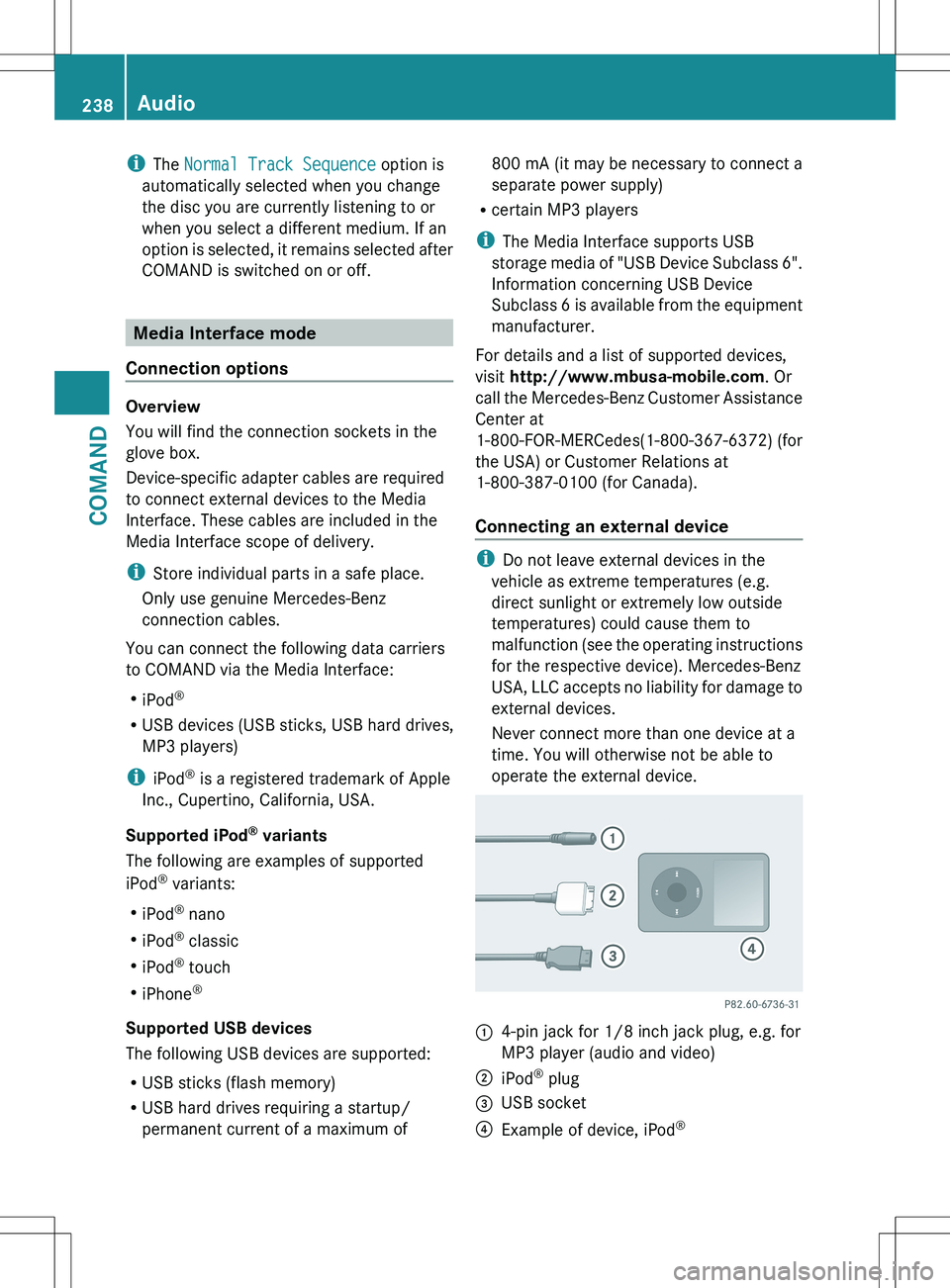
:4-pin jack for 1/8 inch jack plug, e.g. for
MP3 player (audio and video);iPod ®
plug=USB socket?Example of device, iPod ®238AudioCOMAND
Page 253 of 536
gradually. This enables you to determine
whether the system is able to play the
music at high volume without distorting it.
Rear Seat Entertainment System
General information
Important safety notes
GWARNING
The RSE CD/DVD player is a Class 1 laser
product. There is a danger of invisible laser
radiation when you open or damage the cover.
Do not remove the cover. The RSE CD/DVD
player does not contain any parts which can
be serviced by the user. For safety reasons,
have any necessary service work performed
by qualified personnel.
GWARNING
The driver should not wear a Rear Seat
Entertainment headset while operating the
vehicle under any circumstances. The use of
a headset while driving the vehicle could
drastically impair the ability to react to audible
traffic conditions (e.g. emergency sirens from
police/fire/ambulance, another car's horn,
etc.).
GWARNING
When not in use, headsets or external video
sources should be stored in a safe location
(e.g. one of the vehicle's storage
compartments) so that they are not loose
within the passenger compartment during
braking, vehicle maneuvers or a traffic
accident. Objects moving within the
passenger compartment could cause serious
personal injury to vehicle occupants.
GWARNING
Due to a potential choking hazard, wired
headset usage by children should only occur
with adult supervision.
Changing batteries
Batteries are required for the remote control
and for the two sets of cordless headphones.
GWARNING
Keep the batteries out of the reach of
children. Consult a doctor immediately if a
child should swallow a battery.
Do not dismantle, short-circuit or burn a
battery.
HEnvironmental note
Dispose of discharged batteries in an
environmentally responsible manner.
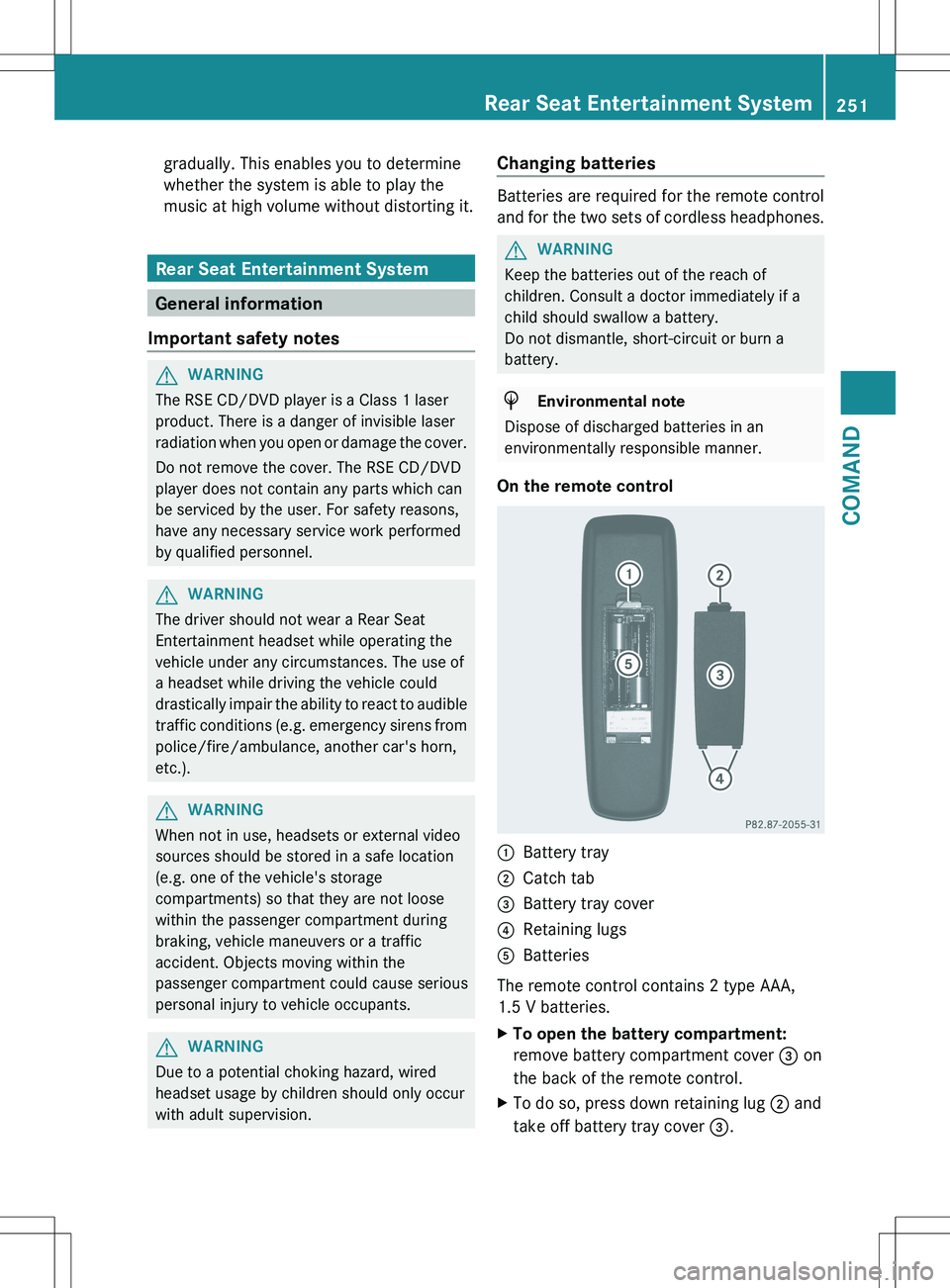
On the remote control
:Battery tray;Catch tab=Battery tray cover?Retaining lugsABatteries
The remote control contains 2 type AAA,
1.5 V batteries.
XTo open the battery compartment:
remove battery compartment cover = on
the back of the remote control.XTo do so, press down retaining lug ; and
take off battery tray cover =.Rear Seat Entertainment System251COMANDZ
Page 254 of 536
XRemove discharged batteries A from the
tray.XInsert the new batteries. Observe the
polarity markings on the batteries and
battery tray when doing so.
Left-hand battery: the positive pole (+)
must face upwards.
Right-hand battery: the positive pole (+)
must face downwards.XTo close the battery compartment:
insert battery compartment cover =
starting with retaining lugs ? into the
battery compartment and allow catch
tab ; to engage in place.
On the cordless headphones
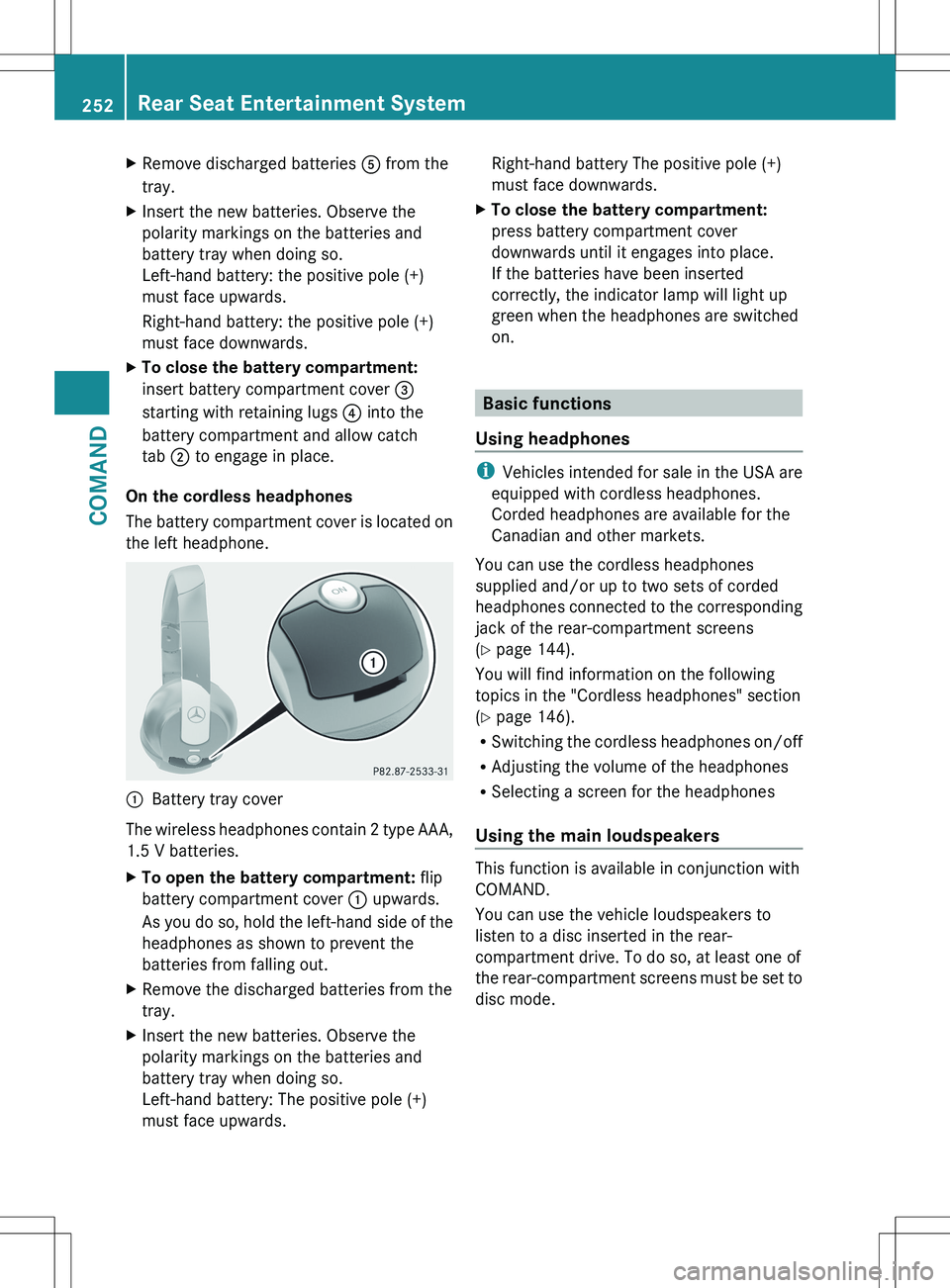
The battery compartment cover is located on
the left headphone.
:Battery tray cover
The wireless headphones contain 2 type AAA,
1.5 V batteries.
XTo open the battery compartment: flip
battery compartment cover : upwards.
As you do so, hold the left-hand side of the
headphones as shown to prevent the
batteries from falling out.XRemove the discharged batteries from the
tray.XInsert the new batteries. Observe the
polarity markings on the batteries and
battery tray when doing so.
Left-hand battery: The positive pole (+)
must face upwards.Right-hand battery The positive pole (+)
must face downwards.XTo close the battery compartment:
press battery compartment cover
downwards until it engages into place.
If the batteries have been inserted
correctly, the indicator lamp will light up
green when the headphones are switched
on.
Basic functions
Using headphones
i Vehicles intended for sale in the USA are
equipped with cordless headphones.
Corded headphones are available for the
Canadian and other markets.
You can use the cordless headphones
supplied and/or up to two sets of corded
headphones connected to the corresponding
jack of the rear-compartment screens
( Y page 144).
You will find information on the following
topics in the "Cordless headphones" section
( Y page 146).
R Switching the cordless headphones on/off
R Adjusting the volume of the headphones
R Selecting a screen for the headphones
Using the main loudspeakers
This function is available in conjunction with
COMAND.
You can use the vehicle loudspeakers to
listen to a disc inserted in the rear-
compartment drive. To do so, at least one of
the rear-compartment screens must be set to
disc mode.
252Rear Seat Entertainment SystemCOMAND
Page 255 of 536

XTo set operation via the main
loudspeakers: press the R function
button on the center console once or twice.XSelect Audio by sliding ZV the COMAND
controller and press W to confirm.
The Audio menu appears.XSelect Rear by turning cVd the COMAND
controller and press W to confirm.
i
The headphones' volume setting does not
affect the main loudspeakers.
Adjusting the sound settings
You can select the sound settings in the audio
CD/DVD/MP3, video DVD and AUX modes.
XSwitch on an audio operating mode (e.g.
audio CD mode).XSelect Treble or Bass using
the :=; buttons on the remote
control and press the 9 button to confirm.
An adjustment scale appears.XSelect a setting using the 9:
buttons and press the 9 button to confirm.
Multiple users
Simultaneous use of the rear-
compartment disc drive
The two rear-compartment screens can be
operated almost entirely independently from
one another. However, there can be a conflict
in some menus if the two screens are used
simultaneously.
If the rear-compartment disc drive is being
used for both screens simultaneously,
selecting certain menus or settings on one of
the screens also affects the other screen.
The following functions affect both screens:
R changing playback options
R selecting a track (from a track list or folder)
R using the play, pause and stop functions
R fast forwarding/rewinding or scrolling
R calling up the DVD menu and navigating
within it
R setting the language, subtitles and camera
angle
R calling up interactive DVD content
The following functions affect only one
screen:
R audio and video functions as well as picture
settings
R switching between full screen and the
menu
Switching between operating modes
When you exit an operating mode (e.g. audio
CD mode), the current setting is saved. If you
call up this operating mode again later, there
are two possibilities:
R the operating mode has been changed on
the other screen.
R the operating mode has not been changed.
In the first case, the operating mode appears
as it is on the other screen.
In the second case, the setting appears on the
screen as it was when you last exited the
operating mode.
Picture settings
Overview
You can select these settings in video DVD
and AUX mode. Instructions for AUX mode
are detailed later ( Y page 263).
Adjusting the brightness, contrast and
color
XSwitch on video DVD mode ( Y page 246).XTo show the menu: press the 9 button
on the remote control.
or
XSelect Menu while the navigation menu
( Y page 246) is shown and press the 9
button to confirm.XIn both cases, select Video DVD using
the :=; buttons and press the
9 button to confirm.Rear Seat Entertainment System253COMANDZ
Page 266 of 536
Displaying AUXXSelect the screen to which the external
video source is connected using the remote
control ( Y page 129).XSelect AUX in the menu using the
9=; buttons on the remote
control and press the 9 button to confirm.XSelect Source from the AUX menu and
press the 9 button to confirm.XSelect Display Aux and press the 9
button to confirm.
You will see and hear the content of the
video source if it is switched to playback. If
no video image is available from the AUX
source connected, you will see an audio
menu.
Selecting the active COMAND source
XSelect AUX in the menu using the
9=; buttons on the remote
control and press the 9 button to confirm.XSelect Source from the AUX menu and
press the 9 button to confirm.XSelect COMAND and press the 9 button to
confirm.
The audio or video mode selected in
COMAND is transmitted to the Rear Seat
Entertainment System.
Operation with an active COMAND
source
You can transfer an audio or video mode
selected in COMAND to the Rear Seat
Entertainment System.
i If you subsequently switch modes in
COMAND, the new source will not be
transmitted to the Rear Seat Entertainment
System.
XTo switch on the function in COMAND:
switch on the desired audio mode in
COMAND or show the menu in video DVD
mode.XSelect the menu item at the bottom left,
e.g. CD in audio CD mode, by sliding VÆand turning cVd the COMAND controller
and press W to confirm.XSelect Active Source for Rear and
press W to confirm.
In the status bar at the top, you will see the
headphones icon and the _ icon for the
source that has been switched on.XTo switch off the function in COMAND:
switch on the desired audio mode in
COMAND or show the menu in video DVD
mode.XSelect the menu item at the bottom left,
e.g. CD in audio CD mode, by sliding VÆ
and turning cVd the COMAND controller
and press W to confirm.XSelect Rear OFF _ and press W the
COMAND controller to confirm.
Adjusting the brightness, contrast or
color
XSelect Source in the rear-compartment
screen and press the 9 button on the
remote control to confirm.XSelect Display Aux or Disk Drive Aux
and press the 9 button to confirm.XSelect Brightness , Contrast or Color
and press the 9 button to confirm.
An adjustment scale appears.XSelect a setting using the 9 or :
button and press the 9 button to confirm.
Changing the picture format
XSelect Source in the AUX menu and press
the 9 button on the remote control to
confirm.XSelect Display Aux or Disk Drive Aux
and press the 9 button to confirm.XSelect Auto16:9 optimized , 4:3 or
Widescreen using the 9: buttons
and press the 9 button to confirm.
The ä icon in front of a menu item
indicates the current setting.264Rear Seat Entertainment SystemCOMAND
Page 332 of 536
Driving tips
General driving tips
Important safety notes
GWARNING
Always remember that you must concentrate
primarily on driving the vehicle. The driver's
concentration must always be directed
primarily at road traffic. For your own safety
and that of others, we recommend that you
stop the vehicle at a safe place and in
accordance with the traffic conditions before
making or accepting a phone call.
Comply with all legal requirements if you use
the telephone while driving. Use the hands-
free system and only use the telephone when
road, weather and traffic conditions permit. In
some jurisdictions, it is forbidden for drivers
to use mobile phones while driving.
Only operate COMAND (Cockpit Management
and Data System) in compliance with all legal
requirements and when the road, weather and
traffic conditions permit. You may otherwise
not be able to observe the traffic conditions,
endangering yourself and others.
Remember that your vehicle covers a distance
of 44 ft (approximately 14 m) a second when
it is traveling at only 30 mph (approximately
50 km/h).
Drive sensibly – save fuel
Observe the following tips to save fuel:
XThe tires should always be inflated to the
recommended tire pressure.XRemove unnecessary loads.XRemove roof racks when they are not
needed.XWarm up the engine at low engine speeds.XAvoid frequent acceleration or braking.XHave all maintenance work carried out as
indicated by the service intervals in the
Maintenance Booklet or by the service
interval display.Fuel consumption also increases when
driving in cold weather, in stop-and-go traffic
and in mountainous terrain.
Drinking and drivingGWARNING
Drinking and driving and/or taking drugs and
driving are very dangerous combinations.
Even a small amount of alcohol or drugs can
affect your reflexes, perceptions and
judgment.
The possibility of a serious or even fatal
accident are greatly increased when you drink
or take drugs and drive.
Do not drink or take drugs and drive or allow
anyone to drive who has been drinking or
taking drugs.
Pedals
GWARNING
Make sure absolutely no objects are
obstructing the pedals' range of movement.
Keep the driver's footwell clear of all
obstacles. If there are any floormats or
carpets in the footwell, make sure that the
pedals still have sufficient clearance.
During sudden driving or braking maneuvers,
the objects could get caught between the
pedals. You could then no longer brake or
accelerate. This could lead to accidents and
injury.
Rolling with the engine switched off
GWARNING
There is no power assistance for the steering
and the brake when the engine is not running.
Steering and braking requires significantly
more effort and you could lose control of the
vehicle and cause an accident as a result.
Do not turn off the engine while the vehicle is
in motion.
330Driving tipsDriving and parking
Page 361 of 536
ATTENTION ASSIST
Important safety notes
ATTENTION ASSIST helps you during long,
monotonous journeys such as on freeways
and interstate highways. It is active in the
range between 50 mph (80 km/h) and
112 mph (180 km/h).
If ATTENTION ASSIST detects typical
indicators of fatigue or increasing lapses in
concentration on the part of the driver, it
suggests you take a break.
GWARNING
ATTENTION ASSIST is only an aid and may
detect your tiredness or lapses in
concentration too late or not at all. It is not a
substitute for a well-rested and attentive
driver.
Fatigue may cause you to recognize
hazardous situations too late, misjudge a
situation or react more slowly. For this
reason, make sure you feel rested before you
begin driving and during your journey. Make
sure that you take regular breaks in time,
particularly on long journeys. Otherwise, you
may fail to recognize dangers in time, cause
an accident and injure yourself and others.
ATTENTION ASSIST assesses your level of
fatigue or lapses in concentration by taking
the following criteria into account:
R your personal driving style, e.g. steering
characteristics
R driving conditions, e.g. time, driving time
The functionality of ATTENTION ASSIST is
restricted and warnings may be delayed or
not occur at all:
R if the road condition is poor, e.g. if the
surface is uneven or if there are potholes
R if there is a strong side wind
R if you have adopted a sporty driving style
with high cornering speeds or high rates of
acceleration
R if you are predominantly driving slower
than 50 mph (80 km/h) or faster than
112 mph (180 km/h)
R if you are currently using COMAND or
making a telephone call with it
R if the time has been set incorrectly
R in active driving situations, such as when
you change lanes or change your speed
Warning and display messages in the
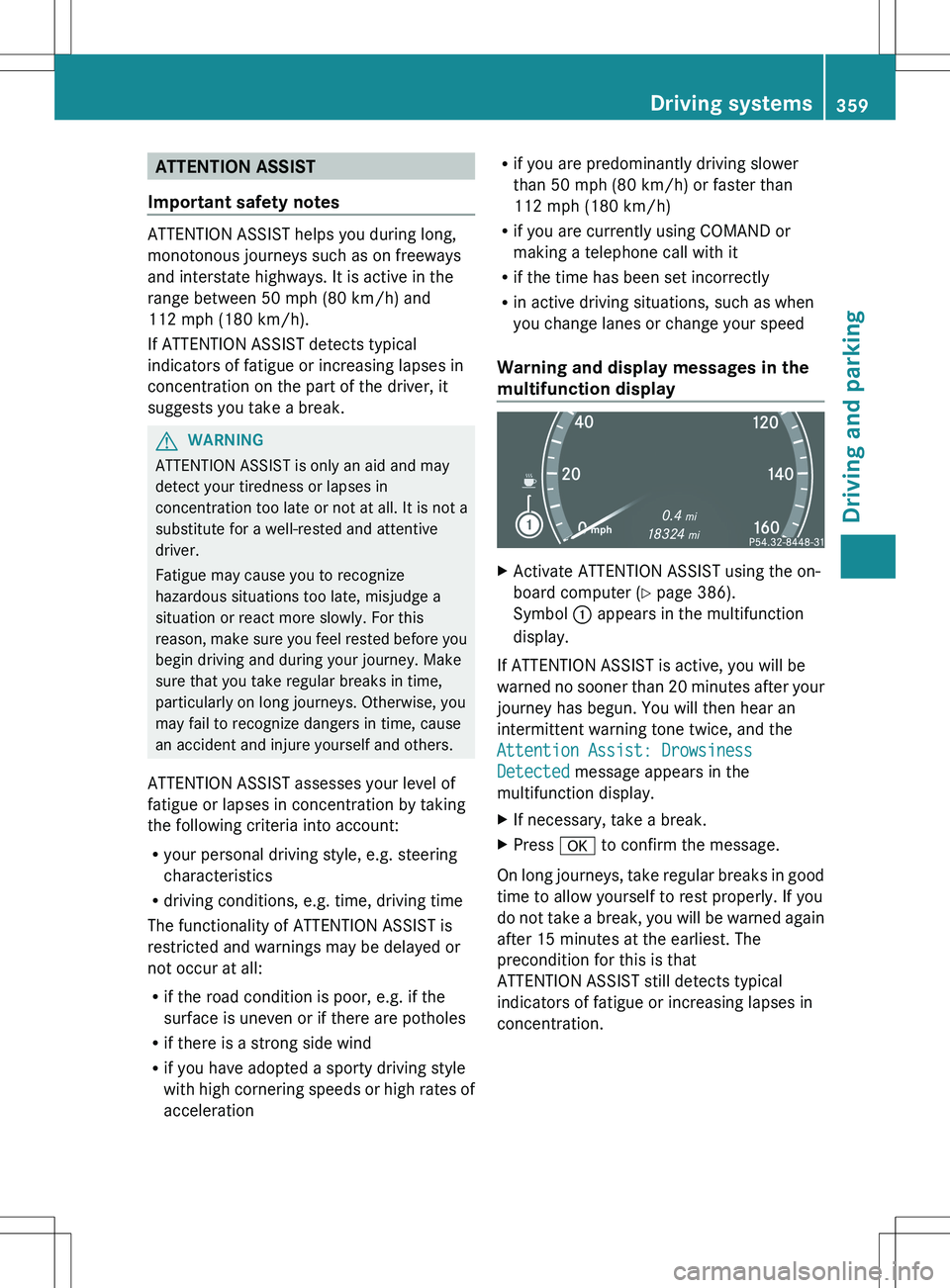
multifunction displayXActivate ATTENTION ASSIST using the on-
board computer ( Y page 386).
Symbol : appears in the multifunction
display.
If ATTENTION ASSIST is active, you will be
warned no sooner than 20 minutes after your
journey has begun. You will then hear an
intermittent warning tone twice, and the
Attention Assist: Drowsiness
Detected message appears in the
multifunction display.
XIf necessary, take a break.XPress a to confirm the message.
On long journeys, take regular breaks in good
time to allow yourself to rest properly. If you
do not take a break, you will be warned again
after 15 minutes at the earliest. The
precondition for this is that
ATTENTION ASSIST still detects typical
indicators of fatigue or increasing lapses in
concentration.
Driving systems359Driving and parkingZ
Page 377 of 536
vehicle and do not stand near the vehicle until
the engine has cooled down.
The coolant temperature gauge is in the
instrument cluster on the left-hand side.
Under normal operating conditions and with
the specified coolant level, the coolant
temperature may rise to 248 ‡ (120 †).
! A display message is shown if the coolant
temperature is too high.
If the coolant temperature is over
248 ‡(120 †), do not continue driving. The
engine will otherwise be damaged.
Tachometer
The red band in the tachometer indicates the
engine's overrevving range.
! Do not drive in the overrevving range, as
this could damage the engine.
The fuel supply is interrupted to protect the
engine when the red band is reached.
Outside temperature display
The outside temperature display is in the
multifunction display ( Y page 376).
GWARNING
The outside temperature indicator is not
designed to serve as an ice-warning device
and is therefore unsuitable for that purpose.
Indicated temperatures just above the
freezing point do not guarantee that the road
surface is free of ice. The road may still be icy,
especially in wooded areas or on bridges.
Changes in the outside temperature are
displayed after a short delay.
Operating the on-board computer
The on-board computer is activated as soon
as you turn the SmartKey to position 2 in the
ignition lock.
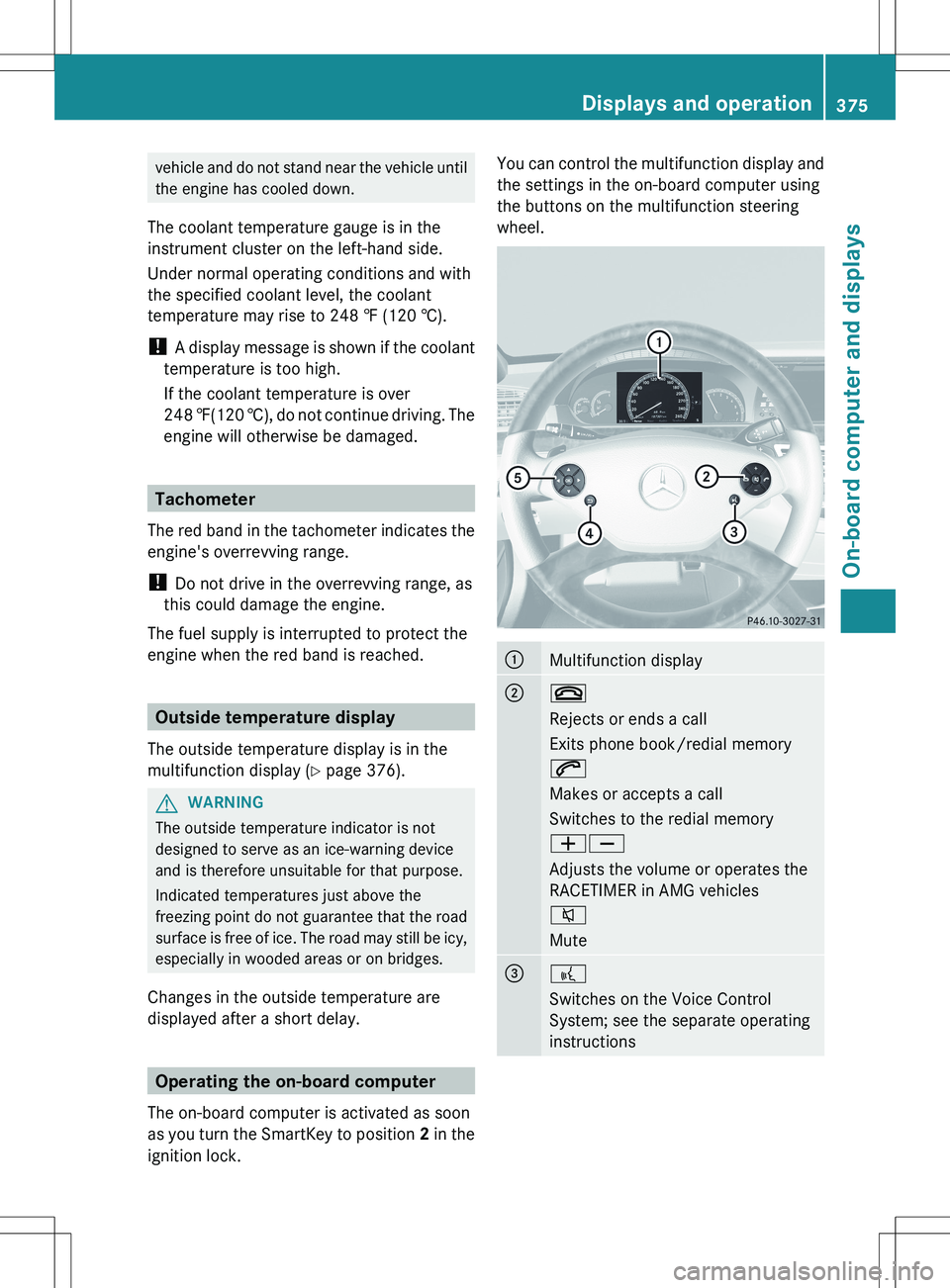
You can control the multifunction display and
the settings in the on-board computer using
the buttons on the multifunction steering
wheel.:Multifunction display;~
Rejects or ends a call
Exits phone book/redial memory
6
Makes or accepts a call
Switches to the redial memory
WX
Adjusts the volume or operates the
RACETIMER in AMG vehicles
8
Mute=?
Switches on the Voice Control
System; see the separate operating
instructionsDisplays and operation375On-board computer and displaysZ
Page 378 of 536
?%Press briefly:
Back
Switches off the Voice Control
System; see the separate operating
instructions
Hides display messages or calls up
the last Trip menu function used% Press and hold:
Calls up the standard display in the
Trip menuA=;
Selects a menu9: Press briefly:
Selects a function or scrolls through
lists
In the Audio menu: selects a stored
station, an audio track or a video
scene
In the Telephone menu: switches to
the phone book and selects a name
or a telephone number9: Press and hold:
In the Audio menu: selects a station
from the alphabetical list of stations,
starts station search or starts rapid
scrolling through an audio/video
disc
In the Telephone menu: starts rapid
scrolling through the phone booka
Confirms selections and display
messages
In the Telephone menu: switches to
the phone book and starts dialing
In the Audio menu: stops the station
search function at the desired stationMultifunction display
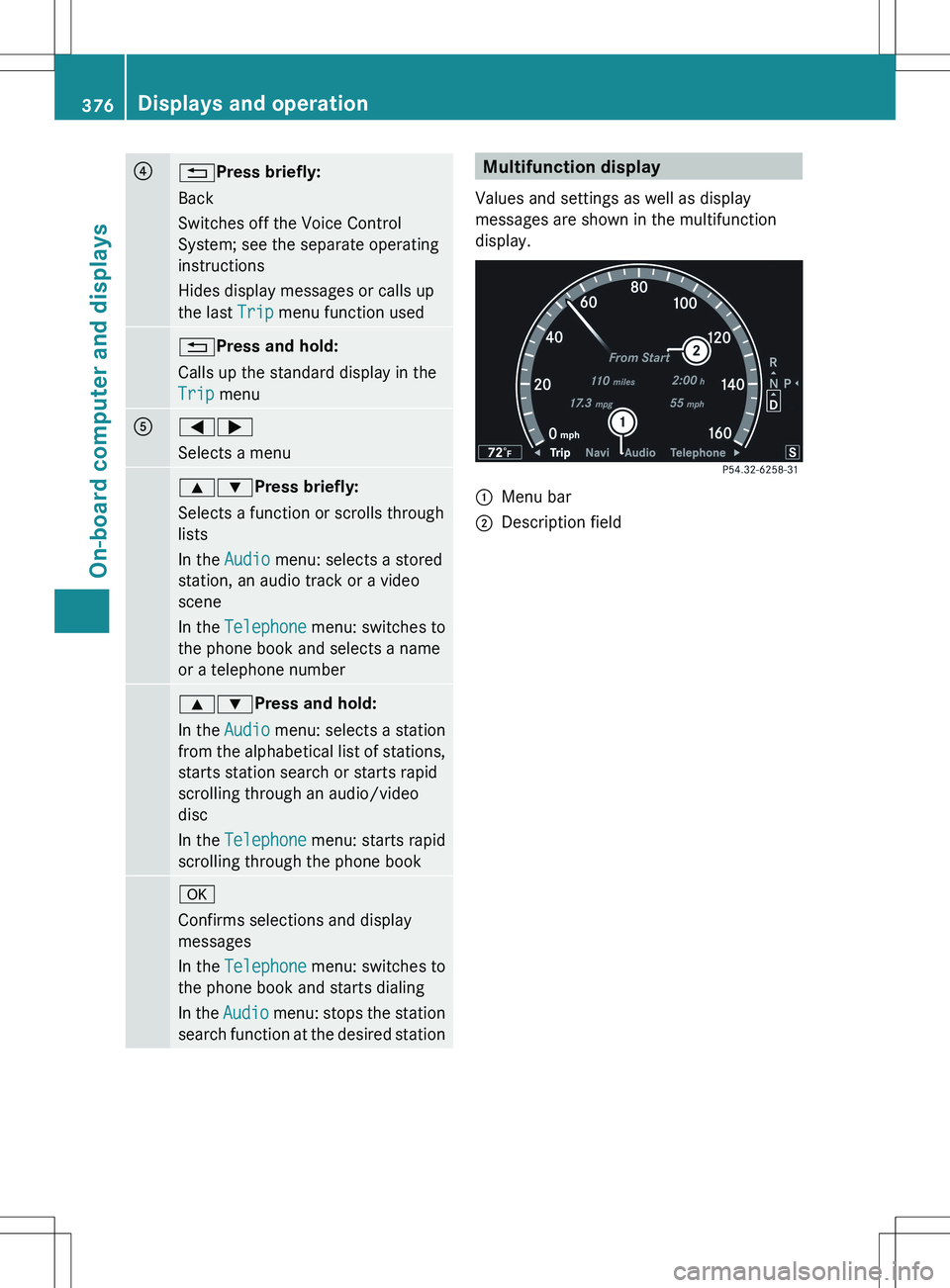
Values and settings as well as display
messages are shown in the multifunction
display.:Menu bar;Description field376Displays and operationOn-board computer and displays
Page 379 of 536
Menus and submenus
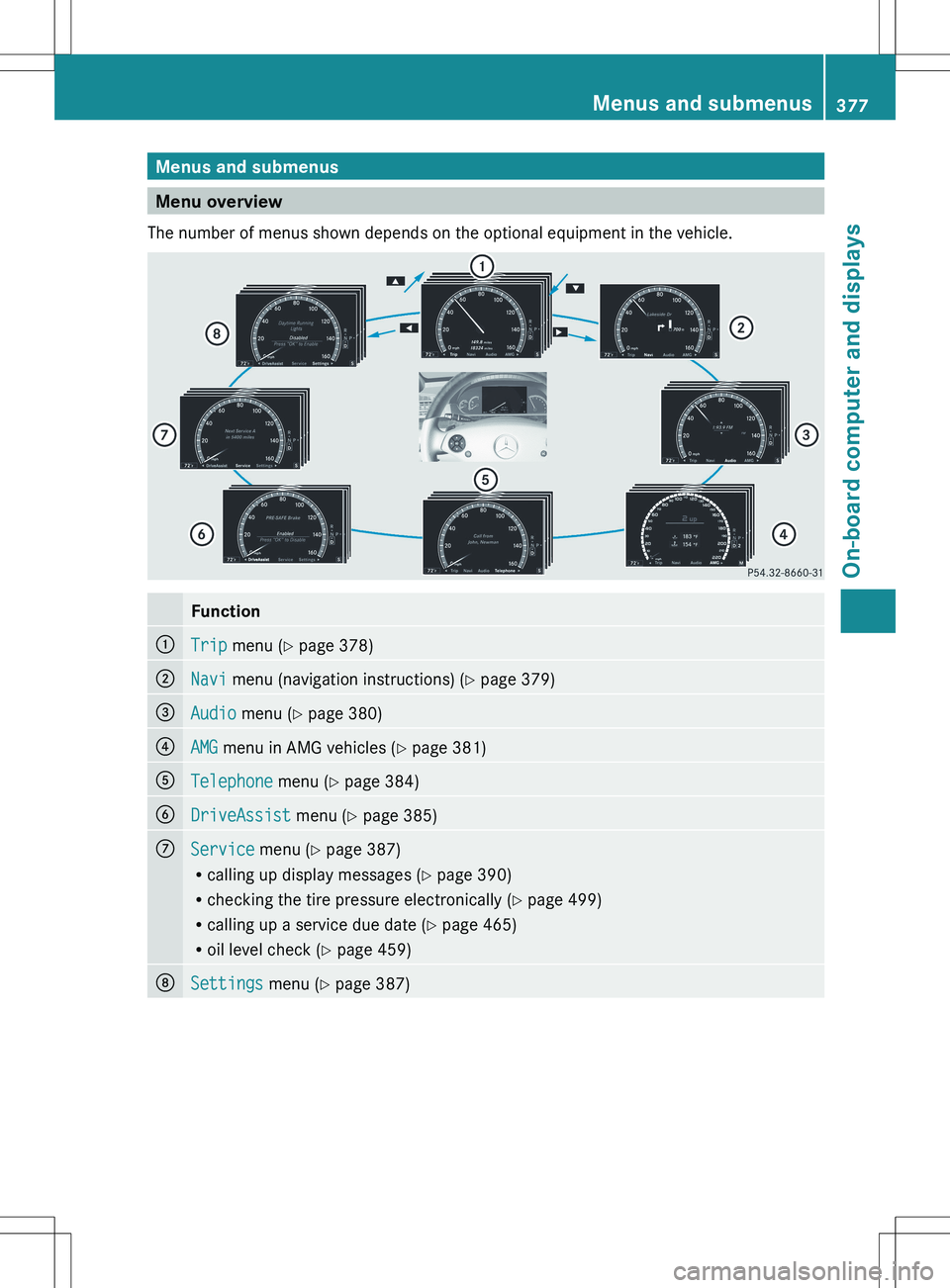
Menu overview
The number of menus shown depends on the optional equipment in the vehicle.
Function:Trip menu ( Y page 378);Navi menu (navigation instructions) ( Y page 379)=Audio menu ( Y page 380)?AMG menu in AMG vehicles ( Y page 381)ATelephone menu (Y page 384)BDriveAssist menu (Y page 385)CService menu (Y page 387)
R calling up display messages ( Y page 390)
R checking the tire pressure electronically ( Y page 499)
R calling up a service due date ( Y page 465)
R oil level check ( Y page 459)DSettings menu (Y page 387)Menus and submenus377On-board computer and displaysZ