remote control MERCEDES-BENZ SL-Class 2015 R131 User Guide
[x] Cancel search | Manufacturer: MERCEDES-BENZ, Model Year: 2015, Model line: SL-Class, Model: MERCEDES-BENZ SL-Class 2015 R131Pages: 610, PDF Size: 12.21 MB
Page 461 of 610
All the tracks on the medium are played in
random order.
R Random Track List
Random Track List (MP3 mode only)
The tracks in the currently active folder or
the current track list are played in a random
order.
X To select options: switch to the MUSIC
REGISTER (Y page 455).
X Select Music Music Register
Register by sliding00520064and
turning 00790052007Athe COMAND controller and
the press 0098to confirm.
The options list appears. The 003Bdot indi-
cates the option selected.
X Select an option and press 0098to confirm.
The option is switched on. For all options
except Normal Track Sequence
Normal Track Sequence, you will
see a corresponding display in the display/ selection window.
i The
Normal Track Sequence
Normal Track Sequence option is
automatically selected when you change
the disc you are currently listening to or
when you select a different medium. If an
option is selected, it remains selected after COMAND is switched on or off. Bluetooth
®
audio mode
Preconditions for the Bluetooth ®
audio
device Bluetooth
®
audio mode requires a Blue-
tooth ®
-capable audio device. Observe the
information in the Bluetooth ®
audio device's
operating instructions.
Before using Bluetooth ®
audio mode, you
should check your Bluetooth ®
audio device
for the following:
R Bluetooth ®
audio profile
The Bluetooth ®
audio device must support
the A2DP and AVRCP Bluetooth ®
audio
profiles.
R Bluetooth ®
visibility
Certain Bluetooth ®
audio devices do not
just require activation of the Bluetooth ®function. In addition, your device must be
made "visible" to other devices.
R Bluetooth ®
device name
This device name is predetermined but can
usually be changed. To make a clear selec-
tion of the Bluetooth ®
device possible,
Mercedes-Benz recommends that you cus- tomize the device name.
i A2DP (
Advanced AudioDistribution
Profile): Bluetooth ®
audio profile for audio
data transmission
AVRCP (Audio VideoRemote Control
Profile): Bluetooth ®
audio profile for audio
data playback.
i Not all Bluetooth ®
audio devices available
on the market are equally suitable. To
obtain more information about suitable
Bluetooth ®
audio devices and about con-
necting Bluetooth ®
audio devices to
COMAND, visit
http://www.mbusa-mobile.com (USA).
Or call the Mercedes-Benz Customer Assis-
tance center at 1-800-FOR-MERCedes
(1-800-367-6372) (USA) or Customer Rela-
tions at 1-800-387-010 0(Canada).
X Activate Bluetooth ®
and Bluetooth ®
visibil-
ity on the Bluetooth ®
audio device.
Preconditions in COMAND X
Activate the Bluetooth ®
function in
COMAND (Y page 308).
Connecting Bluetooth ®
audio devices General information
Before using your Bluetooth
®
audio device
with COMAN Dfor the first time, you will need
to authorize it.
When you authorize a new Bluetooth ®
audio
device, it is connected automatically. Con-
nection involves first searching for a Blue-
tooth ®
audio device and then authorizing it. Audio
459COMAND Z
Page 468 of 610
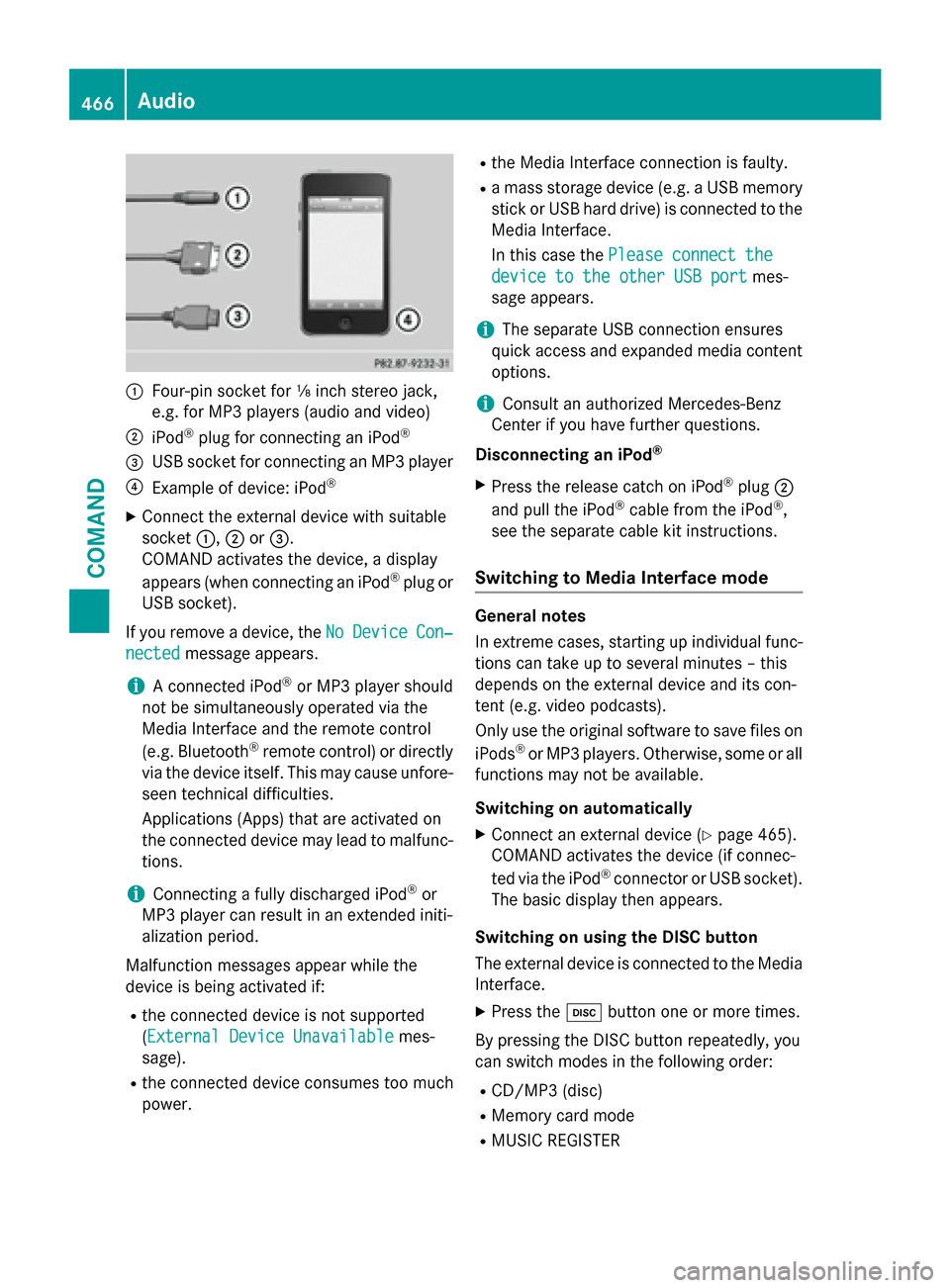
0043
Four-pin socket for ⅛ inch stereo jack,
e.g. for MP3 players (audio and video)
0044 iPod ®
plug for connecting an iPod ®
0087 USB socket for connecting an MP3 player
0085 Example of device: iPod ®
X Connect the external device with suitable
socket 0043,0044or0087.
COMAND activates the device, a display
appears (when connecting an iPod ®
plug or
USB socket).
If you remove a device, the No
No Device Device Con‐
Con‐
nected
nected message appears.
i A connected iPod ®
or MP3 player should
not be simultaneously operated via the
Media Interface and the remote control
(e.g. Bluetooth ®
remote control) or directly
via the device itself. This may cause unfore- seen technical difficulties.
Applications (Apps) that are activated on
the connected device may lead to malfunc-
tions.
i Connecting a fully discharged iPod ®
or
MP3 player can result in an extended initi-
alization period.
Malfunction messages appear while the
device is being activated if:
R the connected device is not supported
(External Device UnavailableExternal Device Unavailable mes-
sage).
R the connected device consumes too much
power. R
the Media Interface connection is faulty.
R a mass storage device (e.g. a USB memory
stick or USB hard drive) is connected to the
Media Interface.
In this case the Please connect the
Please connect the
device to the other USB port device to the other USB port mes-
sage appears.
i The separate USB connection ensures
quick access and expanded media content options.
i Consult an authorized Mercedes-Benz
Center if you have further questions.
Disconnecting an iPod ®
X Press the release catch on iPod ®
plug 0044
and pull the iPod ®
cable from the iPod ®
,
see the separate cable kit instructions.
Switching to Media Interface mode General notes
In extreme cases, starting up individual func-
tions can take up to several minutes – this
depends on the external device and its con-
tent (e.g. video podcasts).
Only use the original software to save files on
iPods ®
or MP3 players. Otherwise, some or all
functions may not be available.
Switching on automatically
X Connect an external device (Y page 465).
COMAND activates the device (if connec-
ted via the iPod ®
connector or USB socket).
The basic display then appears.
Switching on using the DISC button
The external device is connected to the Media Interface.
X Press the 003Abutton one or more times.
By pressing the DISC button repeatedly, you
can switch modes in the following order:
R CD/MP3 (disc)
R Memory card mode
R MUSIC REGISTER 466
AudioCOMAND
Page 483 of 610
Overview
Important safety notes G
WARNING
The CD/DVD drive is a class 1 laser product. If you open the housing of the CD/DVD drive,
there is a risk of exposure to invisible laser
radiation. This laser radiation could damage
your retina. There is a risk of injury.
Never open the housing. Always have main-
tenance and repair work carried out at a quali- fied specialist workshop. G
WARNING
If objects such as headphones/headsets or
external audio/video sources are not secured in the passenger compartment, they can be
flung around and hit vehicle occupants. There
is a risk of injury, for example in the event of
sudden braking or a sudden change in direc-
tion.
Always stow these items or similar objects
carefully so that they cannot be flung around, for example in a lockable vehicle stowage
compartment.
Components The Rear Seat Entertainment System
includes:
R two screens for the rear behind the front-
seat head restraints
R two remote controls
R a CD/DVD drive
R AUX jacks on both screens (AUX display)
and on the CD/DVD drive (AUX drive)
R two sets of cordless headphones Rear Seat Entertainment System
481COMAND Z
Page 484 of 610
Rear-compartment screens
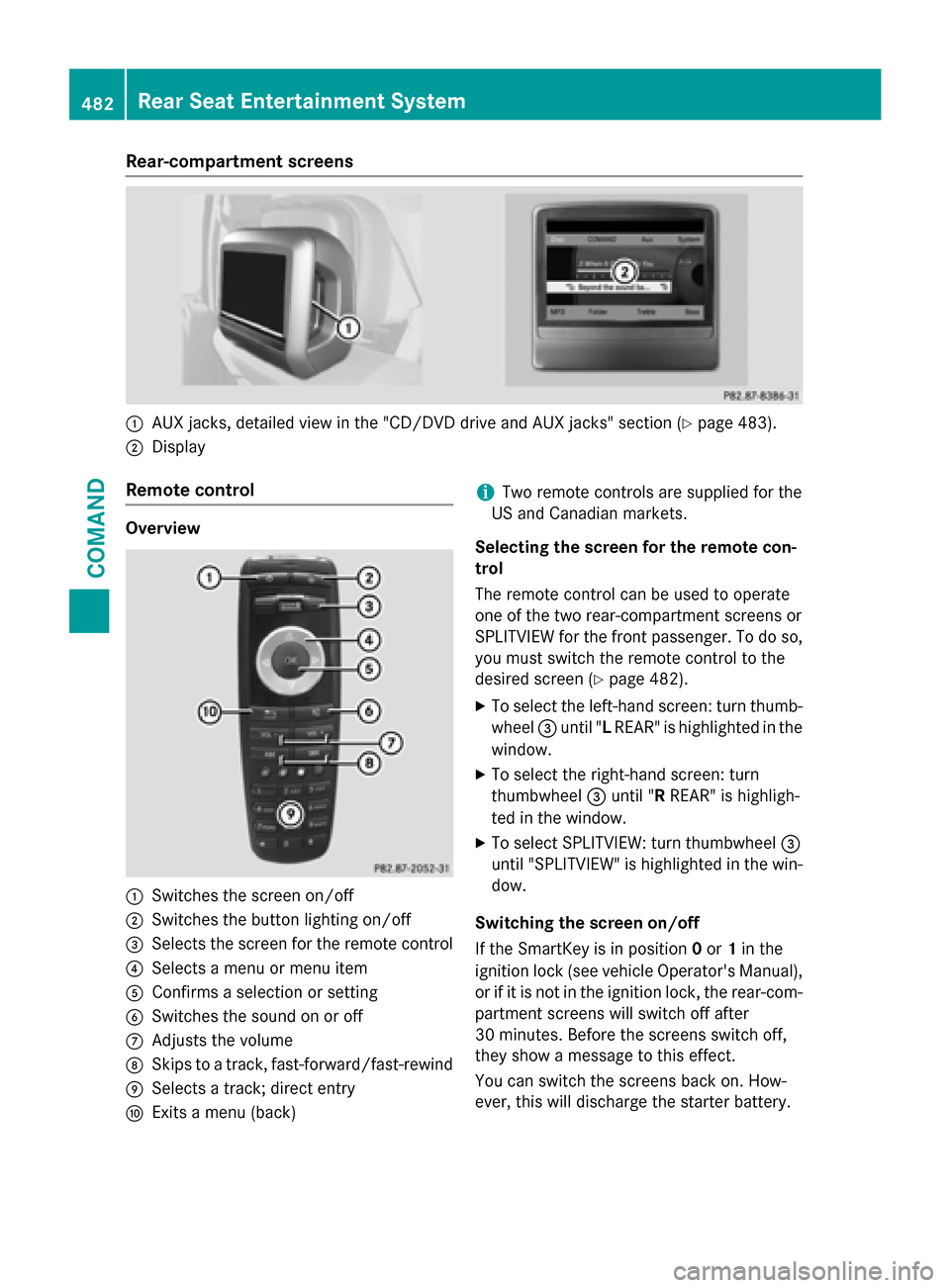
0043
AUX jacks, detailed view in the "CD/DVD drive and AUX jacks" section (Y page 483).
0044 Display
Remote control Overview
0043
Switches the screen on/off
0044 Switches the button lighting on/off
0087 Selects the screen for the remote control
0085 Selects a menu or menu item
0083 Confirms a selection or setting
0084 Switches the sound on or off
006B Adjusts the volume
006C Skips to a track, fast-forward/fast-rewind
006D Selects a track; direct entry
006E Exits a menu (back) i
Two remote controls are supplied for the
US and Canadian markets.
Selecting the screen for the remote con-
trol
The remote control can be used to operate
one of the two rear-compartment screens or
SPLITVIEW for the front passenger. To do so, you must switch the remote control to the
desired screen (Y page 482).
X To select the left-hand screen: turn thumb-
wheel 0087until "L REAR" is highlighted in the
window.
X To select the right-hand screen: turn
thumbwheel 0087until "R REAR" is highligh-
ted in the window.
X To select SPLITVIEW: turn thumbwheel 0087
until "SPLITVIEW" is highlighted in the win-
dow.
Switching the screen on/off
If the SmartKey is in position 0or 1in the
ignition lock (see vehicle Operator's Manual),
or if it is not in the ignition lock, the rear-com- partment screens will switch off after
30 minutes. Before the screens switch off,
they show a message to this effect.
You can switch the screens back on. How-
ever, this will discharge the starter battery. 482
Rear Seat Entertainment SystemCOMAND
Page 485 of 610
X
Point the remote control at the rear-com-
partment screen which has been selected
for remote operation.
X Press button 0043on the remote control
(Y page 482).
The respective rear-compartment screen
switches on or off.
i You can only switch the screens on using
the remote control if the ignition is
switched on.
Switching the button lighting on/off
X Press button 0044on the remote control
(Y page 482).
Depending on the previous status, the but-
ton lighting is switched on or off.
i If you do not use the remote control for
about 15 seconds, the button lighting
switches off automatically.
Switching the sound on or off X Press button 0084on the remote control
(Y page 482).
The sound is switched on/off.
Selecting a menu/menu item and con-
firming your selection X Select a menu/menu item using the
0059006500630064 buttons on the
remote control and press the 008Bbutton to
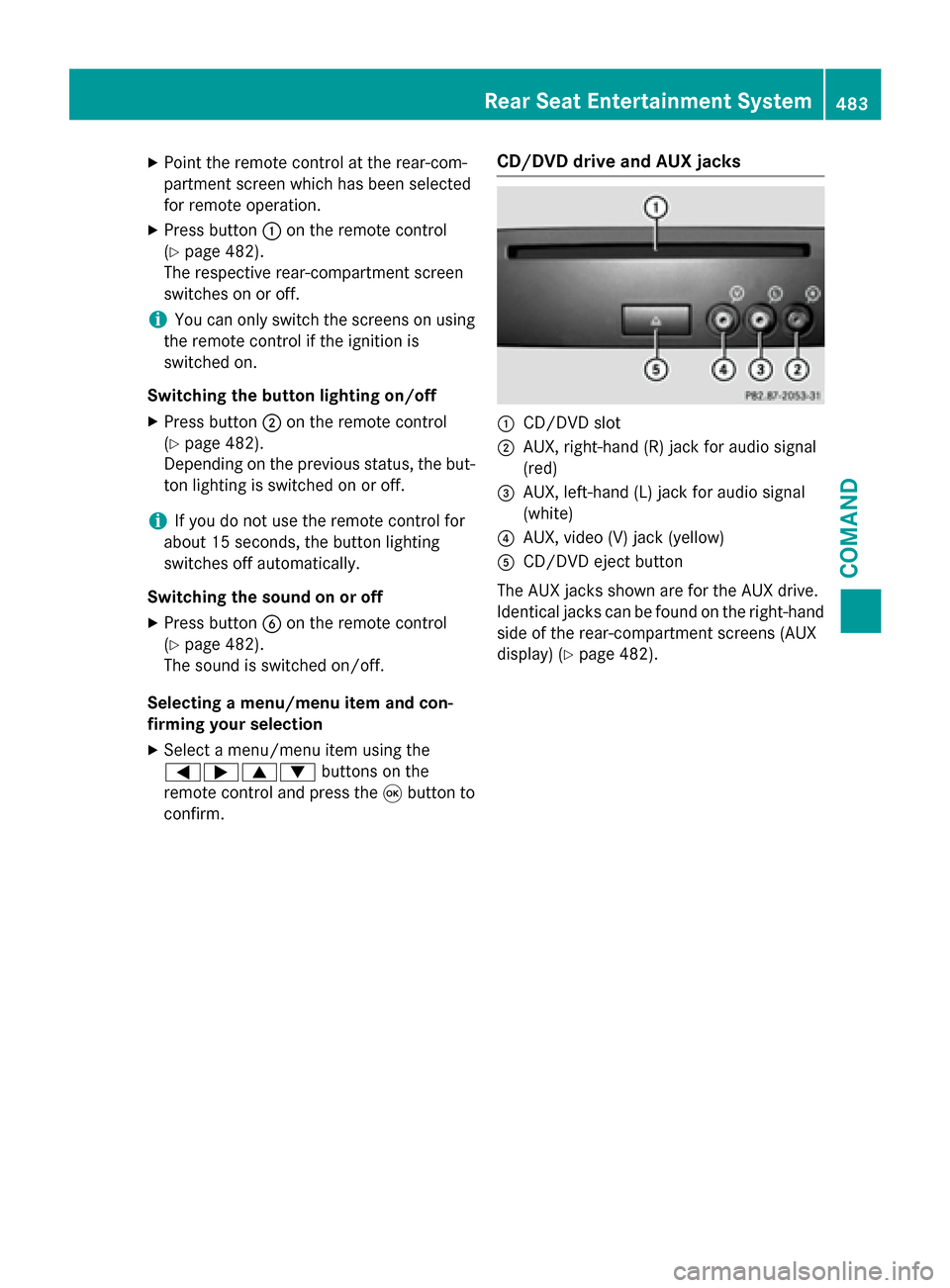
confirm. CD/DVD drive and AUX jacks 0043
CD/DVD slot
0044 AUX, right-hand (R) jack for audio signal
(red)
0087 AUX, left-hand (L) jack for audio signal
(white)
0085 AUX, video (V) jack (yellow)
0083 CD/DVD eject button
The AUX jacks shown are for the AUX drive.
Identical jacks can be found on the right-hand side of the rear-compartment screens (AUX
display) (Y page 482). Rear Seat Entertainment System
483COMAND Z
Page 486 of 610
Cordless headphones
Overview
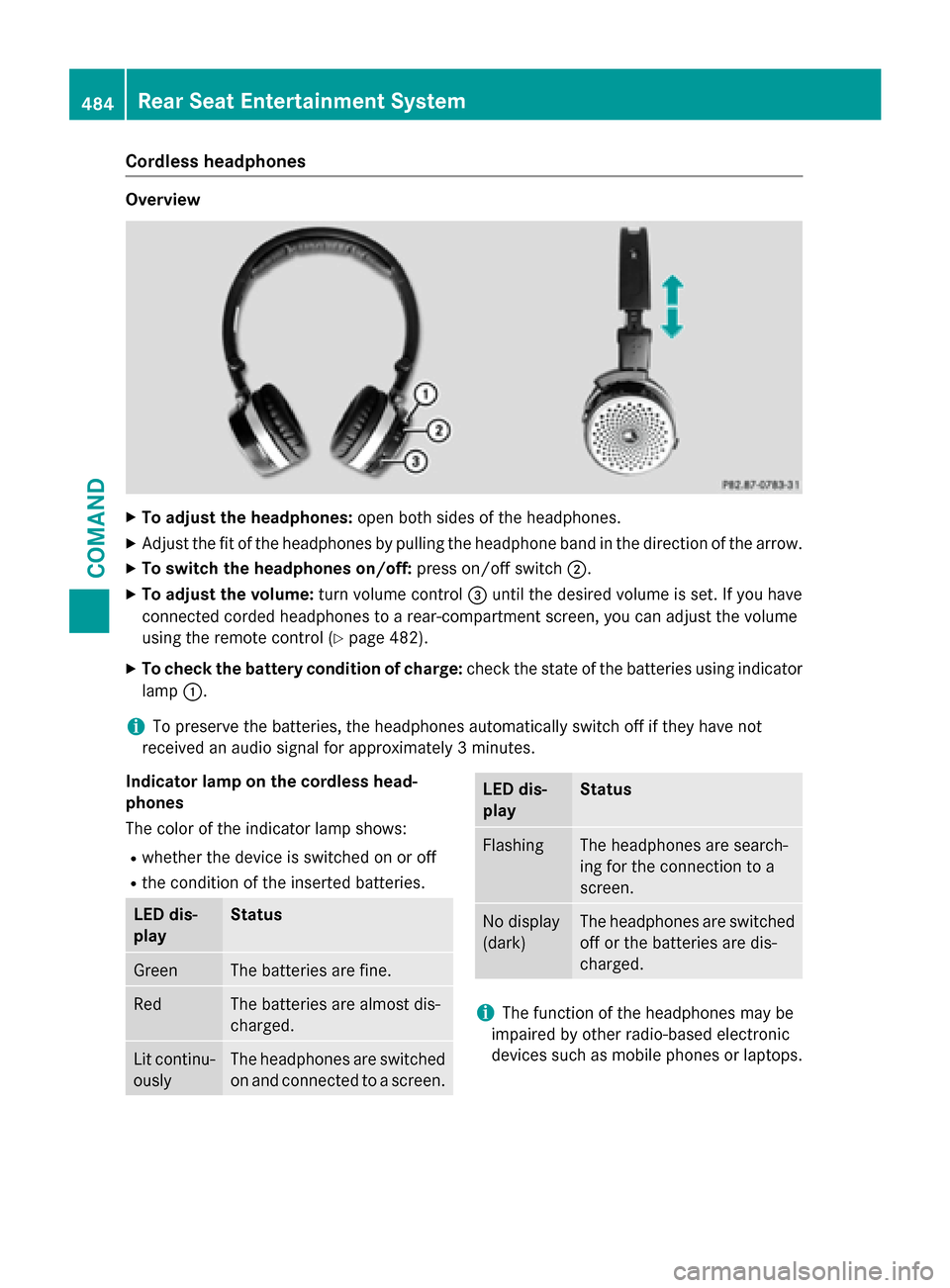
X
To adjust the headphones: open both sides of the headphones.
X Adjust the fit of the headphones by pulling the headphone band in the direction of the arrow.
X To switch the headphones on/off: press on/off switch0044.
X To adjust the volume: turn volume control0087until the desired volume is set. If you have
connected corded headphones to a rear-compartment screen, you can adjust the volume
using the remote control (Y page 482).
X To check the battery condition of charge: check the state of the batteries using indicator
lamp 0043.
i To preserve the batteries, the headphones automatically switch off if they have not
received an audio signal for approximately 3 minutes.
Indicator lamp on the cordless head-
phones
The color of the indicator lamp shows:
R whether the device is switched on or off
R the condition of the inserted batteries. LED dis-
play Status
Green The batteries are fine.
Red The batteries are almost dis-
charged. Lit continu-
ously The headphones are switched
on and connected to a screen. LED dis-
play Status
Flashing The headphones are search-
ing for the connection to a
screen.
No display
(dark) The headphones are switched
off or the batteries are dis-
charged. i
The function of the headphones may be
impaired by other radio-based electronic
devices such as mobile phones or laptops. 484
Rear Seat Entertainment SystemCOMAND
Page 487 of 610
Selecting the screen for the headphones
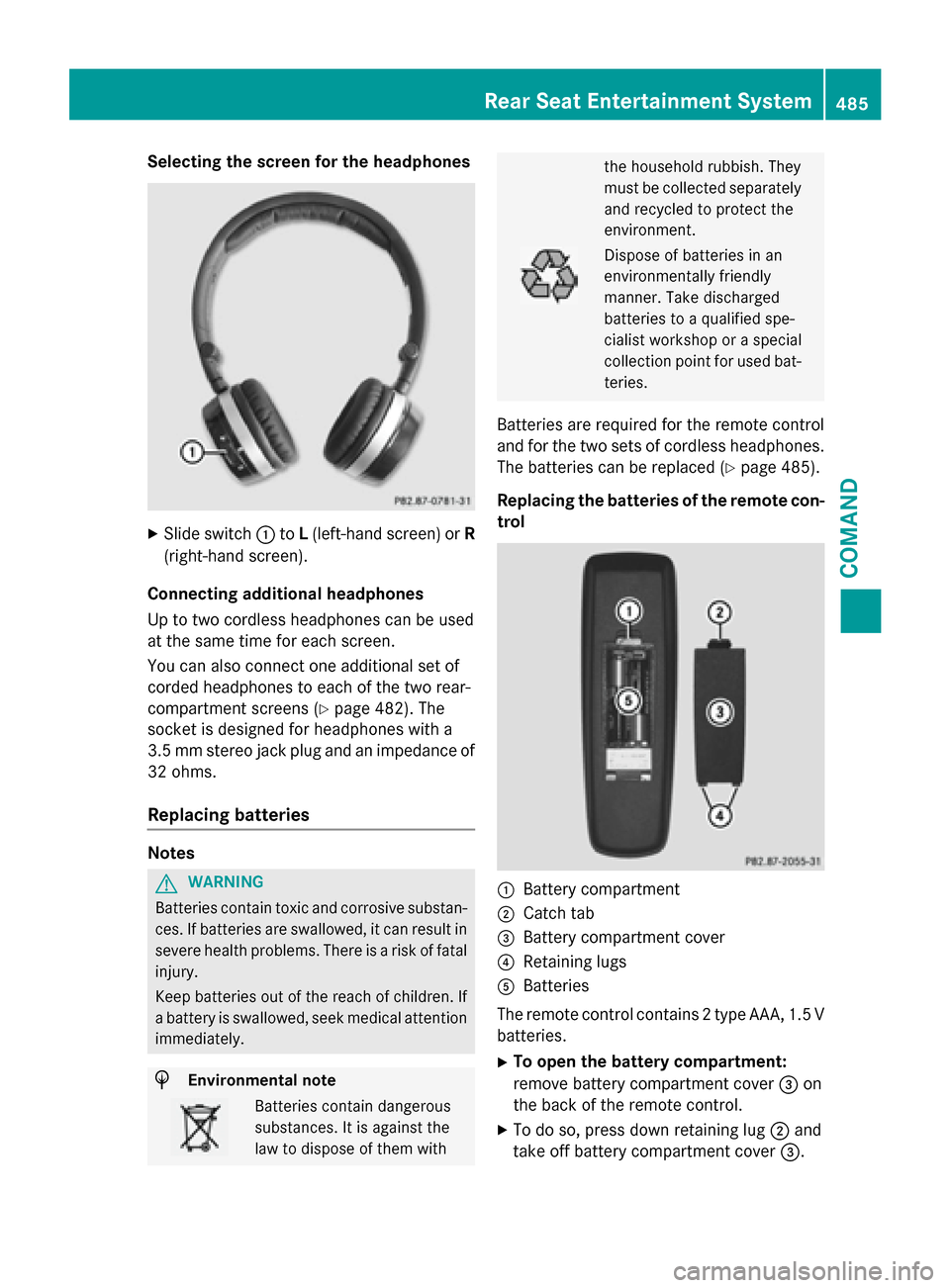
X
Slide switch 0043toL(left-hand screen) or R
(right-hand screen).
Connecting additional headphones
Up to two cordless headphones can be used
at the same time for each screen.
You can also connect one additional set of
corded headphones to each of the two rear-
compartment screens (Y page 482). The
socket is designed for headphones with a
3.5 mm stereo jack plug and an impedance of
32 ohms.
Replacing batteries Notes
G
WARNING
Batteries contain toxic and corrosive substan- ces. If batteries are swallowed, it can result in
severe health problems. There is a risk of fatal injury.
Keep batteries out of the reach of children. If
a battery is swallowed, seek medical attention immediately. H
Environmental note Batteries contain dangerous
substances. It is against the
law to dispose of them with the household rubbish. They
must be collected separately
and recycled to protect the
environment. Dispose of batteries in an
environmentally friendly
manner. Take discharged
batteries to a qualified spe-
cialist workshop or a special
collection point for used bat-
teries.
Batteries are required for the remote control
and for the two sets of cordless headphones. The batteries can be replaced (Y page 485).
Replacing the batteries of the remote con- trol 0043
Battery compartment
0044 Catch tab
0087 Battery compartment cover
0085 Retaining lugs
0083 Batteries
The remote control contains 2 type AAA, 1.5 V
batteries.
X To open the battery compartment:
remove battery compartment cover 0087on
the back of the remote control.
X To do so, press down retaining lug 0044and
take off battery compartment cover 0087. Rear Seat Entertainment System
485COMAND Z
Page 489 of 610
Selecting sound settings
You can select the sound settings in the CD/
MP3, video DVD and AUX modes.
X Switch on an operating mode (e.g. audio
CD mode) (Y page 489).
X Select Treble
Treble orBass
Bass using
the 006400590065 buttons on the remote
control and press the 008Bbutton to confirm.
An adjustment scale appears.
X Select a setting using the 00630064but-
tons and press the 008Bbutton to confirm.
Multiple users Simultaneous use of the rear-compart-
ment disc drive
The two rear-compartment screens can be
operated almost entirely independently from
one another. However, there can be a conflict
in some menus if the two screens are used
simultaneously.
If the rear-compartment disc drive is being
used for both screens simultaneously, select- ing certain menus or settings on one of the
screens also affects the other screen.
The following functions affect both screens:
R changing playback options
R selecting a track (from a track list or folder)
R using the play, pause and stop functions
R fast forwarding/rewinding or scrolling
R calling up the DVD menu and navigating
within it
R setting the language, subtitles and camera
angle
R calling up interactive DVD content
The following functions affect only one
screen:
R audio and video functions as well as picture
settings
R switching between full screen and the
menu Switching between operating modes
When you exit an operating mode (e.g. audio
CD mode), the current setting is saved. If youcall up this operating mode again later, there
are two possibilities:
R the operating mode has been changed on
the other screen.
R the operating mode has not been changed.
In the first case, the operating mode appears as it is on the other screen.
In the second case, the setting appears on the
screen as it was when you last exited the
operating mode.
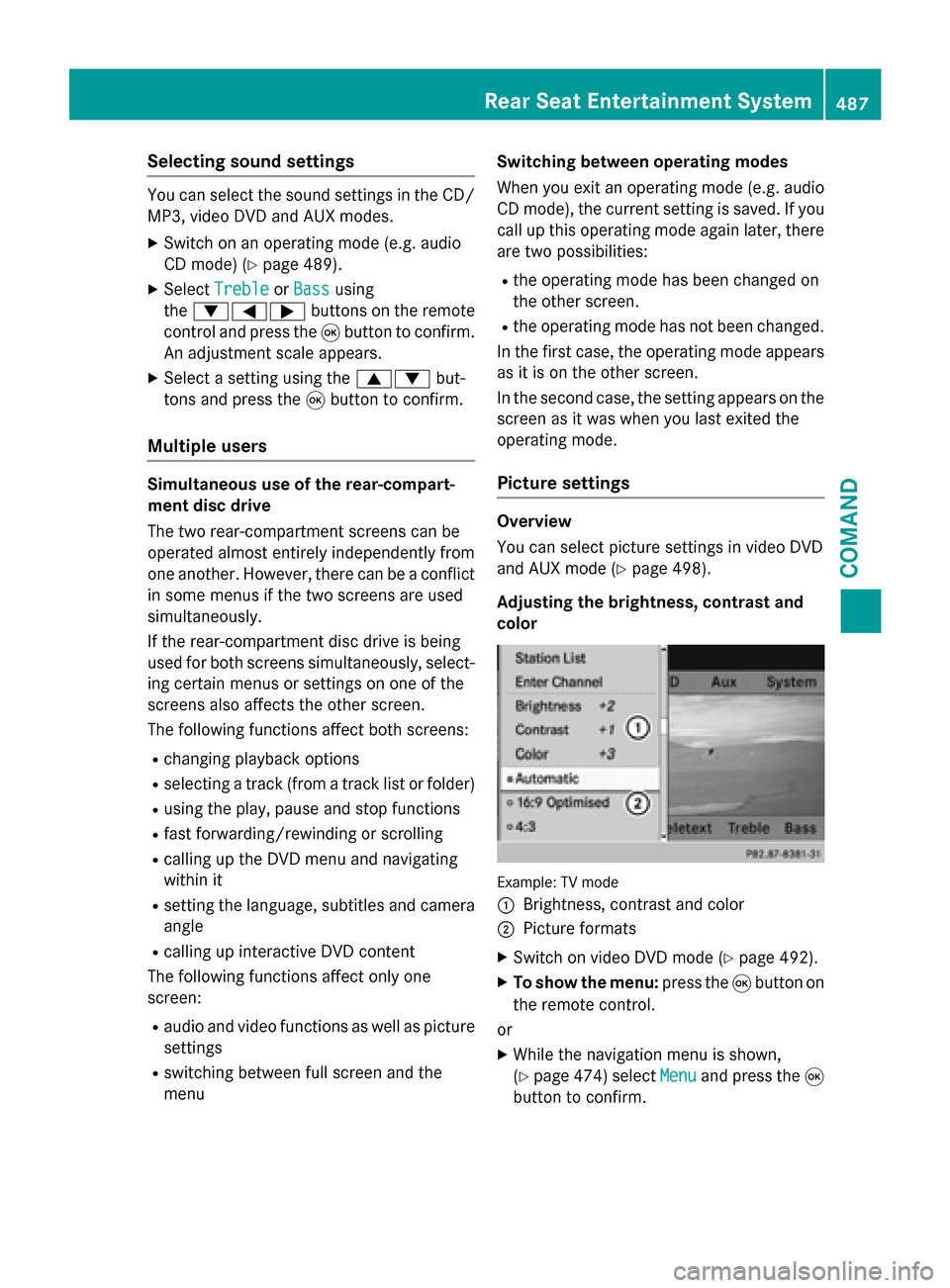
Picture settings Overview
You can select picture settings in video DVD
and AUX mode (Y page 498).
Adjusting the brightness, contrast and
color Example: TV mode
0043
Brightness, contrast and color
0044 Picture formats
X Switch on video DVD mode (Y page 492).
X To show the menu: press the008Bbutton on
the remote control.
or
X While the navigation menu is shown,
(Y page 474) select Menu Menuand press the 008B
button to confirm. Rear Seat Entertainment System
487COMAND Z
Page 490 of 610
X
Select DVD-Video
DVD-Video using
the 006400590065 buttons and press the
008B button to confirm.
X Select Brightness
Brightness, Contrast
ContrastorColor
Color
using the 00630064 buttons and press the
008B button to confirm.
An adjustment scale appears.
X Select a setting using the 00630064but-
tons and press the 008Bbutton to confirm.
Changing the picture format X
To show the menu: press the008Bbutton on
the remote control.
or
X While the navigation menu is shown,
(Y page 474) select Menu
Menu and press the 008B
button to confirm.
X Select DVD-Video
DVD-Video using
the 006400590065 buttons and press the
008B button to confirm.
The dot in front of one of the menu items
16:9
16:9 Optimized
Optimized ,4:3
4:3 orWidescreen
Widescreen indi-
cates the format currently selected.
X Select a format using the 00630064but-
tons and press the 008Bbutton to confirm. System settings
Note You can adjust almost all system settings
individually for each screen without affecting
the other screen. You make these settings
using the remote control (Y page 482).
Selecting the display language X
Select System System using the 006300590065
buttons on the remote control and press 008B
to confirm.
You see the system menu on the selected
rear screen. X
Select Settings
Settings using the0064button
and press 008Bto confirm.
X Select Language
Language using the00630064 but-
tons and press the 008Bbutton to confirm.
The list of languages appears. A 0036dot
indicates the current setting.
X Select a language using the 00630064but-
tons and press the 008Bbutton to confirm.
The Rear Seat Entertainment System acti-
vates the selected language.
Switching the display design X
Select Settings Settings using the0064button
and press 008Bto confirm.
X Select Day Mode
Day Mode, Night Mode
Night Mode orAuto‐
Auto‐
matic
matic using the 00630064 buttons and
press the 008Bbutton to confirm.
The dot indicates the current setting. Design Explanation
Day Mode
Day Mode The display is set per-
manently to day
design.
Night Mode Night Mode The display is set per-
manently to night
design.
Automatic Automatic The display design
changes depending on
the vehicle instrument
cluster illumination.
Setting the brightness
X
Select Settings Settings using the0064button
and press 008Bto confirm.
X Select Brightness
Brightness using the00630064
buttons and press the 008Bbutton to confirm.
A scale appears.
X Adjust the brightness using the 00630064
buttons and press the 008Bbutton to confirm.
The brightness bar moves up or down. The picture becomes lighter or darker in
accordance with the scale. 488
Rear Seat Entertainment SystemCOMAND
Page 491 of 610
Showing/hiding the picture
X
To hide the picture: selectDisplay Off
Display Off
in the system menu using the 00640065
buttons on the remote control and press
the 008Bbutton to confirm.
The picture is hidden.
X To display the picture: press the008Bbut-
ton. CD/audio DVD and MP3 mode
Important safety notes G
WARNING
The CD/DVD drive is a class 1 laser product. If you open the housing of the CD/DVD drive,
there is a risk of exposure to invisible laser
radiation. This laser radiation could damage
your retina. There is a risk of injury.
Never open the housing. Always have main-
tenance and repair work carried out at a quali- fied specialist workshop.
General notes You will find information on the following top-
ics in the Audio section:
R notes on CDs/DVDs (Y page 452)
R notes on MP3 mode (Y page 451)
R notes on copyright (Y page 452)
Inserting a CD/DVD 0043
Disc slot
0044 Disc eject button Depending on the vehicle model and equip-
ment level, the CD/DVD drive is found:
R behind the center console in a folding com-
partment, or
R under the rear bench seat, or
R in the stowage box between the rear seats
The CD/DVD drive is a single disc drive. If
there is already a disc inserted, this must be
ejected before another is inserted.
X Insert a disc into the disc slot.
The printed side of the disc must face
upwards. If neither side of the disc is prin-
ted, the side you wish to play must face
downwards.
The CD/DVD drive draws in the disc.
The CD/DVD drive plays the disc: R if it has been inserted correctly and is a
permissible disc, and
R after you have switched to disc mode
(audio CD/audio DVD/MP3 mode)
(Y page 489)
Data on an MP3 CD first needs to be loaded by the drive. Loading may take some time,
depending on the number of folders and
tracks.
Switching to audio CD, audio DVD or
MP3 mode X
Insert a CD/DVD (Y page 489).
The Rear Seat Entertainment System loads the inserted disc.
X Select Disc Discin the menu using the
006300590065 buttons on the remote
control and confirm by pressing the 008B
button.
The corresponding mode is switched on.
The Rear Seat Entertainment System plays
the disc.
i Variable bit rates in MP3 tracks can result
in the elapsed time shown being different
from the actual elapsed time. Rear Seat Entertainment System
489COMAND Z