phone MERCEDES-BENZ SL ROADSTER 2012 Service Manual
[x] Cancel search | Manufacturer: MERCEDES-BENZ, Model Year: 2012, Model line: SL ROADSTER, Model: MERCEDES-BENZ SL ROADSTER 2012Pages: 637, PDF Size: 20.68 MB
Page 340 of 637
X
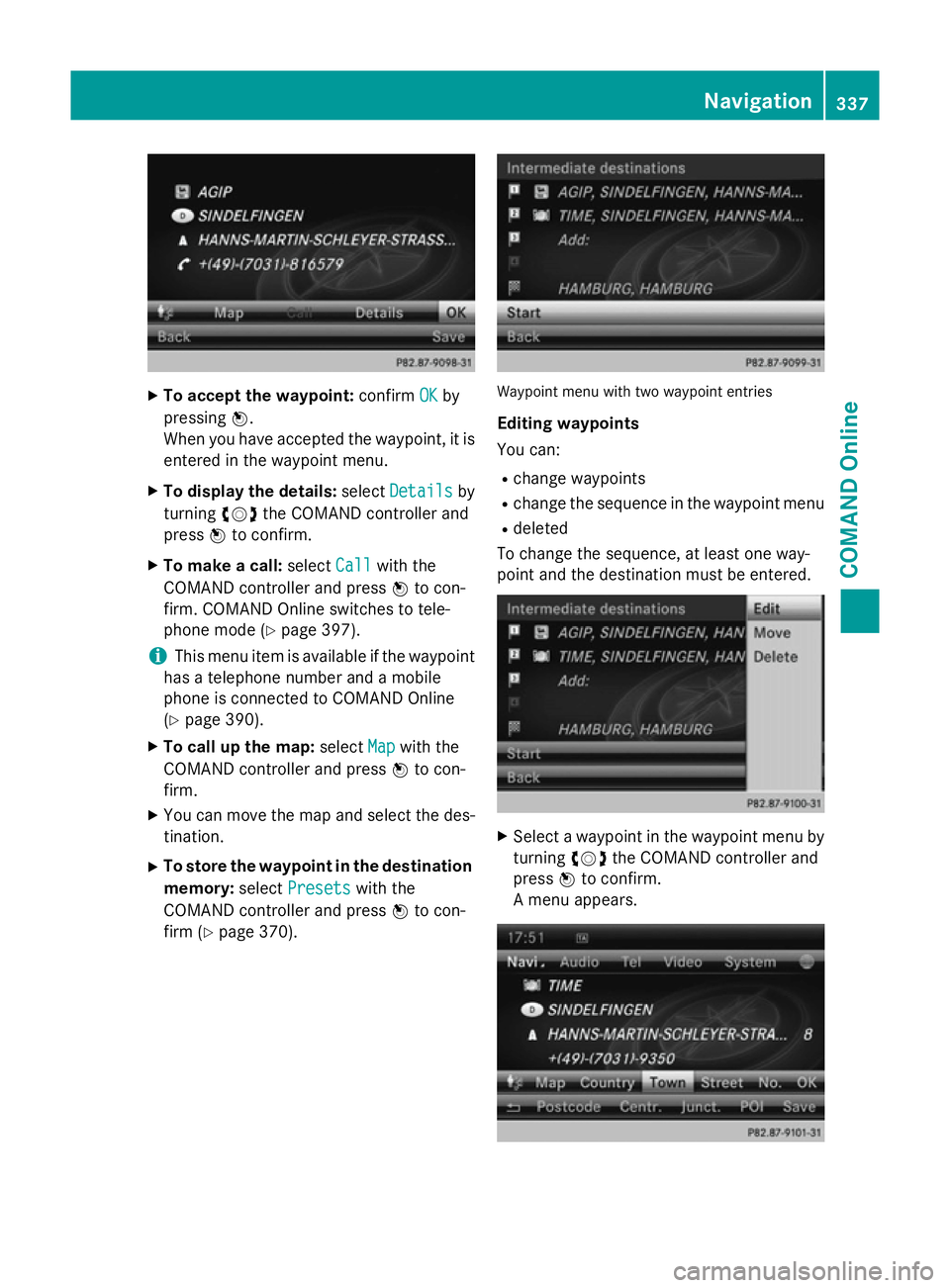
To accept the waypoint: confirmOK
OKby
pressing W.
When you have accepted the waypoint, it is entered in the waypoint menu.
X To display the details: selectDetails
Details by
turning cVdthe COMAND controller and
press Wto confirm.
X To make a call: selectCall
Callwith the
COMAND controller and press Wto con-
firm. COMAND Online switches to tele-
phone mode (Y page 397).
i This menu item is available if the waypoint
has a telephone number and a mobile
phone is connected to COMAND Online
(Y page 390).
X To call up the map: selectMap Mapwith the
COMAND controller and press Wto con-
firm.
X You can move the map and select the des-
tination.
X To store the waypoint in the destination
memory: selectPresets
Presets with the
COMAND controller and press Wto con-
firm (Y page 370). Waypoint menu with two waypoint entries
Editing waypoints
You can:
R change waypoints
R change the sequence in the waypoint menu
R deleted
To change the sequence, at least one way-
point and the destination must be entered. X
Select a waypoint in the waypoint menu by
turning cVdthe COMAND controller and
press Wto confirm.
A menu appears. Navigation
337COMAND Online Z
Page 343 of 637
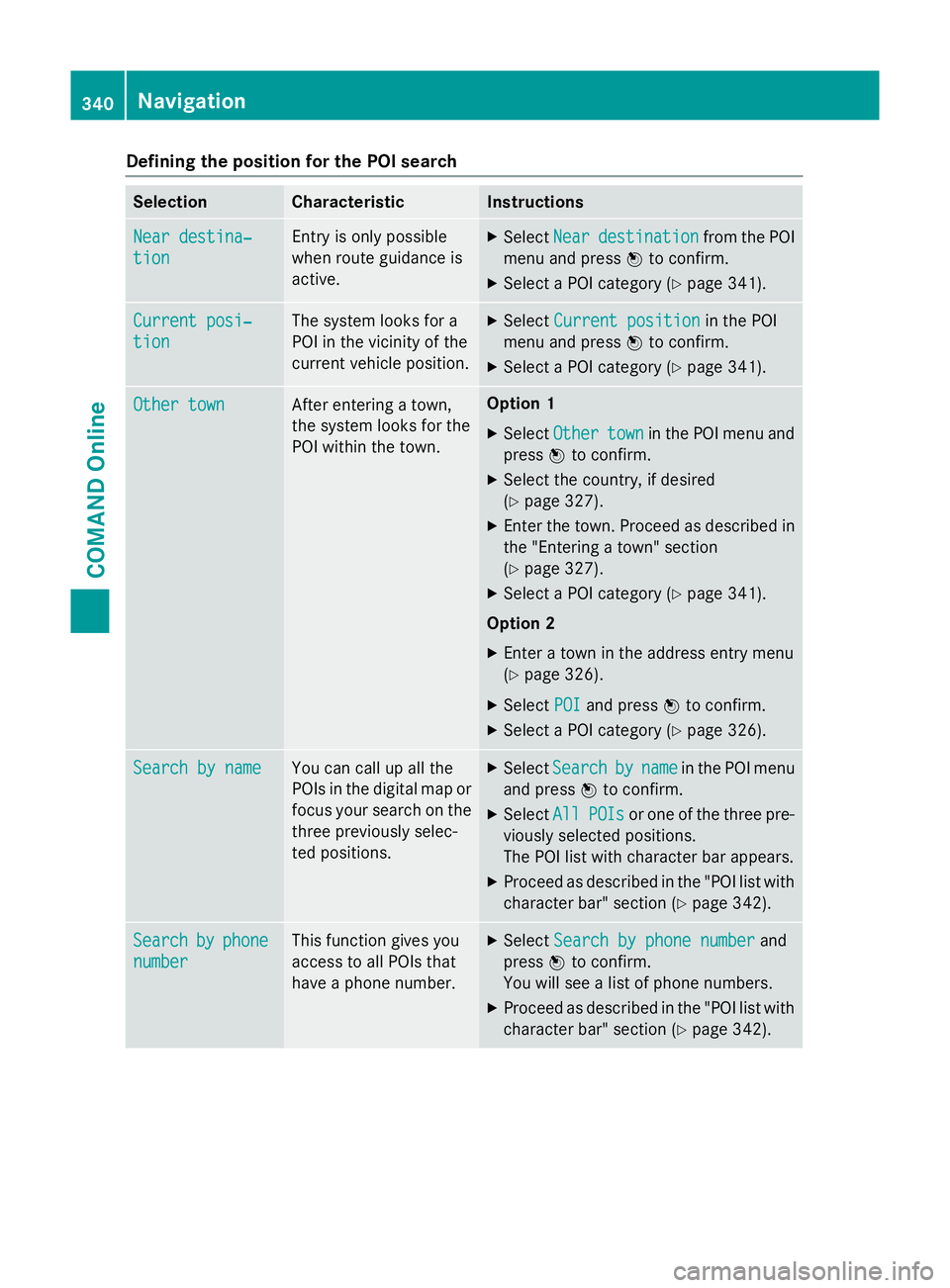
Defining the position for the POI search
Selection Characteristic Instructions
Near destina‐
Near destina‐
tion tion Entry is only possible
when route guidance is
active. X
Select Near Neardestination
destination from the POI
menu and press Wto confirm.
X Select a POI category (Y page 341).Current posi‐
Current posi‐
tion tion The system looks for a
POI in the vicinity of the
current vehicle position. X
Select Current position Current position in the POI
menu and press Wto confirm.
X Select a POI category (Y page 341).Other town
Other town After entering a town,
the system looks for the
POI within the town. Option 1
X Select Other Other town
townin the POI menu and
press Wto confirm.
X Select the country, if desired
(Y page 327).
X Enter the town. Proceed as described in
the "Entering a town" section
(Y page 327).
X Select a POI category (Y page 341).
Option 2
X Enter a town in the address entry menu
(Y page 326).
X Select POI POIand press Wto confirm.
X Select a POI category (Y page 326).Search by name
Search by name You can call up all the
POIs in the digital map or
focus your search on the three previously selec-
ted positions. X
Select Search Search by
byname
name in the POI menu
and press Wto confirm.
X Select All
AllPOIs
POIs or one of the three pre-
viously selected positions.
The POI list with character bar appears.
X Proceed as described in the "POI list with
character bar" section (Y page 342).Search Search
by
byphone
phone
number
number This function gives you
access to all POIs that
have a phone number. X
Select Search by phone number Search by phone number and
press Wto confirm.
You will see a list of phone numbers.
X Proceed as described in the "POI list with
character bar" section (Y page 342).340
NavigationCOMAND Online
Page 345 of 637
The search results display the following infor-
mation:
R an arrow that shows the linear direction to
the POI
R the linear distance to the POI
R the name of the POI
i The arrow and linear distance to the des-
tination are not visible if you have entered a POI after entering another town.
The arrow is also not shown when search-
ing for a POI in the vicinity of the destina-
tion.
Depending on the POI selected,
COMAND Online uses different reference
points in determining the linear distance to
the destination:
R vicinity of current position: the linear dis-
tance is the distance from the current
vehicle position to the POI.
R vicinity of destination: the linear distance
is the distance of the POI from the des-
tination entered.
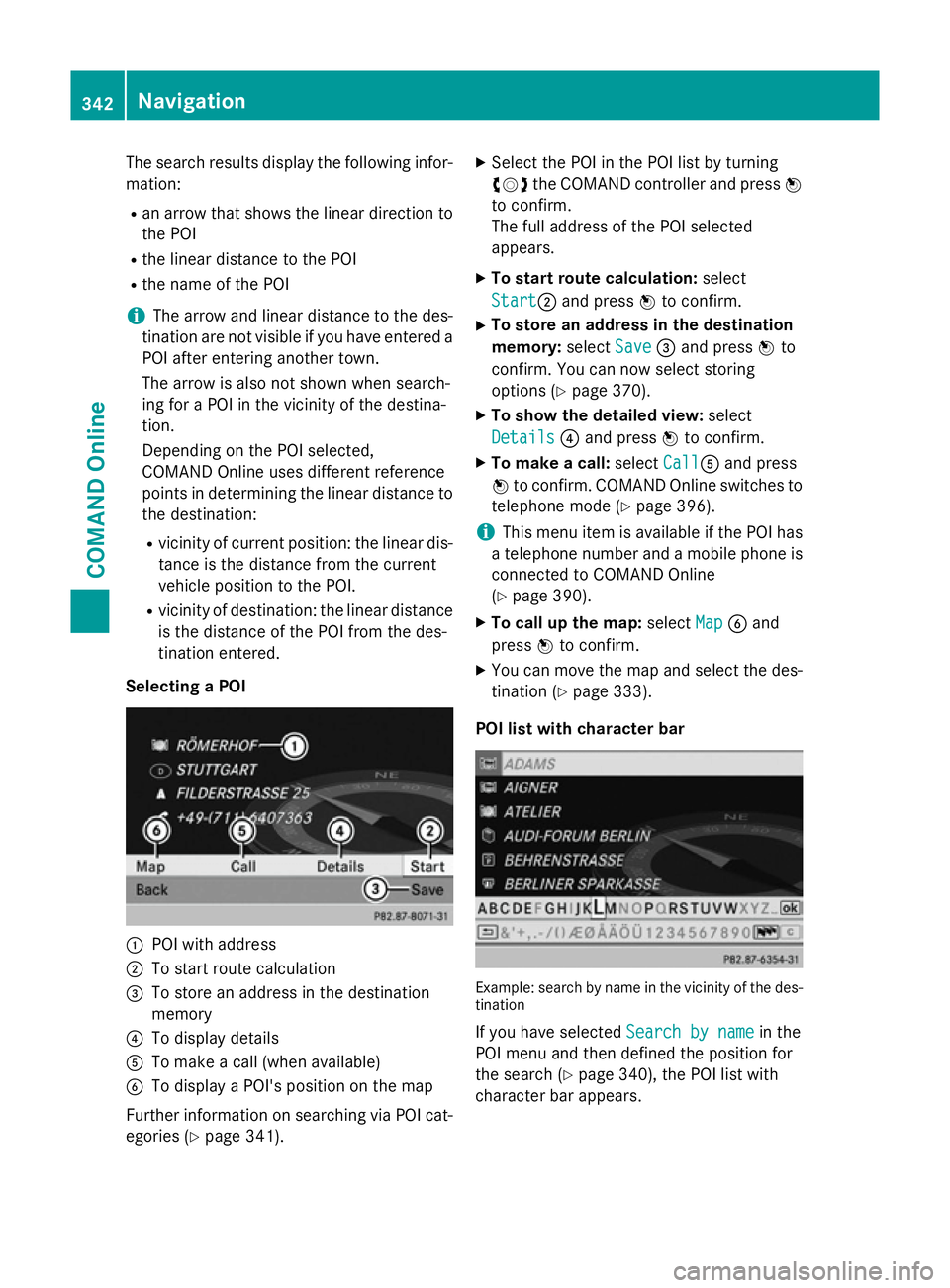
Selecting a POI :
POI with address
; To start route calculation
= To store an address in the destination
memory
? To display details
A To make a call (when available)
B To display a POI's position on the map
Further information on searching via POI cat-
egories (Y page 341). X
Select the POI in the POI list by turning
cVd the COMAND controller and press W
to confirm.
The full address of the POI selected
appears.
X To start route calculation: select
Start Start; and press Wto confirm.
X To store an address in the destination
memory: selectSave Save=and press Wto
confirm. You can now select storing
options (Y page 370).
X To show the detailed view: select
Details Details ?and press Wto confirm.
X To make a call: selectCall
CallA and press
W to confirm. COMAND Online switches to
telephone mode (Y page 396).
i This menu item is available if the POI has
a telephone number and a mobile phone is
connected to COMAND Online
(Y page 390).
X To call up the map: selectMap
Map Band
press Wto confirm.
X You can move the map and select the des-
tination (Y page 333).
POI list with character bar Example: search by name in the vicinity of the des-
tination
If you have selected Search by name Search by namein the
POI menu and then defined the position for
the search (Y page 340), the POI list with
character bar appears. 342
NavigationCOMAND Online
Page 346 of 637
Depending on your selection, you can select
all available POIs on the digital map or the
POIs in the vicinity of the selected position.
X Proceed as described in "Searching for a
phone book entry" (Y page 402).
If COMAND Online can assign the charac-
ters entered to one entry unambiguously,
the address entry appears automatically.
X To start route calculation: selectStart
Start
and press Wto confirm.
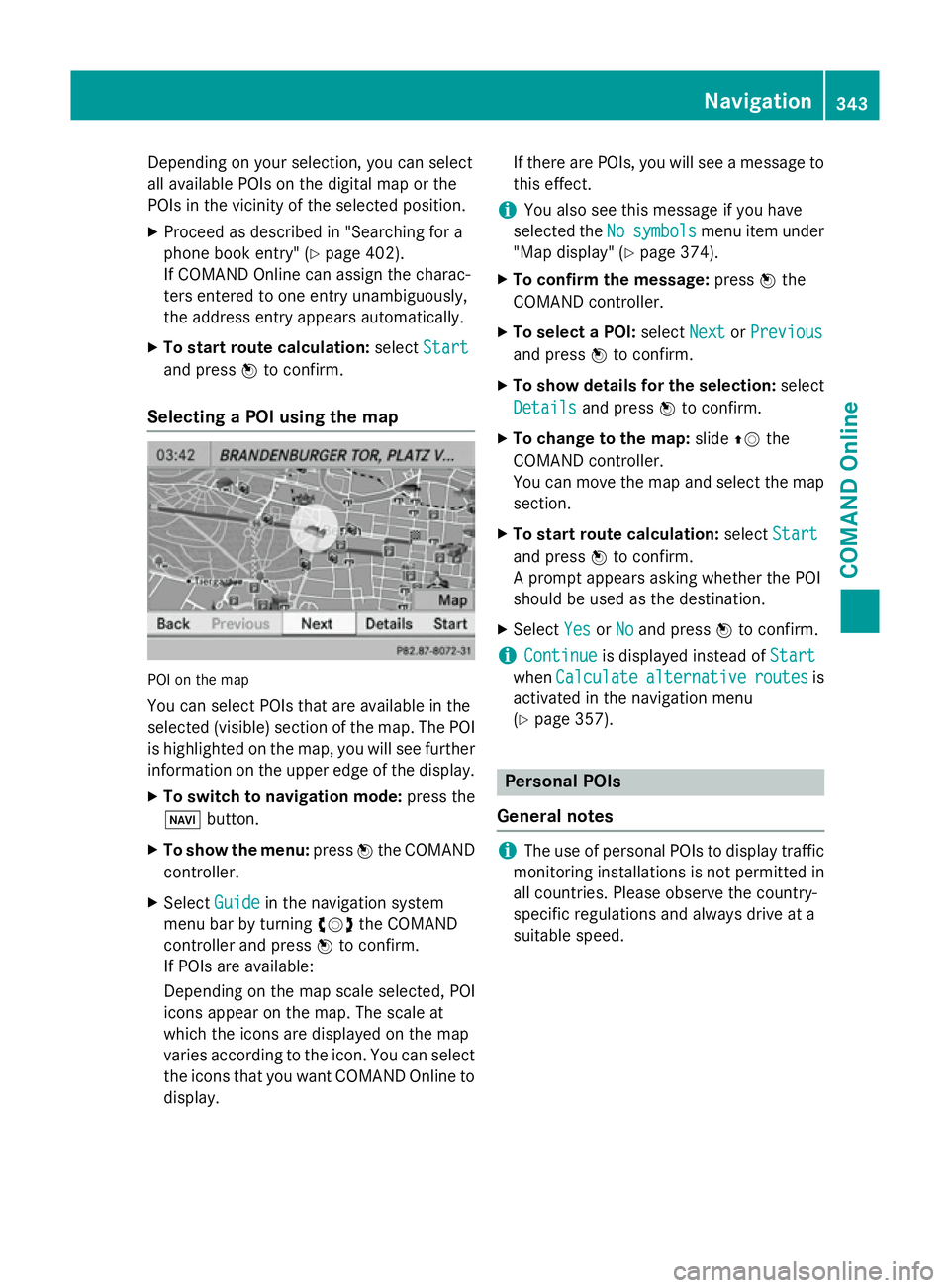
Selecting a POI using the map POI on the map
You can select POIs that are available in the
selected (visible) section of the map. The POI is highlighted on the map, you will see further
information on the upper edge of the display.
X To switch to navigation mode: press the
Ø button.
X To show the menu: pressWthe COMAND
controller.
X Select Guide
Guide in the navigation system
menu bar by turning cVdthe COMAND
controller and press Wto confirm.
If POIs are available:
Depending on the map scale selected, POI
icons appear on the map. The scale at
which the icons are displayed on the map
varies according to the icon. You can select the icons that you want COMAND Online to
display. If there are POIs, you will see a message to
this effect.
i You also see this message if you have
selected the No
No symbols symbols menu item under
"Map display" (Y page 374).
X To confirm the message: pressWthe
COMAND controller.
X To select a POI: selectNext
NextorPrevious
Previous
and press Wto confirm.
X To show details for the selection: select
Details Details and press Wto confirm.
X To change to the map: slideZVthe
COMAND controller.
You can move the map and select the map
section.
X To start route calculation: selectStart Start
and press Wto confirm.
A prompt appears asking whether the POI
should be used as the destination.
X Select Yes YesorNo
No and press Wto confirm.
i Continue
Continue
is displayed instead of Start
Start
when Calculate
Calculate alternative
alternative routes
routesis
activated in the navigation menu
(Y page 357). Personal POIs
General notes i
The use of personal POIs to display traffic
monitoring installations is not permitted in
all countries. Please observe the country-
specific regulations and always drive at a
suitable speed. Navigation
343COMAND Online Z
Page 351 of 637
If route guidance has not been activated,
route calculation for the personal POI will
start immediately.
X Select Yes
Yes orNo No and press Wto confirm.
If you select Yes
Yes, the personal POI is accep-
ted as the destination.
If you select No No, the process will be cancel-
led.
X To make a call: selectCall
Calland press Wto
confirm. COMAND Online switches to tele-
phone mode (Y page 398).
i Call
Call is available if the personal POI has a
telephone number and a mobile phone is
connected to COMAND Online
(Y page 390).
X To delete a personal POI: selectDelete
Delete
and press Wto confirm.
A prompt appears asking whether you wish to delete the POI.
X Select Yes YesorNo
No and press Wto confirm.
If you select Yes
Yes, the personal POI is
deleted.
If you select No No, the process will be cancel-
led. ViaMichelin travel guide
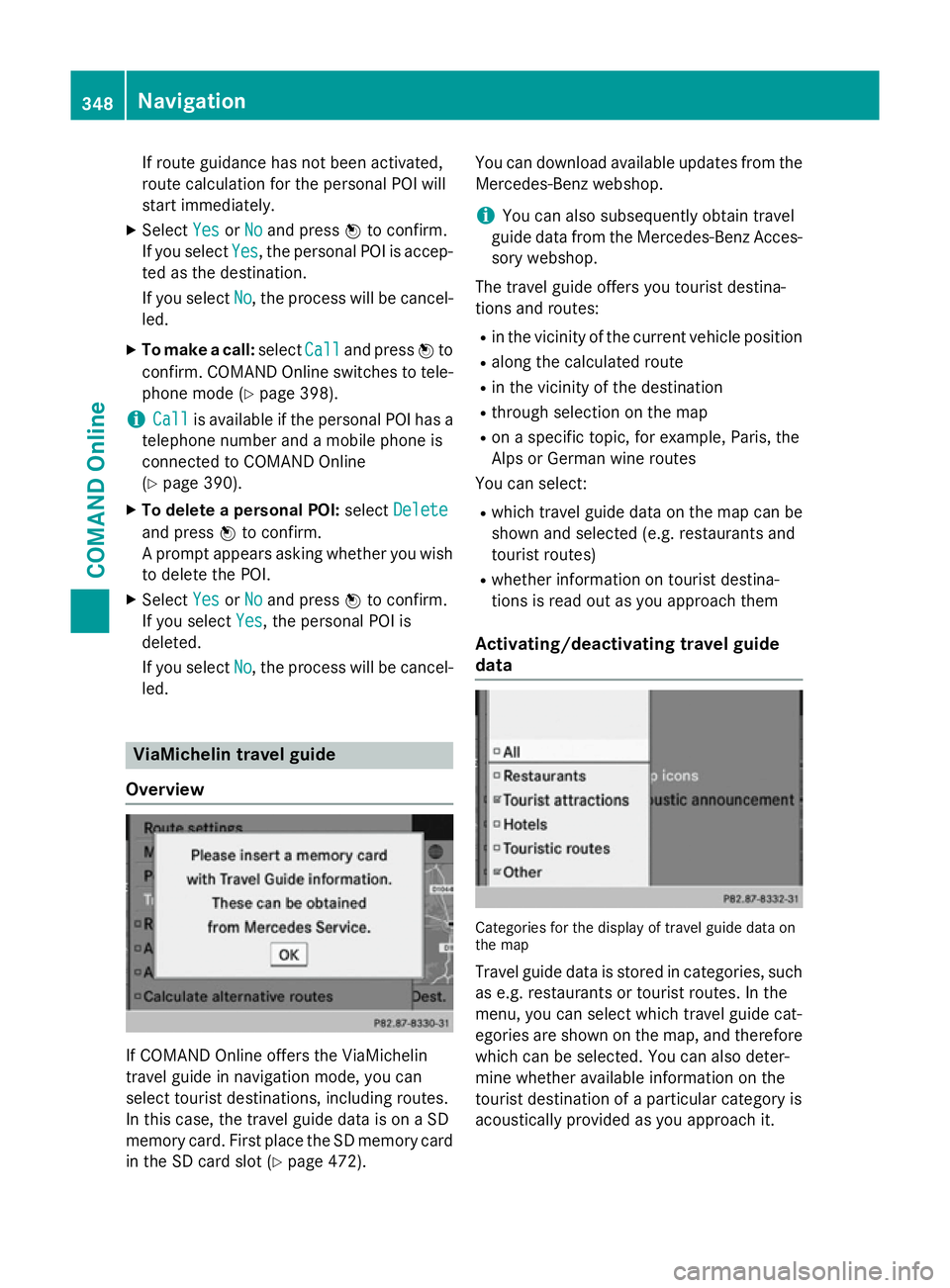
Overview If COMAND Online offers the ViaMichelin
travel guide in navigation mode, you can
select tourist destinations, including routes.
In this case, the travel guide data is on a SD
memory card. First place the SD memory card
in the SD card slot (Y page 472). You can download available updates from the
Mercedes-Benz webshop.
i You can also subsequently obtain travel
guide data from the Mercedes-Benz Acces- sory webshop.
The travel guide offers you tourist destina-
tions and routes: R in the vicinity of the current vehicle position
R along the calculated route
R in the vicinity of the destination
R through selection on the map
R on a specific topic, for example, Paris, the
Alps or German wine routes
You can select:
R which travel guide data on the map can be
shown and selected (e.g. restaurants and
tourist routes)
R whether information on tourist destina-
tions is read out as you approach them
Activating/deactivating travel guide
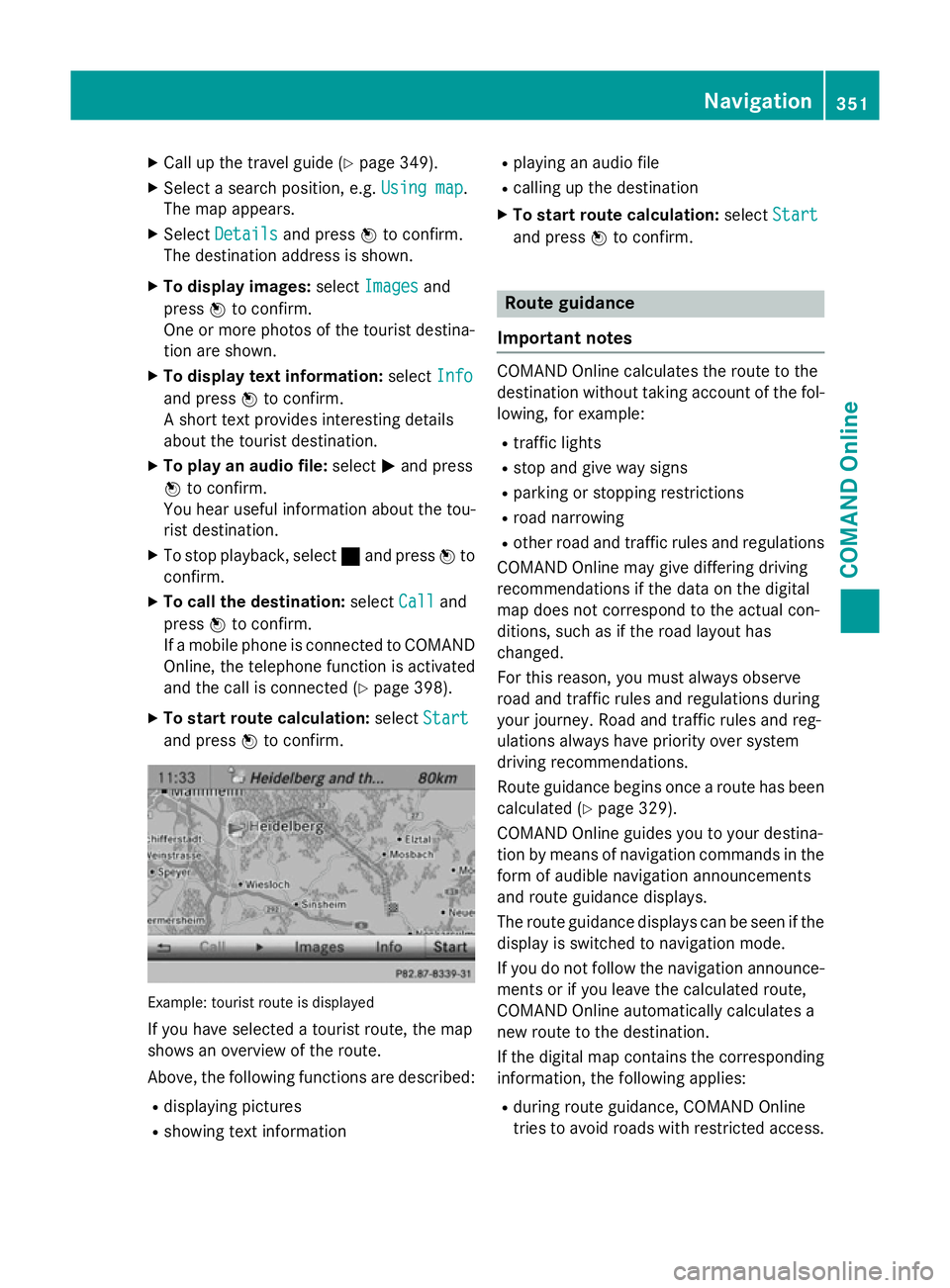
data Categories for the display of travel guide data on
the map
Travel guide data is stored in categories, such as e.g. restaurants or tourist routes. In the
menu, you can select which travel guide cat-
egories are shown on the map, and thereforewhich can be selected. You can also deter-
mine whether available information on the
tourist destination of a particular category is
acoustically provided as you approach it. 348
NavigationCOMAND Online
Page 354 of 637
X
Call up the travel guide (Y page 349).
X Select a search position, e.g. Using map
Using map .
The map appears.
X Select Details
Details and press Wto confirm.
The destination address is shown.
X To display images: selectImages
Images and
press Wto confirm.
One or more photos of the tourist destina-
tion are shown.
X To display text information: selectInfo
Info
and press Wto confirm.
A short text provides interesting details
about the tourist destination.
X To play an audio file: selectMand press
W to confirm.
You hear useful information about the tou-
rist destination.
X To stop playback, select ¯and press Wto
confirm.
X To call the destination: selectCall
Call and
press Wto confirm.
If a mobile phone is connected to COMAND Online, the telephone function is activated
and the call is connected (Y page 398).
X To start route calculation: selectStart
Start
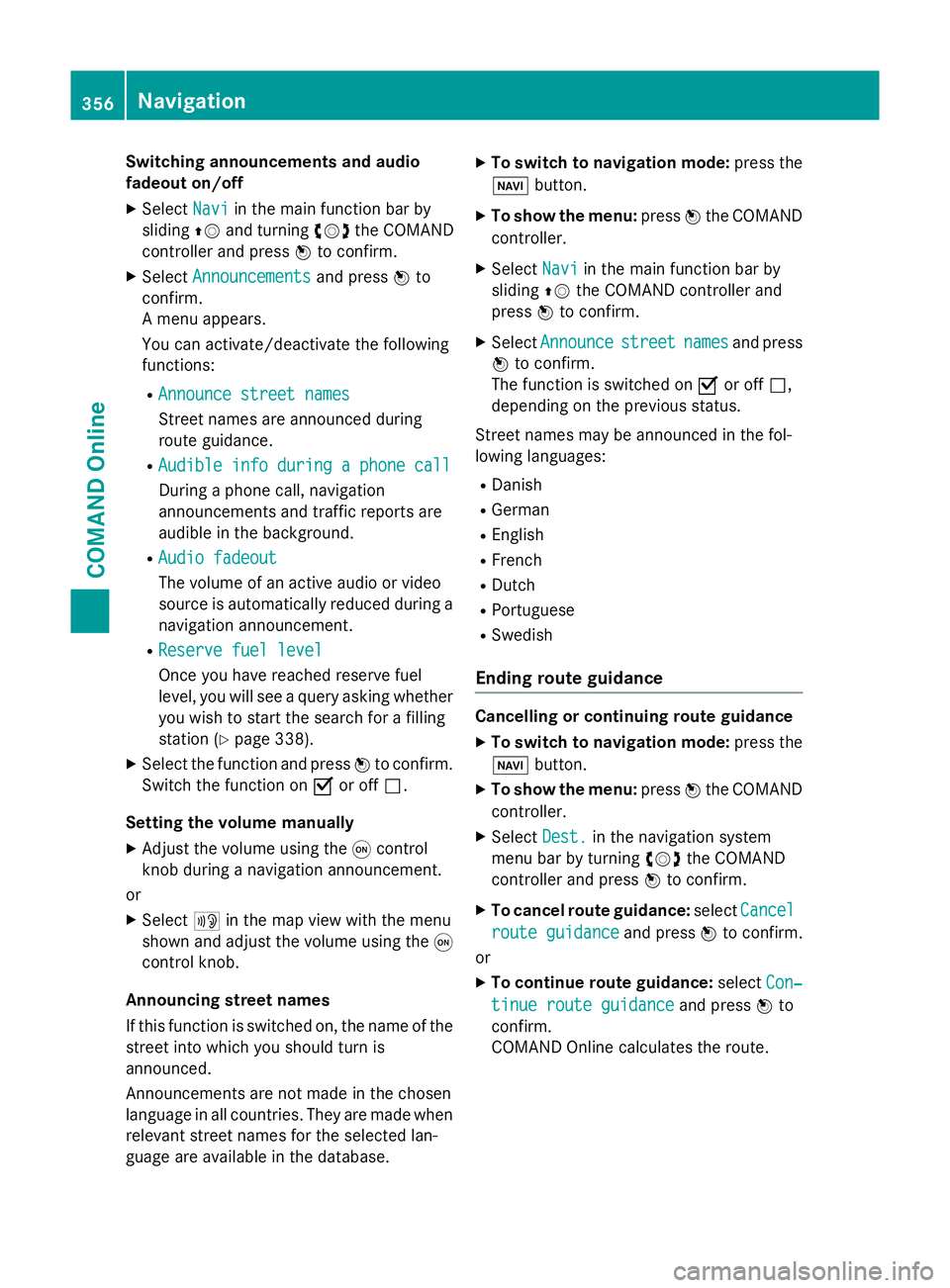
and press Wto confirm. Example: tourist route is displayed
If you have selected a tourist route, the map
shows an overview of the route.
Above, the following functions are described:
R displaying pictures
R showing text information R
playing an audio file
R calling up the destination
X To start route calculation: selectStart
Start
and press Wto confirm. Route guidance
Important notes COMAND Online calculates the route to the
destination without taking account of the fol-
lowing, for example:
R traffic lights
R stop and give way signs
R parking or stopping restrictions
R road narrowing
R other road and traffic rules and regulations
COMAND Online may give differing driving
recommendations if the data on the digital
map does not correspond to the actual con-
ditions, such as if the road layout has
changed.
For this reason, you must always observe
road and traffic rules and regulations during
your journey. Road and traffic rules and reg-
ulations always have priority over system
driving recommendations.
Route guidance begins once a route has been
calculated (Y page 329).
COMAND Online guides you to your destina-
tion by means of navigation commands in the
form of audible navigation announcements
and route guidance displays.
The route guidance displays can be seen if the
display is switched to navigation mode.
If you do not follow the navigation announce- ments or if you leave the calculated route,
COMAND Online automatically calculates a
new route to the destination.
If the digital map contains the corresponding
information, the following applies:
R during route guidance, COMAND Online
tries to avoid roads with restricted access. Navigation
351COMAND Online Z
Page 359 of 637
Switching announcements and audio
fadeout on/off
X Select Navi
Navi in the main function bar by
sliding ZVand turning cVdthe COMAND
controller and press Wto confirm.
X Select Announcements
Announcements and pressWto
confirm.
A menu appears.
You can activate/deactivate the following
functions:
R Announce street names
Announce street names
Street names are announced during
route guidance.
R Audible info during a phone call Audible info during a phone call
During a phone call, navigation
announcements and traffic reports are
audible in the background.
R Audio fadeout
Audio fadeout
The volume of an active audio or video
source is automatically reduced during a
navigation announcement.
R Reserve fuel level Reserve fuel level
Once you have reached reserve fuel
level, you will see a query asking whether
you wish to start the search for a filling
station (Y page 338).
X Select the function and press Wto confirm.
Switch the function on Oor off ª.
Setting the volume manually
X Adjust the volume using the qcontrol
knob during a navigation announcement.
or
X Select +in the map view with the menu
shown and adjust the volume using the q
control knob.
Announcing street names
If this function is switched on, the name of the
street into which you should turn is
announced.
Announcements are not made in the chosen
language in all countries. They are made when
relevant street names for the selected lan-
guage are available in the database. X
To switch to navigation mode: press the
Ø button.
X To show the menu: pressWthe COMAND
controller.
X Select Navi
Navi in the main function bar by
sliding ZVthe COMAND controller and
press Wto confirm.
X Select Announce
Announce street streetnames
names and press
W to confirm.
The function is switched on Oor off ª,
depending on the previous status.
Street names may be announced in the fol-
lowing languages:
R Danish
R German
R English
R French
R Dutch
R Portuguese
R Swedish
Ending route guidance Cancelling or continuing route guidance
X To switch to navigation mode: press the
Ø button.
X To show the menu: pressWthe COMAND
controller.
X Select Dest.
Dest.in the navigation system
menu bar by turning cVdthe COMAND
controller and press Wto confirm.
X To cancel route guidance: selectCancel
Cancel
route guidance
route guidance and pressWto confirm.
or
X To continue route guidance: selectCon‐
Con‐
tinue route guidance
tinue route guidance and pressWto
confirm.
COMAND Online calculates the route. 356
NavigationCOMAND Online
Page 362 of 637
If a mobile phone is connected to COMAND
Online and a phone number is included in
the destination information, you can call it
(Y page 390).
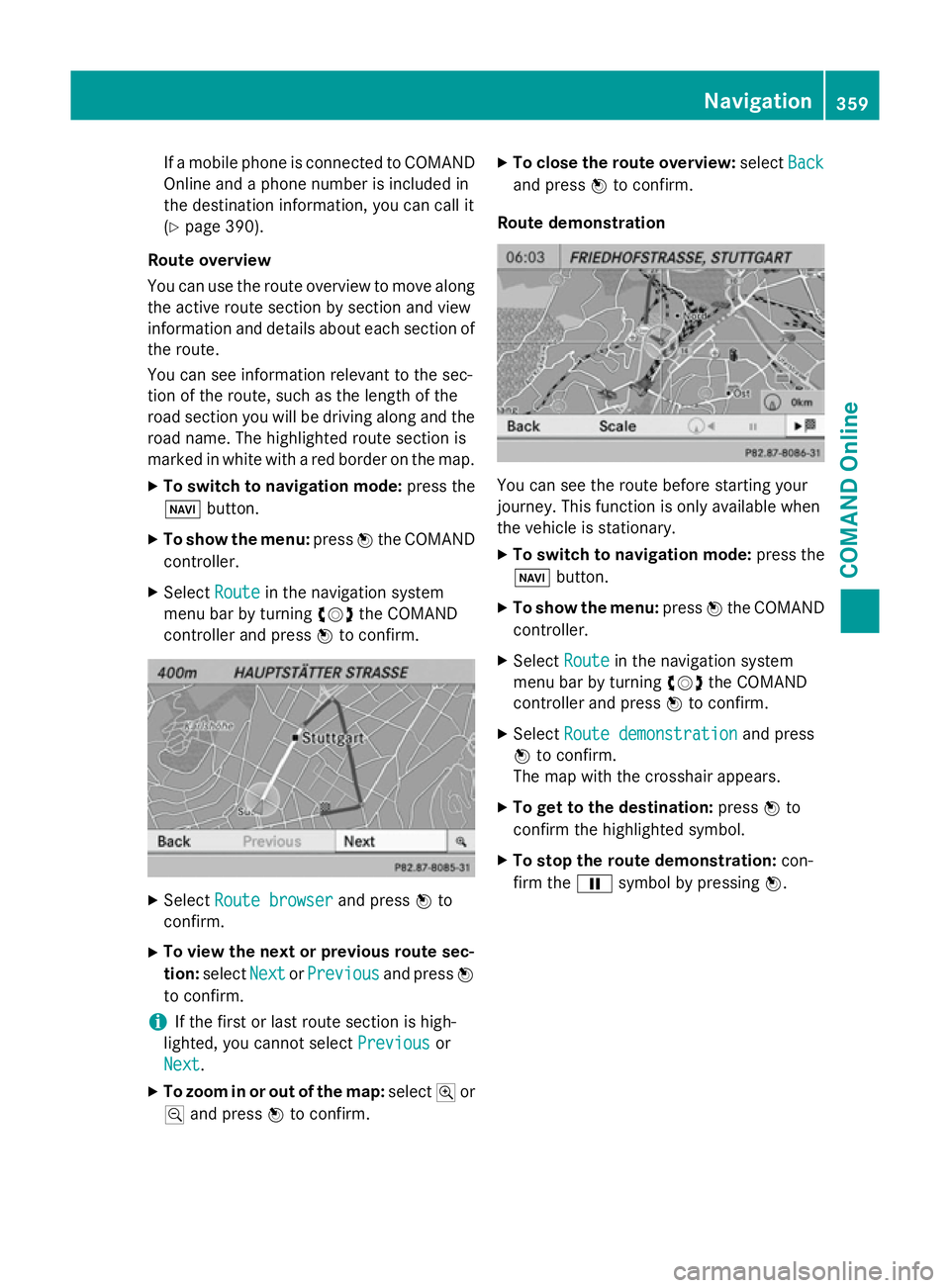
Route overview
You can use the route overview to move along the active route section by section and view
information and details about each section of
the route.
You can see information relevant to the sec-
tion of the route, such as the length of the
road section you will be driving along and the road name. The highlighted route section is
marked in white with a red border on the map.
X To switch to navigation mode: press the
Ø button.
X To show the menu: pressWthe COMAND
controller.
X Select Route
Route in the navigation system
menu bar by turning cVdthe COMAND
controller and press Wto confirm. X
Select Route browser Route browser and pressWto
confirm.
X To view the next or previous route sec-
tion: select Next
Next orPrevious
Previous and pressW
to confirm.
i If the first or last route section is high-
lighted, you cannot select Previous
Previous or
Next
Next.
X To zoom in or out of the map: selectNor
M and press Wto confirm. X
To close the route overview: selectBack
Back
and press Wto confirm.
Route demonstration You can see the route before starting your
journey. This function is only available when
the vehicle is stationary.
X To switch to navigation mode: press the
Ø button.
X To show the menu: pressWthe COMAND
controller.
X Select Route Routein the navigation system
menu bar by turning cVdthe COMAND
controller and press Wto confirm.
X Select Route demonstration
Route demonstration and press
W to confirm.
The map with the crosshair appears.
X To get to the destination: pressWto
confirm the highlighted symbol.
X To stop the route demonstration: con-
firm the Ësymbol by pressing W. Navigation
359COMAND Online Z
Page 374 of 637
will appear asking whether you wish to
overwrite the existing data.
X Select Yes YesorNo
No and press Wto confirm.
If you select Yes
Yes , COMAND Online stores
the data.
You can now start route guidance to this
address directly from the address book
(Y page 415).
X To save the destination as My address:
select Save as "My Address"
Save as "My Address" and press
W to confirm.
COMAND Online stores the destination in
the destination memory as My Address My Address. If
the selected address book entry already
contains address data that can be used for
navigation (L icon), a prompt will appear
asking whether you wish to overwrite the
existing data.
X Select Yes
Yes orNo No and press Wto confirm.
If you select Yes
Yes , the entry is overwritten. If
you select No
No, the process will be cancelled.
X To save the destination as a personal
POI: insert the SD memory card
(Y page 472).
X Select Save as personal POI
Save as personal POI and press
W to confirm.
X Select a category.
X Enter the name.
The current address is saved as a personal
POI on the SD memory card.
Deleting a destination or the home
address X
To switch to navigation mode: press the
Ø button.
X To show the menu: pressWthe COMAND
controller.
X Select Destination Destination in the navigation sys-
tem menu bar by turning cVdthe
COMAND controller and press Wto con-
firm. X
Select From memory
From memory and pressWto con-
firm.
You will see the destination memory list
either with the character bar (option 1) or
as a selection list (option 2).
X Option 1: destination memory list with
character bar: enter characters using the
character bar (Y page 305).
X Option 2: destination memory list as
selection list: select a destination by turn-
ing cVd the COMAND controller and press
W to confirm.
You see the address data of the selected
entry.
X Select Delete Delete and press Wto confirm.
A prompt appears asking whether you wish to delete the destination.
X Select Yes
YesorNo
No and press Wto confirm.
If you select Yes
Yes, COMAND Online deletes
the destination. You will see a message to
this effect.
If you select No No, the process will be cancel-
led.
i If the navigable address data for the des-
tination being deleted is also assigned to an
address book entry, COMAND Online will
also delete this data from there. If the cor-
responding address book entry does not
contain any further data, such as telephone
numbers, COMAND Online deletes the
entire address book entry. Last destinations
Introduction COMAND Online automatically stores the
previous destinations for which route calcu-
lation has been started. If the memory is full,
COMAND Online deletes the oldest destina-
tion. You can also save a destination from thelist of previous destinations in the destination
memory. It will be stored there permanently. Navigation
371COMAND Online Z
Page 390 of 637
Problem
Possible causes/consequences and
M
MSolutions There is overheating due to excessive temperatures in the vehicle
interior.
X Wait until the vehicle interior has cooled down.
X Restart the update. COMAND Online's integrated hard disk is defective.
X Consult a Mercedes-Benz Service Centre. Problem
Possible causes/consequences and
M
MSolutions COMAND Online asks
for an activation code
during the map update. The digital map is secured with an activation code.
X Consult a Mercedes-Benz Service Centre. Telephone
Features of your COMAND Online
This Supplement describes all the standard
and optional equipment for your COMAND
Online system, as available at the time of
going to print. Country-specific differences
are possible. Please note that your
COMAND Online system may not be equip-
ped with all the features described. General notes
Important safety notes G
WARNING
Operating communications equipment inte-
grated into the vehicle while driving will dis-
tract you from traffic conditions. You could
then lose control of the vehicle. There is a risk of an accident.
Only operate these devices if road traffic con-
ditions permit. If you are unsure about the
surrounding conditions, pull over to a safe
location and make entries only while the vehi- cle is stationary. G
WARNING
If you use the RF transmitter in the vehicle in
an improper way, its electromagnetic radia-
tion can disrupt vehicle electronics, e.g. if:
R the RF transmitter is not connected to an
exterior aerial
R the exterior aerial is fitted incorrectly or is
not a low-reflection aerial
This can jeopardise the operating safety of the vehicle. There is a risk of an accident.
Have the low-reflection exterior aerial fitted at
a qualified specialist workshop. When oper-
ating in the vehicle, always connect the RF
transmitter to the low-reflection exterior aer-
ial.
You must observe the legal requirements for
the country in which you are currently driving
when operating mobile communications
equipment in the vehicle.
Excessive levels of electromagnetic radiation
may cause damage to your health and to the
health of others.
There is scientific discussion surrounding the possible health risks posed by electromag-
netic fields. You can reduce this risk by using
an exterior aerial. Telephone
387COMAND Online Z