language MITSUBISHI OUTLANDER PHEV 2017 Owner's Manual (in English)
[x] Cancel search | Manufacturer: MITSUBISHI, Model Year: 2017, Model line: OUTLANDER PHEV, Model: MITSUBISHI OUTLANDER PHEV 2017Pages: 548, PDF Size: 25.5 MB
Page 152 of 548
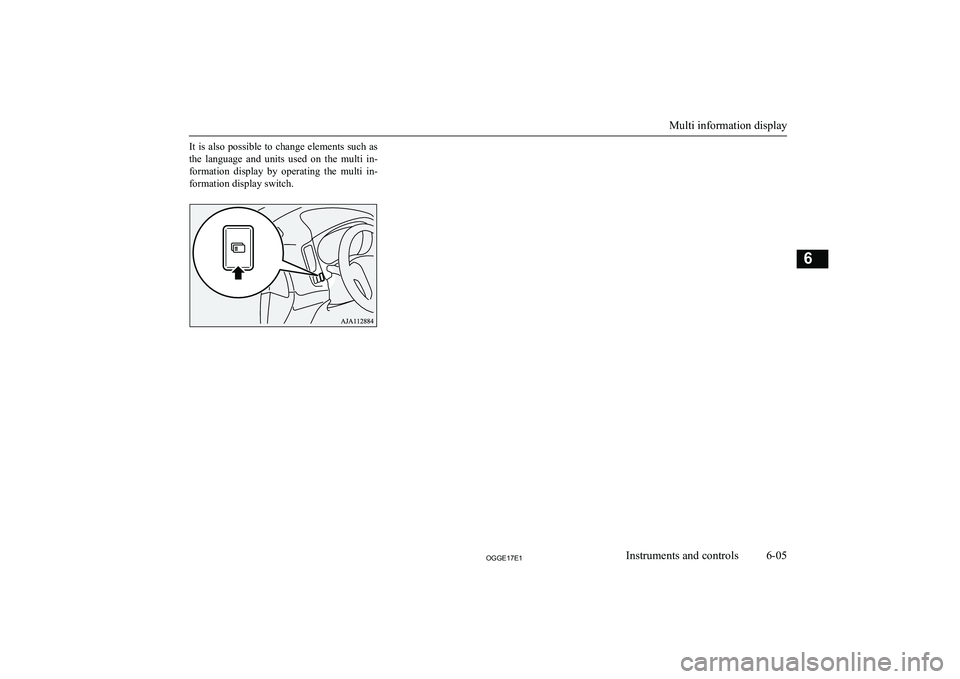
It is also possible to change elements such as
the language and units used on the multi in- formation display by operating the multi in- formation display switch.
Multi information display
6-05OGGE17E1Instruments and controls6
Page 163 of 548
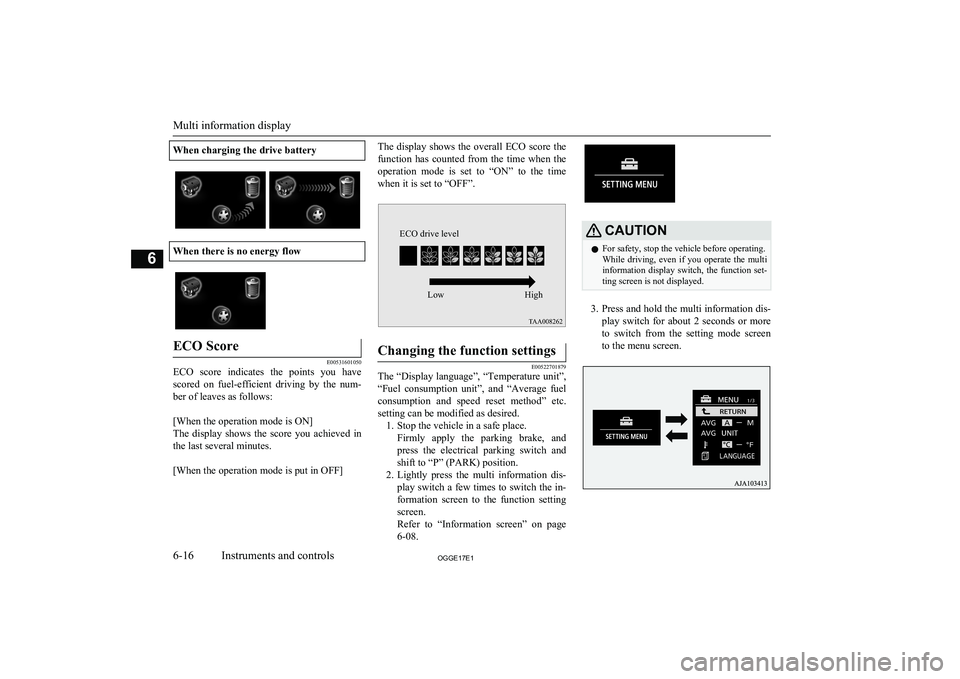
When charging the drive battery
When there is no energy flow
ECO Score
E00531601050
ECO score indicates the points you havescored on fuel-efficient driving by the num-
ber of leaves as follows:
[When the operation mode is ON]
The display shows the score you achieved in the last several minutes.
[When the operation mode is put in OFF]
The display shows the overall ECO score the
function has counted from the time when the operation mode is set to “ON” to the time when it is set to “OFF”.Changing the function settings
E00522701879
The “Display language”, “Temperature unit”,
“Fuel consumption unit”, and “Average fuel
consumption and speed reset method” etc. setting can be modified as desired. 1. Stop the vehicle in a safe place. Firmly apply the parking brake, andpress the electrical parking switch andshift to “P” (PARK) position.
2. Lightly press the multi information dis-
play switch a few times to switch the in-
formation screen to the function setting screen.
Refer to “Information screen” on page
6-08.
CAUTIONl For safety, stop the vehicle before operating.
While driving, even if you operate the multi information display switch, the function set- ting screen is not displayed.
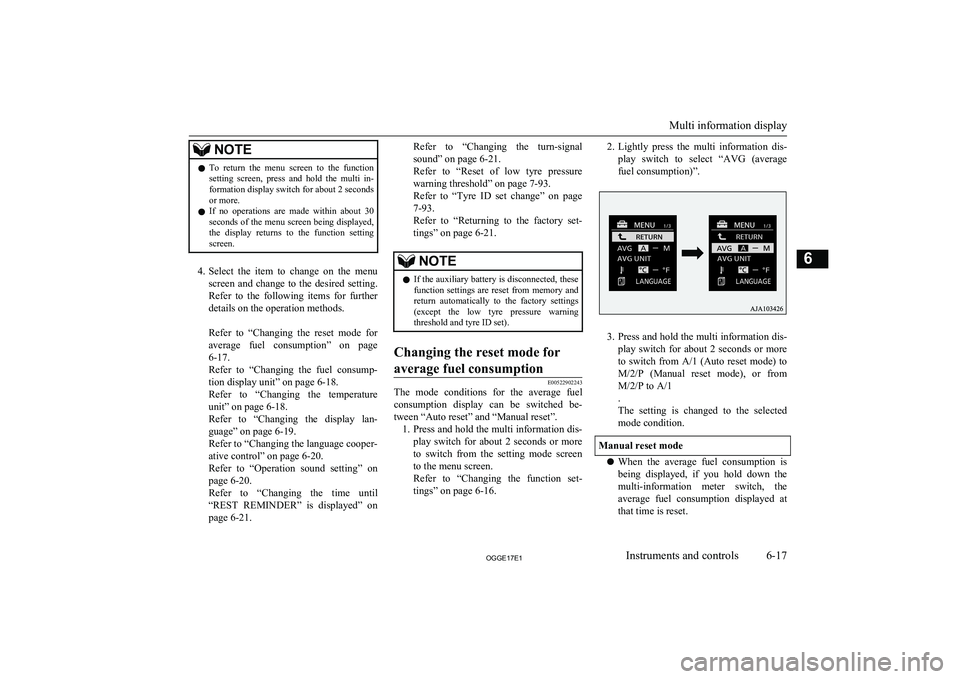
3. Press and hold the multi information dis-
play switch for about 2 seconds or more to switch from the setting mode screen
to the menu screen.
Multi information display
6-16OGGE17E1Instruments and controls6 ECO drive levelLow High
Page 164 of 548
NOTElTo return the menu screen to the function
setting screen, press and hold the multi in-formation display switch for about 2 seconds or more.
l If no operations are made within about 30
seconds of the menu screen being displayed, the display returns to the function setting
screen.
4. Select the item to change on the menu
screen and change to the desired setting. Refer to the following items for further
details on the operation methods.
Refer to “Changing the reset mode for
average fuel consumption” on page
6-17.
Refer to “Changing the fuel consump- tion display unit” on page 6-18.
Refer to “Changing the temperature
unit” on page 6-18.
Refer to “Changing the display lan- guage” on page 6-19.
Refer to “Changing the language cooper-
ative control” on page 6-20.
Refer to “Operation sound setting” on
page 6-20.
Refer to “Changing the time until “REST REMINDER” is displayed” on
page 6-21.
Refer to “Changing the turn-signal
sound” on page 6-21.
Refer to “Reset of low tyre pressure warning threshold” on page 7-93.
Refer to “Tyre ID set change” on page
7-93.
Refer to “Returning to the factory set- tings” on page 6-21.NOTEl If the auxiliary battery is disconnected, these
function settings are reset from memory and
return automatically to the factory settings (except the low tyre pressure warning threshold and tyre ID set).Changing the reset mode for
average fuel consumption
E00522902243
The mode conditions for the average fuel consumption display can be switched be- tween “Auto reset” and “Manual reset”. 1. Press and hold the multi information dis-
play switch for about 2 seconds or more to switch from the setting mode screen
to the menu screen.
Refer to “Changing the function set-
tings” on page 6-16.
2. Lightly press the multi information dis-
play switch to select “AVG (average fuel consumption)”.
3. Press and hold the multi information dis-
play switch for about 2 seconds or more to switch from A/1 (Auto reset mode) to M/2/P (Manual reset mode), or fromM/2/P to A/1
.
The setting is changed to the selected
mode condition.
Manual reset mode
l When the average fuel consumption is
being displayed, if you hold down the multi-information meter switch, the
average fuel consumption displayed at that time is reset.
Multi information display
6-17OGGE17E1Instruments and controls6
Page 166 of 548
1.Press and hold the multi information dis-
play switch for about 2 seconds or more to switch from the setting mode screen
to the menu screen.
Refer to “Changing the function set-
tings” on page 6-16.
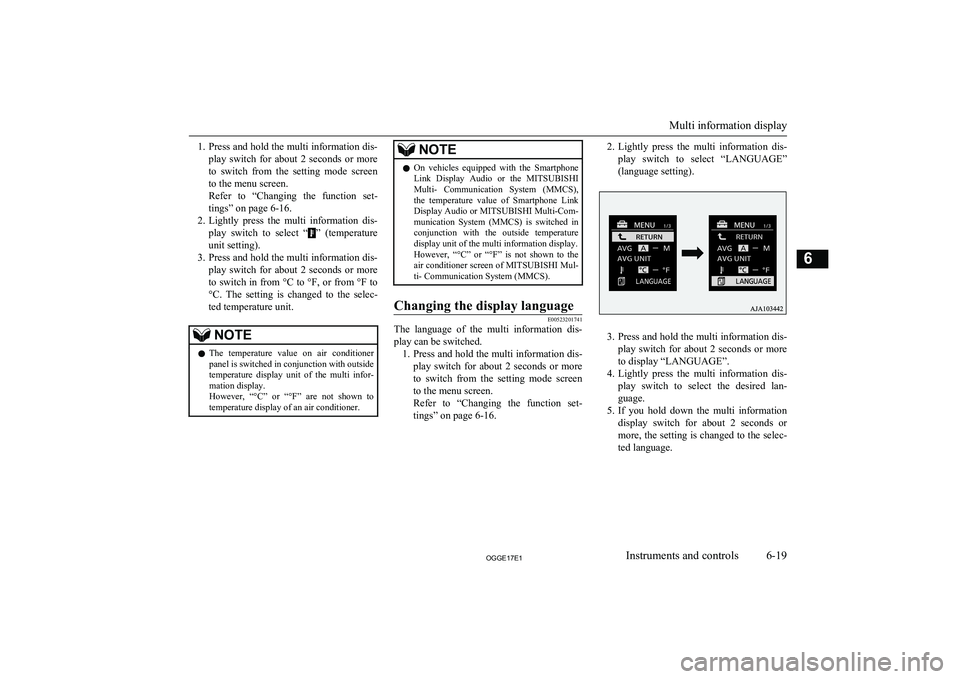
2. Lightly press the multi information dis-
play switch to select “
” (temperature
unit setting).
3. Press and hold the multi information dis-
play switch for about 2 seconds or more
to switch in from °C to °F, or from °F to °C. The setting is changed to the selec-
ted temperature unit.
NOTEl The temperature value on air conditioner
panel is switched in conjunction with outside
temperature display unit of the multi infor-
mation display.
However, “°C” or “°F” are not shown to
temperature display of an air conditioner.NOTEl On vehicles equipped with the Smartphone
Link Display Audio or the MITSUBISHI
Multi- Communication System (MMCS), the temperature value of Smartphone Link Display Audio or MITSUBISHI Multi-Com-
munication System (MMCS) is switched in conjunction with the outside temperature
display unit of the multi information display.
However, “°C” or “°F” is not shown to the
air conditioner screen of MITSUBISHI Mul-
ti- Communication System (MMCS).Changing the display language
E00523201741
The language of the multi information dis-
play can be switched. 1. Press and hold the multi information dis-
play switch for about 2 seconds or more to switch from the setting mode screen
to the menu screen.
Refer to “Changing the function set-
tings” on page 6-16.
2. Lightly press the multi information dis-
play switch to select “LANGUAGE”
(language setting).
3. Press and hold the multi information dis-
play switch for about 2 seconds or more to display “LANGUAGE”.
4. Lightly press the multi information dis-
play switch to select the desired lan-guage.
5. If you hold down the multi information
display switch for about 2 seconds or
more, the setting is changed to the selec-
ted language.
Multi information display
6-19OGGE17E1Instruments and controls6
Page 167 of 548
NOTElIf “---” is selected in the language setting, a
warning message is not displayed whenthere is a warning display or interrupt dis-
play.Changing the language cooper-
ative control
E00523301696
The language used in MITSUBISHI Multi-
Communication System (MMCS) (if so
equipped), Bluetooth ®
2.0 interface (if so
equipped) or Multi Around Monitor (if so equipped) can be changed automatically to
the same language as that shown in the multi
information display. 1. Press and hold the multi information dis-
play switch for about 2 seconds or more to switch from the setting mode screen to the menu screen.
Refer to “Changing the function set-
tings” on page 6-16.
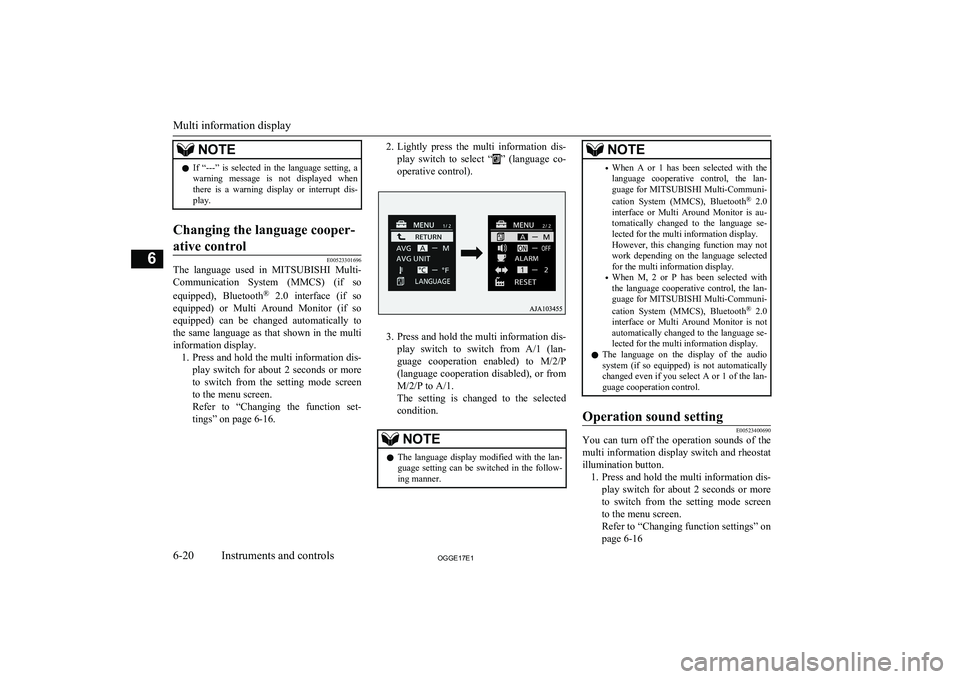
2. Lightly press the multi information dis-
play switch to select “
” (language co-
operative control).
3. Press and hold the multi information dis-
play switch to switch from A/1 (lan- guage cooperation enabled) to M/2/P
(language cooperation disabled), or from
M/2/P to A/1.
The setting is changed to the selected condition.
NOTEl The language display modified with the lan-
guage setting can be switched in the follow-ing manner.NOTE• When A or 1 has been selected with the
language cooperative control, the lan- guage for MITSUBISHI Multi-Communi-
cation System (MMCS), Bluetooth ®
2.0
interface or Multi Around Monitor is au- tomatically changed to the language se-lected for the multi information display.
However, this changing function may not
work depending on the language selected for the multi information display.
• When M, 2 or P has been selected with
the language cooperative control, the lan-
guage for MITSUBISHI Multi-Communi-
cation System (MMCS), Bluetooth ®
2.0
interface or Multi Around Monitor is not automatically changed to the language se-
lected for the multi information display.
l The language on the display of the audio
system (if so equipped) is not automatically changed even if you select A or 1 of the lan-
guage cooperation control.Operation sound setting
E00523400690
You can turn off the operation sounds of the
multi information display switch and rheostat illumination button. 1. Press and hold the multi information dis-
play switch for about 2 seconds or more to switch from the setting mode screen
to the menu screen.
Refer to “Changing function settings” on
page 6-16
Multi information display
6-20OGGE17E1Instruments and controls6
Page 169 of 548
NOTE•Average fuel consumption reset mode: A
(Auto reset)
• Fuel consumption display unit: L/100 km
• Temperature unit: °C (Celsius)
• Display language: ENGLISH or RUSSI-
AN
• Cooperative language setting: A (lan-
guage cooperation enabled)
• Operation sounds: ON (Operation sounds
on)
• “REST REMINDER” display: OFF
• Turn-signal sound: Turn-signal sound 1
l The low tyre pressure warning threshold and
tyre ID set cannot be returned to their facto-
ry settings.
Multi information display
6-22OGGE17E1Instruments and controls6
Page 380 of 548
Adjust-ment
itemsTurn counter- clockwiseTurn clock- wiseTREBLE-6 to 0
(Low high-pass volume)0 to +6
(High high-pass
volume)FADERCENTER to
REAR 11
(emphasise
REAR)FRONT 11 to CENTER
(emphasise
FRONT)BAL-
ANCELEFT 11 to
CENTER
(emphasise
LEFT)CENTER to
RIGHT 11
(emphasise
RIGHT)SCVOFF, LOW
(SCV effect is
OFF/low)MID, HIGH
(SCV effect is middle/high)System Settings
E00738301188
Change system settings such as product time.1. Press the MENU key.
2. Press the
/SEL key to select settings
items.
Each time the
/SEL key is pressed,
this switches in the order DAB setting* 1
,
Gracenote DB* 2
, AF, REG, TP-S, PI-S,
PTY language settings, PHONE settings,
CT, Adjust time, and Cancel.
3. Turn the
/SEL key to set.
4. Press the /SEL key to determine.
This completes settings, and displays the
next settings item.
* 1
:Displayed when a DAB tuner is con-
nected.* 2
:Displayed when playing back audio
files (vehicles with a Bluetooth ®
2.0 in-
terface).
DAB Setting*
Change DAB settings
(“Set value” bold typeface indicates factory
default settings.)
Settings
nameSettings val- ueSettings con-tentDAB-DAB
Link settingsOFFIf low recep-
tion sensitivi-
ty, switch to
another serv-
ice.ONDAB Band settingsBAND IIISet used
broadcast
band to 174
to 239 MHz.Settings nameSettings val- ueSettings con-tentDAB BandsettingsL-BANDSet used
broadcast
band to 1452
to 1490 MHz.BOTHSet used
broadcast
band to Band
III and L-
Band.
RDS Setting
Change RDS settings
(“Set value” bold typeface indicates factory
default settings.)
Settings
nameSettings val- ueSettings con-tentAFAF ONAutomatical-
ly track the
same station
as the pro-
gram being
received.
System Settings
8-43OGGE17E1For pleasant driving8
Page 381 of 548
SettingsnameSettings val- ueSettings con-tentAFAF OFFDo not auto-
matically
track the
same station
as the pro-
gram being
received.REGREG ONDo not auto-
matically
track the lo-
cal station for
the program
being re-
ceived.REG OFFAutomatical-
ly track the
local station
for the pro-
gram being
received.TP-STP-S ONAutomatical-
ly search for
traffic mes-
sages (TP sta-
tions).Settings nameSettings val- ueSettings con-tentTP-STP-S OFFDo not auto-
matically
search for
traffic mes-
sages (TP sta-
tions).PI-SPI-S ONSearch for the
same station
or local sta-
tion for that
registered in
the preset
channel.PI-S OFFDo not search
for the same
station or lo-
cal station for
that regis-
tered in the
preset chan-
nel.PTYENGLISHSet the dis-
play language
for the pro-
gram content
search (PTY
search) to
English.Settings nameSettings val- ueSettings con-tentPTYFRANÇAISSet the dis-
play language
for the pro-
gram content
search (PTY
search) to
French.DEUTSCHSet the dis-
play language
for the pro-
gram content
search (PTY
search) to
German.SVENSKSet the dis-
play language
for the pro-
gram content
search (PTY
search) to
Swedish.ESPAÑOLSet the dis-
play language
for the pro-
gram content
search (PTY
search) to
Spanish.
System Settings
8-44OGGE17E1For pleasant driving8
Page 382 of 548
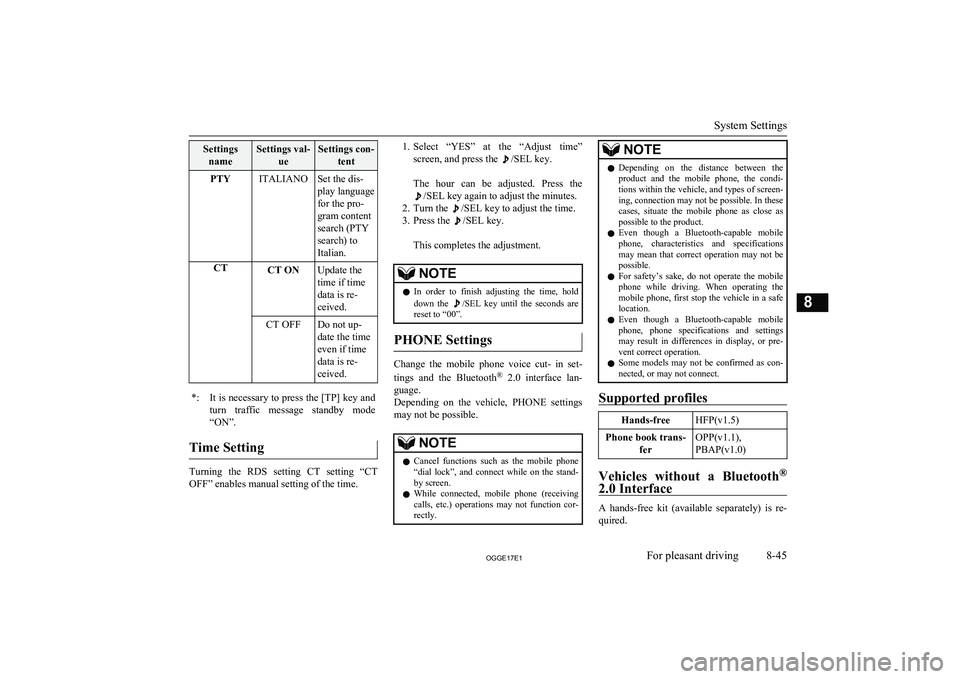
SettingsnameSettings val- ueSettings con-tentPTYITALIANOSet the dis-
play language
for the pro-
gram content
search (PTY
search) to
Italian.CTCT ONUpdate the
time if time
data is re-
ceived.CT OFFDo not up-
date the time
even if time
data is re-
ceived.*:It is necessary to press the [TP] key and
turn traffic message standby mode “ON”.
Time Setting
Turning the RDS setting CT setting “CT
OFF” enables manual setting of the time.
1. Select “YES” at the “Adjust time”
screen, and press the
/SEL key.
The hour can be adjusted. Press the
/SEL key again to adjust the minutes.
2. Turn the
/SEL key to adjust the time.
3. Press the
/SEL key.
This completes the adjustment.
NOTEl In order to finish adjusting the time, hold
down the /SEL key until the seconds are
reset to “00”.
PHONE Settings
Change the mobile phone voice cut- in set-
tings and the Bluetooth ®
2.0 interface lan-
guage.
Depending on the vehicle, PHONE settings
may not be possible.
NOTEl Cancel functions such as the mobile phone
“dial lock”, and connect while on the stand- by screen.
l While connected, mobile phone (receiving
calls, etc.) operations may not function cor- rectly.NOTEl Depending on the distance between the
product and the mobile phone, the condi- tions within the vehicle, and types of screen-ing, connection may not be possible. In thesecases, situate the mobile phone as close as possible to the product.
l Even though a Bluetooth-capable mobile
phone, characteristics and specifications
may mean that correct operation may not be possible.
l For safety’s sake, do not operate the mobile
phone while driving. When operating the mobile phone, first stop the vehicle in a safe location.
l Even though a Bluetooth-capable mobile
phone, phone specifications and settings may result in differences in display, or pre-vent correct operation.
l Some models may not be confirmed as con-
nected, or may not connect.
Supported profiles
Hands-freeHFP(v1.5)Phone book trans-
ferOPP(v1.1),
PBAP(v1.0)
Vehicles without a Bluetooth ®
2.0 Interface
A hands-free kit (available separately) is re- quired.
System Settings
8-45OGGE17E1For pleasant driving8
Page 390 of 548
NOTElFor best performance and further reduction
of ambient noise, close the vehicle windows,lower the blower speed and refrain from
conversation with your passengers while en- gaging the voice recognition function.
l Some voice commands have alternative
commands.
l Depending on the selected language, some
functions may not be available.
Selecting the Language
1. Press the SPEECH button.
2. Say “Setup”.
3. Say “Language.”
4. The voice guide will say “Select a lan-
guage: English, French, Spanish, Italian,
German, Dutch, Portuguese or Russian” Say the desired language. (Example: Say“English.”)
5. The voice guide will say “English
(French, Spanish, Italian, German, Dutch, Portuguese or Russian) selected.
Is this correct?” Say “Yes.”
Answer “No” to return to Step 4.
NOTEl The voice guide will repeat the same mes-
sage twice. The first message is in the cur-rent language, and the second message is in the selected language.NOTEl If many entries are registered in the vehicle
phone book, changing the language will take
longer.
l Changing the language deletes the mobile
phone book imported to the Bluetooth ®
2.0
interface. If you wish to use it, you will have
to import it again.
6. When the voice guide says “English
(French, Spanish, Italian, German, Dutch, Portuguese or Russian) selected,”the language change process will be
completed and the system will return to the main menu.
Useful voice commands
E00760000019
Help function
E00760100010
The Bluetooth ®
2.0 interface is equipped
with a help function.
If you say “Help” when the system is waiting for a voice command input, the system will
tell you a list of the commands that can be used under the circumstances.
Cancelling
E00760201021
There are two cancel functions.
If you are at the main menu, say “Cancel” to
exit from the Bluetooth ®
2.0 interface.
If you are anywhere else within the system,
say “Cancel” to return to the main menu.NOTEl You can return to the previous menu by say-
ing “Go Back.” (if so equipped)Confirmation function setting
E00760400013
The Bluetooth ®
2.0 interface is equipped
with a confirmation function.
With the confirmation function activated, you are given more opportunities than normal to
confirm a command when making various
settings to the Bluetooth ®
2.0 interface. This
allows you to decrease the possibility that a setting is accidentally changed.
The confirmation function can be turned on
or off by following the steps below. 1. Press the SPEECH button.
2. Say “Setup”.
3. Say “Confirmation prompts”.
4. The voice guide will say “Confirmation
prompts are
turn confirmation prompts
5. The voice guide will say “Confirmation
prompts are
Bluetooth ®
2.0 interface*
8-53OGGE17E1For pleasant driving8