navigation NISSAN ROGUE 2021 Owner´s Manual
[x] Cancel search | Manufacturer: NISSAN, Model Year: 2021, Model line: ROGUE, Model: NISSAN ROGUE 2021Pages: 556, PDF Size: 2.7 MB
Page 135 of 556
Outside air temperature (°F or °C)
The outside air temperature is displayed
in °F or °C in the range of −40 to 140°F (−40
to 60°C).
The outside air temperature mode in-
cludes a low temperature warning fea-
ture. If the outside air temperature is
below 27°F (−3°C), the indicator
is
displayed.
The outside temperature sensor is lo-
cated in front of the radiator. The sensor
may be affected by road or engine heat,
wind directions and other driving condi-
tions. The display may differ from the
actual outside temperature or the tem-
perature displayed on various signs or
billboards.
WAC0417X
WAC0544X
WARNING
. Failure to properly adjust the
brightness and position of the
displayed image may interfere
with the driver’s ability to see
through the windshield, which
could cause an accident leading
to severe injury or death.
. Do not use the Head Up Display
(HUD) for extended periods of
time as that can cause you to
not see other vehicles, pedes-
trians or objects, which could
cause an accident leading to se-
vere injury or death.
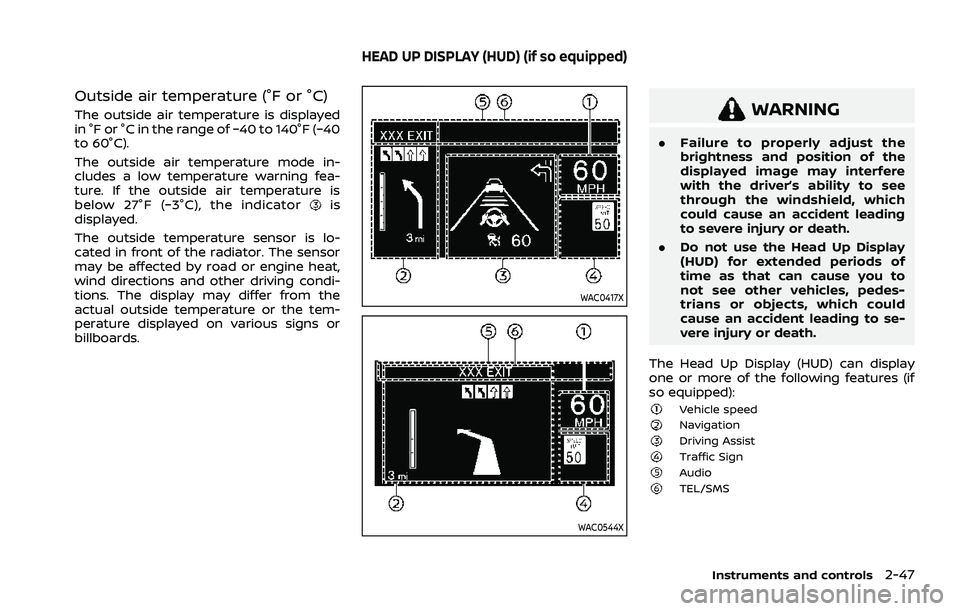
The Head Up Display (HUD) can display
one or more of the following features (if
so equipped):
Vehicle speedNavigationDriving AssistTraffic SignAudioTEL/SMS
Instruments and controls2-47
HEAD UP DISPLAY (HUD) (if so equipped)
Page 137 of 556
JVI1787X
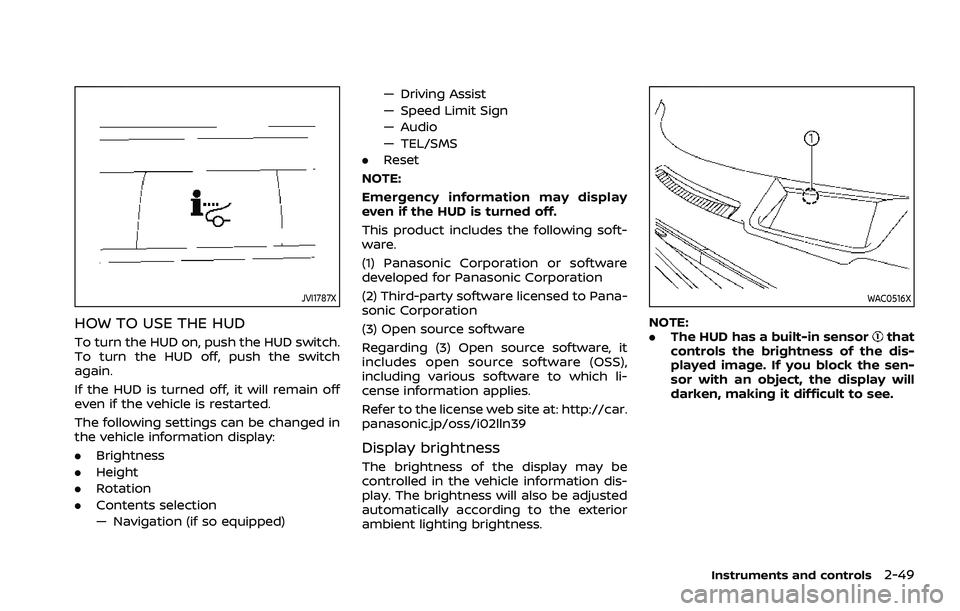
HOW TO USE THE HUD
To turn the HUD on, push the HUD switch.
To turn the HUD off, push the switch
again.
If the HUD is turned off, it will remain off
even if the vehicle is restarted.
The following settings can be changed in
the vehicle information display:
.Brightness
. Height
. Rotation
. Contents selection
— Navigation (if so equipped) — Driving Assist
— Speed Limit Sign
— Audio
— TEL/SMS
. Reset
NOTE:
Emergency information may display
even if the HUD is turned off.
This product includes the following soft-
ware.
(1) Panasonic Corporation or software
developed for Panasonic Corporation
(2) Third-party software licensed to Pana-
sonic Corporation
(3) Open source software
Regarding (3) Open source software, it
includes open source software (OSS),
including various software to which li-
cense information applies.
Refer to the license web site at: http://car.
panasonic.jp/oss/i02lln39
Display brightness
The brightness of the display may be
controlled in the vehicle information dis-
play. The brightness will also be adjusted
automatically according to the exterior
ambient lighting brightness.
WAC0516X
NOTE:
. The HUD has a built-in sensorthat
controls the brightness of the dis-
played image. If you block the sen-
sor with an object, the display will
darken, making it difficult to see.
Instruments and controls2-49
Page 138 of 556
2-50Instruments and controls
DRIVER ASSISTANCE/NAVIGATION/
TRAFFIC SIGN/AUDIO/TEL/SMS
LINKING
The HUD will display Driver Assistance and
navigation information.
The Driver Assistance display will show
warning situations for the following sys-
tems:
.Automatic Emergency Braking (AEB)
with pedestrian detection
. Intelligent Forward Collision Warning
(I-FCW)
. Lane Departure Warning (LDW)
. Intelligent Lane Intervention (I-LI)
. Hands-free warning (for vehicles with
ProPILOT Assist) (if so equipped)
The Navigation System linking display will
show the following items:
. Intersection names
. Arrows indicating turning direction
. Distance to the next intersection
. Recommended lane indicator
The Traffic Signs Recognition (TSR) sys-
tem linking display will show the following
items:
. Speed Limit Sign
. No Entry Sign The Audio System linking display will
show the following items:
.
Songs
. Radio stations
The TEL/SMS linking display will show the
following item:
. Caller’s name or phone number
JVI1587X
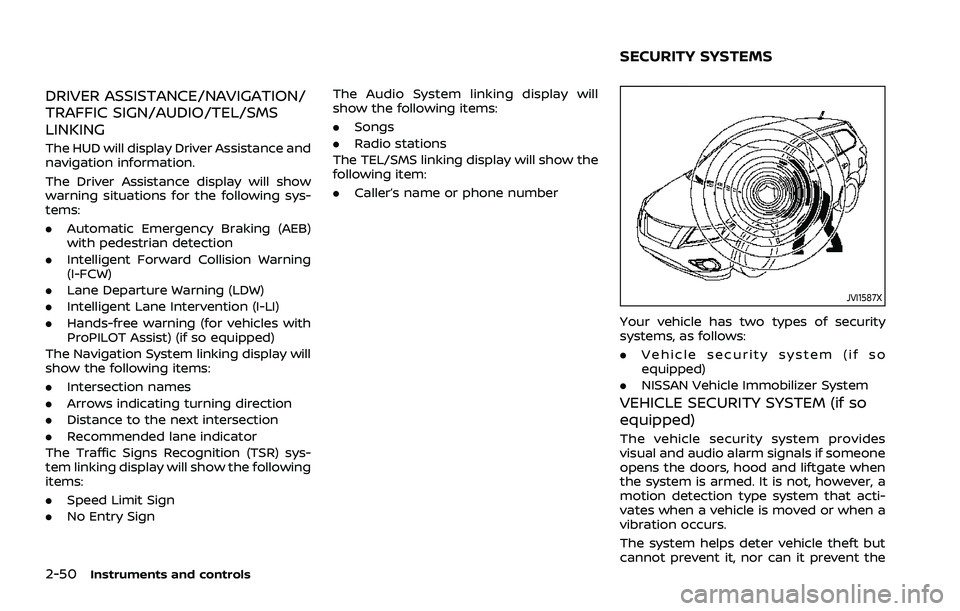
Your vehicle has two types of security
systems, as follows:
.Vehicle security system (if so
equipped)
. NISSAN Vehicle Immobilizer System
VEHICLE SECURITY SYSTEM (if so
equipped)
The vehicle security system provides
visual and audio alarm signals if someone
opens the doors, hood and liftgate when
the system is armed. It is not, however, a
motion detection type system that acti-
vates when a vehicle is moved or when a
vibration occurs.
The system helps deter vehicle theft but
cannot prevent it, nor can it prevent the
SECURITY SYSTEMS
Page 183 of 556
AUTOMATIC DOOR LOCKS
.All doors lock automatically when the
vehicle speed reaches 15 MPH (24
km/h).
. All doors unlock automatically when
the ignition switch is placed in the OFF
position or when the shift position is
placed in the P (Park) position, if
selected.
NOTE:
The Automatic door unlock feature can
be changed using the "Vehicle Settings"
menu on the vehicle information dis-
play. (See “Vehicle Settings” (P.2-27).)
WAD0021X
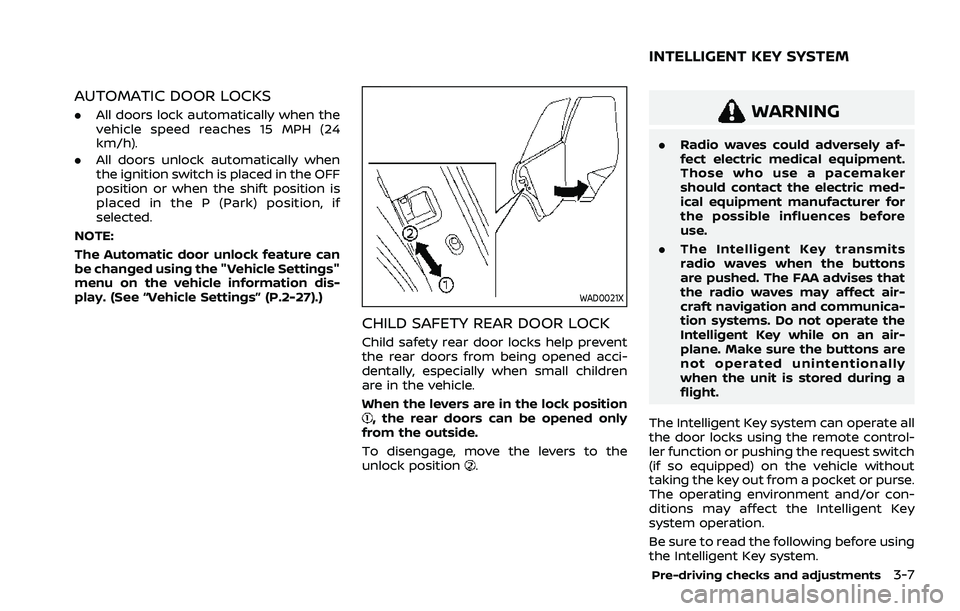
CHILD SAFETY REAR DOOR LOCK
Child safety rear door locks help prevent
the rear doors from being opened acci-
dentally, especially when small children
are in the vehicle.
When the levers are in the lock position
, the rear doors can be opened only
from the outside.
To disengage, move the levers to the
unlock position
.
WARNING
. Radio waves could adversely af-
fect electric medical equipment.
Those who use a pacemaker
should contact the electric med-
ical equipment manufacturer for
the possible influences before
use.
. The Intelligent Key transmits
radio waves when the buttons
are pushed. The FAA advises that
the radio waves may affect air-
craft navigation and communica-
tion systems. Do not operate the
Intelligent Key while on an air-
plane. Make sure the buttons are
not operated unintentionally
when the unit is stored during a
flight.
The Intelligent Key system can operate all
the door locks using the remote control-
ler function or pushing the request switch
(if so equipped) on the vehicle without
taking the key out from a pocket or purse.
The operating environment and/or con-
ditions may affect the Intelligent Key
system operation.
Be sure to read the following before using
the Intelligent Key system.
Pre-driving checks and adjustments3-7
INTELLIGENT KEY SYSTEM
Page 191 of 556
HOW TO USE REMOTE KEYLESS
ENTRY FUNCTION
WARNING
.Radio waves could adversely af-
fect electric medical equipment.
Those who use a pacemaker
should contact the electric med-
ical equipment manufacturer for
the possible influences before
use.
. The Intelligent Key transmits
radio waves when the buttons
are pushed. The FAA advises that
the radio waves may affect air-
craft navigation and communica-
tion systems. Do not operate the
Intelligent Key while on an air-
plane. Make sure the buttons are
not operated unintentionally
when the unit is stored during a
flight.
CAUTION
.Do not allow the Intelligent Key,
which contains electrical compo-
nents, to come into contact with
water or salt water. This could affect the system function.
. Do not drop the Intelligent Key.
. Do not strike the Intelligent Key
sharply against another object.
. Do not change or modify the
Intelligent Key.
. Wetting may damage the Intelli-
gent Key. If the Intelligent Key
gets wet, immediately wipe until
it is completely dry.
. If the outside temperature is be-
low 14°F (-10°C) degrees, the bat-
tery of the Intelligent Key may not
function properly.
. Do not place the Intelligent Key
for an extended period in an area
where temperatures exceed
140°F (60°C).
. Do not attach the Intelligent Key
with a key holder that contains a
magnet.
. Do not place the Intelligent Key
near equipment that produces a
magnetic field, such as a TV,
audio equipment, personal com-
puters, cellular phone or wireless
charger.
The remote keyless entry function can
operate all door locks using the remote keyless entry function of the Intelligent
Key. The remote keyless entry function
can operate at a distance of approxi-
mately 33 ft (10 m) from the vehicle. (The
operating distance depends upon the
conditions around the vehicle.)
The remote keyless entry function will not
operate:
.
When the Intelligent Key is not within
the operational range.
. When the Intelligent Key battery is
discharged.
The remote keyless entry function can
also operate the vehicle alarm.
Pre-driving checks and adjustments3-15
Page 213 of 556
3. The indicator light for the pushedmemory switch will come on and stay
on for approximately 5 seconds.
4. The chime will sound if the memory has been stored.
NOTE:
If a new memory position is stored in
the same memory switch, the previous
memory position will be overwritten by
the new stored position.
Confirming memory storage
Push the SET switch. If a memory position
has not been stored in the switch (1 or 2)
the indicator light for the respective
switch will come ON for approximately
0.5 seconds. If a memory position has
been stored in the switch (1 or 2) then the
indicator light for the respective switch
will stay ON for approximately 5 seconds.
Recalling switch memory positions
To recall the manually stored positions,
push the memory switch (1 or 2). The
driver’s seat and the outside mirrors will
move to the positions stored in the
memory switch.
Linking log-in function to a stored
memory position (models with na-
vigation system)
The log-in function can be linked to a
stored memory position with the follow-
ing procedure.
1. Place the ignition switch in the ON position while carrying the Intelligent
Key that was registered to the vehicle
with a log-in function.
NOTE:
Make sure the Intelligent Key is far
apart. Otherwise, the vehicle may
detect the wrong Intelligent Key.
2. Adjust the position of the driver’s seat and outside mirrors. (See “Seats” (P.1-3)
and “Outside mirrors” (P.3-34).)
3. Place the ignition switch in the OFF position.
The next time you log in (selecting the
user on the display) after placing the
ignition switch in the ON position while
carrying the Intelligent Key, the system
will automatically adjust to the memor-
ized driving position. (See the separate
NissanConnect® Owner’s Manual.)
Linking an Intelligent Key to a
stored memory position (models
without navigation system)
Each Intelligent Key can be linked to a
stored memory position (memory switch
1 or 2) with the following procedure.
1. Follow steps 1-3 in the “Memory sto- rage function” (P.3-36) for storing the
memory position.
2. The indicator light for the pushed memory switch will come on. While
the indicator light is on for 5 seconds,
press the
button and thebutton on the Intelligent Key in suc-
cession. The indicator light of the
linked memory switch will blink. After
the indicator light goes off, the Intel-
ligent Key is linked to that memory
setting.
Once it is linked, when ignition switch is
placed in the OFF position, pressing the
button on the Intelligent Key will
move the driver’s seat and outside mir-
rors to the linked memory switch posi-
tion.
NOTE:
If a new memory position is stored in
the linked memory switch, then the
Intelligent Key will link the new position
and overwrites the previous position.
Pre-driving checks and adjustments3-37
Page 216 of 556
4-2Monitor, heater, air conditioner, audio and phone systems
For models with NissanConnect® System,
refer to NissanConnect® Owner’s Manual
that includes the following information.
Available functions may vary depending
on the models and specifications.
.Audio
. Hands-Free Phone
. Apple CarPlay®
. Android Auto
TM
.NissanConnect® Services powered by
SiriusXM®
. Navigation system
. Voice recognition
. Information and settings viewable on
NissanConnect®
WAE0334X
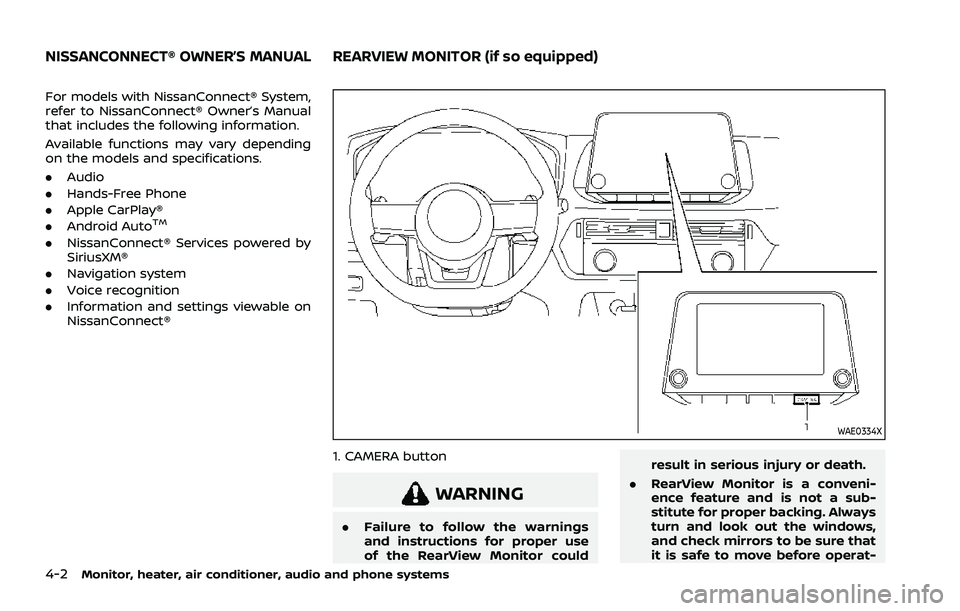
1. CAMERA button
WARNING
.Failure to follow the warnings
and instructions for proper use
of the RearView Monitor could result in serious injury or death.
. RearView Monitor is a conveni-
ence feature and is not a sub-
stitute for proper backing. Always
turn and look out the windows,
and check mirrors to be sure that
it is safe to move before operat-
NISSANCONNECT® OWNER’S MANUALREARVIEW MONITOR (if so equipped)
Page 270 of 556
5-16Starting and driving
3. Push the ignition switch again to theOFF position.
The shift position can be shifted from
the P (Park) position if the ignition
switch is in the ON position and the
brake pedal is depressed.
PUSH-BUTTON IGNITION SWITCH
POSITIONS
ON (Normal operating position)
The ignition system and the electrical
accessory power activate at this position
without the engine turned on.
The ON position has a battery saver
feature that will place the ignition switch
in the OFF position, if the vehicle is not
running, after some time under the fol-
lowing conditions:
. all doors are closed.
. vehicle is in P (Park) position.
OFF position
The engine is turned off in this position.
Auto ACC position
With the vehicle in the P (Park) position,
the Intelligent Key with you and the
ignition placed from ON to OFF, the radio
can still be used for a period of time, or
until the driver’s door is opened. After a
period of time, functions such as radio,
navigation (if so equipped), and Blue-
tooth® Hands-Free Phone System may
be restarted by turning on the audio
system (see the separate NissanConnect®
Owner’s Manual), or by pushing the UN-
LOCK button on the Intelligent Key for up
to a total of 30 minutes.
EMERGENCY ENGINE SHUT OFF
To shut off the engine in an emergency
situation while driving or when the In-
telligent Key battery is discharged, per-
form the following procedure:
.Rapidly push the push-button ignition
switch 3 consecutive times in less
than 1.5 seconds, or
. Push and hold the push-button igni-
tion switch for more than 2 seconds.
After engine shut-off, open the door to
return to the normal condition.
JVS0404X
INTELLIGENT KEY BATTERY DIS-
CHARGE
If the battery of the Intelligent Key is
discharged, or environmental conditions
interfere with the Intelligent Key opera-
tion, start the engine according to the
following procedure:
1. Push the park button to shift to the P (Park) position.
2. Firmly apply the foot brake.
3. Touch the ignition switch with the Intelligent Key as illustrated. (A chime
will sound.)
4. Push the ignition switch while depres- sing the brake pedal within 10 sec-
Page 289 of 556
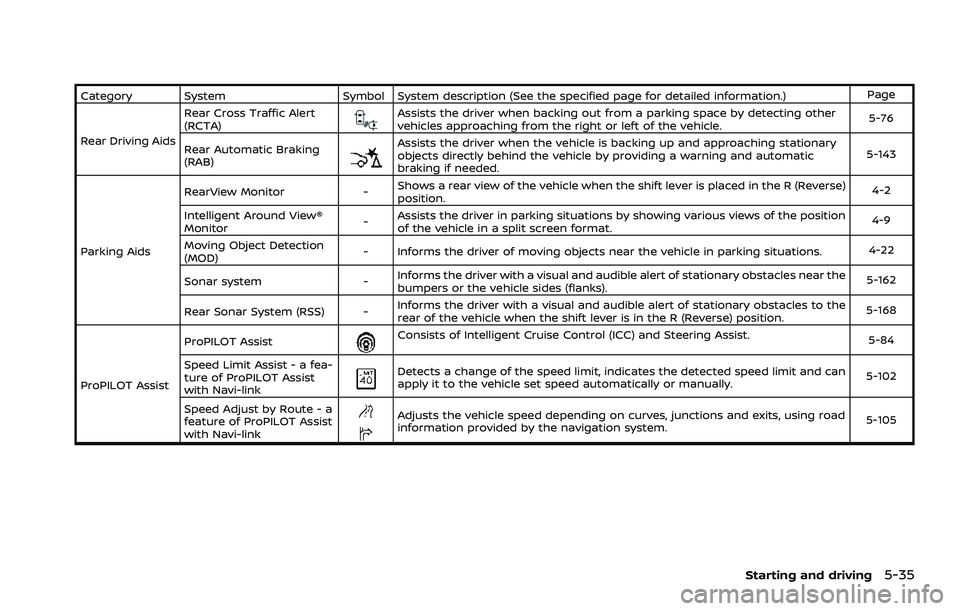
Category SystemSymbol System description (See the specified page for detailed information.) Page
Rear Driving Aids Rear Cross Traffic Alert
(RCTA)
Assists the driver when backing out from a parking space by detecting other
vehicles approaching from the right or left of the vehicle.
5-76
Rear Automatic Braking
(RAB)
Assists the driver when the vehicle is backing up and approaching stationary
objects directly behind the vehicle by providing a warning and automatic
braking if needed. 5-143
Parking Aids RearView Monitor
-Shows a rear view of the vehicle when the shift lever is placed in the R (Reverse)
position. 4-2
Intelligent Around View®
Monitor -Assists the driver in parking situations by showing various views of the position
of the vehicle in a split screen format. 4-9
Moving Object Detection
(MOD) - Informs the driver of moving objects near the vehicle in parking situations.
4-22
Sonar system -Informs the driver with a visual and audible alert of stationary obstacles near the
bumpers or the vehicle sides (flanks). 5-162
Rear Sonar System (RSS) - Informs the driver with a visual and audible alert of stationary obstacles to the
rear of the vehicle when the shift lever is in the R (Reverse) position. 5-168
ProPILOT Assist ProPILOT Assist
Consists of Intelligent Cruise Control (ICC) and Steering Assist.
5-84
Speed Limit Assist - a fea-
ture of ProPILOT Assist
with Navi-link
Detects a change of the speed limit, indicates the detected speed limit and can
apply it to the vehicle set speed automatically or manually. 5-102
Speed Adjust by Route - a
feature of ProPILOT Assist
with Navi-link
Adjusts the vehicle speed depending on curves, junctions and exits, using road
information provided by the navigation system. 5-105
Starting and driving5-35
Page 297 of 556
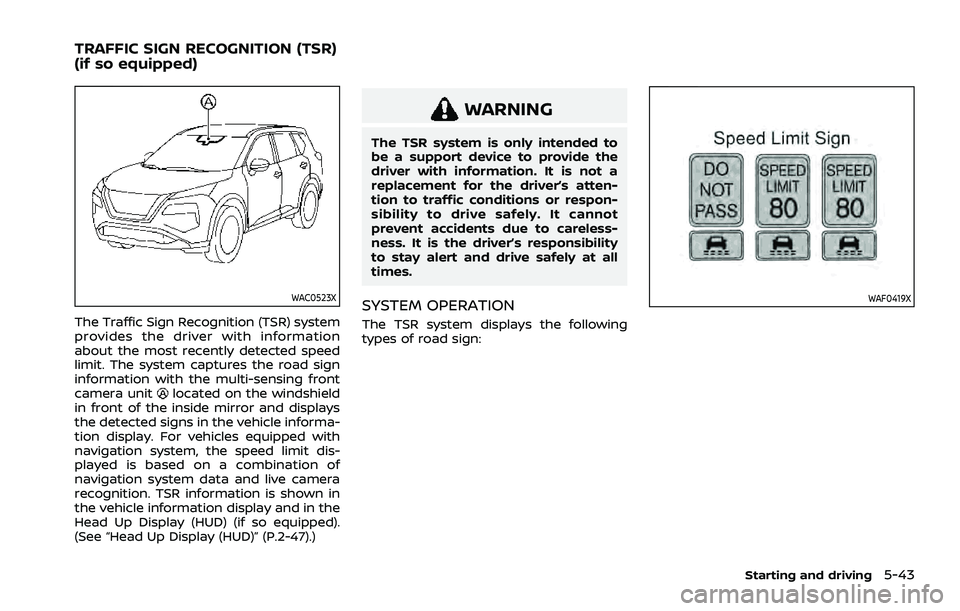
WAC0523X
The Traffic Sign Recognition (TSR) system
provides the driver with information
about the most recently detected speed
limit. The system captures the road sign
information with the multi-sensing front
camera unit
located on the windshield
in front of the inside mirror and displays
the detected signs in the vehicle informa-
tion display. For vehicles equipped with
navigation system, the speed limit dis-
played is based on a combination of
navigation system data and live camera
recognition. TSR information is shown in
the vehicle information display and in the
Head Up Display (HUD) (if so equipped).
(See “Head Up Display (HUD)” (P.2-47).)
WARNING
The TSR system is only intended to
be a support device to provide the
driver with information. It is not a
replacement for the driver’s atten-
tion to traffic conditions or respon-
sibility to drive safely. It cannot
prevent accidents due to careless-
ness. It is the driver’s responsibility
to stay alert and drive safely at all
times.
SYSTEM OPERATION
The TSR system displays the following
types of road sign:
WAF0419X
Starting and driving5-43
TRAFFIC SIGN RECOGNITION (TSR)
(if so equipped)