reset NISSAN TITAN 2021 Owner´s Manual
[x] Cancel search | Manufacturer: NISSAN, Model Year: 2021, Model line: TITAN, Model: NISSAN TITAN 2021Pages: 638, PDF Size: 4.31 MB
Page 173 of 638
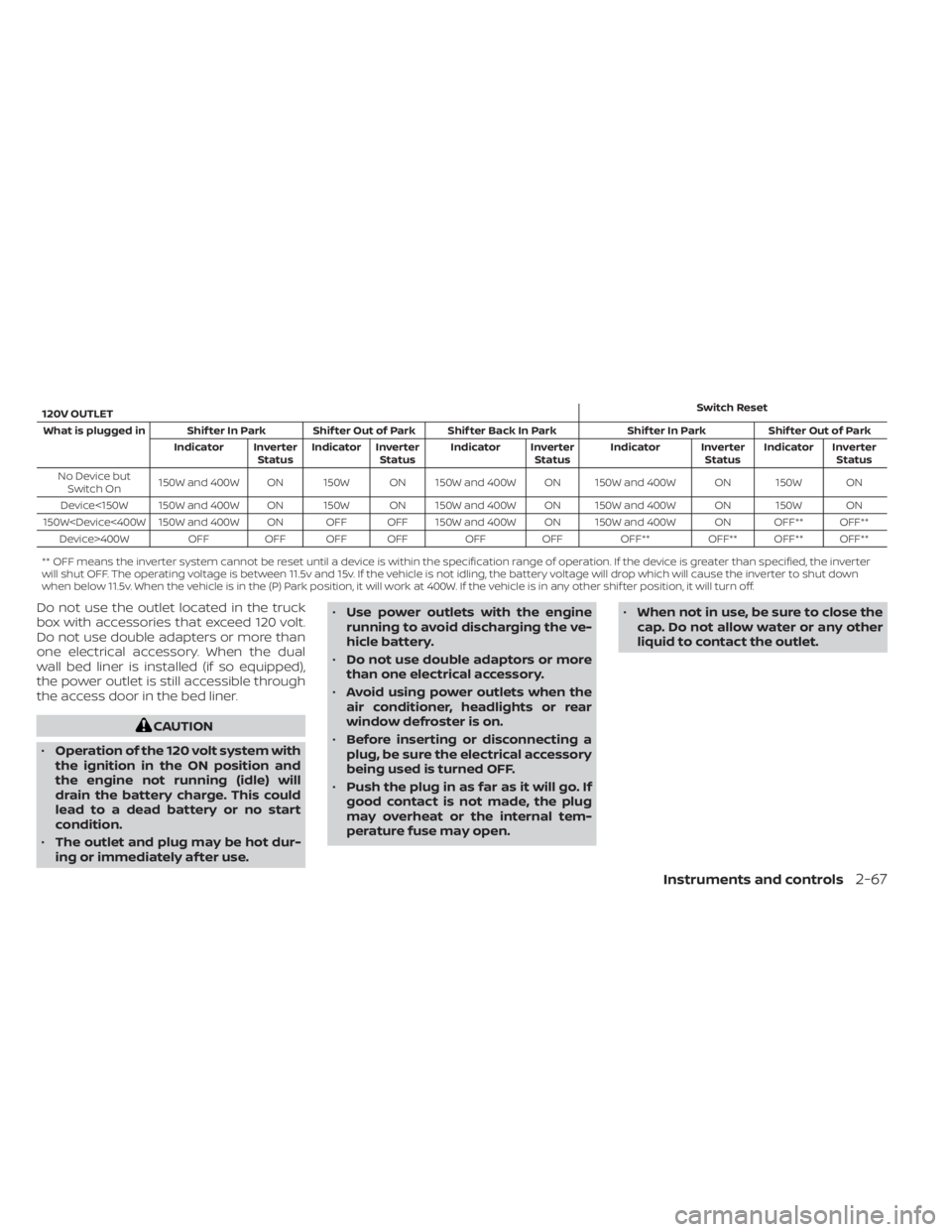
120V OUTLETSwitch Reset
What is plugged in Shif ter In Park Shif ter Out of Park Shif ter Back In Park Shif ter In Park Shif ter Out of Park Indicator InverterStatusIndicator Inverter
Status Indicator Inverter
StatusIndicator Inverter
StatusIndicator Inverter
Status
No Device but Switch On 150W and 400W ON 150W ON 150W and 400W ON 150W and 400W ON 150W ON
Device<150W 150W and 400W ON 150W ON 150W and 400W ON 150W and 400W ON 150W ON
150W
** OFF means the inverter system cannot be reset until a device is within the specification range of operation. If the device is greater than specified, the inverter
will shut OFF. The operating voltage is between 11.5v and 15v. If the vehicle is not idling, the battery voltage will drop which will cause the inverter to shut down
when below 11.5v. When the vehicle is in the (P) Park position, it will work at 400W. If the vehicle is in any other shif ter position, it will turn off.
Do not use the outlet located in the truck
box with accessories that exceed 120 volt.
Do not use double adapters or more than
one electrical accessory. When the dual
wall bed liner is installed (if so equipped),
the power outlet is still accessible through
the access door in the bed liner.
CAUTION
• Operation of the 120 volt system with
the ignition in the ON position and
the engine not running (idle) will
drain the battery charge. This could
lead to a dead battery or no start
condition.
• The outlet and plug may be hot dur-
ing or immediately af ter use. •
Use power outlets with the engine
running to avoid discharging the ve-
hicle battery.
• Do not use double adaptors or more
than one electrical accessory.
• Avoid using power outlets when the
air conditioner, headlights or rear
window defroster is on.
• Before inserting or disconnecting a
plug, be sure the electrical accessory
being used is turned OFF.
• Push the plug in as far as it will go. If
good contact is not made, the plug
may overheat or the internal tem-
perature fuse may open. •
When not in use, be sure to close the
cap. Do not allow water or any other
liquid to contact the outlet.
Instruments and controls2-67
Page 192 of 638
Sliding the moonroof
To fully open or close the moonroof, push
the switch toward the open
O1or closeO2
position and release it; it need not be held.
The roof will automatically open or close all
the way. To stop the roof, push the switch
once while it is opening or closing.
Tilting the moonroof
To tilt up, first close the moonroof, then
push the switch
O3and release it; it need
not be held. To tilt down the moonroof,
push the switch to the tilt down position
O2.
Resetting the moonroof switch
If the moonroof does not operate properly,
perform the following procedure to initial-
ize the moonroof operation system.
1. If the moonroof is open, close it fully by repeatedly pushing the moonroof
switch to the close position
O2.
2. Push and hold the moonroof switch to the close position
O2for approximately
15 seconds.
3. Release the switch af ter the moonroof moves up, down, then back to the full tilt
up position. 4. Push and hold the switch to the close
position
O2.
5. Release the switch af ter the moonroof completes one full cycle from the tilt up
position to the closed position, then to
the open position, and again to the fully
closed position.
6. Check if the moonroof switch operates normally.
If the moonroof does not operate properly
af ter performing the procedure above,
have your vehicle checked. It is recom-
mended that you visit a NISSAN dealer for
this service.
Auto-reverse function (when
closing or tilting down the
moonroof)
The auto-reverse function can be acti-
vated when the moonroof and sunshade
are closed or tilted down by automatic op-
eration when the ignition switch is placed
in the ON position or for a period of time
af ter the ignition switch is placed in the OFF
position. Depending on the environment or driv-
ing conditions, the auto-reverse func-
tion may be activated if an impact or
load similar to something being caught
in the moonroof occurs.
WARNING
There are some small distances imme-
diately before the closed position
which cannot be detected. Make sure
that all passengers have their hands,
etc., inside the vehicle before closing
the moonroof.
When closing
If the control unit detects something
caught in the moonroof and sunshade as it
moves to the front, the moonroof and sun-
shade will immediately open backward.
When tilting down
If the control unit detects something
caught in the moonroof as it tilts down, the
moonroof will immediately tilt up.
2-86Instruments and controls
Page 229 of 638
AUTOMATIC OPERATION (if so
equipped)
Tilt and telescopic operation
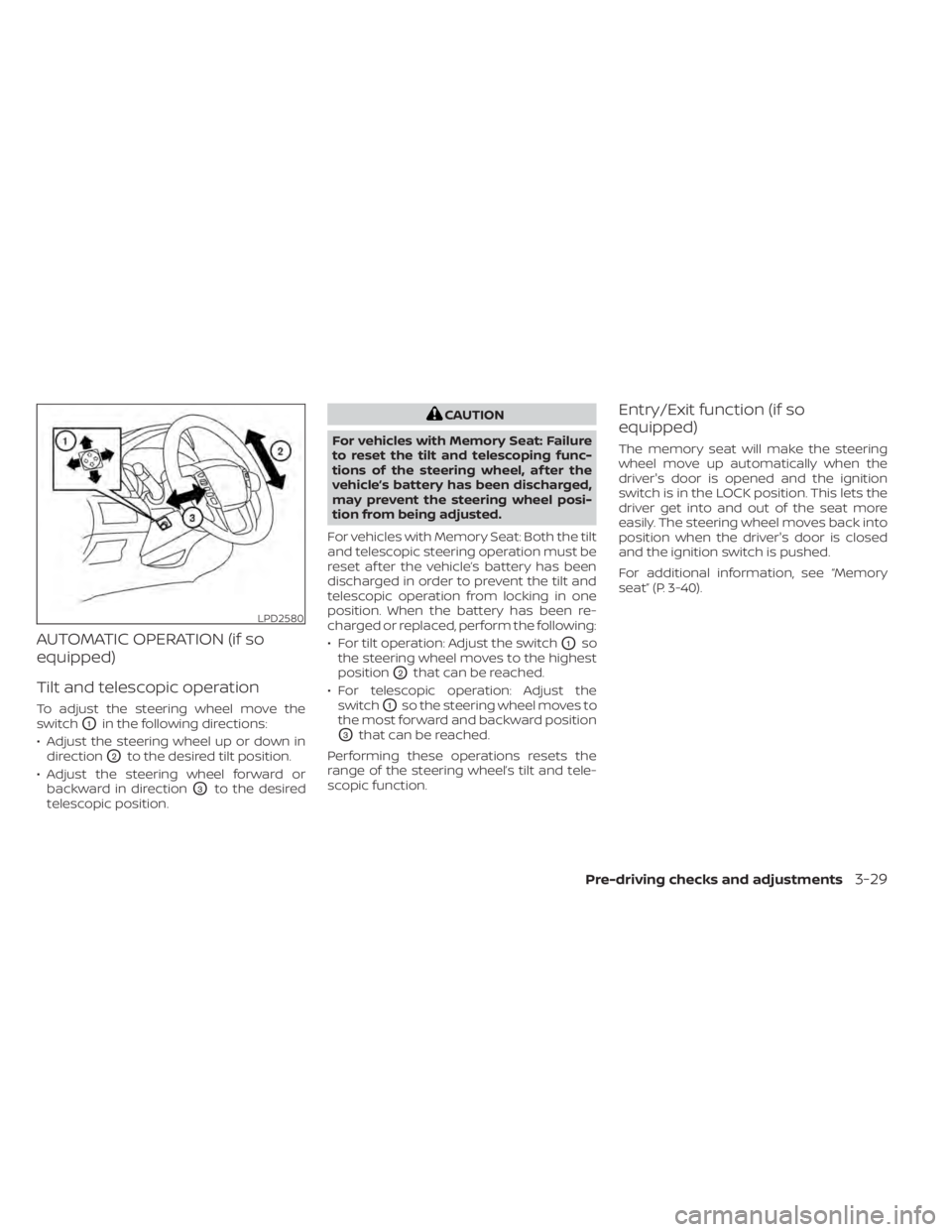
To adjust the steering wheel move the
switch
O1in the following directions:
• Adjust the steering wheel up or down in direction
O2to the desired tilt position.
• Adjust the steering wheel forward or backward in direction
O3to the desired
telescopic position.
CAUTION
For vehicles with Memory Seat: Failure
to reset the tilt and telescoping func-
tions of the steering wheel, af ter the
vehicle’s battery has been discharged,
may prevent the steering wheel posi-
tion from being adjusted.
For vehicles with Memory Seat: Both the tilt
and telescopic steering operation must be
reset af ter the vehicle’s battery has been
discharged in order to prevent the tilt and
telescopic operation from locking in one
position. When the battery has been re-
charged or replaced, perform the following:
• For tilt operation: Adjust the switch
O1so
the steering wheel moves to the highest
position
O2that can be reached.
• For telescopic operation: Adjust the switch
O1so the steering wheel moves to
the most forward and backward position
O3that can be reached.
Performing these operations resets the
range of the steering wheel’s tilt and tele-
scopic function.
Entry/Exit function (if so
equipped)
The memory seat will make the steering
wheel move up automatically when the
driver's door is opened and the ignition
switch is in the LOCK position. This lets the
driver get into and out of the seat more
easily. The steering wheel moves back into
position when the driver's door is closed
and the ignition switch is pushed.
For additional information, see “Memory
seat” (P. 3-40).
LPD2580
Pre-driving checks and adjustments3-29
Page 290 of 638
Notes on discs
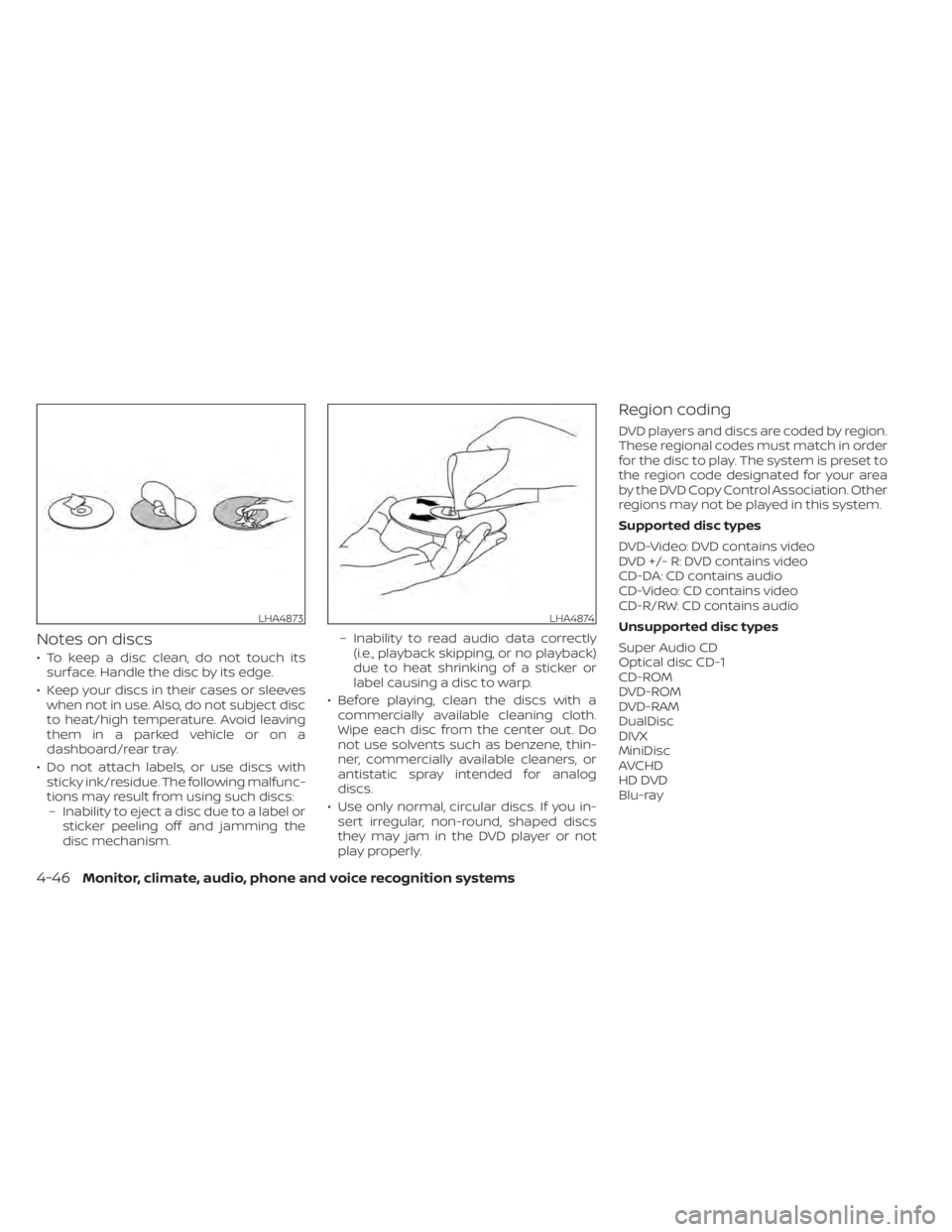
• To keep a disc clean, do not touch itssurface. Handle the disc by its edge.
• Keep your discs in their cases or sleeves when not in use. Also, do not subject disc
to heat/high temperature. Avoid leaving
them in a parked vehicle or on a
dashboard/rear tray.
• Do not attach labels, or use discs with sticky ink/residue. The following malfunc-
tions may result from using such discs:– Inability to eject a disc due to a label or sticker peeling off and jamming the
disc mechanism. – Inability to read audio data correctly
(i.e., playback skipping, or no playback)
due to heat shrinking of a sticker or
label causing a disc to warp.
• Before playing, clean the discs with a commercially available cleaning cloth.
Wipe each disc from the center out. Do
not use solvents such as benzene, thin-
ner, commercially available cleaners, or
antistatic spray intended for analog
discs.
• Use only normal, circular discs. If you in- sert irregular, non-round, shaped discs
they may jam in the DVD player or not
play properly.
Region coding
DVD players and discs are coded by region.
These regional codes must match in order
for the disc to play. The system is preset to
the region code designated for your area
by the DVD Copy Control Association. Other
regions may not be played in this system.
Supported disc types
DVD-Video: DVD contains video
DVD +/- R: DVD contains video
CD-DA: CD contains audio
CD-Video: CD contains video
CD-R/RW: CD contains audio
Unsupported disc types
Super Audio CD
Optical disc CD-1
CD-ROM
DVD-ROM
DVD-RAM
DualDisc
DIVX
MiniDisc
AVCHD
HD DVD
Blu-ray
LHA4873LHA4874
4-46Monitor, climate, audio, phone and voice recognition systems
Page 293 of 638
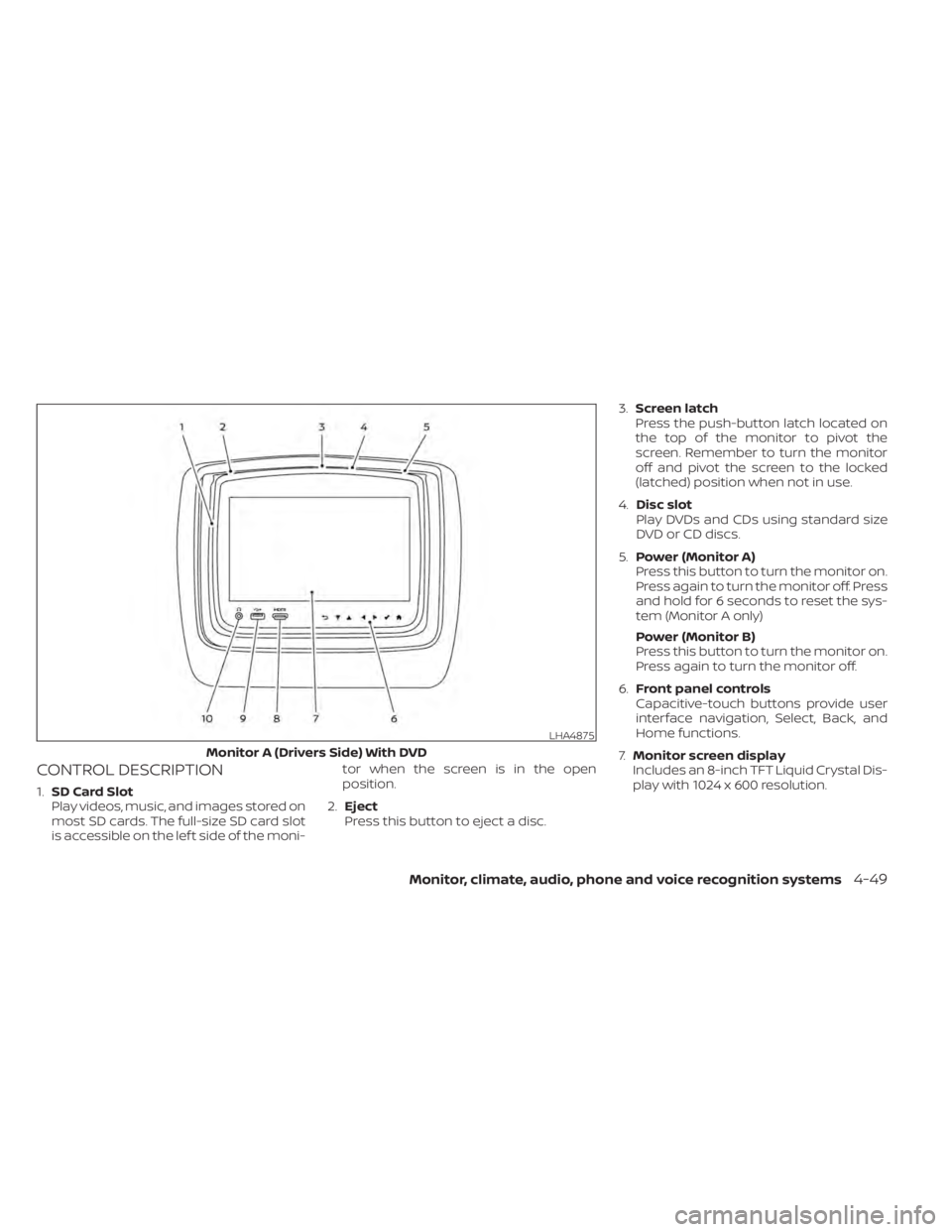
CONTROL DESCRIPTION
1.SD Card Slot
Play videos, music, and images stored on
most SD cards. The full-size SD card slot
is accessible on the lef t side of the moni- tor when the screen is in the open
position.
2. Eject
Press this button to eject a disc. 3.
Screen latch
Press the push-button latch located on
the top of the monitor to pivot the
screen. Remember to turn the monitor
off and pivot the screen to the locked
(latched) position when not in use.
4. Disc slot
Play DVDs and CDs using standard size
DVD or CD discs.
5. Power (Monitor A)
Press this button to turn the monitor on.
Press again to turn the monitor off. Press
and hold for 6 seconds to reset the sys-
tem (Monitor A only)
Power (Monitor B)
Press this button to turn the monitor on.
Press again to turn the monitor off.
6. Front panel controls
Capacitive-touch buttons provide user
interface navigation, Select, Back, and
Home functions.
7. Monitor screen display
Includes an 8-inch TFT Liquid Crystal Dis-
play with 1024 x 600 resolution.
LHA4875
Monitor A (Drivers Side) With DVD
Monitor, climate, audio, phone and voice recognition systems4-49
Page 317 of 638
3. Select the desired source content fromthe list of available devices. Content can
be browsed from all devices that are
connected to the RSI Wi-Fi network and
have a compatible UPnP application
installed.
4. Af ter selecting a content source, navi- gate through the folders, and select the
desired file to stream to the monitor.
Once the file is selected, it will begin
streaming to the monitor that was se-
lected in step 2 above.
5. Playback controls are available from the Now Playing screen in the UPnP applica-
tion and from the monitor. Press
to
display the playback controls on the
monitor.
NOTE:
• Content protected with DRM (Digital Rights Management) cannot be
streamed using the SmartStream fea-
ture.
• A wired connection (HDMI or MHL) is required to stream protected content
from a mobile device to the RSI system.
For additional information, see “HDMI/
MHL connection” (P. 4-61).
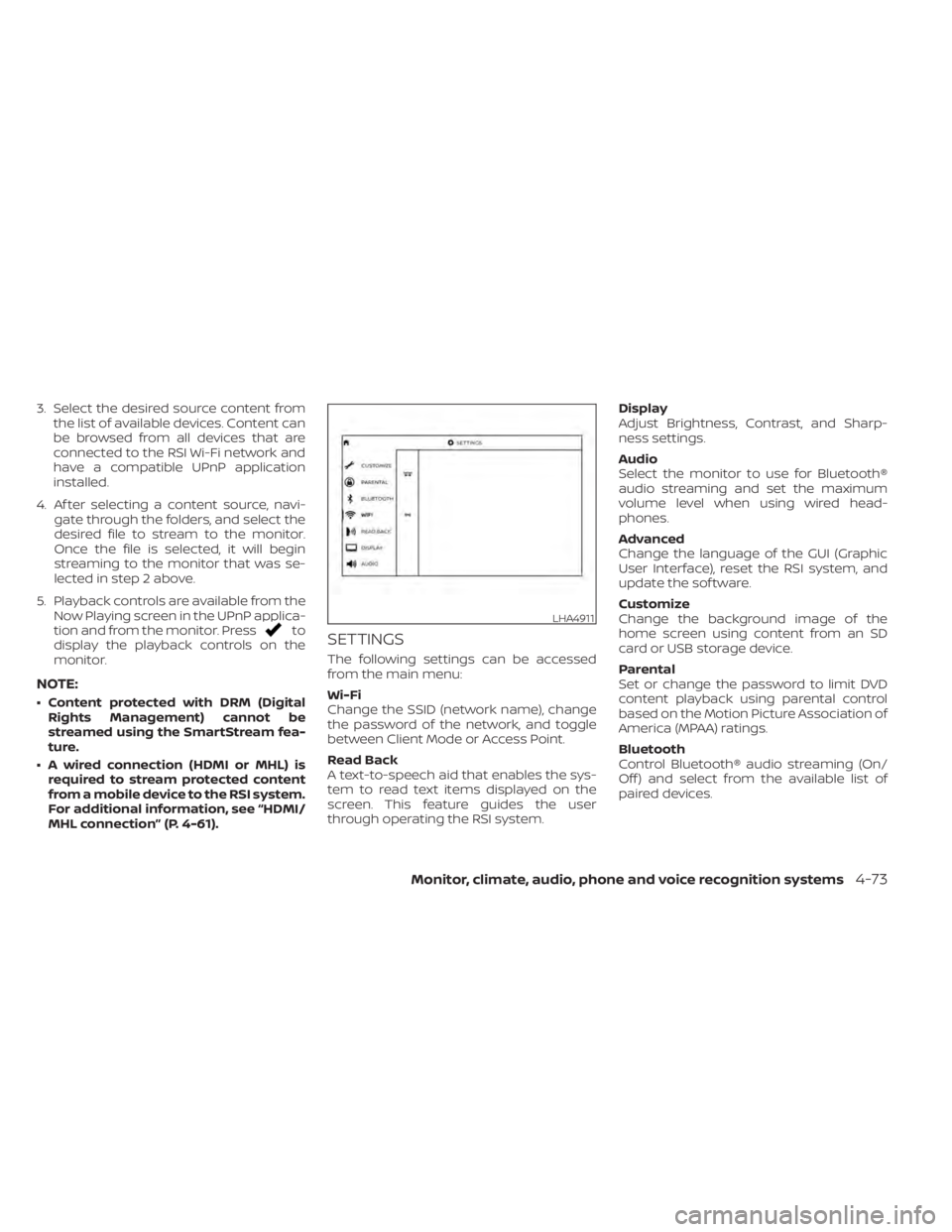
SETTINGS
The following settings can be accessed
from the main menu:
Wi-Fi
Change the SSID (network name), change
the password of the network, and toggle
between Client Mode or Access Point.
Read Back
A text-to-speech aid that enables the sys-
tem to read text items displayed on the
screen. This feature guides the user
through operating the RSI system. Display
Adjust Brightness, Contrast, and Sharp-
ness settings.
Audio
Select the monitor to use for Bluetooth®
audio streaming and set the maximum
volume level when using wired head-
phones.
Advanced
Change the language of the GUI (Graphic
User Interface), reset the RSI system, and
update the sof tware.
Customize
Change the background image of the
home screen using content from an SD
card or USB storage device.
Parental
Set or change the password to limit DVD
content playback using parental control
based on the Motion Picture Association of
America (MPAA) ratings.
Bluetooth
Control Bluetooth® audio streaming (On/
Off ) and select from the available list of
paired devices.
LHA4911
Monitor, climate, audio, phone and voice recognition systems4-73
Page 321 of 638
Reset
A master reset will return the RSI system
settings to the factory defaults. Any user
options and customization will be lost and
reset back to factory default settings. To
reset the system, select Yes when the dia-
log confirmation box appears.
Update
Displays the current sof tware version infor-
mation. Select Update to begin a sof tware
update (reserved for future use).
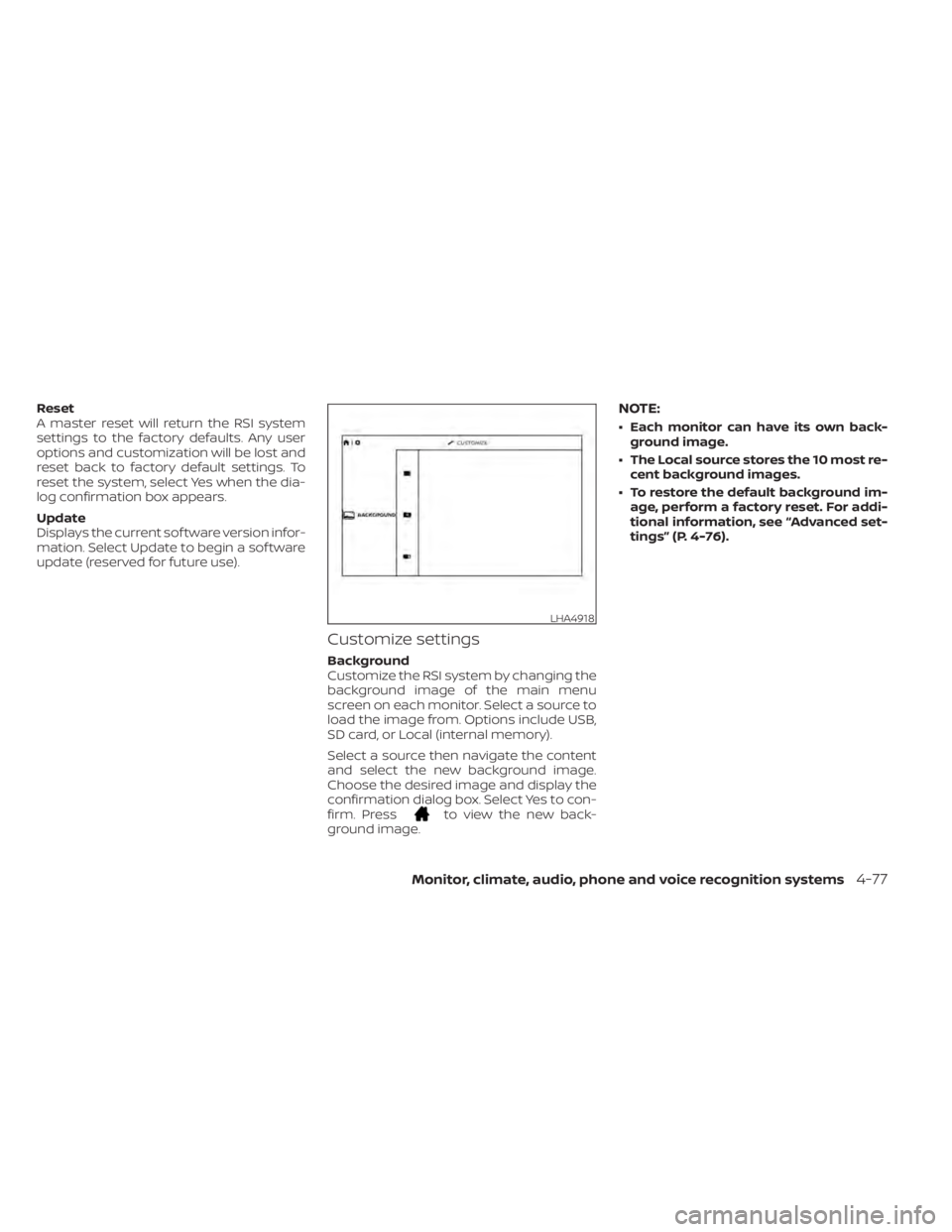
Customize settings
Background
Customize the RSI system by changing the
background image of the main menu
screen on each monitor. Select a source to
load the image from. Options include USB,
SD card, or Local (internal memory).
Select a source then navigate the content
and select the new background image.
Choose the desired image and display the
confirmation dialog box. Select Yes to con-
firm. Press
to view the new back-
ground image.
NOTE:
• Each monitor can have its own back- ground image.
• The Local source stores the 10 most re- cent background images.
• To restore the default background im- age, perform a factory reset. For addi-
tional information, see “Advanced set-
tings” (P. 4-76).
LHA4918
Monitor, climate, audio, phone and voice recognition systems4-77
Page 325 of 638
TROUBLESHOOTING
SymptomRemedy
Monitor does not power on Verif y the vehicle is in the ON or ACC position.
Verif y the battery is installed correctly in the remote control.
Verif y the in-line fuse protection is good. Refer to the RSI system installation instructions for vehicle-specific fuse location.
Monitor front panel controls
flash red For further diagnosis, it is recommended that you visit a NISSAN dealer.
System frozen - will not re-
spond Sof t reset the system by pressing and holding the power button on the top of the driver side monitor for 5 seconds.
Hard reset the system by turning the ignition off, then back on.
Disc will not play Insert the disc with label side facing the rear of the vehicle.
Check if the disc is defective by trying another disc.
Check the type of disc being played. This unit only plays DVD (Single, Dual Layer), DVD-R/+R, DVD+R Dual layer, DVD-RW/+RW, CD,
CD-R, and CD-RW.
The unit and the disc are coded by region. If the region codes don’t match, the DVD can’t be played.
Disc plays, but stops inter-
mittently The disc may be dirty and need cleaning.
Condensation may have formed inside the unit. Remove the disc and allow unit to dry out.
The disc may be scratched too badly to play.
No picture Check that the signal source is connected.
Check the menu source setting. Match your monitor mode with the source correctly.
Distorted picture Check the disc for fingerprints and clean with a sof t cloth, wiping from center to edge.
Cannot advance through a
DVD movie You cannot advance through the opening credits and warning information that appears at the beginning of DVDs because the
disc is programmed to prohibit these actions.
Some discs may not allow this function. Try another disc.
Monitor, climate, audio, phone and voice recognition systems4-81
Page 339 of 638
•When using a wheel without the
TPMS such as the spare tire, when a
spare tire is mounted or a wheel is
replaced, tire pressure will not be in-
dicated, the TPMS will not function
and the low tire pressure warning
light will flash for approximately 1
minute. The light will remain on af ter
1 minute. Have your tires replaced
and/or TPMS system reset as soon as
possible. It is recommended that you
visit a NISSAN dealer for this service.
• Replacing tires with those not origi-
nally specified by NISSAN could af-
fect the proper operation of the
TPMS.
• Do not inject any tire liquid or aerosol
tire sealant into the tires, as this may
cause a malfunction of the tire pres-
sure sensors.
CAUTION
Do not place metalized film or any
metal parts (antenna, etc.) on the win-
dows. This may cause poor reception of
the signals from the tire pressure sen-
sors, and the TPMS will not function
properly. Some devices and transmitters may tem-
porarily interfere with the operation of the
TPMS and cause the low tire pressure
warning light to illuminate.
Some examples are:
• Facilities or electric devices using similar
radio frequencies are near the vehicle.
• If a transmitter set to similar frequencies is being used in or near the vehicle.
• If a computer (or similar equipment) or a DC/AC converter is being used in or near
the vehicle.
The low tire pressure warning light may
illuminate in the following cases:
• If the vehicle is equipped with a wheel and tire without TPMS.
• If the TPMS has been replaced and the ID has not been registered.
• If the wheel is not originally specified by NISSAN.
FCC Notice:
For USA:
This device complies with Part 15 of the
FCC Rules. Operation is subject to the fol-
lowing two conditions: (1) This device
may not cause harmful interference, and
(2) this device must accept any interfer- ence received, including interference
that may cause undesired operation.
NOTE:
Changes or modifications not ex-
pressly approved by the party re-
sponsible for compliance could void
the user's authority to operate the
equipment.
For Canada:
This device complies with Industry
Canada licence-exempt RSS standard(s).
Operation is subject to the following two
conditions: (1) this device may not cause
harmful interference, and (2) this device
must accept any interference received,
including interference that may cause
undesired operation of the device.
TPMS with Easy-Fill Tire Alert
WARNING
Af ter rotating the tires, do not use the
Easy-Fill Tire Alert to adjust the tire
pressure. Instead use a gauge to adjust
the tires to the correct pressure in ac-
cordance with Tire and Loading Infor-
mation label.
Starting and driving5-7
Page 382 of 638
• If the(green) indicator blinks, push
the ON/OFF switch off and have the sys-
tem checked. It is recommended that
you visit a NISSAN dealer for this service.
• The
(green) indicator may blink
when the ON/OFF switch is pushed ON
while pushing the ACCEL/RES, COAST/
SET, or CANCEL switch. To properly set the
cruise control system, use the following
procedures.
WARNING
Do not use the cruise control when driv-
ing under the following conditions:
• When it is not possible to keep the
vehicle at a set speed.
• In heavy traffic or in traffic that varies
in speed.
• On winding or hilly roads.
• On slippery roads (rain, snow, ice,
etc.).
• In very windy areas.
Doing so could cause a loss of vehicle
control and result in an accident.
CRUISE CONTROL OPERATIONS
The cruise control allows driving at a speed
between 25 - 89 mph (40 - 144 km/h) with-
out keeping your foot on the accelerator
pedal.
To turn on the cruise control, push the
ON/OFF switch on. The
(white) indica-
tor in the vehicle information display will
illuminate.
To set cruising speed, accelerate the ve-
hicle to the desired speed, push the
COAST/SET switch and release it. The
(green) indicator in the vehicle infor-
mation display will illuminate. Take your
foot off the accelerator pedal. Your vehicle
maintains the set speed.
• To pass another vehicle, depress the ac-
celerator pedal. When you release the
pedal, the vehicle returns to the previ-
ously set speed.
• The vehicle may not maintain the set speed when going up or down steep hills.
If this happens, drive without the cruise
control.
To cancel the preset speed, use one of the
following three methods:
• Push the CANCEL switch; the
indica-
tor in the vehicle information display
goes out. • Tap the brake pedal; the
indicator
goes out.
• Push the ON/OFF switch off. The
indicator in the vehicle information dis-
play goes out.
The cruise control is automatically can-
celed and the
indicator in the vehicle
information display goes out if:
• You depress the brake pedal while push- ing the ACCEL/RES or COAST/SET switch.
The preset speed is deleted from
memory.
• The vehicle slows down more than 8 mph (13 km/h) below the set speed.
• You move the shif t lever to N (Neutral).
To reset at a faster cruising speed, use
one of the following three methods:
• Depress the accelerator pedal. When the vehicle attains the desired speed, push
and release the COAST/SET switch.
• Push and hold the ACCEL/RES switch. When the vehicle attains the speed you
desire, release the switch.
• Push and release the ACCEL/RES switch. Each time you do this, the set speed in-
creases by about 1 mph (1.6 km/h).
5-50Starting and driving