service PEUGEOT 2008 2016 Owner's Guide
[x] Cancel search | Manufacturer: PEUGEOT, Model Year: 2016, Model line: 2008, Model: PEUGEOT 2008 2016Pages: 450, PDF Size: 14.16 MB
Page 256 of 450
254
2008_en_Chap12a_BTA_ed01-2016
Emergency call
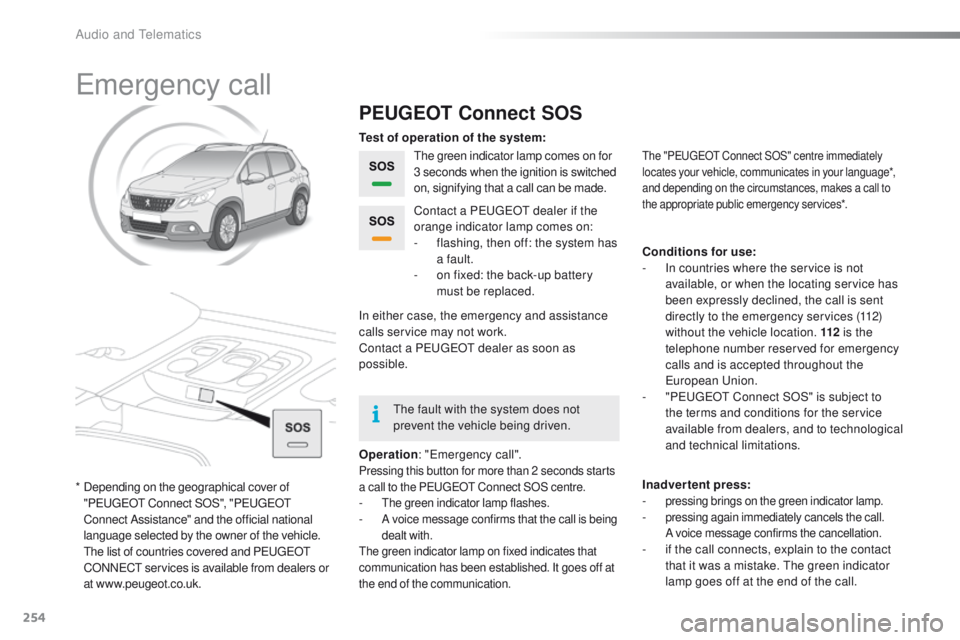
PEUGEOT Connect SOS
The green indicator lamp comes on for
3 seconds when the ignition is switched
on, signifying that a call can be made.
Operation : "Emergency call".
Pressing this button for more than 2 seconds starts
a call to the PEUGEOT Connect SOS centre.
- The green indicator lamp flashes.- A voice message confirms that the call is being
dealt with.
The green indicator lamp on fixed indicates that
communication has been established. It goes off at
the end of the communication.
Contact a PEUGEOT dealer if the
orange indicator lamp comes on:
-
f
lashing, then off: the system has
a fault.
-
o
n fixed: the back-up battery
must be replaced.
In either case, the emergency and assistance
calls service may not work.
Contact a PEUGEOT
dealer as soon as
possible. Test of operation of the system:
Conditions for use:
-
I
n countries where the service is not
available, or when the locating service has
been expressly declined, the call is sent
directly to the emergency services (112)
without the vehicle location. 112 is the
telephone number reserved for emergency
calls and is accepted throughout the
European Union.
-
"
PEUGEOT Connect SOS" is subject to
the terms and conditions for the service
available from dealers, and to technological
and technical limitations.
Inadvertent press:
-
pressing brings on the green indicator lamp.- pressing again immediately cancels the call.
A voice message confirms the cancellation.
- if the call connects, explain to the contact that it was a mistake. The green indicator
lamp goes off at the end of the call.
The "PEUGEOT Connect SOS" centre immediately
locates your vehicle, communicates in your language*,
and depending on the circumstances, makes a call to
the appropriate public emergency services*.
* Depending on the geographical cover of "PEUGEOT Connect SOS", "PEUGEOT
Connect Assistance" and the official national
language selected by the owner of the vehicle.
T
he list of countries covered and PEUGEOT
CONNECT services is available from dealers or
at www.peugeot.co.uk. The fault with the system does not
prevent the vehicle being driven.
Audio and Telematics
Page 257 of 450
255
2008_en_Chap12a_BTA_ed01-2016
PEUGEOT Connect Assistance
If an impact is detected by the airbag
control unit, and independently of
the deployment of any airbags, an
emergency call is made automatically.
If you purchased your vehicle outside
the PEUGEOT dealer network, we
invite you to have a dealer check the
configuration of these services and, if
desired, modified to suit your wishes.
In a multi-lingual country, configuration
is possible in the official national
language of your choice.
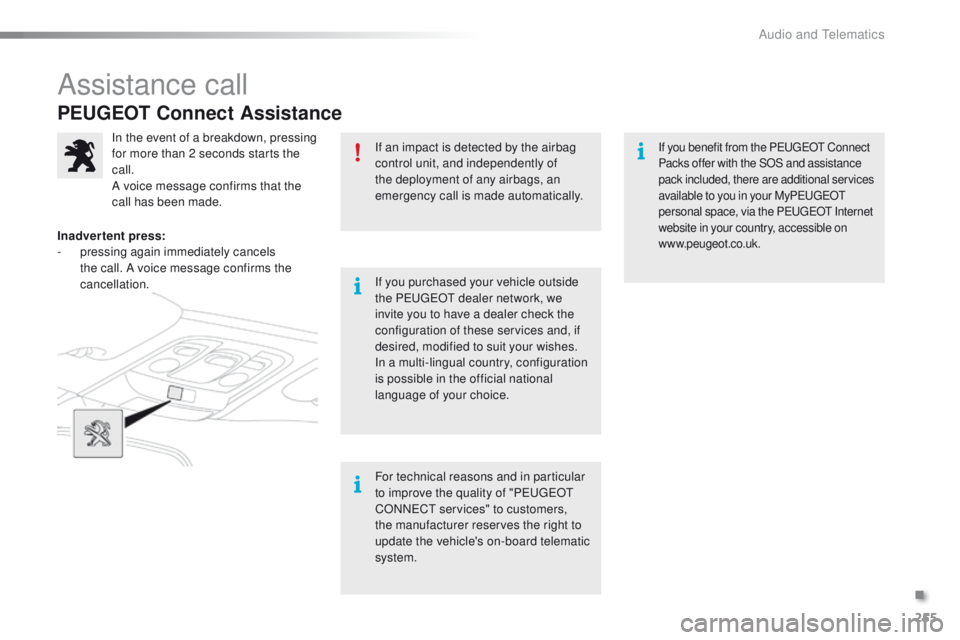
In the event of a breakdown, pressing
for more than 2 seconds starts the
call.
A voice message confirms that the
call has been made.
Inadvertent press:
-
p
ressing again immediately cancels
the call. A voice message confirms the
cancellation.
For technical reasons and in particular
to improve the quality of "PEUGEOT
CONNECT services" to customers,
the manufacturer reserves the right to
update the vehicle's on-board telematic
system.If you benefit from the PEUGEOT Connect
Packs offer with the SOS and assistance
pack included, there are additional services
available to you in your MyPEUGEOT
personal space, via the PEUGEOT Internet
website in your country, accessible on
www.peugeot.co.uk.
Assistance call
.
Audio and Telematics
Page 259 of 450
257
2008_en_Chap12b_SMEGplus_ed01-2016
7-inch touch screen
GPS satellite navigation - Multimedia audio - Bluetooth® telephone
Contents
First steps 25 8
Steering mounted controls
26
0
Menus
2
61
Navigation
2
62
Navigation - Guidance
2
70
Tr a f fi c
2
74
Radio Media
2
76
Radio
2
82
DAB (Digital Audio Broadcasting) radio
2
84
Media
286
Settings
290
Connected services
2
98
Internet browser
2
99
MirrorLink
TM 302
C
arPlay® 3 06
Telephone
310
Frequently asked questions
3
18
The system is protected in such a way that it will only operate in
your vehicle. As a safety measure, the driver should only carry out operations
which require prolonged attention while the vehicle is stationary.
The display of an energy economy mode message signals that
electrical systems operating are going into standby.
Refer to the energy economy mode section.
.
Audio and Telematics
Page 263 of 450
261
2008_en_Chap12b_SMEGplus_ed01-2016
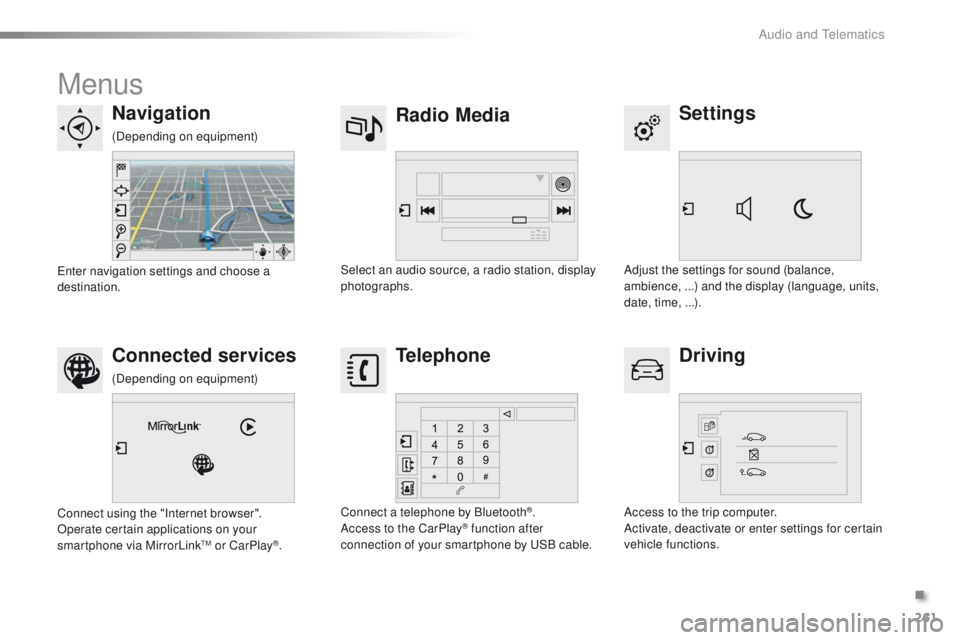
Menus
Settings
Radio Media
Navigation
Driving
Connected services Telephone
Adjust the settings for sound (balance,
ambience, ...) and the display (language, units,
date, time, ...).
Select an audio source, a radio station, display
photographs.
Enter navigation settings and choose a
destination.
Access to the trip computer.
Activate, deactivate or enter settings for certain
vehicle functions.
Connect using the "Internet browser".
Operate certain applications on your
smartphone via MirrorLink
TM or CarPlay®. Connect a telephone by Bluetooth
®.
Access to the CarPlay® function after
connection of your smartphone by USB cable.
(Depending on equipment)
(Depending on equipment)
.
Audio and Telematics
Page 286 of 450
284
2008_en_Chap12b_SMEGplus_ed01-2016
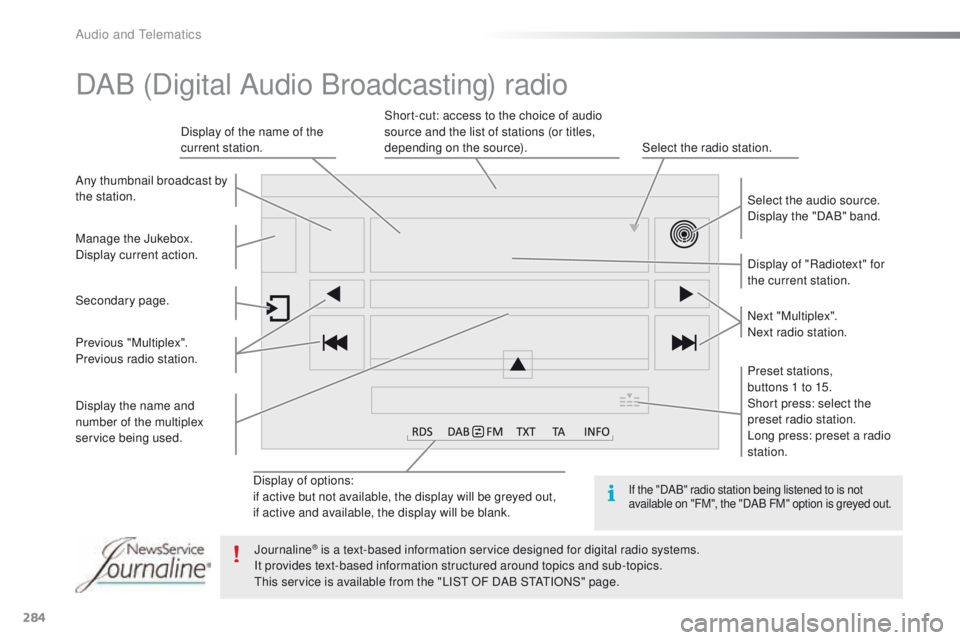
Display of options:
if active but not available, the display will be greyed out,
if active and available, the display will be blank.Display of "Radiotext" for
the current station.
Manage the Jukebox.
Display current action. Select the audio source.
Display the "DAB" band.
Display of the name of the
current station.
Short-cut: access to the choice of audio
source and the list of stations (or titles,
depending on the source).
Select the radio station.
Any thumbnail broadcast by
the station.
Preset stations,
buttons 1 to 15.
Short press: select the
preset radio station.
Long press: preset a radio
station. Next "Multiplex".
Next radio station.
Secondary page.
Display the name and
number of the multiplex
service being used. Previous "Multiplex".
Previous radio station.
DAB (Digital Audio Broadcasting) radio
If the "DAB" radio station being listened to is not
available on "FM", the "DAB FM" option is greyed out.
Journaline® is a text-based information service designed for digital radio systems.
I
t provides text-based information structured around topics and sub-topics.
This service is available from the "LIST OF DAB STATIONS" page.
Audio and Telematics
Page 300 of 450
298
2008_en_Chap12b_SMEGplus_ed01-2016
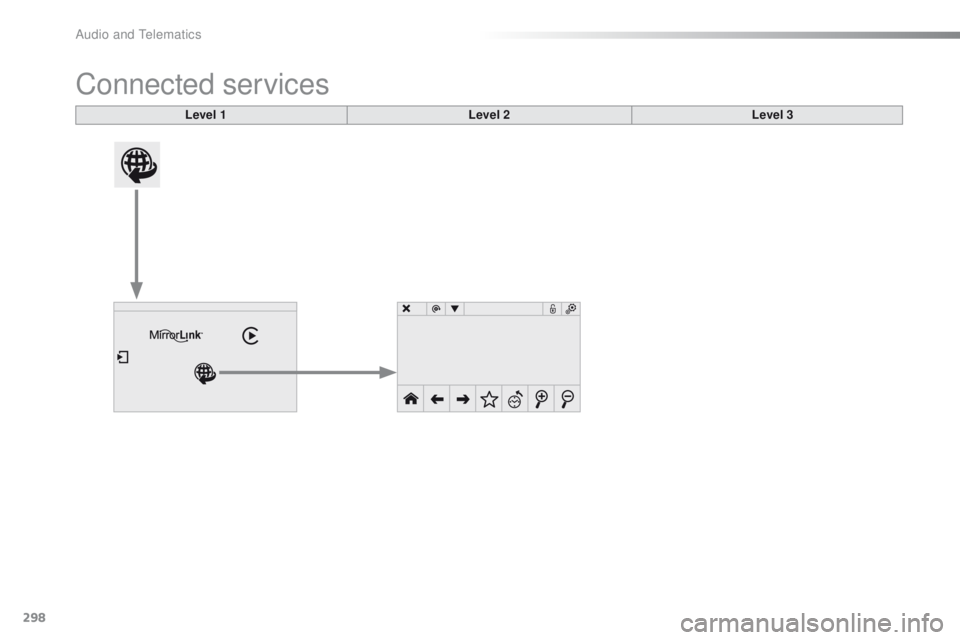
Connected services
Level 1Level 2Level 3
Audio and Telematics
Page 301 of 450
299
2008_en_Chap12b_SMEGplus_ed01-2016
Internet browser
Authentication for Internet browsing via
a smartphone is done using the Dial-Up
Networking (DUN) standard.Press on "
Internet browser " to
display the browser home page;
first connect your smartphone by
Bluetooth, "Internet" option, see the
" Telephone " section.
Some smartphones of the latest
generation do not support this
standard. Press on Connected services
to
display the primary page.
.
Audio and Telematics
Page 303 of 450
301
2008_en_Chap12b_SMEGplus_ed01-2016
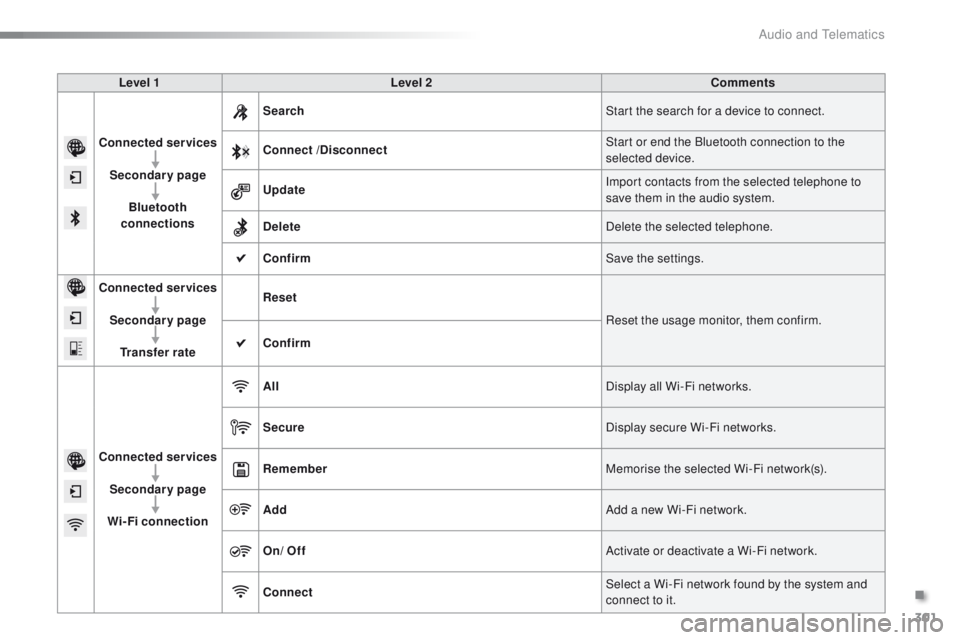
Level 1Level 2 Comments
Connected services Secondary page Bluetooth
connections Search
Start the search for a device to connect.
Connect /Disconnect Start or end the Bluetooth connection to the
selected device.
Update Import contacts from the selected telephone to
save them in the audio system.
Delete Delete the selected telephone.
Confirm Save the settings.
Connected services
Secondary pageTransfer rate Reset
Reset the usage monitor, them confirm.
Confirm
Connected services Secondary page
Wi-Fi connection All
Display all Wi-Fi networks.
Secure Display secure Wi-Fi networks.
Remember Memorise the selected Wi-Fi network(s).
Add Add a new Wi-Fi network.
On/ Off Activate or deactivate a Wi-Fi network.
Connect Select a Wi-Fi network found by the system and
connect to it.
.
Audio and Telematics
Page 305 of 450
303
2008_en_Chap12b_SMEGplus_ed01-2016
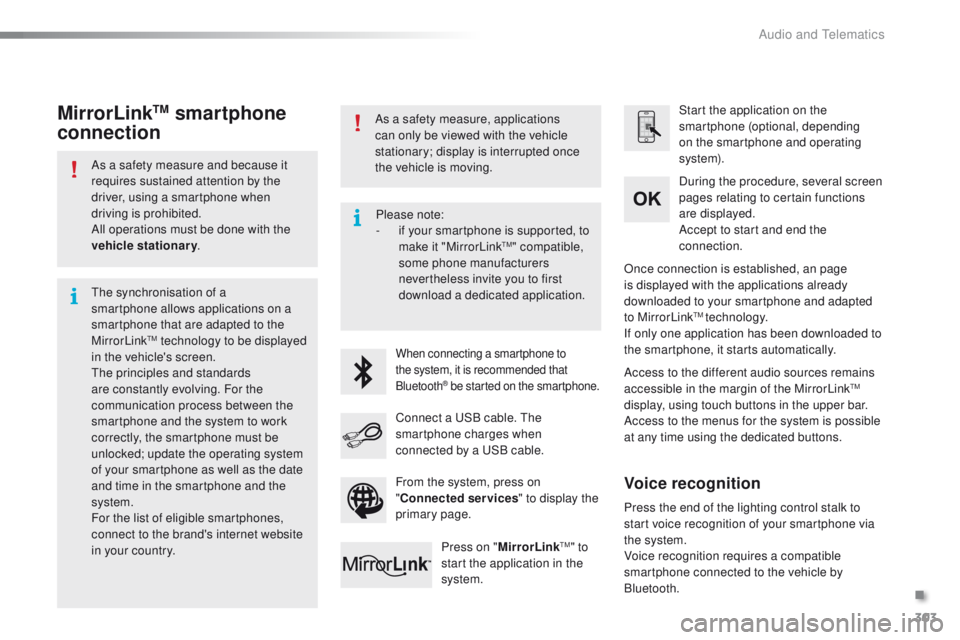
As a safety measure and because it
requires sustained attention by the
driver, using a smartphone when
driving is prohibited.
All operations must be done with the
vehicle stationary.
The synchronisation of a
smartphone allows applications on a
smartphone that are adapted to the
MirrorLink
TM technology to be displayed
i
n the vehicle's screen.
The principles and standards
are constantly evolving. For the
communication process between the
smartphone and the system to work
correctly, the smartphone must be
unlocked; update the operating system
of your smartphone as well as the date
and time in the smartphone and the
system.
For the list of eligible smartphones,
connect to the brand's internet website
in your country. As a safety measure, applications
can only be viewed with the vehicle
stationary; display is interrupted once
the vehicle is moving.When connecting a smartphone to
the system, it is recommended that
Bluetooth
® be started on the smartphone.
Start the application on the
smartphone (optional, depending
on the smartphone and operating
syste m).
Access to the different audio sources remains
accessible in the margin of the MirrorLink
TM
display, using touch buttons in the upper bar.
Access to the menus for the system is possible
at any time using the dedicated buttons. During the procedure, several screen
pages relating to certain functions
are displayed.
Accept to start and end the
connection.
Connect a USB cable. The
smartphone charges when
connected by a USB cable. Press on " MirrorLink
TM" to
start the application in the
system. Once connection is established, an page
is displayed with the applications already
downloaded to your smartphone and adapted
to MirrorLink
TM technology.
If only one application has been downloaded to
the smartphone, it starts automatically.
MirrorLinkTM smartphone
connection
Press the end of the lighting control stalk to
start voice recognition of your smartphone via
the system.
Voice recognition requires a compatible
smartphone connected to the vehicle by
Bluetooth.
Voice recognition
Please note:
-
i f your smartphone is supported, to
make it "MirrorLink
TM" compatible,
some phone manufacturers
nevertheless invite you to first
download a dedicated application.
From the system, press on
" Connected services " to display the
primary page.
.
Audio and Telematics
Page 307 of 450
305
2008_en_Chap12b_SMEGplus_ed01-2016
Level 1Level 2 Level 3 Comments
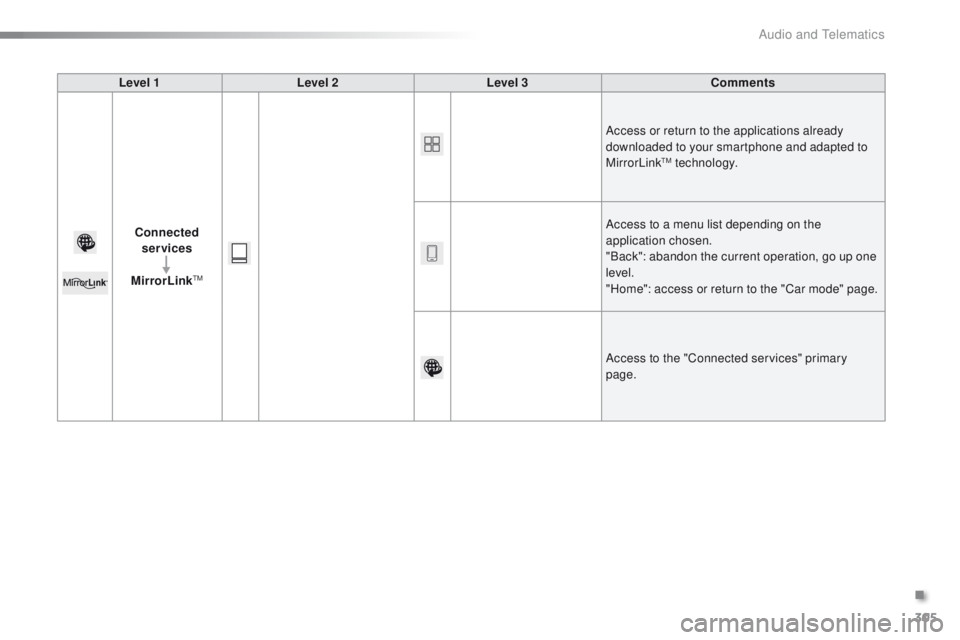
Connected services
MirrorLink
TM
Access or return to the applications already
downloaded to your smartphone and adapted to
MirrorLink
TM technology.
Access to a menu list depending on the
application chosen.
"Back": abandon the current operation, go up one
level.
"Home": access or return to the "Car mode" page.
Access to the "Connected services" primary
page.
.
Audio and Telematics