change wheel PEUGEOT 3008 2023 Owner's Guide
[x] Cancel search | Manufacturer: PEUGEOT, Model Year: 2023, Model line: 3008, Model: PEUGEOT 3008 2023Pages: 292, PDF Size: 9.43 MB
Page 206 of 292
204
In the event of a breakdown
Parking the vehicle
Immobilise the vehicle where it does
not obstruct traffic: the ground must be level,
stable and non-slippery.
With a manual gearbox, engage first gear
to lock the wheels, apply the parking brake,
unless it is set to automatic mode, and switch
off the ignition.
With an automatic gearbox, select mode
P
to lock the wheels, apply the parking brake,
unless it is set to automatic mode, and switch
off the ignition.
Check that the parking brake indicator lamps
on the instrument panel are on fixed.
The occupants must get out of the vehicle
and wait where they are safe.
If necessary, place a chock under the wheel
diagonally opposite the wheel to be changed.
Never go underneath a vehicle raised using a
jack; use an axle stand.
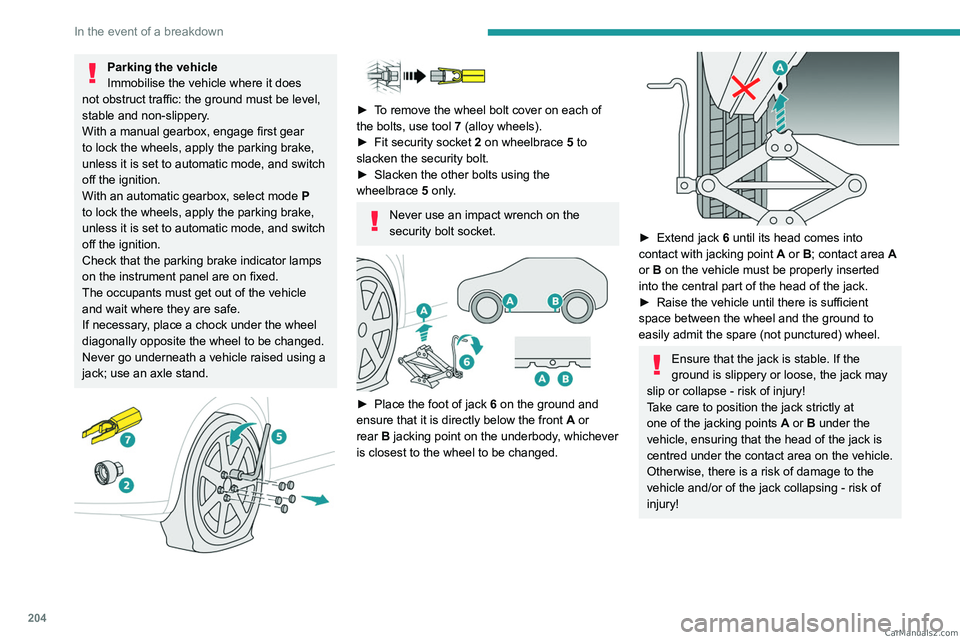
► To remove the wheel bolt cover on each of
the bolts, use tool 7 (alloy wheels).
►
Fit security socket
2 on wheelbrace
5
to
slacken the security bolt.
►
Slacken the other bolts using the
wheelbrace
5
only.
Never use an impact wrench on the
security bolt socket.
► Place the foot of jack 6 on the ground and
ensure that it is directly below the front A or
rear
B jacking point on the underbody, whichever
is closest to the wheel to be changed.
► Extend jack 6 until its head comes into
contact with jacking point A or B; contact area A
or B on the vehicle must be properly inserted
into the central part of the head of the jack.
►
Raise the vehicle until there is sufficient
space between the wheel and the ground to
easily admit the spare (not punctured) wheel.
Ensure that the jack is stable. If the
ground is slippery or loose, the jack may
slip or collapse - risk of injury!
Take care to position the jack strictly at
one of the jacking points
A
or B under the
vehicle, ensuring that the head of the jack is
centred under the contact area on the vehicle.
Otherwise, there is a risk of damage to the
vehicle and/or of the jack collapsing - risk of
injury!
CarM an uals 2 .c o m
Page 227 of 292
225
PEUGEOT Connect Radio
10
In the "Settings" menu, it is possible to
create a profile for an individual or for a
group of people with shared interests, and
configure a wide range of settings (radio
presets, audio settings, ambiences, etc.).
Settings are applied automatically.
In very hot conditions, the volume may
be limited to protect the system. It may
enter standby mode (with the screen and
sound off) for 5 minutes or more.
The system will resume normal operation
when the temperature in the passenger
compartment has dropped.
Steering mounted controls
Steering mounted controls -
Type 1
Radio:
Select the previous/next preset radio
station.
Select the previous/next item in a menu or a list.
Media:
Select the previous/next track.
Select the previous/next item in a menu or a list.
Radio:
Short press: display the list of radio
stations.
Long press: update the list.
Media:
Short press: display the list of folders.
Long press: display the available sorting options.
Change audio source (radio; USB; AUX if
equipment connected; CD; streaming).
Confirm a selection.
Increase volume.
Decrease volume.
Mute/restore sound by simultaneously
pressing the increase and decrease
volume buttons.
Steering mounted controls -
Type 2
Voice commands:
This control is located on the steering
wheel or at the end of the lighting control stalk
(depending on equipment).
Short press, smartphone voice commands via
the system.
Increase volume.
Decrease volume.
Mute by pressing the volume increase
and decrease buttons simultaneously
(depending on equipment).
Restore the sound by pressing one of the two
volume buttons.
Media (short press): change the
multimedia source.
Telephone (short press): start telephone
call.
Call in progress (short press): access
telephone menu.
Telephone (long press): reject an incoming call,
end call; when no call is in progress, access
telephone menu.
Radio (rotate): automatic search for the
previous/next station.
Media (rotate): previous/next track, move in a
list. CarM an uals 2 .c o m
Page 240 of 292
238
PEUGEOT Connect Nav
– Media player connected via the auxiliary
socket (depending on equipment).
–
V
ideo (depending on equipment).
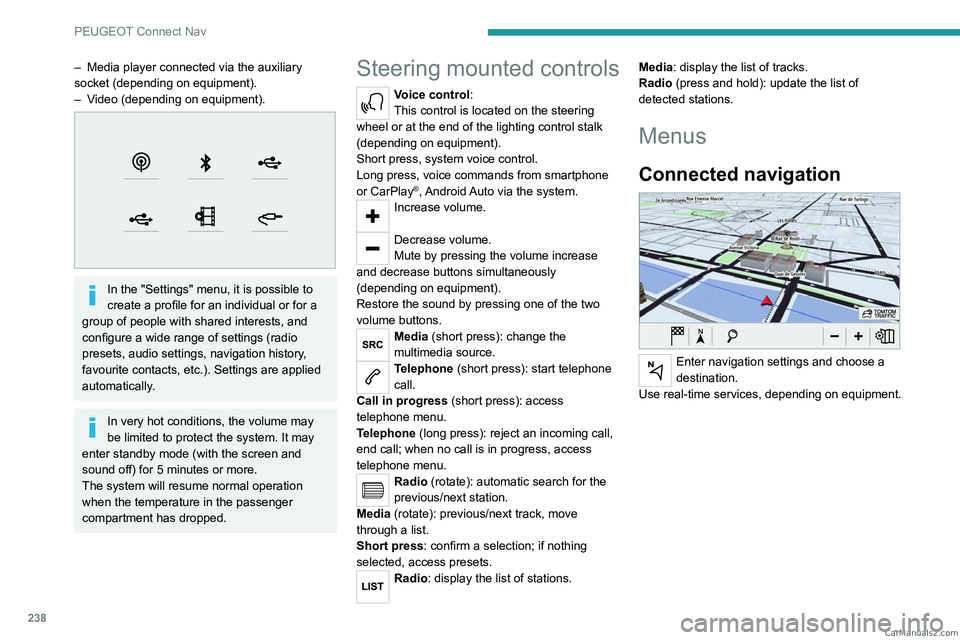
In the "Settings" menu, it is possible to
create a profile for an individual or for a
group of people with shared interests, and
configure a wide range of settings (radio
presets, audio settings, navigation history,
favourite contacts, etc.). Settings are applied
automatically.
In very hot conditions, the volume may
be limited to protect the system. It may
enter standby mode (with the screen and
sound off) for 5 minutes or more.
The system will resume normal operation
when the temperature in the passenger
compartment has dropped.
Steering mounted controls
Voice control:
This control is located on the steering
wheel or at the end of the lighting control stalk
(depending on equipment).
Short press, system voice control.
Long press, voice commands from smartphone
or CarPlay
®, Android Auto via the system.Increase volume.
Decrease volume.
Mute by pressing the volume increase
and decrease buttons simultaneously
(depending on equipment).
Restore the sound by pressing one of the two
volume buttons.
Media (short press): change the
multimedia source.
Telephone (short press): start telephone
call.
Call in progress (short press): access
telephone menu.
Telephone (long press): reject an incoming call,
end call; when no call is in progress, access
telephone menu.
Radio (rotate): automatic search for the
previous/next station.
Media (rotate): previous/next track, move
through a list.
Short press: confirm a selection; if nothing
selected, access presets.
Radio: display the list of stations. Media: display the list of tracks.
Radio (press and hold): update the list of
detected stations.
Menus
Connected navigation
Enter navigation settings and choose a
destination.
Use real-time services, depending on equipment. CarM an uals 2 .c o m
Page 264 of 292
262
Vehicle data recording and privacy
Vehicle data recording
and privacy
Electronic control units are installed in your
vehicle. These control units process data
received from the vehicle's sensors, for example,
or data they generate themselves or exchange
with each other. Some of these control units are
required for the correct operation of your vehicle,
some others assist you while driving (driving or
manoeuvring aids), while others provide comfort
or infotainment functions.
The following contains general information about
how data is processed within the vehicle.
You will find additional information about the
specific data which is downloaded, stored
and transmitted to third parties and what it is
used for in your vehicle under the keyword
"Data protection". This information is directly
associated with the references for the functions
in question contained in the corresponding
vehicle handbook, or in the general terms and
conditions of sale.
This information is also available online.
Vehicle operating data
The control units process the data used for the
operation of the vehicle.
This data includes, for example:
–
Information about the state of the vehicle
(e.g.
speed, travel time, lateral acceleration,
wheel rotation rate, fastened seat belts display). –
Environmental conditions (e.g.
temperature,
rain sensor, distance sensor).
As a general rule, this data is temporary, is
not stored for longer than one operating cycle
and is only used within the vehicle itself. The
control units often record this data (including the
vehicle's key). This function allows either the
temporary or permanent storage of information
about the state of the vehicle, stresses on
components, servicing requirements, as well as
events and technical errors.
Depending on the vehicle's equipment level, the
data stored is as follows:
–
Operating state of system components
(e.g.
filling level, tyre pressures, battery charge
status).
–
Faults and malfunctions in important system
components (e.g.
lamps, brakes).
–
System reactions in specific driving situations
(e.g.
deployment of an airbag, triggering of
stability control and braking systems).
–
Information about events which have
damaged the vehicle.
–
For electric and rechargeable hybrid vehicles,
the traction battery charge level and the
estimated driving range.
In particular circumstances (e.g.
if the vehicle
has detected a malfunction), it may be necessary
to record data which would otherwise simply not
be stored.
When taking your vehicle in for servicing
(e.g.
repairs, maintenance), the stored operating
data may be read along with the vehicle's identification number and used if necessary.
The personnel working for the servicing network
(e.g.
garages, manufacturers) or third parties
(e.g. roadside assistance agents) may read
the vehicle's data. This also applies to work
carried out under warranty and quality assurance
measures.
This data is generally read via the OBD
(On-Board Diagnostics) port fitted by law to
the vehicle. It is used to report on the technical
state of the vehicle or its components and
facilitates the diagnosis of malfunctions, in
compliance with warranty obligations and for
quality improvement. This data, in particular the
information relating to stress on components,
technical events, operator errors and other
malfunctions, is sent to the Manufacturer, if
necessary, along with the vehicle's identification
number. The Manufacturer's liability may also be
engaged. The Manufacturer may also use the
operating data taken from the vehicle for product
recalls. This data may also be used to check the
customer's warranty and any claims made under
warranty.
Any malfunctions stored in the vehicle may be
reset by an after-sales service company during
servicing or repair work, or at your request. CarM an uals 2 .c o m
Page 265 of 292
263
Vehicle data recording and privacy
12Comfort and infotainment
functions
Comfort settings and personalised settings
may be saved in the vehicle and modified or
reinitialised at any time.
Depending on the vehicle's equipment level,
this
may
include:
–
Seat and steering wheel position settings.
–
Chassis and air conditioning settings.
–
Personalised settings such as the interior
lighting.
Y
ou can enter your own data into the functions
of your vehicle's audio and telematic system, as
part of the selected functionalities.
Depending on the vehicle's equipment level,
this
may
include:
–
Multimedia data such as music, videos or
photos to be read by an integrated multimedia
system.
–
Address book data to be used with an
integrated hands-free system or with an
integrated navigation system.
–
Entered destinations.
–
Data regarding the use of online services.
This data for the comfort and infotainment
functions may be stored locally in the vehicle
or saved to a device that you have connected
to the vehicle (e.g.
smartphone, USB memory
stick or MP3 player). Data that you have entered
yourself may be deleted at any time.
This data may also be transmitted outside the
vehicle at your request, particularly when using online services in line with the settings that you
have selected. Smartphone integration
(e.g.
Android
Auto
® or
Apple
®CarPlay®)
If your vehicle is equipped accordingly, you can
connect your smartphone or another mobile
device to the vehicle in order to operate it using
the vehicle's integrated controls. Images and
sounds from the smartphone can be transmitted
through the audio and telematics system.
Specific information is simultaneously sent
to your smartphone. Depending on the type
of
integration, this includes data such as location,
day/night mode and other general information
about the vehicle. For more information, please
refer to the user instructions for the vehicle or the
audio and telematics system.
Integrating a smartphone allows you to use
its applications, such as a navigation app or
music player. No other
integration between
the smartphone and the vehicle is possible, in
particular active access to vehicle data. How the
data is processed subsequently is determined
by the supplier of the application being used.
The ability the change settings depends on the
application in question and on the operating
system installed on your smartphone.
Online services
If your vehicle is connected to a wireless
network, data can be exchanged between
your vehicle and other systems. Connection
to a wireless network is made possible
via a
transmitter located in your vehicle or a mobile
device that you have provided (e.g.
smartphone).
The online services can be used via this wireless
connection.
These include online services and
applications (apps) provided to you by the
Manufacturer or other suppliers.
Exclusive services
As regards the Manufacturer's online services,
the corresponding functions are described by
the Manufacturer in an appropriate medium
(e.g.
handbook, Manufacturer's website) and the
information about data protection is provided.
Personal data may be used for online services.
The exchange of data for this purpose takes
place over a secure connection, using for
example the Manufacturer's dedicated computer
systems. The collection, processing and use of
personal data for the development of services
are carried out solely on the basis of a legal
authorisation, for example in the case of a
legal emergency call system or a contractual
agreement or else under a consent agreement.
You can activate or deactivate the services and
functions (some may be chargeable) and, in
some cases, the vehicle's entire connection to
the wireless network. This does not include the CarM an uals 2 .c o m
Page 271 of 292
269
Alphabetical index
N
Navigation 243–245
Navigation, connected
246–248
Net
69–70
Net, high load retaining
70–71
Night vision
79
Night Vision
79
O
Obstacle detection 155
Oil change
185
Oil consumption
185
Oil, engine
185
On-board tools
72, 195–198
Opening the bonnet
183–184
Opening the boot
28, 32
Opening the doors
28, 32
P
Pads, brake 188
Paint
193, 223
Paint colour code
223
Paint, matt
193
Paint, textured
193
Parcel shelf, rear
67, 69
Park Assist
161–162
Parking brake, electric
115–117, 188
Parking (sensors)
155
Parking sensors, audible and visual 155
Parking sensors, front
156
Parking sensors, rear
156
Passenger compartment temperature pre-
conditioning (Rechargeable hybrid)
24, 61
Pedestrian horn (Rechargeable hybrid)
85
Personalisation
10
Plates, identification
223
Player, Apple®
230, 253
Player, USB
229, 252
Port, USB
63, 67, 229, 231, 248, 252
Power
19
Power indicator (Rechargeable hybrid)
8, 19
Pressures, tyres
188, 199, 223
Pre-tensioning (seat belts)
94
Priming the fuel system
195
Profiles
234, 257
Protecting children
96–102, 105–106, 108
Puncture
198–199, 201
R
Radar (warnings) 130
Radio
227–228, 251
Radio, digital (Digital Audio Broadcasting -
DAB)
229, 252
Range, AdBlue®
18, 187
RDS
228, 251
Reading lamps
66
READY (warning lamp)
183
Rear air blower
59
Rear bench seat
48–49
Rear screen (demisting) 61
Rechargeable hybrid engine
8, 23, 182–183, 214, 221
Rechargeable hybrid system
5, 8, 23, 113, 126, 167
Recharging the battery
208–209, 212
Recharging the traction battery
171
Recharging the traction battery
(Rechargeable hybrid)
167, 175–177
Recirculation, air
58, 60
Recorder, total distance
20
Recorder, trip distance
21
Reduction of electrical load (mode)
183
Regeneration of the particle filter
187
Regenerative braking (deceleration
by engine braking)
123
Reinitialising the remote control
32
Reinitialising the under-inflation detection
system
129
Reminder, lighting on
74
Remote control
26–30
Remote functions
176
Remotely operable functions (Rechargeable
hybrid)
24, 61
Removing a wheel
203–205
Removing the mat
65
Replacing bulbs
206–207
Replacing fuses
208
Replacing the air filter
187
Replacing the oil filter
187
Replacing the passenger compartment
filter
187
Reservoir, screenwash
186 CarM an uals 2 .c o m