phone PONTIAC TORRENT 2008 Owners Manual
[x] Cancel search | Manufacturer: PONTIAC, Model Year: 2008, Model line: TORRENT, Model: PONTIAC TORRENT 2008Pages: 434, PDF Size: 2.51 MB
Page 74 of 434
Adding Equipment to Your
Airbag-Equipped Vehicle
Q:Is there anything I might add to or change
about the vehicle that could keep the airbags
from working properly?
A:Yes. If you add things that change your vehicle’s
frame, bumper system, height, front end or side
sheet metal, they may keep the airbag system from
working properly. Changing or moving any parts of
the front seats, safety belts, the airbag sensing and
diagnostic module, steering wheel, instrument panel,
roof-rail airbag modules, ceiling headliner or pillar
garnish trim, overhead console, front sensors, side
impact sensors, rollover sensor module, or airbag
wiring can affect the operation of the airbag system.
In addition, your vehicle has a passenger sensing
system for the right front passenger’s position,
which includes sensors that are part of the
passenger’s seat. The passenger sensing system
may not operate properly if the original seat
trim is replaced with non-GM covers, upholstery or
trim, or with GM covers, upholstery or trim
designed for a different vehicle. Any object, such as
an aftermarket seat heater or a comfort enhancing
pad or device, installed under or on top of theseat fabric, could also interfere with the operation of
the passenger sensing system. This could either
prevent proper deployment of the passenger
airbag(s) or prevent the passenger sensing system
from properly turning off the passenger airbag(s).
SeePassenger Sensing System on page 1-64.
If you have any questions about this, you should
contact Customer Assistance before you modify
your vehicle. The phone numbers and addresses for
Customer Assistance are in Step Two of the
Customer Satisfaction Procedure in this manual.
SeeCustomer Satisfaction Procedure on page 7-2.
If your vehicle has rollover roof-rail airbags, see
Different Size Tires and Wheels on page 5-72
for additional important information.
Q:Because I have a disability, I have to get my
vehicle modied. How can I nd out whether
this will affect my airbag system?
A:If you have questions, call Customer Assistance.
The phone numbers and addresses for Customer
Assistance are in Step Two of the Customer
Satisfaction Procedure in this manual. See
Customer Satisfaction Procedure on page 7-2.
In addition, your dealer/retailer and the service manual
have information about the location of the airbag sensors,
sensing and diagnostic module and airbag wiring.
1-70
Page 117 of 434
Available Services included with Directions
& Connections Plan
All Safe and Sound Plan Services
Driving Directions - Advisor delivered or OnStar
Turn-by-Turn Navigation (If equipped)
RideAssist
Information and Convenience Services
OnStar Hands-Free Calling
OnStar Hands-Free Calling allows eligible OnStar
subscribers to make and receive calls using voice
commands. Hands-Free Calling is fully integrated into
the vehicle, and can be used with OnStar Pre-Paid
Minute Packages. Hands-Free Calling may also
be linked to a Verizon Wireless service plan in the U.S.
or a Bell Mobility service plan in Canada, depending
on eligibility. To nd out more, refer to the OnStar
Owner’s Guide in the vehicle’s glove box, visit
www.onstar.com or www.onstar.ca, or speak with an
OnStar advisor by pressing the OnStar button or calling
1-888-4-ONSTAR (1-888-466-7827).
OnStar Virtual Advisor
OnStar Virtual Advisor is a feature of OnStar
Hands-Free Calling that uses your minutes to access
location-based weather, local traffic reports, and
stock quotes. By pressing the phone button and giving
a few simple voice commands, you can browse
through the various topics. See the OnStar Owner’s
Guide for more information (Only available in the
continental U.S.).
OnStar Steering Wheel Controls
Your vehicle may have a Talk/Mute button that can be
used to interact with OnStar Hands-Free Calling.
SeeAudio Steering Wheel Controls on page 3-110for
more information.
On some vehicles, you may have to hold the button for
a few seconds and give the command “ONSTAR” to
activate the OnStar Hands-Free Calling.
On some vehicles, the mute button can be used to dial
numbers into voicemail systems, or to dial phone
extensions. See the OnStar Owner’s Guide for more
information.
2-41
Page 118 of 434
How OnStar Service Works
Your vehicle’s OnStar system has the capability of
recording and transmitting vehicle information. This
information is automatically sent to an OnStar Call
Center at the time of an OnStar button press,
Emergency button press or if your airbags or AACN
system deploys. The vehicle information usually includes
your GPS location and, in the event of a crash,
additional information regarding the accident that your
vehicle has been involved in (e.g. the direction from
which your vehicle was hit). When you use the Virtual
Advisor feature of OnStar Hands-Free Calling, your
vehicle also sends OnStar your GPS location so that we
can provide you with location-based services.
OnStar service cannot work unless your vehicle is in a
place where OnStar has an agreement with a wireless
service provider for service in that area. OnStar
service also cannot work unless you are in a place
where the wireless service provider OnStar has hired for
that area has coverage, network capacity and reception
when the service is needed, and technology that is
compatible with the OnStar service. Not all services are
available everywhere, particularly in remote or
enclosed areas, or at all times.Location information about your vehicle is only available
if the GPS satellite signals are unobstructed and
available.
Your vehicle must have a working electrical system
(including adequate battery power) for the OnStar
equipment to operate. There are other problems OnStar
cannot control that may prevent OnStar from providing
OnStar service to you at any particular time or place.
Some examples are damage to important parts of your
vehicle in an accident, hills, tall buildings, tunnels,
weather or wireless phone network congestion.
Your Responsibility
Increase the radio volume if you cannot hear the OnStar
advisor. If the light next to the OnStar buttons is red,
this means that your system is not functioning properly
and should be checked by your dealer/retailer. If the
light appears clear (no light is appearing), your OnStar
subscription has expired. You can always press the
OnStar button to conrm that your OnStar equipment
is active.
2-42
Page 143 of 434
Battery Run-Down Protection
Your vehicle has a battery saver feature designed to
protect the vehicle’s battery.
When any interior lamp is left on and the ignition is
turned off, the battery rundown protection system will
automatically turn the lamp off after 20 minutes. This will
avoid draining the battery. This vehicle also has a
retained accessory power feature. If the radio is on, it
will turn off after 10 minutes or if any door on the vehicle
is opened. SeeRetained Accessory Power (RAP) on
page 2-22.
Accessory Power Outlet(s)
The accessory power outlets can be used to connect
electrical equipment such as a cellular phone or
CB radio.
The two accessory power outlets are located in the front
and at the rear of the center console storage area.
To use the outlets, remove the cover. When not in use,
always cover the outlet with the protective cap.Notice:If electrical devices are left plugged into a
power outlet, the battery may drain causing your
vehicle not to start or damage to the battery.
This would not be covered by the warranty. Always
unplug all electrical devices when turning off
your vehicle.
Certain electrical accessories may not be compatible
with the accessory power outlets and could result
in blown vehicle or adapter fuses. If you experience a
problem, see your dealer/retailer for additional
information on the accessory power outlet.
Notice:Adding any electrical equipment to your
vehicle may damage it or keep other components
from working as they should. The repairs would not
be covered by your warranty. Do not use equipment
exceeding maximum amperage rating of 20 amperes.
Check with your dealer/retailer before adding
electrical equipment.
When adding electrical equipment, be sure to follow the
installation instructions included with the equipment.
Notice:Improper use of the power outlet can cause
damage not covered by your warranty. Do not
hang any type of accessory or accessory bracket
from the plug because the power outlets are
designed for accessory power plugs only.
3-19
Page 175 of 434
Compass Calibration
The compass can be manually calibrated. Only calibrate
the compass in a magnetically clean and safe location,
such as an open parking lot, where driving the vehicle
in circles is not a danger. It is suggested to calibrate
away from tall buildings, utility wires, manhole covers,
or other industrial structures, if possible.
If CAL should ever appear in the DIC display, the
compass should be calibrated.
If the DIC display does not show a heading, for
example, N for North, or the heading does not change
after making turns, there may be a strong magnetic eld
interfering with the compass. Such interference may be
caused by a magnetic CB or cell phone antenna mount, a
magnetic emergency light, magnetic note pad holder, or
any other magnetic item. Turn off the vehicle, move the
magnetic item, then turn on the vehicle and calibrate the
compass.To calibrate the compass, use the following procedure:Compass Calibration Procedure
1. Before calibrating the compass, make sure the
compass zone is set to the variance zone in
which the vehicle is located. See “Compass
Variance (Zone) Procedure” earlier in this section.
Do not operate any switches such as window,
sunroof, climate controls, seats, etc. during
the calibration procedure.
2. Press the vehicle information button until
PRESS
VTO CALIBRATE COMPAS (Compass)
displays.
3. Press the set/reset button to start the compass
calibration.
4. The DIC will display CALIBRATING: DRIVE IN
CIRCLES. Drive the vehicle in tight circles at less
than 5 mph (8 km/h) to complete the calibration.
The DIC will display CALIBRATION COMPLETE
for a few seconds when the calibration is complete.
The DIC display will then return to the
previous menu.
3-51
Page 192 of 434
While your vehicle is parked:
Familiarize yourself with all of its controls.
Familiarize yourself with its operation.
Set up your audio system by presetting your
favorite radio stations, setting the tone, and
adjusting the speakers. Then, when driving
conditions permit, you can tune to your favorite
radio stations using the presets and steering wheel
controls if the vehicle has them.
Notice:Before adding any sound equipment to
your vehicle, such as an audio system, CD player,
CB radio, mobile telephone, or two-way radio, make
sure that it can be added by checking with your
dealer/retailer. Also, check federal rules covering
mobile radio and telephone units. If sound equipment
can be added, it is very important to do it properly.
Added sound equipment may interfere with the
operation of your vehicle’s engine, radio, or other
systems, and even damage them. Your vehicle’s
systems may interfere with the operation of sound
equipment that has been added.
Your vehicle has a feature called Retained Accessory
Power (RAP). With RAP, the audio system can be played
even after the ignition is turned off. SeeRetained
Accessory Power (RAP) on page 2-22for more
information.
Setting the Time
Without Date Display
AM/FM Base Radio with a
Single CD Player
This type of radio has aH(clock) button for setting the
time. Set the time by following these steps:
1. Turn the radio on.
2. Press the
Hbutton until the hour begins ashing
on the display. Press the
Hbutton a second time
and the minutes begin ashing on the display.
3. While either the hour or the minutes are ashing, turn
the
f(tune) knob, located on the upper right side of
the radio, clockwise or counterclockwise to increase
or decrease the time. Instead of using the
fknob,
you can also press the SEEK arrows,
\FWD
(forward), or
sREV (reverse) buttons to adjust
the time.
4. Press the
Hbutton again until the clock display
stops ashing to set the currently displayed time;
otherwise, the ashing stops after ve seconds and
the current time displayed is automatically set.
3-68
Page 213 of 434
Using the Auxiliary Input Jack
The radio system has an auxiliary input jack located on
the lower right side of the faceplate. This is not an
audio output; do not plug the headphone set into the
front auxiliary input jack. An external audio device such
as an iPod, laptop computer, MP3 player, CD changer,
etc. can be connected to the auxiliary input jack for
use as another source for audio listening.
Drivers are encouraged to set up any auxiliary device
while the vehicle is in PARK (P). SeeDefensive Driving
on page 4-2for more information on driver distraction.
To use a portable audio player, connect a 3.5 mm
(1/8 inch) cable to the radio’s front auxiliary input jack.
When a device is connected, press the radio CD/AUX
button to begin playing audio from the device over
the vehicle speakers.
O(Power/Volume):Turn clockwise or
counterclockwise to increase or decrease the volume
of the portable player. Additional volume adjustments
might need to be made from the portable device if
the volume does not go loud or soft enough.
BAND:Press to listen to the radio when a portable
audio device is playing. The portable audio device
continues playing, so you might want to stop it or
power it off.CD/AUX (CD/Auxiliary):Press to play a CD when a
portable audio device is playing. Press again and the
system begins playing audio from the connected portable
audio player. If a portable audio player is not connected,
No Input Device Found or No Aux may display.
DVD/CD AUX (CD/Auxiliary) (Radio with CD and
DVD):Press to cycle through DVD, CD, or Auxiliary
while listening to the radio. The DVD/CD text label and
a message showing track or chapter number displays
when a disc is in either slot. Press again and the system
automatically searches for an auxiliary input device, such
as a portable audio player. If a portable audio player is
not connected, “No Aux Input Device” displays. If a disc is
in both the DVD slot and the CD slot the DVD/CD AUX
button cycles between the two sources and does not
indicate “No Aux Input Device”. If a front auxiliary device
is connected, the DVD/CD AUX button cycles through all
available options, such as: DVD slot, CD slot, Front AUX,
and Rear AUX (if available). See “Using the Auxiliary
Input Jack(s)” later in this section, orRear Seat
Entertainment (RSE) System on page 3-101, “Audio/
Video (A/V) Jacks” for more information.
3-89
Page 225 of 434
No Title Info:No song title information is available at
this time on this channel. The system is working properly.
No CAT Info:No category information is available at
this time on this channel. The system is working properly.
No Information:No text or informational messages are
available at this time on this channel. The system is
working properly.
CAT Not Found:There are no channels available for
the selected category. The system is working properly.
XM TheftLocked:The XM receiver in the vehicle
could have previously been in another vehicle.
For security purposes, XM™ receivers cannot be
swapped between vehicles. If this message appears
after having your vehicle serviced, check with your
dealer/retailer.
XM Radio ID:If tuned to channel 0, this message
alternates with the XM Radio eight digit radio ID label.
This label is needed to activate the service.
Unknown:If this message is received when tuned
to channel 0, there could be a receiver fault. Consult
with your dealer/retailer.Check XM Receivr:If this message does not clear
within a short period of time, the receiver could have
a fault. Consult with your dealer/retailer.
XM Not Available:If this message does not clear
within a short period of time, the receiver could have
a fault. Consult with your dealer/retailer.
Navigation/Radio System
Your vehicle may have a navigation radio system.
The navigation system has built-in features intended
to minimize driver distraction. Technology alone,
no matter how advanced, can never replace your
own judgment. See the Navigation System manual for
some tips to help you reduce distractions while driving.
Rear Seat Entertainment (RSE)
System
Your vehicle may have a DVD Rear Seat Entertainment
(RSE) system. The RSE system works with the vehicle’s
audio system. The DVD player is part of the front radio.
The RSE system includes a radio with a DVD player, a
video display screen, audio/video jacks, two wireless
headphones, and a remote control. SeeRadio(s) on
page 3-71for more information on the vehicle’s audio/
DVD system.
3-101
Page 226 of 434
Parental Control
The RSE system may have a Parental Control feature,
depending on which radio you have. To enable
Parental Control, press and hold the radio power button
for more than two seconds to stop all system features
such as: radio, video screen, RSA, DVD and/or CD.
While Parental Control is on, a padlock icon displays.
When the radio is turned back on, Parental Control
is unlocked.
Before You Drive
The RSE is designed for rear seat passengers only.
The driver cannot safely view the video screen
while driving and should not try to do so.
In severe or extreme weather conditions the RSE
system might not work until the temperature is within
the operating range. The operating range for the RSE
system is above−4°F (−20°C) or below 140°F (60°C).
If the temperature of your vehicle is outside of this range,
heat or cool the vehicle until the temperature is within the
operating range of the RSE system.
Headphones
The RSE includes two sets of wireless headphones that
are only dedicated to this system. These headphones
are used to listen to the DVD radio or an auxiliary device
connected to the RCA jacks. The wireless headphones
have an ON/OFF switch and a volume control.
To use the headphones, turn the switch to ON. An
indicator light located on the headphones illuminates.
If the light does not illuminate, the batteries might need
to be replaced. See “Battery Replacement” later in
this section for more information. Switch the headphones
to OFF when not in use.
The infrared transmitters are located in the display
below the video screen. The headphones shut off
automatically to save the battery power if the RSE
system and RSA are shut off or if the headphones
are out of range of the transmitters for more than
three minutes. If you move too far forward or step out
of the vehicle, the headphones lose the audio signal.
To adjust the volume on the headphones, use the
volume control located on the right side.
Notice:Do not store the headphones in heat or
direct sunlight. This could damage the headphones
and repairs will not be covered by your warranty.
Storage in extreme cold can weaken the batteries.
Keep the headphones stored in a cool, dry place.
3-102
Page 227 of 434
The foam ear pads attached to the headphones can
become worn or damaged if they are not handled or
stored properly. If the foam ear pads do become
damaged or worn out, the pads can be replaced
separately from the headphone set. It is not necessary
to replace the complete headphone set. The headphone
replacement foam ear pads can be ordered in pairs.
See your dealer/retailer for more information.
Battery Replacement
To change the batteries on the headphones, do the
following:
1. Turn the screw to loosen the battery door located
on the left side of the headphones. Slide the
battery door open.
2. Replace the two batteries in the compartment.
Make sure that they are installed correctly, using
the diagram on the inside of the battery
compartment.
3. Replace the battery door and tighten the door
screw.
If the headphones are to be stored for a long period of
time, remove the batteries and keep them in a cool,
dry place.
Audio/Video (A/V) Jacks
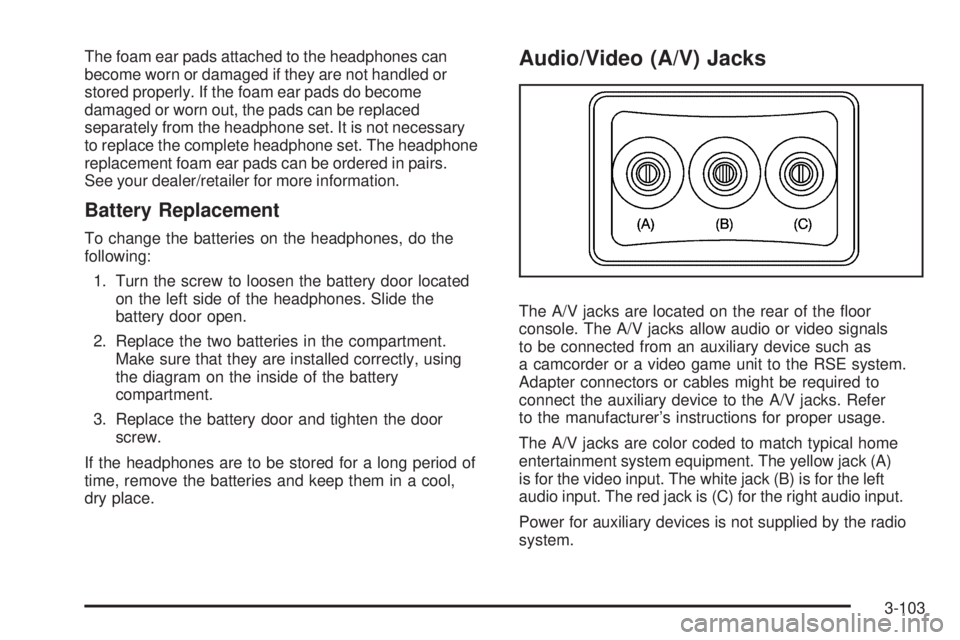
The A/V jacks are located on the rear of the oor
console. The A/V jacks allow audio or video signals
to be connected from an auxiliary device such as
a camcorder or a video game unit to the RSE system.
Adapter connectors or cables might be required to
connect the auxiliary device to the A/V jacks. Refer
to the manufacturer’s instructions for proper usage.
The A/V jacks are color coded to match typical home
entertainment system equipment. The yellow jack (A)
is for the video input. The white jack (B) is for the left
audio input. The red jack is (C) for the right audio input.
Power for auxiliary devices is not supplied by the radio
system.
3-103