change time SUZUKI FORENZA 2008 1.G User Guide
[x] Cancel search | Manufacturer: SUZUKI, Model Year: 2008, Model line: FORENZA, Model: SUZUKI FORENZA 2008 1.GPages: 226, PDF Size: 5.25 MB
Page 118 of 226
3-42
INSTRUMENT PANEL
85Z04-03E
Playing an MP3/WMA
With the ignition on, insert a CD partway
into the slot, label side up. The player will
pull it in, then “LOADING”, and then “MP3”
or “WMA” will appear on the display. The
CD should begin playing. You can’t insert a
CD with the acc off. As each new track
starts to play, the track number, and the
song name will appear on the display.
If the ignition or radio is turned off with a
CD in the player, it will stay in the player.
When a CD is in the player and the ignition
is turned on, the radio must be turned on
before the CD will start playback. When
the ignition and radio are turned on, the
CD will start playing where it stopped, if it
was the last selected audio source.
The CD player can play the smaller 3 inch
(8 cm) single CDs with an adapter ring.
Full-size CDs and the smaller CDs are
loaded in the same manner.
If playing a CD-R, the sound quality may
be reduced due to CD-R quality, the
method of recording, the quality of the
music that has been recorded, and the way
the CD-R has been handled. There may be
an increase in skipping, difficulty in finding
tracks, and/or difficulty in loading and
ejecting. If these problems occur, check
the bottom surface of the CD. If the surface
of the CD is damaged, such as cracked,
broken, or scratched, the CD will not play
properly. If there is no apparent damage,
try a known good CD.Do not add any label to a CD, it could get
caught in the CD player. If a CD is
recorded on a personal computer and a
description label is needed, try labeling the
top of the recorded CD with a marking pen
instead.
If an error appears on the display, see “CD
Messages” later in this section.
All of the CD functions work the same
while playing an MP3/WMA, except for
those listed here. See “Playing a CD” ear-
lier for more information.
DIR (Directory) button (11):
Press this button to repeat the tracks in the
current directory. “DIR” will appear on the
display.
Press this button again to repeat the tracks
in all of the directories. “ALL” will appear on
the display.
Press this button again to turn off repeat
play.
SEEK (Previous/Next Folder) button (5)
(in MP3/WMA mode):
Press the up or down arrows to change the
folder. If the CD-R doesn’t have any folder,
“ROOT” will flash on display for a short
time.TUNE (Previous/Next Folder) button (4):
Press the up or down arrows to go to the
first track in the previous folder or to go to
the next folder. The player will continue
moving backward or forward through the
CD with each press of the up or down
arrows.
INFO/DISP (Information/Display) button
(12):
Press this button to display additional text
information related to the current MP3/
WMA song. A choice of additional informa-
tion such as: Song Title, Album Title, Artist,
and Bit rate may appear.
When information is not available, “No Info”
will appear on the display.
Press and hold this button to change the
display mode.
Scroll:
Press and hold the sound button [in MP3/
WMA mode]
The song title or other information of a
song will scroll on/off. The default mode is
scroll on.
Scroll mode can be changed only when
you press and hold the sound button.
Page 119 of 226
3-43INSTRUMENT PANEL
85Z04-03E
CD Messages
CHECK CD:
If this message appears on the display
and/or the CD comes out, it could be for
one of the following reasons:
It is very hot. When the temperature
returns to normal, the CD will play.
You are driving on a very rough road.
When the road becomes smoother, the
CD will play.
The CD is dirty, scratched, wet, or
upside down.
The air is very humid. If so, wait about an
hour and try again.
The format of the CD may not be com-
patible. See “MP3/WMA Format” earlier
in this section.
There may have been a problem while
burning the CD.
The label may be caught in the CD
player.
If the CD is not playing correctly, for any
other reason, try a known good CD.
If any error occurs repeatedly or if an error
cannot be corrected, contact your SUZUKI
dealer. If the radio displays an error mes-
sage, write it down and provide it to your
SUZUKI dealer when reporting the prob-
lem.AUX Mod e
Press this button to listen to the audio con-
tents from other devices; Walkman, Porta-
ble CD Player, Portable MP3 Player, i-pod,
XM receiver, etc.
1) Connect the output port of the device to
the aux jack of the head unit with an
aux connector.
2) Turn the device on.
3) Press this button.
If you want to control the volume level, use
the volume buttons of the head unit or the
device.
Using the Auxiliary Input Jack
Your radio system has an auxiliary input
jack located on the lower right side of the
faceplate. This is not an audio output; do
not plug a headphone set into the front
auxiliary input jack. You can however, con-
nect an external audio device such as an
iPod, laptop computer, MP3 player, CD
changer, or cassette tape player, etc. to the
auxiliary input jack for use as another
source for audio listening.
The auxiliary input jack will also accept cell
phone connectors. Plug the cell phone
connector into the auxiliary input jack to
hear the other side of a cell phone’s con-
versation through the vehicle sound sys-
tem.
Drivers are encouraged to set up their por-
table audio player while the vehicle isparked. See Defensive Driving for more
information on driver distraction.
To use a portable audio player, connect a
3.5 mm (1/8 inch) cable to the radio’s front
auxiliary input jack. When a device is con-
nected, press the radio CD/AUX button as
needed to begin playing audio from the
device over the car speakers.
CD/AUX (CD/Auxiliary) button (9):
Press this button once to play a CD while a
portable audio device is playing. Press this
button a second time and the system will
begin playing audio from the connected
portable audio player. Once in this mode,
“Auxinput” will appear on the display. If the
auxiliary jack does not detect the presence
of an output jack, the aux mode will be pre-
vented from coming up.
Power/Volume knob (1):
Turn this knob clockwise or counterclock-
wise to increase or decrease the volume of
the portable player. You may need to make
additional volume adjustments from the
portable device if the volume does not go
loud or soft enough.
Page 120 of 226
3-44
INSTRUMENT PANEL
85Z04-03E
STEERING WHEEL REMOTE OPER-
ATION (if equipped in the vehicle)Power Button
Press this button to turn the system on and
off. Press this button for a short time to
MUTE the sound. To cancel MUTE, press
this button again.
Volume Up Button
Press this button to increase the volume
level.
Volume Down Button
Press this button to decrease the volume
level.
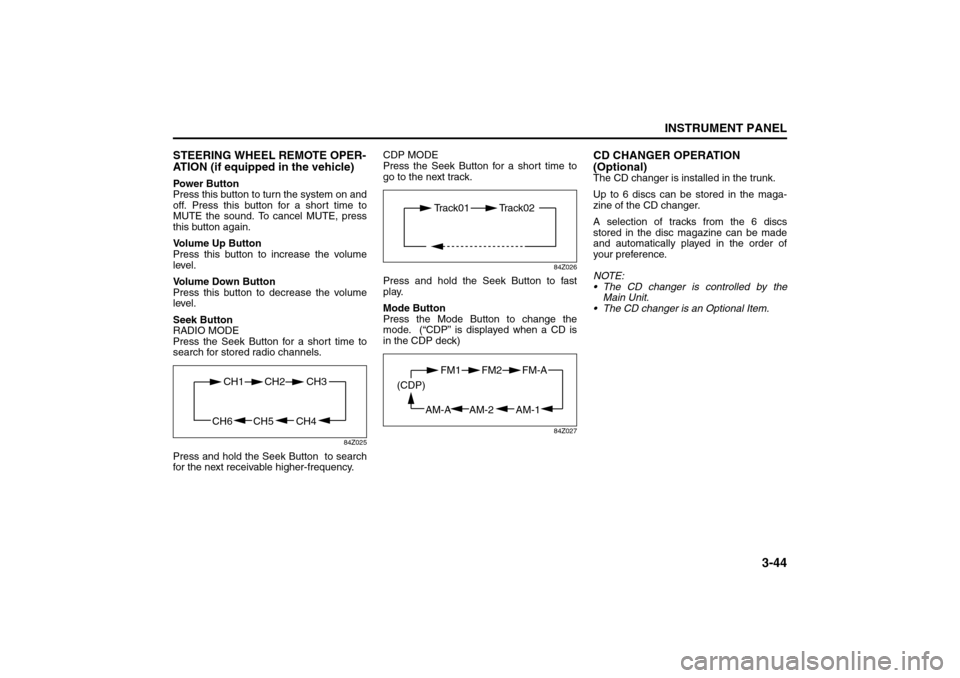
Seek Button
RADIO MODE
Press the Seek Button for a short time to
search for stored radio channels.
84Z025
Press and hold the Seek Button to search
for the next receivable higher-frequency.CDP MODE
Press the Seek Button for a short time to
go to the next track.
84Z026
Press and hold the Seek Button to fast
play.
Mode Button
Press the Mode Button to change the
mode. (“CDP” is displayed when a CD is
in the CDP deck)
84Z027
CD CHANGER OPERATION
(Optional)The CD changer is installed in the trunk.
Up to 6 discs can be stored in the maga-
zine of the CD changer.
A selection of tracks from the 6 discs
stored in the disc magazine can be made
and automatically played in the order of
your preference.
NOTE:
The CD changer is controlled by the
Main Unit.
The CD changer is an Optional Item.
CH4 CH5
CH1 CH2
CH6
CH3
Track01 Track02
AM-1 AM-2
FM1 FM2
AM-A (CDP)
FM-A
Page 123 of 226
3-47INSTRUMENT PANEL
85Z04-03E
The CD changer is operated by the main
unit.
1) Press the power button on the main unit
to turn the audio system on.
2) If a disc is already inserted inside the
CD changer, press the “CD” button.
Playback starts at the beginning of the
track that you were previously listening
to.
3) If a disc is not inserted yet, load a disc
in the magazine. (Refer to “How to
change discs”.)
Then, press the “CD” button to play.
Playback starts from the No. 1 disc.
CD Changer Play:
To play the CD Changer while operating
the radio, press the “CD” button if a disc is
already inserted in the CD changer.
The mode is transferred to the CD changer
and the CD is played back from the track
that you were previously listening to.
If a disc is not in the CD changer, the mode
is not changed to the CD changer when
you press this button.
Track Up & Down:
The track up & down knob/button allows
you to make quick selections from your
playing disc.
1) To play the next track, rotate this knob
clockwise for less than 1 second or
press the track up button once. Each
time you rotate the knob or press thebutton, the disc will skip to the next
track.
2) To play the previous track, rotate this
knob counterclockwise for less than 1
second or press the track down button
once. Each time you rotate the knob or
press the button, the disc will skip to the
previous track.
Cue & Review:
This function allows desired point-search
within a track at a faster than normal play-
back speed.
1) To search for the desired point of a
track, rotate this knob and hold it or
press and hold the track up/down but-
ton. The audio level is reduced and the
disc will play at a faster than normal
playback speed. When the disc reaches
the desired point, release the knob/but-
ton and normal play will resume.
2) To cue (forward) the track, rotate this
knob clockwise or press the track up
button. To review (backward) the track,
rotate this knob counterclockwise or
press the track down button.
Repeat Play:
To repeatedly listen to the current track,
press the “2/RPT” button.
“RPT” is displayed in VFD and the current
track will be played back repeatedly until
this function is canceled.
To cancel this function, press this button
again.Track Introduction:
To quickly and conveniently scan the track,
use the “3 or 4/INT” button.
“INTRO” will be displayed in VFD and the
audio system will play the first 10 seconds
of each track.
When the player reaches the desired track,
press this button again and normal play will
resume.
Random Play:
To play a CD disc in random order, press
the “4 or 5/RDM” button.
“RDM” will be displayed in VFD and the
audio system will play the CD in random
order.
To cancel this function, press this button
again.
Disc Up / Down Button
To select another disc in ascending order,
press the “3 or 6/UP” button. The number
of the selected disc will appear on the
VFD.
To select another disc in descending order,
press the “5 or 6/DN” button. The number
of the selected disc will appear on the
VFD.
Page 128 of 226
4-4
DRIVING YOUR VEHICLE
85Z04-03E
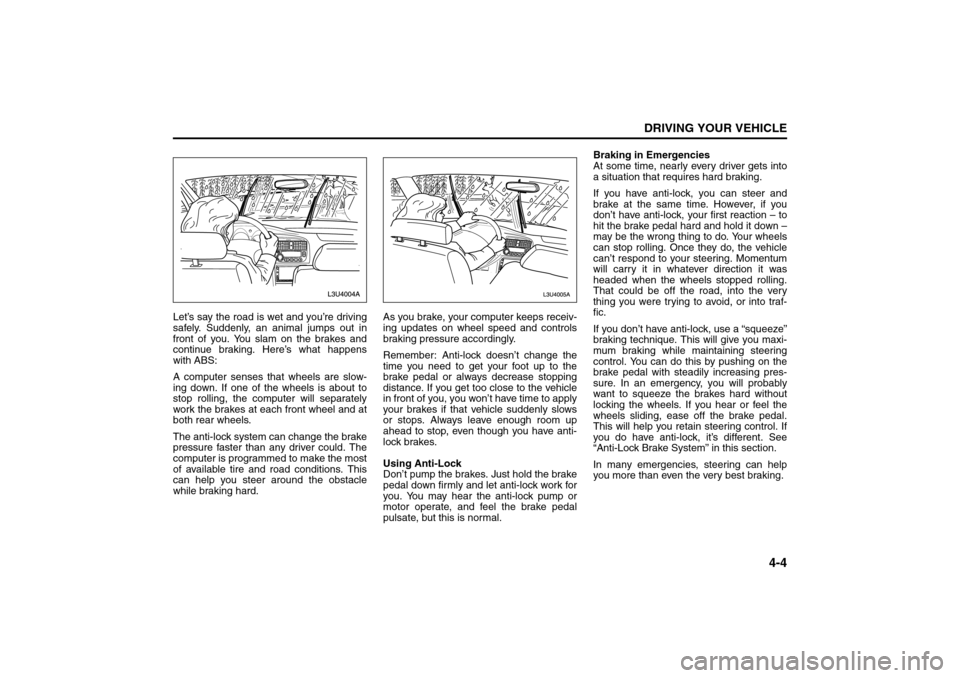
Let’s say the road is wet and you’re driving
safely. Suddenly, an animal jumps out in
front of you. You slam on the brakes and
continue braking. Here’s what happens
with ABS:
A computer senses that wheels are slow-
ing down. If one of the wheels is about to
stop rolling, the computer will separately
work the brakes at each front wheel and at
both rear wheels.
The anti-lock system can change the brake
pressure faster than any driver could. The
computer is programmed to make the most
of available tire and road conditions. This
can help you steer around the obstacle
while braking hard.As you brake, your computer keeps receiv-
ing updates on wheel speed and controls
braking pressure accordingly.
Remember: Anti-lock doesn’t change the
time you need to get your foot up to the
brake pedal or always decrease stopping
distance. If you get too close to the vehicle
in front of you, you won’t have time to apply
your brakes if that vehicle suddenly slows
or stops. Always leave enough room up
ahead to stop, even though you have anti-
lock brakes.
Using Anti-Lock
Don’t pump the brakes. Just hold the brake
pedal down firmly and let anti-lock work for
you. You may hear the anti-lock pump or
motor operate, and feel the brake pedal
pulsate, but this is normal.Braking in Emergencies
At some time, nearly every driver gets into
a situation that requires hard braking.
If you have anti-lock, you can steer and
brake at the same time. However, if you
don’t have anti-lock, your first reaction – to
hit the brake pedal hard and hold it down –
may be the wrong thing to do. Your wheels
can stop rolling. Once they do, the vehicle
can’t respond to your steering. Momentum
will carry it in whatever direction it was
headed when the wheels stopped rolling.
That could be off the road, into the very
thing you were trying to avoid, or into traf-
fic.
If you don’t have anti-lock, use a “squeeze”
braking technique. This will give you maxi-
mum braking while maintaining steering
control. You can do this by pushing on the
brake pedal with steadily increasing pres-
sure. In an emergency, you will probably
want to squeeze the brakes hard without
locking the wheels. If you hear or feel the
wheels sliding, ease off the brake pedal.
This will help you retain steering control. If
you do have anti-lock, it’s different. See
“Anti-Lock Brake System” in this section.
In many emergencies, steering can help
you more than even the very best braking.
Your Driving, the Road, and Your Vehicle:
Page 131 of 226
4-7DRIVING YOUR VEHICLE
85Z04-03E
gerous move, since the passing vehicle
occupies the same lane as oncoming traf-
fic for several seconds. A miscalculation,
an error in judgment, or a brief surrender to
frustration or anger can suddenly put the
passing driver face to face with the worst of
all traffic accidents – the head-on collision.
So here are some tips for passing:
“Drive ahead.” Look down the road, to
the sides and to crossroads for situa-
tions that might affect your passing pat-
terns. If you have any doubt whatsoever
about making a successful pass, wait for
a better time.
Watch for traffic signs, pavement mark-
ings and lines. If you can see a sign up
ahead that might indicate a turn or an
intersection, delay your pass. A broken
center line usually indicates it’s all right
to pass (providing the road ahead is
clear). Never cross a solid line on your
side of the lane or a double solid line,
even if the road seems empty of
approaching traffic.
Do not get too close to the vehicle you
want to pass while you’re awaiting an
opportunity. For one thing, following too
closely reduces your area of vision,
especially if you’re following a larger
vehicle. Also, you won’t have adequate
space if the vehicle ahead suddenly
slows or stops. Keep back a reasonable
distance.
When it looks like a chance to pass is
coming up, start to accelerate but stay inthe right lane and don’t get too close.
Time your move so you will be increas-
ing speed as the time comes to move
into the other lane. If the way is clear to
pass, you will have a “running start” that
more than makes up for the distance you
would lose by dropping back. And if
something happens to cause you to can-
cel your pass, you need only slow down
and drop back again and wait for another
opportunity.
If other vehicles are lined up to pass a
slow vehicle, wait your turn. But take
care that someone isn’t trying to pass
you as you pull out to pass the slow vehi-
cle. Remember to glance over your
shoulder and check the blind spot.
Check your mirrors, glance over your
shoulder, and start your left lane change
signal before moving out of the right lane
to pass. When you are far enough ahead
of the passed vehicle to see its front in
your inside mirror, activate your right
lane change signal and move back into
the right lane. (Remember that your right
outside mirror is convex. The vehicle you
just passed may seem to be farther away
from you than it really is.)
Try not to pass more than one vehicle at
a time on two-lane roads. Reconsider
before passing the next vehicle.
Don’t overtake a slowly moving vehicle
too rapidly. Even though the brake lamps
are not flashing, it may be slowing down
or starting to turn. If you’re being passed, make it easy for
the following driver to get ahead of you.
Perhaps you can ease a little to the right.
Loss of ControlLet’s review what driving experts say about
what happens when the three control sys-
tems (brakes, steering and acceleration)
don’t have enough friction where the tires
meet the road to do what the driver has
asked.
In any emergency, don’t give up. Keep try-
ing to steer and constantly seek an escape
route or area of less danger.
Skidding
In a skid, a driver can lose control of the
vehicle. Defensive drivers avoid most skids
by taking reasonable care suited to exist-
ing conditions, and by not “overdriving”
those conditions. But skids are always pos-
sible.
The three types of skids correspond to
your vehicle’s three control systems. In the
braking skid, your wheels aren’t rolling. In
the steering or cornering skid, too much
speed or steering in a curve causes tires to
slip and lose cornering force. And in the
acceleration skid, too much throttle causes
the driving wheels to spin.
A cornering skid is best handled by easing
your foot off the accelerator pedal.
If your vehicle starts to slide, ease your
foot off the accelerator pedal and quickly
Your Driving, the Road, and Your Vehicle:
Page 132 of 226
4-8
DRIVING YOUR VEHICLE
85Z04-03E
steer the way you want the vehicle to go. If
you start steering quickly enough, your
vehicle may straighten out. Always be
ready for a second skid if it occurs.
Of course, traction is reduced when water,
snow, ice, gravel or other material is on the
road. For safety, you’ll want to slow down
and adjust your driving to these conditions.
It is important to slow down on slippery
surfaces because stopping distance will be
longer and vehicle control more limited.
While driving on a surface with reduced
traction, try your best to avoid sudden
steering, acceleration or braking (including
engine braking by shifting to a lower gear).
Any sudden changes could cause the tires
to slide. You may not realize the surface is
slippery until your vehicle is skidding.
Learn to recognize warning clues – such
as enough water, ice or packed snow on
the road to make a “mirrored surface” –
and slow down when you have any doubt.
If you have the anti-lock braking system,
remember: It helps avoid only the braking
skid. If you do not have anti-lock, then in a
braking skid (where the wheels are no
longer rolling), release enough pressure
on the brakes to get the wheels rolling
again. This restores steering control. Push
the brake pedal down steadily when you
have to stop suddenly. As long as the
wheels are rolling, you will have steering
control.
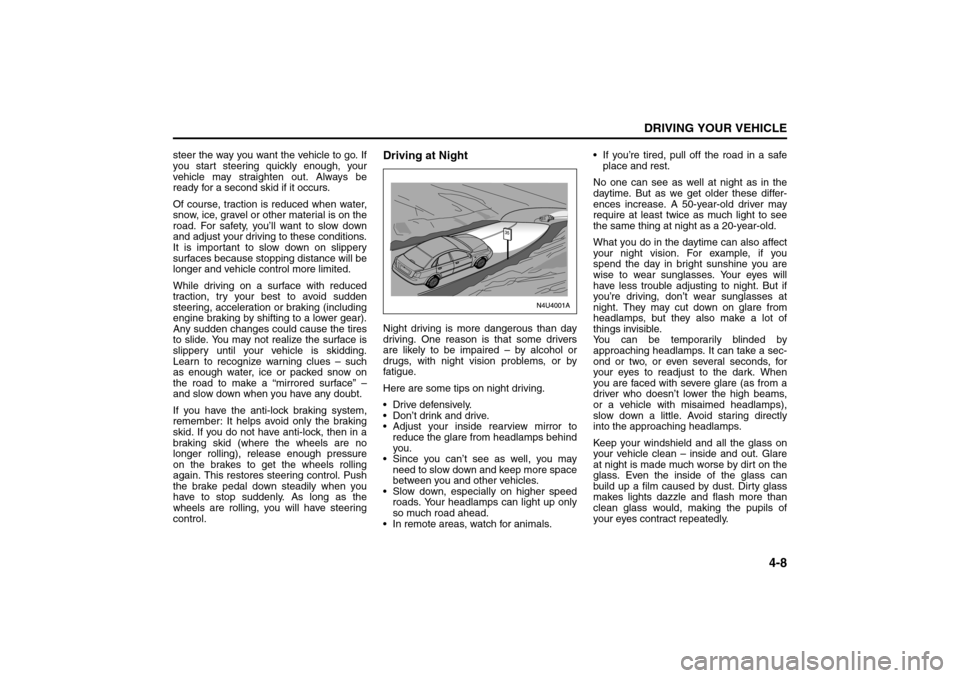
Driving at NightNight driving is more dangerous than day
driving. One reason is that some drivers
are likely to be impaired – by alcohol or
drugs, with night vision problems, or by
fatigue.
Here are some tips on night driving.
Drive defensively.
Don’t drink and drive.
Adjust your inside rearview mirror to
reduce the glare from headlamps behind
you.
Since you can’t see as well, you may
need to slow down and keep more space
between you and other vehicles.
Slow down, especially on higher speed
roads. Your headlamps can light up only
so much road ahead.
In remote areas, watch for animals. If you’re tired, pull off the road in a safe
place and rest.
No one can see as well at night as in the
daytime. But as we get older these differ-
ences increase. A 50-year-old driver may
require at least twice as much light to see
the same thing at night as a 20-year-old.
What you do in the daytime can also affect
your night vision. For example, if you
spend the day in bright sunshine you are
wise to wear sunglasses. Your eyes will
have less trouble adjusting to night. But if
you’re driving, don’t wear sunglasses at
night. They may cut down on glare from
headlamps, but they also make a lot of
things invisible.
You can be temporarily blinded by
approaching headlamps. It can take a sec-
ond or two, or even several seconds, for
your eyes to readjust to the dark. When
you are faced with severe glare (as from a
driver who doesn’t lower the high beams,
or a vehicle with misaimed headlamps),
slow down a little. Avoid staring directly
into the approaching headlamps.
Keep your windshield and all the glass on
your vehicle clean – inside and out. Glare
at night is made much worse by dirt on the
glass. Even the inside of the glass can
build up a film caused by dust. Dirty glass
makes lights dazzle and flash more than
clean glass would, making the pupils of
your eyes contract repeatedly.
Your Driving, the Road, and Your Vehicle:
Page 164 of 226
5-20
SERVICE AND APPEARANCE CARE
85Z04-03E
Brake Pedal Travel
See your SUZUKI dealer if the brake pedal
does not return to normal height, or if there
is a rapid increase in pedal travel. This
could be a sign of brake trouble.
Brake Adjustment
Every time you make a moderate brake
stop, your disc brakes adjust for wear. If
you rarely make a moderate or heavier
stop, then your brakes might not adjust
correctly. If you drive in that way, then –
very carefully – make a few moderate
brake stops about every 1,000 miles
(1,600 km), so your brakes will adjust prop-
erly.
Replacing Brake System Parts
The braking system on a vehicle is com-
plex. Its many parts have to be of top qual-
ity and work well together if the vehicle is
to have really good braking. When you
replace parts of your braking system – for
example, when your brake linings wear
down and you need new ones put in – be
sure you get new approved SUZUKI
replacement parts. If you don’t, your
brakes may no longer work properly. For
example, if someone puts in brake linings
that are wrong for your vehicle, the balance
between your front and rear brakes can
change – for the worse. The braking per-
formance you’ve come to expect can
change in many other ways if someone
puts in the wrong replacement brake parts.
BatteryYour new vehicle comes with a mainte-
nance free battery. When it’s time for a new
battery, get one that has the replacement
number shown on the original battery’s
label. See “Engine Compartment Over-
view” in this section for battery location.
Vehicle Stor ag e
If you’re not going to drive your vehicle for
25 days or more, remove the black, nega-
tive (–) cable from the battery. This will
help keep your battery from running down.
Contact your SUZUKI dealer to learn how
to prepare your vehicle for longer storage
periods.
Jump StartingIf your battery has run down, you may want
to use another vehicle and some jumper
cables to start your vehicle. Be sure to fol-
low the steps below to do it safely.
1) Check the other vehicle. It must have a
12-volt battery with a negative ground
system.
WARNING
Battery posts, terminals and related
accessories contain lead and lead
compounds, chemicals known to the
State of California to cause cancer
and reproductive harm. Wash hands
after handling.
WARNING
Batteries have acid that can burn you
and gas that can explode. You can be
badly hurt if you aren’t careful. See
the next section, “Jump Starting”, for
tips on working around a battery
without getting hurt.
WARNING
Batteries can hurt you. They can be
dangerous because:
They contain acid that can burn
you.
They contain gas that can explode
or ignite.
They contain enough electricity to
burn you.
If you don’t follow these steps
exactly, some or all of these things
can hurt you.
CAUTION
Ignoring the following steps could
result in costly damage to your vehi-
cle that wouldn’t be covered by your
warranty.
Trying to start your vehicle by push-
ing or pulling it won’t work, and it
could damage your vehicle.
Checking Things Under the Hood:
Page 178 of 226
5-34
SERVICE AND APPEARANCE CARE
85Z04-03E
itoring system. Have tire and wheel
replacement performed by an authorized
service facility to avoid the risk of damag-
ing the tire pressure monitor sensors.
The tire pressure monitoring system may
not work normally in the following circum-
stances:
Wheels other than genuine wheels are
being used.
Wheels whose ID codes are not memo-
rized by the vehicle are used. The moni-
toring system should be set up by an
authorized service facility.
Wheels that are not fitted with tire pres-
sure sensors are being used.
The tire inflation pressure sensors’ bat-
tery is exhausted.
A wireless facility or device using the
same frequency is near the vehicle.
Snow or ice is stuck inside the fenders
and/or on the wheels.
The tire pressure monitoring system oper-
ates on a radio frequency subject to Fed-eral Communications Commission (FCC)
Rules and with Industry and Science Can-
ada.
This device complies with Part 15 of the
FCC Rules and with RSS-210 of Industry
and Science Canada. Operation is subject
to the following two conditions: (1) This
device may not cause harmful interference,
and (2) this device must accept any inter-
ference received including interference that
may cause undesired operation of the
device.
NOTE:
Changes or modifications not expressly
approved by the party responsible for com-
pliance could void the user’s authority to
operate the equipment.
NOTE:
Only use tire sizes that are recommended
for your vehicle. Use of inappropriate-size
tires can cause a variety of problems which
will not be covered under warranty.
Correcting the Tire PressureTo permanently eliminate the low tire pres-
sure warning light, you must fill the tires
with the correct amount of air. However, at
the next vehicle start-up, the warning light
will reappear if the tire pressure is not cor-
rected. The best time to check your tire
pressure is when the tires are cold. A Tire
and Loading Information label, located on
the driver’s door near the door latch, shows
the correct inflation pressure for the tires
when they are cold. Cold means your vehi-
cle has been sitting for at least three hours
or driven no more than one mile. You may
notice during cooler conditions that low tire
pressure warning light will appear when
the vehicle is first started and then turn off
as you start to drive the vehicle. This could
be an early indicator that your tire pres-
sures are getting low and need to be
inflated to the proper pressure.
WARNING
Only use tires and wheels recom-
mended by us as standard or
optional equipment for your vehicle.
Use of tires or wheels not recom-
mended by us can result in TPMS fail-
ure. Refer to “Tires” in the “SERVICE
AND APPEARANCE CARE” section
for additional information.
WARNING
We highly recommend that any TPMS
sensor replacement or tire rotation
be done by an authorized Suzuki
dealer. The dealer will make sure that
the TPMS system is set up to recog-
nize the ID codes of the TPMS sen-
sors.
Tires:
Page 180 of 226
5-36
SERVICE AND APPEARANCE CARE
85Z04-03E
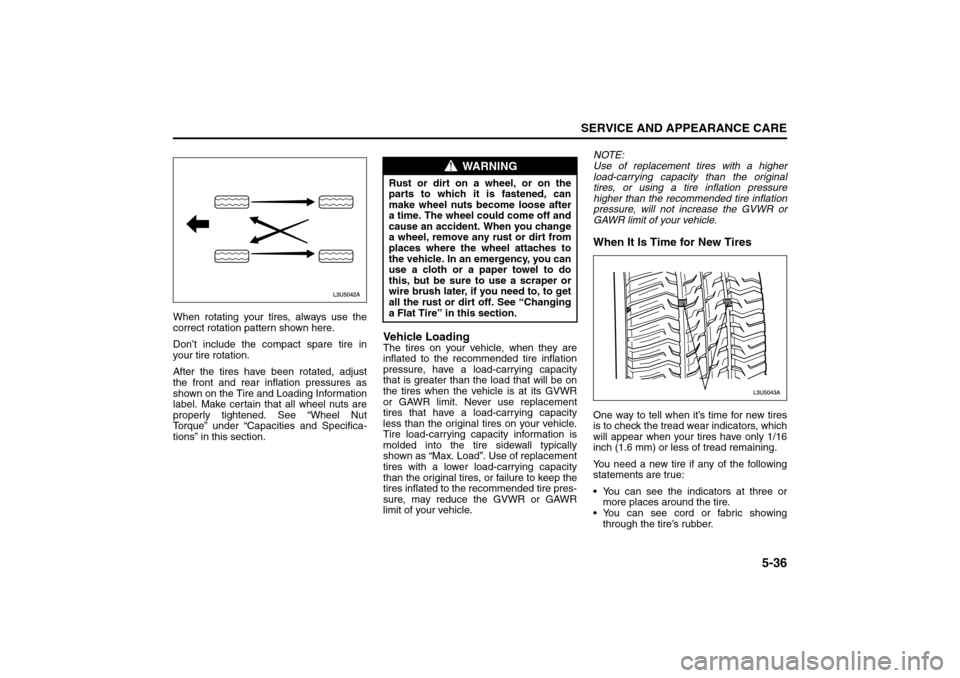
When rotating your tires, always use the
correct rotation pattern shown here.
Don’t include the compact spare tire in
your tire rotation.
After the tires have been rotated, adjust
the front and rear inflation pressures as
shown on the Tire and Loading Information
label. Make certain that all wheel nuts are
properly tightened. See “Wheel Nut
Torque” under “Capacities and Specifica-
tions” in this section.
Vehicle LoadingThe tires on your vehicle, when they are
inflated to the recommended tire inflation
pressure, have a load-carrying capacity
that is greater than the load that will be on
the tires when the vehicle is at its GVWR
or GAWR limit. Never use replacement
tires that have a load-carrying capacity
less than the original tires on your vehicle.
Tire load-carrying capacity information is
molded into the tire sidewall typically
shown as “Max. Load”. Use of replacement
tires with a lower load-carrying capacity
than the original tires, or failure to keep the
tires inflated to the recommended tire pres-
sure, may reduce the GVWR or GAWR
limit of your vehicle.NOTE:
Use of replacement tires with a higher
load-carrying capacity than the original
tires, or using a tire inflation pressure
higher than the recommended tire inflation
pressure, will not increase the GVWR or
GAWR limit of your vehicle.
When It Is Time for New TiresOne way to tell when it’s time for new tires
is to check the tread wear indicators, which
will appear when your tires have only 1/16
inch (1.6 mm) or less of tread remaining.
You need a new tire if any of the following
statements are true:
You can see the indicators at three or
more places around the tire.
You can see cord or fabric showing
through the tire’s rubber.
WARNING
Rust or dirt on a wheel, or on the
parts to which it is fastened, can
make wheel nuts become loose after
a time. The wheel could come off and
cause an accident. When you change
a wheel, remove any rust or dirt from
places where the wheel attaches to
the vehicle. In an emergency, you can
use a cloth or a paper towel to do
this, but be sure to use a scraper or
wire brush later, if you need to, to get
all the rust or dirt off. See “Changing
a Flat Tire” in this section.
Tires: