USB port TOYOTA COROLLA HYBRID 2020 Owners Manual (in English)
[x] Cancel search | Manufacturer: TOYOTA, Model Year: 2020, Model line: COROLLA HYBRID, Model: TOYOTA COROLLA HYBRID 2020Pages: 556, PDF Size: 19.28 MB
Page 3 of 556
3TABLE OF CONTENTS
COROLLA HV_U
1
2
3
4
5
6
7
8
9
10
4-3. Operating the lights and wip- ers
Headlight switch ................. 158
Automatic High Beam ........ 160
Windshield wipers and washer ......................................... 163
4-4. Refueling Opening the fuel tank cap .. 165
4-5. Using the driving support sys- tems
Toyota Safety Sense 2.0 .... 168
PCS (Pre-Collision System) ......................................... 174
LTA (Lane Tracing Assist)... 182
Dynamic radar cruise control with full-speed range ........ 192
RSA (Road Sign Assist) ..... 202
BSM (Blind Spot Monitor)... 205
Rear view monitor system .. 211
Driving mode select switch ......................................... 219
Driving assist systems........ 220
4-6. Driving tips Hybrid vehicle driving tips .. 226
Winter driving tips............... 228
5-1. Basic function Buttons overview ................ 233
Menu screen ...................... 235
Status icon ......................... 236
“Setup” screen ................... 238
5-2. Basic information before oper- ation
Initial screen ....................... 239
Touch screen ...................... 240
Home screen ...................... 242
Entering letters and num- bers/list screen operation......................................... 243Screen adjustment .............
246
Linking multi-information display and the system ................ 247
5-3. Connectivity settings Registering/Connecting a Blue-
tooth
® device ................... 248
Setting Bluetooth
® details .. 252
Wi-Fi
® Hotspot ................... 259
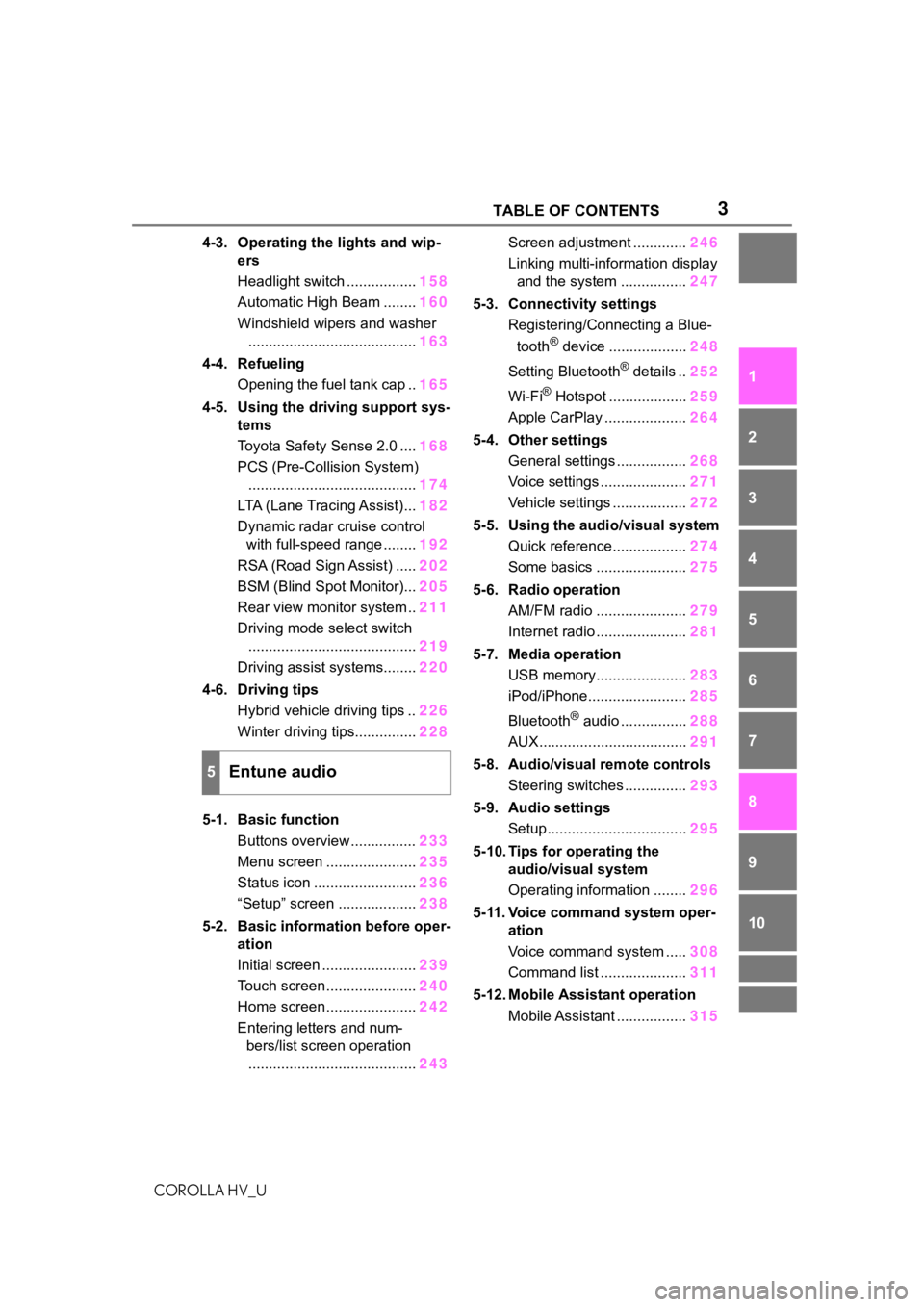
Apple CarPlay .................... 264
5-4. Other settings General settings ................. 268
Voice settings ..................... 271
Vehicle settings .................. 272
5-5. Using the audio/visual system Quick reference.................. 274
Some basics ...................... 275
5-6. Radio operation AM/FM radio ...................... 279
Internet radio ...................... 281
5-7. Media operation USB memory...................... 283
iPod/iPhone........................ 285
Bluetooth
® audio ................ 288
AUX.................................... 291
5-8. Audio/visual remote controls Steering switches ............... 293
5-9. Audio settings Setup.................................. 295
5-10. Tips for operating the audio/visual system
Operating information ........ 296
5-11. Voice command system oper- ation
Voice command system ..... 308
Command list ..................... 311
5-12. Mobile Assistant operation Mobile Assistant ................. 315
5Entune audio
Page 264 of 556
2645-3. Connectivity settings
COROLLA HV_U
*: if equipped
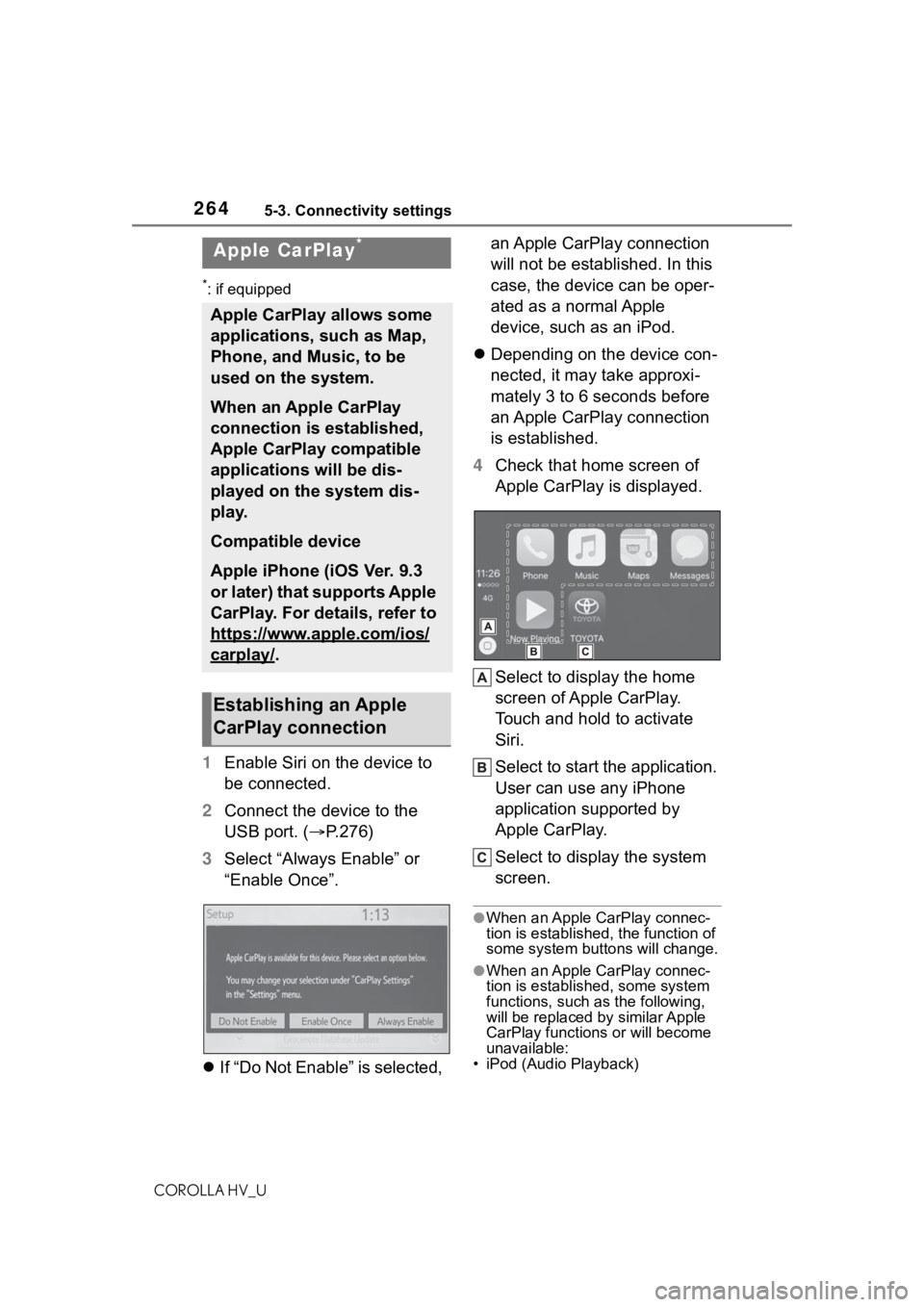
1Enable Siri on the device to
be connected.
2 Connect the device to the
USB port. ( P.276)
3 Select “Always Enable” or
“Enable Once”.
If “Do Not Enable” is selected, an Apple CarPlay connection
will not be established. In this
case, the device can be oper-
ated as a normal Apple
device, such as an iPod.
Depending on the device con-
nected, it may take approxi-
mately 3 to 6 seconds before
an Apple CarPlay connection
is established.
4 Check that home screen of
Apple CarPlay is displayed.
Select to display the home
screen of Apple CarPlay.
Touch and hold to activate
Siri.
Select to start the application.
User can use any iPhone
application supported by
Apple CarPlay.
Select to display the system
screen.
●When an Apple CarPlay connec-
tion is established, the function of
some system bu ttons will change.
●When an Apple CarPlay connec-
tion is established, some system
functions, such as the following,
will be replaced by similar Apple
CarPlay function s or will become
unavailable:
• iPod (Audio Playback)
Apple CarPlay*
Apple CarPlay allows some
applications, such as Map,
Phone, and Music, to be
used on the system.
When an Apple CarPlay
connection is established,
Apple CarPlay compatible
applications will be dis-
played on the system dis-
play.
Compatible device
Apple iPhone (iOS Ver. 9.3
or later) that supports Apple
CarPlay. For details, refer to
https://www.apple.com/ios/
carplay/.
Establishing an Apple
CarPlay connection
Page 265 of 556
2655-3. Connectivity settings
COROLLA HV_U
5
Entune audio
• Hands-free Phone
• USB audio/USB video
• Bluetooth
® audio
• Bluetooth® phone
• Toyota Entune A pp Suite Connect
●The guidance volume can be
changed on the voice settings
screen. (P.271)
●To disable Apple CarPlay while a
device is connected, set “Apple
CarPlay” on the general settings
screen to off. ( P.268)
●Apple CarPlay is an application
developed by Apple Inc. Its func-
tions and services may be termi-
nated or changed without notice
depending on the connected
device’s operation system, hard-
ware and software, or due to
changes in Apple CarPlay specifi-
cations.
●In some regions, speed limit infor-
mation is displayed on the route
guidance screen of the iOS 11 or
later map application. The dis-
played information is based on the
information in the map application,
so it may differ from the speed
limit information displayed on the
multi-information display.
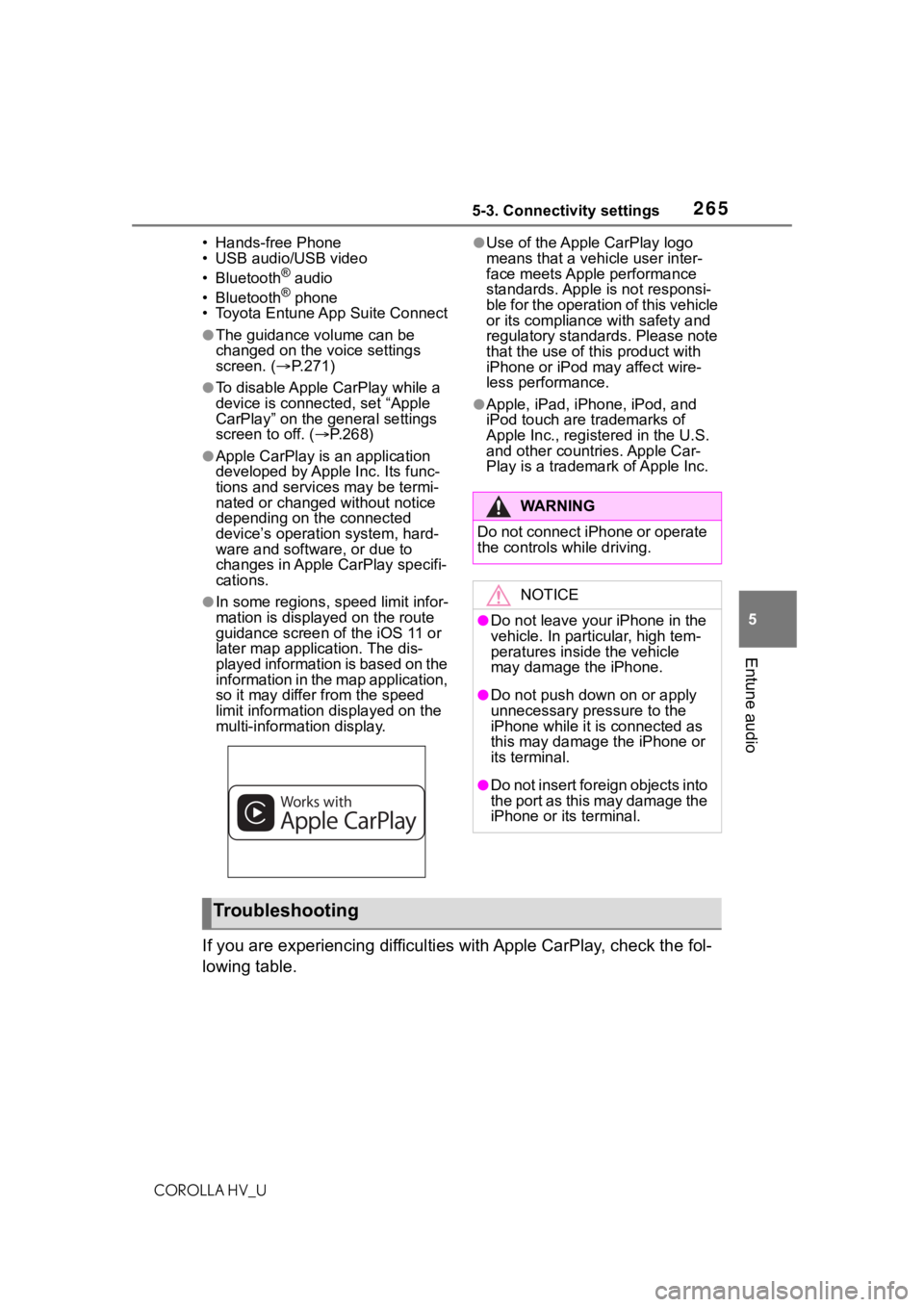
●Use of the Apple CarPlay logo
means that a vehicle user inter-
face meets Apple performance
standards. Apple is not responsi-
ble for the operation of this vehicle
or its compliance with safety and
regulatory standards. Please note
that the use of this product with
iPhone or iPod may affect wire-
less performance.
●Apple, iPad, iPhone, iPod, and
iPod touch are t rademarks of
Apple Inc., registered in the U.S.
and other countries. Apple Car-
Play is a trademark of Apple Inc.
If you are experiencing difficulti es with Apple CarPlay, check the fol-
lowing table.
WA R N I N G
Do not connect iPhone or operate
the controls while driving.
NOTICE
●Do not leave your iPhone in the
vehicle. In particular, high tem-
peratures inside the vehicle
may damage the iPhone.
●Do not push down on or apply
unnecessary pressure to the
iPhone while it is connected as
this may damage the iPhone or
its terminal.
●Do not insert foreign objects into
the port as this may damage the
iPhone or its terminal.
Troubleshooting
Page 266 of 556
2665-3. Connectivity settings
COROLLA HV_U
SymptomSolution
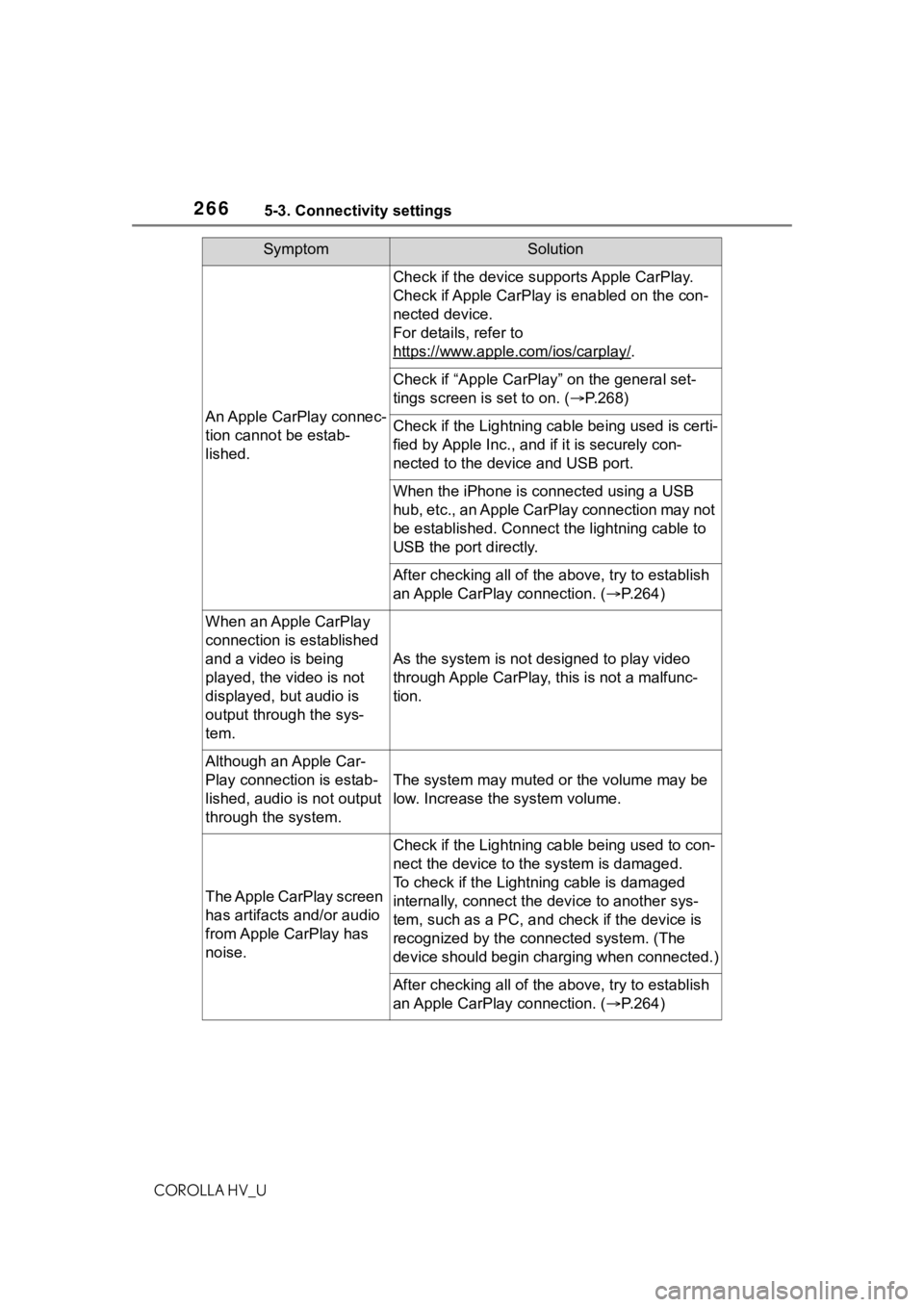
An Apple CarPlay connec-
tion cannot be estab-
lished.
Check if the device supports Apple CarPlay.
Check if Apple CarPlay is enabled on the con-
nected device.
For details, refer to
https://www.apple.com/ios/carplay/
.
Check if “Apple CarPlay” on the general set-
tings screen is set to on. (P.268)
Check if the Lightning cable being used is certi-
fied by Apple Inc., and i f it is securely con-
nected to the devic e and USB port.
When the iPhone is c onnected using a USB
hub, etc., an Apple CarPlay connection may not
be established. Connect the lightning cable to
USB the port directly.
After checking all of the above, try to establish
an Apple CarPlay connection. ( P.264)
When an Apple CarPlay
connection is established
and a video is being
played, the video is not
displayed, but audio is
output through the sys-
tem.
As the system is not designed to play video
through Apple CarPlay, this is not a malfunc-
tion.
Although an Apple Car-
Play connection is estab-
lished, audio is not output
through the system.
The system may muted or the volume may be
low. Increase the system volume.
The Apple CarPlay screen
has artifacts and/or audio
from Apple CarPlay has
noise.
Check if the Lightning cable being used to con-
nect the device to th e system is damaged.
To check if the Lightning cable is damaged
internally, connect the device to another sys-
tem, such as a PC, and check if the device is
recognized by the conn ected system. (The
device should begin charging when connected.)
After checking all of the above, try to establish
an Apple CarPlay connection. ( P.264)
Page 274 of 556
2745-5. Using the audio/visual system
COROLLA HV_U
5-5.Using the audio/visual system
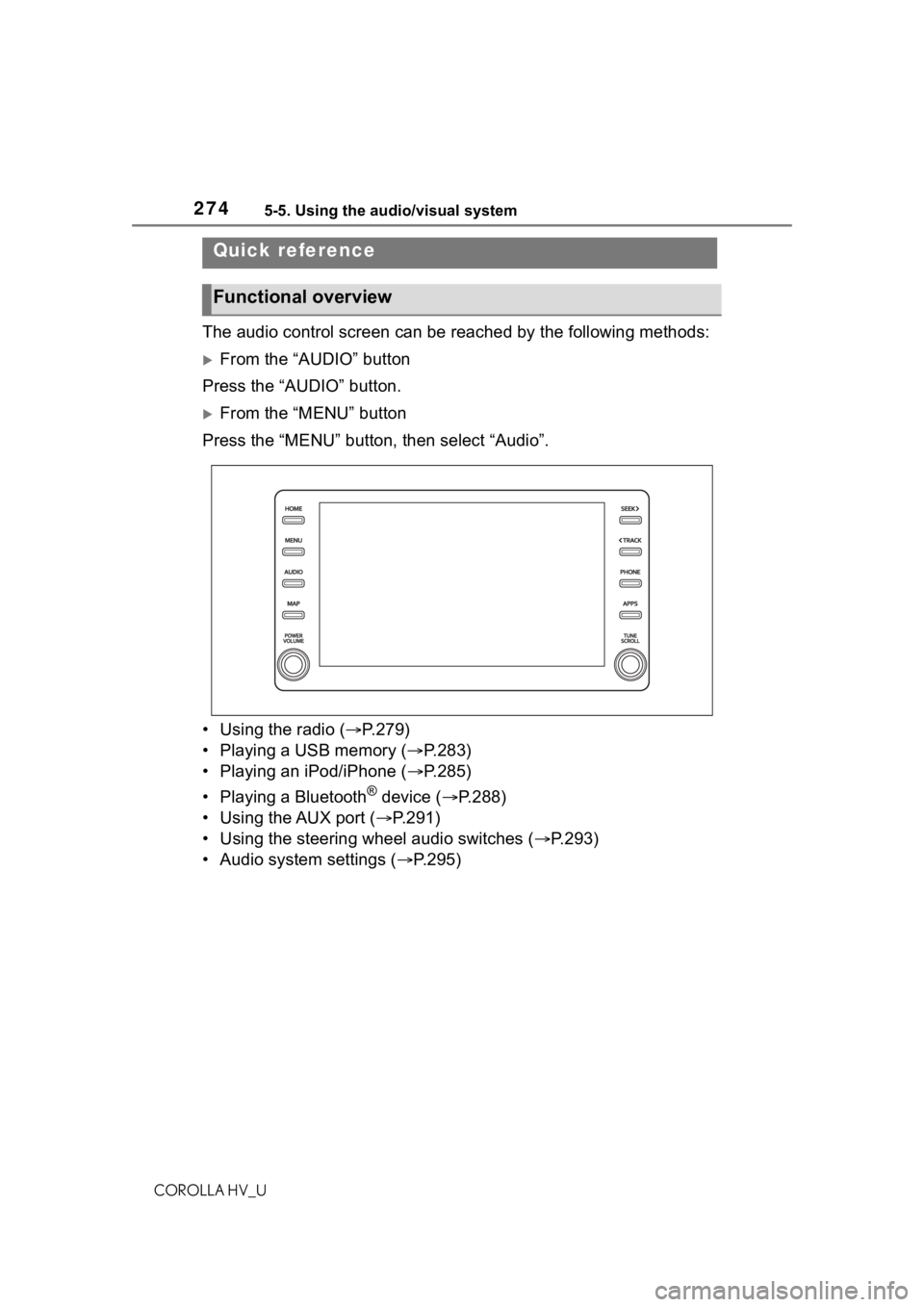
The audio control screen can be reached by the following methods:
From the “AUDIO” button
Press the “AUDIO” button.
From the “MENU” button
Press the “MENU” button, then select “Audio”.
• Using the radio ( P.279)
• Playing a USB memory ( P.283)
• Playing an iPod/iPhone ( P.285)
• Playing a Bluetooth
® device ( P.288)
• Using the AUX port ( P.291)
• Using the steering wheel audio switches ( P.293)
• Audio system settings ( P.295)
Quick reference
Functional overview
Page 276 of 556
2765-5. Using the audio/visual system
COROLLA HV_U
3Select the desired audio
source then or to reor-
der.
4 Select “OK”.
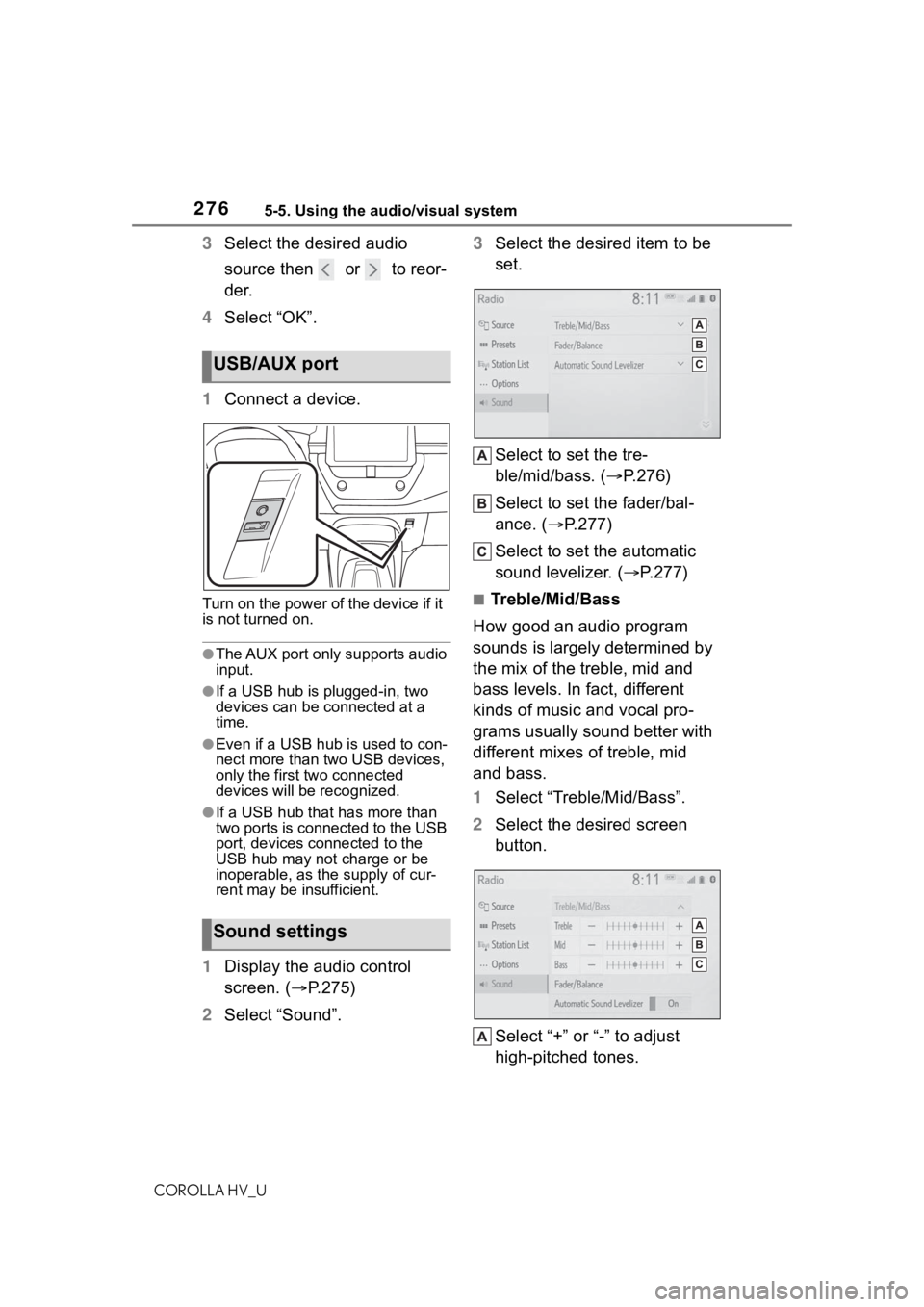
1 Connect a device.
Turn on the power of the device if it
is not turned on.
●The AUX port only supports audio
input.
●If a USB hub is plugged-in, two
devices can be connected at a
time.
●Even if a USB hub is used to con-
nect more than two USB devices,
only the first two connected
devices will be recognized.
●If a USB hub that has more than
two ports is connected to the USB
port, devices connected to the
USB hub may not charge or be
inoperable, as the supply of cur-
rent may be insufficient.
1 Display the audio control
screen. ( P.275)
2 Select “Sound”. 3
Select the desired item to be
set.
Select to set the tre-
ble/mid/bass. ( P.276)
Select to set the fader/bal-
ance. ( P.277)
Select to set the automatic
sound levelizer. ( P.277)
■Treble/Mid/Bass
How good an audio program
sounds is largely determined by
the mix of the treble, mid and
bass levels. In fact, different
kinds of music and vocal pro-
grams usually sound better with
different mixes of treble, mid
and bass.
1 Select “Treble/Mid/Bass”.
2 Select the desired screen
button.
Select “+” or “-” to adjust
high-pitched tones.
USB/AUX port
Sound settings
Page 277 of 556
2775-5. Using the audio/visual system
COROLLA HV_U
5
Entune audio
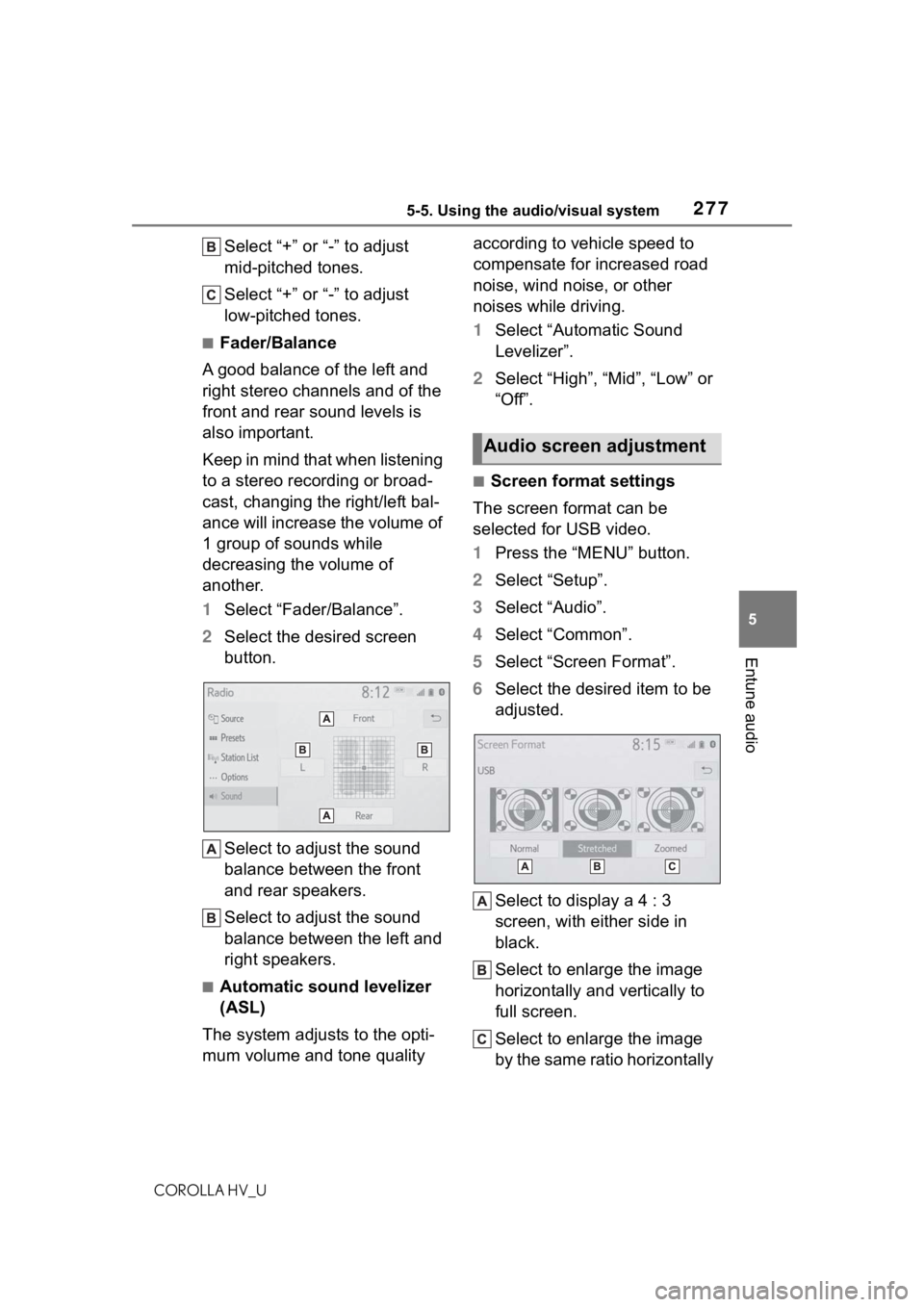
Select “+” or “-” to adjust
mid-pitched tones.
Select “+” or “-” to adjust
low-pitched tones.
■Fader/Balance
A good balance of the left and
right stereo channels and of the
front and rear sound levels is
also important.
Keep in mind that when listening
to a stereo recording or broad-
cast, changing the right/left bal-
ance will increase the volume of
1 group of sounds while
decreasing the volume of
another.
1 Select “Fader/Balance”.
2 Select the desired screen
button.
Select to adjust the sound
balance between the front
and rear speakers.
Select to adjust the sound
balance between the left and
right speakers.
■Automatic sound levelizer
(ASL)
The system adjusts to the opti-
mum volume and tone quality according to vehicle speed to
compensate for increased road
noise, wind noise, or other
noises while driving.
1
Select “Automatic Sound
Levelizer”.
2 Select “High”, “Mid”, “Low” or
“Off”.
■Screen format settings
The screen format can be
selected for USB video.
1 Press the “MENU” button.
2 Select “Setup”.
3 Select “Audio”.
4 Select “Common”.
5 Select “Screen Format”.
6 Select the desired item to be
adjusted.
Select to display a 4 : 3
screen, with either side in
black.
Select to enlarge the image
horizontally and vertically to
full screen.
Select to enlarge the image
by the same ratio horizontally
Audio screen adjustment
Page 283 of 556
2835-7. Media operation
COROLLA HV_U
5
Entune audio
5-7.Media operation
The USB memory operation
screen can be reached by the
following methods: P. 2 7 5
Connecting a USB memory
( P.276)
When an Apple CarPlay con-
nection is established, this func-
tion will be unavailable
*.
*: This function is not made avail- able in some countries or areas.
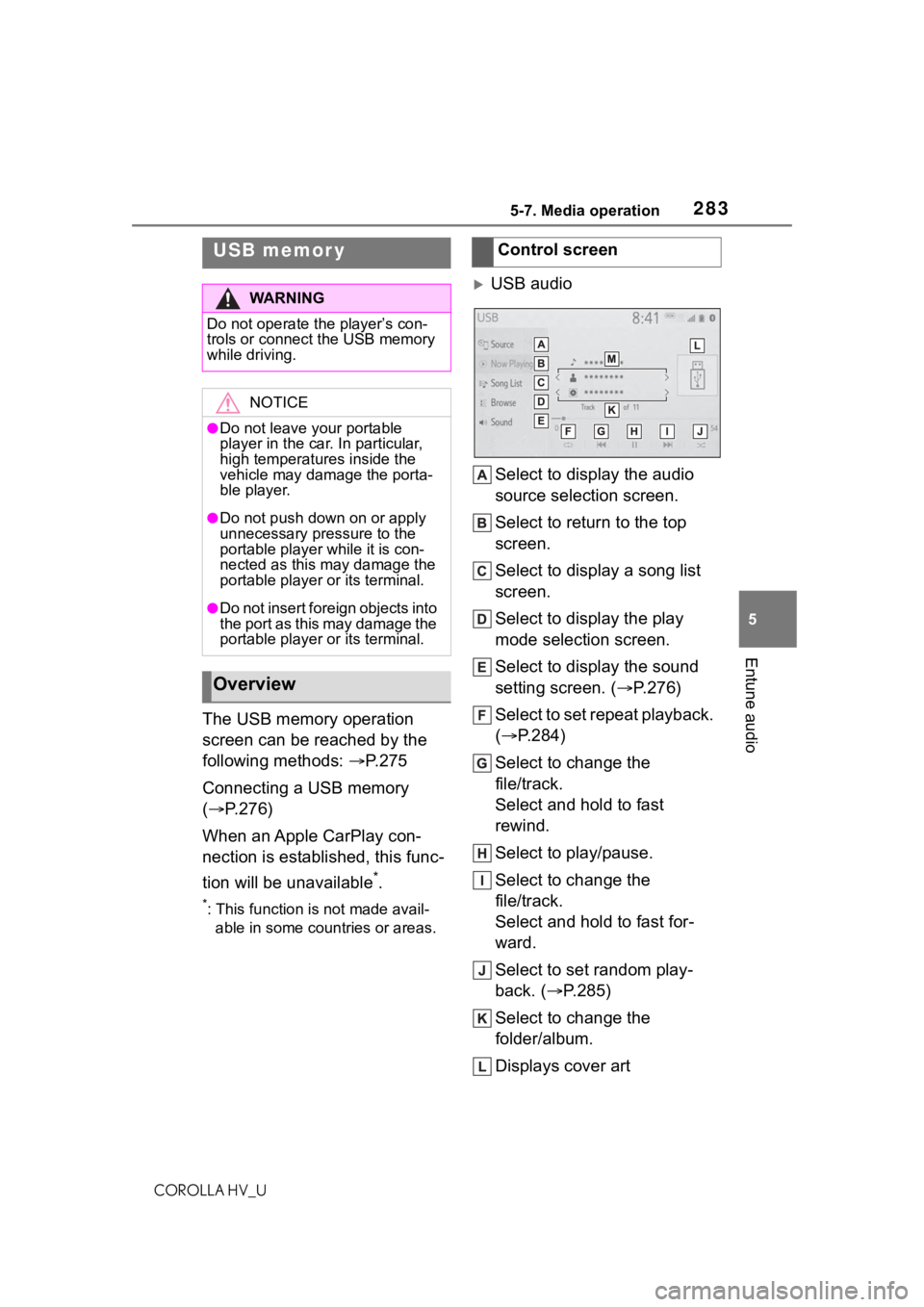
USB audio
Select to display the audio
source selection screen.
Select to return to the top
screen.
Select to display a song list
screen.
Select to display the play
mode selection screen.
Select to display the sound
setting screen. ( P.276)
Select to set repeat playback.
( P.284)
Select to change the
file/track.
Select and hold to fast
rewind.
Select to play/pause.
Select to change the
file/track.
Select and hold to fast for-
ward.
Select to set random play-
back. ( P.285)
Select to change the
folder/album.
Displays cover art
USB memor y
WA R N I N G
Do not operate the player’s con-
trols or connect the USB memory
while driving.
NOTICE
●Do not leave your portable
player in the car. In particular,
high temperatures inside the
vehicle may damage the porta-
ble player.
●Do not push down on or apply
unnecessary pressure to the
portable player while it is con-
nected as this may damage the
portable player or its terminal.
●Do not insert foreign objects into
the port as this may damage the
portable player or its terminal.
Overview
Control screen
Page 298 of 556
2985-10. Tips for operating the audio/visual system
COROLLA HV_U
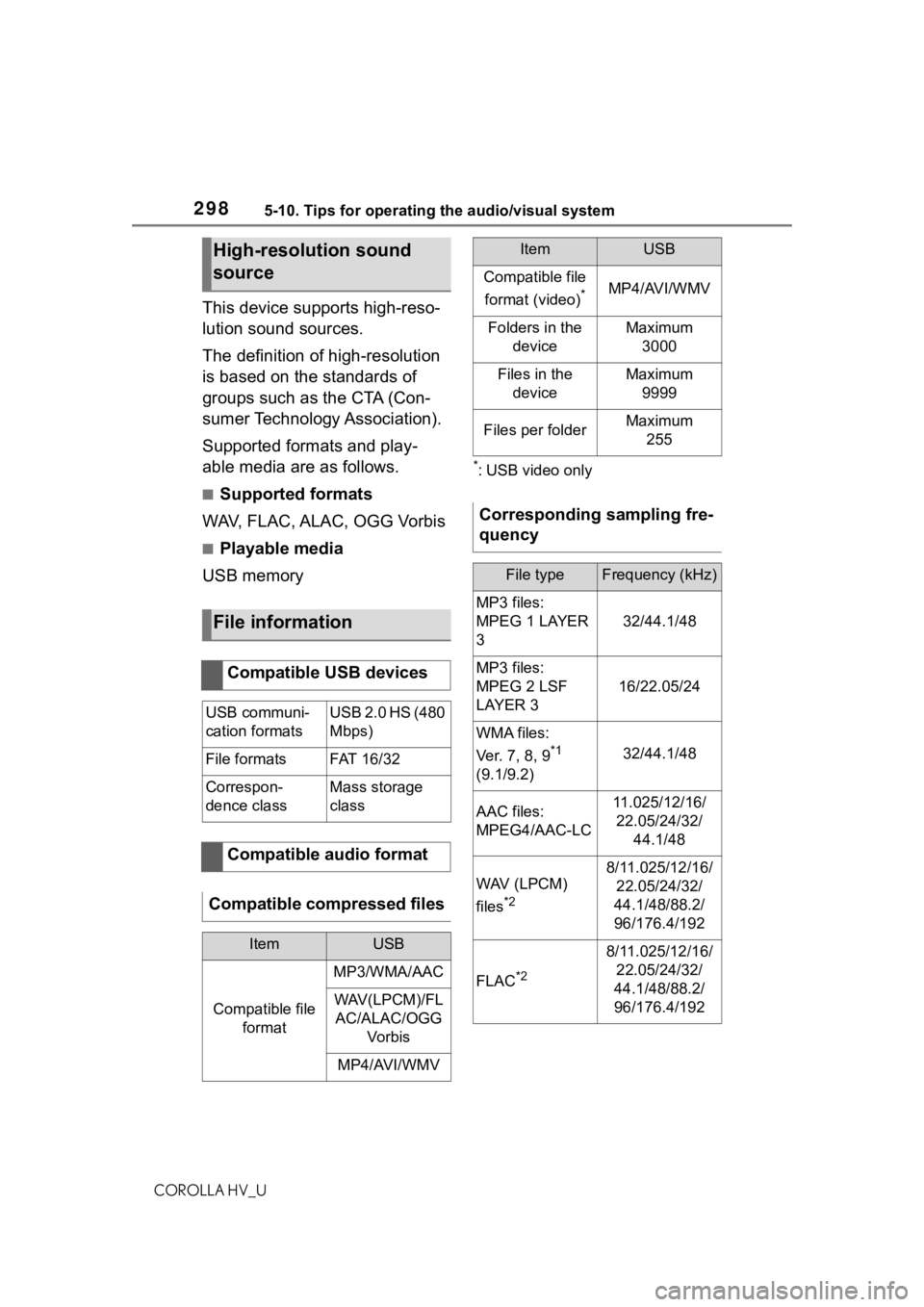
This device supports high-reso-
lution sound sources.
The definition of high-resolution
is based on the standards of
groups such as the CTA (Con-
sumer Technology Association).
Supported formats and play-
able media are as follows.
■Supported formats
WAV, FLAC, ALAC, OGG Vorbis
■Playable media
USB memory
*: USB video only
High-resolution sound
source
File information
Compatible USB devices
USB communi-
cation formatsUSB 2.0 HS (480
Mbps)
File formatsFAT 1 6/ 32
Correspon-
dence classMass storage
class
Compatible audio format
Compatible compressed files
ItemUSB
Compatible file format
MP3/WMA/AAC
WAV(LPCM)/FLAC/ALAC/OGG Vo r b is
MP4/AVI/WMV
Compatible file
format (video)
*MP4/AVI/WMV
Folders in the deviceMaximum3000
Files in the deviceMaximum 9999
Files per folderMaximum 255
Corresponding sampling fre-
quency
File typeFrequency (kHz)
MP3 files:
MPEG 1 LAYER
3
32/44.1/48
MP3 files:
MPEG 2 LSF
LAYER 3
16/22.05/24
WMA files:
Ver. 7, 8, 9
*1
(9.1/9.2)32/44.1/48
AAC files:
MPEG4/AAC-LC11.025/12/16/ 22.05/24/32/ 44.1/48
WAV (LPCM)
files
*2
8/11.025/12/16/22.05/24/32/
44.1/48/88.2/
96/176.4/192
FLAC*2
8/11.025/12/16/ 22.05/24/32/
44.1/48/88.2/
96/176.4/192
ItemUSB
Page 299 of 556
2995-10. Tips for operating the audio/visual system
COROLLA HV_U
5
Entune audio
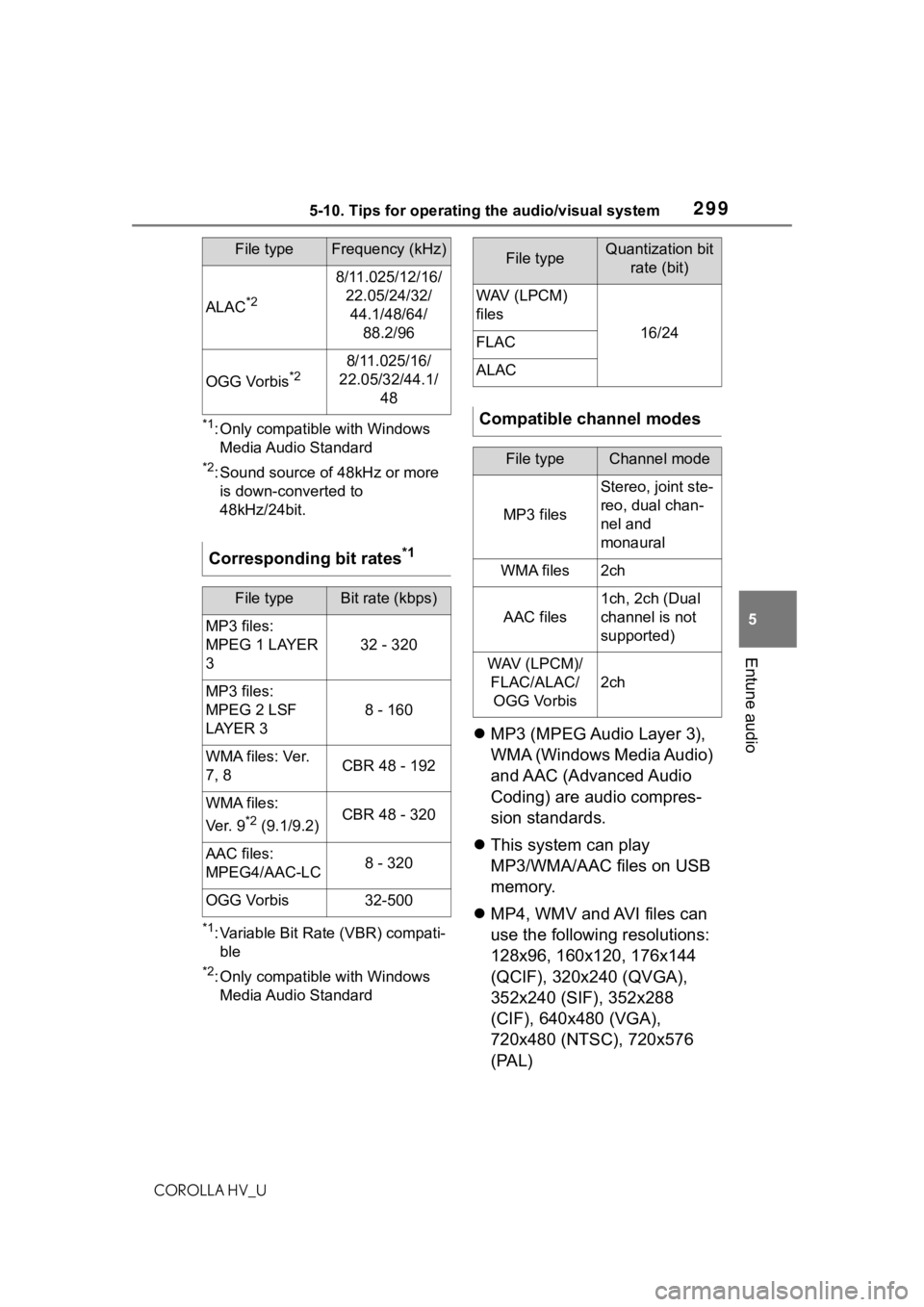
*1: Only compatible with Windows Media Audio Standard
*2: Sound source of 48kHz or more is down-converted to
48kHz/24bit.
*1: Variable Bit Rate (VBR) compati-ble
*2: Only compatible with Windows Media Audio Standard
MP3 (MPEG Audio Layer 3),
WMA (Windows Media Audio)
and AAC (Advanced Audio
Coding) are audio compres-
sion standards.
This system can play
MP3/WMA/AAC files on USB
memory.
MP4, WMV and AVI files can
use the following resolutions:
128x96, 160x120, 176x144
(QCIF), 320x240 (QVGA),
352x240 (SIF), 352x288
(CIF), 640x480 (VGA),
720x480 (NTSC), 720x576
(PAL)
ALAC*2
8/11.025/12/16/
22.05/24/32/44.1/48/64/ 88.2/96
OGG Vorbis*28/11.025/16/
22.05/32/44.1/ 48
Corresponding bit rates*1
File typeBit rate (kbps)
MP3 files:
MPEG 1 LAYER
3
32 - 320
MP3 files:
MPEG 2 LSF
LAYER 3
8 - 160
WMA files: Ver.
7, 8CBR 48 - 192
WMA files:
Ver. 9
*2 (9.1/9.2)CBR 48 - 320
AAC files:
MPEG4/AAC-LC8 - 320
OGG Vorbis32-500
File typeFrequency (kHz)File typeQuantization bit rate (bit)
WAV (LPCM)
files
16/24FLAC
ALAC
Compatible channel modes
File typeChannel mode
MP3 files
Stereo, joint ste-
reo, dual chan-
nel and
monaural
WMA files2ch
AAC files
1ch, 2ch (Dual
channel is not
supported)
WAV (LPCM)/FLAC/ALAC/OGG Vorbis
2ch