USB TOYOTA FJ CRUISER 2011 1.G Owners Manual
[x] Cancel search | Manufacturer: TOYOTA, Model Year: 2011, Model line: FJ CRUISER, Model: TOYOTA FJ CRUISER 2011 1.GPages: 528, PDF Size: 10.93 MB
Page 3 of 528

1
2
3
4
5
6
7
3
2-3. Operating the lights and wipers
Headlight switch .................. 143
Windshield wipers and washer .............................. 145
Rear window wiper and washer .............................. 147
2-4. Using other driving systems Cruise control ...................... 148
Intuitive parking assist......... 152
Rear view monitor system .............................. 157
Four-wheel drive system (4WD models with a
manual transmission)........ 161
Four-wheel drive system (4WD models with
an automatic
transmission) .................... 164
Active traction control system .............................. 167
AUTO LSD system (2WD models) ................... 169
Rear differential lock system .............................. 171
Clutch start cancel switch (vehicles with a manual
transmission) .................... 174
Driving assist systems ........ 175
2-5. Driving information Off-road precautions ........... 180
Cargo and luggage ............. 185
Vehicle load limits ............... 189
Winter driving tips ............... 190
Trailer towing ...................... 193
Dinghy towing ..................... 203 3-1. Using the air conditioning
system and defogger
Air conditioning system ...... 206
Rear window defogger ....... 213
3-2. Using the audio system Audio system ...................... 214
Using the radio ................... 218
Using the CD player ........... 225
Playing MP3 and WMA discs ................................. 233
Operating an iPod .............. 240
Operating a USB memory ............................ 247
Optimal use of the audio system .............................. 255
Using the AUX port............. 258
Using the steering wheel audio switches.................. 259
3-3. Using the Bluetooth
® audio
system
Bluetooth
® audio system .... 262
Using the Bluetooth®
audio system .................... 265
Operating a Bluetooth
®
enabled portable player.... 270
Setting up a Bluetooth
®
enabled portable player.... 272
Bluetooth
® audio system
setup ................................ 277
3Interior features
Page 15 of 528
15
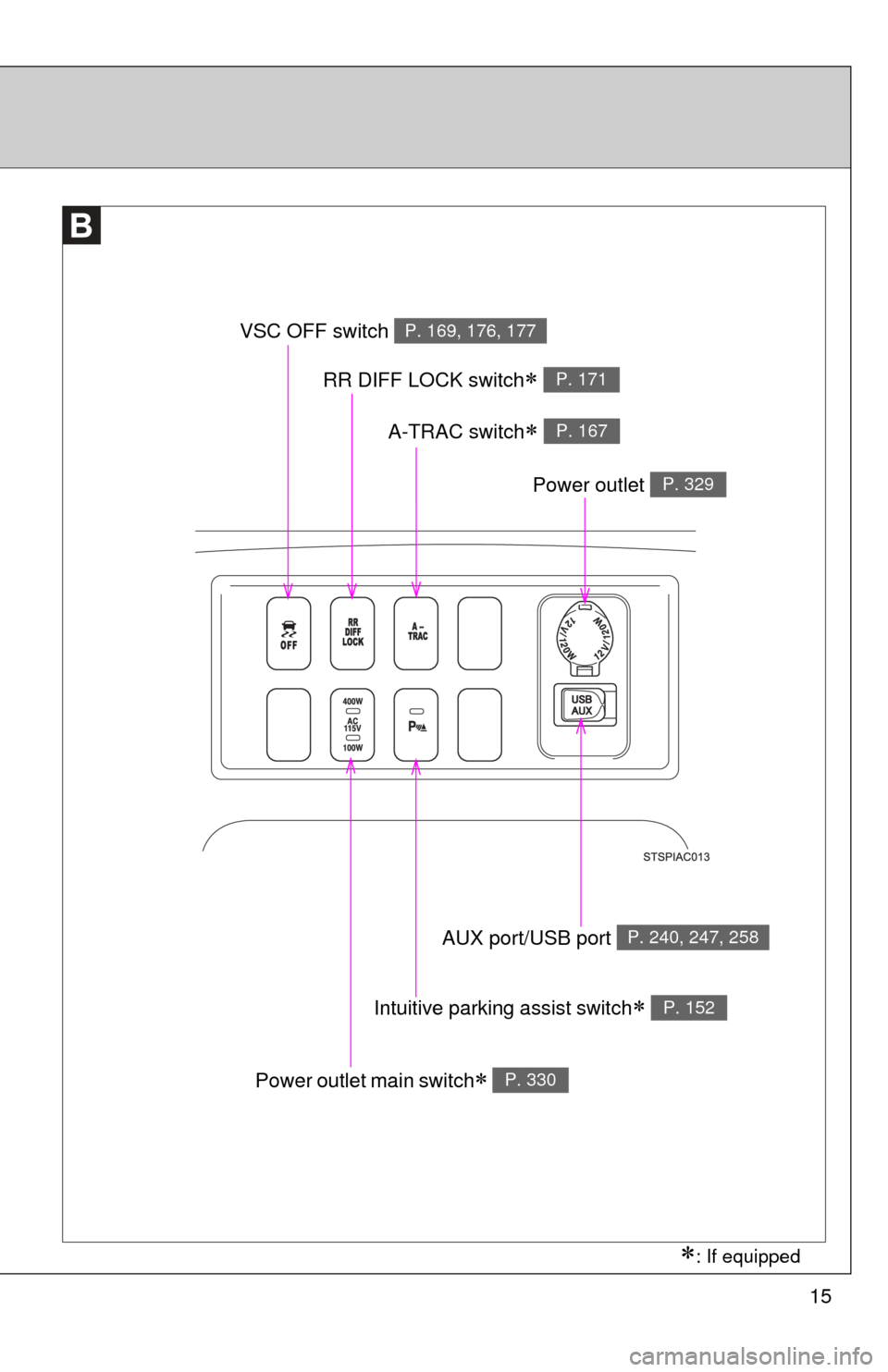
VSC OFF switch P. 169, 176, 177
RR DIFF LOCK switch P. 171
A-TRAC switch P. 167
Power outlet main switch P. 330
Intuitive parking assist switch P. 152
AUX port/USB port P. 240, 247, 258
Power outlet P. 329
: If equipped
Page 204 of 528
204
3-1. Using the air conditioning system and defogger
Air conditioning system .... 206
Rear window defogger ..... 213
3-2. Using the audio system Audio system ................... 214
Using the radio ................. 218
Using the CD player ......... 225
Playing MP3 and WMA discs............................... 233
Operating an iPod ............ 240
Operating a USB memory .......................... 247
Optimal use of the audio system ........................... 255
Using the AUX port .......... 258
Using the steering wheel audio switches ............... 259
Interior features3
Page 215 of 528
215
3-2. Using the audio system
3
Interior featuresLanguage settings
The language used for all voice guidance, voice recognition and mes-
sages may be changed.
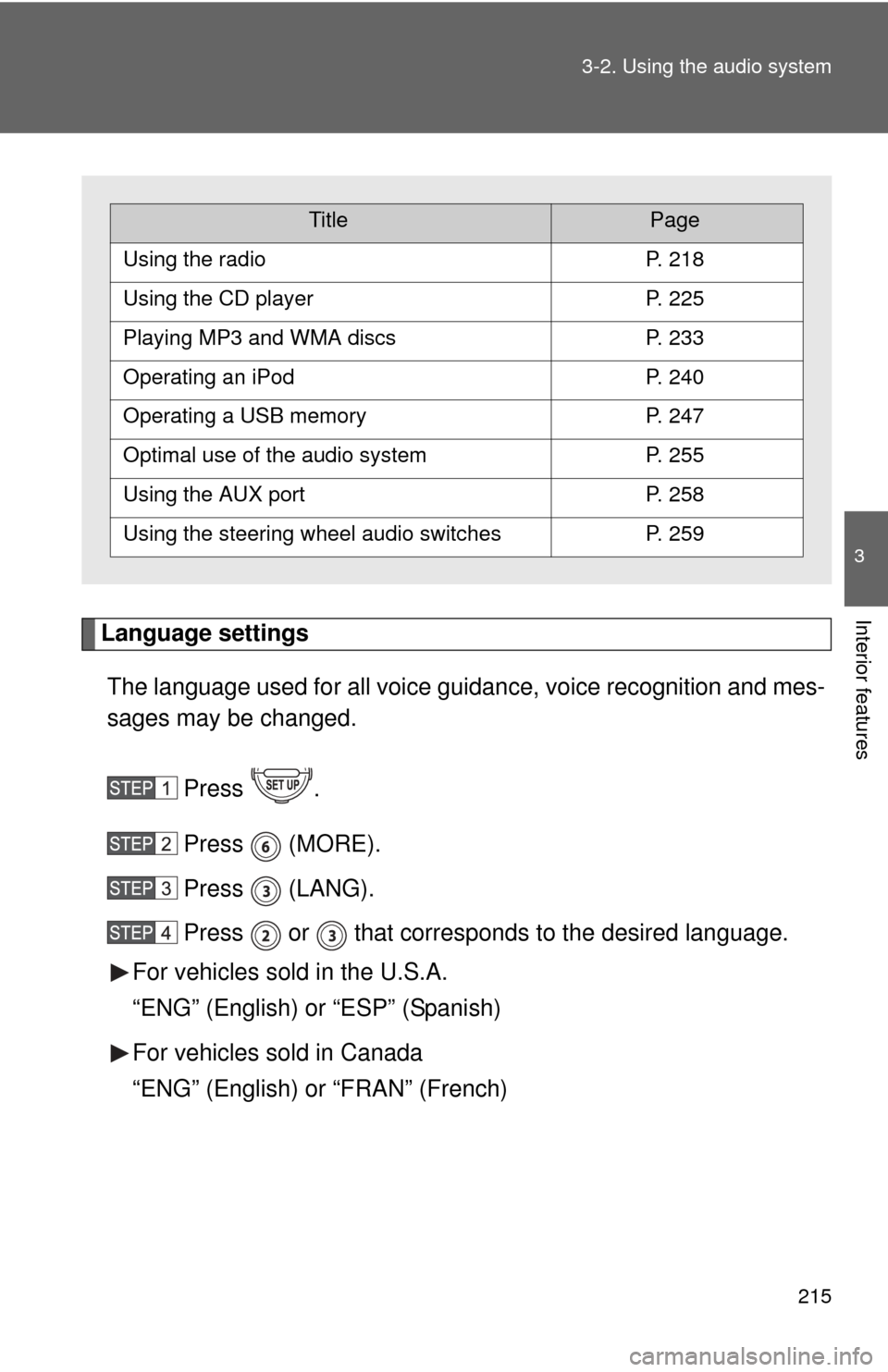
Press .
Press (MORE).
Press (LANG).
Press or that corresponds to the desired language.
For vehicles sold in the U.S.A.
“ENG” (English) or “ESP” (Spanish)
For vehicles sold in Canada
“ENG” (English) or “FRAN” (French)
TitlePage
Using the radioP. 218
Using the CD playerP. 225
Playing MP3 and WMA discsP. 233
Operating an iPodP. 240
Operating a USB memoryP. 247
Optimal use of the audio systemP. 255
Using the AUX portP. 258
Using the steering wheel audio switchesP. 259
Page 245 of 528

245
3-2. Using the audio system
3
Interior features
■
About iPod
●Apple is not responsible for the operation of this device or its compliance
with safety and regulatory standards.
● iPod is a trademark of Apple Inc., registered in the U.S. and other coun-
tries.
■ iPod functions
●When an iPod is connected and the audio source is changed to iPod
mode, the iPod will resume play from the same point at which it was last
used.
● Depending on the iPod that is connected to the system, certain functions
may not be available. Disconnecting the device and reconnecting it once
again may resolve some malfunctions.
■ iPod problems
To resolve most problems encountered when using your iPod, disconnect
your iPod from the vehicle iPod connection and reset it.
For instructions on how to reset your iPod, refer to your iPod Owner’s Man-
ual.
■ Error messages
“iPod ERROR”:This indicates a problem in the iPod, inside the USB box or
the connection between them.
“NO SONGS”:This indicates that there is no music data in the iPod.
“UPDATE YOUR iPod”:This indicates that the version of the iPod is not com- patible.
Page 247 of 528
247
3-2. Using the audio system
3
Interior features
Operating a USB memor y
Connecting a USB memory enables you to enjoy music from the
vehicle speakers.
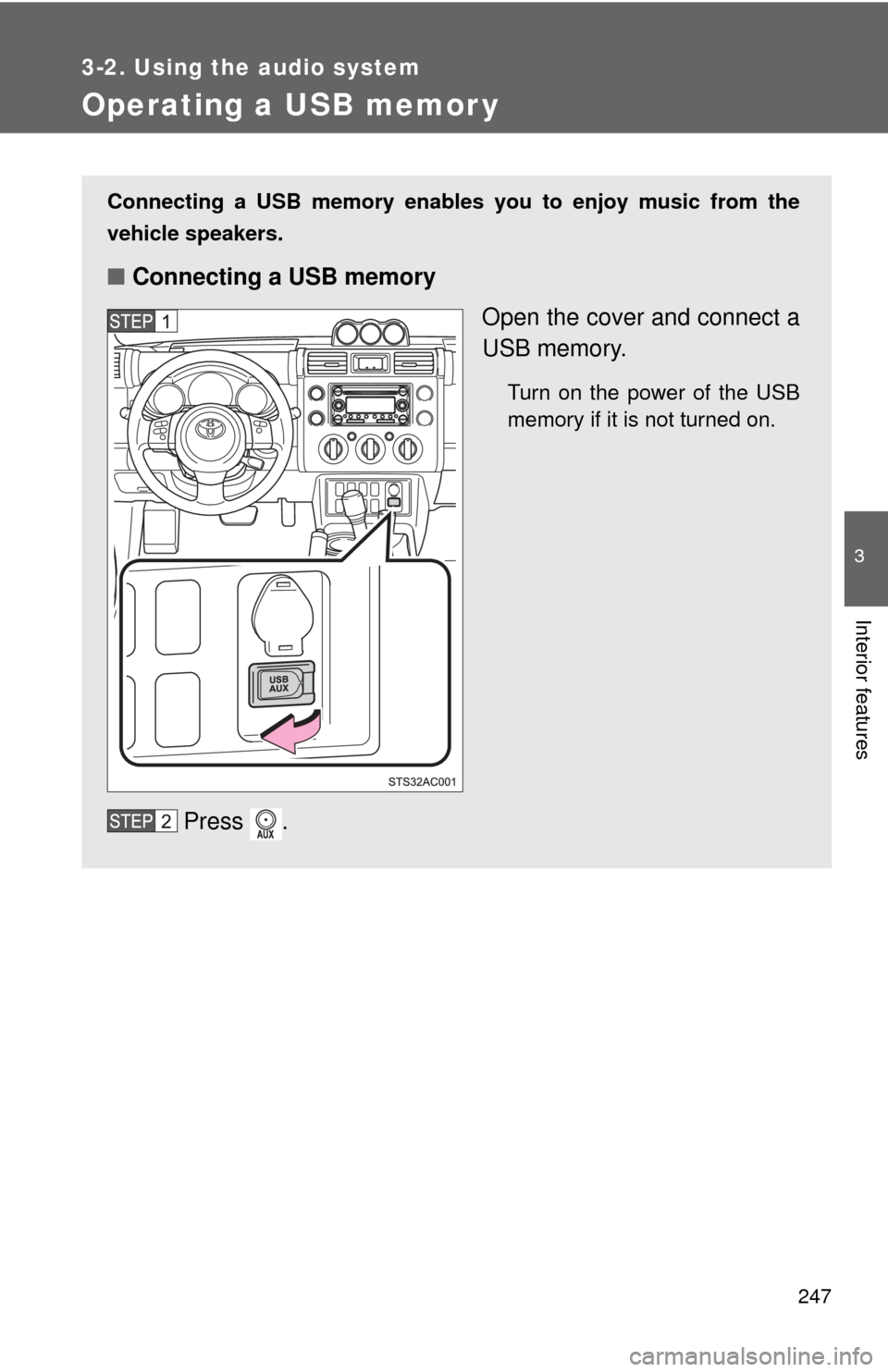
■Connecting a USB memory
Open the cover and connect a
USB memory.
Turn on the power of the USB
memory if it is not turned on.
Press .
Page 250 of 528
250 3-2. Using the audio system
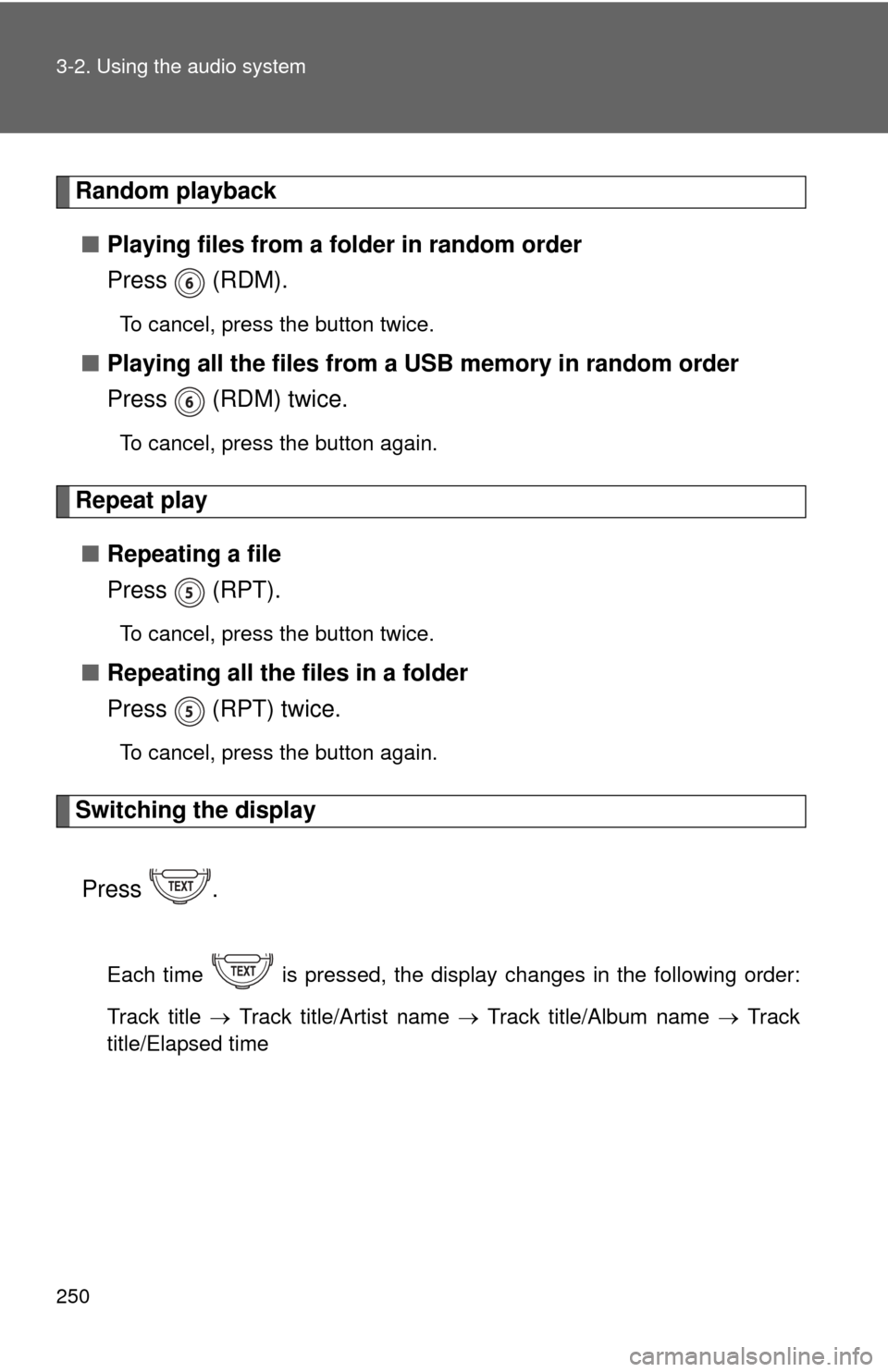
Random playback■ Playing files from a folder in random order
Press (RDM).
To cancel, press the button twice.
■Playing all the files from a USB memory in random order
Press (RDM) twice.
To cancel, press the button again.
Repeat play
■ Repeating a file
Press (RPT).
To cancel, press the button twice.
■Repeating all the files in a folder
Press (RPT) twice.
To cancel, press the button again.
Switching the display
Press .
Each time is pressed, the display changes in the following order:
Track title Track title/Artist name Track title/Album name Track
title/Elapsed time
Page 251 of 528

251
3-2. Using the audio system
3
Interior features
■
USB memory functions
Depending on the USB memory that is connected to the system, certain
functions may not be available. Disconnecting the device and reconnecting it
once again may resolve some malfunctions.
■ Error messages
“USB ERROR”:This indicates a problem in the USB memory, in the USB box
or connection between them.
“NO SUPPORT”:This indicates that no MP3/WMA files are included in the USB memory.
■ USB memory
●Compatible device
USB memory that can be used for MP3 and WMA playback.
Depending on the type of USB device, playback may not be possible.
● Compatible device formats
The following device formats can be used:
• USB communication formats: USB2.0 FS (12 mbps)
• File formats: FAT16/32 (Windows
®)
• Correspondence class: Mass storage class MP3 and WMA files written in any format other than those listed above
may not play correctly, and their file names and folder names may not
be displayed correctly.
Items related to standards and limitations are as follows:
• Maximum directory hierarchy: 8 levels
• Maximum number of folder in device: 999 (including the root)
• Maximum number of files in device: 65025
• Maximum number of files per folder: 255
Page 253 of 528

253
3-2. Using the audio system
3
Interior features
●
File names
The only files that can be recognized as MP3/WMA and played are those
with the extension .mp3 or .wma.
● ID3 and WMA tags
ID3 tags can be added to MP3 files, making it possible to record the track
title, artist name, etc.
The system is compatible with ID3 Ver. 1.0, 1.1, and Ver. 2.2, 2.3, 2.4 ID3
tags. (The number of characters is based on ID3 Ver. 1.0 and 1.1.)
WMA tags can be added to WMA files, making it possible to record the
track title and artist name in the same way as with ID3 tags.
● MP3 and WMA playback
When a device containing MP3 or WMA files is plugged, all files in the
USB memory device are first checked. Once the file check is finished, the
first MP3 or WMA file is played. To make the file check finish more quickly,
we recommend you do not write in any files other than MP3 or WMA files
or create any unnecessary folders.
● Extensions
If the file extensions .mp3 and .wma are used for files other than MP3 and
WMA files, they will be mistakenly recognized and played as MP3 and
WMA files. This may result in large amounts of interference and damage
to the speakers.
● Playback
• To play MP3 files with steady sound quality, we recommend a fixed bit
rate of at least 128 kbps and a sampling frequency of 44.1 kHz.
• There is a wide variety of freeware and other encoding software for MP3 and WMA files on the market, and depending on the status of the
encoding and the file format, poor sound quality or noise at the start of
playback may result. In some cases, playback may not be possible at
all.
• Microsoft, Windows, and Windows Media are the registered trade- marks of Microsoft Corporation in the U.S.A. and other countries.
Page 254 of 528

254 3-2. Using the audio system
CAUTION
■Caution while driving
Do not connect a USB memory or operate the controls.
NOTICE
■To prevent damage to a USB memory
●Do not leave a USB memory in the vehicle. The temperature inside the
vehicle may become high, resulting in damage to the player.
● Do not push down on or apply unnecessary pressure to the USB memory
while it is connected as this may damage the USB memory or its terminal.
● Do not insert foreign objects into the port as this may damage the USB
memory or its terminal.