reset TOYOTA HIGHLANDER 2010 XU40 / 2.G Owners Manual
[x] Cancel search | Manufacturer: TOYOTA, Model Year: 2010, Model line: HIGHLANDER, Model: TOYOTA HIGHLANDER 2010 XU40 / 2.GPages: 608, PDF Size: 11.99 MB
Page 16 of 608
16
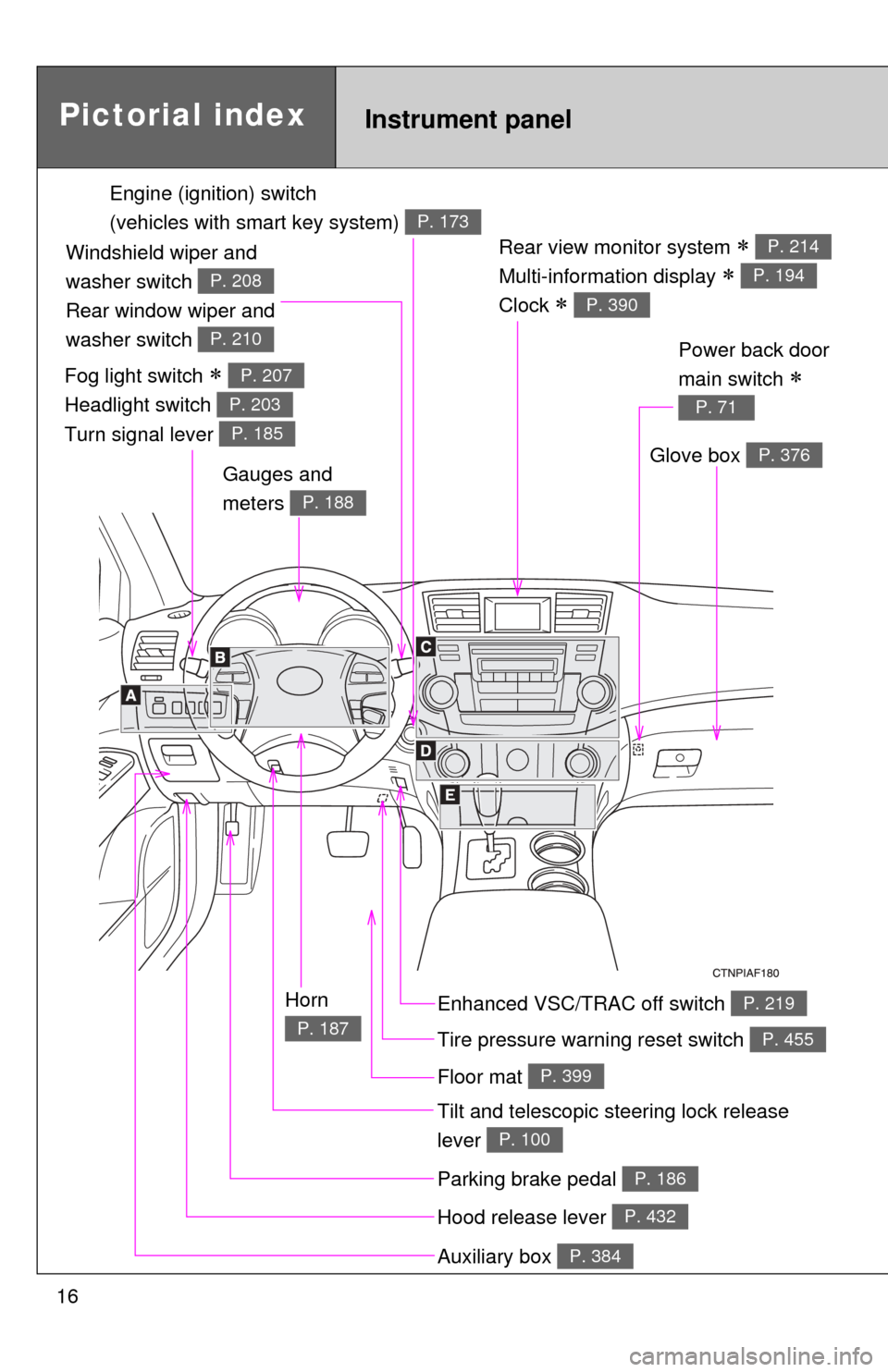
Rear view monitor system
Multi-information display
Clock
P. 214
P. 194
P. 390
Gauges and
meters
P. 188
Tilt and telescopic steering lock release
lever
P. 100
Glove box P. 376
Pictorial indexInstrument panel
Power back door
main switch
P. 71
Enhanced VSC/TRAC off switch P. 219
Tire pressure warning reset switch P. 455
Parking brake pedal P. 186
Hood release lever P. 432
Auxiliary box P. 384
Engine (ignition) switch
(vehicles with smart key system)
P. 173
Fog light switch
Headlight switch
Turn signal lever P. 207
P. 203
P. 185
Windshield wiper and
washer switch
Rear window wiper and
washer switch
P. 208
P. 210
Horn
P. 187
Floor mat P. 399
Page 188 of 608
188
2-2. Instrument cluster
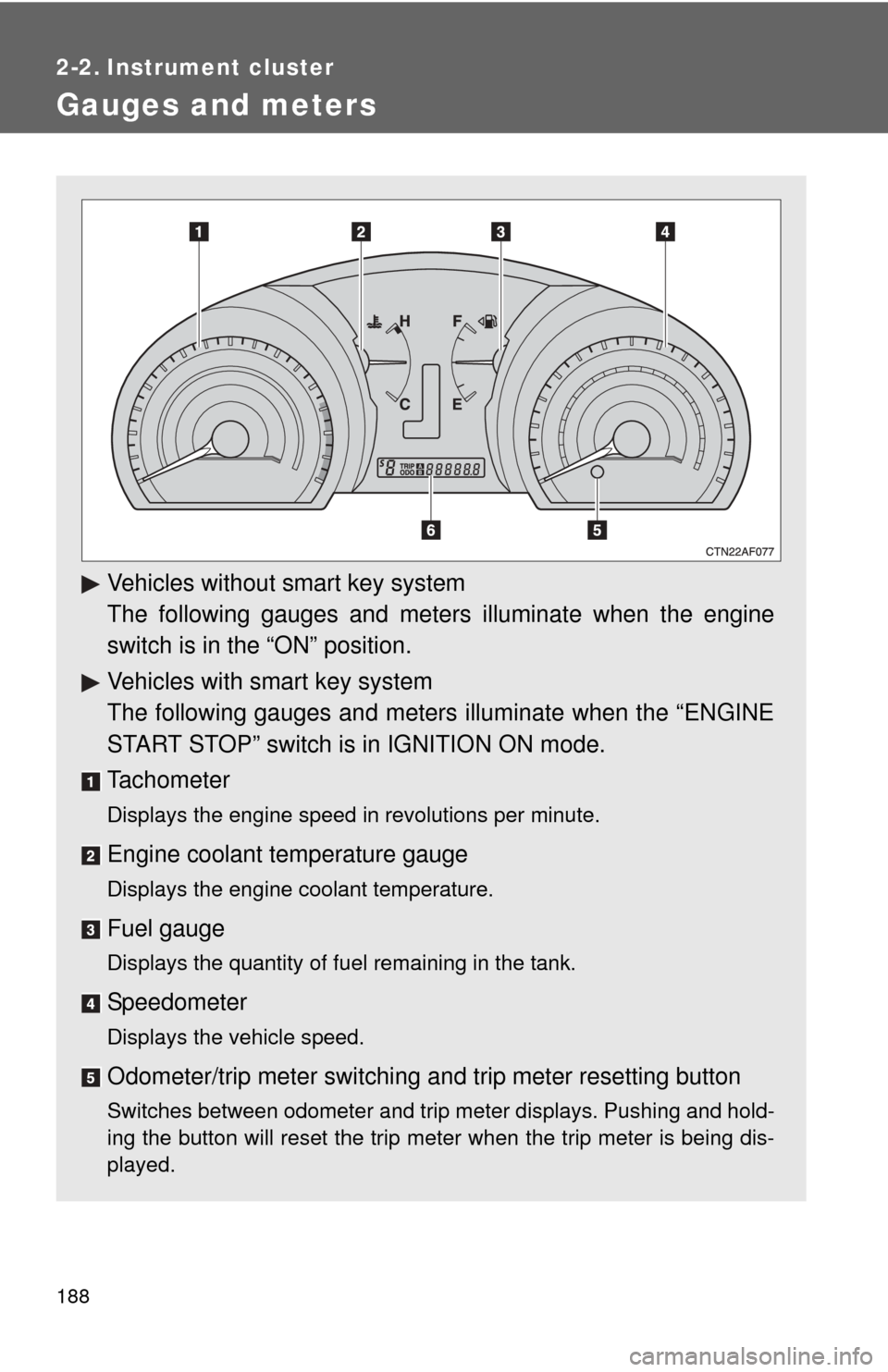
Gauges and meters
Vehicles without smart key system
The following gauges and meters illuminate when the engine
switch is in the “ON” position.
Vehicles with smart key system
The following gauges and meters illuminate when the “ENGINE
START STOP” switch is in IGNITION ON mode.
Tachometer
Displays the engine speed in revolutions per minute.
Engine coolant temperature gauge
Displays the engine coolant temperature.
Fuel gauge
Displays the quantity of fuel remaining in the tank.
Speedometer
Displays the vehicle speed.
Odometer/trip meter switching and trip meter resetting button
Switches between odometer and trip meter displays. Pushing and hold-
ing the button will reset the trip meter when the trip meter is being dis-
played.
Page 189 of 608
189
2-2. Instrument cluster
2
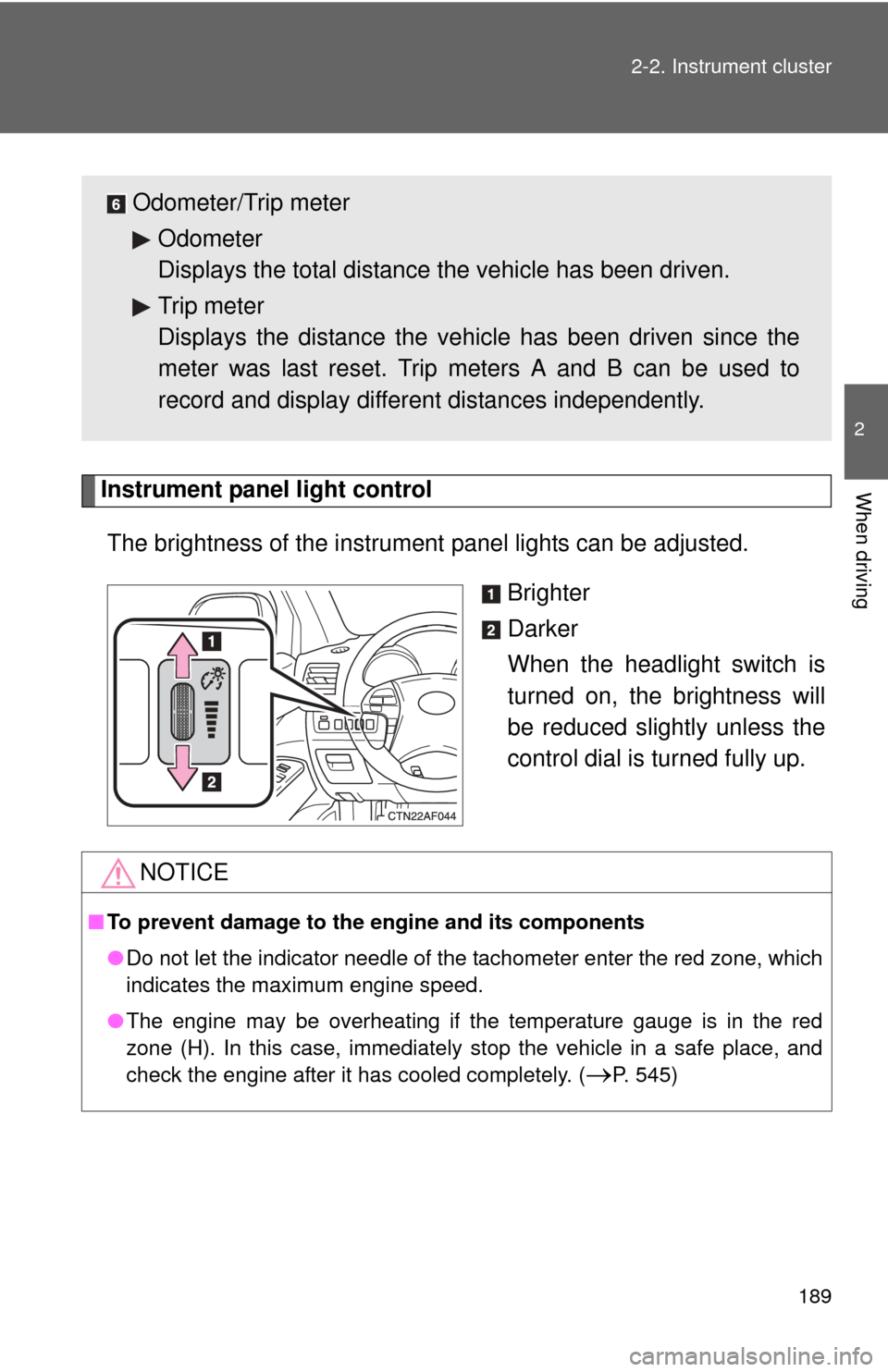
When drivingInstrument panel light control
The brightness of the instrument panel lights can be adjusted.
Brighter
Darker
When the headlight switch is
turned on, the brightness will
be reduced slightly unless the
control dial is turned fully up.
Odometer/Trip meterOdometer
Displays the total distance the vehicle has been driven.
Trip meter
Displays the distance the vehi cle has been driven since the
meter was last reset. Trip meters A and B can be used to
record and display different distances independently.
NOTICE
■ To prevent damage to the engine and its components
●Do not let the indicator needle of the tachometer enter the red zone, which
indicates the maximum engine speed.
● The engine may be overheating if the temperature gauge is in the red
zone (H). In this case, immediately stop the vehicle in a safe place, and
check the engine after it has cooled completely. (
P. 545)
Page 196 of 608
196 2-2. Instrument cluster
■Average fuel consumption
Displays the average fuel cons umption since the function was
reset.
This function can be reset by pressing the “DISP” button for longer than
one second when the average fuel consumption is displayed.
When the function is reset, the previous five average fuel consumption
values will automatically be displayed for six seconds.
■ Average fuel consumption history
Displays the previous five av erage fuel consumption values.
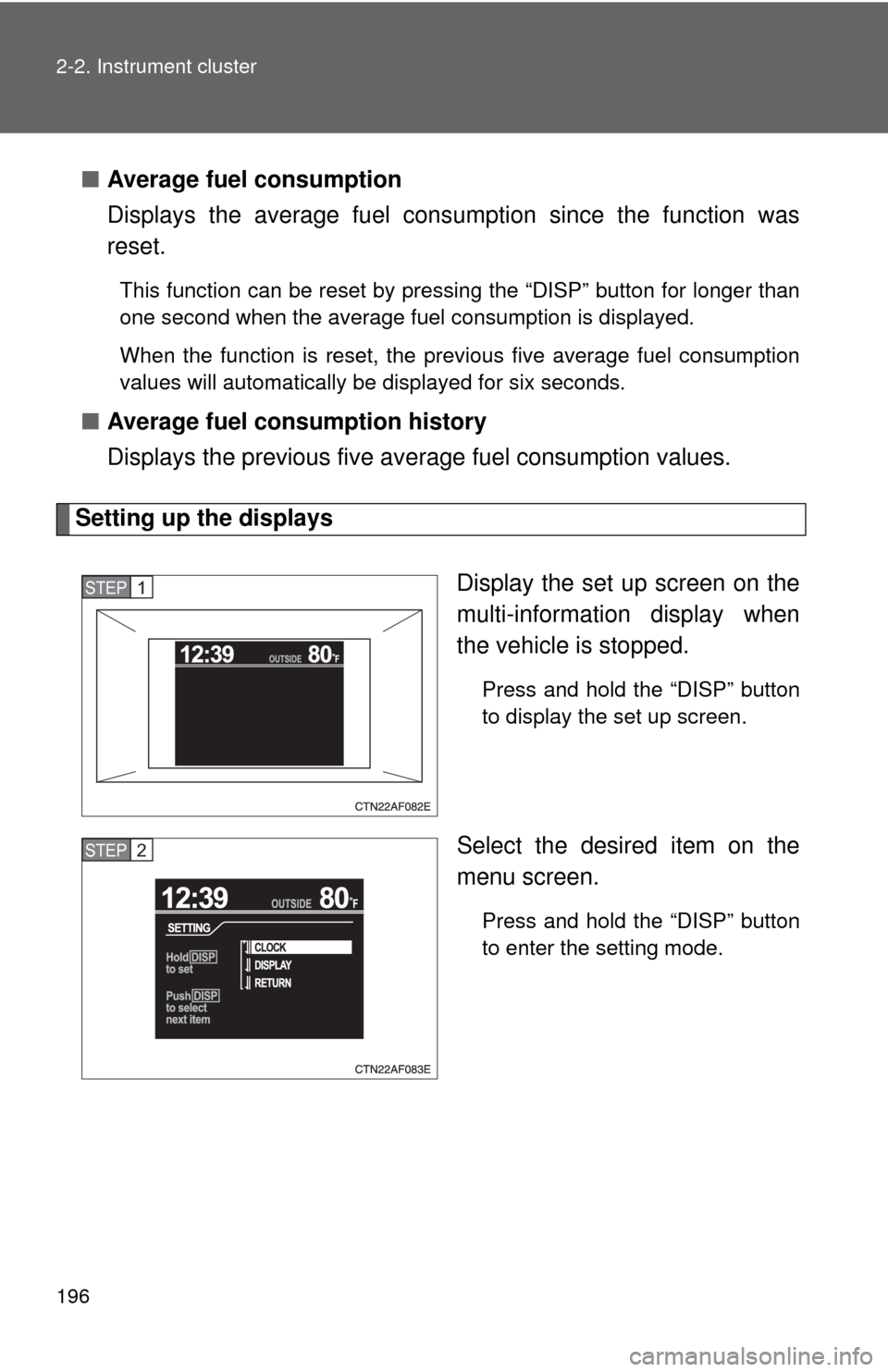
Setting up the displays
Display the set up screen on the
multi-information display when
the vehicle is stopped.
Press and hold the “DISP” button
to display the set up screen.
Select the desired item on the
menu screen.
Press and hold the “DISP” button
to enter the setting mode.
STEP1
STEP2
Page 213 of 608
213
2-4. Using other
driving systems
2
When driving
■Automatic cruise control cancellation
The set speed is automatically cancelled in any of the following situations.
●Actual vehicle speed falls more than 10 mph (16 km/h) below the preset
vehicle speed.
At this time, the memorized set speed is not retained.
● Actual vehicle speed is below 25 mph (40 km/h).
● Enhanced VSC is activated.
■ If the cruise control indicator light flashes
Turn the “ON-OFF” button off once, and then reactivate the system.
If the cruise control speed cannot be set or if the cruise control cancels
immediately after being activated, there may be a malfunction in the cruise
control system. Contact your Toyota dealer and have your Toyota inspected.
CAUTION
■ To avoid operating the cruise control by mistake
Keep the “ON-OFF” button off when not in use.
■ Situations unsuitable for cruise control
Do not use cruise control in any of the following situations.
Doing so may result in control of the vehicle being lost and could cause an
accident resulting in death or serious injury.
●In heavy traffic
● On roads with sharp bends
● On winding roads
● On slippery roads, such as those covered with rain, ice or snow
● On steep hills
Page 284 of 608
284
3-2. Using the audio system
Using the radio
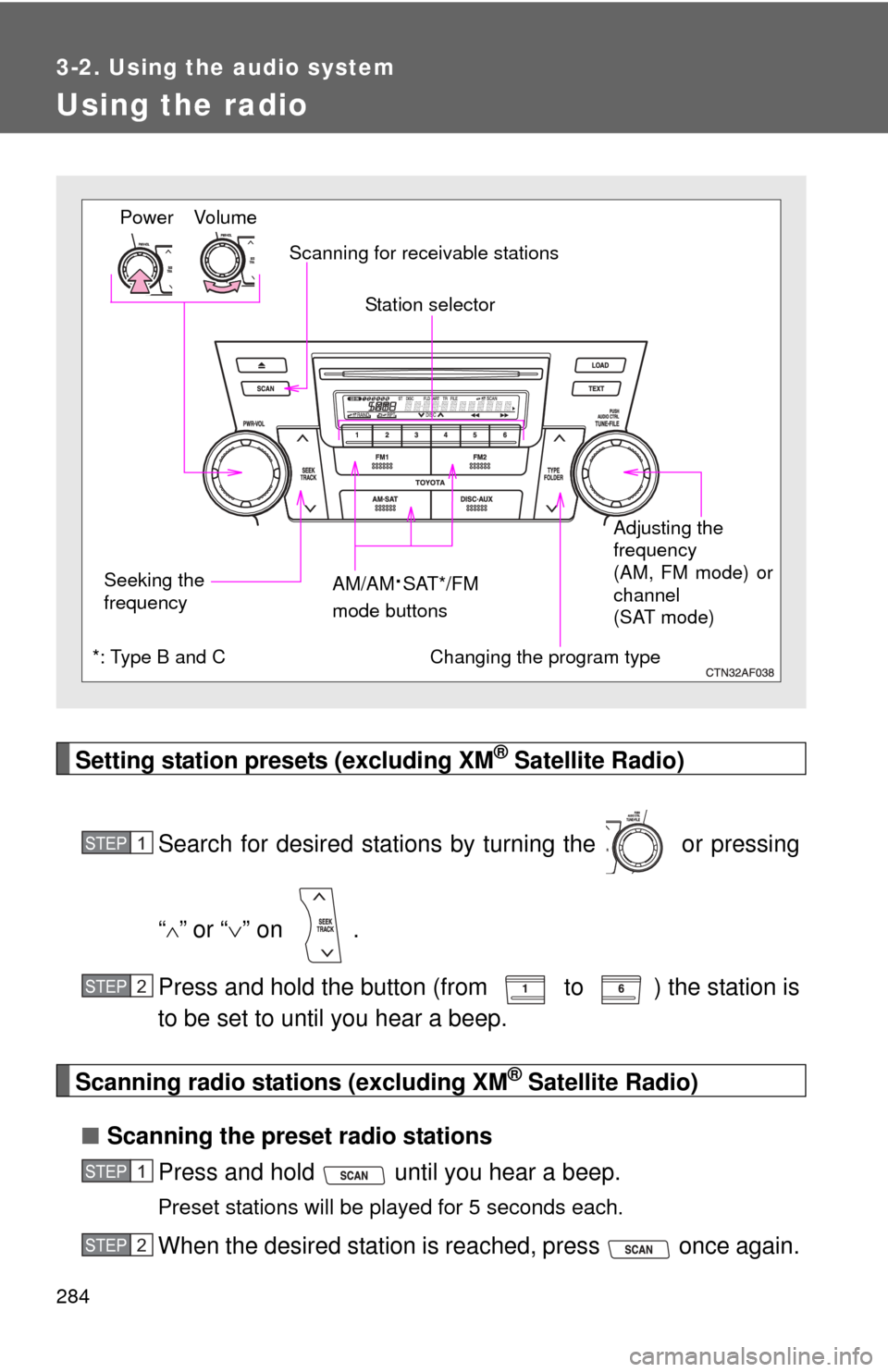
Setting station presets (excluding XM® Satellite Radio)
Search for desired stations by turning the or pressing
“
”or “ ” on .
Press and hold the button (from to ) the station is
to be set to until you hear a beep.
Scanning radio stations (excluding XM® Satellite Radio)
■ Scanning the preset radio stations
Press and hold until you hear a beep.
Preset stations will be played for 5 seconds each.
When the desired station is reached, press once again.
Vo lu m e
Seeking the
frequency Station selector
AM/AM
·SAT*/FM
mode buttons Adjusting the
frequency
(AM, FM mode) or
channel
(SAT mode)
Power
Scanning for receivable stations
Changing the program type*: Type B and C
STEP1
STEP2
STEP1
STEP2
Page 285 of 608
285
3-2. Using the audio system
3
Interior features
■
Scanning all radio stations within range
Press
.
All stations with reception will be played for 5 seconds each.
When the desired station is reached, press once again.
XM® Satellite Radio (type B and C)
■ Receiving XM
® Satellite Radio
Press and hold until SAT appears in the display.
The display changes as follows each time is
pressed.
AM SAT1 SAT2 SAT3
Turn to select the desired channel in all categories, or
press “ ” or “ ” on to select the desired channel in the
current category.
■ Setting XM
® Satellite Radio channel presets
Select the desired channel. Press and hold the button
(from to ) the channel is to be set to until you hear a
beep.
■ Changing the channel category
Press “ ” or “ ” on the .
■ Scanning XM
® Satellite Radio channels
● Scanning channels in the current category
Press .
When the desired channel is reached, press again.
STEP1
STEP2
STEP1
STEP2
STEP1
STEP2
Page 286 of 608
286 3-2. Using the audio system
●Scanning preset channels
Press and hold until you hear a beep.
When the desired channel is reached, press again.
■ Displaying text information
Press .
The display will show up to 10 characters.
The display changes as follows each time the button is pressed.
●CH NAME
● TITLE (SONG/PROGRAM TITLE)
● NAME (ARTIST NAME/FEATURE)
● CH NUMBER
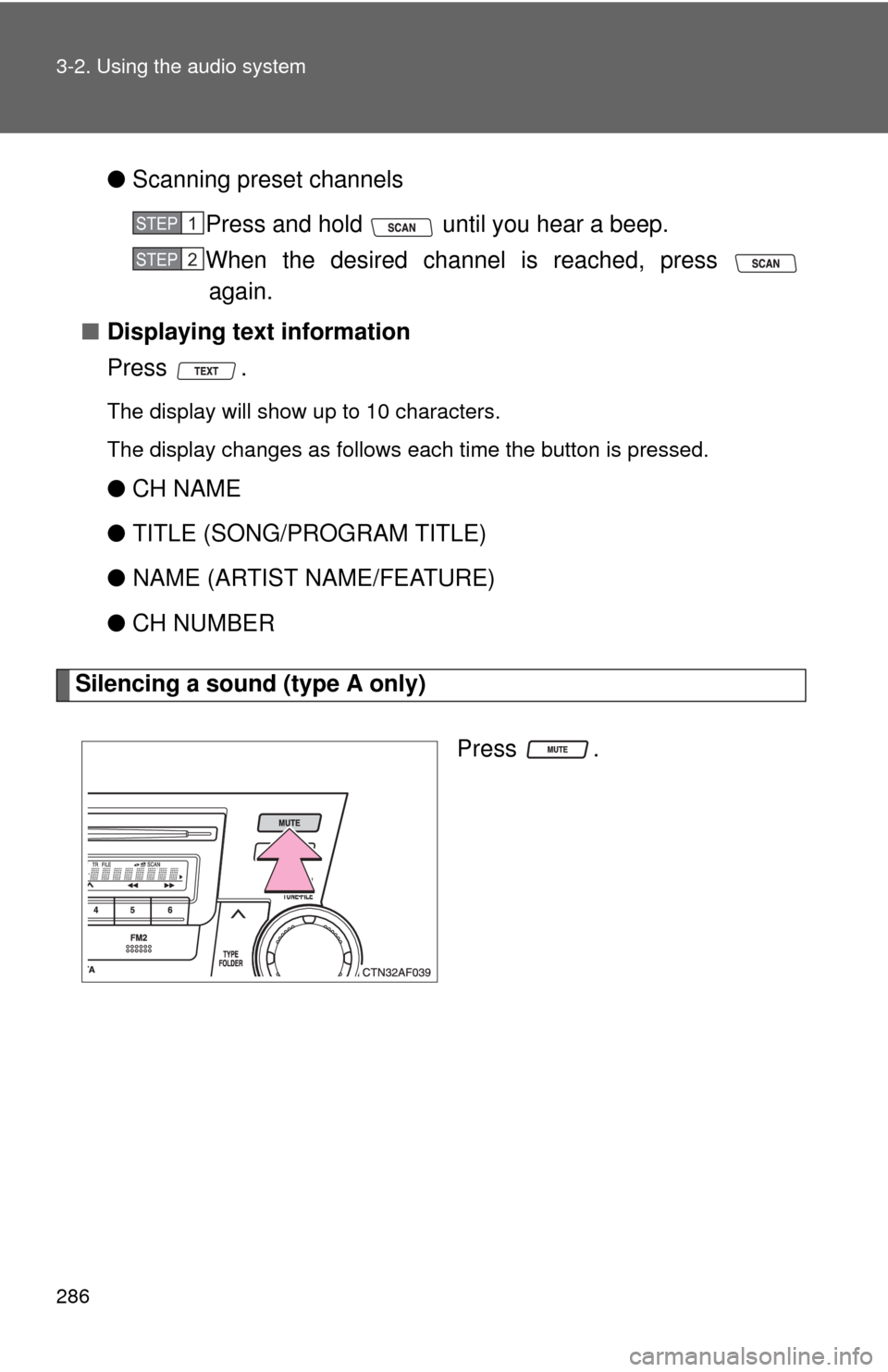
Silencing a sound (type A only)
Press .
STEP1
STEP2
Page 287 of 608
287
3-2. Using the audio system
3
Interior features
■
When the battery is disconnected
Stations presets are erased.
■ Reception sensitivity
●Maintaining perfect radio reception at all times is difficult due to the con-
tinually changing position of the antenna, differences in signal strength
and surrounding objects, such as trains and transmitters.
● Mast type antenna The radio antenna is mounted on the right-side
front fender. The antenna can be removed from the base by turning it.
● Print type antenna The radio antenna is mounted inside the left-side
rear quarter window. To maintain clear radio reception, do not attach
metallic window tinting or other metallic objects to the antenna wire
mounted inside the left-side rear quarter window.
■ XM
® Satellite Radio (type B and C)
An XM
® Satellite Radio is a tuner designed exclusively to receive broadcasts
provided under a separate subscription. Availability is limited to the 48 con-
tiguous states and 10 Canadian provinces.
● XM
® subscriptions
For detailed information about XM® Satellite Radio or to subscribe:
U.S.A.
Visit on the web at www.xmradio.com
or call 1-800-967-2346.
Canada
Visit on the web at www.xmradio.ca
or call 1-877-438-9677.
● Radio ID
You will need the radio ID when activating XM
® service or reporting a
problem. Select “CH000” using , and the receiver's 8-character ID
number will appear.
● Satellite tuner
The tuner supports only Audio Services (Music and Talk) and the accom-
panying Text Information of XM
® Satellite Radio.
Page 310 of 608
310 3-2. Using the audio system
Adjusting the volumePress “+” on to increase the volume and “-” to decrease the
volume.
Press and hold to continue increasing or decreasing the volume.
Selecting a radio station
Press to select radio mode.
Press “” or “ ” on to select a preset station.
To scan for receivable stations, press and hold until you hear
a beep.
Selecting a track/file
Press to select CD mode.
Press “” or “ ” on to select t he desired track/file.
Selecting a folder (CD player without changer only)
Press to select CD mode.
Press and hold “ ” or “ ” on until you hear a beep.
Selecting a disc in the CD player (CD player with changer only)
Press to select CD mode.
Press and hold “ ” or “ ” on until you hear a beep.
CAUTION
■ To reduce the risk of an accident
Exercise care when operating the audio switches on the steering wheel.
STEP1
STEP2
STEP1
STEP2
STEP1
STEP2
STEP1
STEP2