ECO mode TOYOTA HIGHLANDER HYBRID 2009 XU40 / 2.G User Guide
[x] Cancel search | Manufacturer: TOYOTA, Model Year: 2009, Model line: HIGHLANDER HYBRID, Model: TOYOTA HIGHLANDER HYBRID 2009 XU40 / 2.GPages: 592, PDF Size: 11.8 MB
Page 194 of 592
194 2-2. Instrument cluster
CAUTION
■If a safety system warning light does not come on
Should a safety system light such as the ABS and SRS airbag warning light
not come on when you start the hybrid system, this could mean that these
systems are not available to help protect you in an accident, which could
result in death or serious injury. Have the vehicle inspected by your Toyota
dealer immediately if this occurs.
*1: These lights turn on when the “POWER” switch is turned to ON
mode to indicate that a system check is being performed. They will
turn off after the hybrid system is started, or after a few seconds.
There may be a malfunction in a system if a light does not come on,
or if the lights do not turn off. Have the vehicle inspected by your
Toyota dealer for details.
*2: Vehicles without navigation system
*3: Vehicles with navigation system
*4: For vehicles sold in U.S.A.
*5: For vehicles sold in Canada
Page 199 of 592
199
2-2. Instrument cluster
2
When driving
■
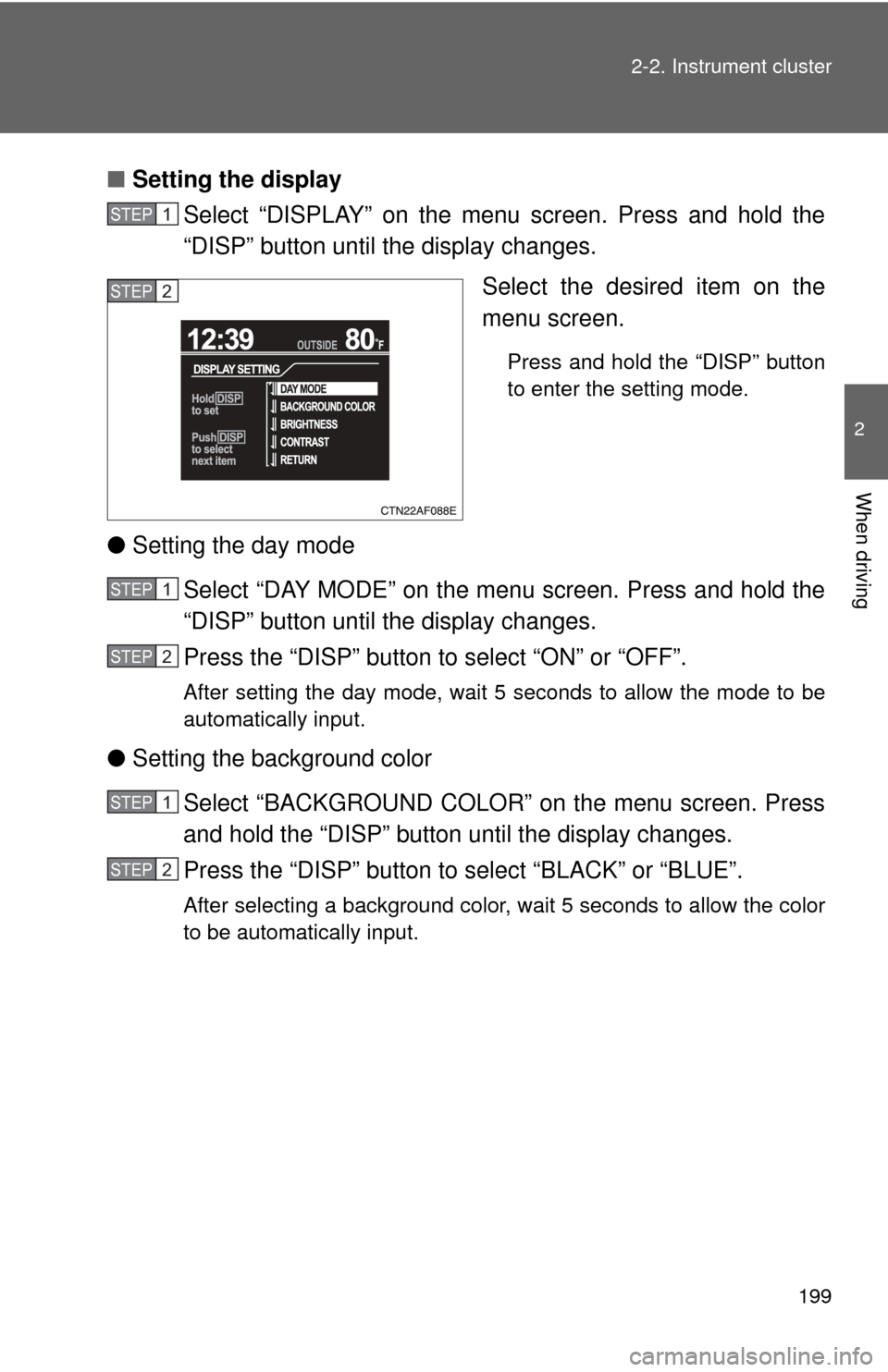
Setting the display
Select “DISPLAY” on the menu screen. Press and hold the
“DISP” button until the display changes.
Select the desired item on the
menu screen.
Press and hold the “DISP” button
to enter the setting mode.
●Setting the day mode
Select “DAY MODE” on the menu screen. Press and hold the
“DISP” button until the display changes.
Press the “DISP” button to select “ON” or “OFF”.
After setting the day mode, wait 5 seconds to allow the mode to be
automatically input.
●Setting the background color
Select “BACKGROUND COLOR” on the menu screen. Press
and hold the “DISP” button until the display changes.
Press the “DISP” button to select “BLACK” or “BLUE”.
After selecting a background color, wait 5 seconds to allow the color
to be automatically input.
STEP1
STEP2
STEP1
STEP2
STEP1
STEP2
Page 202 of 592
202 2-2. Instrument cluster
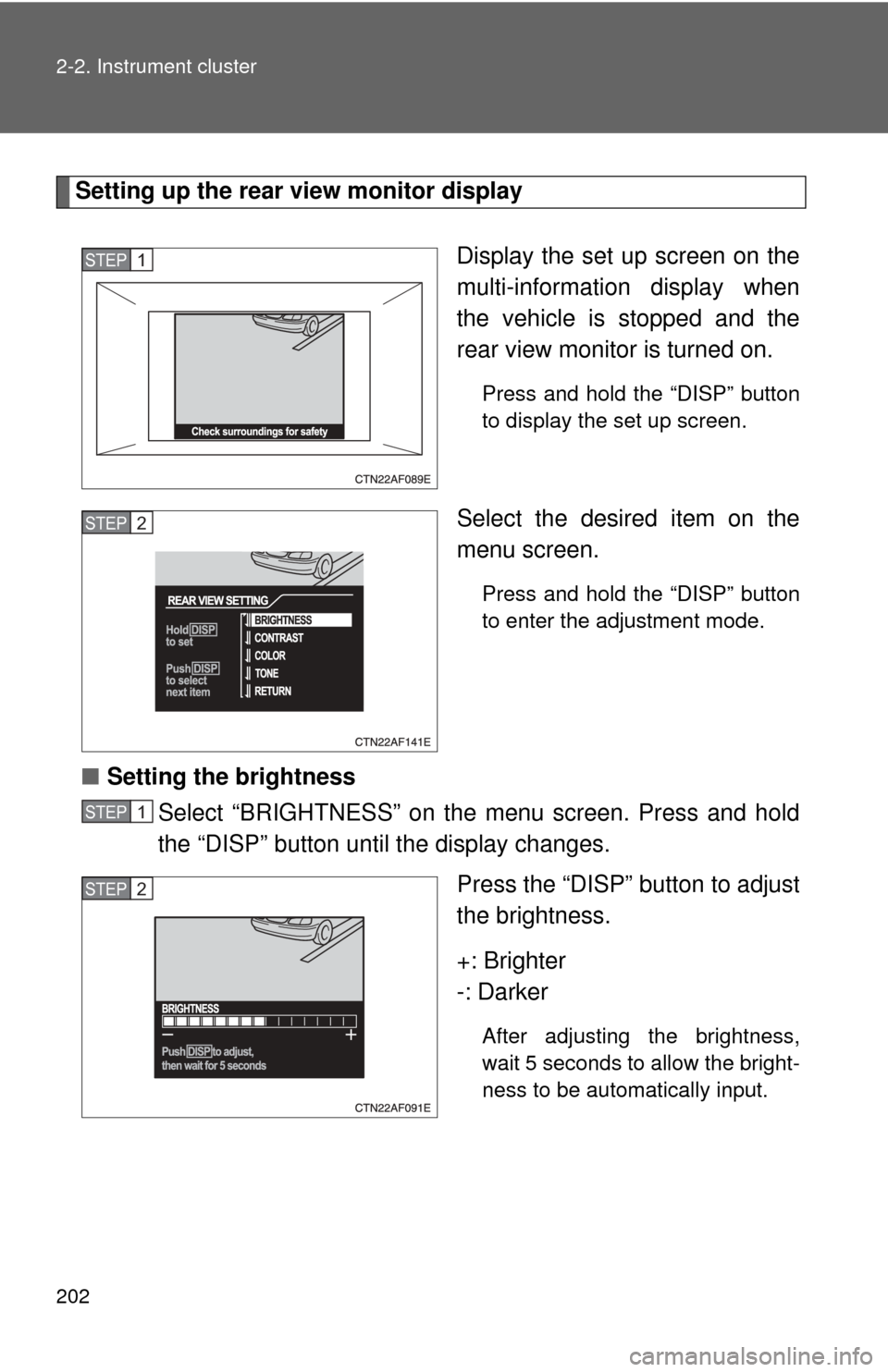
Setting up the rear view monitor displayDisplay the set up screen on the
multi-information display when
the vehicle is stopped and the
rear view monitor is turned on.
Press and hold the “DISP” button
to display the set up screen.
Select the desired item on the
menu screen.
Press and hold the “DISP” button
to enter the adjustment mode.
■Setting the brightness
Select “BRIGHTNESS” on the menu screen. Press and hold
the “DISP” button until the display changes.
Press the “DISP” button to adjust
the brightness.
+: Brighter
-: Darker
After adjusting the brightness,
wait 5 seconds to allow the bright-
ness to be automatically input.
STEP1
STEP2
STEP1
STEP2
Page 208 of 592
208 2-3. Operating the lights and wipers
■Automatic light off system
The headlights and tail lights turn off 30 seconds after driver’s door is
opened and closed if the “POWER” switch has been turned to ACCESSORY
mode or OFF.
To turn the lights on again, change the “POWER” switch to ON mode, or turn
the headlight switch off and then back to or .
■ Customization that can be configured at Toyota dealer
Settings (e.g. daytime running light system) can be changed.
(Customizable features →P. 567)
NOTICE
■To prevent 12-volt battery from being discharged
Do not leave the lights on longer than necessary when the hybrid system is
off.
Page 259 of 592
259
3-1. Using the air conditioning system
and defogger
3
Interior features
■Using the system in recirculated air mode
The windows will fog up more easily if the recirculated air mode is used for
an extended period.
■ Window defogger feature
In order to prevent the windows from fogging up, recirculated air mode may
automatically switch to outside air mode if the ambient temperature drops.
This feature can be cancelled by pushing and holding the air intake mode
switch for longer than 2 seconds. The feature will be reactivated when the
“POWER” switch is turned to ACCESSORY mode or OFF.
■ When outside air temperature approaches 32°F (0°C)
The air conditioning system may not operate even when is pressed.
■ When is selected for the air outlets used
For your driving comfort, air flowing to the feet may be warmer than air flow-
ing to the upper body depending on the position of the temperature adjust-
ment dial.
CAUTION
■ To prevent the windshield from fogging up
Do not set the air outlet selection dial to during cool air operation in
extremely humid weather. The difference between the temperature of the
outside air and that of the windshield can cause the outer surface of the
windshield to fog up, blocking your vision.
NOTICE
■To prevent 12-volt battery from being discharged
Do not leave the air conditioning system on longer than necessary when the
hybrid system is off.
Page 276 of 592

276 3-1. Using the air conditioning system and defogger
■The defogger can be operated when
The “POWER” switch is in ON mode.
■ Outside rear view mirror defoggers (vehicles with outside rear view
mirror defoggers)
Turning the rear window defogger on will turn the outside rear view mirror
defoggers on.
CAUTION
■Outside rear view mirror defoggers (vehicles with outside rear view
mirror defoggers)
The surfaces of the outside rear view mirrors become hot. Do not touch
them to prevent from burning yourself.
Page 277 of 592
277
3-1. Using the air conditioning system and defogger
3
Interior features
Windshield wiper de-icer∗
■The de-icer can be operated when
The “POWER” switch is in ON mode.
CAUTION
■When the windshield wiper de-icer is on
Do not touch the glass at the lower part of the windshield or to the side of the
front pillars as the surfaces can become very hot and burn you.
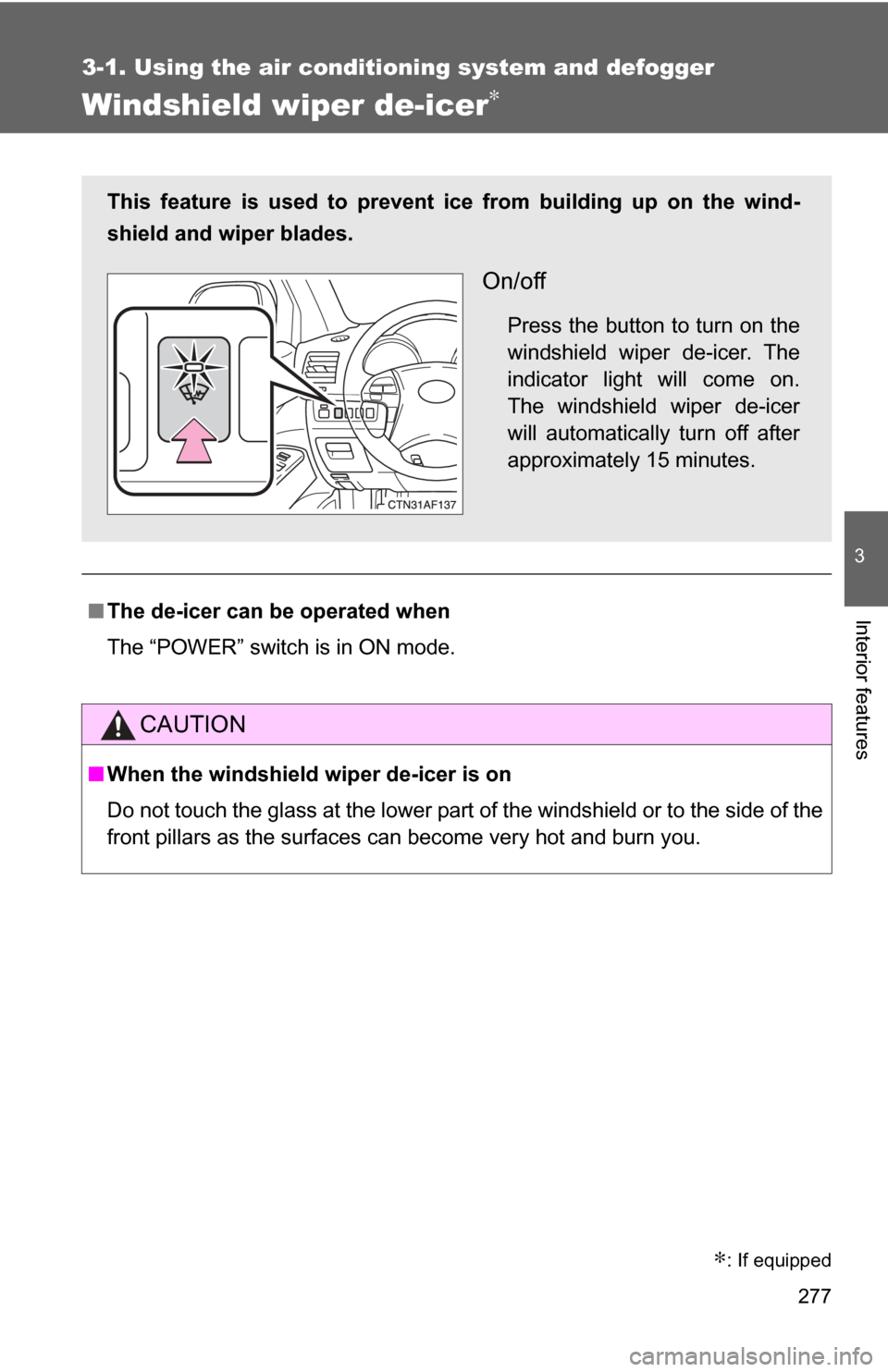
This feature is used to prevent ice from building up on the wind-
shield and wiper blades.
On/off
Press the button to turn on the
windshield wiper de-icer. The
indicator light will come on.
The windshield wiper de-icer
will automatically turn off after
approximately 15 minutes.
∗: If equipped
Page 282 of 592
282
3-2. Using the audio system
Using the radio
Setting station presets (excluding XM® Satellite Radio)
Search for desired stations by turning the or pressing
“
∧” or “ ∨” on .
Press and hold the button (from to ) the station is
to be set to until you hear a beep.
Scanning radio stations (excluding XM® Satellite Radio)
■ Scanning the preset radio stations
Press and hold until you hear a beep.
Preset stations will be played for 5 seconds each.
When the desired station is reached, press once again.
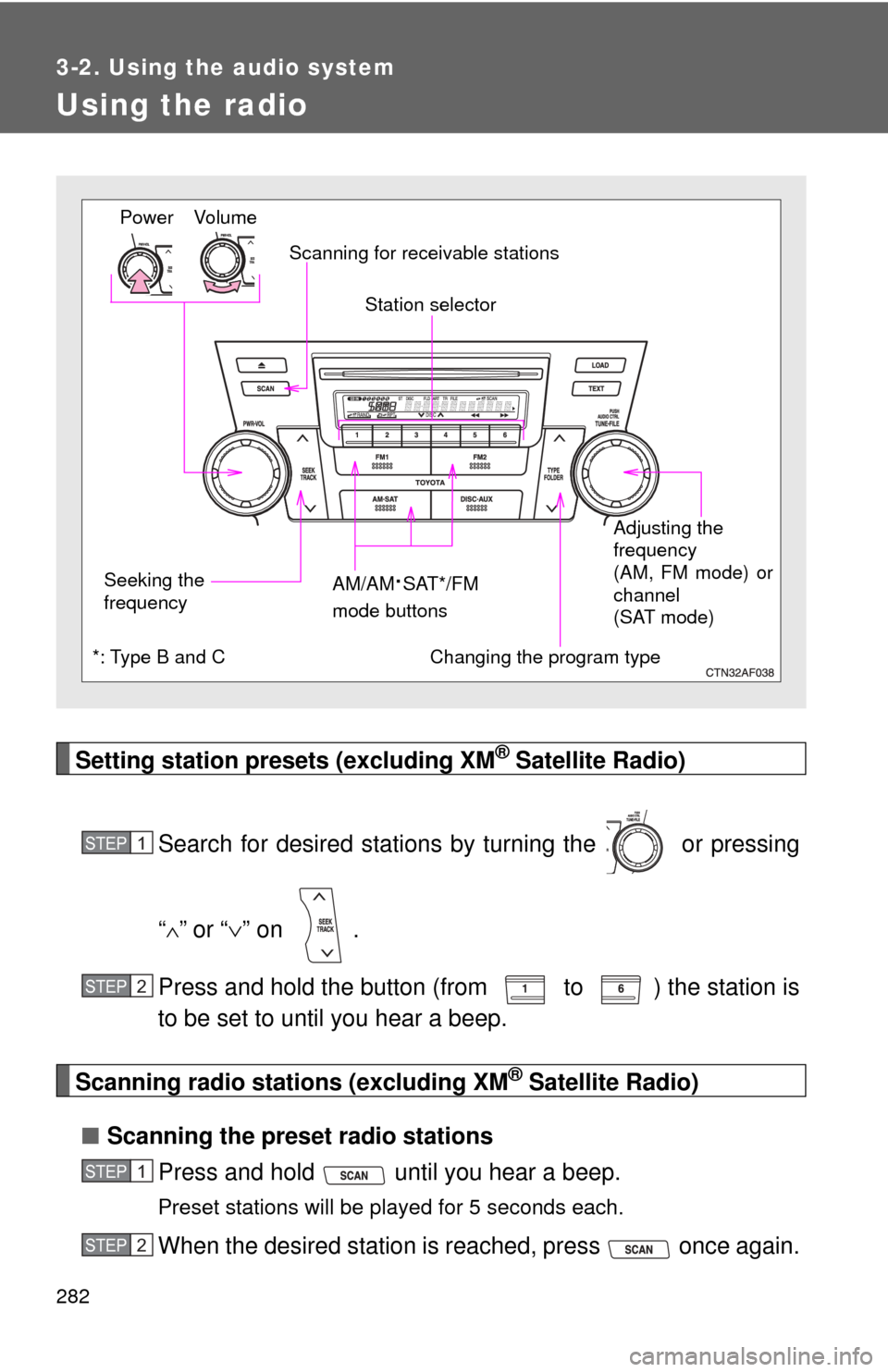
Vo lu m e
Seeking the
frequency Station selector
AM/AM
·SAT*/FM
mode buttons Adjusting the
frequency
(AM, FM mode) or
channel
(SAT mode)
Power
Scanning for receivable stations
Changing the program type*: Type B and C
STEP1
STEP2
STEP1
STEP2
Page 299 of 592
299
3-2. Using the audio system
3
Interior features
■
MP3 and WMA files
MP3 (MPEG Audio LAYER3) is a standard audio compression format.
Files can be compressed to approximately 1/10 of their original size by using
MP3 compression.
WMA (Windows Media
TM Audio) is a Microsoft audio compression format.
This format compresses audio data to a size smaller than that of the MP3
format.
There is a limit to the MP3 and WMA file standards that can be used and to
the media/formats on which the files are recorded.
● MP3 file compatibility
• Compatible standards
MP3 (MPEG1 LAYER3, MPEG2 LSF LAYER3)
• Compatible sampling frequencies MPEG1 LAYER3: 32, 44.1, 48 (kHz)
MPEG2 LSF LAYER3: 16, 22.05, 24 (kHz)
• Compatible bit rates (compatible with VBR) MPEG1 LAYER3: 64, 80, 96, 112, 128, 160, 192, 224, 256, 320 (kbps)
MPEG2 LSF LAYER3: 64, 80, 96, 112, 128, 144, 160 (kbps)
• Compatible channel modes: stereo, joint stereo, dual channel and monaural
● WMA file compatibility
• Compatible standards
WMA Ver. 7, 8, 9
• Compatible sampling frequencies 32, 44.1, 48 (kHz)
• Compatible bit rates (only compatible with 2-channel playback) Ver. 7, 8: CBR 48, 64, 80, 96, 128, 160, 192 (kbps)
Ver. 9: CBR 48, 64, 80, 96, 128, 160, 192, 256, 320 (kbps)
● Compatible media
Media that can be used for MP3 and WMA playback are CD-Rs and CD-
RWs.
Playback in some instances may not be possible, depending on the status
of the CD-R or CD-RW. Playback may not be possible or the audio may
jump if the disc is scratched or marked with fingerprints.
Page 300 of 592

300 3-2. Using the audio system
●Compatible disc formats
The following disc formats can be used.
• Disc formats: CD-ROM Mode 1 and Mode 2
CD-ROM XA Mode 2, Form 1 and Form 2
• File formats: ISO9660 Level 1, Level 2, (Romeo, Joliet) MP3 and WMA files written in any format other than those listed above
may not play correctly, and their file names and folder names may not
be displayed correctly.
Items related to standards and limitations are as follows.
• Maximum directory hierarchy: 8 levels
• Maximum length of folder names/file names: 32 characters
• Maximum number of folders: 192 (including the root)
• Maximum number of files per disc: 255
● File names
The only files that can be recognized as MP3/WMA and played are those
with the extension .mp3 or .wma.
● Multi-sessions
As the audio system is compatible with multi-sessions, it is possible to play
discs that contain MP3 and WMA files. However, only the first session can
be played.
● ID3 and WMA tags
ID3 tags can be added to MP3 files, making it possible to record the track
title, artist name, etc.
The system is compatible with ID3 Ver. 1.0, 1.1, and Ver. 2.2, 2.3 ID3 tags.
(The number of characters is based on ID3 Ver. 1.0 and 1.1.)
WMA tags can be added to WMA files, making it possible to record the
track title and artist name in the same way as with ID3 tags.
● MP3 and WMA playback
When a disc containing MP3 or WMA files is inserted, all files on the disc
are first checked. Once the file check is finished, the first MP3 or WMA file
is played. To make the file check finish more quickly, we recommend you
do not write in any files other than MP3 or WMA files or create any unnec-
essary folders.
If the discs contain a mixture of music data and MP3 or WMA format data,
only music data can be played.