steering wheel TOYOTA PROACE 2022 Owner's Manual
[x] Cancel search | Manufacturer: TOYOTA, Model Year: 2022, Model line: PROACE, Model: TOYOTA PROACE 2022Pages: 360, PDF Size: 70.79 MB
Page 176 of 360
176
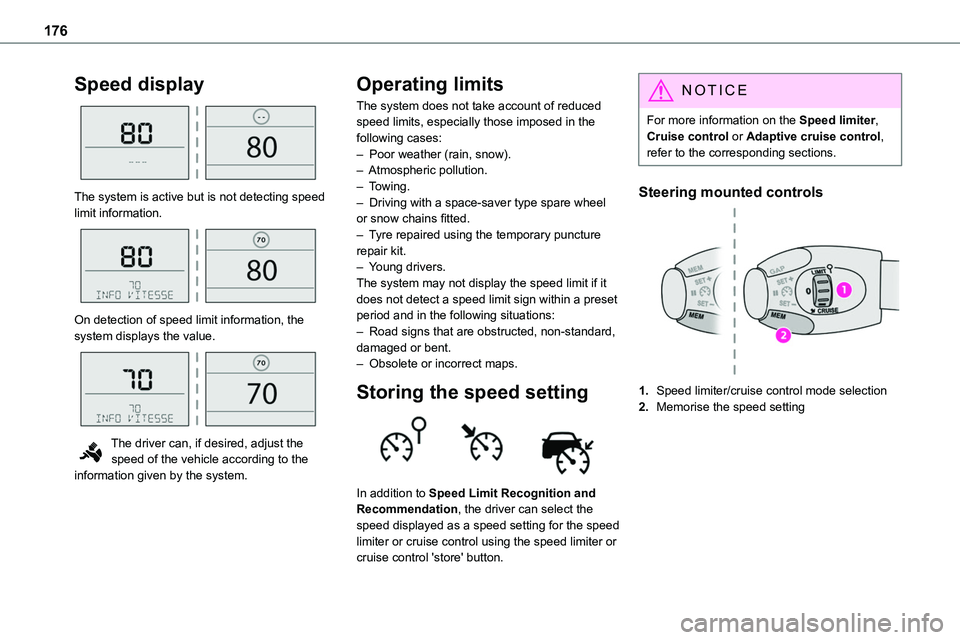
Speed display
The system is active but is not detecting speed limit information.
On detection of speed limit information, the system displays the value.
The driver can, if desired, adjust the speed of the vehicle according to the information given by the system.
Operating limits
The system does not take account of reduced speed limits, especially those imposed in the following cases:– Poor weather (rain, snow).– Atmospheric pollution.– Towing.– Driving with a space-saver type spare wheel or snow chains fitted.
– Tyre repaired using the temporary puncture repair kit.– Young drivers.The system may not display the speed limit if it does not detect a speed limit sign within a preset period and in the following situations:– Road signs that are obstructed, non-standard, damaged or bent.– Obsolete or incorrect maps.
Storing the speed setting
In addition to Speed Limit Recognition and Recommendation, the driver can select the speed displayed as a speed setting for the speed limiter or cruise control using the speed limiter or cruise control 'store' button.
NOTIC E
For more information on the Speed limiter, Cruise control or Adaptive cruise control, refer to the corresponding sections.
Steering mounted controls
1.Speed limiter/cruise control mode selection
2.Memorise the speed setting
Page 178 of 360
178
NOTIC E
For more information on Speed limit recognition and memorising the speed limit in particular, refer to the corresponding section.
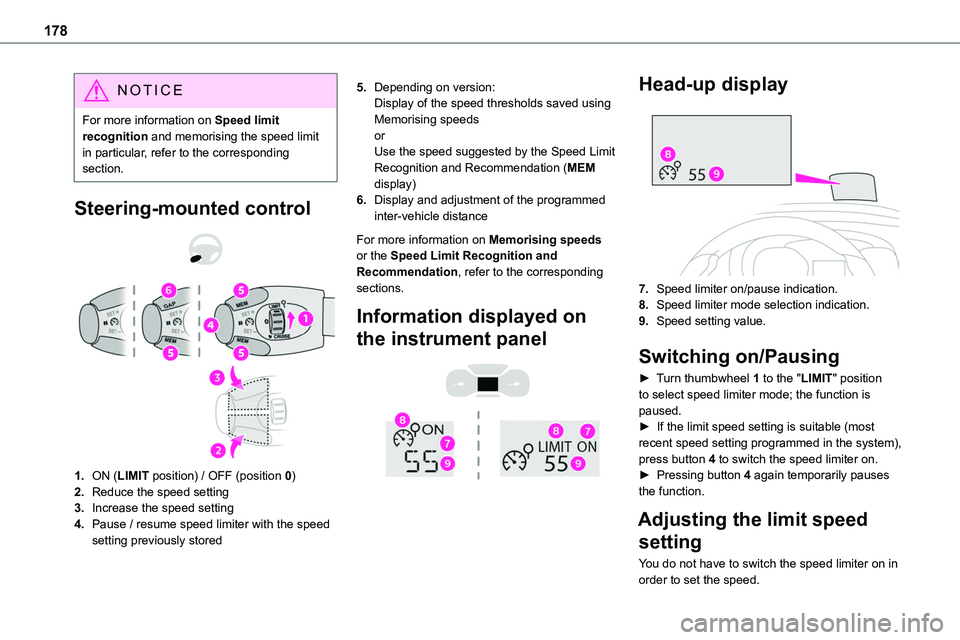
Steering-mounted control
1.ON (LIMIT position) / OFF (position 0)
2.Reduce the speed setting
3.Increase the speed setting
4.Pause / resume speed limiter with the speed setting previously stored
5.Depending on version:Display of the speed thresholds saved using Memorising speedsorUse the speed suggested by the Speed Limit Recognition and Recommendation (MEM display)
6.Display and adjustment of the programmed inter-vehicle distance
For more information on Memorising speeds or the Speed Limit Recognition and Recommendation, refer to the corresponding sections.
Information displayed on
the instrument panel
Head-up display
7.Speed limiter on/pause indication.
8.Speed limiter mode selection indication.
9.Speed setting value.
Switching on/Pausing
► Turn thumbwheel 1 to the "LIMIT" position to select speed limiter mode; the function is paused.► If the limit speed setting is suitable (most recent speed setting programmed in the system), press button 4 to switch the speed limiter on.► Pressing button 4 again temporarily pauses the function.
Adjusting the limit speed
setting
You do not have to switch the speed limiter on in order to set the speed.
Page 187 of 360
187
Driving
6
WARNI NG
It is possible that warnings are not given, are given too late or seem unjustified.The driver must always stay in control of the vehicle and be prepared to react at any time to avoid an accident.
WARNI NG
Following an impact, the system is automatically deactivated.Have it checked by any authorized Toyota retailer or Toyota authorized repairer, or any reliable repairer.
Collision Risk Alert
This function warns the driver that their vehicle is at risk of a collision with the vehicle in front, or with a pedestrian or cyclist present in their traffic lane.
Modifying the alert trigger threshold
This trigger threshold determines the sensitivity with which the function warns of the risk of collision.The threshold is set via the vehicle
configuration menu with the audio system or touch screen.► Select one of the three pre-defined thresholds: "Far", "Normal" or "Close".
The last threshold selected is memorised when the ignition is switched off.
Operation
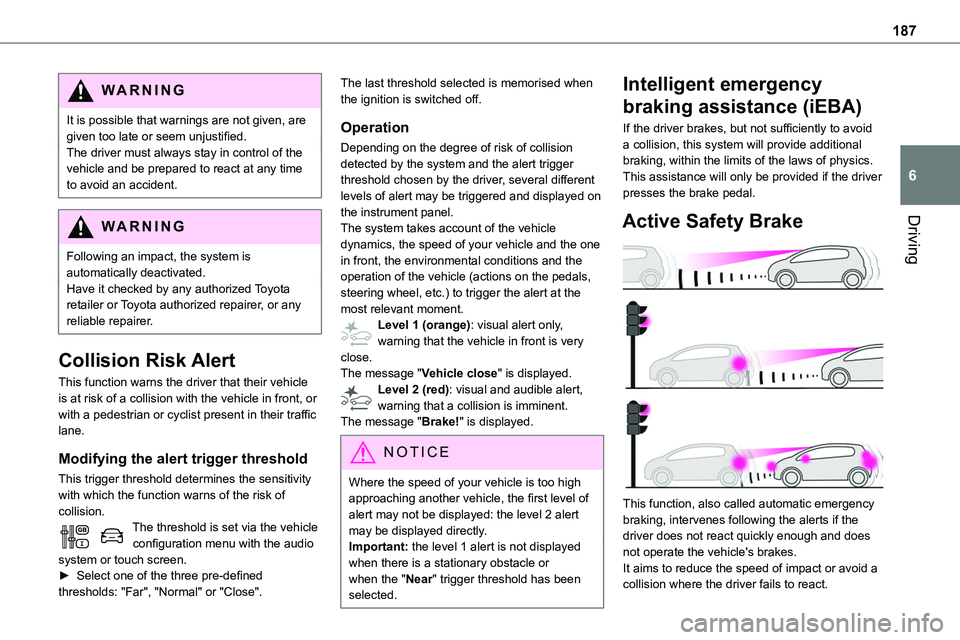
Depending on the degree of risk of collision detected by the system and the alert trigger threshold chosen by the driver, several different levels of alert may be triggered and displayed on the instrument panel.
The system takes account of the vehicle dynamics, the speed of your vehicle and the one in front, the environmental conditions and the operation of the vehicle (actions on the pedals, steering wheel, etc.) to trigger the alert at the most relevant moment.Level 1 (orange): visual alert only, warning that the vehicle in front is very close.The message "Vehicle close" is displayed.Level 2 (red): visual and audible alert, warning that a collision is imminent.The message "Brake!" is displayed.
NOTIC E
Where the speed of your vehicle is too high approaching another vehicle, the first level of alert may not be displayed: the level 2 alert may be displayed directly.
Important: the level 1 alert is not displayed when there is a stationary obstacle or when the "Near" trigger threshold has been selected.
Intelligent emergency
braking assistance (iEBA)
If the driver brakes, but not sufficiently to avoid a collision, this system will provide additional braking, within the limits of the laws of physics.This assistance will only be provided if the driver presses the brake pedal.
Active Safety Brake
This function, also called automatic emergency braking, intervenes following the alerts if the driver does not react quickly enough and does not operate the vehicle's brakes.It aims to reduce the speed of impact or avoid a collision where the driver fails to react.
Page 188 of 360
188
Operation
The system operates subject to the following conditions:– The vehicle's speed does not exceed 37 mph (60 km/h) when a pedestrian is detected.– The vehicle's speed does not exceed 50 mph (80 km/h) when a stationary vehicle or a cyclist is detected.– The vehicle's speed is between 6 mph and
53 mph (10 km/h and 85 km/h) (versions with camera only) or 87 mph (140 km/h) (versions with camera and radar) when a moving vehicle is detected.This warning lamp flashes (for approximately 10 seconds) as soon as the function applies the vehicle’s brakes.With an automatic gearbox, in the event of automatic emergency braking bringing the vehicle to a complete stop, keep the brake pedal depressed to prevent the vehicle from moving off again.With a manual gearbox, in the event of automatic emergency braking bringing the vehicle to a complete stop, the engine may stall.
NOTIC E
The driver can maintain control of the vehicle
at any time by firmly turning the steering wheel and/or firmly depressing the accelerator pedal.
NOTIC E
Operation of the function may be felt by slight vibration in the brake pedal.If the vehicle comes to a complete stop, automatic braking is maintained for 1 to 2 seconds.
Deactivation/Activation
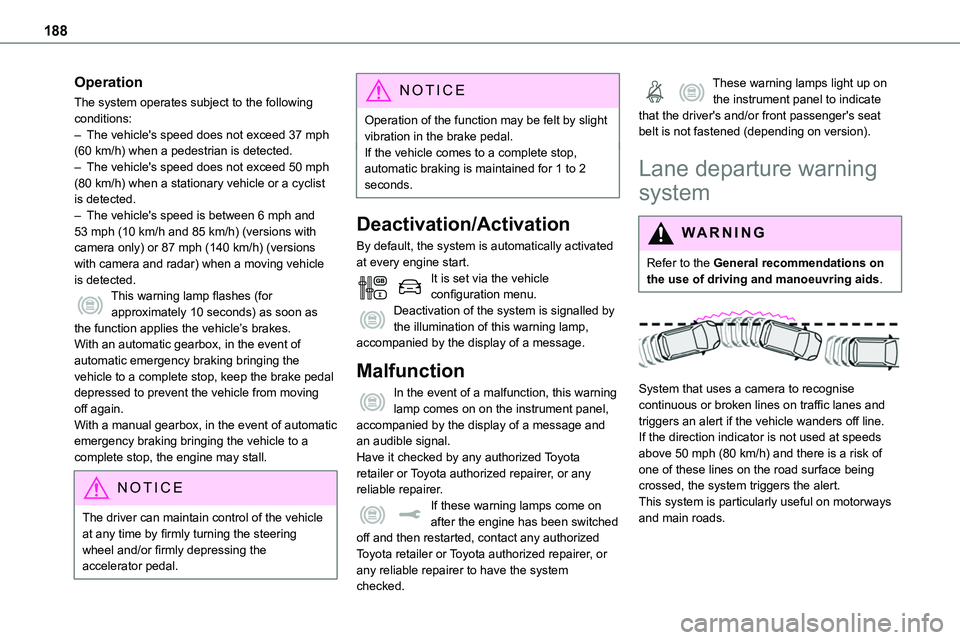
By default, the system is automatically activated at every engine start.It is set via the vehicle configuration menu.Deactivation of the system is signalled by the illumination of this warning lamp, accompanied by the display of a message.
Malfunction
In the event of a malfunction, this warning lamp comes on on the instrument panel, accompanied by the display of a message and an audible signal.Have it checked by any authorized Toyota retailer or Toyota authorized repairer, or any reliable repairer.If these warning lamps come on after the engine has been switched off and then restarted, contact any authorized Toyota retailer or Toyota authorized repairer, or any reliable repairer to have the system checked.
These warning lamps light up on the instrument panel to indicate that the driver's and/or front passenger's seat belt is not fastened (depending on version).
Lane departure warning
system
WARNI NG
Refer to the General recommendations on the use of driving and manoeuvring aids.
System that uses a camera to recognise continuous or broken lines on traffic lanes and triggers an alert if the vehicle wanders off line. If the direction indicator is not used at speeds above 50 mph (80 km/h) and there is a risk of one of these lines on the road surface being crossed, the system triggers the alert.This system is particularly useful on motorways and main roads.
Page 196 of 360
196
NOTIC E
The function will be deactivated:– If a trailer is attached or a bicycle carrier is fitted on a towing device (vehicle fitted with a towing device installed in line with the manufacturer's recommendations).– Above about 6 mph (10 km/h).– When the boot is opened.
– Upon changing out of reverse gear (the image remains displayed for 7 seconds).– By pressing the white arrow in the upper-left corner of the touch screen.
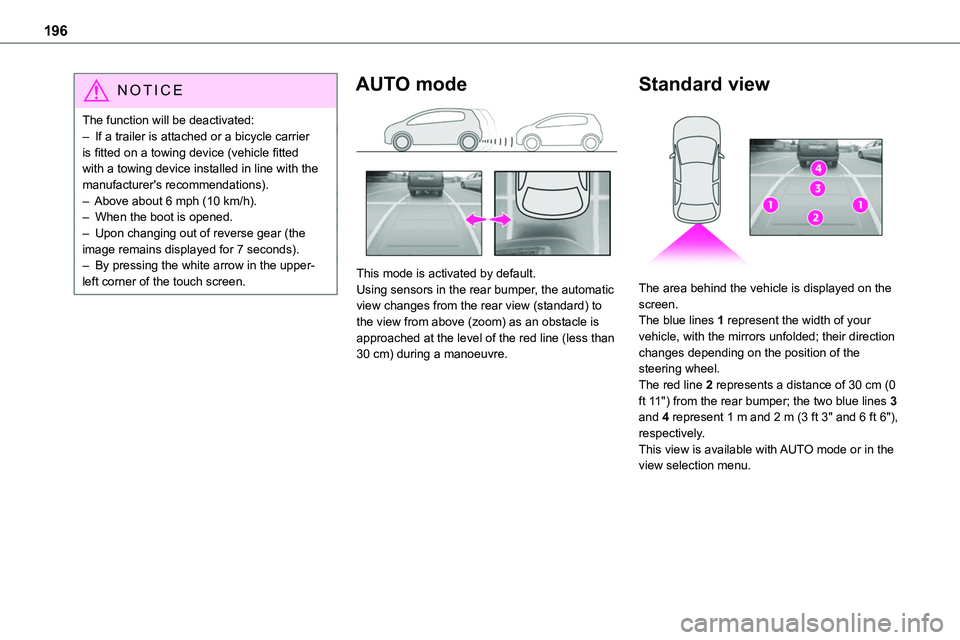
AUTO mode
This mode is activated by default.Using sensors in the rear bumper, the automatic view changes from the rear view (standard) to the view from above (zoom) as an obstacle is approached at the level of the red line (less than 30 cm) during a manoeuvre.
Standard view
The area behind the vehicle is displayed on the screen.The blue lines 1 represent the width of your vehicle, with the mirrors unfolded; their direction changes depending on the position of the steering wheel.The red line 2 represents a distance of 30 cm (0 ft 11") from the rear bumper; the two blue lines 3 and 4 represent 1 m and 2 m (3 ft 3" and 6 ft 6"), respectively.This view is available with AUTO mode or in the view selection menu.
Page 252 of 360
252
Towing
Procedure for having your vehicle towed or for towing another vehicle using a removable mechanical device.
NOTIC E
General recommendationsObserve the legislation in force in the country
where you are driving.Ensure that the weight of the towing vehicle is higher than that of the towed vehicle.The driver must remain at the wheel of the towed vehicle and must have a valid driving licence.When towing a vehicle with all four wheels on the ground, always use an approved towbar; ropes and straps are prohibited.The towing vehicle must move off gently.When the vehicle is towed with its engine off, there is no longer braking and steering assistance.
WARNI NG
A professional recovery service must be called if:– broken down on a motorway or main road;– not possible to put the gearbox into neutral, unlock the steering, or release the parking brake;– not possible to tow a vehicle with an
automatic gearbox, with the engine running;– towing with only two wheels on the ground;– four-wheel drive vehicle;– no approved towbar available.
WARNI NG
Before towing the vehicle, it is essential to put the vehicle in free-wheeling mode.For more information on Free-wheeling, refer to the corresponding section.
NOTIC E
Electric motorAn electric vehicle cannot under any circumstances be used to tow another vehicle.However, it may be used, for example, to exit a rut.
WARNI NG
With a manual gearbox, place the gear lever in neutral.With an automatic gearbox, place the gear selector in position N.Failure to adhere to this instruction may lead to damage to some braking components and the lack of braking assistance on restarting the engine.
Page 274 of 360
274
Press OK to confirm.
Select "Bluetooth Connections management" and confirm. The list of paired telephones is displayed.Press OK to confirm.
Indicates that a device is connected.
NOTIC E
A number indicates the profile of the connection with the system:– 1 for media or 1 for telephone.– 2 for media and telephone.
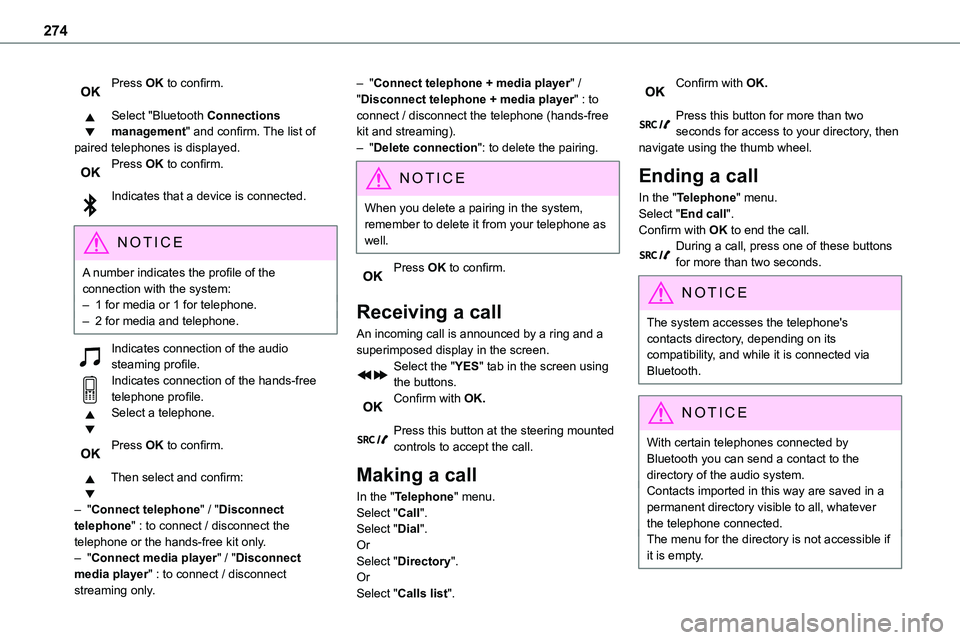
Indicates connection of the audio steaming profile.Indicates connection of the hands-free telephone profile.Select a telephone.
Press OK to confirm.
Then select and confirm:
– "Connect telephone" / "Disconnect telephone" : to connect / disconnect the
telephone or the hands-free kit only.– "Connect media player" / "Disconnect media player" : to connect / disconnect streaming only.
– "Connect telephone + media player" / "Disconnect telephone + media player" : to connect / disconnect the telephone (hands-free kit and streaming).– "Delete connection": to delete the pairing.
NOTIC E
When you delete a pairing in the system, remember to delete it from your telephone as well.
Press OK to confirm.
Receiving a call
An incoming call is announced by a ring and a superimposed display in the screen.Select the "YES" tab in the screen using the buttons.Confirm with OK.
Press this button at the steering mounted controls to accept the call.
Making a call
In the "Telephone" menu.Select "Call".Select "Dial".
OrSelect "Directory".OrSelect "Calls list".
Confirm with OK.
Press this button for more than two seconds for access to your directory, then navigate using the thumb wheel.
Ending a call
In the "Telephone" menu.Select "End call".
Confirm with OK to end the call.During a call, press one of these buttons for more than two seconds.
NOTIC E
The system accesses the telephone's contacts directory, depending on its compatibility, and while it is connected via Bluetooth.
NOTIC E
With certain telephones connected by Bluetooth you can send a contact to the directory of the audio system.Contacts imported in this way are saved in a permanent directory visible to all, whatever the telephone connected.The menu for the directory is not accessible if it is empty.
Page 280 of 360
280
Steering mounted controls -
Type 2
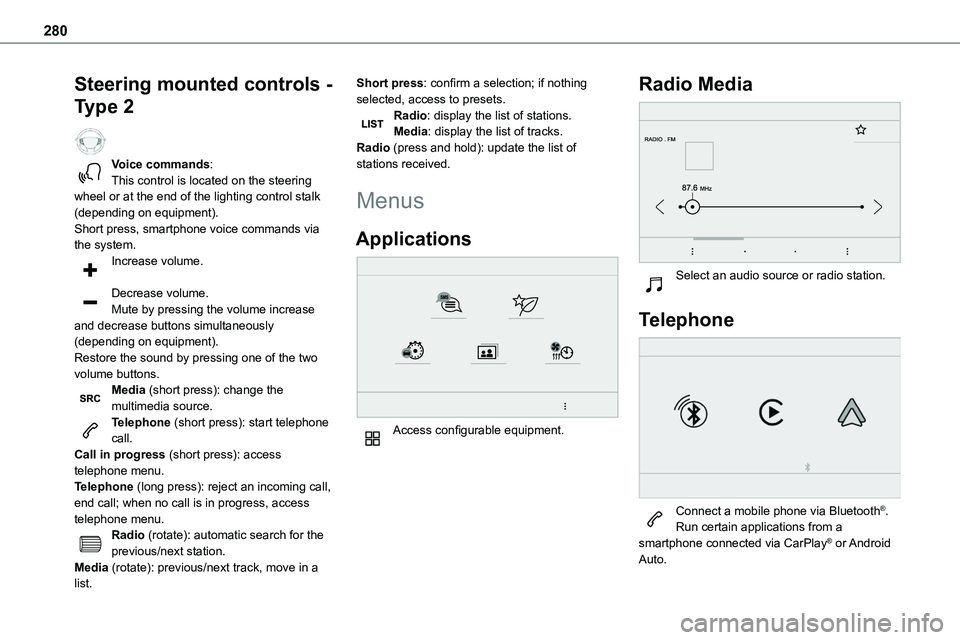
Voice commands:This control is located on the steering wheel or at the end of the lighting control stalk (depending on equipment).
Short press, smartphone voice commands via the system.Increase volume.
Decrease volume.Mute by pressing the volume increase and decrease buttons simultaneously (depending on equipment).Restore the sound by pressing one of the two volume buttons.Media (short press): change the multimedia source.Telephone (short press): start telephone call.Call in progress (short press): access telephone menu.Telephone (long press): reject an incoming call, end call; when no call is in progress, access telephone menu.Radio (rotate): automatic search for the previous/next station.Media (rotate): previous/next track, move in a list.
Short press: confirm a selection; if nothing selected, access to presets.Radio: display the list of stations.Media: display the list of tracks.Radio (press and hold): update the list of stations received.
Menus
Applications
Access configurable equipment.
Radio Media
Select an audio source or radio station.
Telephone
Connect a mobile phone via Bluetooth®.Run certain applications from a smartphone connected via CarPlay® or Android Auto.
Page 294 of 360
294
– Air conditioning status information (depending on version), and direct access to the corresponding menu.– Go directly to the audio source selection option, to view the list of radio stations (or list of titles depending on the source).– Go to the "Notifications" of messages, emails, map updates and, depending on the services, the navigation notifications.
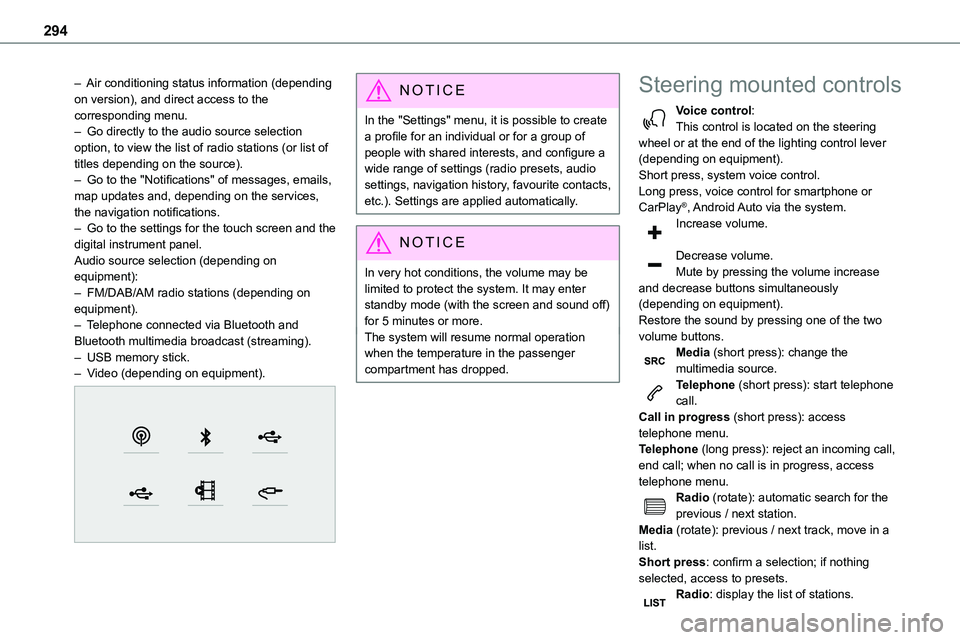
– Go to the settings for the touch screen and the digital instrument panel.Audio source selection (depending on equipment):– FM/DAB/AM radio stations (depending on equipment).– Telephone connected via Bluetooth and Bluetooth multimedia broadcast (streaming).– USB memory stick.– Video (depending on equipment).
NOTIC E
In the "Settings" menu, it is possible to create a profile for an individual or for a group of people with shared interests, and configure a wide range of settings (radio presets, audio settings, navigation history, favourite contacts, etc.). Settings are applied automatically.
NOTIC E
In very hot conditions, the volume may be limited to protect the system. It may enter standby mode (with the screen and sound off) for 5 minutes or more.The system will resume normal operation when the temperature in the passenger compartment has dropped.
Steering mounted controls
Voice control:This control is located on the steering wheel or at the end of the lighting control lever (depending on equipment).Short press, system voice control.Long press, voice control for smartphone or CarPlay®, Android Auto via the system.
Increase volume.
Decrease volume.Mute by pressing the volume increase and decrease buttons simultaneously (depending on equipment).Restore the sound by pressing one of the two volume buttons.Media (short press): change the multimedia source.Telephone (short press): start telephone call.Call in progress (short press): access telephone menu.Telephone (long press): reject an incoming call, end call; when no call is in progress, access telephone menu.Radio (rotate): automatic search for the previous / next station.Media (rotate): previous / next track, move in a list.Short press: confirm a selection; if nothing selected, access to presets.Radio: display the list of stations.
Page 296 of 360
296
Vehicle
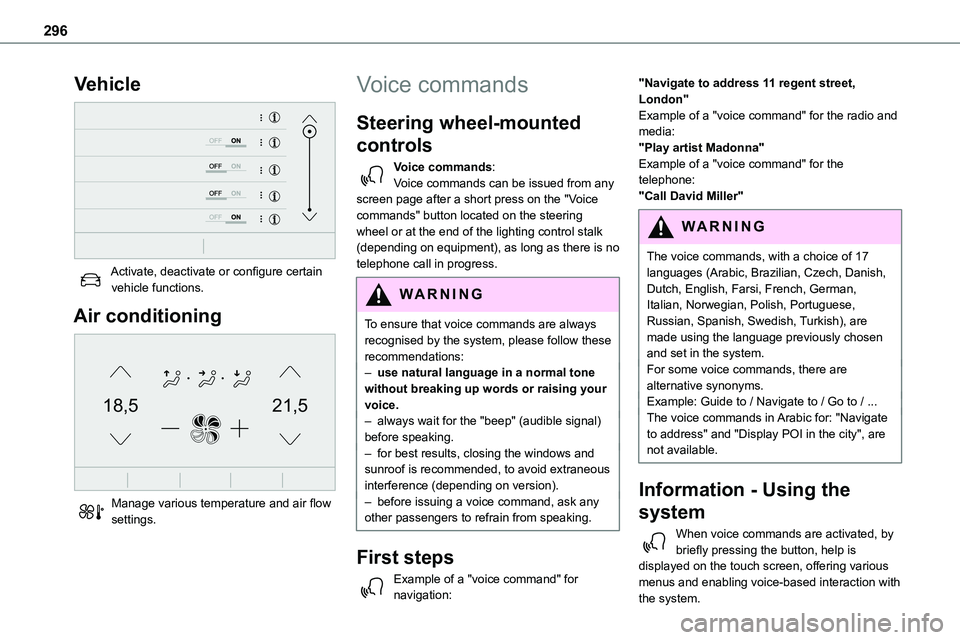
Activate, deactivate or configure certain vehicle functions.
Air conditioning
21,518,5
Manage various temperature and air flow settings.
Voice commands
Steering wheel-mounted
controls
Voice commands:Voice commands can be issued from any screen page after a short press on the "Voice commands" button located on the steering
wheel or at the end of the lighting control stalk (depending on equipment), as long as there is no telephone call in progress.
WARNI NG
To ensure that voice commands are always recognised by the system, please follow these recommendations: – use natural language in a normal tone without breaking up words or raising your voice.– always wait for the "beep" (audible signal) before speaking.– for best results, closing the windows and sunroof is recommended, to avoid extraneous interference (depending on version).– before issuing a voice command, ask any other passengers to refrain from speaking.
First steps
Example of a "voice command" for navigation:
"Navigate to address 11 regent street, London"Example of a "voice command" for the radio and media:"Play artist Madonna"Example of a "voice command" for the telephone:"Call David Miller"
WARNI NG
The voice commands, with a choice of 17 languages (Arabic, Brazilian, Czech, Danish, Dutch, English, Farsi, French, German, Italian, Norwegian, Polish, Portuguese, Russian, Spanish, Swedish, Turkish), are made using the language previously chosen and set in the system.For some voice commands, there are alternative synonyms.Example: Guide to / Navigate to / Go to / ...The voice commands in Arabic for: "Navigate to address" and "Display POI in the city", are not available.
Information - Using the
system
When voice commands are activated, by briefly pressing the button, help is displayed on the touch screen, offering various menus and enabling voice-based interaction with the system.