phone TOYOTA RAV4 2009 XA30 / 3.G User Guide
[x] Cancel search | Manufacturer: TOYOTA, Model Year: 2009, Model line: RAV4, Model: TOYOTA RAV4 2009 XA30 / 3.GPages: 516, PDF Size: 10.61 MB
Page 267 of 516
267
3-3. Using the hand
s-free phone system (for cellular phone)
3
Interior features
■Required profiles for the cellular phone
●HFP (Hands Free Profile) Ver. 1.0
● OPP (Object Push Profile) Ver. 1.1
If your cellular phone does not support HFP, the Bluetooth
® phone cannot be
entered and OPP serviced cannot be provided separately.
■ Trademark owned by Bluetooth SIG. Inc.
■ Certification for the hands-free phone system
FCC ID: ACJ932C5ZZZ035
IC ID: 216J-C5ZZZ035
MADE IN JAPAN/MEXICO
NOTE:
This device complies with Part 15 of the FCC Rules and RSS-210. Opera-
tion is subject to the following two conditions: (1) This device may not cause
harmful interference, and (2) This device must accept any interference
received, including interference that may cause undesired operation.
Page 268 of 516
268 3-3. Using the hands-free phone system (for cellular phone)
NOTICE:
This equipment has been tested and found to comply with the limits for a
Class B digital device, pursuant to Part 15 of the FCC Rules. These limits
are designed to provide reasonable protection against harmful interference
in a residential installation. This equipment generates, uses and can radiate
radio frequency energy and, if not installed and used in accordance with the
instructions, may cause harmful interference to radio communications. How-
ever, there is no guarantee that interference will not occur in a particular
installation. If this equipment does cause harmful interference to radio or
television reception, which can be determined by turning the equipment off
and on, the user is encouraged to try to correct the interference by one or
more of the following measures:
● Reorient or relocate the receiving antenna.
● Increase the separation between the equipment and receiver.
● Connect the equipment into an outlet on a circuit different from that to
which the receiver is connected.
● Consult the dealer or an experienc ed radio/TV technician for help.
FCC WARNING:
Changes or modifications in construction not expressly approved by the
party responsible for compliance could void the user's authority to operate
the equipment.
CAUTION:
Radio Frequency Radiation Exposure
This equipment complies with FCC/IC radiation exposure limits set forth for
uncontrolled equipment and meets the FCC radio frequency (RF) Exposure
Guidelines in Supplement C to OET65 and RSS-102 of the IC radio fre-
quency (RF) Exposure rules. This equipment has very low levels of RF
energy that it deemed to comply without maximum permissive exposure
evaluation (MPE). But it is desirable that it should be installed and operated
with at least 20 cm and more between the radiator and person’s body
(excluding extremities: hands, wrists, feet and legs).
Co-location:
This transmitter must not be co-located or operated in conjunction with any
other antenna or transmitter.
Page 269 of 516
269
3-3. Using the hand
s-free phone system (for cellular phone)
3
Interior features
CAUTION
■Caution while driving
Do not use a cellular phone or connect the Bluetooth
® phone.
NOTICE
■To prevent damage to a cellular phone
Do not leave a cellular phone in the vehicle. The temperature inside may
become high resulting in damage to the phone.
Page 270 of 516
270
3-3. Using the hands-free phone system (for cellular phone)
Using the hands-free phone system (for cellular phone)
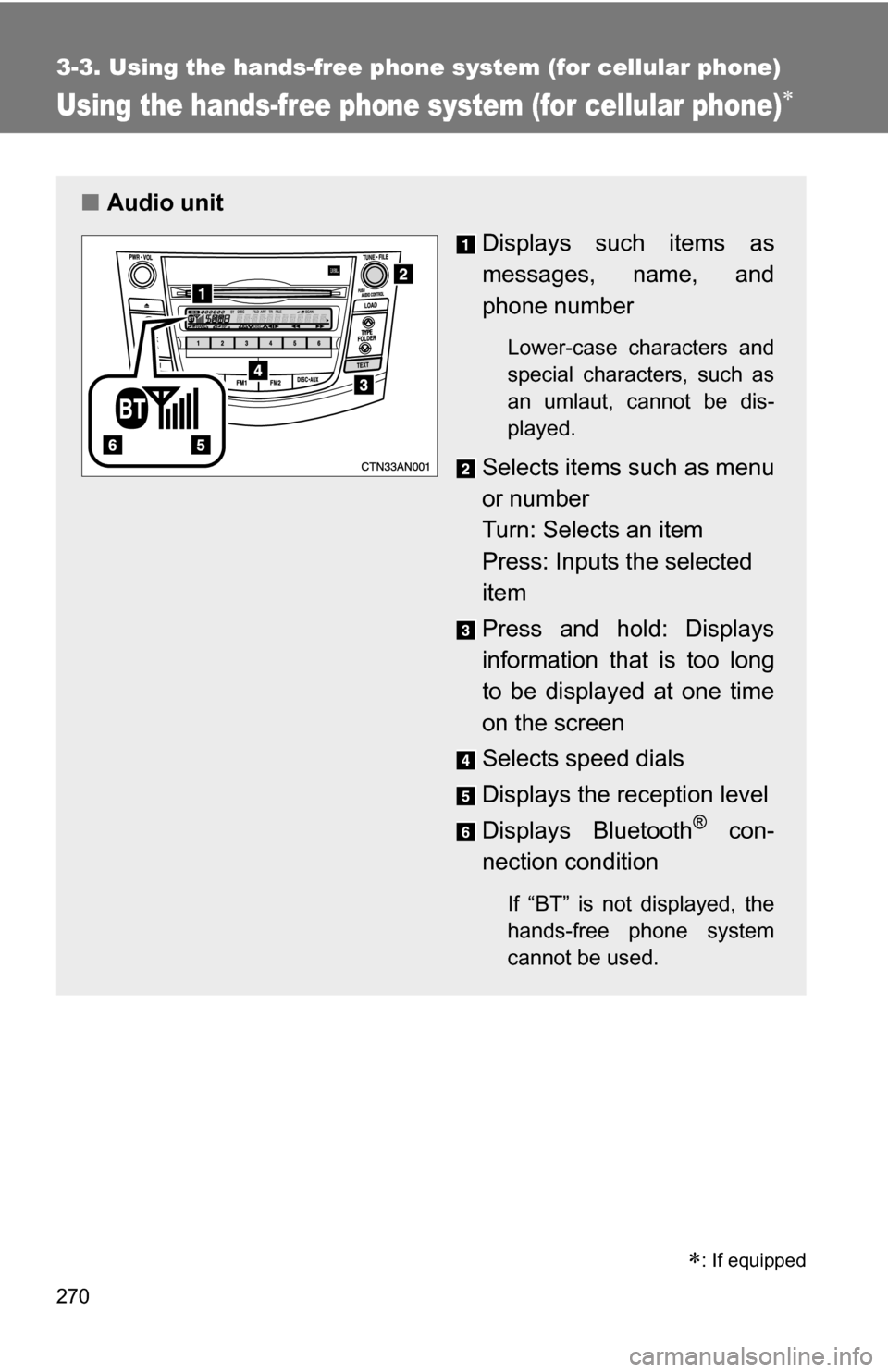
■Audio unit
Displays such items as
messages, name, and
phone number
Lower-case characters and
special characters, such as
an umlaut, cannot be dis-
played.
Selects items such as menu
or number
Turn: Selects an item
Press: Inputs the selected
item
Press and hold: Displays
information that is too long
to be displayed at one time
on the screen
Selects speed dials
Displays the reception level
Displays Bluetooth
® con-
nection condition
If “BT” is not displayed, the
hands-free phone system
cannot be used.
: If equipped
Page 271 of 516
271
3-3. Using the hand
s-free phone system (for cellular phone)
3
Interior features
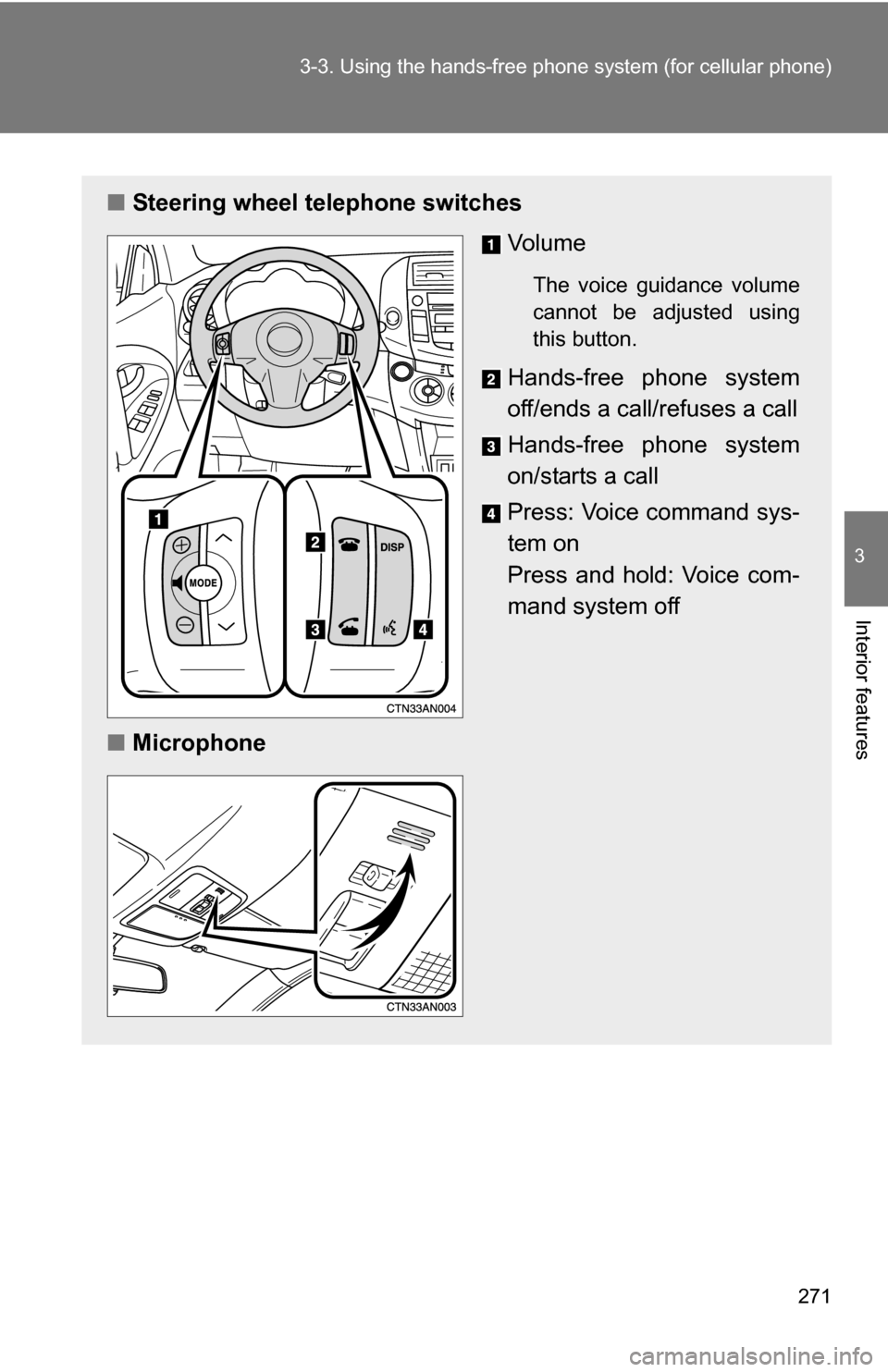
■Steering wheel telephone switches
Vo l u m e
The voice guidance volume
cannot be adjusted using
this button.
Hands-free phone system
off/ends a call/refuses a call
Hands-free phone system
on/starts a call
Press: Voice command sys-
tem on
Press and hold: Voice com-
mand system off
■ Microphone
Page 272 of 516
272 3-3. Using the hands-free phone system (for cellular phone)
Operating the system using a voice command
By following voice gui dance instructions output from the speaker,
voice commands can be given to allow for operation of the hands-
free phone system without checking the display or operating .
■ Operation procedure when using a voice command
Press and say a command for a desired function.
( P. 274)
■ Auxiliary commands when using a voice command
The following auxiliary commands can be used when operating the
system using a voice command:
Cancel: Exits the hands-free phone system
Repeat: Repeats the previous voice guidance instruction
Go back: Returns to the previous procedure
Help: Reads aloud the function summary if a help comment is
registered for the selected function
Page 273 of 516
273
3-3. Using the hand
s-free phone system (for cellular phone)
3
Interior features
Using the hands-free phone system for the first time
Before using the hands-free phone system, it is necessary to register
a cellular phone in the system. Th e phone registration mode will be
entered automatically when starting the system with no cellular
phone registered. Follow the procedure below to register a cellular
phone:
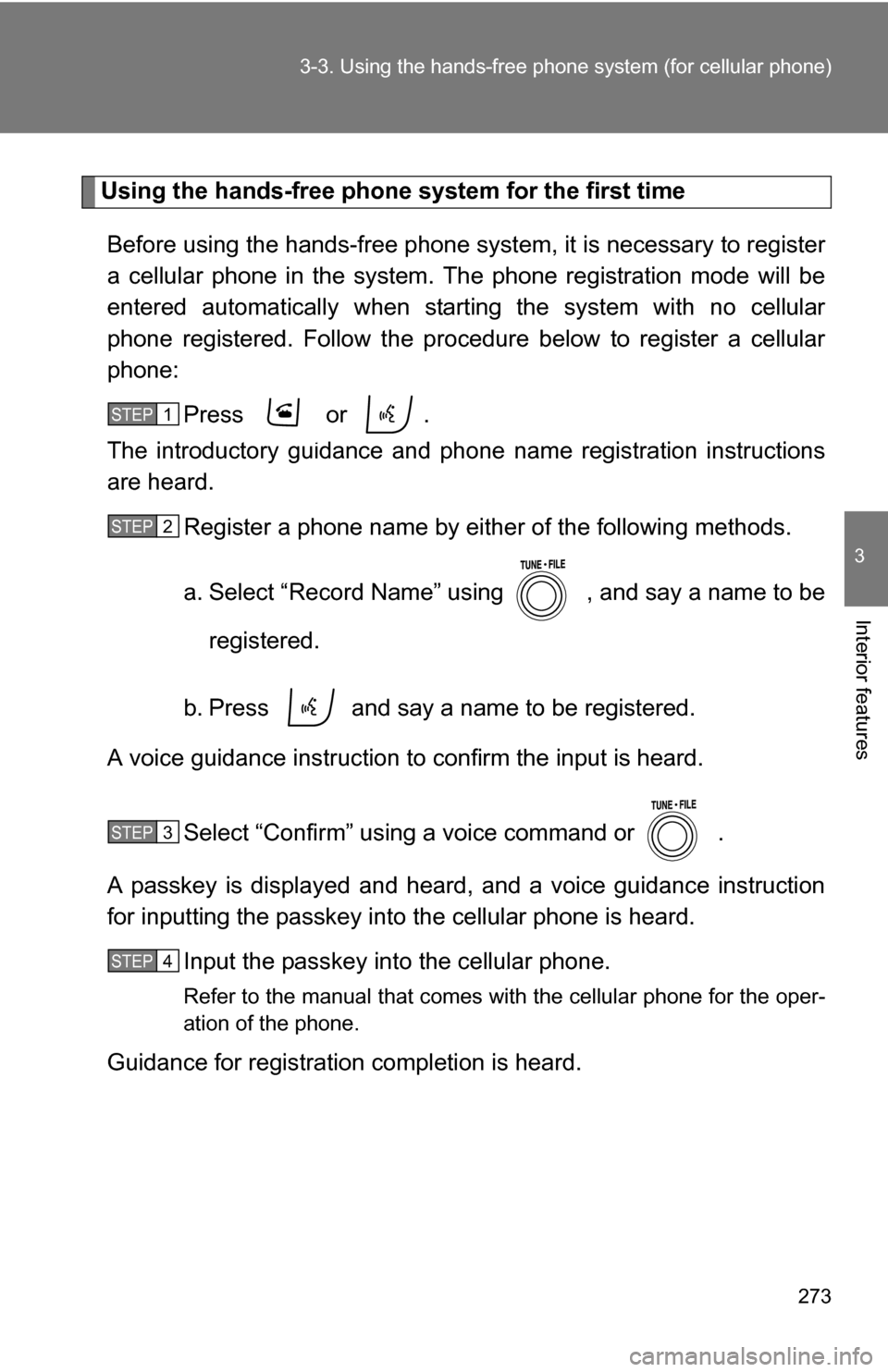
Press or .
The introductory guidance and phone name registration instructions
are heard.
Register a phone name by either of the following methods.
a. Select “Record Name” using , and say a name to be
registered.
b. Press and say a name to be registered.
A voice guidance instruction to confirm the input is heard.
Select “Confirm” using a voice command or .
A passkey is displayed and heard, and a voice guidance instruction
for inputting the passkey into the cellular phone is heard. Input the passkey into the cellular phone.
Refer to the manual that comes with the cellular phone for the oper-
ation of the phone.
Guidance for registration completion is heard.
STEP 1
STEP 2
STEP 3
STEP 4
Page 274 of 516
274 3-3. Using the hands-free phone system (for cellular phone)
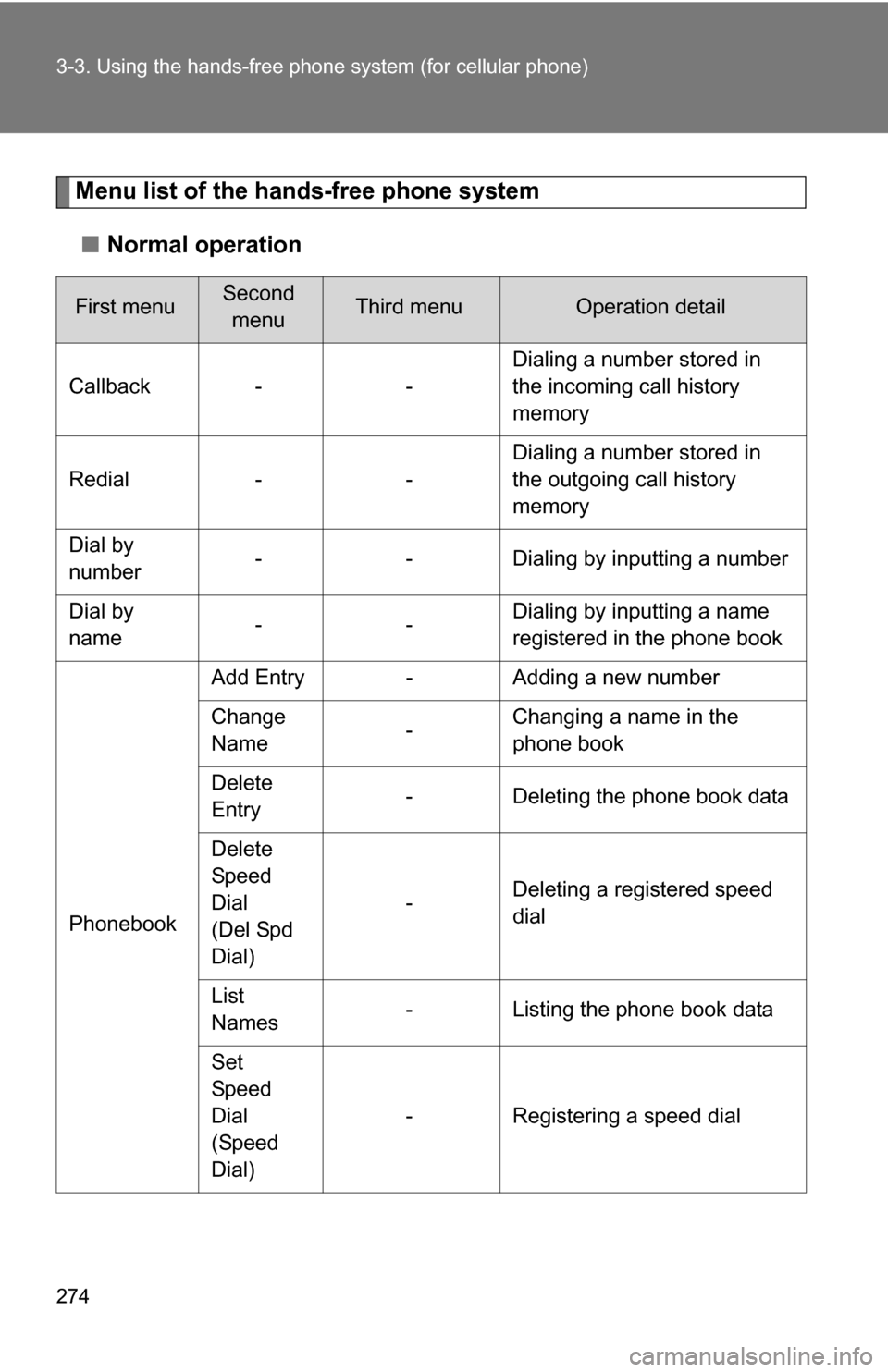
Menu list of the hands-free phone system
■ Normal operation
First menuSecond
menuThird menuOperation detail
Callback - - Dialing a number stored in
the incoming call history
memory
Redial - - Dialing a number stored in
the outgoing call history
memory
Dial by
number - - Dialing by inputting a number
Dial by
name -- Dialing by inputting a name
registered in the phone book
Phonebook Add Entry - Adding a new number
Change
Name
-Changing a name in the
phone book
Delete
Entry - Deleting the phone book data
Delete
Speed
Dial
(Del Spd
Dial) -
Deleting a registered speed
dial
List
Names - Listing the phone book data
Set
Speed
Dial
(Speed
Dial) - Registering a speed dial
Page 275 of 516
275
3-3. Using the hand
s-free phone system (for cellular phone)
3
Interior features
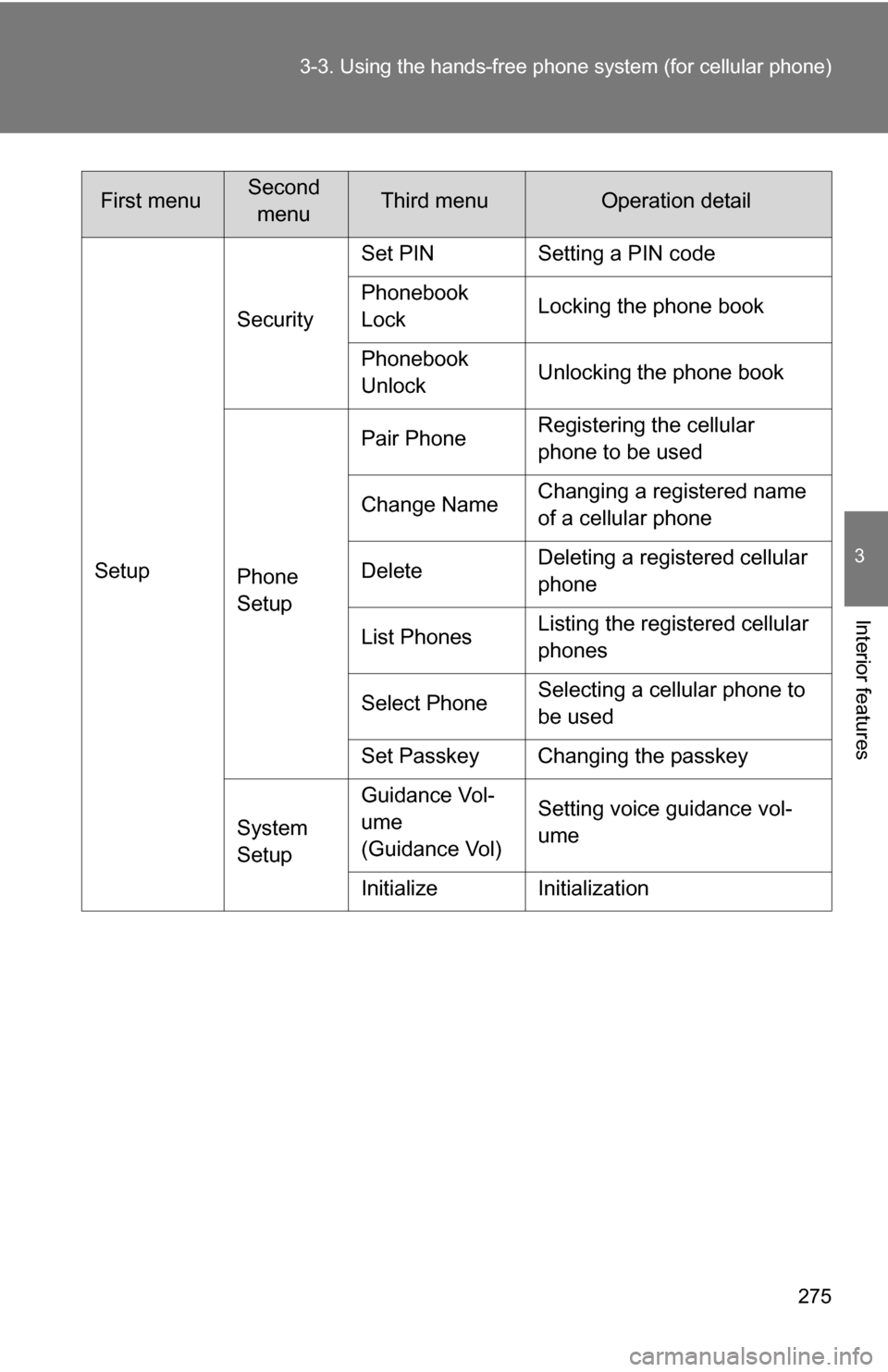
SetupSecurity
Set PIN Setting a PIN code
Phonebook
Lock
Locking the phone book
Phonebook
Unlock Unlocking the phone book
Phone
Setup Pair Phone
Registering the cellular
phone to be used
Change Name Changing a registered name
of a cellular phone
Delete Deleting a registered cellular
phone
List Phones Listing the registered cellular
phones
Select Phone Selecting a cellular phone to
be used
Set Passkey Changing the passkey
System
Setup Guidance Vol-
ume
(Guidance Vol)
Setting voice guidance vol-
ume
Initialize Initialization
First menuSecond menuThird menuOperation detail
Page 276 of 516
276 3-3. Using the hands-free phone system (for cellular phone)
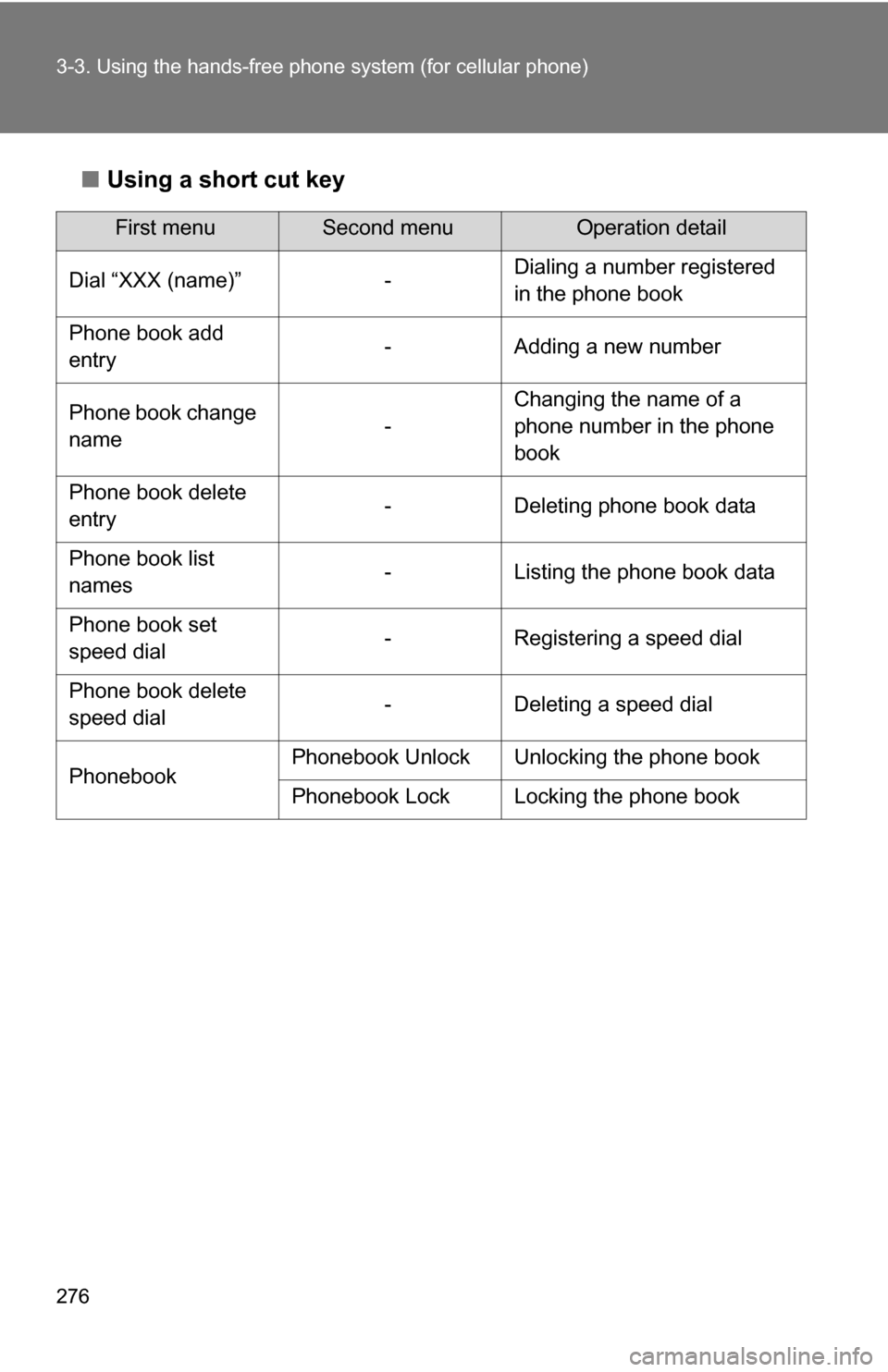
■Using a short cut key
First menuSecond menuOperation detail
Dial “XXX (name)” - Dialing a number registered
in the phone book
Phone book add
entry - Adding a new number
Phone book change
name -Changing the name of a
phone number in the phone
book
Phone book delete
entry - Deleting phone book data
Phone book list
names - Listing the phone book data
Phone book set
speed dial - Registering a speed dial
Phone book delete
speed dial - Deleting a speed dial
Phonebook Phonebook Unlock Unlocking the phone book
Phonebook Lock Locking the phone book