buttons TOYOTA SUPRA 2021 Owners Manual (in English)
[x] Cancel search | Manufacturer: TOYOTA, Model Year: 2021, Model line: SUPRA, Model: TOYOTA SUPRA 2021Pages: 360, PDF Size: 10.41 MB
Page 18 of 360
182-1. QUICK REFERENCE
Supra Owner's Manual_U (from Jul. '20 Prod.)
around the vehicle for small
children and low objects
before driving.
When backing up (reversing),
if you cannot see the area
behind the vehicle suffi-
ciently, exit the vehicle and
check the area before pro-
ceeding.
Refrain from driving when you
are fatigued or not feeling well.
Also, if driving for a long time, be
sure to stop and rest periodi-
cally.
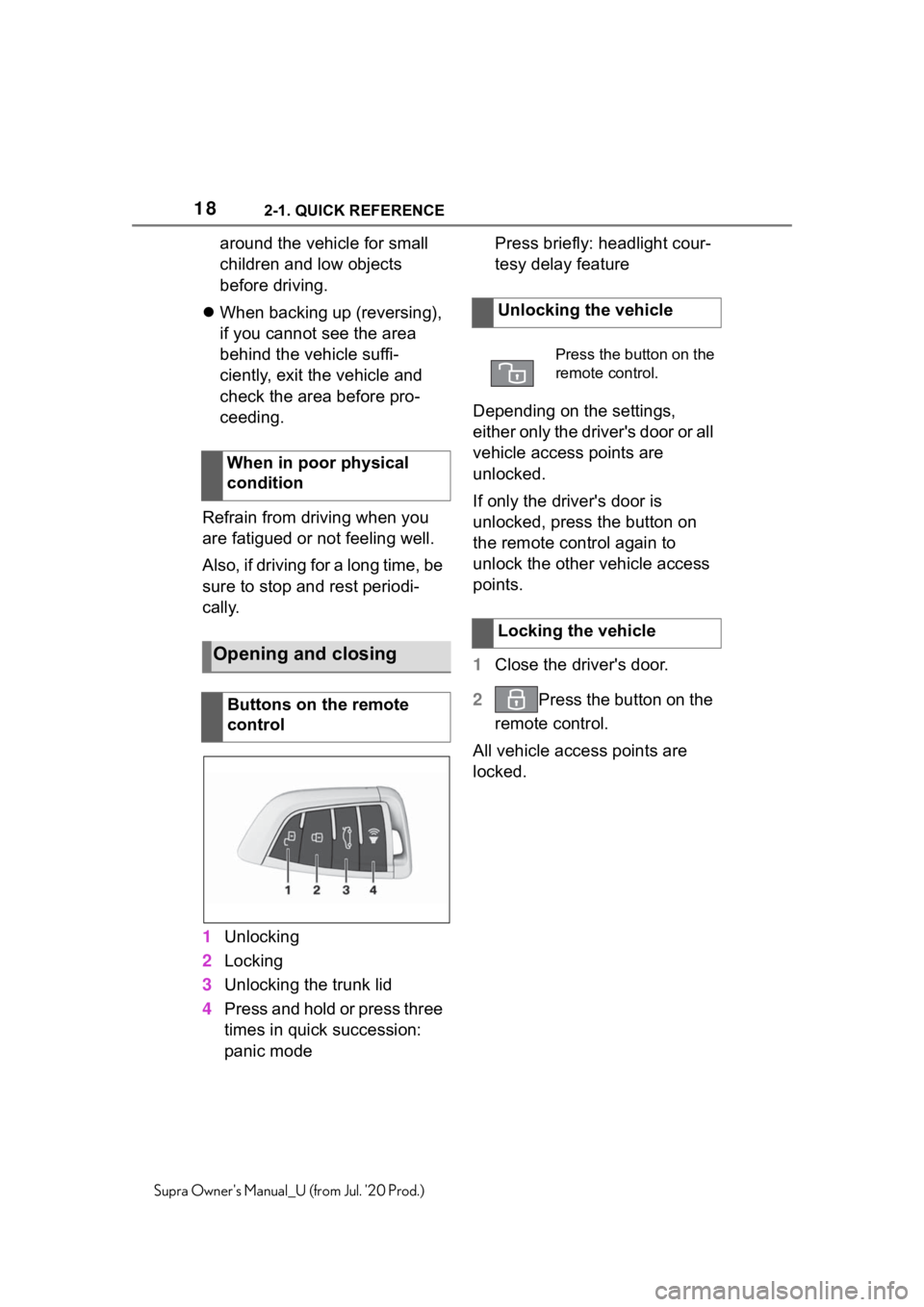
1 Unlocking
2 Locking
3 Unlocking the trunk lid
4 Press and hold or press three
times in quick succession:
panic mode Press briefly: headlight cour-
tesy delay feature
Depending on the settings,
either only the driver's door or all
vehicle access points are
unlocked.
If only the driver's door is
unlocked, press the button on
the remote control again to
unlock the other vehicle access
points.
1 Close the driver's door.
2 Press the button on the
remote control.
All vehicle access points are
locked.
When in poor physical
condition
Opening and closing
Buttons on the remote
control
Unlocking the vehicle
Press the button on the
remote control.
Locking the vehicle
Page 19 of 360
192-1. QUICK REFERENCE
2
QUICK REFERENCE
Supra Owner's Manual_U (from Jul. '20 Prod.)
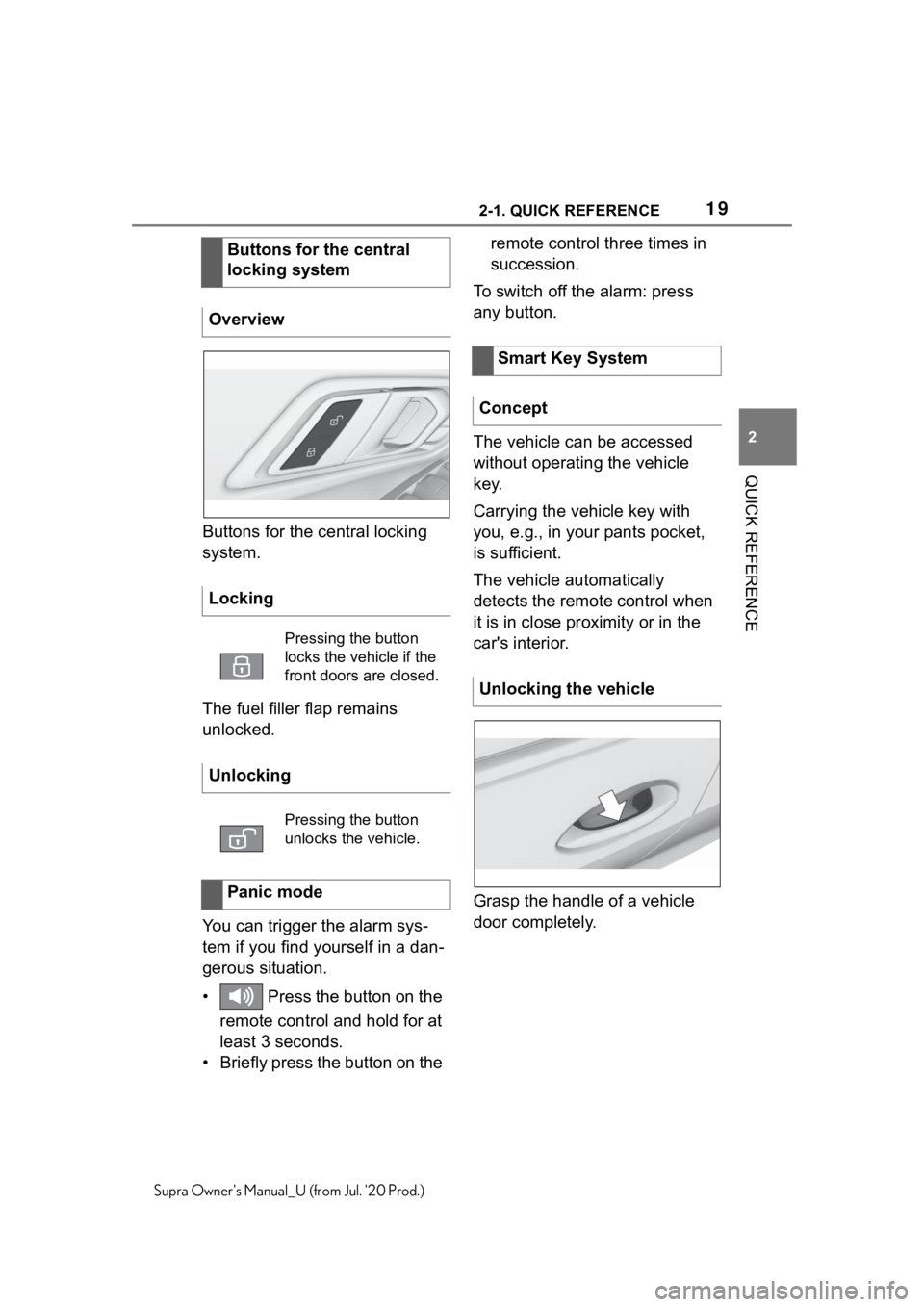
Buttons for the central locking
system.
The fuel filler flap remains
unlocked.
You can trigger the alarm sys-
tem if you find yourself in a dan-
gerous situation.
• Press the button on the remote control and hold for at
least 3 seconds.
• Briefly press the button on the remote control three times in
succession.
To switch off the alarm: press
any button.
The vehicle can be accessed
without operating the vehicle
key.
Carrying the vehicle key with
you, e.g., in your pants pocket,
is sufficient.
The vehicle automatically
detects the remote control when
it is in close proximity or in the
car's interior.
Grasp the handle of a vehicle
door completely.
Buttons for the central
locking system
Overview
Locking
Pressing the button
locks the vehicle if the
front doors are closed.
Unlocking
Pressing the button
unlocks the vehicle.
Panic mode
Smart Key System
Concept
Unlocking the vehicle
Page 24 of 360
242-1. QUICK REFERENCE
Supra Owner's Manual_U (from Jul. '20 Prod.)
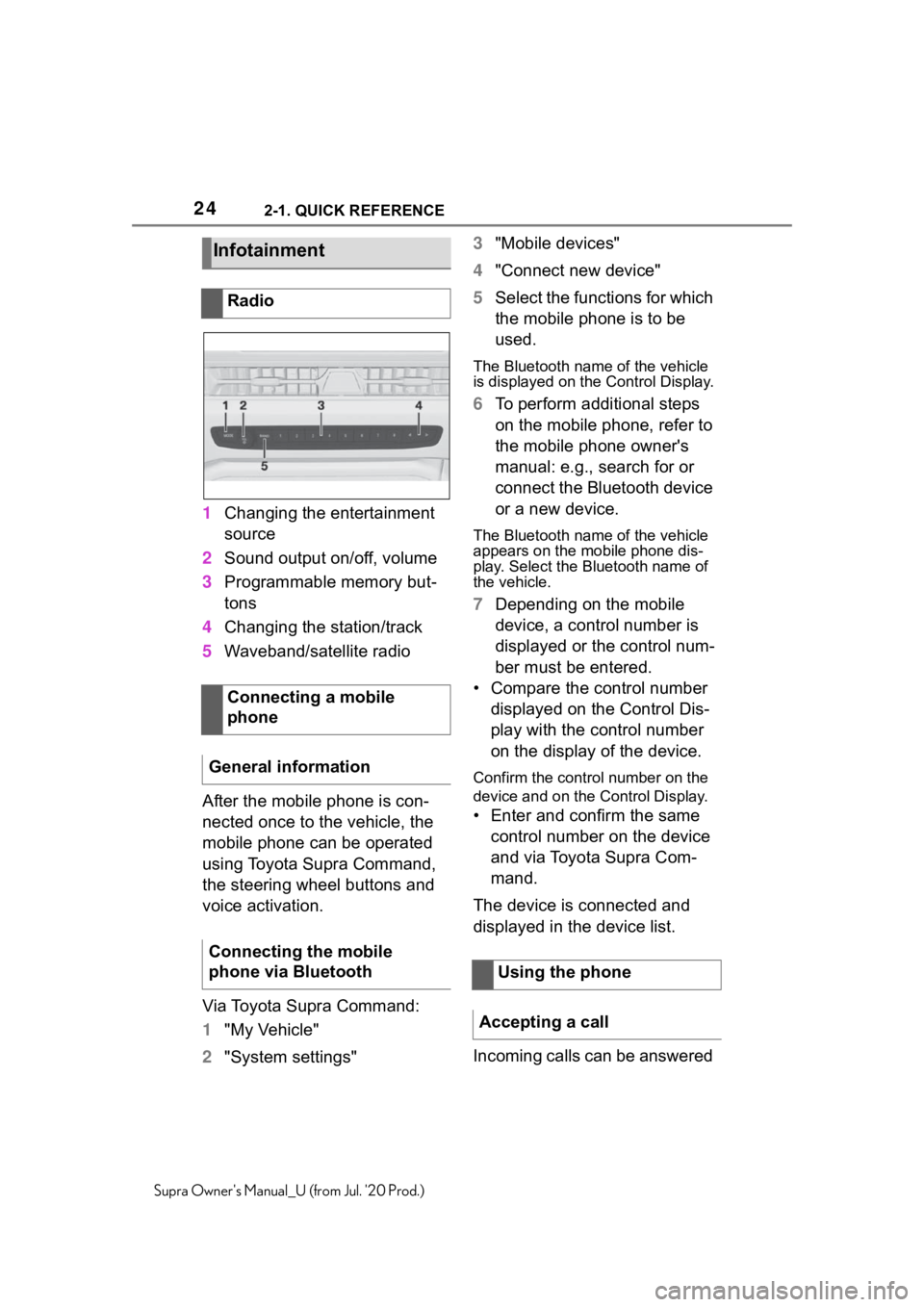
1Changing the entertainment
source
2 Sound output on/off, volume
3 Programmable memory but-
tons
4 Changing the station/track
5 Waveband/satellite radio
After the mobile phone is con-
nected once to the vehicle, the
mobile phone can be operated
using Toyota Supra Command,
the steering wheel buttons and
voice activation.
Via Toyota Supra Command:
1 "My Vehicle"
2 "System settings" 3
"Mobile devices"
4 "Connect new device"
5 Select the functions for which
the mobile phone is to be
used.
The Bluetooth name of the vehicle
is displayed on t he Control Display.
6To perform additional steps
on the mobile phone, refer to
the mobile phone owner's
manual: e.g., search for or
connect the Bluetooth device
or a new device.
The Bluetooth name of the vehicle
appears on the mobile phone dis-
play. Select the Bluetooth name of
the vehicle.
7Depending on the mobile
device, a control number is
displayed or the control num-
ber must be entered.
• Compare the control number displayed on the Control Dis-
play with the control number
on the display of the device.
Confirm the contro l number on the
device and on the Control Display.
• Enter and confirm the same
control number on the device
and via Toyota Supra Com-
mand.
The device is connected and
displayed in the device list.
Incoming calls can be answered
Infotainment
Radio
Connecting a mobile
phone
General information
Connecting the mobile
phone via Bluetooth
Using the phone
Accepting a call
Page 37 of 360
373-1. CONTROLS
3
CONTROLS
Supra Owner's Manual_U (from Jul. '20 Prod.)
Low beams P.152
Instrument lighting
P.156
Right roadside parking
light P.152
Left roadside parking
light P.152
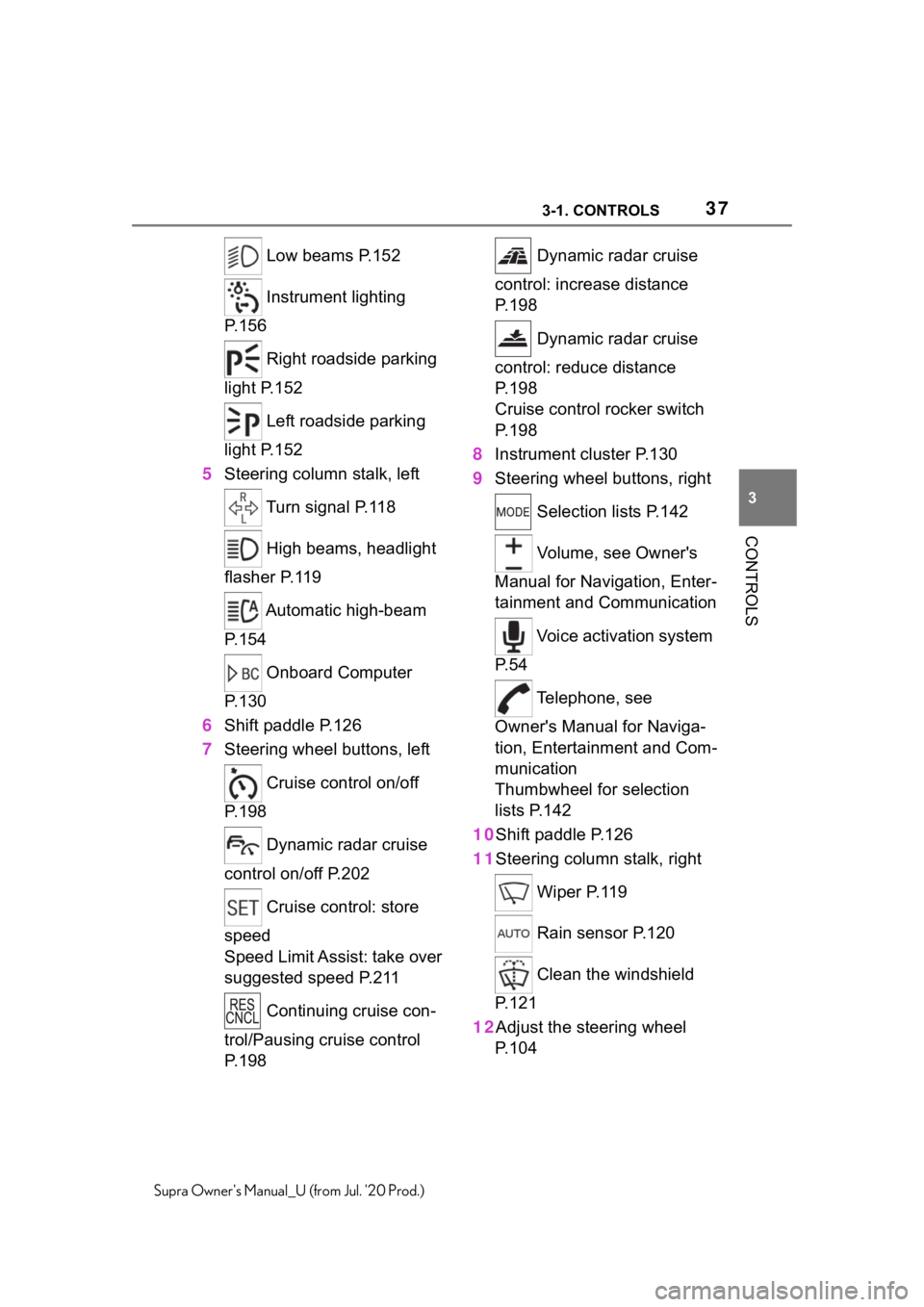
5 Steering column stalk, left
Turn signal P.118
High beams, headlight
flasher P.119
Automatic high-beam
P.154
Onboard Computer
P.130
6 Shift paddle P.126
7 Steering wheel buttons, left
Cruise control on/off
P.198
Dynamic radar cruise
control on/off P.202
Cruise control: store
speed
Speed Limit Assist: take over
suggested speed P.211
Continuing cruise con-
trol/Pausing cruise control
P.198 Dynamic radar cruise
control: increase distance
P. 1 9 8
Dynamic radar cruise
control: reduce distance
P. 1 9 8
Cruise control rocker switch
P. 1 9 8
8 Instrument cluster P.130
9 Steering wheel buttons, right
Selection lists P.142
Volume, see Owner's
Manual for Navigation, Enter-
tainment and Communication
Voice activation system
P. 5 4
Telephone, see
Owner's Manual for Naviga-
tion, Entertainment and Com-
munication
Thumbwheel for selection
lists P.142
10Shift paddle P.126
11Steering column stalk, right
Wiper P.119
Rain sensor P.120
Clean the windshield
P. 1 2 1
12Adjust the steering wheel P. 1 0 4
Page 38 of 360
383-1. CONTROLS
Supra Owner's Manual_U (from Jul. '20 Prod.)
13 Horn, entire surface
14 Unlock hood P.292 15
Unlocking the trunk lid
P. 7 7
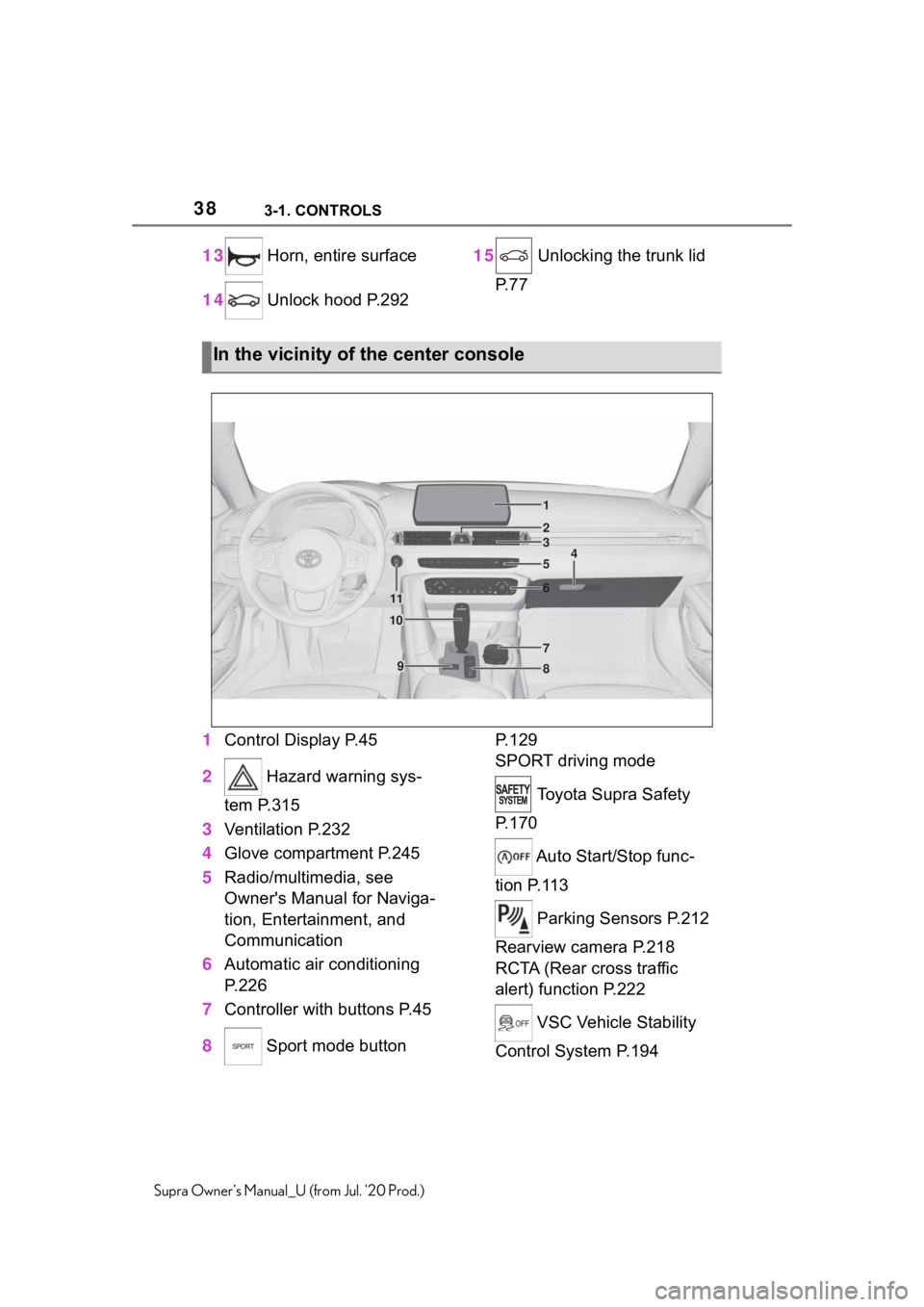
1 Control Display P.45
2 Hazard warning sys-
tem P.315
3 Ventilation P.232
4 Glove compartment P.245
5 Radio/multimedia, see
Owner's Manual for Naviga-
tion, Entertainment, and
Communication
6 Automatic air conditioning
P.226
7 Controller with buttons P.45
8 Sport mode button P. 1 2 9
SPORT driving mode
Toyota Supra Safety
P. 1 7 0
Auto Start/Stop func-
tion P.113
Parking Sensors P.212
Rearview camera P.218
RCTA (Rear cross traffic
alert) function P.222
VSC Vehicle Stability
Control System P.194
In the vicinity of the center console
1
4
23
5
6
7
89
10
11
Page 45 of 360
453-1. CONTROLS
3
CONTROLS
Supra Owner's Manual_U (from Jul. '20 Prod.)
Additional symbols
■General information
Additional information can be
displayed in several menus on
the right side of the split screen
display, the so-called split
screen, for instance information
from the Onboard Computer.
The additional information
remains visible even when
switching to another menu on
the split screen.
■Switching on/off
1 Press the button.
2 "Split screen"
■Selecting the display
The display can be selected in
menus, where the split screen is
supported. 1
Move the Controller to the
right until the split screen is
selected.
2 Press the Controller.
3 Select the desired setting.
■Specifying the number of
displays
It is possible to specify the num-
ber of displays.
1 Move the Controller to the
right until the split screen is
selected.
2 Press the Controller.
3 "Personalize menu"
4 Select the desired setting.
5 Move the Controller to the
left.
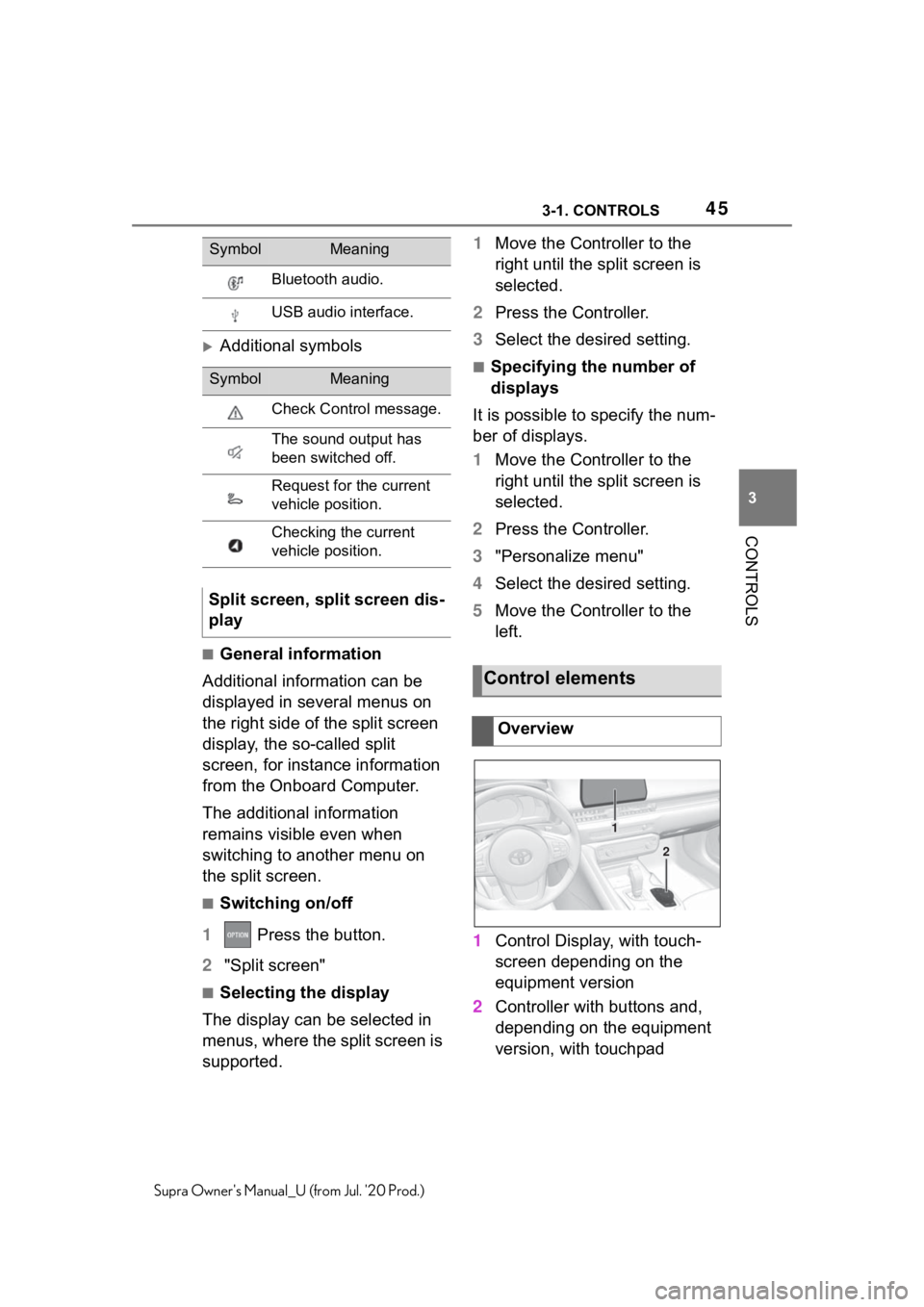
1 Control Display, with touch-
screen depending on the
equipment version
2 Controller with buttons and,
depending on the equipment
version, with touchpad
Bluetooth audio.
USB audio interface.
SymbolMeaning
Check Control message.
The sound output has
been switched off.
Request for the current
vehicle position.
Checking the current
vehicle position.
Split screen, split screen dis-
play
SymbolMeaning
Control elements
Overview
1
2
Page 46 of 360
463-1. CONTROLS
Supra Owner's Manual_U (from Jul. '20 Prod.)
To clean the Control Display, fol-
low the care instructions, refer to
page 327.
In the case of very high tem-
peratures on the Control Dis-
play, for instance due to intense
solar radiation, the brightness
may be reduced down to com-
plete deactivation. Once the
temperature is reduced, for
instance through shade or air
conditioning, the normal func-
tions are restored.
The Control Display is switched
on automatically after unlocking.
In certain situations, the Control
Display is switched off automati-
cally, for instance if no operation
is performed on the vehicle for
several minutes.The Control Display can also be
switched off manually.
1
Press the button.
2 "Turn off control display"
Press the Controller or any but-
ton on the Controller to switch it
back on again.
The buttons can be used to
open the menus directly. The
Controller can be used to select
menu items and enter the set-
tings.
Some Toyota Supra Command
functions can be operated using
the touchpad on the Controller,
refer to page 52.
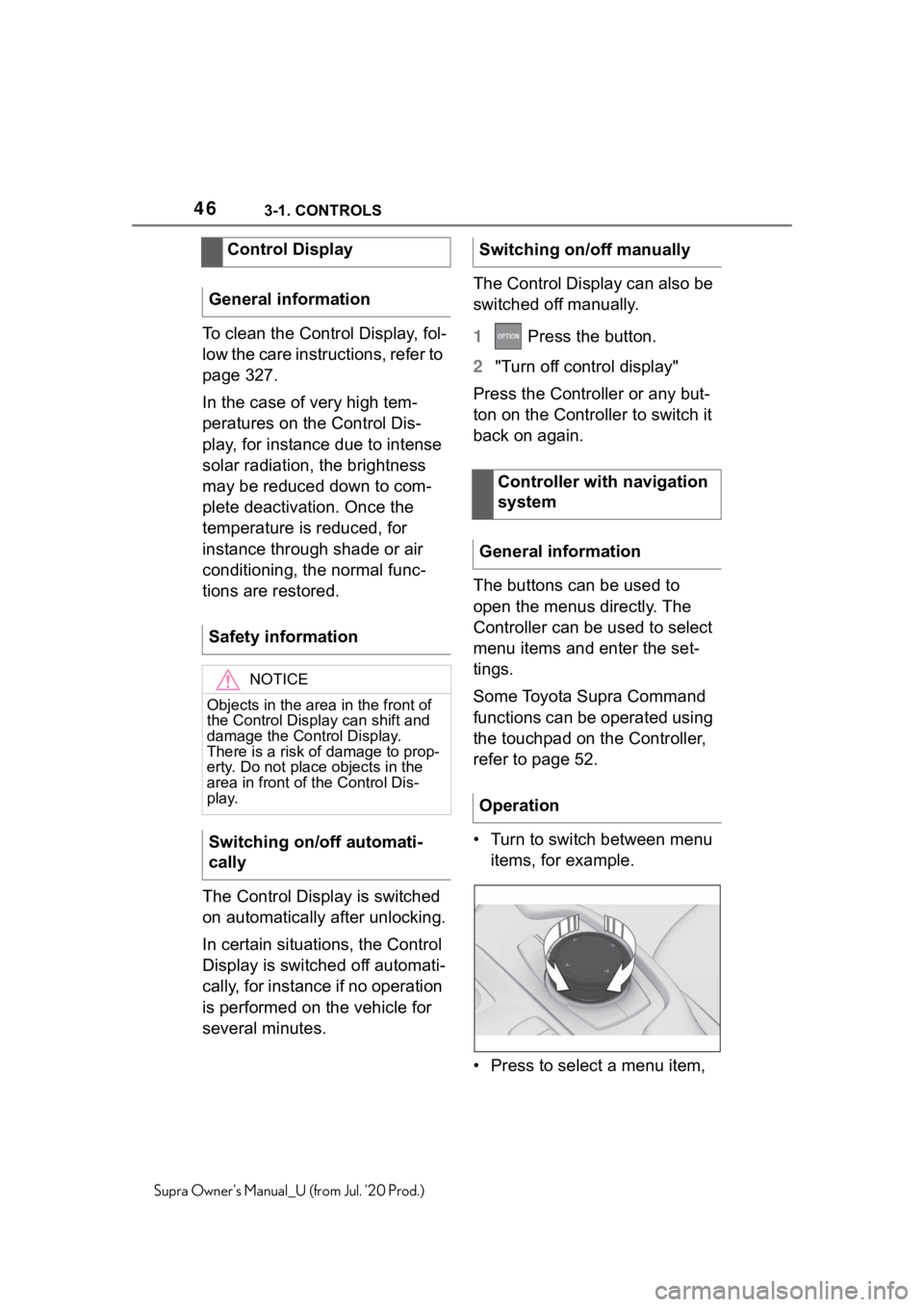
• Turn to switch between menu items, for example.
• Press to select a menu item,
Control Display
General information
Safety information
NOTICE
Objects in the are a in the front of
the Control Display can shift and
damage the Cont rol Display.
There is a risk of damage to prop-
erty. Do not place objects in the
area in front of the Control Dis-
play.
Switching on/off automati-
cally
Switching on/off manually
Controller with navigation
system
General information
Operation
Page 47 of 360
473-1. CONTROLS
3
CONTROLS
Supra Owner's Manual_U (from Jul. '20 Prod.)
for example.
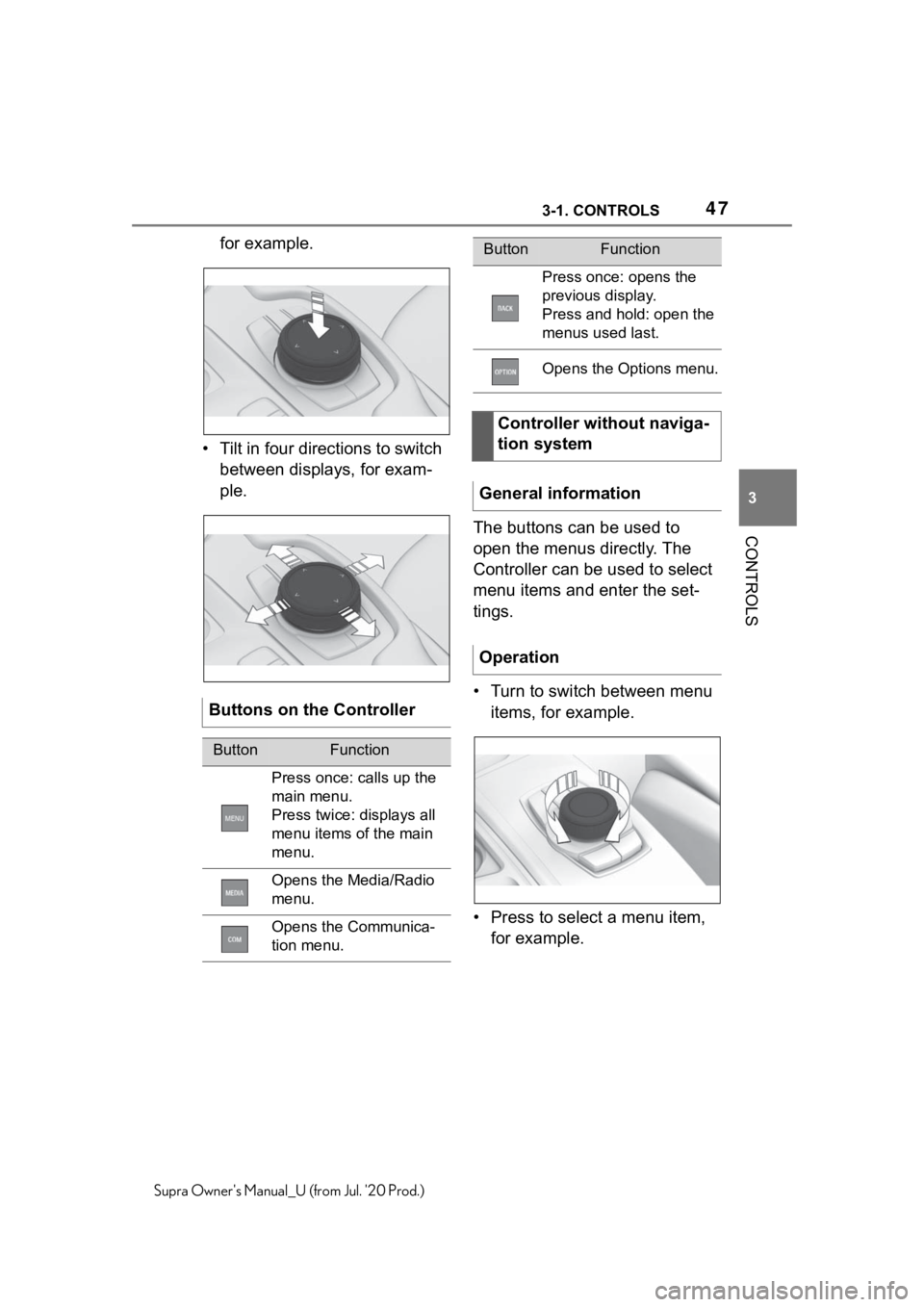
• Tilt in four directions to switch between displays, for exam-
ple.
The buttons can be used to
open the menus directly. The
Controller can be used to select
menu items and enter the set-
tings.
• Turn to switch between menu items, for example.
• Press to select a menu item, for example.
Buttons on the Controller
ButtonFunction
Press once: calls up the
main menu.
Press twice: displays all
menu items of the main
menu.
Opens the Media/Radio
menu.
Opens the Communica-
tion menu.
Press once: opens the
previous display.
Press and hold: open the
menus used last.
Opens the Options menu.
Controller without naviga-
tion system
General information
Operation
ButtonFunction
Page 48 of 360
483-1. CONTROLS
Supra Owner's Manual_U (from Jul. '20 Prod.)
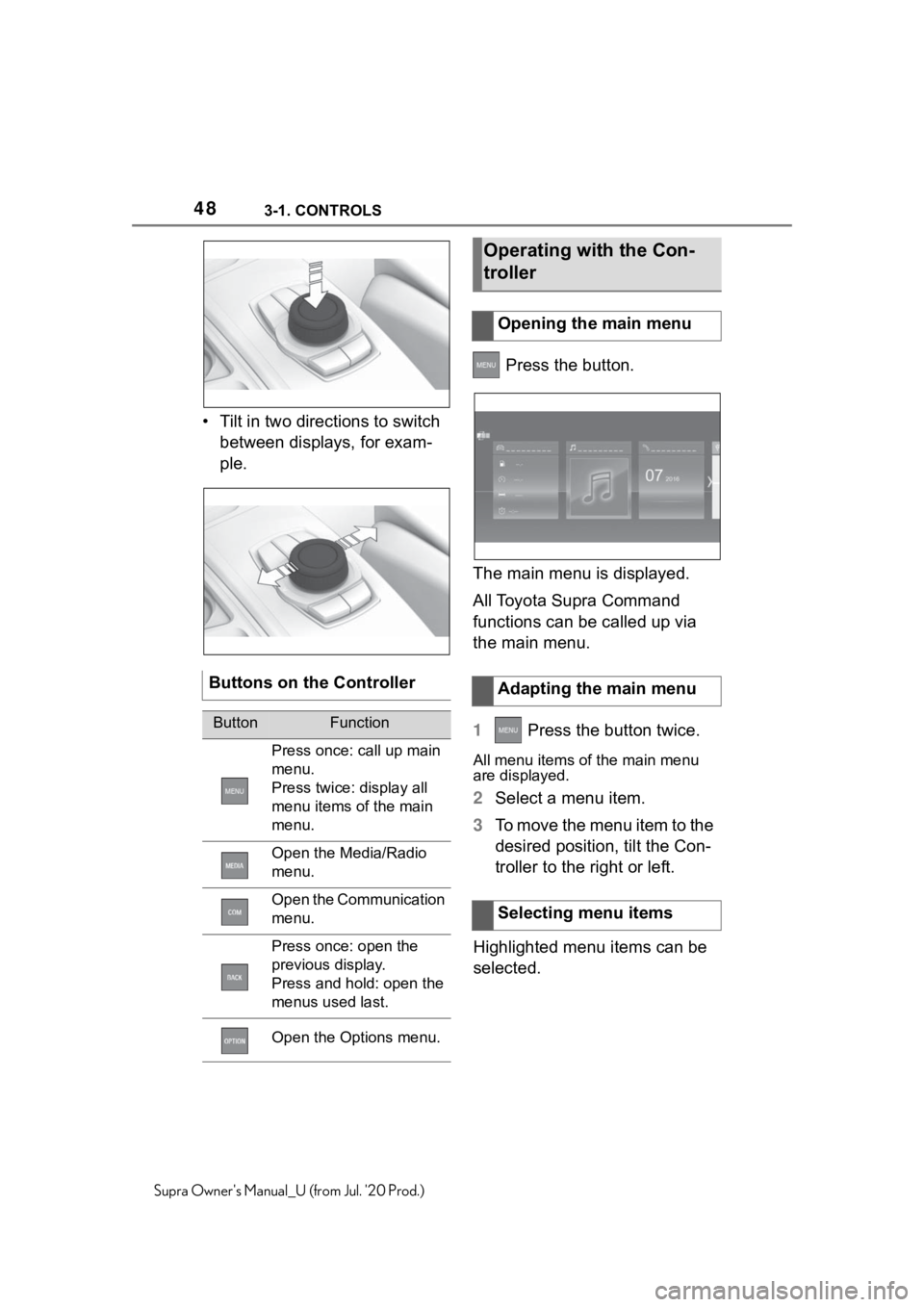
• Tilt in two directions to switch
between displays, for exam-
ple. Press the button.
The main menu is displayed.
All Toyota Supra Command
functions can be called up via
the main menu.
1 Press the button twice.
All menu items of the main menu
are displayed.
2Select a menu item.
3 To move the menu item to the
desired position, tilt the Con-
troller to the right or left.
Highlighted menu items can be
selected.
Buttons on the Controller
ButtonFunction
Press once: call up main
menu.
Press twice: display all
menu items of the main
menu.
Open the Media/Radio
menu.
Open the Communication
menu.
Press once: open the
previous display.
Press and hold: open the
menus used last.
Open the Options menu.
Operating with the Con-
troller
Opening the main menu
Adapting the main menu
Selecting menu items
Page 53 of 360
533-1. CONTROLS
3
CONTROLS
Supra Owner's Manual_U (from Jul. '20 Prod.)
The map in the navigation sys-
tem can be moved via the
touchpad.The Toyota Supra Command
functions can be stored on the
programmable memory buttons
and called up directly, for
instance radio stations, naviga-
tion destinations and phone
numbers.
Settings are stored for the driver
profile currently used.
1
Select function via Toyota
Supra Command.
2 Press and hold the
desired button until a signal
sounds.
Press the button.
The function will work immedi-
ately. This means, for instance
that the number is dialed when a
phone number is selected.
Touch buttons with finger. Do
not wear gloves or use objects.
The button assignment is dis-
played at the top edge of
Entering special charac-
ters
EntryOperation
Delete a charac-
ter.Swipe to the left
on the touchpad.
Enter a blank
space.
Swipe to the
right in the cen-
ter of the touch-
pad.
Enter a hyphen.
Swipe to the
right in the upper
area of the
touchpad.
Enter an under-
score.
Swipe to the
right in the lower
area of the
touchpad.
Using the map
FunctionOperation
Move map.
Swipe in the
appropriate
direction.
Enlarge/shrink
map.Drag in or out on
the touchpad
with fingers.
Display menu.Tap once.
Programmable memory
buttons
General information
Storing a function
Running a function
Displaying the key assign-
ment