steering TOYOTA SUPRA 2021 Owners Manual (in English)
[x] Cancel search | Manufacturer: TOYOTA, Model Year: 2021, Model line: SUPRA, Model: TOYOTA SUPRA 2021Pages: 360, PDF Size: 10.41 MB
Page 2 of 360
2
Supra Owner's Manual_U (from Jul. '20 Prod.)TABLE OF CONTENTS
1-1. NOTES
Information .............................. 4
2-1. QUICK REFERENCE Entering ................................. 16
Set-up and use ...................... 22
In transit ................................ 26
3-1. CONTROLS Cockpit .................................. 36
Operating state of the vehicle ............................................ 40
Toyota Supra Command ....... 43
General settings .................... 57
Personal settings .................. 61
Connections .......................... 66
Opening and closing ............. 74
Seats, mirrors, and steering wheel................................... 93
Transporting children safely ......................................... 106
Driving ................................ 112
Displays ............................. 130
Lights ................................. 150
Safety ................................. 157
Driving stability control systems ......................................... 193
Driver assistance systems . 198
Driving comfort ................... 225
Climate control ................... 226
Interior equipment .............. 235
Storage compartments ....... 244
Cargo area ......................... 2464-1. DRIVING TIPS
Things to remember when driv-ing .................................... 252
Saving fuel ......................... 257
5-1. MOBILITY Refueling ............................ 262
Wheels and tires ................ 264
Engine compartment .......... 290
Operating materials............ 293
Maintenance ...................... 301
Replacing components ...... 303
Breakdown assistance ....... 313
Care ................................... 322
6-1. REFERENCE Technical data .................... 330
Certification ........................ 333
Alphabetical Index.............. 344
1NOTES
2QUICK REFERENCE
3CONTROLS
4DRIVING TIPS
5MOBILITY
6REFERENCE
Index
Page 22 of 360
222-1. QUICK REFERENCE
Supra Owner's Manual_U (from Jul. '20 Prod.)
■Activating the voice activa-
tion system
1 Press the button on the
steering wheel.
2 Wait for the signal.
3 Say the command.
If no other commands are possi-
ble, operate the function via Toy-
ota Supra Command.
■Terminating the voice acti-
vation system 1
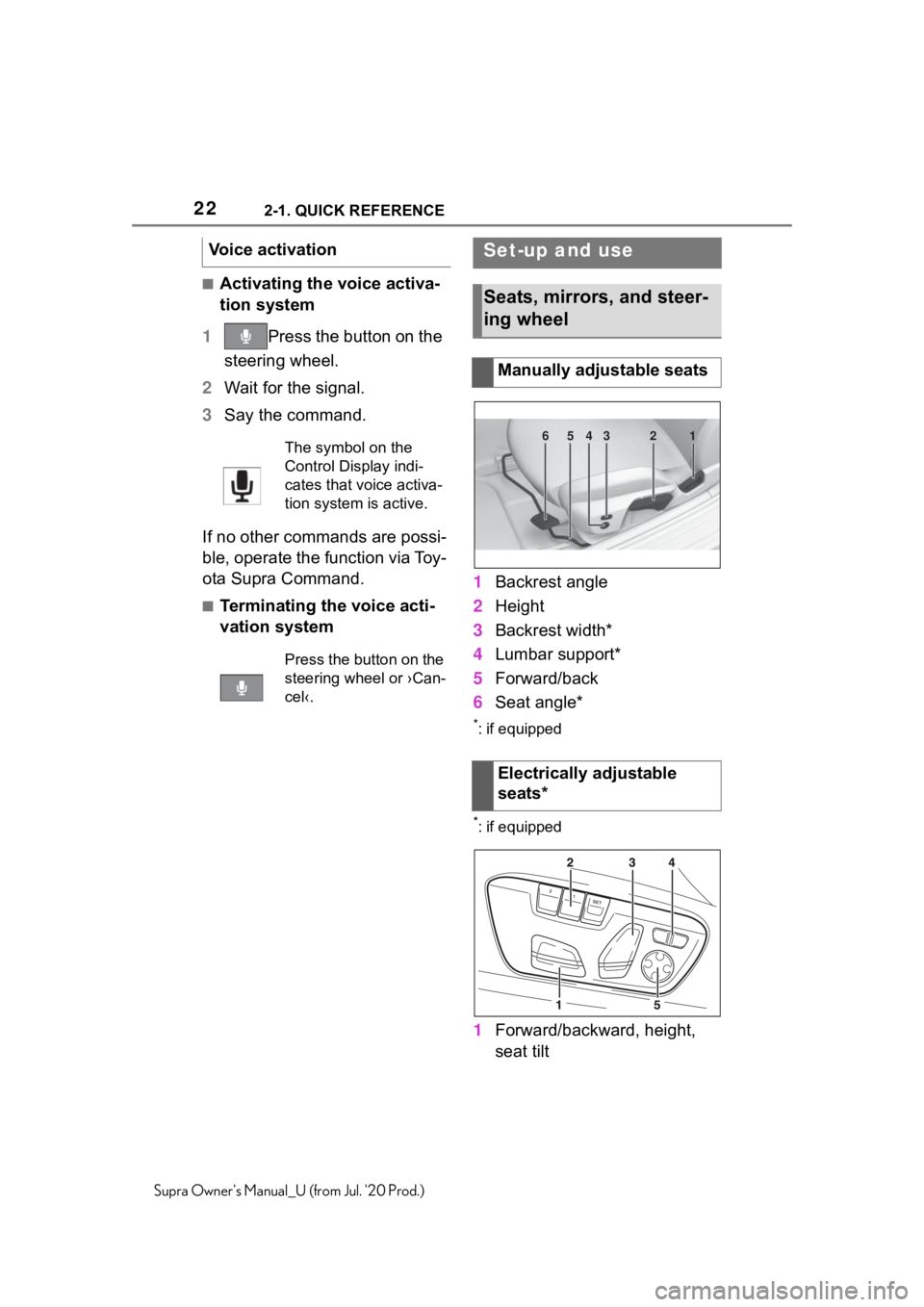
Backrest angle
2 Height
3 Backrest width*
4 Lumbar support*
5 Forward/back
6 Seat angle*
*: if equipped
*: if equipped
1Forward/backward, height,
seat tilt
Voice activation
The symbol on the
Control Display indi-
cates that voice activa-
tion system is active.
Press the button on the
steering wheel or ›Can-
cel‹.
Set-up and use
Seats, mirrors, and steer-
ing wheel
Manually adjustable seats
Electrically adjustable
seats*
654321
Page 23 of 360
232-1. QUICK REFERENCE
2
QUICK REFERENCE
Supra Owner's Manual_U (from Jul. '20 Prod.)
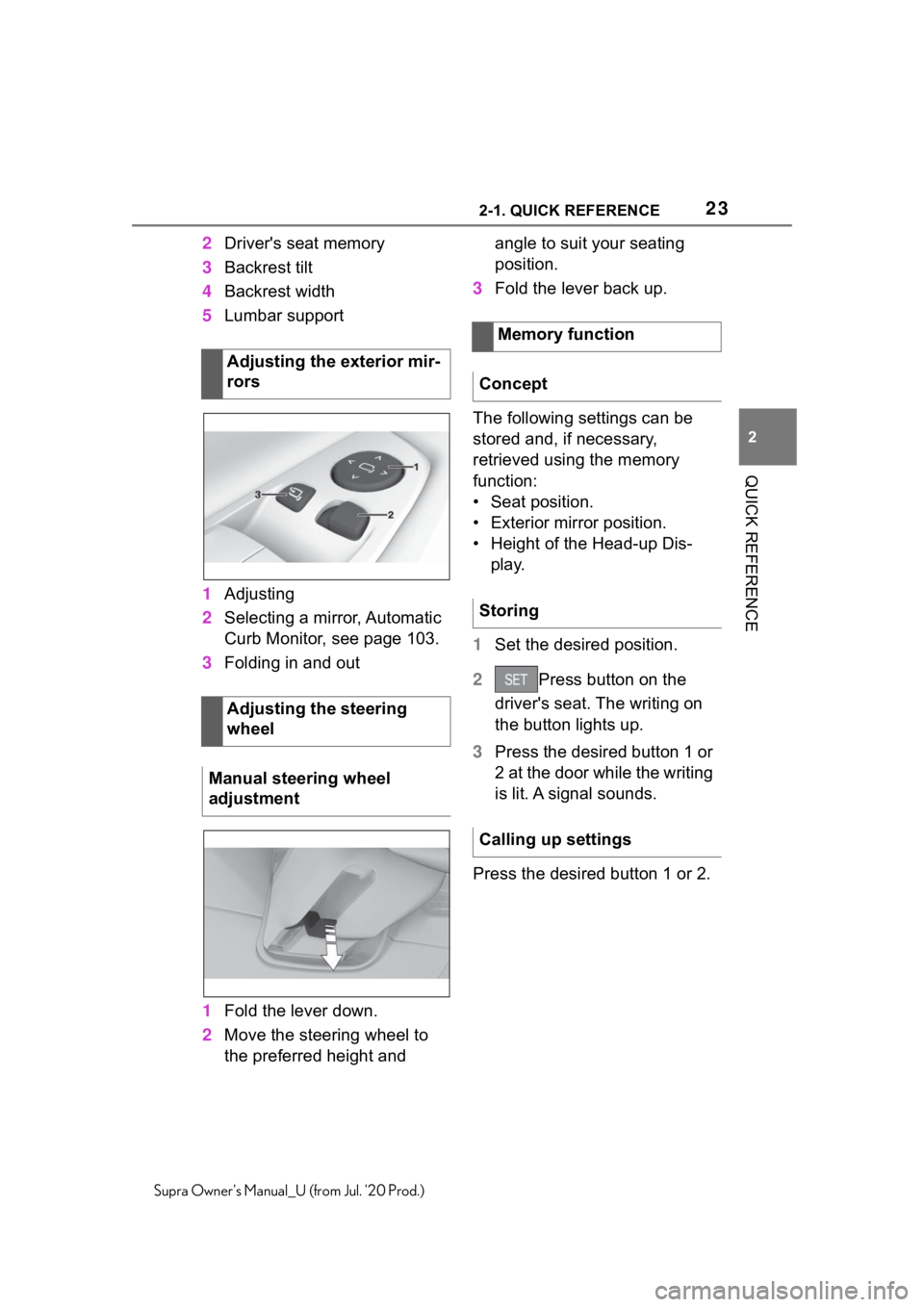
2Driver's seat memory
3 Backrest tilt
4 Backrest width
5 Lumbar support
1 Adjusting
2 Selecting a mirror, Automatic
Curb Monitor, see page 103.
3 Folding in and out
1 Fold the lever down.
2 Move the steering wheel to
the preferred height and angle to suit your seating
position.
3 Fold the lever back up.
The following settings can be
stored and, if necessary,
retrieved using the memory
function:
• Seat position.
• Exterior mirror position.
• Height of the Head-up Dis- play.
1 Set the desired position.
2 Press button on the
driver's seat. The writing on
the button lights up.
3 Press the desired button 1 or
2 at the door while the writing
is lit. A signal sounds.
Press the desired button 1 or 2.
Adjusting the exterior mir-
rors
Adjusting the steering
wheel
Manual steering wheel
adjustment
Memory function
Concept
Storing
Calling up settings
Page 24 of 360
242-1. QUICK REFERENCE
Supra Owner's Manual_U (from Jul. '20 Prod.)
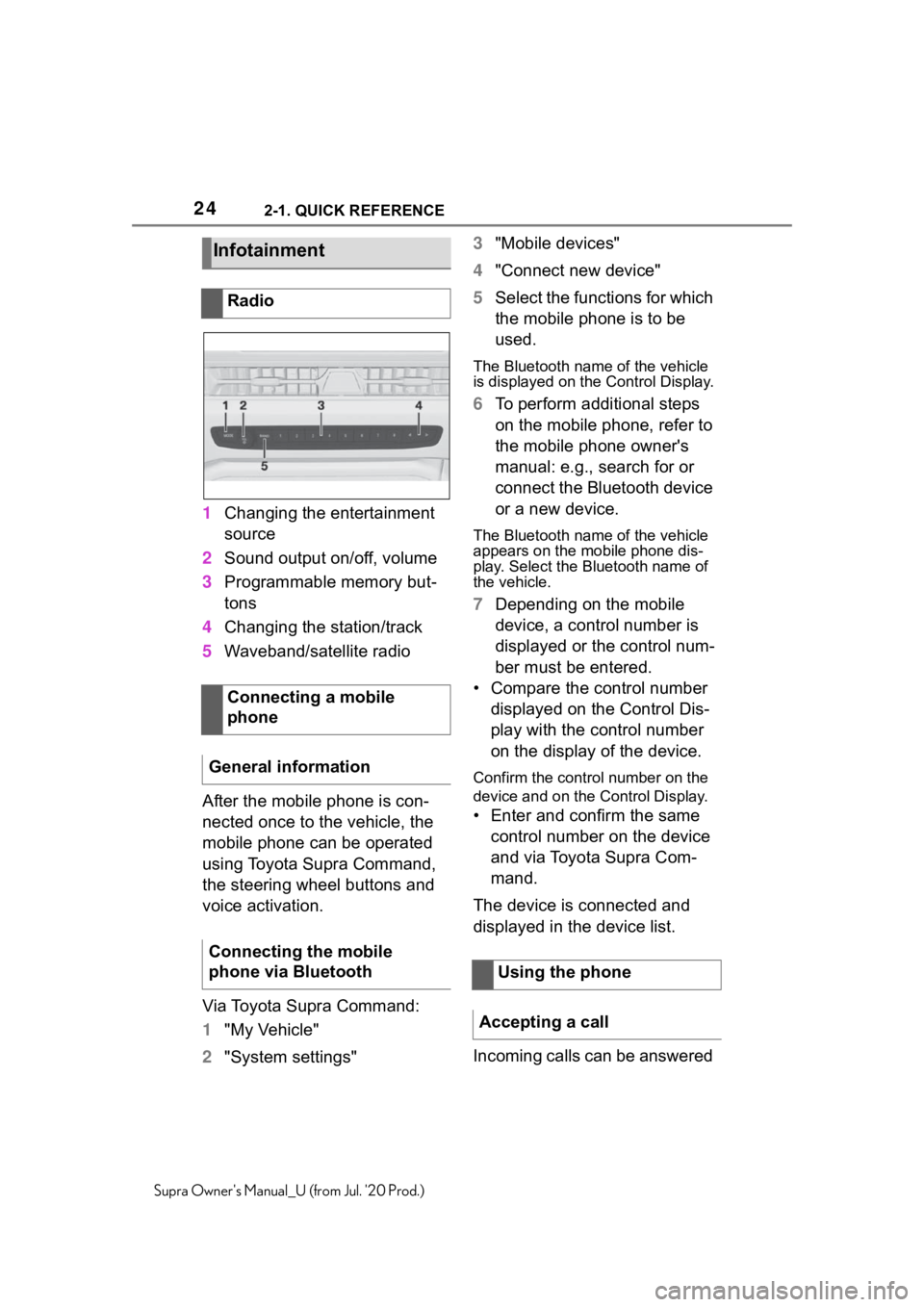
1Changing the entertainment
source
2 Sound output on/off, volume
3 Programmable memory but-
tons
4 Changing the station/track
5 Waveband/satellite radio
After the mobile phone is con-
nected once to the vehicle, the
mobile phone can be operated
using Toyota Supra Command,
the steering wheel buttons and
voice activation.
Via Toyota Supra Command:
1 "My Vehicle"
2 "System settings" 3
"Mobile devices"
4 "Connect new device"
5 Select the functions for which
the mobile phone is to be
used.
The Bluetooth name of the vehicle
is displayed on t he Control Display.
6To perform additional steps
on the mobile phone, refer to
the mobile phone owner's
manual: e.g., search for or
connect the Bluetooth device
or a new device.
The Bluetooth name of the vehicle
appears on the mobile phone dis-
play. Select the Bluetooth name of
the vehicle.
7Depending on the mobile
device, a control number is
displayed or the control num-
ber must be entered.
• Compare the control number displayed on the Control Dis-
play with the control number
on the display of the device.
Confirm the contro l number on the
device and on the Control Display.
• Enter and confirm the same
control number on the device
and via Toyota Supra Com-
mand.
The device is connected and
displayed in the device list.
Incoming calls can be answered
Infotainment
Radio
Connecting a mobile
phone
General information
Connecting the mobile
phone via Bluetooth
Using the phone
Accepting a call
Page 25 of 360
252-1. QUICK REFERENCE
2
QUICK REFERENCE
Supra Owner's Manual_U (from Jul. '20 Prod.)
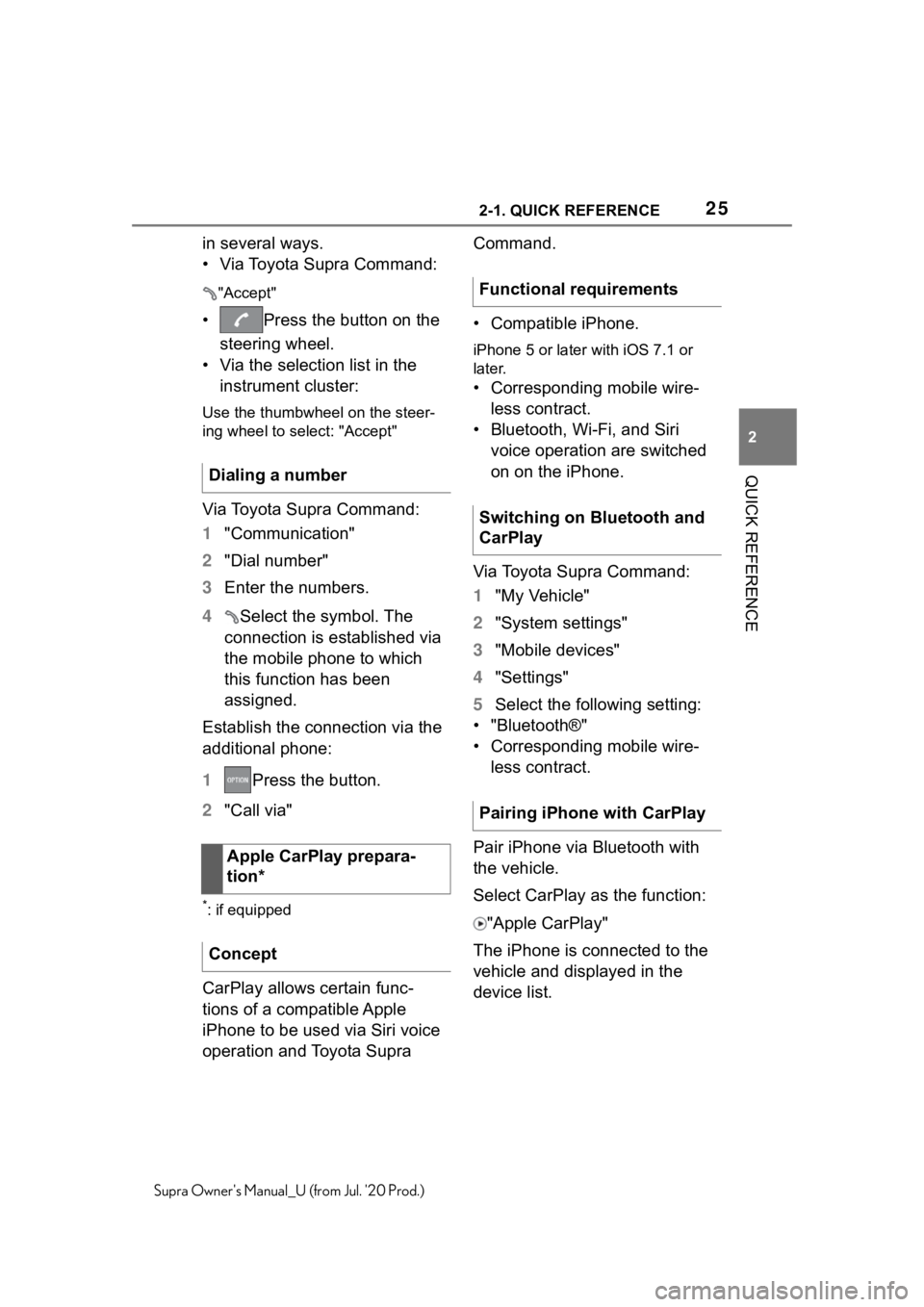
in several ways.
• Via Toyota Supra Command:
"Accept"
• Press the button on the steering wheel.
• Via the selection list in the instrument cluster:
Use the thumbwheel on the steer-
ing wheel to select: "Accept"
Via Toyota Supra Command:
1 "Communication"
2 "Dial number"
3 Enter the numbers.
4 Select the symbol. The
connection is established via
the mobile phone to which
this function has been
assigned.
Establish the connection via the
additional phone:
1 Press the button.
2 "Call via"
*: if equipped
CarPlay allows certain func-
tions of a compatible Apple
iPhone to be used via Siri voice
operation and Toyota Supra Command.
• Compatible iPhone.
iPhone 5 or later
with iOS 7.1 or
later.
• Corresponding mobile wire-
less contract.
• Bluetooth, Wi-Fi, and Siri voice operation are switched
on on the iPhone.
Via Toyota Supra Command:
1 "My Vehicle"
2 "System settings"
3 "Mobile devices"
4 "Settings"
5 Select the following setting:
• "Bluetooth®"
• Corresponding mobile wire- less contract.
Pair iPhone via Bluetooth with
the vehicle.
Select CarPlay as the function: "Apple CarPlay"
The iPhone is connected to the
vehicle and displayed in the
device list.
Dialing a number
Apple CarPlay prepara-
tion*
Concept
Functional requirements
Switching on Bluetooth and
CarPlay
Pairing iPhone with CarPlay
Page 35 of 360
35
3
3
CONTROLS
Supra Owner's Manual_U (from Jul. '20 Prod.)
CONTROLS
.3-1. CONTROLSCockpit ........................... 36
Operating state of the vehi- cle................................. 40
Toyota Supra Command ..................................... 43
General settings ............. 57
Personal settings ........... 61
Connections ................... 66
Opening and closing ...... 74
Seats, mirrors, and steering wheel ............................ 93
Transporting children safely .................................. 106
Driving ......................... 112
Displays ...................... 130
Lights .......................... 150
Safety .......................... 157
Driving stabilit y control sys-
tems .......................... 193
Driver assistance systems .................................. 198
Driving comfort ............ 225
Climate control ............ 226
Interior equipment ....... 235
Storage compartments .................................. 244
Cargo area .................. 246
Page 36 of 360
363-1. CONTROLS
Supra Owner's Manual_U (from Jul. '20 Prod.)
3-1.CONTROLS
This chapter describes all standard, country-specific and optional
features offered with the series . It also describes features and func-
tions that are not necessarily available in your vehicle, e.g., due to
the selected options or country versions. This also applies to
safety-related functions and systems. When using these functions
and systems, the applicable laws and regulations must be observ ed.
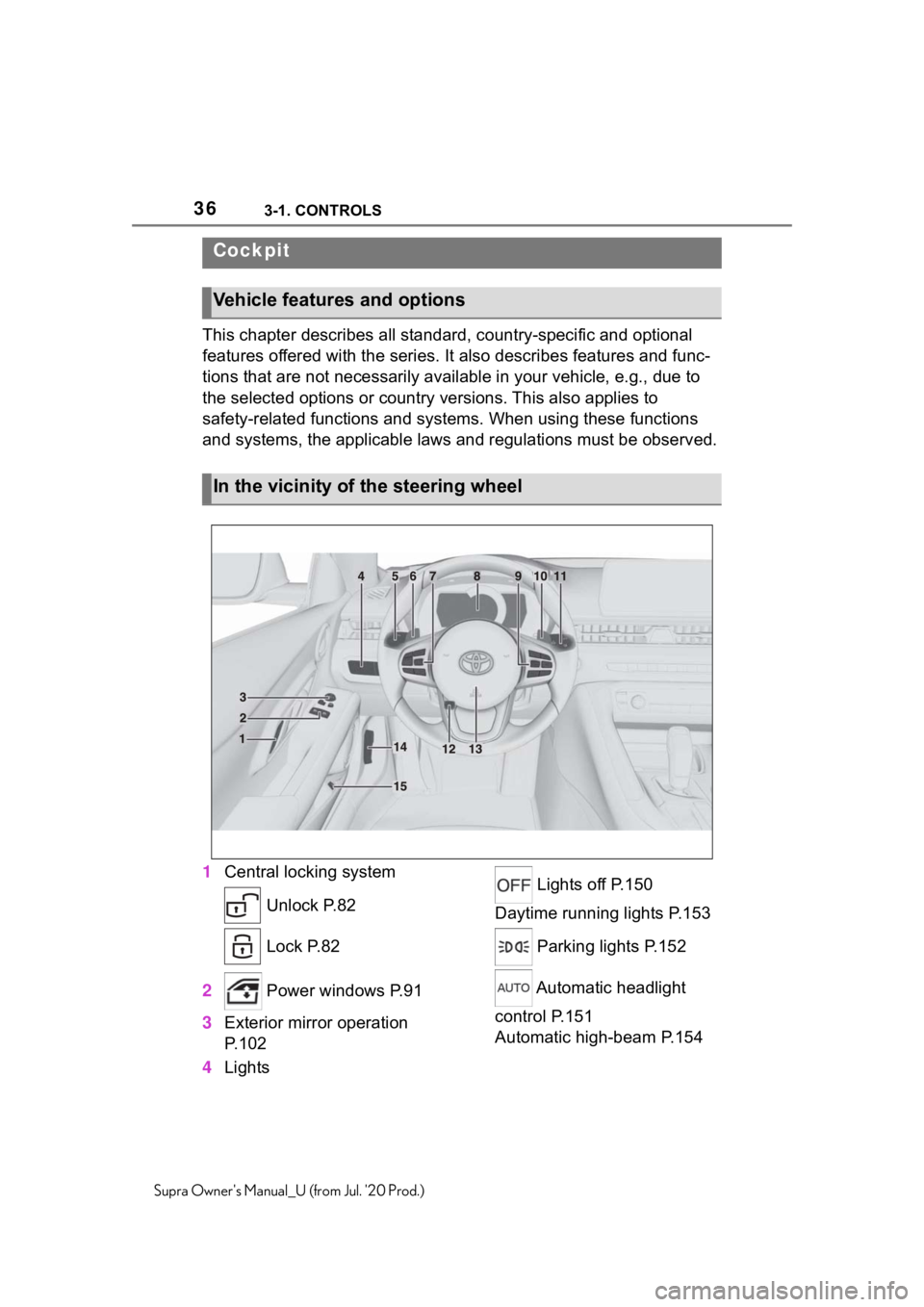
1 Central locking system
Unlock P.82
Lock P.82
2 Power windows P.91
3 Exterior mirror operation
P.102
4 Lights Lights off P.150
Daytime running lights P.153
Parking lights P.152
Automatic headlight
control P.151
Automatic high-beam P.154
Cockpit
Vehicle features and options
In the vicinity of the steering wheel
Page 37 of 360
373-1. CONTROLS
3
CONTROLS
Supra Owner's Manual_U (from Jul. '20 Prod.)
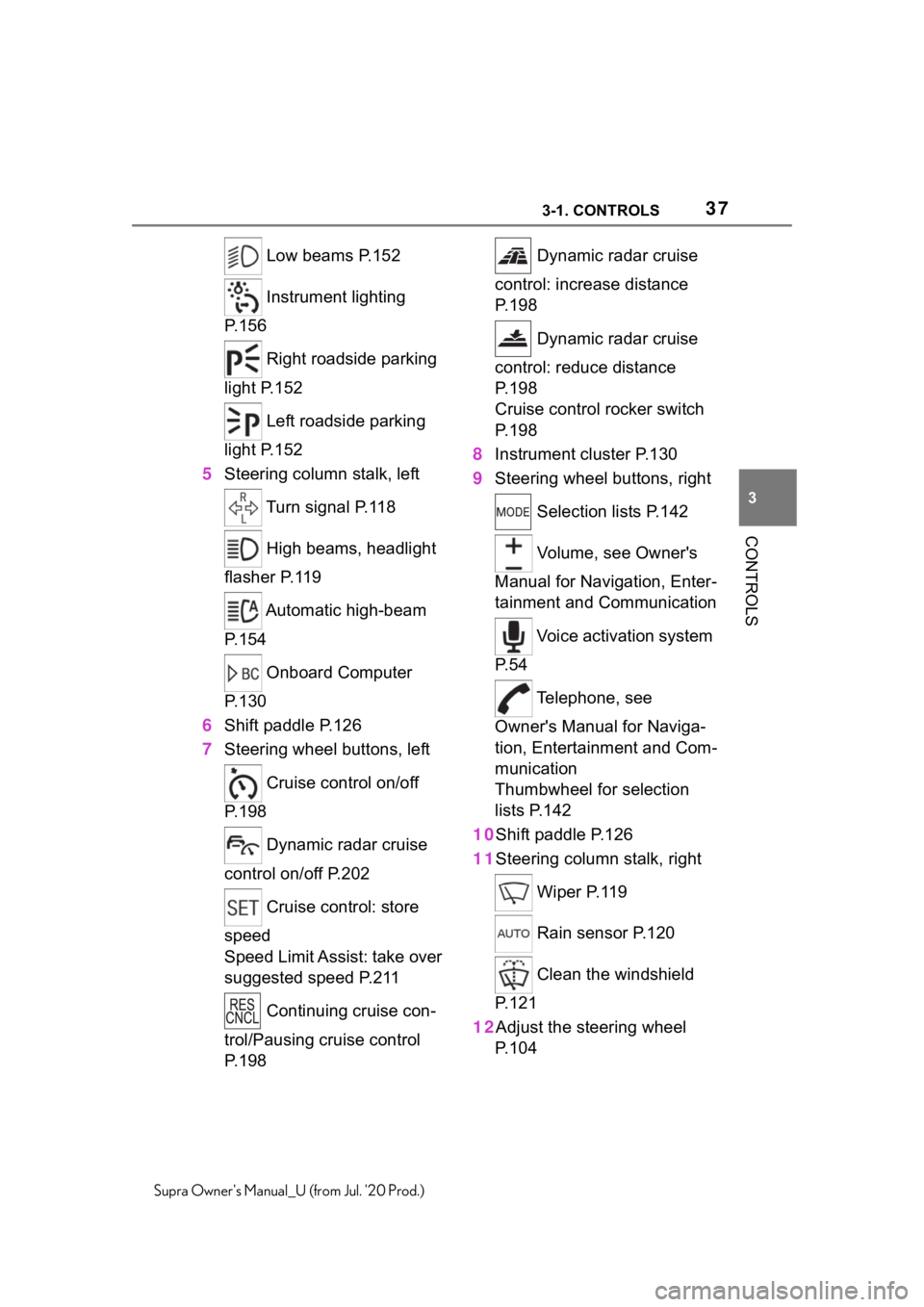
Low beams P.152
Instrument lighting
P.156
Right roadside parking
light P.152
Left roadside parking
light P.152
5 Steering column stalk, left
Turn signal P.118
High beams, headlight
flasher P.119
Automatic high-beam
P.154
Onboard Computer
P.130
6 Shift paddle P.126
7 Steering wheel buttons, left
Cruise control on/off
P.198
Dynamic radar cruise
control on/off P.202
Cruise control: store
speed
Speed Limit Assist: take over
suggested speed P.211
Continuing cruise con-
trol/Pausing cruise control
P.198 Dynamic radar cruise
control: increase distance
P. 1 9 8
Dynamic radar cruise
control: reduce distance
P. 1 9 8
Cruise control rocker switch
P. 1 9 8
8 Instrument cluster P.130
9 Steering wheel buttons, right
Selection lists P.142
Volume, see Owner's
Manual for Navigation, Enter-
tainment and Communication
Voice activation system
P. 5 4
Telephone, see
Owner's Manual for Naviga-
tion, Entertainment and Com-
munication
Thumbwheel for selection
lists P.142
10Shift paddle P.126
11Steering column stalk, right
Wiper P.119
Rain sensor P.120
Clean the windshield
P. 1 2 1
12Adjust the steering wheel P. 1 0 4
Page 54 of 360
543-1. CONTROLS
Supra Owner's Manual_U (from Jul. '20 Prod.)
screen.
1Press and hold buttons 1 and
8 simultaneously for approx.
5 seconds.
2 "OK"
Most functions displayed on the
Control Display can be operated
by voice commands via the
voice activation system. The
system supports you with
announcements during input.
• Functions that can only be used when the vehicle is sta-
tionary can only be operated
via the voice activation sys-
tem to a limited extent.
• The system uses a special microphone on the driver's
side.
• ›...‹ in the Owner's Manual denotes verbal instructions to
use with the voice activation
system.
• A language must be set via Toyota Supra Command that is supported by the voice acti-
vation system. To set the lan-
guage, refer to page 57
• Always say commands in the language of the voice activa-
tion system.
1 Press the button on the
steering wheel.
2 Wait for the signal.
3 Say the command.
No other commands may be
available. In this case, operate
the function via Toyota Supra
Command.
Most menu items on the Control
Display can be voiced as com-
mands.
Deleting the button
assignments
Operation via voice
Concept
General information
Functional requirements
Using the voice activation
system
Activating the voice activa-
tion system
This symbol indicates that
the voice activation sys-
tem is active.
Terminating the voice activa-
tion system
Press the button on the
steering wheel or ›Can-
cel‹.
Possible commands
General information
Page 56 of 360
563-1. CONTROLS
Supra Owner's Manual_U (from Jul. '20 Prod.)
1"My Vehicle"
2 "System settings"
3 "Language"
4 "Speaking during voice out-
put"
Online speech processing pro-
vides a dictation function, a nat-
ural method of entering
destinations and improves the
quality of voice recognition. To
use the functions, data is trans-
mitted to a service provider via
an encrypted connection and
stored locally there.
Via Toyota Supra Command:
1 "My Vehicle"
2 "System settings"
3 "Language"
4 "Server speech recognition"
Turn the volume button during
the spoken instructions until the
desired volume is set.
• The volume remains constant even if the volume of other
audio sources is changed.
• The volume is stored for the driver profile currently used.
• Certain noises can be detected and may lead to problems. Keep the doors and
windows closed.
• Noises from the front passen- ger or the rear seat bench can
impair the system. Avoid mak-
ing other noise in the vehicle
while speaking.
• Major language dialects can cause problems with the voice
recognition feature. Speak
loud and clear.
A smartphone connected to the
vehicle can be used via voice
activation.
Activate voice command
response on the smartphone for
this purpose.
1 Press and hold the but-
ton on the steering wheel for
approx. 3 seconds.
Voice command response is acti-
vated on the smartphone.
2Release the button.
If activation is successful, a confir-
mation appears on the Control Dis-
play.
If it was not possible to activate
voice command response, the
list of Bluetooth devices appears
on the Control Display.
Online speech processing
Adjusting the volume
System limits
Using a smartphone via
voice activation