display TOYOTA TACOMA 2011 (in English) User Guide
[x] Cancel search | Manufacturer: TOYOTA, Model Year: 2011, Model line: TACOMA, Model: TOYOTA TACOMA 2011Pages: 548, PDF Size: 9.84 MB
Page 248 of 548
248 3-2. Using the audio system
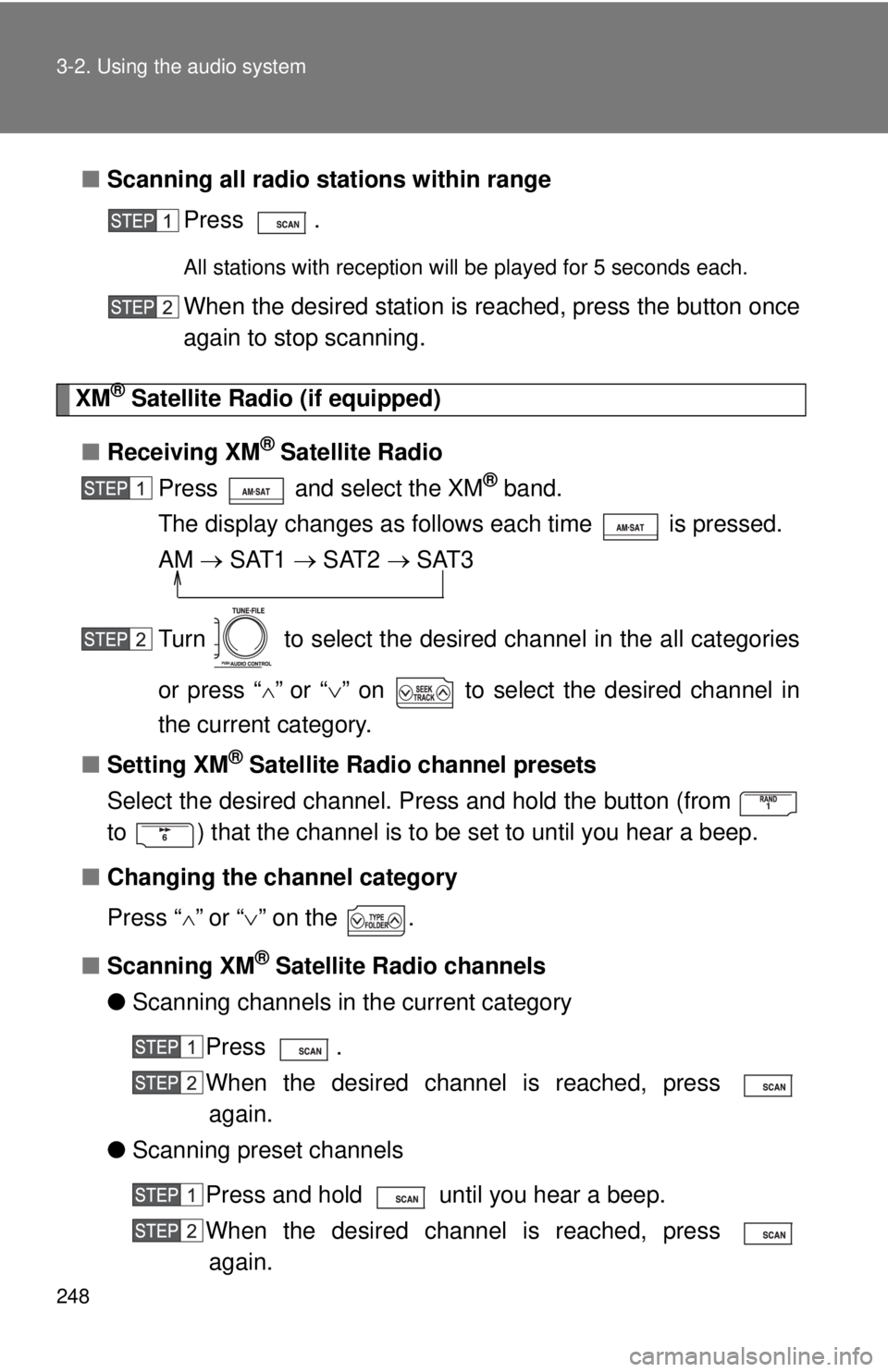
■Scanning all radio stations within range
Press .
All stations with reception will be played for 5 seconds each.
When the desired station is reached, press the button once
again to stop scanning.
XM® Satellite Radio (if equipped)
■ Receiving XM
® Satellite Radio
Press and select the XM
® band.
The display changes as follows each time is pressed.
AM SAT1 SAT2 SAT3
Turn to select the desired channel in the all categories
or press “
”or “ ” on to select the desired channel in
the current category.
■ Setting XM
® Satellite Radio channel presets
Select the desired channel. Press and hold the button (from
to ) that the channel is to be set to until you hear a beep.
■ Changing the channel category
Press “
”or “ ” on the .
■ Scanning XM
® Satellite Radio channels
● Scanning channels in the current category
Press .
When the desired channel is reached, press again.
● Scanning preset channels
Press and hold until you hear a beep.
When the desired channel is reached, press again.
Page 249 of 548
249
3-2. Using the audio system
3
Interior and exterior features
■
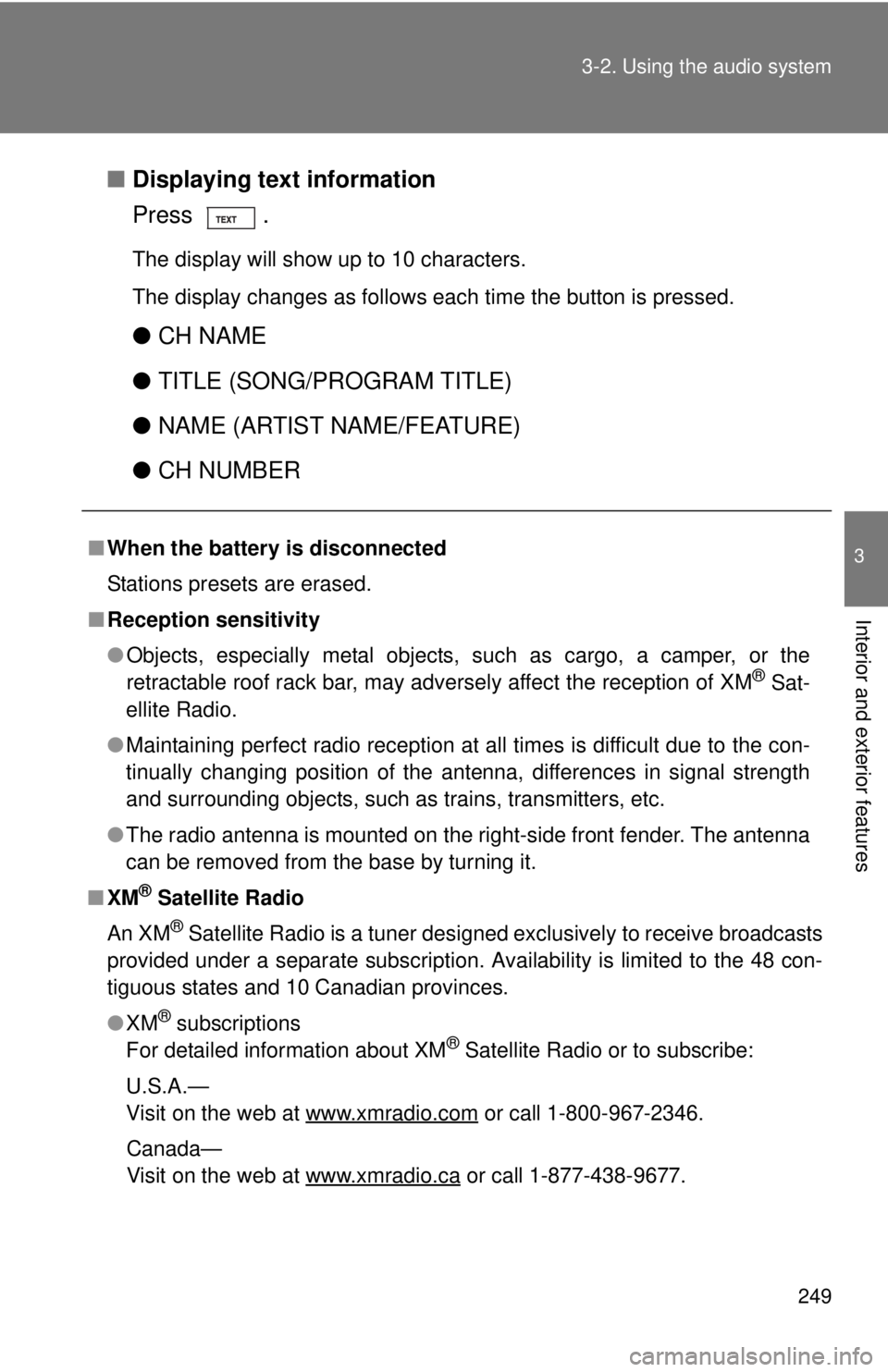
Displaying text information
Press .
The display will show up to 10 characters.
The display changes as follows each time the button is pressed.
●CH NAME
● TITLE (SONG/PROGRAM TITLE)
● NAME (ARTIST NAME/FEATURE)
● CH NUMBER
■When the battery is disconnected
Stations presets are erased.
■ Reception sensitivity
●Objects, especially metal objects, such as cargo, a camper, or the
retractable roof rack bar, may adversely affect the reception of XM
® Sat-
ellite Radio.
● Maintaining perfect radio reception at all times is difficult due to the con-
tinually changing position of the antenna, differences in signal strength
and surrounding objects, such as trains, transmitters, etc.
● The radio antenna is mounted on the right-side front fender. The antenna
can be removed from the base by turning it.
■ XM
® Satellite Radio
An XM
® Satellite Radio is a tuner designed exclusively to receive broadcasts
provided under a separate subscription. Availability is limited to the 48 con-
tiguous states and 10 Canadian provinces.
● XM
® subscriptions
For detailed information about XM® Satellite Radio or to subscribe:
U.S.A.—
Visit on the web at www.xmradio.com
or call 1-800-967-2346.
Canada—
Visit on the web at www.xmradio.ca
or call 1-877-438-9677.
Page 253 of 548
253
3-2. Using the audio system
3
Interior and exterior features
Using the CD player
Loading CDs■ Loading a CD (type A)
Insert a CD.
■ Loading a CD (type B)
Press .
“WAIT” is shown on the display.
Insert a CD when the indicator on the slot turns from amber to
green.
The display changes from “WAIT” to “LOAD”.
■Loading multiple CDs (type B only)
Press and hold until you hear a beep.
“WAIT” is shown on the display.
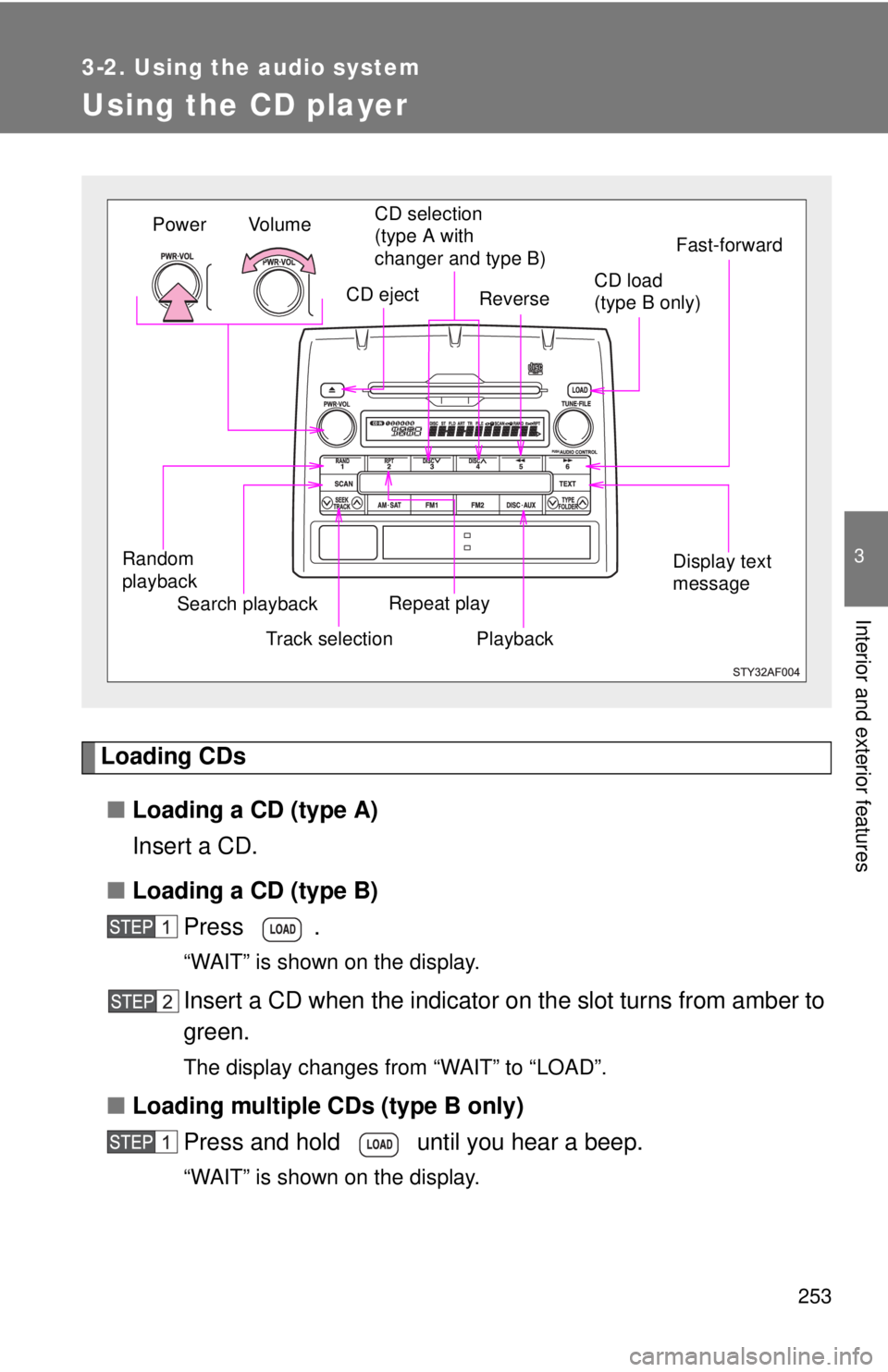
Vol u m e
Random
playback Track selectionRepeat play
Playback
Power
CD eject
Display text
message
CD selection
(type A with
changer and type B)
Search playback
Reverse
Fast-forward
CD load
(type B only)
Page 254 of 548
254 3-2. Using the audio system
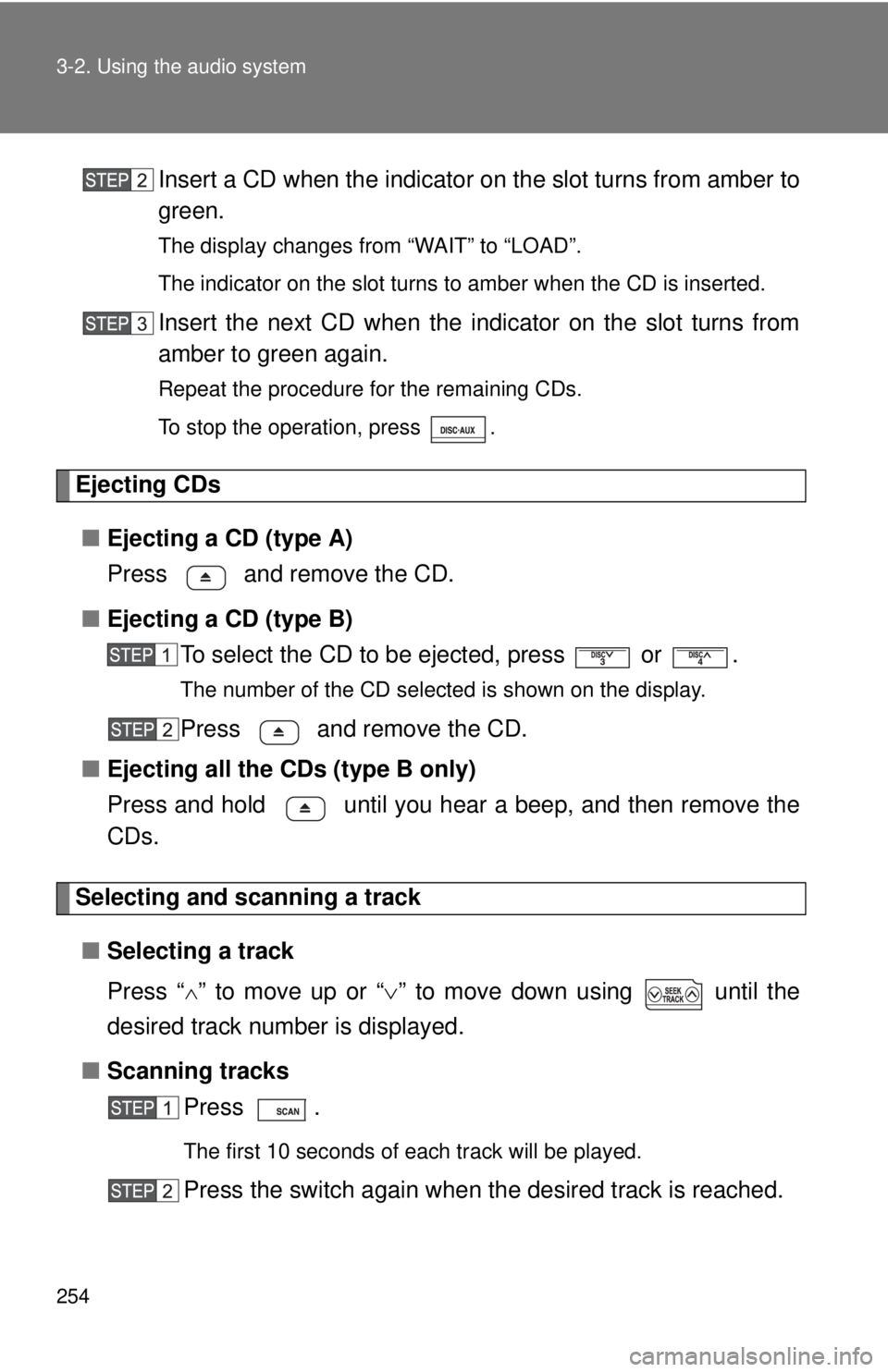
Insert a CD when the indicator on the slot turns from amber to
green.
The display changes from “WAIT” to “LOAD”.
The indicator on the slot turns to amber when the CD is inserted.
Insert the next CD when the indicator on the slot turns from
amber to green again.
Repeat the procedure for the remaining CDs.
To stop the operation, press .
Ejecting CDs
■ Ejecting a CD (type A)
Press and remove the CD.
■ Ejecting a CD (type B)
To select the CD to be ejected, press
or .
The number of the CD selected is shown on the display.
Press and remove the CD.
■ Ejecting all the CDs (type B only)
Press and hold until you hear a beep, and then remove the
CDs.
Selecting and scanning a track
■ Selecting a track
Press “
” to move up or “ ” to move down using until the
desired track number is displayed.
■ Scanning tracks
Press .
The first 10 seconds of each track will be played.
Press the switch again when the desired track is reached.
Page 256 of 548
256 3-2. Using the audio system
Switching the displayPress .
Each time the switch is pressed, the display changes in the order of Track
no./Elapsed time CD titleTrack name.
■Display
Up to 12 characters can be displayed at a time.
If there are 13 characters or more, pressing and holding
for 1 second
or more will display the remaining characters.
A maximum of 24 characters can be displayed.
If is pressed for 1 second or more again or has not been pressed for
6 seconds or more, the display will return to the first 12 characters.
Depending on the contents recorded, the characters may not be displayed
properly or may not be displayed at all.
■ Canceling random playback
Press again.
■ Canceling repeat play
Press again.
■ Error messages
“ERROR”:This indicates a trouble either in the CD or inside the player.
The CD may be dirty, damaged or inserted up-side down.
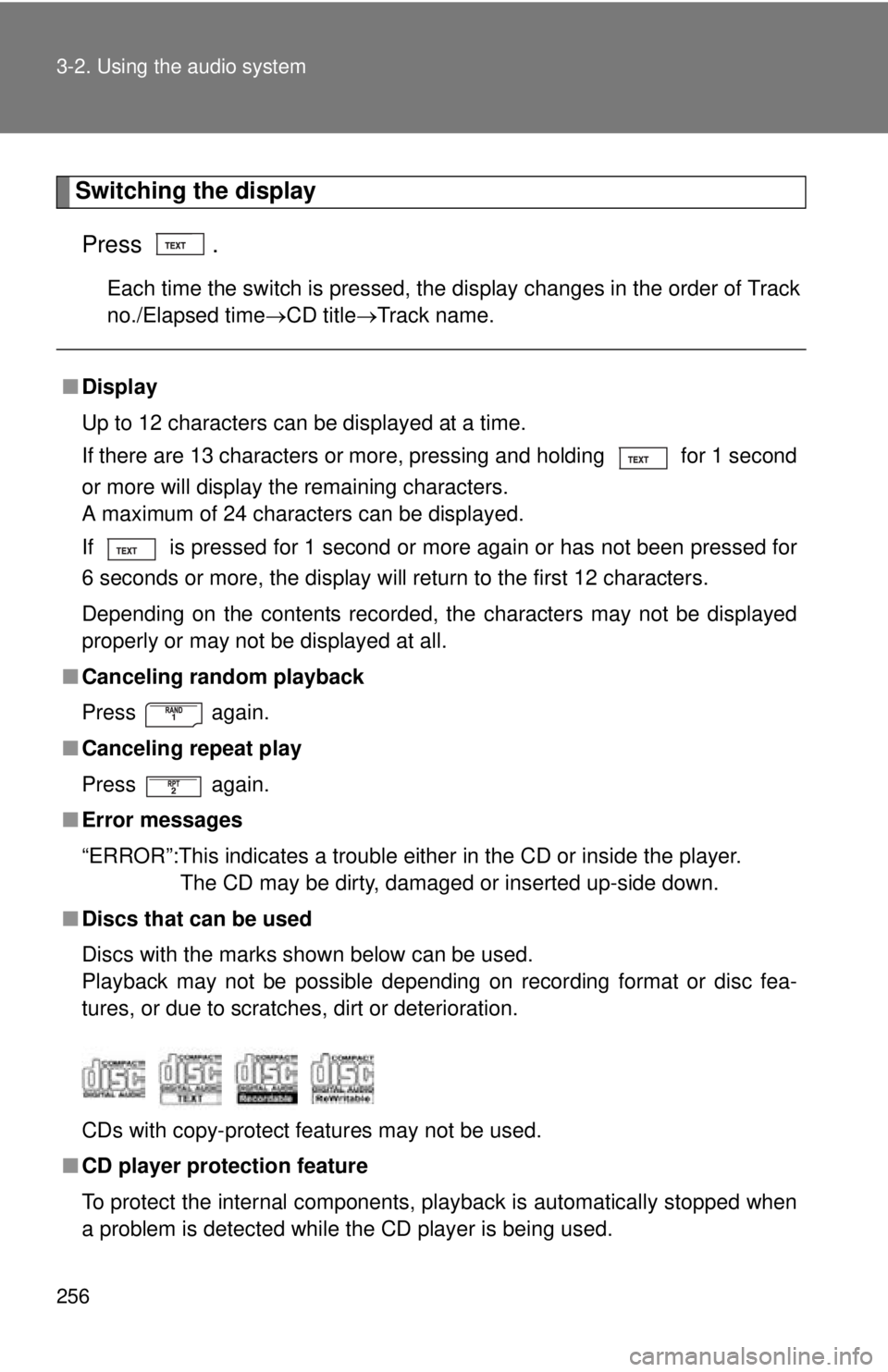
■ Discs that can be used
Discs with the marks shown below can be used.
Playback may not be possible depending on recording format or disc fea-
tures, or due to scratches, dirt or deterioration.
CDs with copy-protect features may not be used.
■ CD player protection feature
To protect the internal components, playback is automatically stopped when
a problem is detected while the CD player is being used.
Page 259 of 548
259
3-2. Using the audio system
3
Interior and exterior features
Playing back MP3 and WMA discs
Loading MP3 and WMA discs■ Loading a disc (type A)
Insert a disc.
■ Loading a disc (type B)
Press .
“WAIT” is shown on the display.
Insert a disc when the indicator on the slot turns from amber
to green.
The display changes from “WAIT” to “LOAD”.
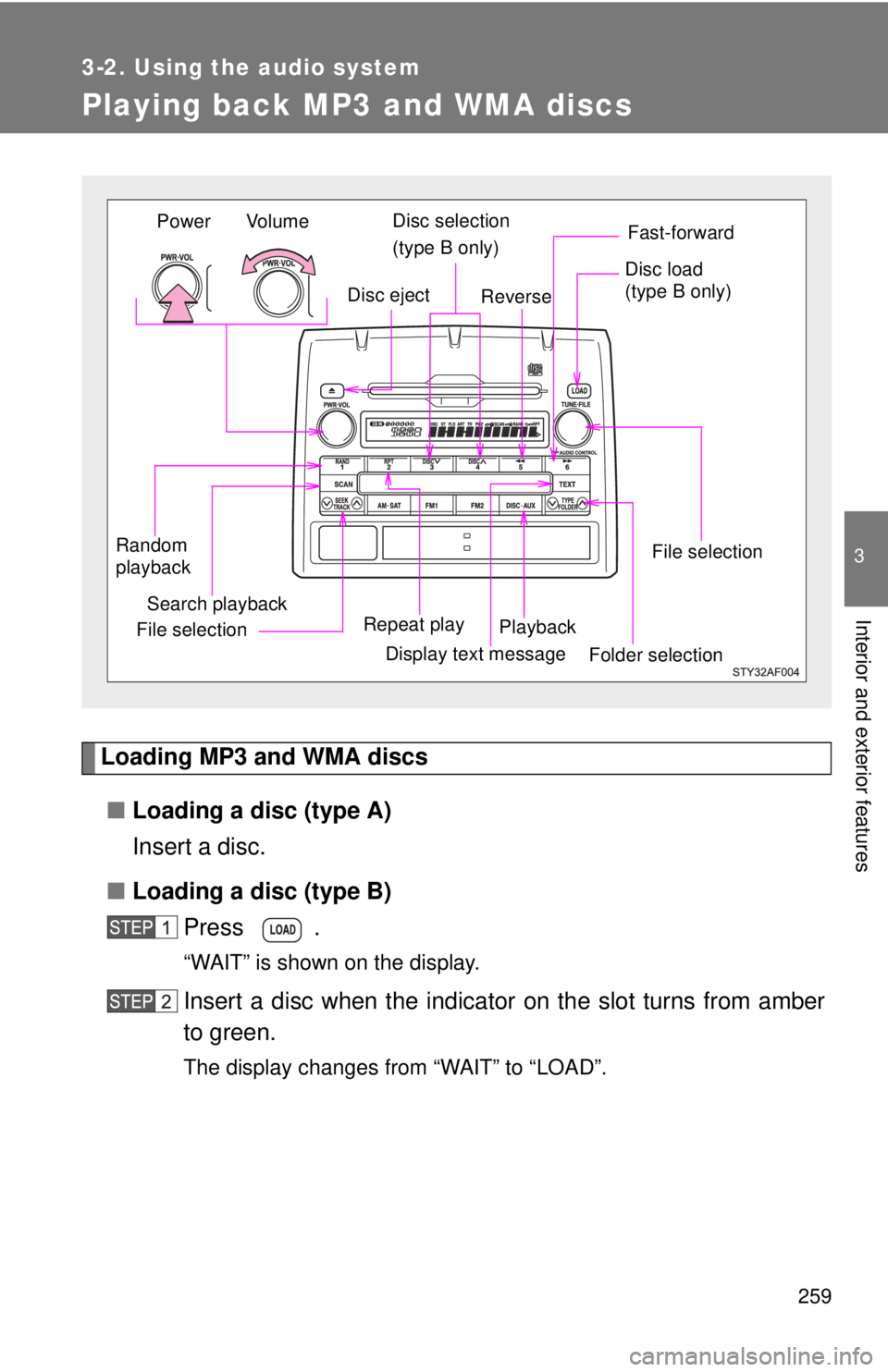
Vo l u m e
Random
playback File selection File selection
Repeat play Playback
Power
Disc eject
Display text message Folder selection
Search playback
Disc selection
(type B only)Fast-forward
Reverse
Disc load
(type B only)
Page 260 of 548
260 3-2. Using the audio system
■Loading multiple discs (type B only)
Press and hold until you hear a beep.
“WAIT” is shown on the display.
Insert a disc when the indicator on the slot turns from amber
to green.
The display changes from “WAIT” to “LOAD”.
The indicator on the slot turns to amber when the disc is inserted.
Insert the next disc when the indicator on the slot turns from
amber to green again.
Repeat the procedure for the remaining discs.
To stop the operation, press .
Ejecting MP3 and WMA discs
■ Ejecting a disc (type A)
Press and remove the disc.
■ Ejecting a disc (type B)
To select the disc to be ejected, press
or .
The number of the disc selected is shown on the display.
Press and remove the disc.
■ Ejecting all the discs (type B only)
Press and hold until you hear a beep, and then remove the
discs.
Selecting a disc (type B only)
■ Selecting the desired disc
Press or .
Page 262 of 548
262 3-2. Using the audio system
Repeat play■ Repeating a file
Press .
■ Repeating all of the files in the folder
Press and hold until you hear a beep.
Random playback
■ Playing files from a particular folder in random order
Press .
■ Playing all of the files on a disc in random order
Press and hold until you hear a beep.
Switching the display
Press .
Each time the switch is pressed, the display changes in the order of
Folder no./File no./Elapsed time Folder nameFile nameAlbum title
(MP3 only) Track title Artist name.
Page 263 of 548
263
3-2. Using the audio system
3
Interior and exterior features
■
Display
Up to 12 characters can be displayed at a time.
If there are 13 characters or more, pressing and holding for 1 second
or more will display the remaining characters.
A maximum of 24 characters can be displayed.
If is pressed for 1 second or more again or has not been pressed for
6 seconds or more, the display will return to the first 12 characters.
Depending on the contents recorded, the characters may not be displayed
properly or may not be displayed at all.
■ Canceling random playback
Press
again.
■ Canceling repeat play
Press again.
■ Error messages
“ERROR”: This indicates a trouble either in the CD or inside the player.
The CD may be dirty, damaged or inserted up-side down.
“NO MUSIC”:This indicates that the MP 3/WMA file is not included in the CD.
■ Discs that can be used
Discs with the marks shown below can be used.
Playback may not be possible depending on recording format or disc fea-
tures, or due to scratches, dirt or deterioration.
■ MP3 and WMA player protection feature
To protect the internal components, playback is automatically stopped when
a problem is detected while the MP3 and WMA player is being used.
■ If discs are left inside the MP3 and WMA player or in the ejected posi-
tion for extended periods
Discs may be damaged and may not play properly.
Page 265 of 548
265
3-2. Using the audio system
3
Interior and exterior features
●
Compatible media
Media that can be used for MP3 and WMA playback are CD-Rs and CD-
RWs.
Playback in some instances may not be possible, depending on the status
of the CD-R or CD-RW. Playback may not be possible or the audio may
jump if the disc is scratched or marked with fingerprints.
● Compatible disc formats
The following disc formats can be used.
• Disc formats: CD-ROM Mode 1 and Mode 2
CD-ROM XA Mode 2, Form 1 and Form 2
• File formats: ISO9660 Level 1, Level 2, (Romeo, Joliet) MP3 and WMA files written in any format other than those listed above
may not play correctly, and their file names and folder names may not
be displayed correctly.
Items related to standards and limitations are as follows.
• Maximum directory hierarchy: 8 levels
• Maximum length of folder names/file names: 32 characters
• Maximum number of folders: 192 (including the root)
• Maximum number of files per disc: 255
● File names
The only files that can be recognized as MP3/WMA and played are those
with the extension .mp3 or .wma.
● Multi-sessions
As the audio system is compatible with multi-sessions, it is possible to play
discs that contain MP3 and WMA files. However, only the first session can
be played.
● ID3 and WMA tags
ID3 tags can be added to MP3 files, making it possible to record the track
title and artist name, etc.
The system is compatible with ID3 Ver. 1.0, 1.1, and Ver. 2.2, 2.3 ID3 tags.
(The number of characters is based on ID3 Ver. 1.0 and 1.1.)
WMA tags can be added to WMA files, making it possible to record the
track title and artist name in the same way as with ID3 tags.